

Invoicing: Tickets, invoices and quotes in orders
In this section you will learn how to view, generate and download documents
On this page
- Invoicing: Tickets, invoices and quotes in orders
- 1. Viewing invoices
- 2. Generating invoices
- 3. Downloading invoices
- 4. Download the documents summary (CSV)
- Related articles
- Document date, draft and issuing
- Choosing the document date
- Saving as a draft or issuing
- Order of the Orders > Documents list
- More invoicing guides
Invoicing: Tickets, invoices and quotes in orders
 Facturación: tickets, facturas y presupuestos
In this guide we show you how to access, generate and download all your tickets and invoices. First, go to the Orders>Documents section.
1. Viewing invoices
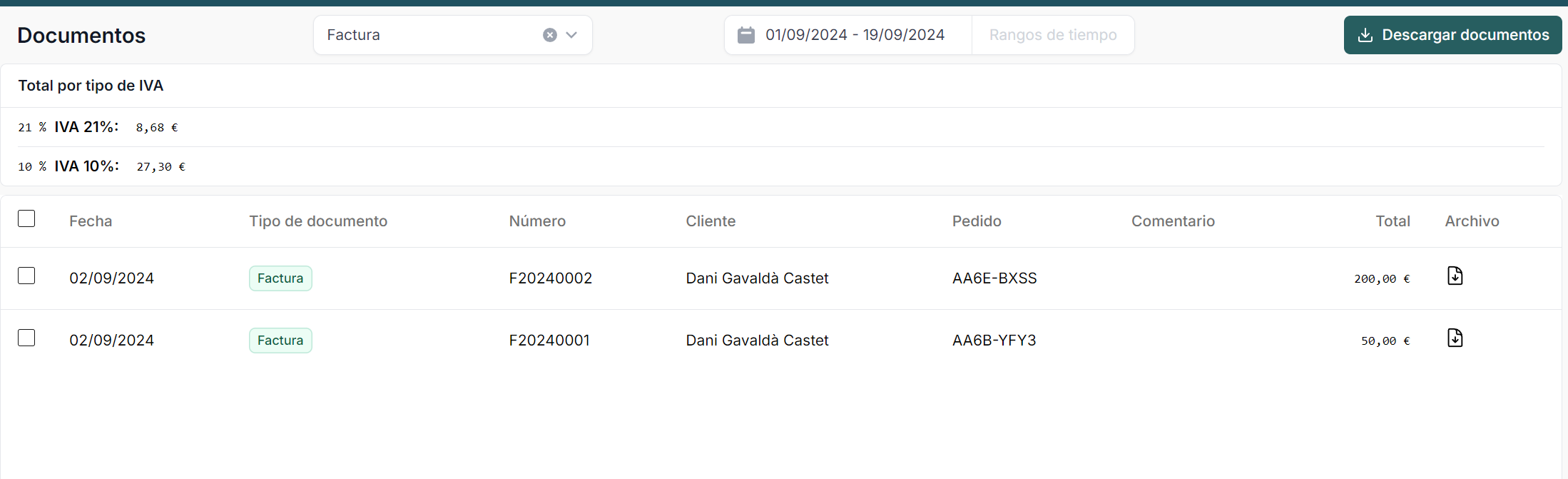
The main panel shows all types of documents. You can filter by dates to find the document you are looking for. In the download documents tab you can download the invoices or tickets you want. You will also get a summary of the amount of VAT generated by all the invoices.
2. Generating invoices
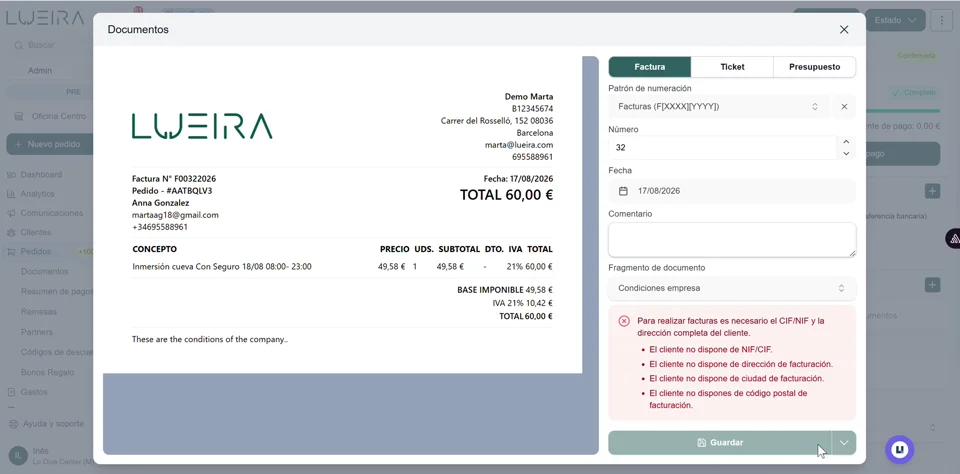
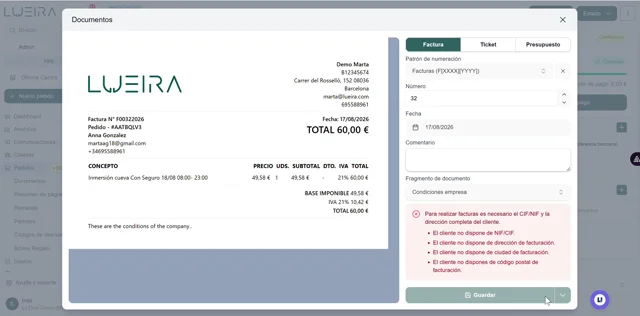
To generate invoices, open a specific order and on the right-hand side you will see a section called Documents. Click the + button and it will let you generate the invoice, ticket or quote.
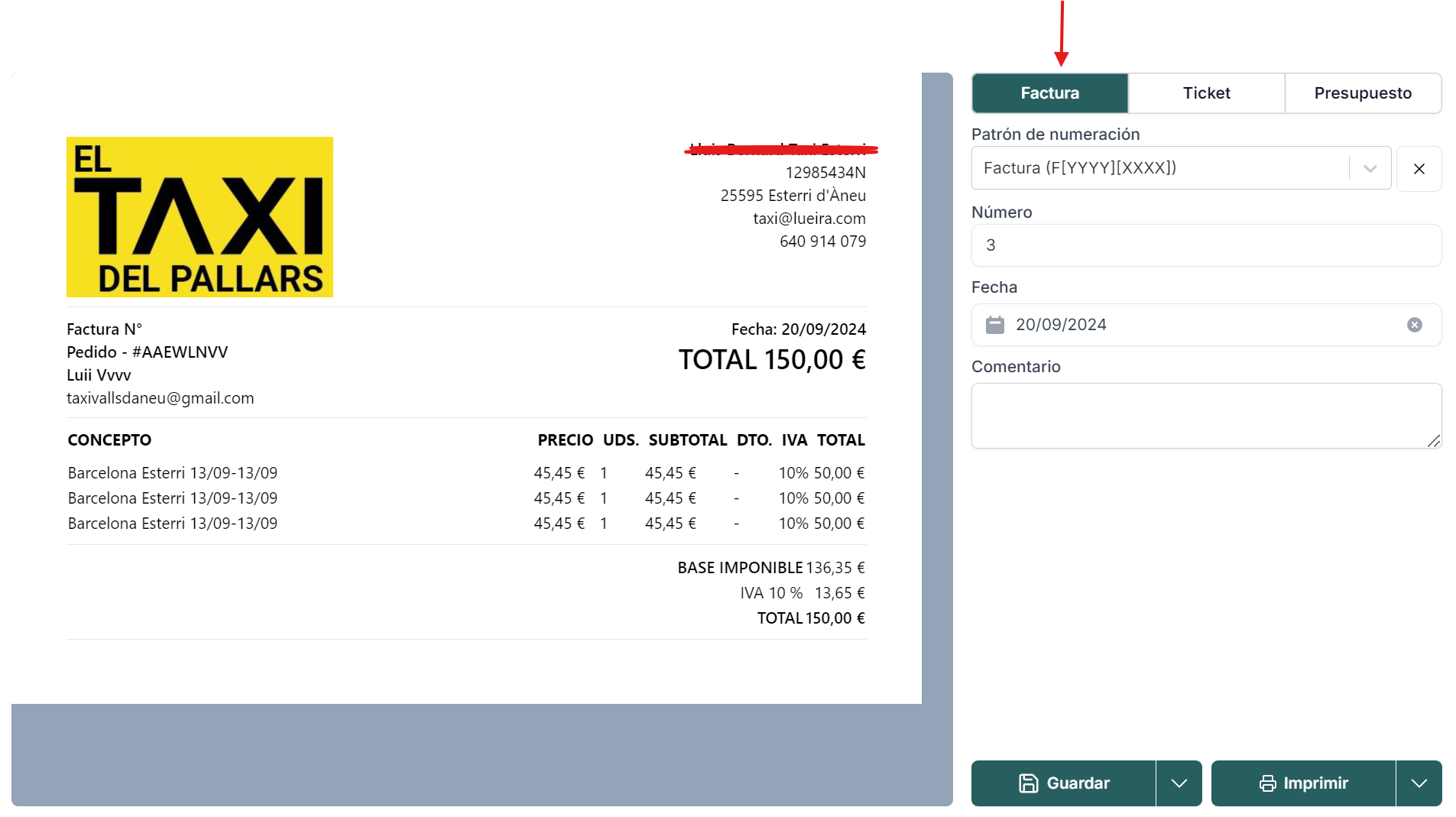
You will have configured the numbering pattern and the series number beforehand in Settings>Document numbering>Add numbering pattern.
It is important to make sure that the billing details, both your company's and your customers', are correct before generating an invoice. This matters especially if electronic invoicing is enabled, because if the customer's billing details are not correct, the system will show an error. (Make sure the NIF, the Spanish tax ID number, is correct and contains no lowercase letters.)
3. Downloading invoices
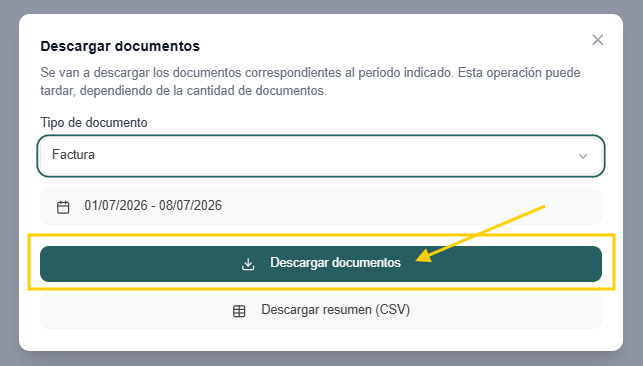
Finally, to download your invoices you can do it from the documents section by clicking the download documents button. You can also access invoices, tickets or quotes from the orders section by clicking a specific order or customer.

4. Download the documents summary (CSV)
From that same download documents window you can also get a summary in CSV format (it opens directly in Excel or Google Sheets), very useful for sending the information to your accountant or for doing your own accounting analysis without opening each document one by one.
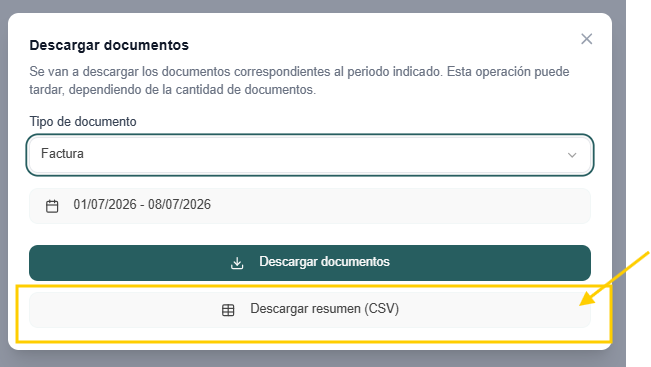
For each document in the selected period and type, the CSV includes the following columns:
First name, Last name and Legal name: identify the document's customer (first and last name for an individual, or the company name for a business).
Taxable base (BI, base imponible): the amount before taxes are applied. This is the figure your accountant needs to calculate IRPF (Spanish personal income tax) and VAT.
Total VAT: the sum of all the VAT applied to the document.
Total amount: the final amount of the document (taxable base + VAT), the one actually collected.
VAT for each rate applied (for example, VAT 21%): one column is added for each VAT rate that exists in your documents, so you can declare VAT broken down by rate as required by the tax authorities.
Creation date: the moment the document was generated in Lueira.
Document date: the official date that appears on the invoice or ticket, the one that counts for tax purposes.
Document name: the name Lueira uses to identify that document.
Invoice number: the invoice number as it appears on the PDF, according to your numbering pattern.
Document number: the document's internal sequential number, useful for checking that none is missing from the numbering.
Order reference: the identifier of the order the document comes from, so you can easily find it in Lueira.
Order status: whether the order is still active, has been cancelled, etc.
Payment status: whether the order is paid, pending or partially paid, so you can track payments without opening each order.
If you have any questions, do not hesitate to contact Lueira's support team!
Related articles
Document date, draft and issuing
In the order detail, the block where invoices and tickets are generated is called Invoicing. When you click its +, the Documents panel opens, with one tab per type (Invoice, Ticket, Quote and Proforma) and a preview of the document on the left.
Choosing the document date
In the Numbering and date section you choose the Numbering pattern, see the Number that will be assigned, and can change the document's Date (today's by default). It is the official date that appears on the invoice or ticket.
⚠️ If you have Verifactu or TicketBAI enabled and need to issue an invoice with a past date, check with support first.
Saving as a draft or issuing
At the bottom of the panel you have the Issue button. The arrow next to it opens more options:
Issue: generates the final document with its number. An issued invoice can no longer be edited or deleted; if there is an error, it has to be rectified (corrected with a credit note).
Issue and download: the same, and it also downloads the PDF.
Save as draft: saves the document without issuing it, so you can review it first.
💡 Before issuing, check the customer details and the line items in the preview: the invoice is generated from the order's line items.
Order of the Orders > Documents list
The list is sorted by document date, from most recent to oldest. If you issue an invoice with an earlier date, it will appear in the position of that date and not at the very top: use the date filter to find it.
More invoicing guides
Rectifying an invoice or a ticket and configuring its numbering: what to do if an issued invoice has an error.
Quarterly close: exporting invoices, VAT breakdown and documents for your accountant: what to download at the end of each quarter.
Refunding an order that has already been paid: refunding a payment and balancing the order with the rectifying invoice.
Videos about this guide
Related guides
- Orders navigationView the status of all your orders, invoices or payments
- How to create ordersWe show you how to create orders and add every type of product to them.
- Creating a lesson booking from the admin: several days, a second teacher and line priceHow to create a lesson order from the admin: add private or group sessions, book several days in a row, add a second teacher without losing the charge for the second lesson and change the price of a line.
- Order statusesThis section gives you an overview of the status an order is in
- Order lifecycle: statuses, payment and confirmationA complete explanation of the order and payment statuses in Lueira, how they relate to each other, and when an order is confirmed automatically or manually depending on the payment method.
- Deleted and cancelled orders: the difference, how to see them and how to ask for them to be restoredThe difference between cancelling and deleting an order, where to find cancelled orders, how to find out who changed or deleted an order with Change tracking, and what to do so support can restore an order deleted by mistake.