

Orders navigation
View the status of all your orders, invoices or payments
On this page
Orders navigation
When you log in to Lueira, the main view lets you see all the orders generated in your account, whether they are for school, rental or sales. This view is also the main view of the "Orders", section in the left-hand side menu.
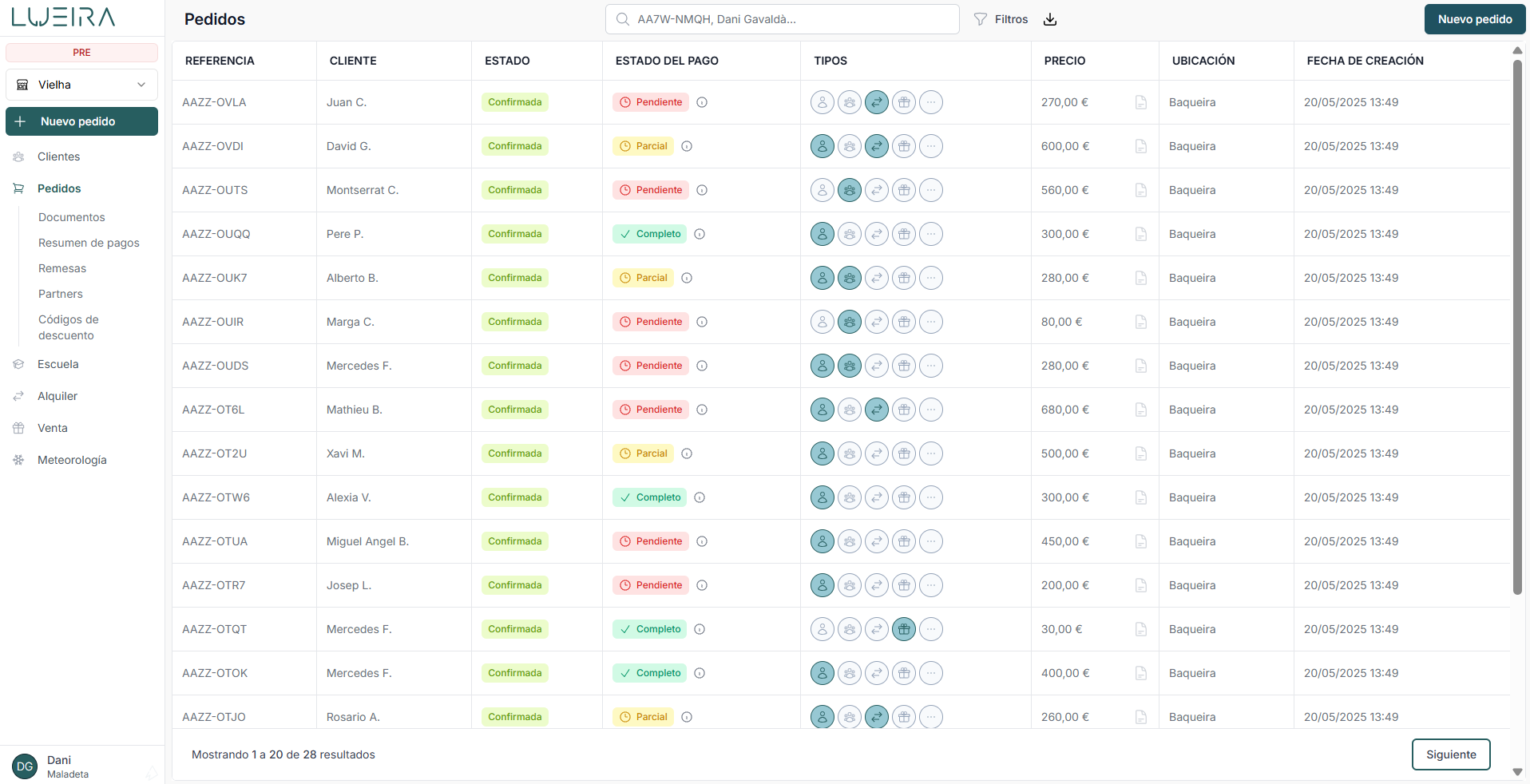
On this screen you can see the following information for each order, clearly laid out:
Reference: whenever you create a new order, a new reference is automatically generated.
Customer: a customer is always associated with the order.
Status: the status of the order; Confirmed, In progress or Cancelled.
Payment status: Pending, Partial or Complete.
Order type: Private lesson, group lesson, rental, sale and custom product.
Price: the price set on the order and whether there is an associated invoice or receipt.
Location: the origin of the order. It can show Online store, the physical point of sale (the tenant's location) where the order was created, the name of the Marketplace/OTA (for example GetYourGuide or RocRoi) if the order came through an integration, or AI Agent if the order was created through the WhatsApp Agent.
Search and filter orders
At the top of the orders screen you will find a search box where you can find an order by its reference or by the customer's name.

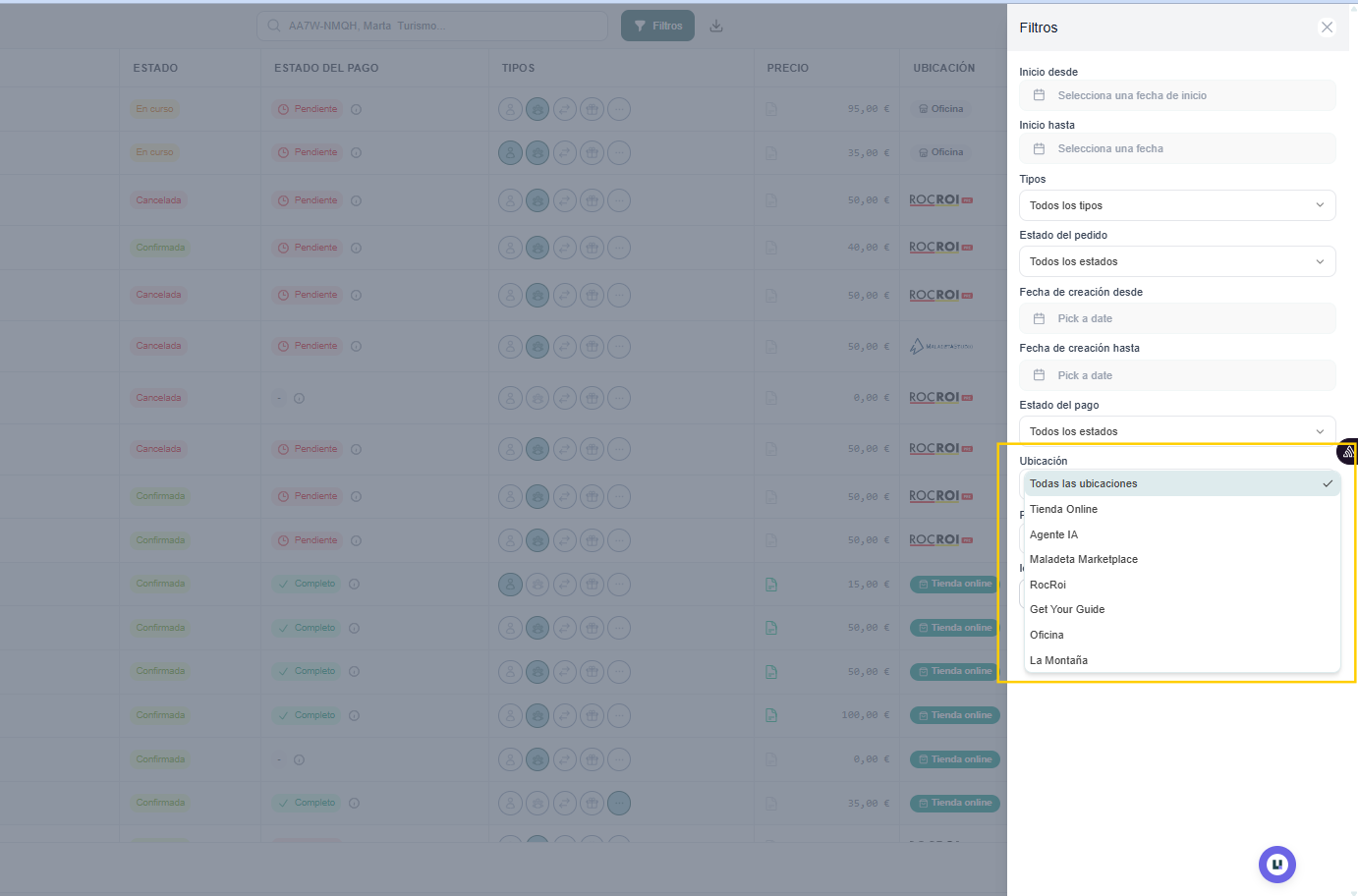
Next to the search box, the "Filters" button opens a side panel with several options to narrow down the list of orders:

Date range for the start and creation of the order.
Order type and order status.
Payment status.
Location: lets you filter orders by their origin. The available options are:
All locations (no filter).
Online store.
AI Agent.
Each Marketplace/OTA that the tenant has configured and active (for example GetYourGuide or RocRoi).
Each point of sale or physical location registered in your account.
Partner associated with the order.
Redsys ID.
When you click an order you will open its details page, where you can see all the information the platform holds about it.
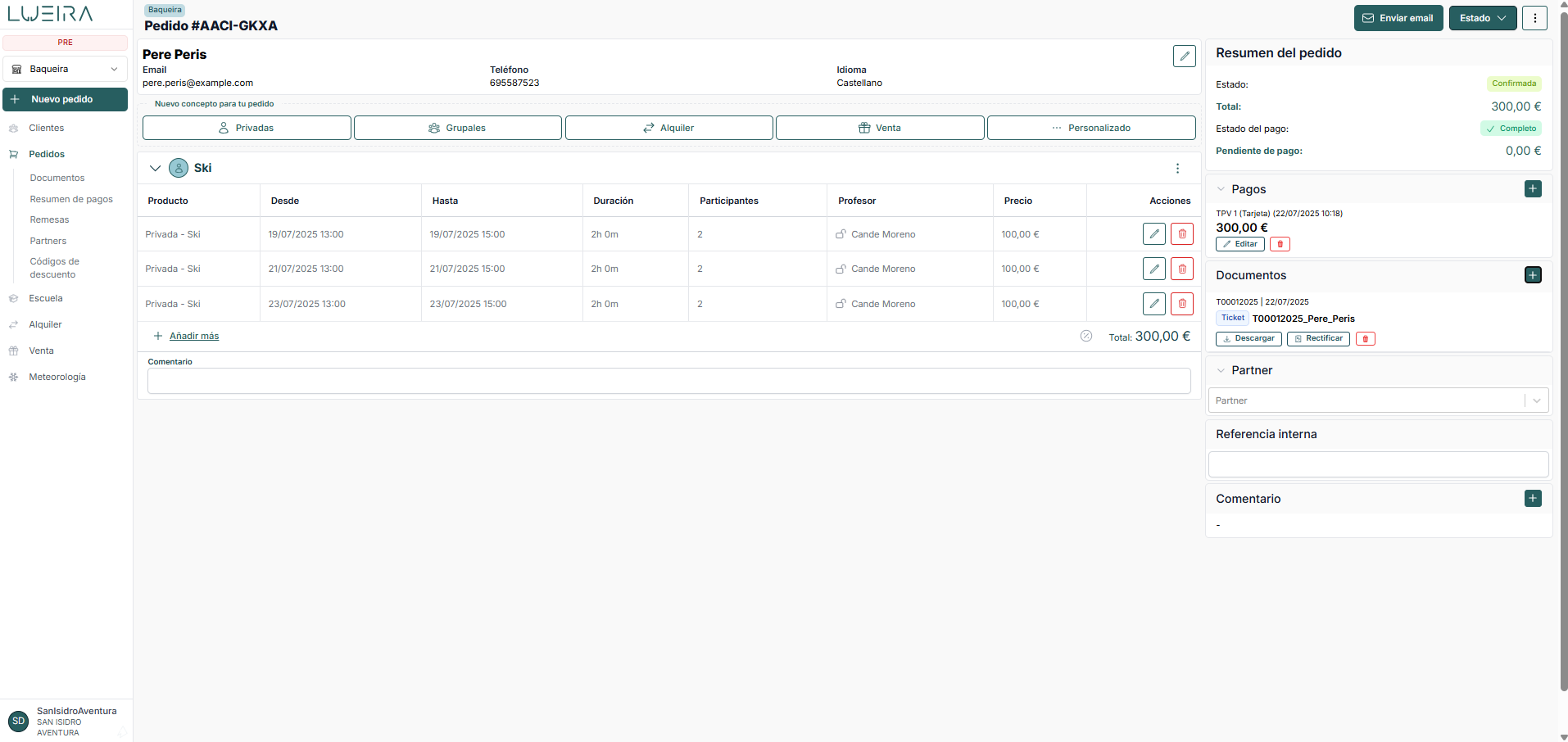
On the order page you can see a summary of the order information, such as the customer information, the products purchased, the documents generated, the order summary with the payment details, whether it has an associated Partner, and any comments we want to add.
Order comments
In the right-hand sidebar of the order page you will find the "Comments" block: a thread where your team can leave internal notes about that order (incidents, customer requests, reminders for a colleague, etc.).
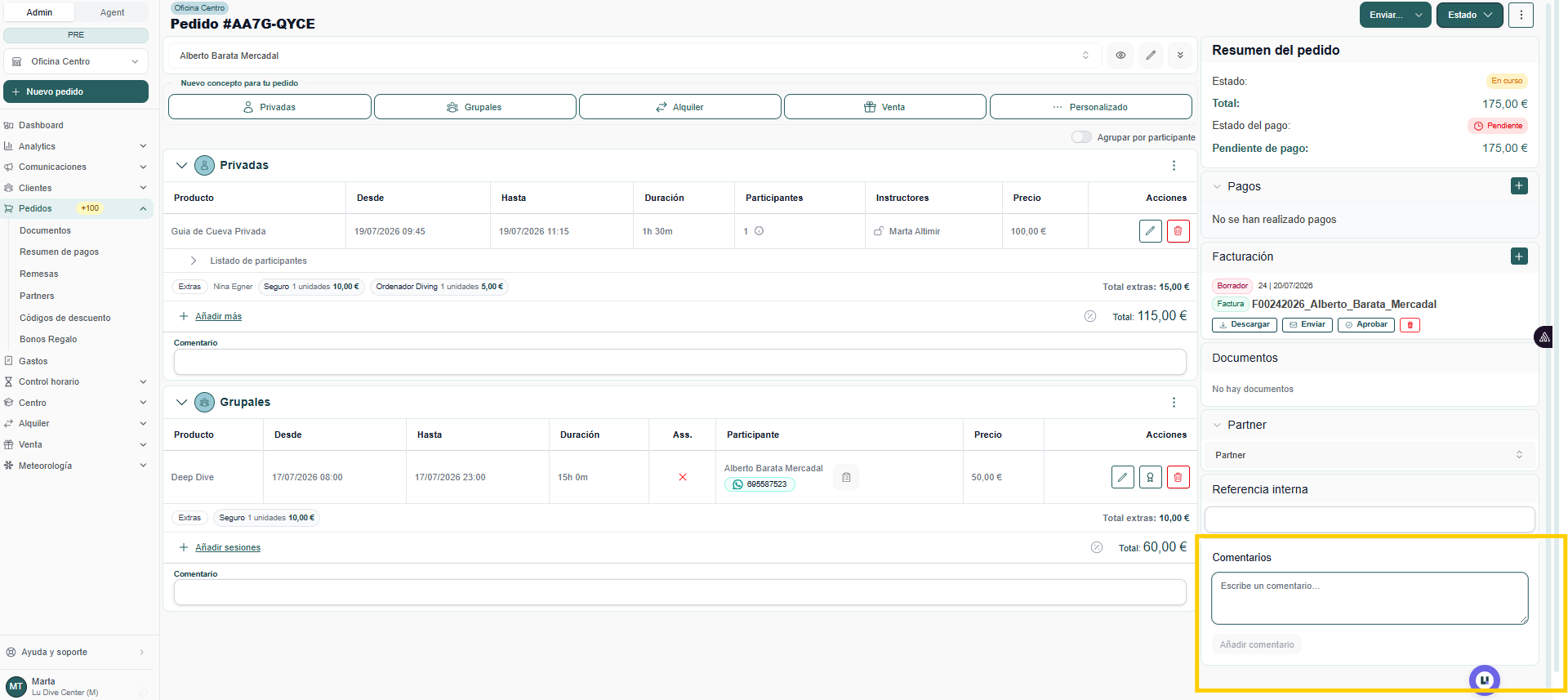
It shows the comments already added, or the notice "No comments" if there are none yet.
Below you have a "Write a comment..." field and the Add comment button to add a new one to the thread.
Marketplace information on the order page
When an order arrives through an integration with a Marketplace/OTA (GetYourGuide, RocRoi, etc.), in the right-hand sidebar of the order page you will find the "Marketplace" block, with two pieces of information:
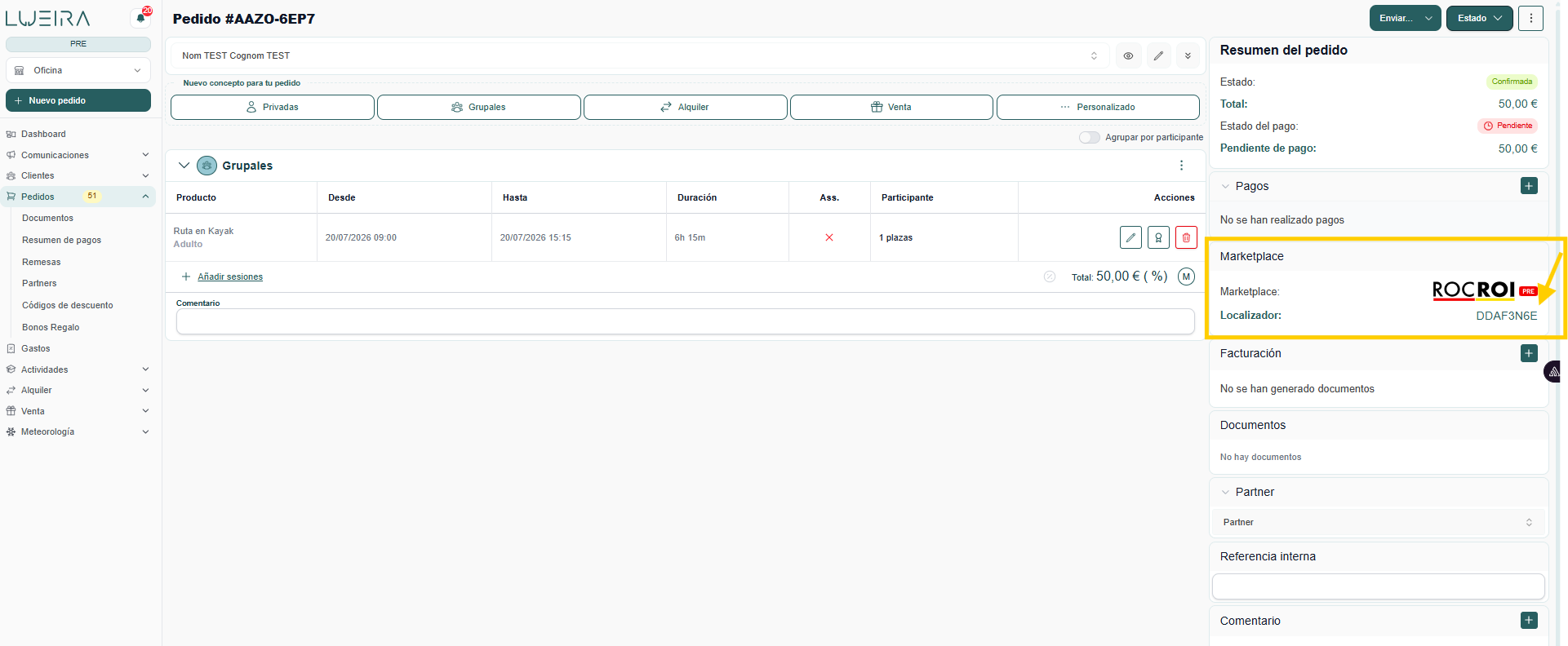
Marketplace: the name/logo of the source OTA.
Locator: the booking code that the Marketplace uses to identify the booking (external reference).
This Locator is useful for matching the booking with what the customer or the Marketplace itself sees on its platform.
Group by participant:
Inside the order details, in the header of the products section, you will find the "Group by participant" switch. It lets you change how the lines of the purchased products are displayed, especially group lessons with several sessions and several participants.
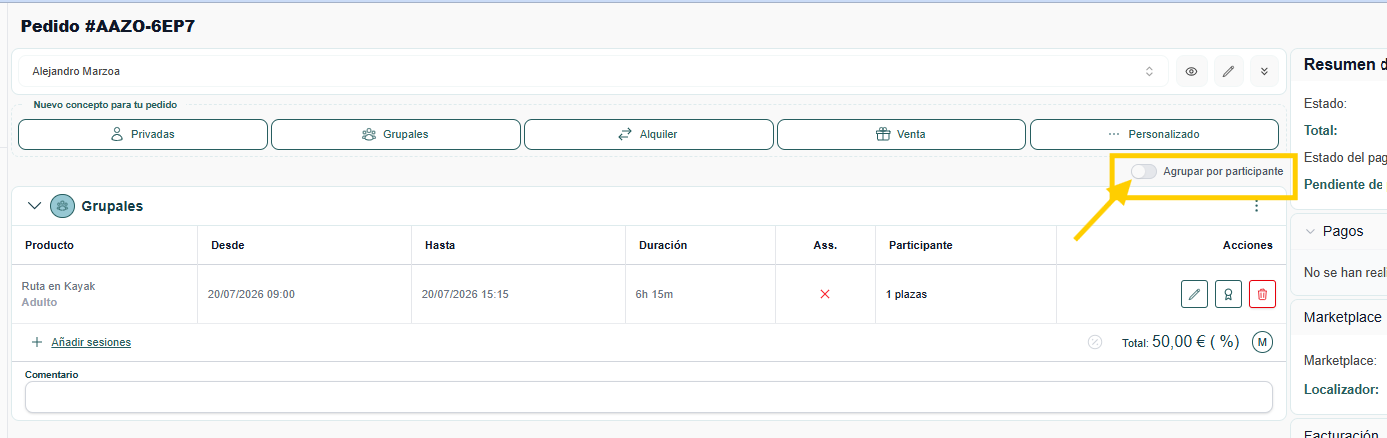
Off (default view) → each session appears as a separate row with its product, dates, duration and price.
On → the lines are grouped by participant. Each participant (with their name and phone number) has their own block inside the group lessons section, showing all the sessions they are signed up for and a "Sessions: N" counter.
This toggle is especially useful when:
A single order contains several participants with different sessions booked.
You want to review at a glance what each person has booked, instead of reading all the session lines mixed together.
💡 Grouping is only a display preference: it does not affect the order or the sessions, only how they are shown on screen.
If you have any questions, don't hesitate to contact the Lueira support team!
Related guides
- How to create ordersWe show you how to create orders and add every type of product to them.
- Creating a lesson booking from the admin: several days, a second teacher and line priceHow to create a lesson order from the admin: add private or group sessions, book several days in a row, add a second teacher without losing the charge for the second lesson and change the price of a line.
- Order statusesThis section gives you an overview of the status an order is in
- Order lifecycle: statuses, payment and confirmationA complete explanation of the order and payment statuses in Lueira, how they relate to each other, and when an order is confirmed automatically or manually depending on the payment method.
- Deleted and cancelled orders: the difference, how to see them and how to ask for them to be restoredThe difference between cancelling and deleting an order, where to find cancelled orders, how to find out who changed or deleted an order with Change tracking, and what to do so support can restore an order deleted by mistake.
- Cart link: send an order to be paid from the online storeHow to generate and send the cart link: an alternative to the payment link, designed for quotes that can be completed in the online store.