

Creating a lesson booking from the admin: several days, a second teacher and line price
How to create a lesson order from the admin: add private or group sessions, book several days in a row, add a second teacher without losing the charge for the second lesson and change the price of a line.
On this page
- Creating a lesson booking from the admin
- 1. Create the order and assign the customer
- 2. Add a private lesson
- 2.1 Several days in a row (for example, three days from 10:00 to 13:00)
- 2.2 A second teacher for the same customer
- 3. Add a group session
- 4. Change the price of a line
- What to do if…
- Related guides
- Several days without a calendar: simple mode
- Several days without a calendar: simple mode
Creating a lesson booking from the admin
This guide explains how to create a lesson order from the admin when a customer calls you or comes to the counter: add one or several sessions, book several days in a row, add a second teacher and change the price of a line. It also covers the case of an order that comes out at €0.
1. Create the order and assign the customer
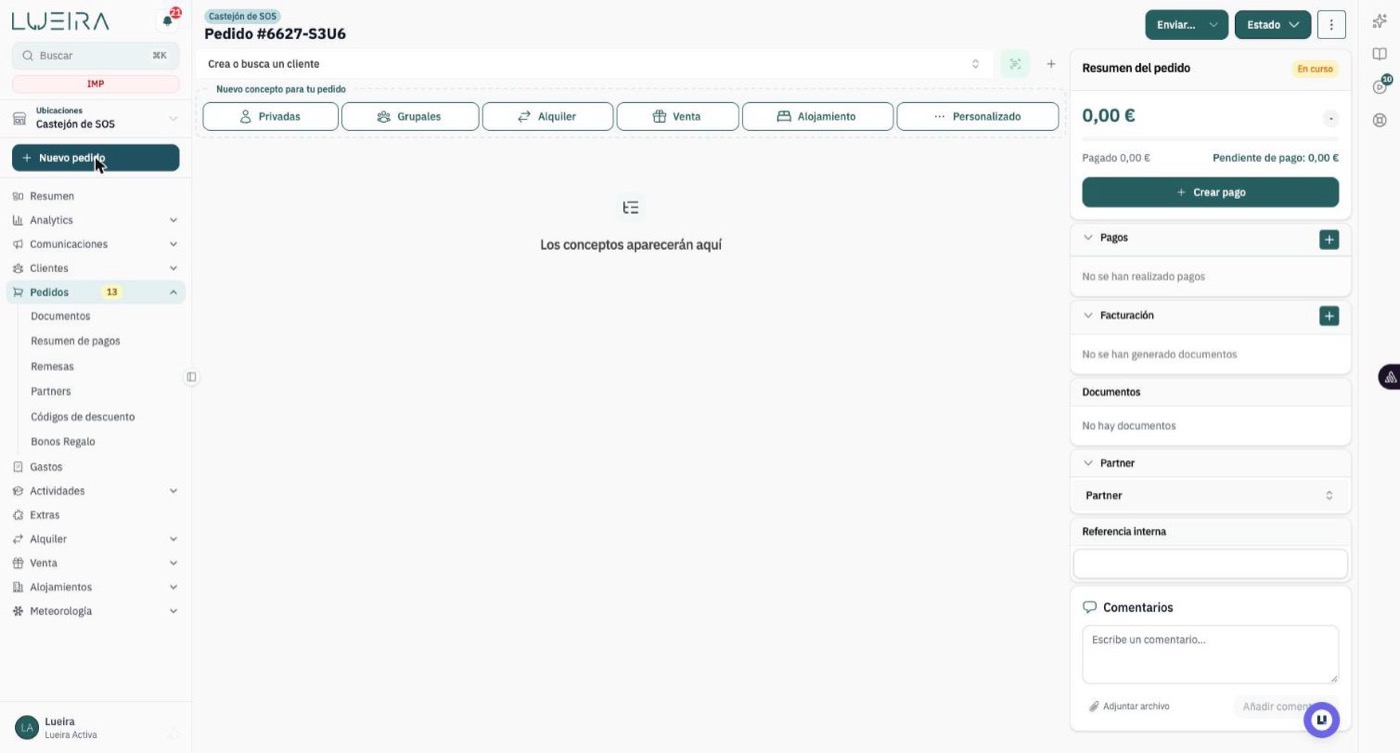
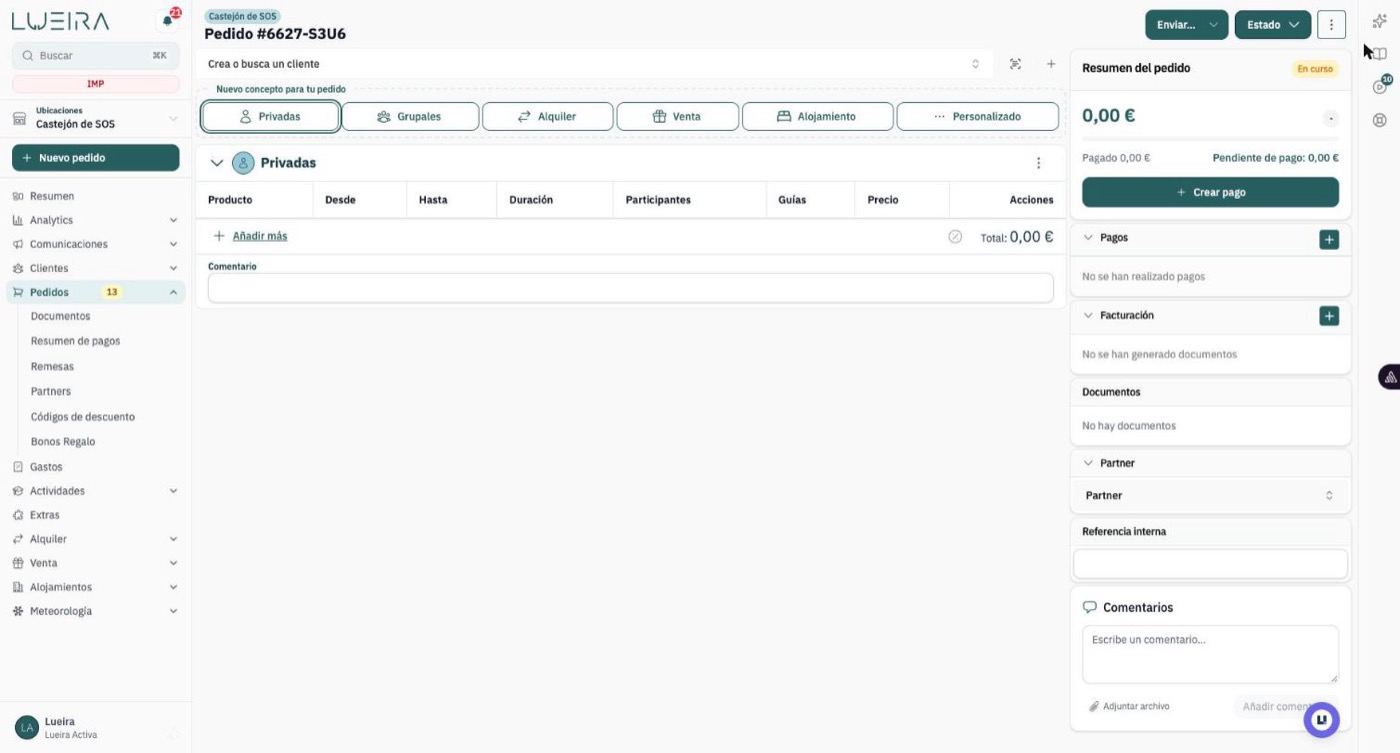
Click New order in the left-hand side menu. A new order in progress is created.
Assign the customer in the Create or search for a customer selector (this is essential before taking payment).
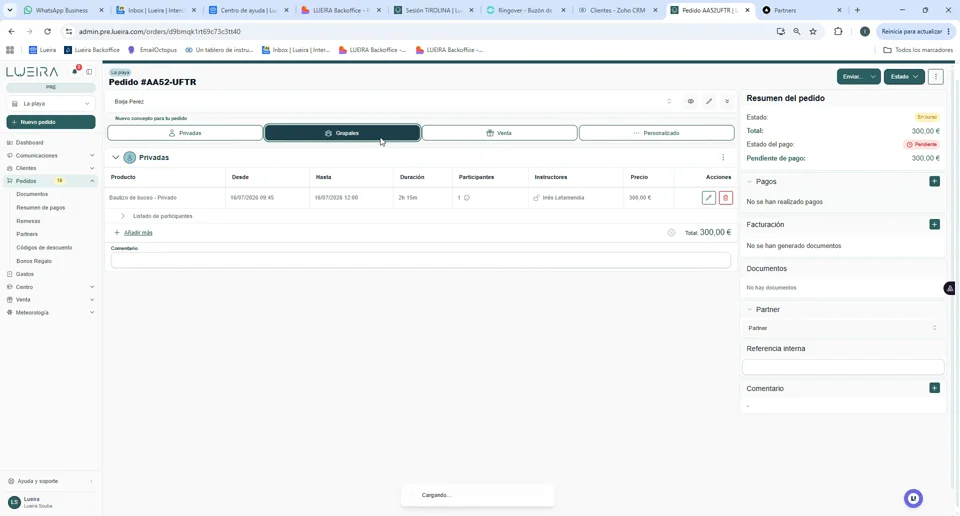
You will see the buttons to add items: Private, Group, Rental, Sale, Accommodation and Custom. A single order can mix several types.
 Cómo crear pedidos
2. Add a private lesson
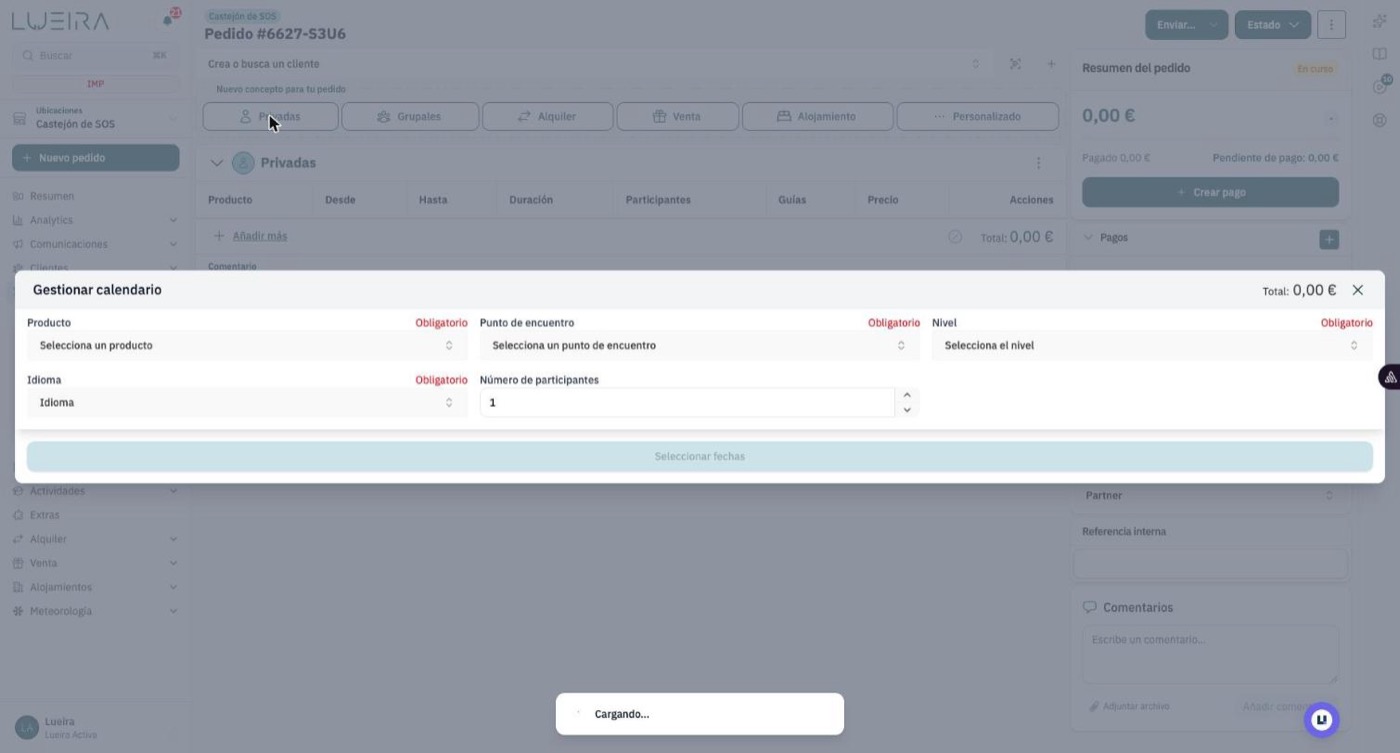
Click Private. The Manage calendar window opens.
Choose the product, the meeting point, the level and the language (they are mandatory) and enter the number of participants.
Click Select dates. You will see the calendar of the teachers (in this admin, Guides): each row is one person. Drag the cursor over the hours you want to set the lesson and its duration.
The price is calculated according to the duration and the product configuration. Click Add to order.
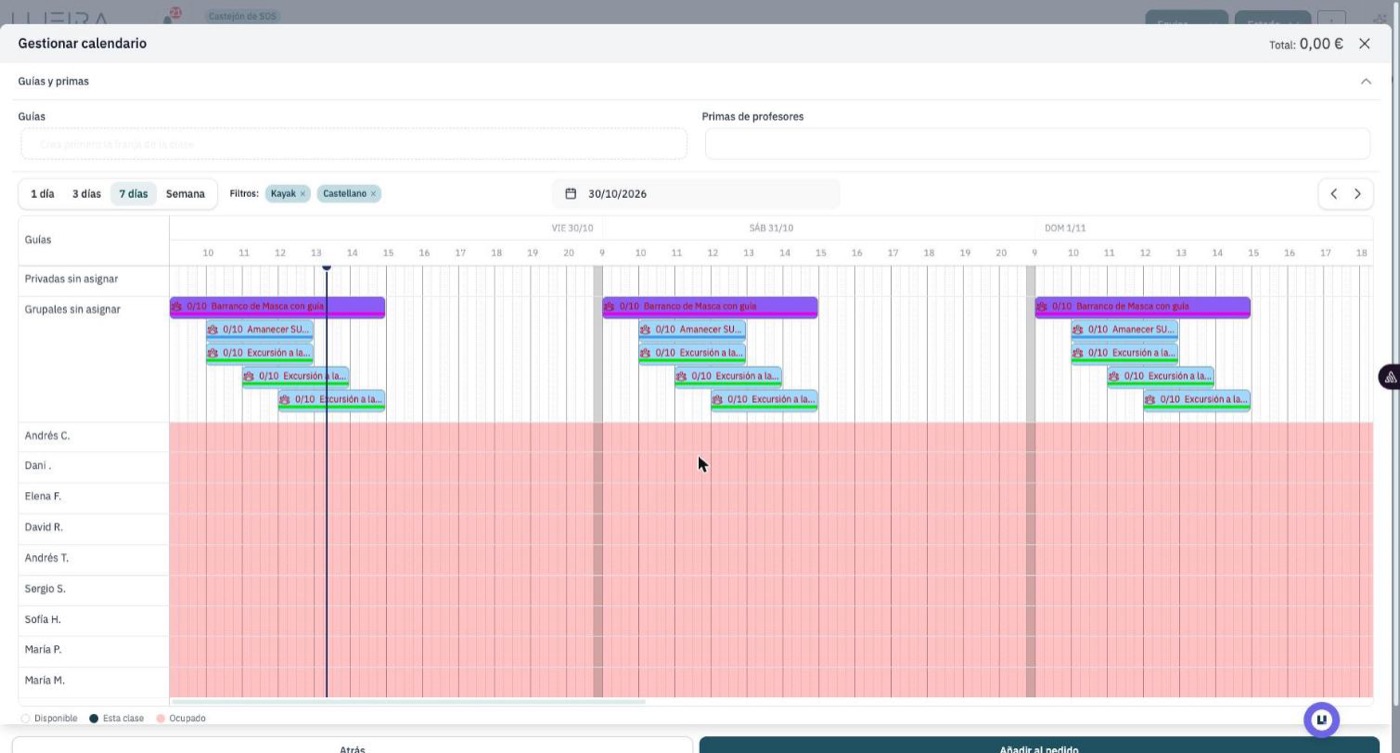
The calendar has 1 day, 3 days, 7 days and Week views, filters by product and language, and a legend: Available, This lesson and Busy (in red).
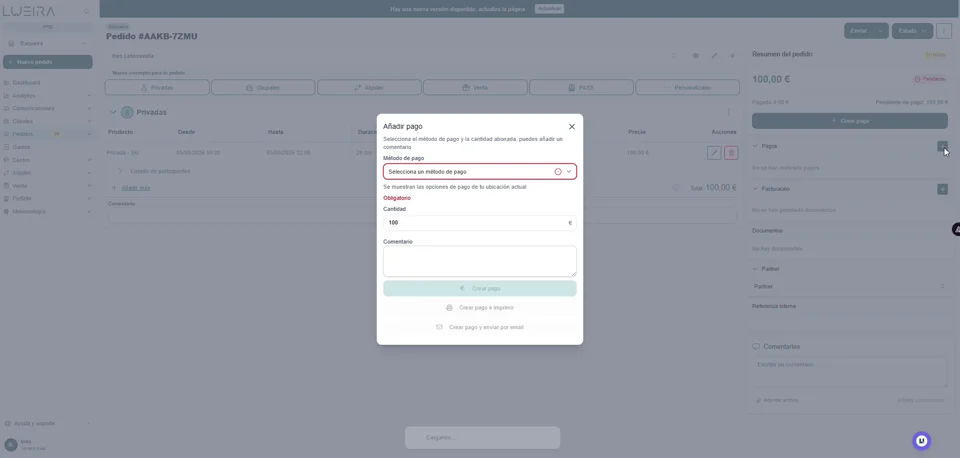 Creación de un pedido privado
2.1 Several days in a row (for example, three days from 10:00 to 13:00)
You do not need to create one order per day: add all the days in the same order. Click Add more in the Private block and repeat the steps for each day; use the 3-day or 7-day view to find the free slots. With group lessons, choose the three sessions from the list with the + button. If you always sell the same multi-day block, consider a specific product (see What type of product do I need?). Check with support whether you can select several days in a single selection: we have not verified it because there was no availability in the demo.
2.2 A second teacher for the same customer
⚠️ Do not add the second teacher from the teachers drop-down in the "Guides and bonuses" panel (top left) while you are loading the lesson: that way both are assigned to the same session and the order only charges one lesson.
Add the first lesson to the order with the first teacher.
Click Add more, go to Select dates again and choose the second teacher directly in the calendar (their row), dragging over their schedule.
Click Add to order. The order will have two lines, each with its own price.
3. Add a group session
Click Group and choose between Products and Packs.
Choose the product and filter by dates: the available sessions are loaded.
Click + on the session to add participants (you can also type their names).
Check the places and the price, and click Add sessions.
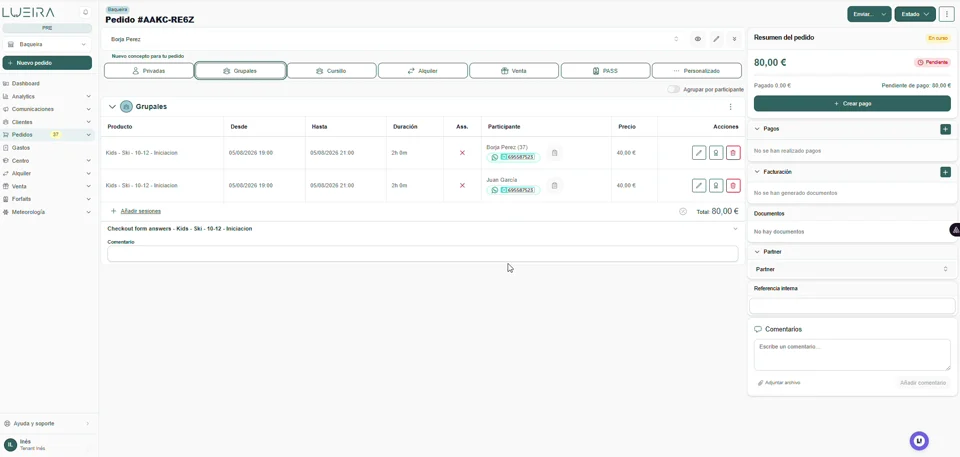 Cómo crear un producto grupal
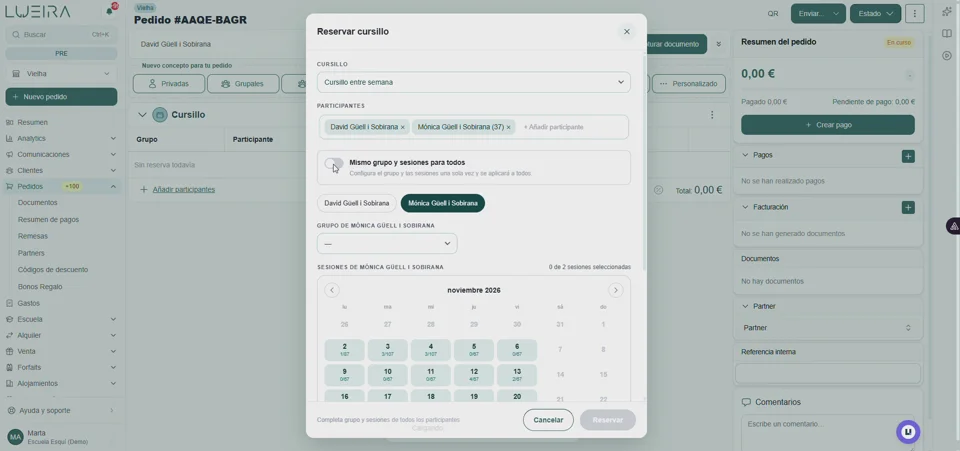 Cursillos: reservar un cursillo manualmente
4. Change the price of a line
Each order line has an Actions column. For a different price (an agreement, a courtesy), use the line's menu and choose Edit item. Check with support for the exact fields on that screen: we have not been able to verify them. If what you want is to reduce the total, use a discount (discount codes).
What to do if…
The order comes out at €0: when you click Private, the order creates the block straight away, even if you have not chosen a date yet. If you close the window without clicking Add to order, the block stays empty (columns Product, From, To… with no data) and the total is €0.00. Click Add more and choose a date and time.
I see two teachers in the order but only one lesson is charged: the second was added from the drop-down. Remove them and add the second lesson by choosing the teacher in the calendar (section 2.2).
Three customers appear at the same time in the calendar: they are three different orders in the same slot, not three lessons of one order. You can force the assignment by hand.
All the rows are red ("Busy"): that teacher has no availability for that product or language on those days. Check their Availability tab and Why my customers cannot book.
Related guides
How to create orders: rental, sale, custom and resale.
Several days without a calendar: simple mode
Several days without a calendar: simple mode
If your role has the simple mode for creating private lessons turned on, clicking Private does not open the teachers calendar: you only enter the first day, the start time, the number of days (up to 14, in a row) and the duration of each lesson, and Lueira finds and assigns the available teachers automatically, creating one lesson per day in the same order. Days when nobody is free are still created, "without teacher", so you can assign them later from the lessons calendar.
📘 See Creating private lessons with simple mode: start, days and duration. The mode is set per role in Settings > Users > Roles; the steps in this guide describe the full (calendar) mode.
Related guides
- Orders navigationView the status of all your orders, invoices or payments
- How to create ordersWe show you how to create orders and add every type of product to them.
- Order statusesThis section gives you an overview of the status an order is in
- Order lifecycle: statuses, payment and confirmationA complete explanation of the order and payment statuses in Lueira, how they relate to each other, and when an order is confirmed automatically or manually depending on the payment method.
- Deleted and cancelled orders: the difference, how to see them and how to ask for them to be restoredThe difference between cancelling and deleting an order, where to find cancelled orders, how to find out who changed or deleted an order with Change tracking, and what to do so support can restore an order deleted by mistake.
- Cart link: send an order to be paid from the online storeHow to generate and send the cart link: an alternative to the payment link, designed for quotes that can be completed in the online store.