

Why can't my customers book in the online store? Checklist
What to check when an activity or a private class doesn't appear in the store, has no available times or doesn't let customers book: guide availability, sessions, blocks, minimum notice, participants, visibility and product fields.
On this page
- What this guide solves
- Before you start: see what your customer sees
- 1. Private classes: no guides available
- How to check it
- How to fix it
- Also check the guide's languages
- 2. Group activities: no sessions (or they are full)
- How to check it
- How to fix it
- 3. There is an online store block
- How to check it
- How to fix it
- 4. The minimum notice closes the closest times
- How to check it
- How to fix it
- 5. Minimum participants and capacity
- How to check it
- How to fix it
- 6. The product is not visible in the store
- How to check it
- 7. Price, season and price calendar
- 8. The product has not been saved: required fields and images
- What to do if…
- …my guides have availability and the private class still can't be booked
- …it only fails on one specific day
- …I want to accept bookings for today or tomorrow
- …the group already has the minimum and it doesn't let 1 more person book
- …I can create the booking from the panel, but the customer can't
- Related articles
What this guide solves
Your customers tell you that an activity or a private class doesn't appear in the online store, that it has no available times or that it doesn't let them finish the booking. It is almost always a setting of the product, the guides or the store, not a Lueira error.
This guide is a checklist, ordered from the most frequent cause to the least frequent. In each point you will see how to check it and how to fix it.
💡 The short answer:
Private class with no times: almost always there are no guides available that day (or with the language the customer asks for). Check your guides' Availability.
Group activity with no times: there are no sessions created for those dates, they are full or there is an active online store block.
The closest times disappear: it is the product's minimum notice (cut-off time).
📌 The menu name changes depending on your type of business (School, Center or Activities) and your team may be called teachers, instructors or guides. In this guide we use Activities and guides.
Before you start: see what your customer sees
Open your store just as the customer sees it. That way you will know exactly what fails, and you don't have to buy anything.
Go to Settings > Online store and click Go to the store.
Open the product the customer is complaining about and choose the same date, the same language and the same number of participants.
Note what you see: the product doesn't appear, it appears but all the times are gray ("No availability"), or it lets you choose a time but doesn't let you continue.
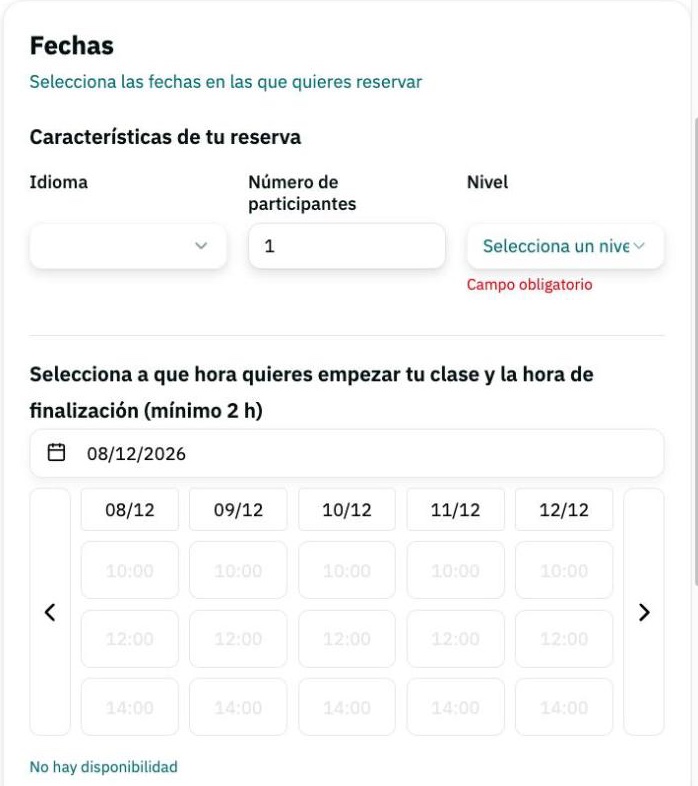
With that, go straight to the point that applies:
The product doesn't appear: point 6 (visibility) and point 8 (the product has not been saved).
Gray times in a private class: point 1 (guides), point 3 (blocks) and point 4 (notice).
No sessions in a group activity: points 2, 3 and 4.
It lets you choose a time but doesn't let you continue: point 5 (participants) and point 7 (price).
1. Private classes: no guides available
Private classes don't have fixed sessions: the slots the customer sees come from the availability of your guides. If no guide is available that day, the store shows all the times in gray, even if the product is correctly configured.
How to check it
Go to Activities > Guides and open a guide who gives that activity.
Go to the Availability tab and look for the month in which the customer wants to book. Each available day shows "Available" and its schedule.
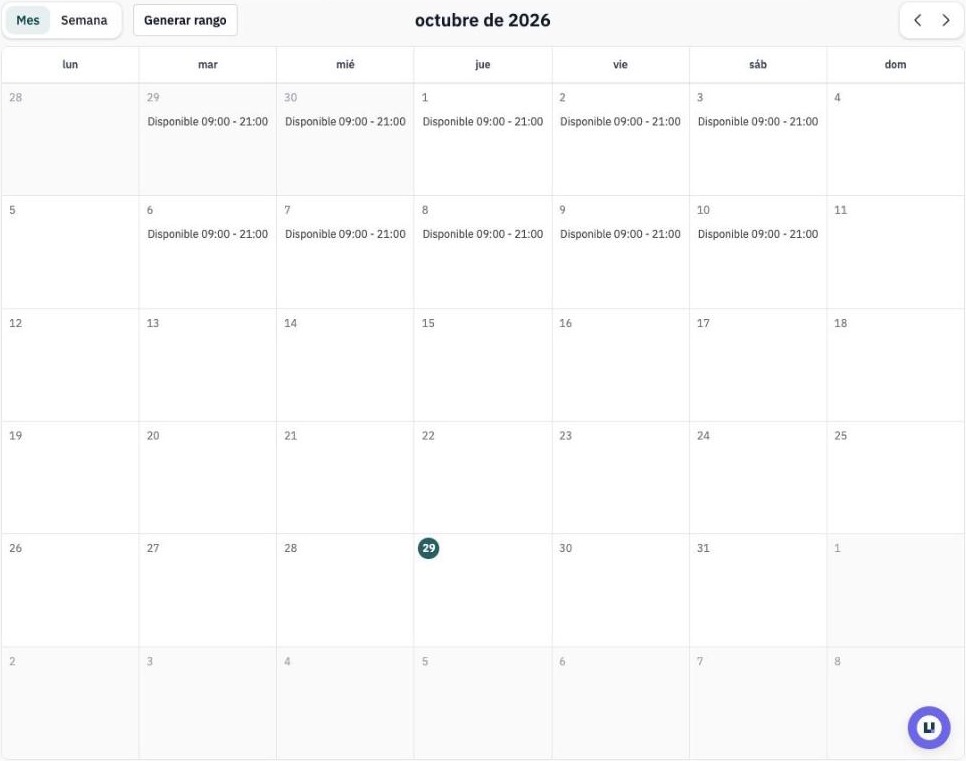
In the example, the guide is only available until the 10th. After that there are no private class slots with them.
How to fix it
In the Availability tab, click Generate range.
Choose the Start date and the End date, the Days of the week and the schedule (From / To). You can add several slots with New time range.
Click Generate range. Repeat with each guide.
The complete step by step is in Managing instructors in Lueira.
Also check the guide's languages
The customer chooses the class Language in the store. Check the Languages field in the guide's profile (and that they have the activity in Activities). In real cases, filling in the guides' languages was what unblocked bookings: if no available guide speaks the chosen language, the customer can't book.
💡 In group products there is also the Only if Guides are available option (in the product's Settings > Booking rules). If it is checked, the booking only continues when there are guides available for that session.
2. Group activities: no sessions (or they are full)
A group product can only be booked in the sessions you have created. With no sessions on those dates, or with all spots taken, the customer sees nothing to book.
How to check it
Go to Activities > Activities, Group tab, and open the product.
In the Sessions tab (Calendar or List view) look for the dates. Each session shows the spots taken out of the total (for example, 0/10) and its schedule.
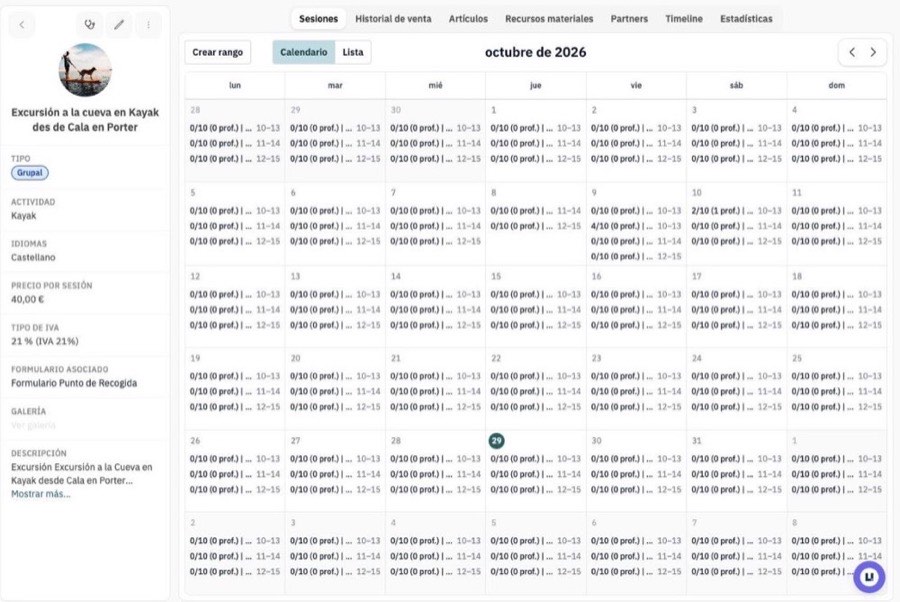
How to fix it
There are no sessions on those dates: create them with Create range in that same tab.
The session is full (for example, 10/10): increase the Maximum number of participants or create another session.
Check the price: in the product's Details tab, the Price per session (Simple price) or the Advanced price setting has to be filled in.
3. There is an online store block
Blocks hide products from the online store on specific dates (and, if you want, times). They are very useful to close a public holiday, but they are also a frequent cause of "I can't see that day's session" when someone forgets they exist.
How to check it
Go to Activities > Settings > Online store blocks.
Review the list: each block says which products it applies to (All products, or specific group and private products), which dates it blocks and whether it is the whole day or a range of start times.
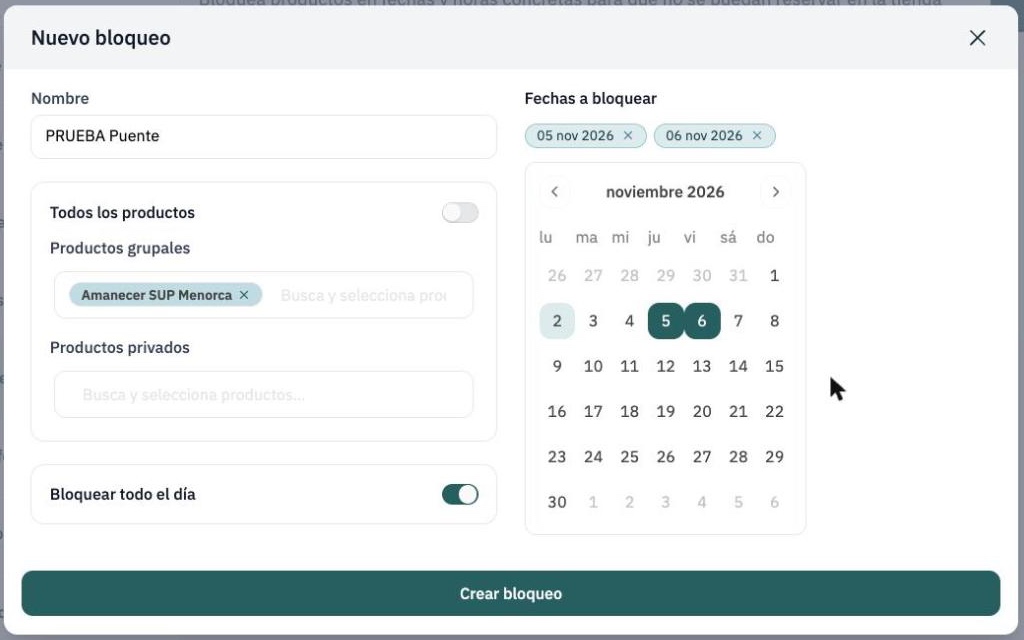
How to fix it
Edit the block to remove that product or those dates, or delete it if you no longer need it. Pay close attention to All products: if it is active, the block affects the whole catalog.
📌 Blocks apply to group products, to the packs that include them and to private classes. They only affect the online store: your team can still create bookings from the panel. More information in Block products in the online store (specific dates and times).
4. The minimum notice closes the closest times
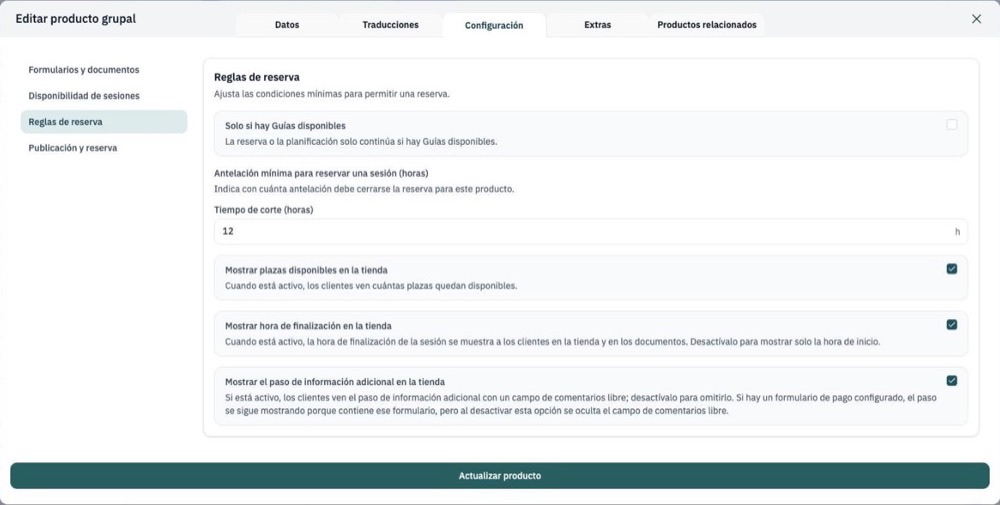
Each product has a Cut-off time: the hours of advance notice at which online booking closes. If it is 12 hours, a session that starts in 10 hours can no longer be booked in the store. It is the typical cause of "today it no longer lets me book for tomorrow".
How to check it
Open the product and click the pencil (Edit).
Go to the Settings > Booking rules tab and look at the Cut-off time (hours) field.
How to fix it
Lower the number of hours and click Update product. You have all the details (where it is in private classes, how to close only a specific day and what happens with last-minute bookings) in Minimum notice and closing time for online bookings.
5. Minimum participants and capacity
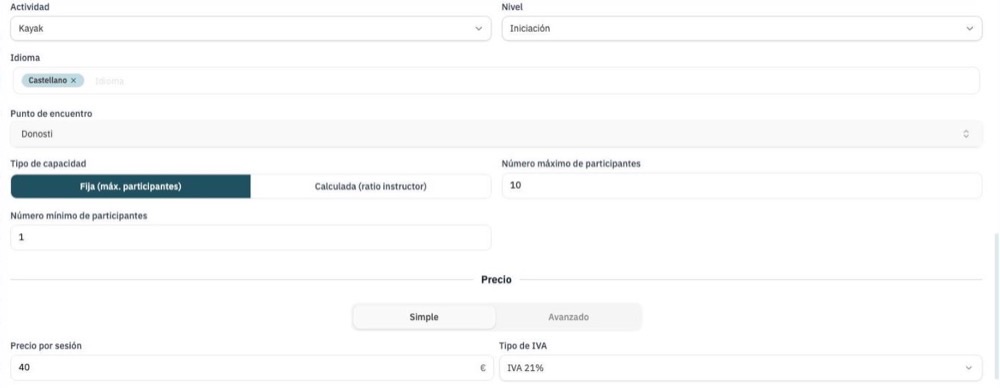
In group products, the Minimum number of participants forces the customer to book at least that many spots. If the minimum is 6 and someone wants to book for 2, they won't be able to finish the booking.
How to check it
Edit the product and, in the Details tab, check Capacity type, Maximum number of participants and Minimum number of participants. Also check the product's Language.
How to fix it
Lower the minimum if you want to accept smaller bookings.
⚠️ The minimum applies to each booking, not to the session: even if another booking has already covered the minimum, the next one also has to reach that number. If you want individual people to be able to join, set the minimum to 1.
6. The product is not visible in the store
If the product doesn't even appear in the store, check its visibility.
How to check it
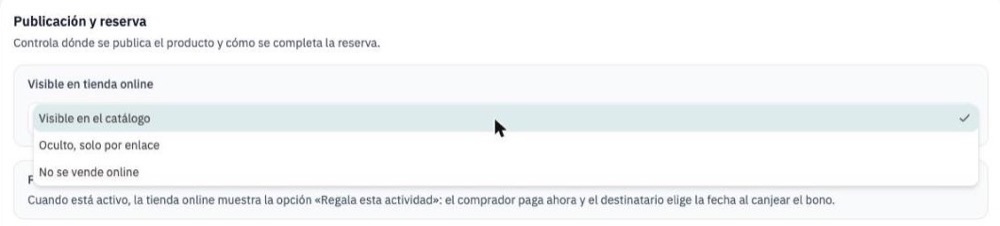
In the product list you will see a label next to the name (for example, Visible in the catalog). To change it, edit the product and go to Settings > Publishing and booking > Visible in online store:
Visible in the catalog: it appears in the store and can be booked.
Hidden, link only: it doesn't appear in the catalog, but it can be booked with the direct link.
Not sold online: it can't be booked from the store.
In group products also check the Group product in catalog switch, in the same section: if you turn it off, the product is not shown either to add it to orders or in the online store.
More information in Online store visibility: catalog, direct link or disabled.
7. Price, season and price calendar
If the customer can choose the time but something doesn't add up when continuing (the total, the duration or the end time), check the product's price.
Private classes: each product has a price per hour and, if you need it, an associated price calendar (created in Activities > Settings > Price calendars). Check that the calendar assigned to the product has prices for the dates, durations and number of participants the customer asks for. Step by step in Private product pricing.
Group products: check the Price per session or the Advanced price setting in the Details tab.
Season change: when a new season starts, check that the new prices and the new price calendar are created and assigned to the product. More information in How do I set up a new season?
8. The product has not been saved: required fields and images
Sometimes the problem is that the product (or the last change) was never saved. When you click Create product or Update product, Lueira warns you with Required fields are missing and the list of the ones that are missing.

In a group product, the following are required, among others: Name, Description, Activity, Level, Meeting point, Maximum number of participants and VAT type. Fill them in and save again.
Images: the product image allows a maximum size of 1 MB. If your photo is larger, reduce or compress it before uploading it.
If a generic error appears when saving even though everything is filled in, try first without an image and then add it. If it keeps failing, write to us from the help chat with the product name.
What is in each tab of the product page: Product page: Details, Translations, Settings, Extras and Related Products.
What to do if…
…my guides have availability and the private class still can't be booked
Check that the guides have their Languages filled in (the one the customer chooses in the store) and the activity in Activities. Also check the blocks (point 3) and the cut-off time (point 4). If everything is fine, write to us with the product name and the date you tested.
…it only fails on one specific day
It is almost always an online store block that was created for that day and forgotten. Check Activities > Settings > Online store blocks.
…I want to accept bookings for today or tomorrow
Lower the product's Cut-off time. We explain it in Minimum notice and closing time for online bookings.
…the group already has the minimum and it doesn't let 1 more person book
The Minimum number of participants applies to each booking. If you want individual people to be able to sign up for a session, lower the minimum to 1.
…I can create the booking from the panel, but the customer can't
It is normal when the cause is in the online store: blocks, visibility and minimum notice affect what the customer can book in the store. Check points 3, 4 and 6.
🔒 Important: if you write to support, don't include passwords or bank details in the chat; we don't need them to look into this.
Related articles
Related guides
- Online store settingsThis guide shows you how to set up your online store in Lueira, including the purchase (checkout) form fields that can be shown as visible or required.
- Purchase form fields in the online storeHow to configure which fields appear in the online store checkout form and which ones are required for the customer.
- Automatic invoicing in the online storeHow to set up the automatic generation of invoices and receipts when a payment is completed in the online store, including numbering series and compatibility with Verifactu and TicketBAI.
- Product order in the Online StoreGuide to defining the order in which products are displayed in the Online Store
- Product page layouts in the Online StoreLearn how to choose between the 4 layouts available for your Online Store's product page and how to preview them before enabling them
- Online store screen layoutThe online store shows School/Center/Activities, Rental and Sales as separate tabs depending on which modules are enabled on your account.