

Online store settings
This guide shows you how to set up your online store in Lueira, including the purchase (checkout) form fields that can be shown as visible or required.
On this page
- 1. General tab
- Online store
- Payment processor
- Email templates
- Automatic invoicing
- Deduplicate customers by email
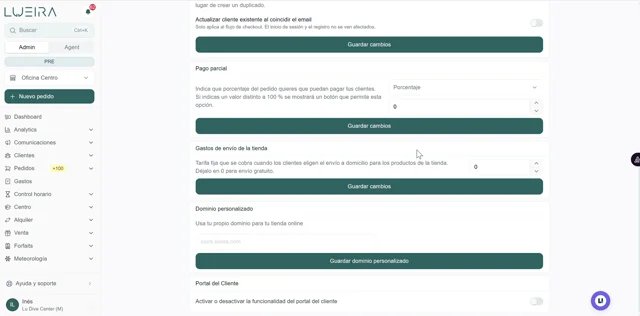
- Partial payment
- Shipping costs
- 2. Customization tab
- Product page layout
- Product order
- Purchase form fields
- 3. Integrations tab
- Legal tab
- Privacy policy
- Purchase and returns policy
- Consent management in embeds
 Configuración Tienda Online
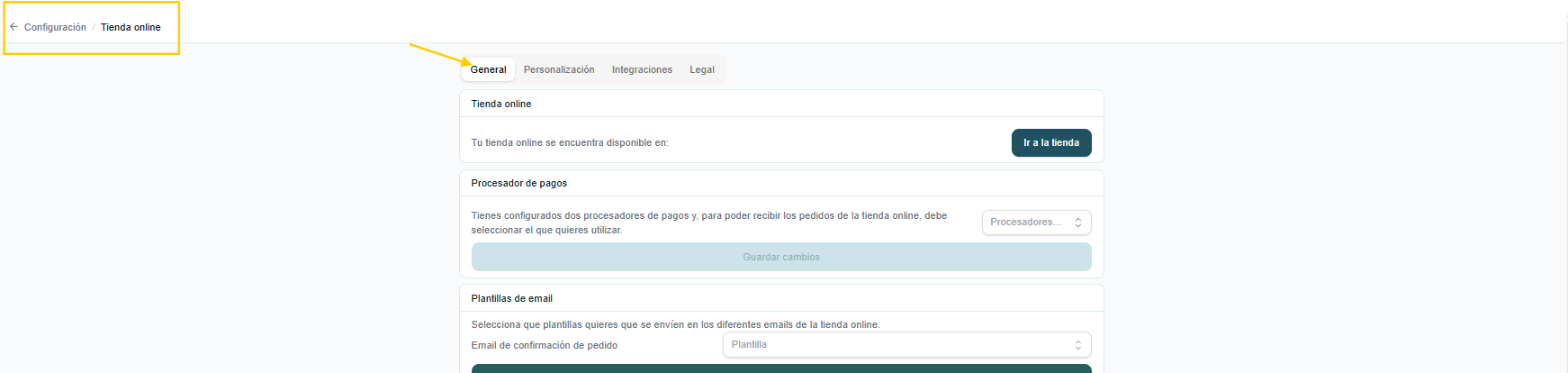
Lueira's online store lets your customers make bookings and payments directly from a public URL. All the settings are managed from Settings > Online store, organized in four tabs: General, Customization, Integrations and Legal.
⚠️ To be able to enable the online store you need at least one real payment gateway configured (Redsys or Lueira Pay). See the guide 👉 Payment gateways in Lueira.
1. General tab
Online store
Enable or disable your online store. Once it is active you will see the direct link to your store. If you don't have a payment gateway configured yet, the enable button will appear disabled.
Payment processor
If you have more than one payment processor configured (Redsys and Lueira Pay), here you select which one is used for online store payments. If you only have one configured, this section does not appear.
Email templates
Select which email template is sent to the customer when they confirm an order in the online store. Templates are managed in Settings > Email.
Automatic invoicing
Automatically generates and attaches the invoice or receipt to the confirmation email every time a payment is completed in the online store. Lueira issues a full invoice if the customer provided their NIF/CIF (Spanish tax identification number) at checkout, or a simplified receipt otherwise. It requires setting up one numbering series for invoices and another for receipts.
👉 Automatic invoicing in the online store
Deduplicate customers by email
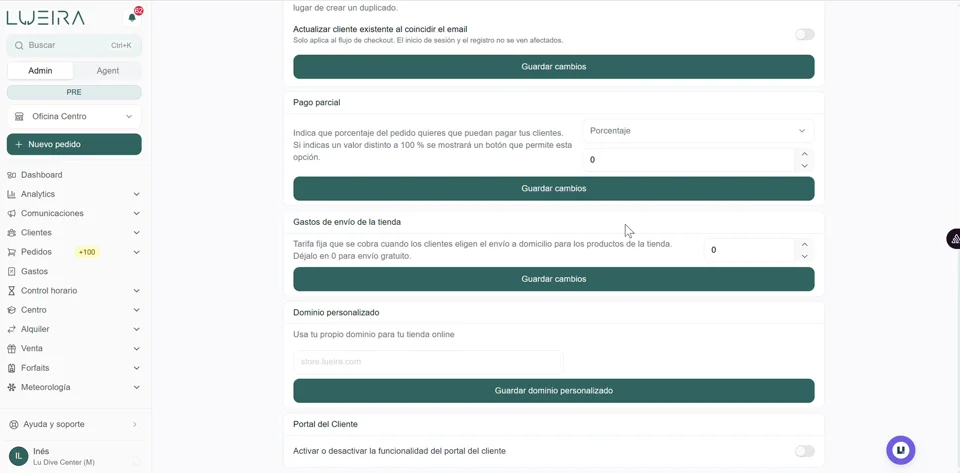
When enabled, if the details of a purchase match the email of an existing customer, Lueira updates that customer's profile instead of creating a duplicate. It only applies to the checkout flow; login and registration are not affected.
Partial payment
Enter the percentage of the total amount that the customer must pay at the time of booking. If you enter a value below 100%, the customer will be shown the partial payment option and a pending balance will be generated on the order. With the default value (100%) the customer pays the full amount at checkout.
💡 If a product in the order has a Payment timeline configured, the Timeline takes precedence: this partial payment setting is ignored for that order and what is charged at purchase is the first installment scheduled in the Timeline. More info at 👉 Product timeline: automatic payment requests.
Shipping costs
Define a fixed shipping cost amount that will be automatically added to the order total during the purchase process. Leave it at 0 if you don't want to apply shipping costs.
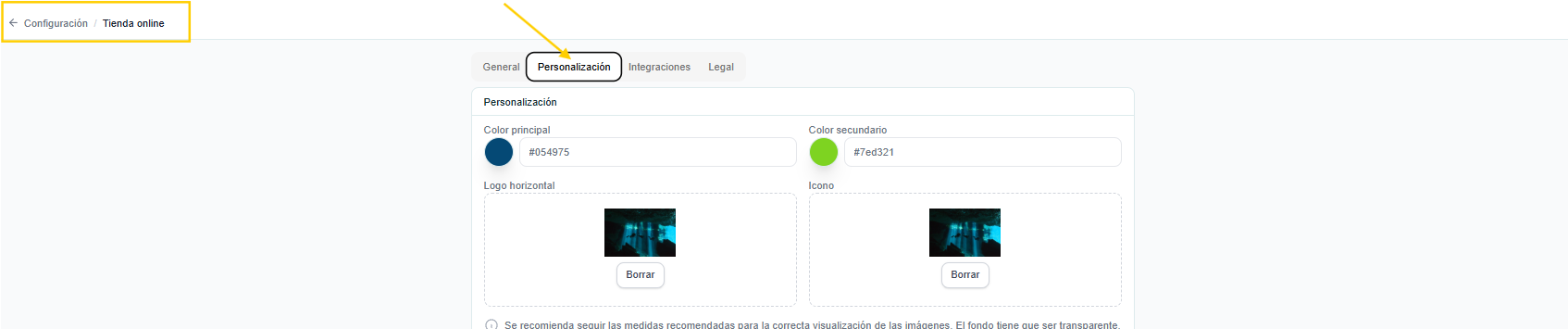
2. Customization tab
Product page layout
Choose between several layouts for the product detail page of your online store. Each layout arranges the image gallery, the product information and the booking form differently.
👉 Product page layouts in the Online Store
Product order
Set the order in which products appear in your online store. Click the Product order button to open the order editor and drag the products to reorder them.
Purchase form fields
Configure which checkout form fields are visible to the customer and which are required. Some fields are always required (first name, email, phone…) and others you can enable or disable according to your needs (NIF/CIF, address, legal name…).
👉 Purchase form fields in the online store
3. Integrations tab

Connect your online store with third-party analytics and marketing tools by entering the corresponding identifiers:
Google Analytics: enter your Measurement ID (format
G-XXXXXXXXXX) to track your customers' traffic and behavior.Google Tag Manager: enter your Container ID (format
GTM-XXXXXXX) to manage tags and events from GTM.Meta Pixel: enter your Pixel ID (numeric) to track conversions and create audiences in Meta Ads.
Save the changes with the Save changes button at the end of the section.
Legal tab

Manage the legal texts shown to your customers during the purchase process. All the editors support rich formatting and, if you have several languages active, you can keep one version per language and use AI to translate automatically.
Privacy policy
Text that the customer must accept before completing the purchase. Mandatory under data protection regulations. Write your privacy policy in the editor or paste it from your current document.
Purchase and returns policy
Text with your business's purchase, cancellation and return conditions. It is shown to the customer alongside the privacy policy at checkout.
Consent management in embeds
If you have the online store embedded in your website via iframe or shortcode, you can delegate cookie consent management to the website that contains it. To enable it, you need to sign a compliance agreement (sent by email). This feature is currently under development.
*IMPORTANT*
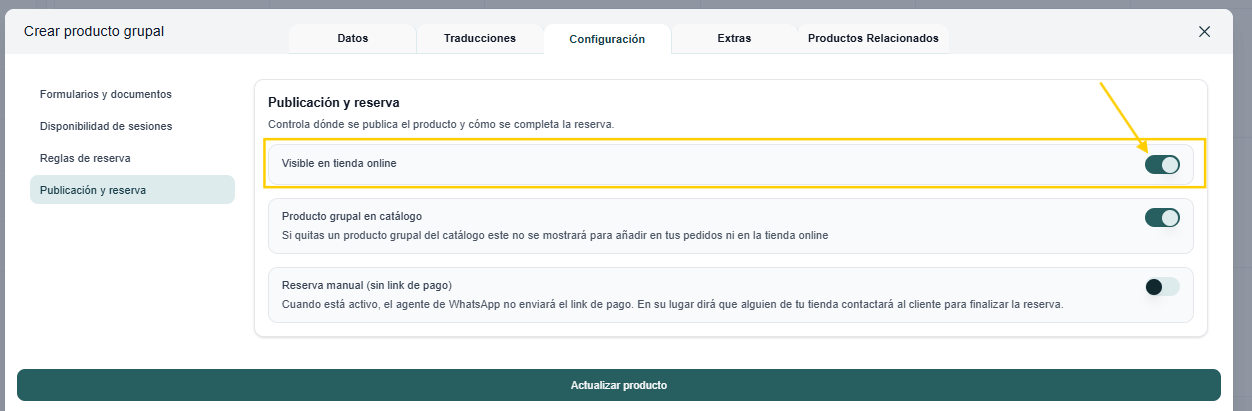
For products to be visible in the online store, it is very important to leave the visible in online store button enabled when creating a new private or group product. If this button is not selected, the products will not appear as active.
Videos about this guide
Related guides
- Purchase form fields in the online storeHow to configure which fields appear in the online store checkout form and which ones are required for the customer.
- Automatic invoicing in the online storeHow to set up the automatic generation of invoices and receipts when a payment is completed in the online store, including numbering series and compatibility with Verifactu and TicketBAI.
- Product order in the Online StoreGuide to defining the order in which products are displayed in the Online Store
- Product page layouts in the Online StoreLearn how to choose between the 4 layouts available for your Online Store's product page and how to preview them before enabling them
- Online store screen layoutThe online store shows School/Center/Activities, Rental and Sales as separate tabs depending on which modules are enabled on your account.
- Online store visibility: catalog, direct link or disabledHow to control whether a product appears in the catalog, is only accessible through a direct link, or is not sold online, and how to share its link from the product page.