

Product page layouts in the Online Store
Learn how to choose between the 4 layouts available for your Online Store's product page and how to preview them before enabling them
On this page
Lueira's Online Store offers 4 different layouts for the product detail page. Each layout arranges the image gallery, the product information and the booking form differently, so you can choose the visual experience that best fits your brand.
How to set the layout
Go to Settings → Online store
Find the "Product page layout" option
Select the layout you want to enable
Save the changes
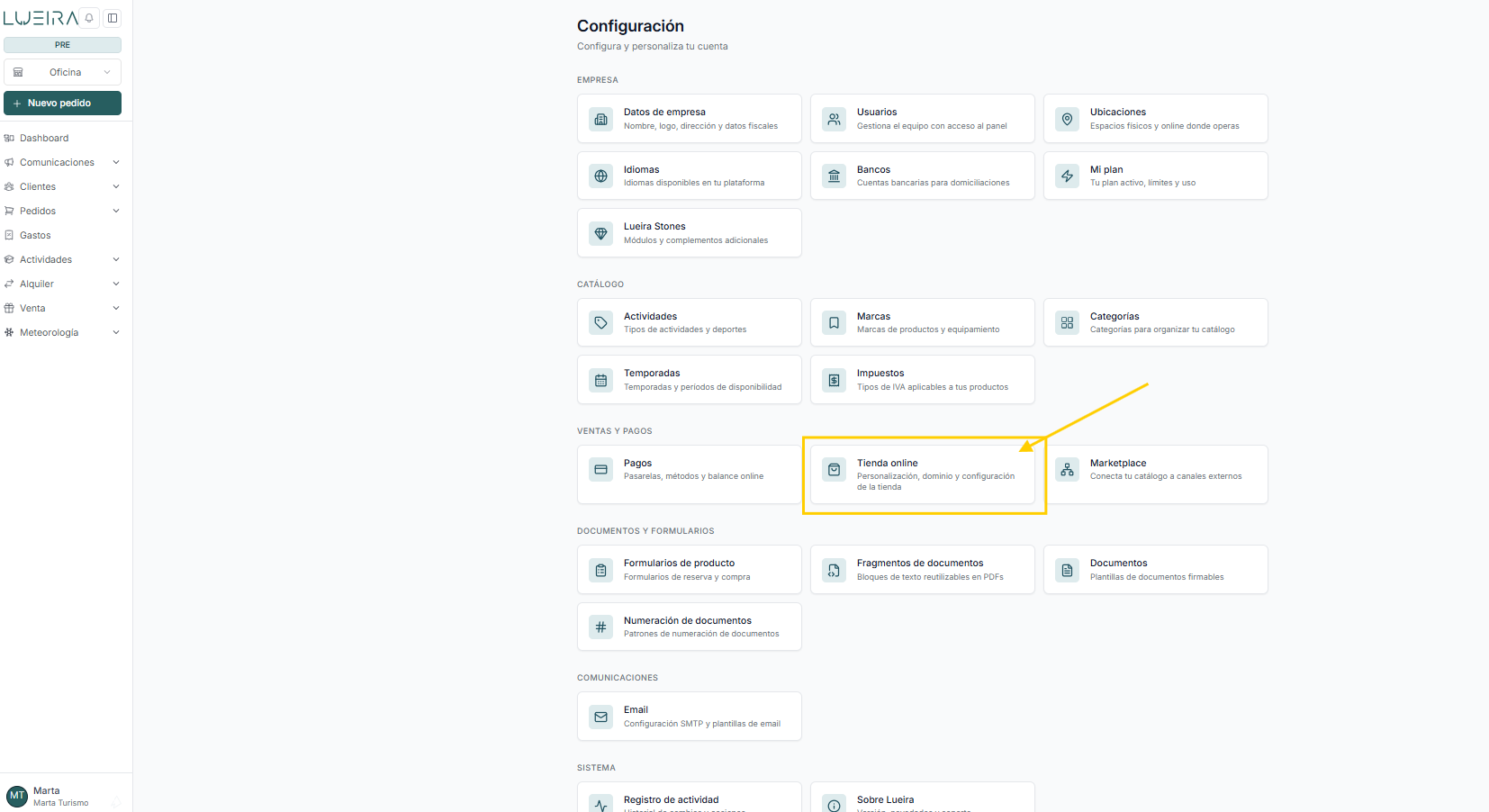
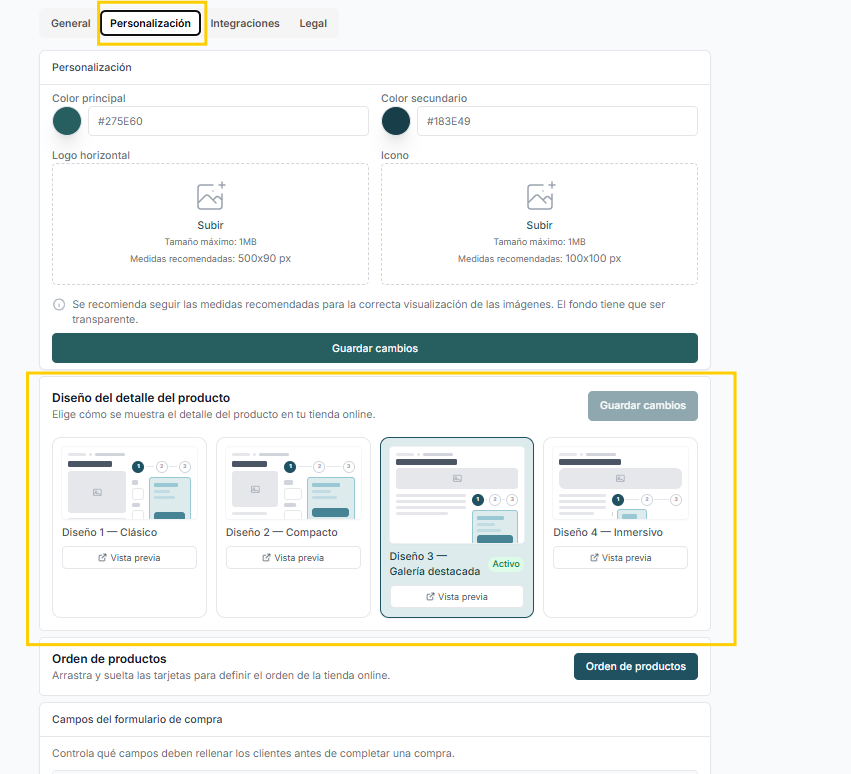
The layout is applied to all products in your store globally.
Layout 1 — Classic
Arrangement in two equal columns (50/50):
Left column: image gallery and product information
Right column: booking form (fixed while scrolling), with the order summary built into the form itself
This is the default layout. Balanced and straightforward, ideal for products with an image and a moderately sized description.
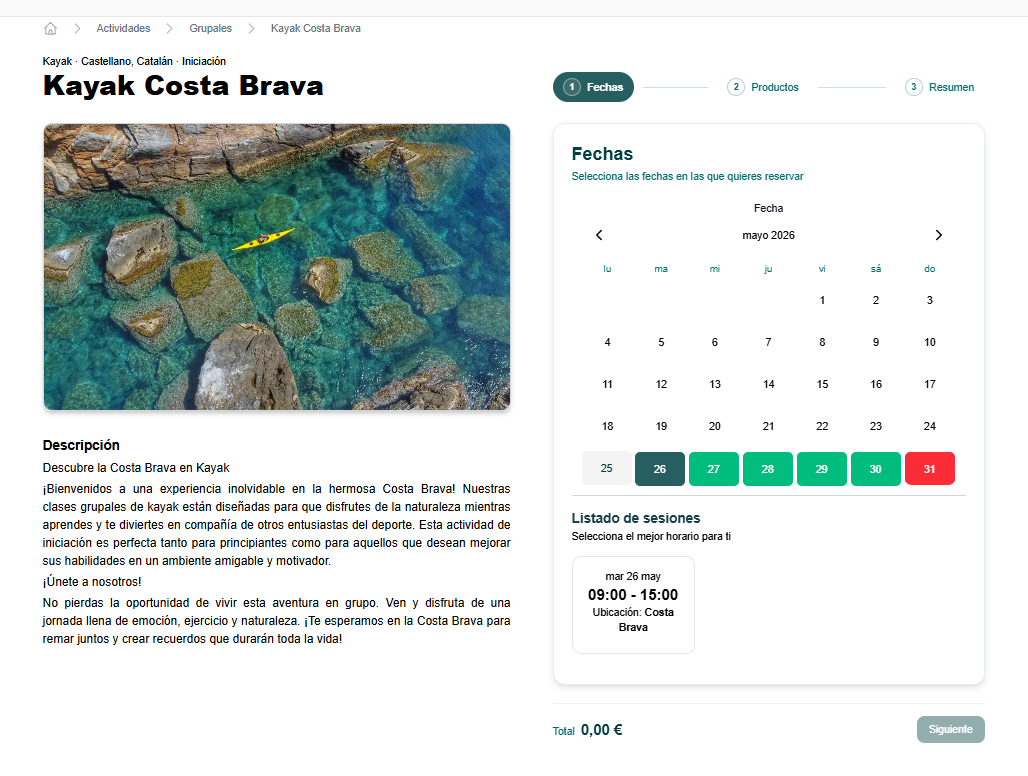
Layout 2 — Compact
Arrangement in two asymmetric columns (40/60):
Left column (40%): gallery, product information and description
Right column (60%): booking steps (fixed while scrolling), with the order summary shown as a compact card at the top of the form
The booking steps appear in the right column without taking up the full width of the page. The summary does not unfold as a separate side column, but is integrated compactly into the form header.
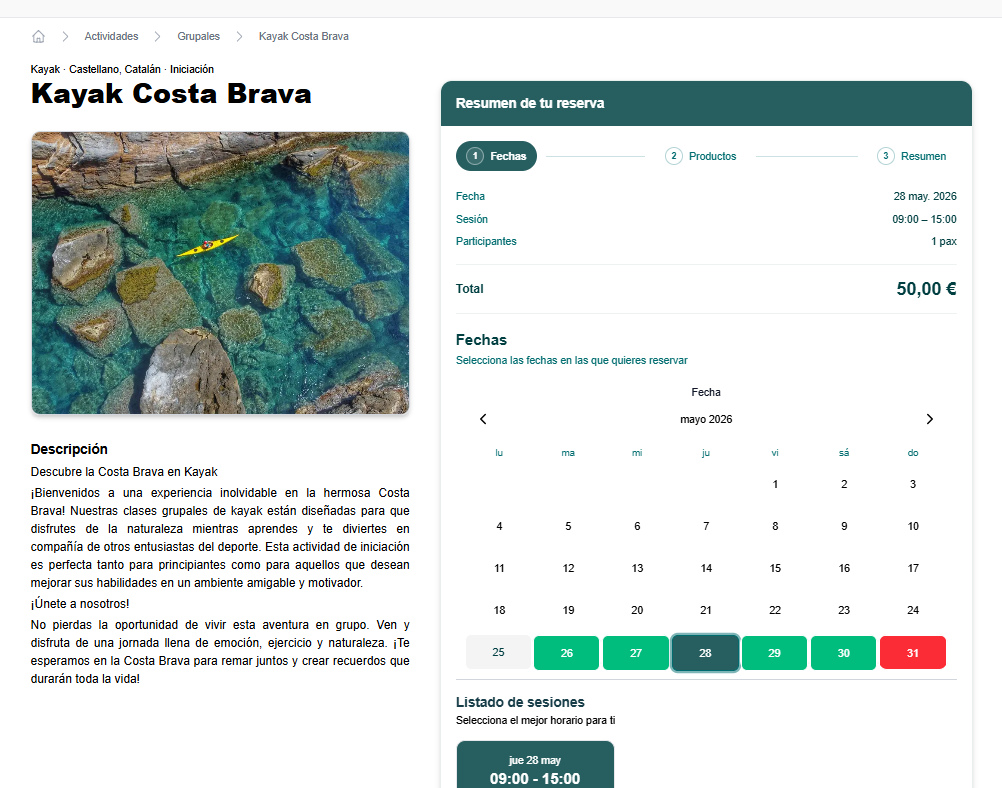
Layout 3 — Featured gallery
The gallery takes up the full width at the top of the page. Below it:
Left: booking form (flexible)
Right: order summary in a fixed (sticky) side column
The product description appears below the form
Ideal for products with striking photography that you want to put front and centre.
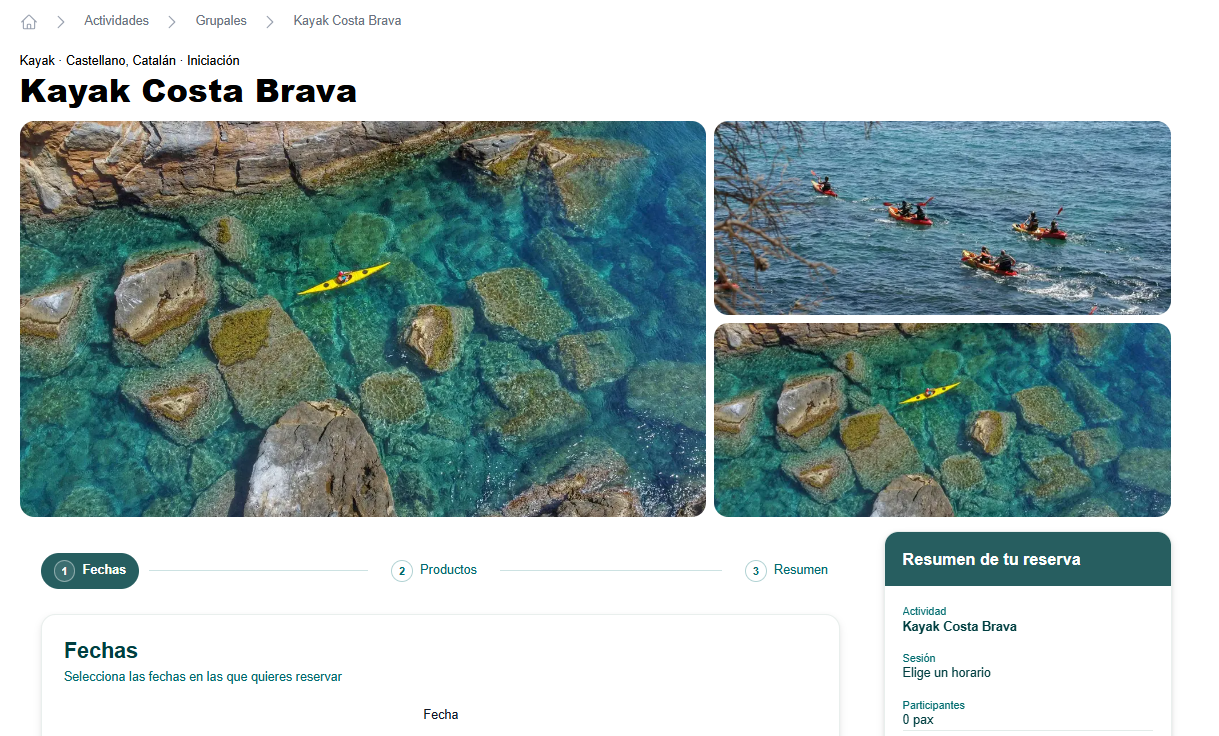
Layout 4 — Immersive
Full-width gallery with rounded corners at the top. Below it:
Left: product description (above the booking form) + booking form
Right: order summary in a fixed (sticky) side column
A more engaging layout, with the description highlighted before the form. Recommended for experiential products or those with elaborate descriptions that help conversion.
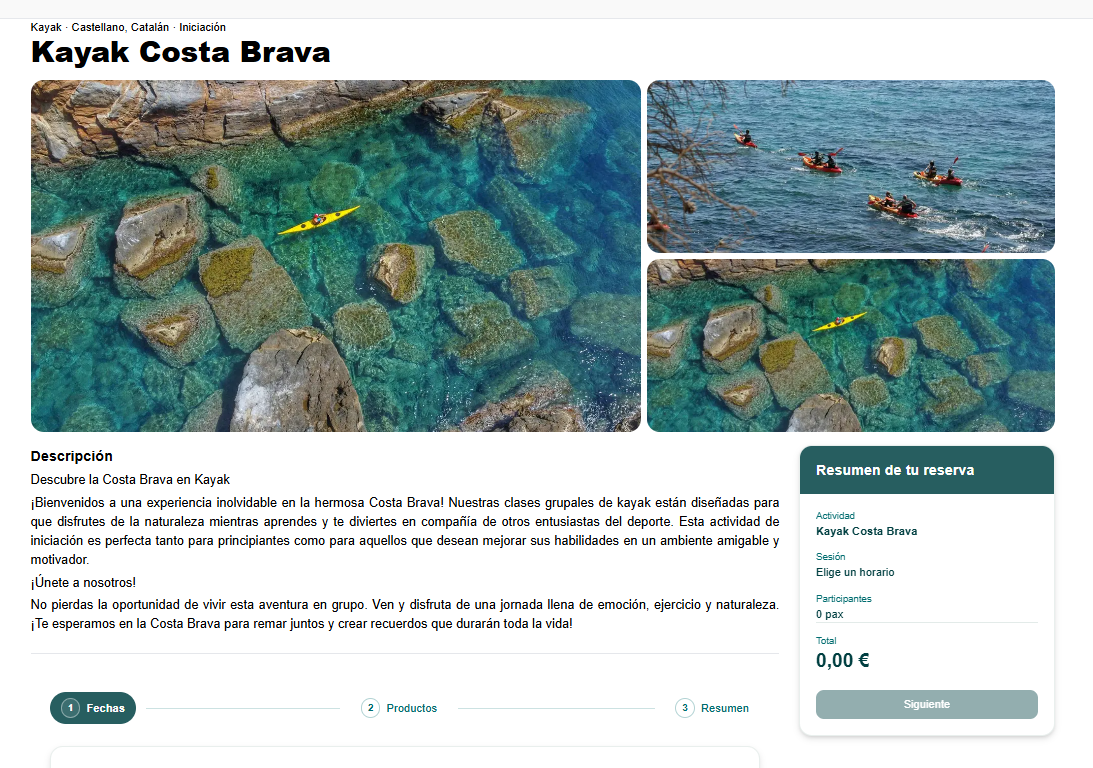
Related guides
- Online store settingsThis guide shows you how to set up your online store in Lueira, including the purchase (checkout) form fields that can be shown as visible or required.
- Purchase form fields in the online storeHow to configure which fields appear in the online store checkout form and which ones are required for the customer.
- Automatic invoicing in the online storeHow to set up the automatic generation of invoices and receipts when a payment is completed in the online store, including numbering series and compatibility with Verifactu and TicketBAI.
- Product order in the Online StoreGuide to defining the order in which products are displayed in the Online Store
- Online store screen layoutThe online store shows School/Center/Activities, Rental and Sales as separate tabs depending on which modules are enabled on your account.
- Online store visibility: catalog, direct link or disabledHow to control whether a product appears in the catalog, is only accessible through a direct link, or is not sold online, and how to share its link from the product page.