

Automatic invoicing in the online store
How to set up the automatic generation of invoices and receipts when a payment is completed in the online store, including numbering series and compatibility with Verifactu and TicketBAI.
On this page
The Automatic invoicing section (in Settings > Online store, General tab) lets Lueira automatically generate the tax document and attach it to the confirmation email every time a payment is completed in the online store.
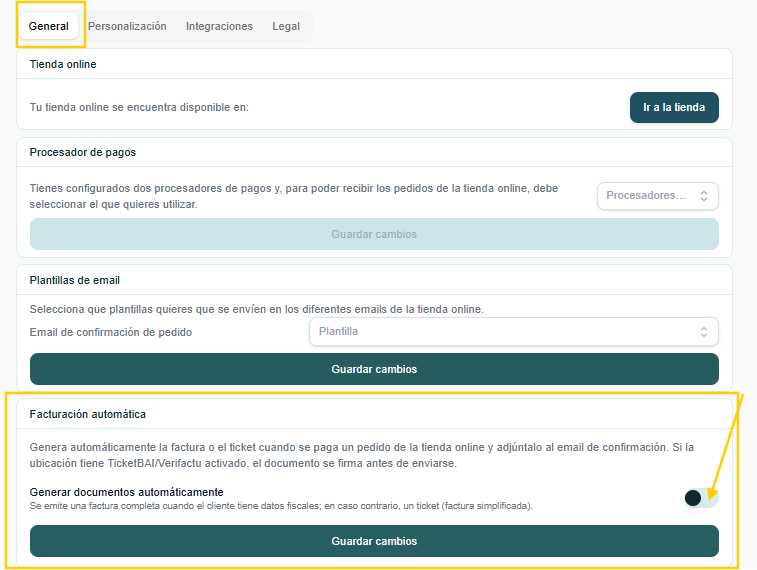
This way, the customer receives the invoice or receipt in the same order confirmation email, without you having to generate or send it manually.
How it works
When a payment is completed in the online store, Lueira decides which type of document to issue based on the data the customer entered at checkout:
Full invoice if the customer has provided their NIF/CIF (Spanish tax identification number).
Simplified receipt if the customer has not provided any tax details.
The document is automatically attached to the order confirmation email the customer receives.
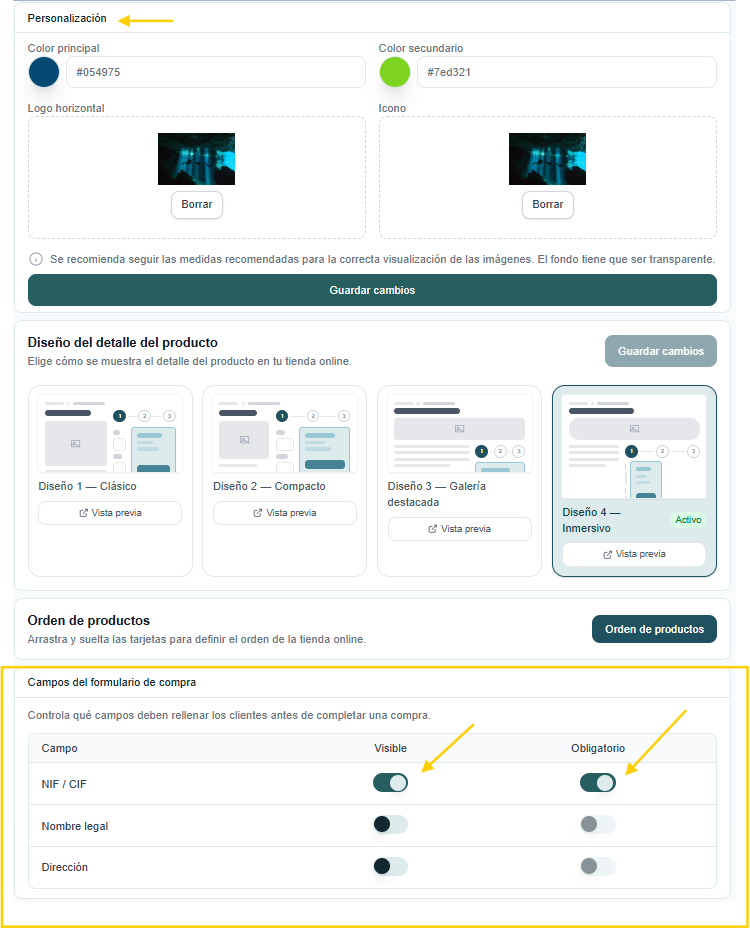
💡 So that customers can request an invoice directly at checkout, enable the NIF/CIF field in the purchase form fields (Settings > Online store > Customization > Purchase form fields).
Compatibility with Verifactu and TicketBAI
If your business has Verifactu or TicketBAI enabled, the document is electronically signed and sent to the corresponding tax system before it is attached to the email. The process is fully automatic.
👉 Verifactu and TicketBAI in Lueira
Enabling automatic invoicing
Go to Settings > Online store > General and find the Automatic invoicing section. Turn on the Generate documents automatically switch.
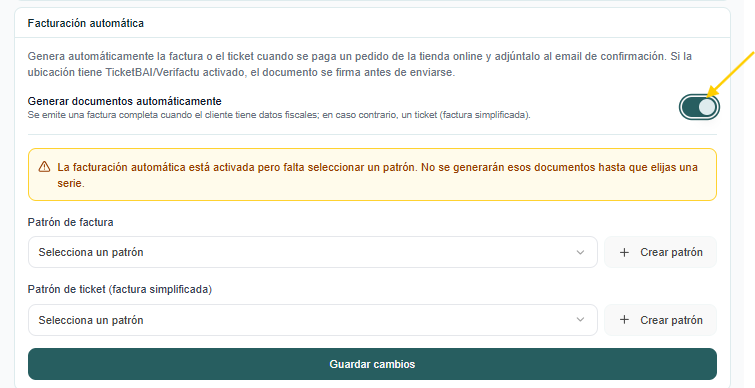
When you turn it on, two numbering series selectors appear, which you must configure before invoicing starts to work.
Numbering series
Lueira needs to know which series to use to number each type of document. When you turn on the switch, two selectors appear:
Invoice series: the series used to number automatically generated invoices.
Receipt series: the series used to number simplified receipts.
If you don't have any series yet, you can create them directly from this screen with the Create series button.
Click Save changes once you have selected both series.
Important notices
⚠️ If either series is not configured, Lueira will show a warning on screen and automatic invoicing will not work properly until you fix it.
⚠️ If the selected series does not have an associated corrective series (needed to issue corrective invoices or receipts / credit notes), Lueira will also warn you and offer to create a corrective series from the same screen.
👉 To manage all your numbering series, go to Settings > Document numbering.
Related articles
Related guides
- Online store settingsThis guide shows you how to set up your online store in Lueira, including the purchase (checkout) form fields that can be shown as visible or required.
- Purchase form fields in the online storeHow to configure which fields appear in the online store checkout form and which ones are required for the customer.
- Product order in the Online StoreGuide to defining the order in which products are displayed in the Online Store
- Product page layouts in the Online StoreLearn how to choose between the 4 layouts available for your Online Store's product page and how to preview them before enabling them
- Online store screen layoutThe online store shows School/Center/Activities, Rental and Sales as separate tabs depending on which modules are enabled on your account.
- Online store visibility: catalog, direct link or disabledHow to control whether a product appears in the catalog, is only accessible through a direct link, or is not sold online, and how to share its link from the product page.