

Verifactu and TicketBAI in Lueira
We explain how the Verifactu and TicketBAI systems work and how we apply them in Lueira.
On this page
- Verifactu: what it is and how it works
- Who is exempt from Verifactu?
- TicketBAI: what it is and how it works
- Who is exempt from TicketBAI?
- How Verifactu and TicketBAI work in Lueira
- Setting up Verifactu or TicketBAI in Lueira
- How to create documents with Verifactu or TicketBAI in Lueira.
- Correcting documents with Verifactu or TicketBAI
- Common errors when creating invoices and tickets with Verifactu or TicketBAI
- Applicable regulations
In Spain there are several tax control systems designed to guarantee the traceability and validity of the invoices and tickets issued by self-employed professionals and companies. There is Verifactu, which applies nationwide, and TicketBAI, which is mandatory in the Basque Country.
Both systems require invoices and tickets to be sent digitally and securely to the relevant tax authority, including unique codes and QR codes that make it possible to verify their authenticity.
With Lueira, you don't need to worry about the technical complexity of these processes. The program automatically adapts your invoices to the applicable regulations (Verifactu or TicketBAI), generates the required files, sends them to the Spanish Tax Agency (Agencia Tributaria) or to the provincial tax authority (Hacienda Foral), and adds the verification codes to every document.
This way, you can focus on your business while Lueira makes sure your invoicing always complies with current regulations.
💡 Verifactu and TicketBAI are internal tax control systems (Spain). If you instead need to issue electronic invoices to a public body and send them through FACe, see Electronic invoicing: Facturae and FACe in Lueira, which is a different and independent system.
Verifactu: what it is and how it works
Verifactu is a system created by the Spanish tax authorities to digitize and record all the income of individuals and legal entities with an economic activity in Spain. It requires all invoices or sales tickets to be sent digitally to the Spanish Tax Agency (Agencia Tributaria), where they are assigned a unique reference and a QR code that allow their tax traceability.
Who is exempt from Verifactu?
Some taxpayers are not required to use Verifactu, including:
VAT-exempt activities, such as medical, educational, financial or insurance services.
Micro-enterprises with an annual turnover below €30,000.
Businesses under the "módulos" regime (a simplified tax regime based on estimated income) that issue fewer than 100 invoices per year.
Taxpayers in the Basque Country, who are already covered by the TicketBAI system.
Companies under the Immediate Supply of Information system (SII), which already use similar control mechanisms.
In Lueira, all the invoices or tickets you generate from the program are automatically adapted to Verifactu. The system creates the file required by the Spanish Tax Agency, sends it digitally and receives a unique reference together with the corresponding QR code. These elements are included in the document to guarantee its authenticity and allow its tax traceability in real time.
TicketBAI: what it is and how it works
TicketBAI is a mandatory tax control system in the Basque Country, implemented by the Provincial Councils of Euskadi (Diputaciones). Its goal is to guarantee the traceability of all sales operations carried out by individuals and legal entities with an economic activity in the territory.
Who is exempt from TicketBAI?
Some activities and taxpayers are not required to use TicketBAI, including:
Professionals or companies that do not carry out their economic activity in the Basque Country.
Taxpayers who only issue simplified invoices in activities that are not subject to the system.
Entities or sectors with specific tax rules that exclude the obligation (for example, special regional tax regimes).
Taxpayers who already apply equivalent control systems accepted by the provincial tax authority (Hacienda Foral).
In Lueira, all the invoices or tickets you generate from the program are automatically adapted to TicketBAI. The system creates the required electronic file, signs it digitally and sends it automatically to the corresponding provincial tax authority (Hacienda Foral). In addition, each document includes the TBAI code and the QR code that guarantee its authenticity and allow its verification in real time.
How Verifactu and TicketBAI work in Lueira
In Lueira we use Fiskaly, an API solution that connects us to the tax authorities, meeting all the requirements and regulations of the Verifactu systems.
When you activate the Verifactu or TicketBAI system in Lueira, whenever you approve an invoice, a ticket or a corrective document, Lueira will automatically send it to the Spanish Tax Agency. Once received, the Tax Agency will generate a QR code and a VFAC identifier, and will return the already validated document to Lueira.
It is important to check all the data carefully before approving a document, because once validated it is sent immediately to the Tax Agency, and once validated it cannot be deleted, it can only be corrected by validating corrective documents in the same way.
To avoid possible errors, in Lueira we have enabled Document drafts. This way, when we generate documents we can save them as drafts, to validate them later or delete them if we have made a mistake.
Draft mode lets you create invoices without approving them right away. This way you can review them, make changes and make sure everything is correct before they become final.
Setting up Verifactu or TicketBAI in Lueira
To activate this feature in your Lueira account, you can do it from the account configuration Settings. Here is how to do it step by step:
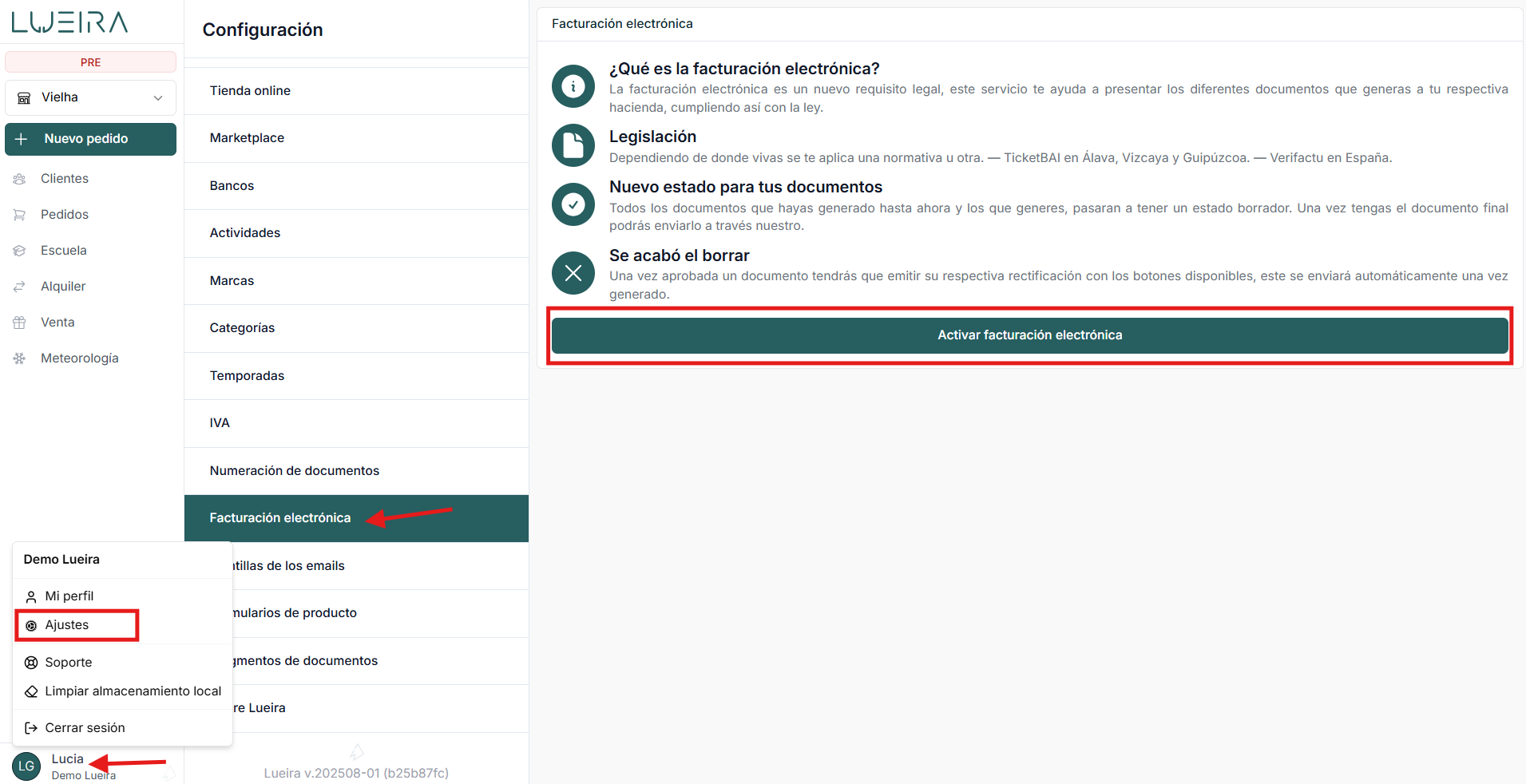
Go to the account settings in Lueira, from the settings that appear in the drop-down menu in the bottom left corner. In the configuration menu that appears, select "Electronic invoicing" and click "Activate electronic invoicing".
https://admin.lueira.com/settings/integrations/fiskaly
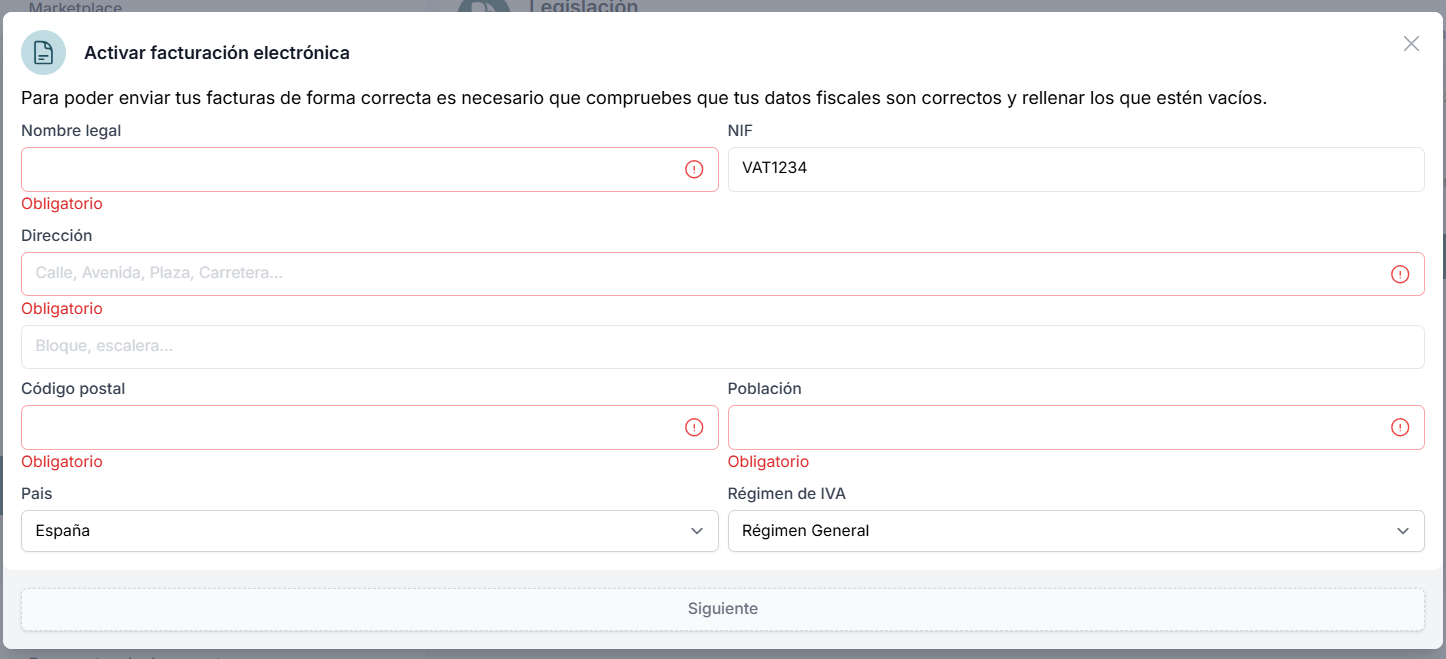
When you select this option, a window will appear where we must add our company's tax information. Once the information is filled in, we click "Next" (the fields highlighted in red are required).
In the next step we must configure the address of the place where we work, or from which we will generate invoices and tickets.
These places are linked to the locations we have configured in Lueira, and we must configure an address for each of our locations.
If our company carries out its activity and has its registered office in the Basque Country, under the regulations that apply to TicketBAI we must configure an address for each location our company has. For the rest of the territory, the regulations that apply to Verifactu allow us to use the same configuration for all our locations.
(By locations we mean the physical shops or establishments where customers can book the services our company offers, and from which we generate documents).
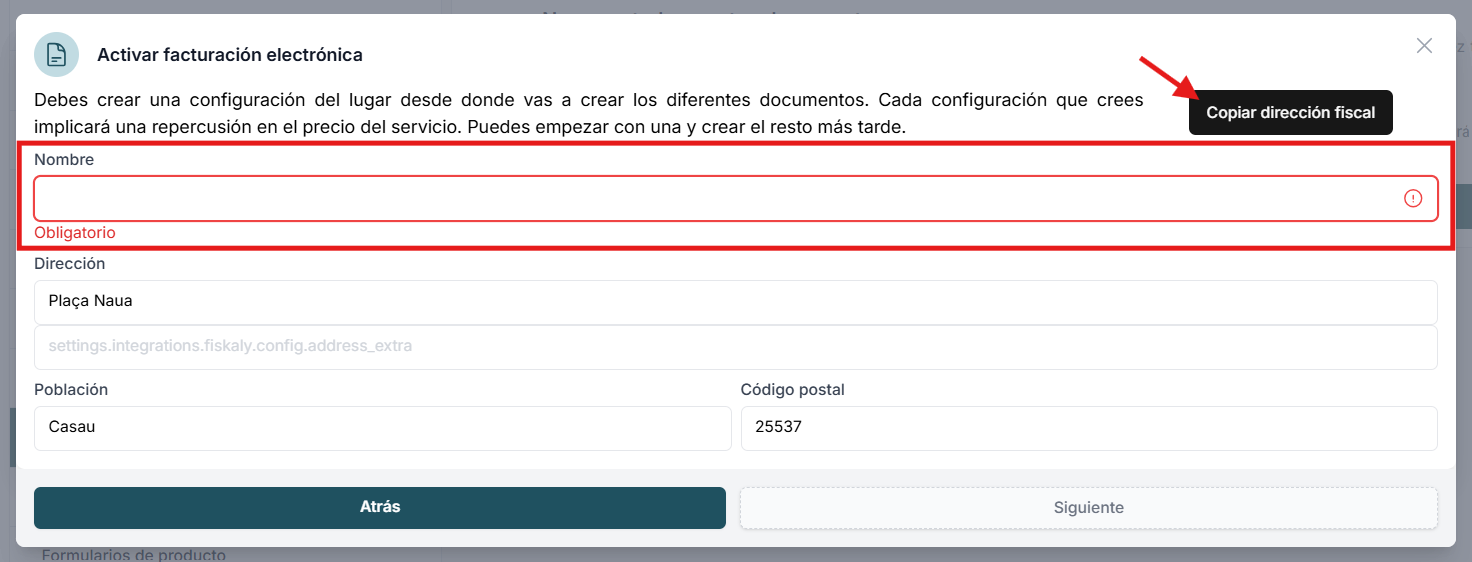
We add a name to this location's configuration, and to add the address details we can use the "Copy tax address" button to automatically fill in the address we added in the previous step, or we can enter it manually if the addresses are different. To save this information we click the "Next" button.
When you click the "Next" button the configuration will be saved, and we will be able to see and edit it in the list of invoicing configurations that now appears in the "Electronic invoicing" section of our profile settings.
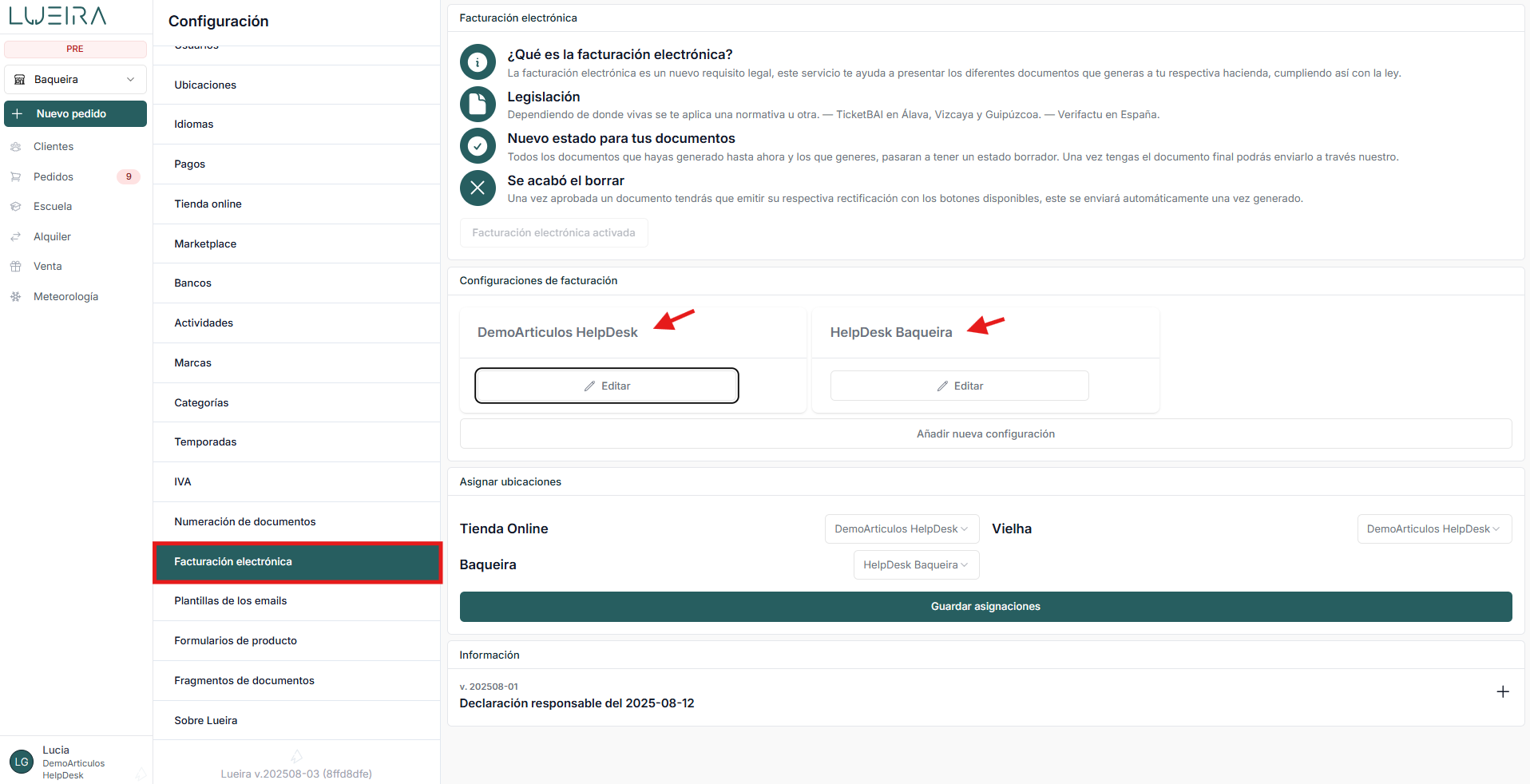
Once we have saved the configurations we need, we can assign them to the locations. To do this we use the drop-down lists that appear next to our locations in the "Assign locations" section.
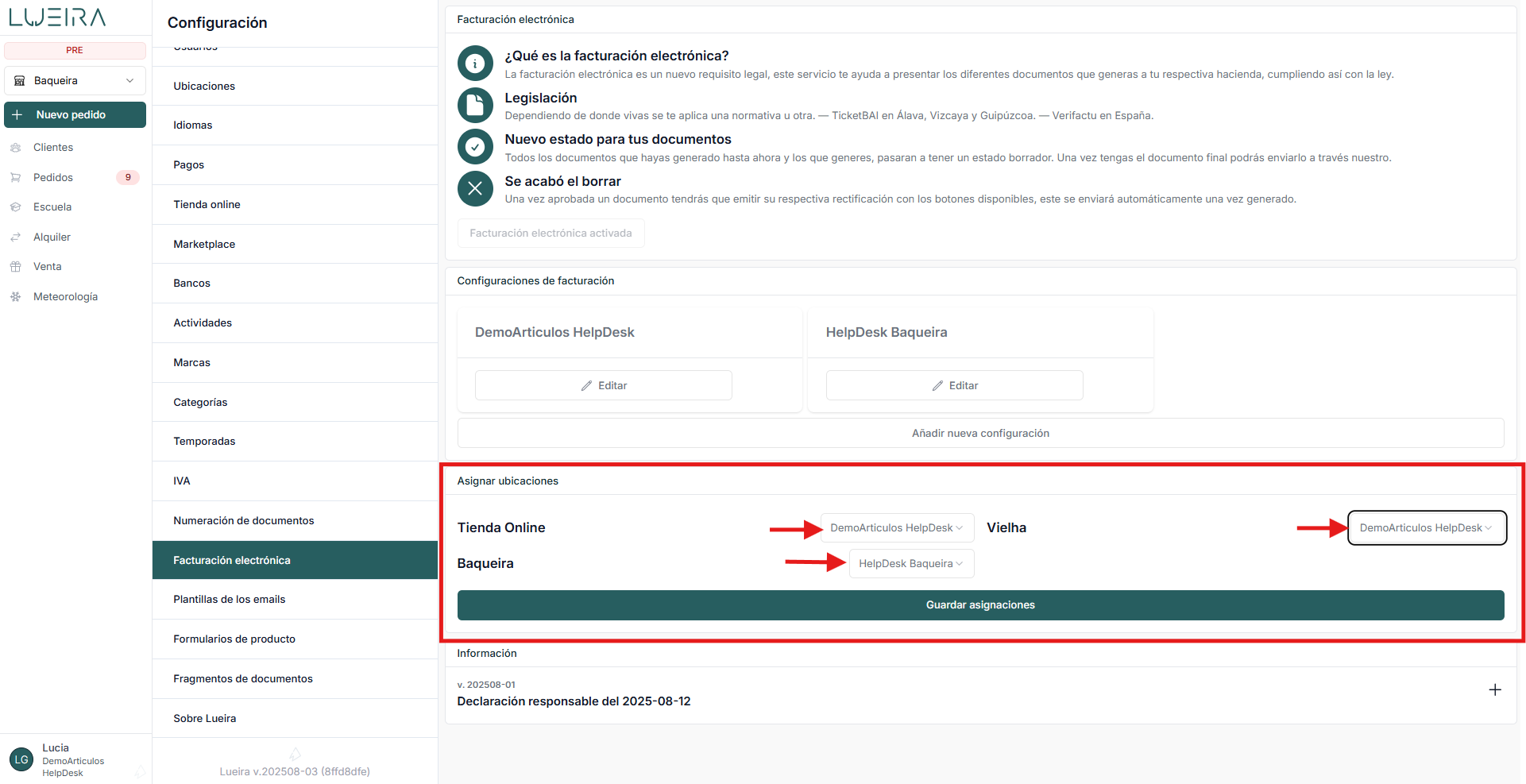
We assign the configurations to the locations as we need or see fit, and click the "Save assignments" button to save this assignment. As mentioned above, if the company carries out its activity and has its registered office in the Basque Country, under the regulations that apply to TicketBAI we must assign an address to each location our company has. For the rest of the territory, the regulations that apply to Verifactu allow us to use the same configuration for all our locations.
How to create documents with Verifactu or TicketBAI in Lueira.
Once Verifactu or TicketBAI is activated in Lueira, the document generation procedure is the same; only the draft format and the document validation process differ.
To be able to generate documents (tickets, invoices and quotes) it is important to configure the document numbering patterns in the account settings (Settings>document numbering>add numbering pattern), including the corrective document patterns for each one.
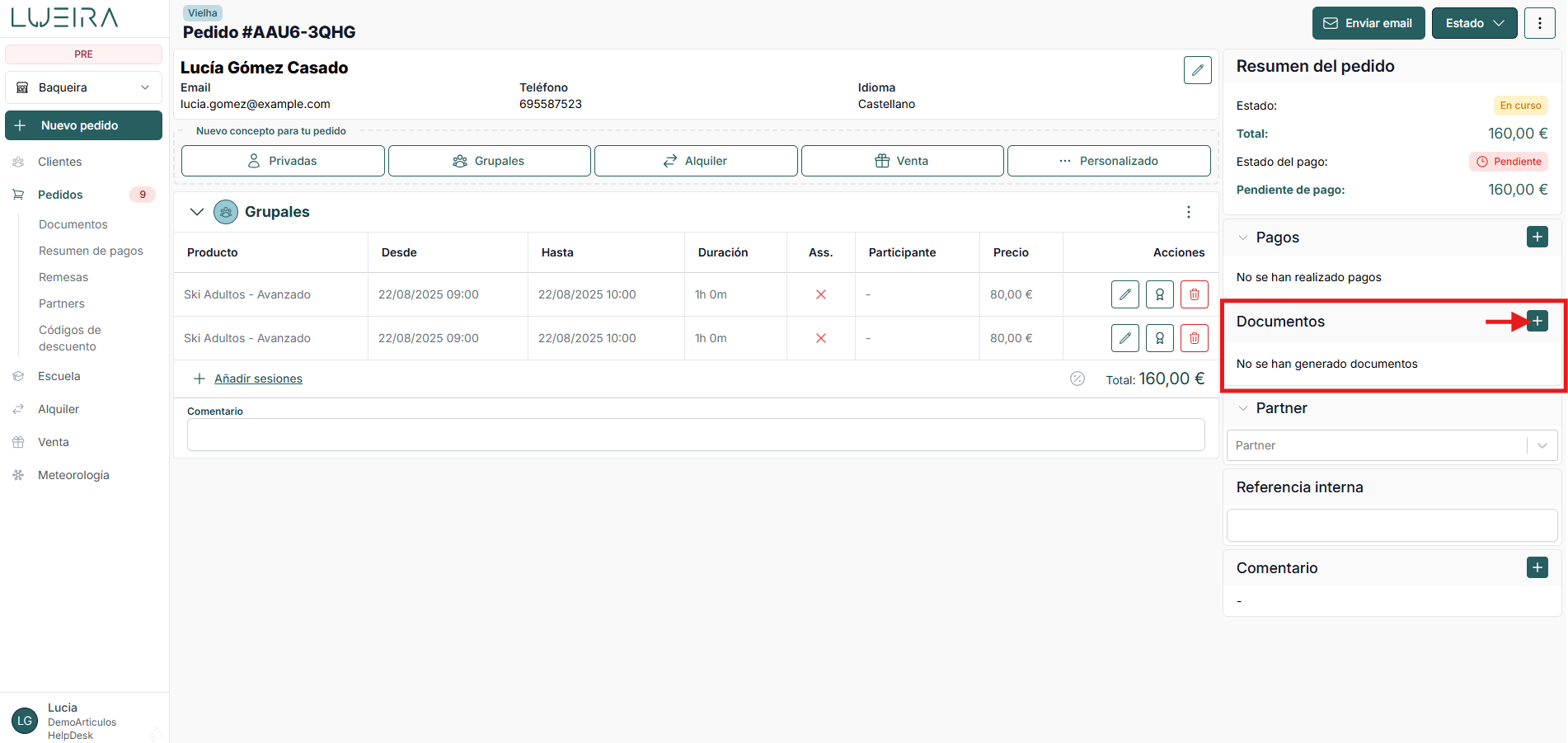
To generate an invoice or a ticket we do it from an order's page, in its documents section, using the "+" button that appears in the top right corner of the Documents box.
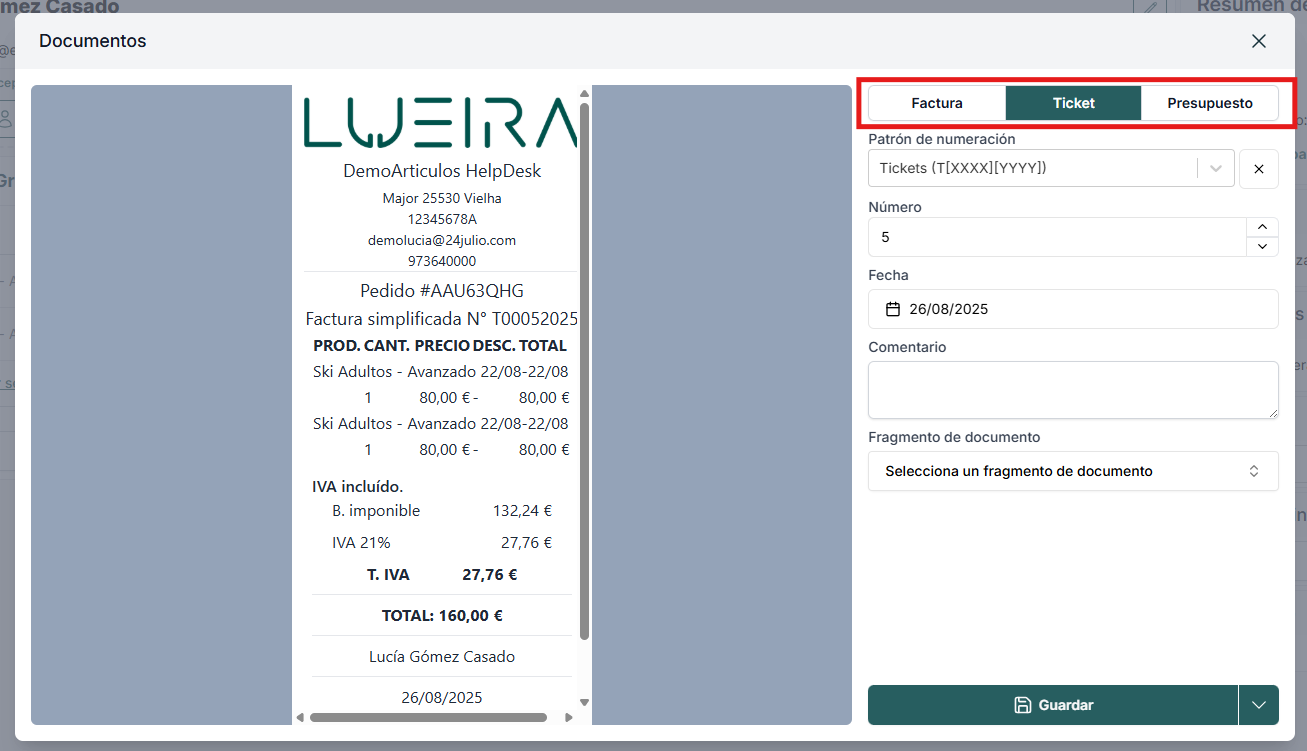
When you select this button, a window will appear where we can preview the document we want to generate, and we can choose between generating invoices, tickets or quotes. Depending on the type of document we choose, the preview will update, adapted to its format.
In the case of invoices, it is important to have the customer's details correct, and to check that there are no errors before creating the document. If we do not have the customer's details (name, CIF/NIF – the Spanish tax identification number – and address) the program will show a warning message and will not allow us to generate the document (it is important to check that the NIF/CIF is correct and does not contain lowercase letters).
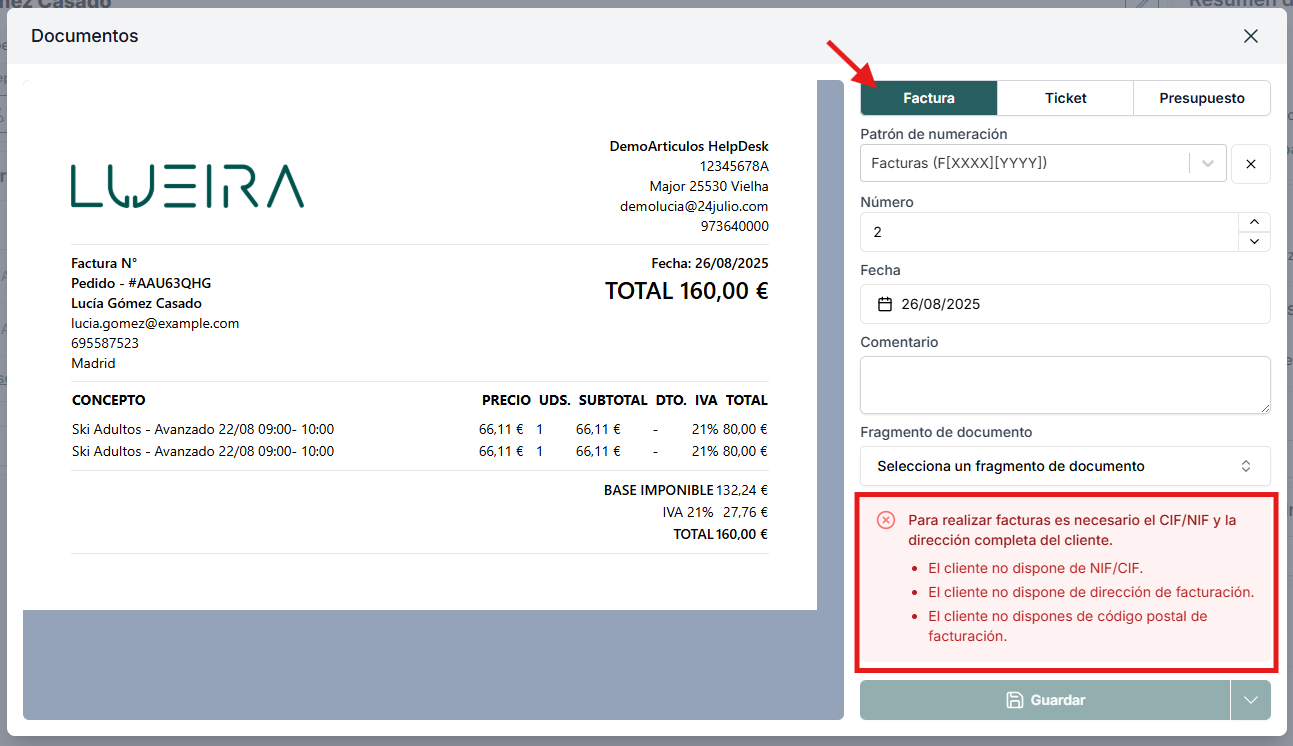
Once we have the customer's details, and after checking that the data in the document is correct, we can use the "Save" button to generate the document.
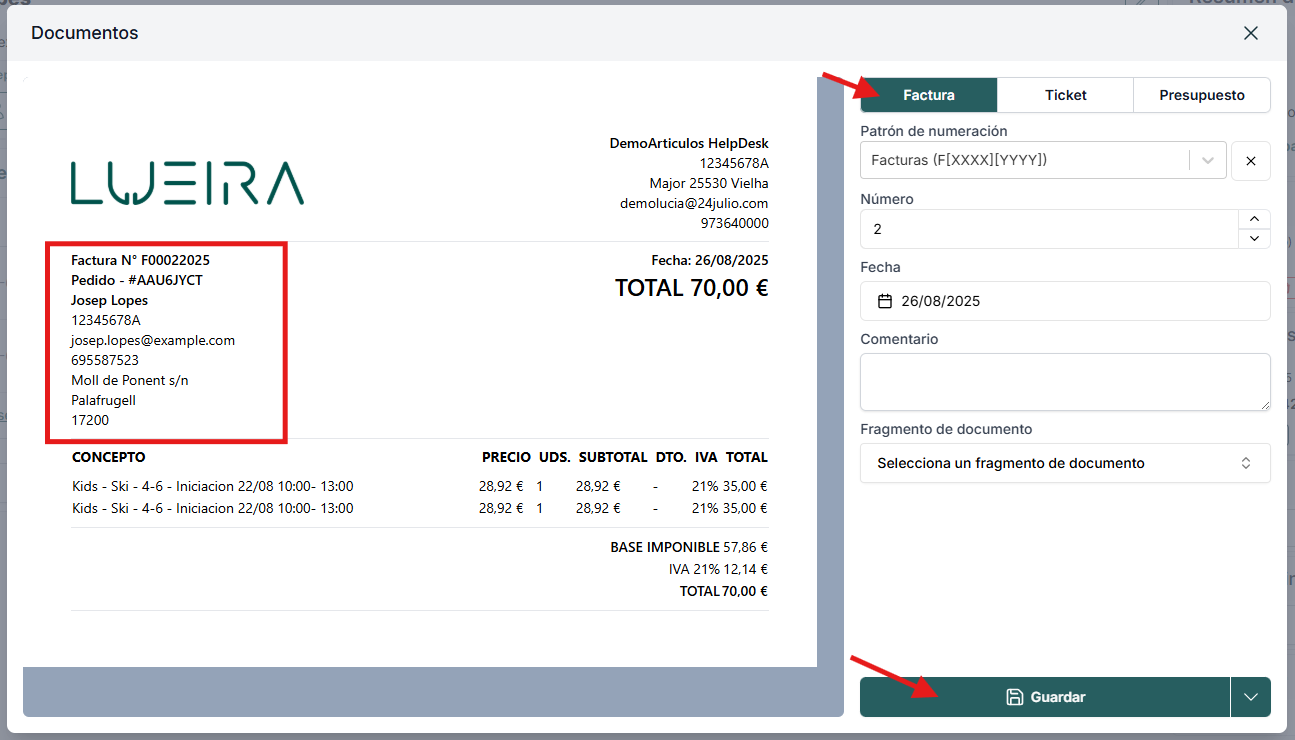
When we select this option, a confirmation message appears where we can Approve/Validate the document so that it is automatically sent to the corresponding tax agency, or we can cancel the validation to generate the draft of the document.
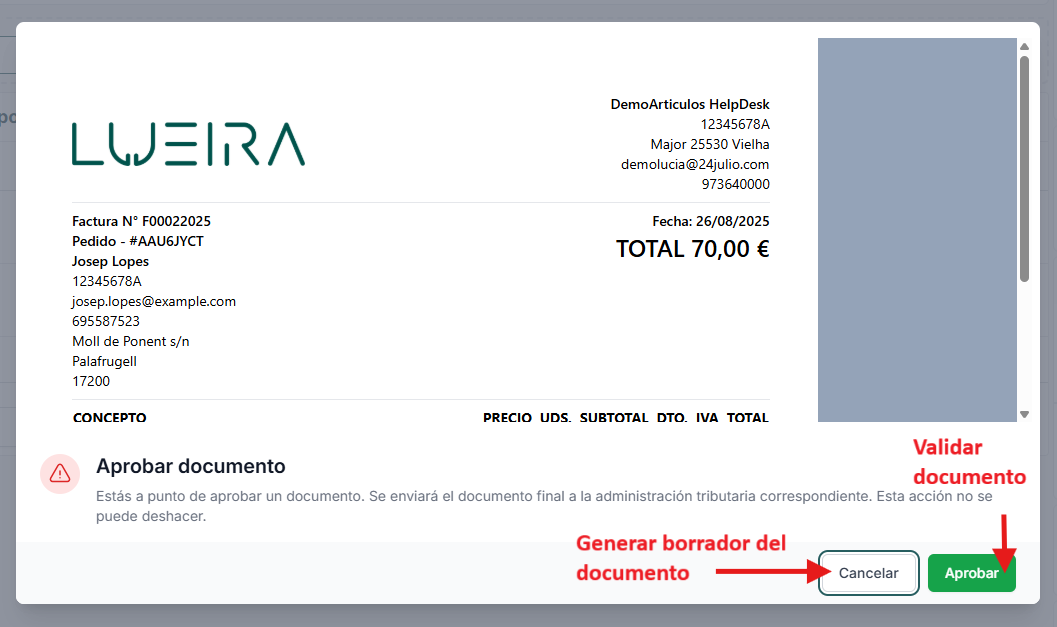
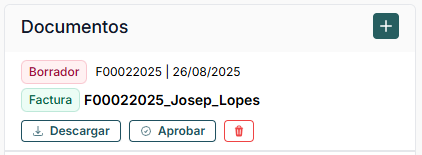
Cancel and generate draft: If we generate the document draft, we can delete it or approve it later, and we can see its status labeled as "Draft".
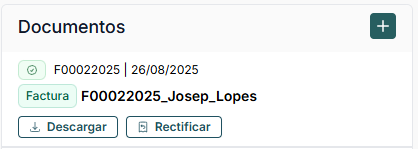
Approve the document: If we validate the document, in the summary information the status appears labeled with a green "tick", and the options available are to download or correct the document.
Correcting documents with Verifactu or TicketBAI
Once approved, you cannot delete or directly modify the content of the invoice. However, you can generate a corrective invoice (factura rectificativa) to correct the information of the original invoice.
The Corrective invoice is used when the invoice has already been validated and an error needs to be corrected (amount, taxable base, taxes, etc.).
The corrective invoice always refers to the original.
You can correct the total amount of the original invoice.
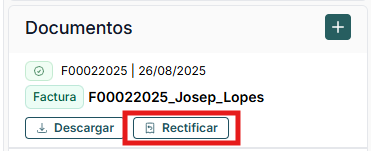
To generate a corrective invoice for an invoice or a ticket we use the "Correct" option that appears in the order's document summary, linked to the document we want to correct.
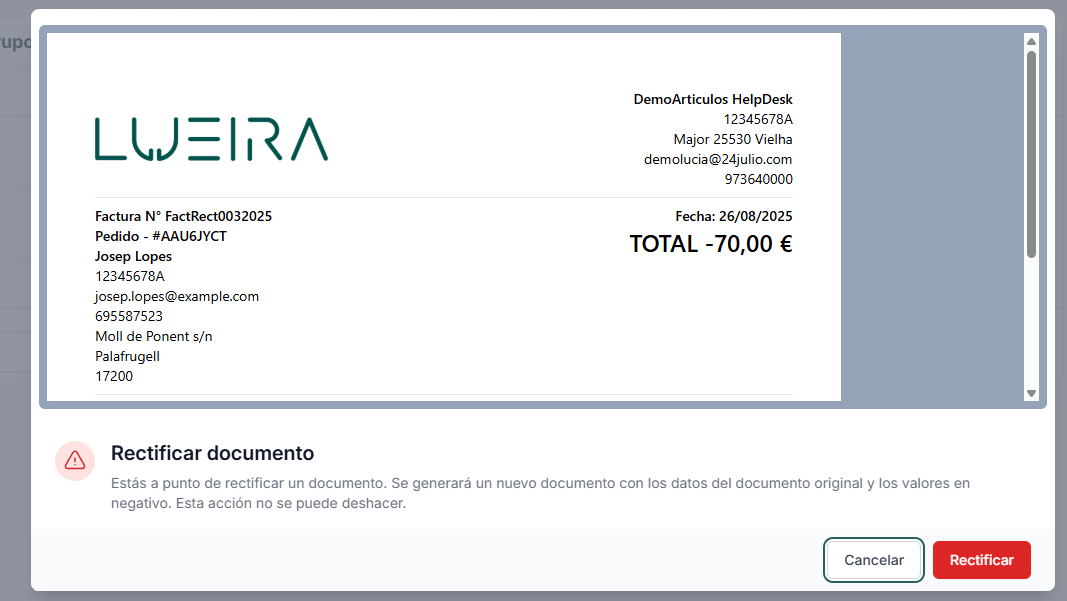
When you select this option, a window will appear where we can see the preview of the corrective document we are generating, with the options "Cancel" or "Correct", and a warning message informing us that the document that will be generated will contain the data of the original document but with negative values, and that this action cannot be undone.
To confirm the action we select the "Correct" option, and this new document will appear in the order's document details in the order's document summary.
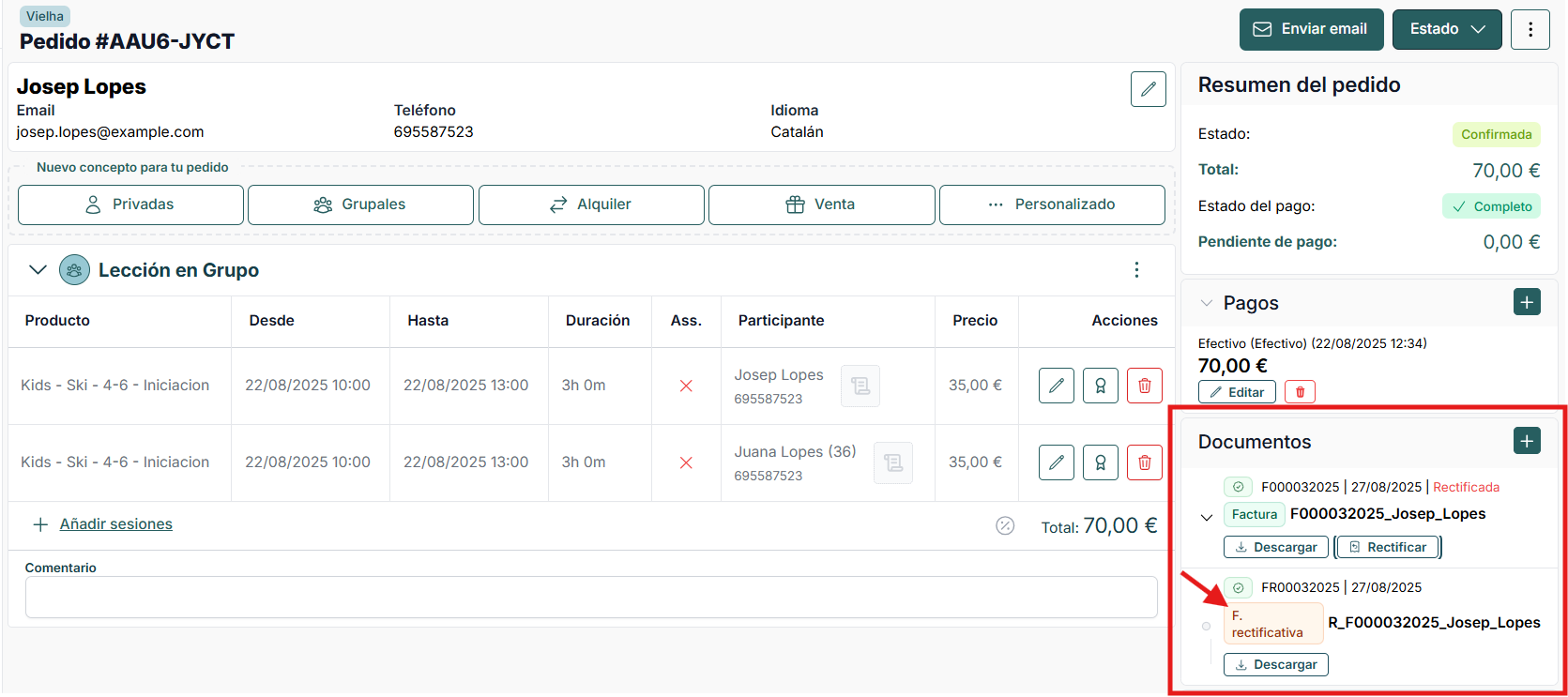
Once the incorrect document has been corrected, we can create the new document with the correct amounts or data.
Common errors when creating invoices and tickets with Verifactu or TicketBAI
Incomplete or incorrect tax data:
The customer's NIF/CIF is missing or does not match the valid format. The program only accepts uppercase letters, and does not accept spaces or special characters.
Incomplete or incorrect tax address. If any information field is missing the program will show an alert, but if the data is incorrect the program cannot detect it until it is received by the corresponding tax authority, which is why it is important to check that the customer's tax billing details are correct before creating and validating the document.
In the case of foreign customers, indicate that the customer is foreign in the customer's record.
Incorrectly configured invoice series:
Using invoice series that the systems do not recognize. This can happen if we use lowercase letters in the document numbering pattern; Verifactu and TicketBAI only recognize uppercase letters and numbers for the numbering pattern.
Not having the corrective document pattern configured and linked. For tickets and invoices we have to create the corrective document patterns and link each one to its own. When configuring the pattern we must keep in mind that we can only use uppercase letters and numbers.
Activities or taxes not configured correctly:
Using special characters in the product naming can cause errors, use letters and numbers without special characters.
Not specifying the VAT type in a product's configuration can cause an error when validating documents. Check that all the products you have configured in Lueira have a VAT type linked, and in case of exemptions use a specific VAT configuration, available in the VAT configuration in the account settings.
Errors in the automatic submission to the tax authority:
Connection interrupted at the moment of sending/validating the document.
Generating invoices and tickets on dates that are not allowed or are wrong.
If you have any questions about the Verifactu and TicketBAI systems, about how we apply them in Lueira or how to set them up in your account, don't hesitate to contact us!

Applicable regulations
Related guides
- Configuring Company Settings in LueiraIn this section you can configure all the properties of your school
- Settings (School / Center / Activities)Configure the parameters of your school, center or activities space: levels, meeting points, schedules, prices and more.
- Features: turn optional features on or off in your accountHow to turn Short courses, Private lesson vouchers, Material resources and Instructor ranking on or off from Settings > Company > Features.
- Several sites or centers in one Lueira accountHow to manage several sites (establishments) in the same account: create a site, give it its own online store link and decide whether it invoices with its own tax details.
- Diagnose: check your setup, an order or a productHow to use the Diagnose button and the Setup status screen to find out what is missing or wrong in your account, your store, an order, a pack or a product, and how to fix it.
- Create and manage locationsHow to create, edit and delete a location (a physical place where you operate) in Settings > Locations, what each field means and what to do if you cannot create one.