

Several sites or centers in one Lueira account
How to manage several sites (establishments) in the same account: create a site, give it its own online store link and decide whether it invoices with its own tax details.
On this page
Several sites in one account
If you have several sites (several centers or establishments) you can manage them from a single Lueira account: each site has its own name, its own online store link and, if you need it, its own tax details. This guide explains how to create and edit sites. Do not confuse Sites with Locations (physical and online spaces where you operate).
⚠️ The management of multiple sites is still evolving. Some behaviors (what is separated by site and what is shared) have not been verified: check with support before setting up your final structure.
1. What a site is
In Settings > Sites (on-screen description: "Establishments: each with its own catalog, staff and invoicing series") you manage your business's establishments. The site marked Default is the main one; you can change which one it is with the star.
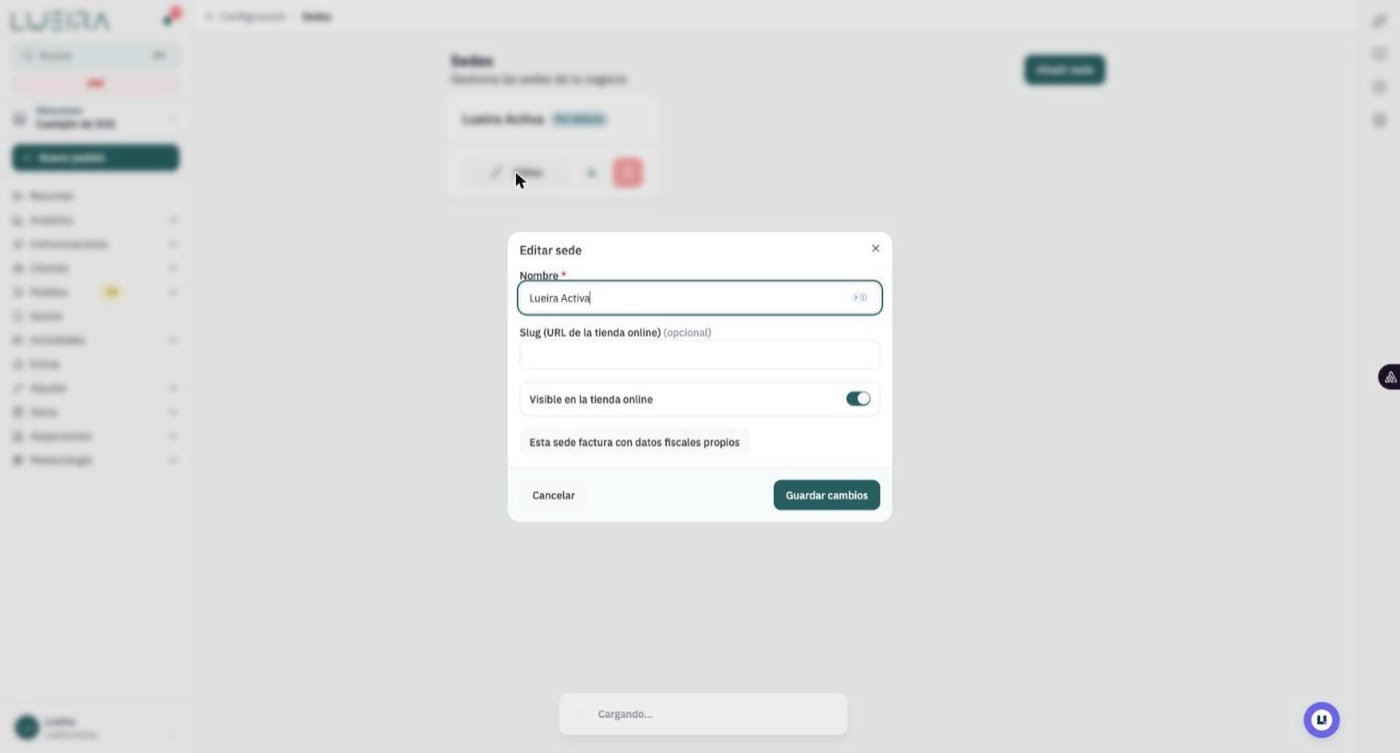
2. Creating or editing a site
Go to Settings > Sites.
Click Add site (or Edit on an existing one).
Fill in the Name.
If you want its own link for its online store, enter the Slug (online store URL); it is optional.
Decide whether the site is Visible in the online store with the switch.
If the site invoices under a different company name, click This site invoices with its own tax details and complete the details.
Click Save changes.
3. Switching site while you work
At the top left of the menu, the Locations selector lets you choose which location you are working in. New orders are created in the selected location.
4. Which users see each site
Users and their roles are managed in Settings > Users. To restrict a person to one site, check with support: we have not been able to verify it.
What to do if…
I cannot see the Sites option: it may be a feature that your account does not have. Check Settings > Features and contact support.
A change is not saved when switching site (for example a meeting point or an assistant knowledge item): it is a known issue of multiple sites. Repeat the save in the correct site and let support know.
I want a site not to appear in the store: turn off Visible in the online store in its detail page.
Related guides
Related guides
- Configuring Company Settings in LueiraIn this section you can configure all the properties of your school
- Settings (School / Center / Activities)Configure the parameters of your school, center or activities space: levels, meeting points, schedules, prices and more.
- Features: turn optional features on or off in your accountHow to turn Short courses, Private lesson vouchers, Material resources and Instructor ranking on or off from Settings > Company > Features.
- Diagnose: check your setup, an order or a productHow to use the Diagnose button and the Setup status screen to find out what is missing or wrong in your account, your store, an order, a pack or a product, and how to fix it.
- Create and manage locationsHow to create, edit and delete a location (a physical place where you operate) in Settings > Locations, what each field means and what to do if you cannot create one.
- Payment methods and gateways in LueiraComplete guide to all the payment methods and gateways available in Lueira: LueiraPay (Stripe), Redsys, Bizum, PayPal and manual methods (cash, card, bank transfer, remittance, other).