

Diagnose: check your setup, an order or a product
How to use the Diagnose button and the Setup status screen to find out what is missing or wrong in your account, your store, an order, a pack or a product, and how to fix it.
On this page
- What Diagnose is and where to find it
- What Diagnose is
- Where to find it
- How to read the result
- How to read the result
- What it checks in your account and in the store
- What it checks in your account and in the store
- Fixed group lesson packs: why they cannot be booked
- Fixed group lesson packs: why they cannot be booked
- What to do if…
- What to do if…
What Diagnose is and where to find it
What Diagnose is
When something does not work as you expect ("my pack does not appear in the store", "I cannot charge customers", "this order is not invoiced"), Lueira can check your setup against the platform rules and tell you what is missing, why it matters and what to fix. It is a read-only check: it does not change anything.
Where to find it
Your whole account: in Settings, open Setup status. It checks your account, your tax details, the online store and payments.
A specific item: open the detail page of an order, a group lesson, a group lesson pack, a rental product or a shop product and click the Diagnose icon in the header (the first of the icons at the top right). A Diagnosis window opens with the name of the item that was checked.
💡 If you cannot see the icon or the screen, your role may not have access to that area (see "What to do if…" at the end).
How to read the result
How to read the result
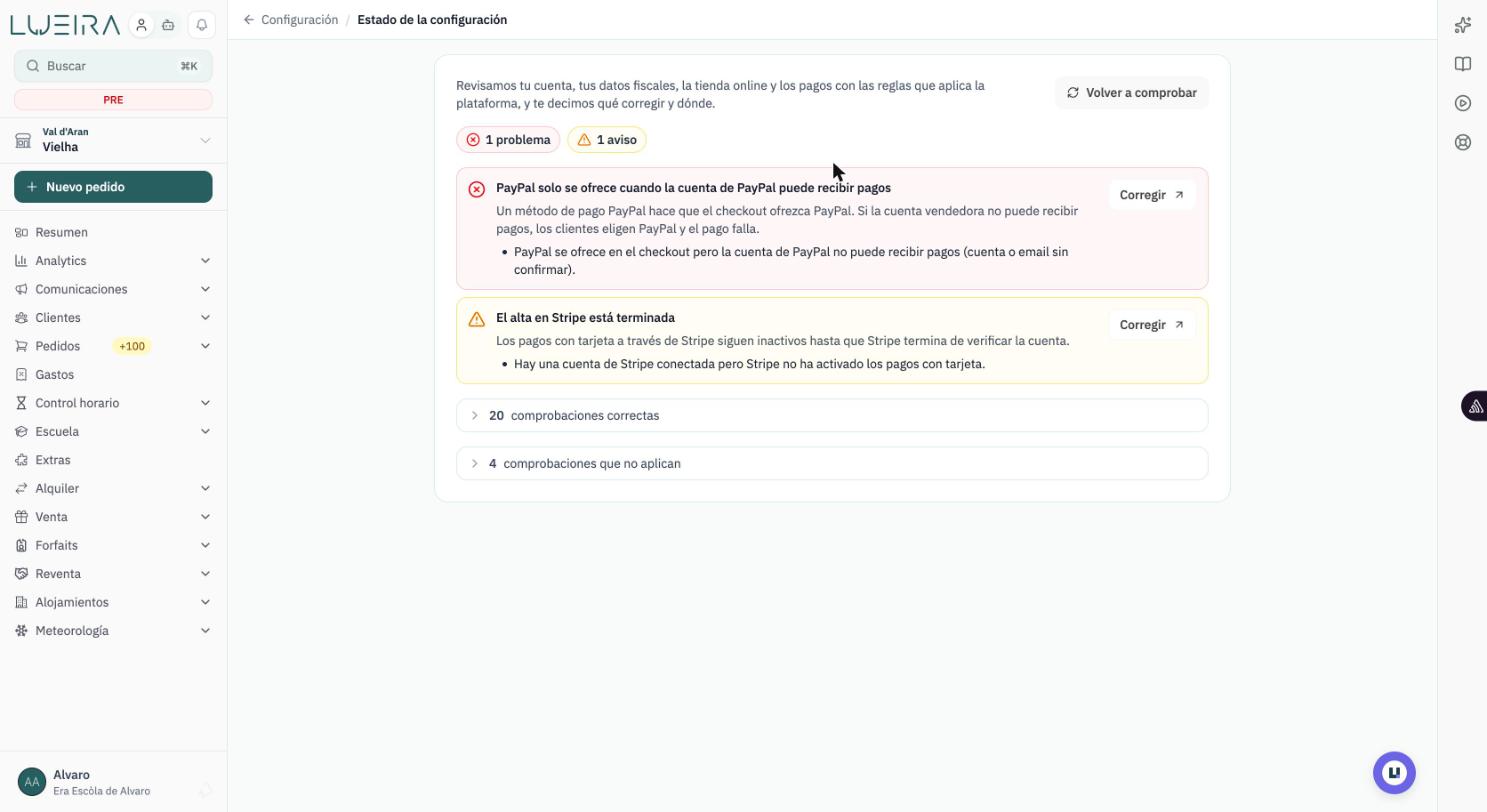
At the top you will see a summary. If everything is fine, it says "All good: N checks passed". If not, it counts the findings by severity:
Problems: something prevents it from working (for example, the pack cannot be booked). Fix these first.
Warnings: they do not prevent sales, but they are worth reviewing.
Notes: useful information, no action required.
Each finding explains what is happening and why it matters. When there is a shortcut, the Fix button takes you to the screen where it can be solved. Once you have changed something, click Check again to confirm that the finding has disappeared. Below the findings you will see how many checks pass (checks passed) and how many do not apply to your case; click each line to expand them.
What it checks in your account and in the store
What it checks in your account and in the store
In Setup status you will find, among others, these checks:
Account: that it can use the platform and does not have a scheduled deletion.
Company details: time zone set and valid, complete legal identity (the one printed on invoices), VAT regime set and consistent with the tax territory of the postal code, and a postal code with a valid format.
Sites: that each site either fully replaces the legal identity or does not replace it at all (not partially).
Online store: that it is enabled, has an address, has a payment processor that can charge, offers at least one payment method at checkout and has numbering series if you use automatic invoicing. If your store charges with Tilopay and its configuration is missing or inactive, you will see it flagged.
Payments: that the business details Stripe needs are filled in.
Fixed group lesson packs: why they cannot be booked
Fixed group lesson packs: why they cannot be booked
A fixed pack sells all of its linked sessions at once. That is why a single session with problems is enough to stop anyone from booking it. Go to School → Group → Packs, open the pack (its type must be Fixed) and click the Diagnose icon in the header.
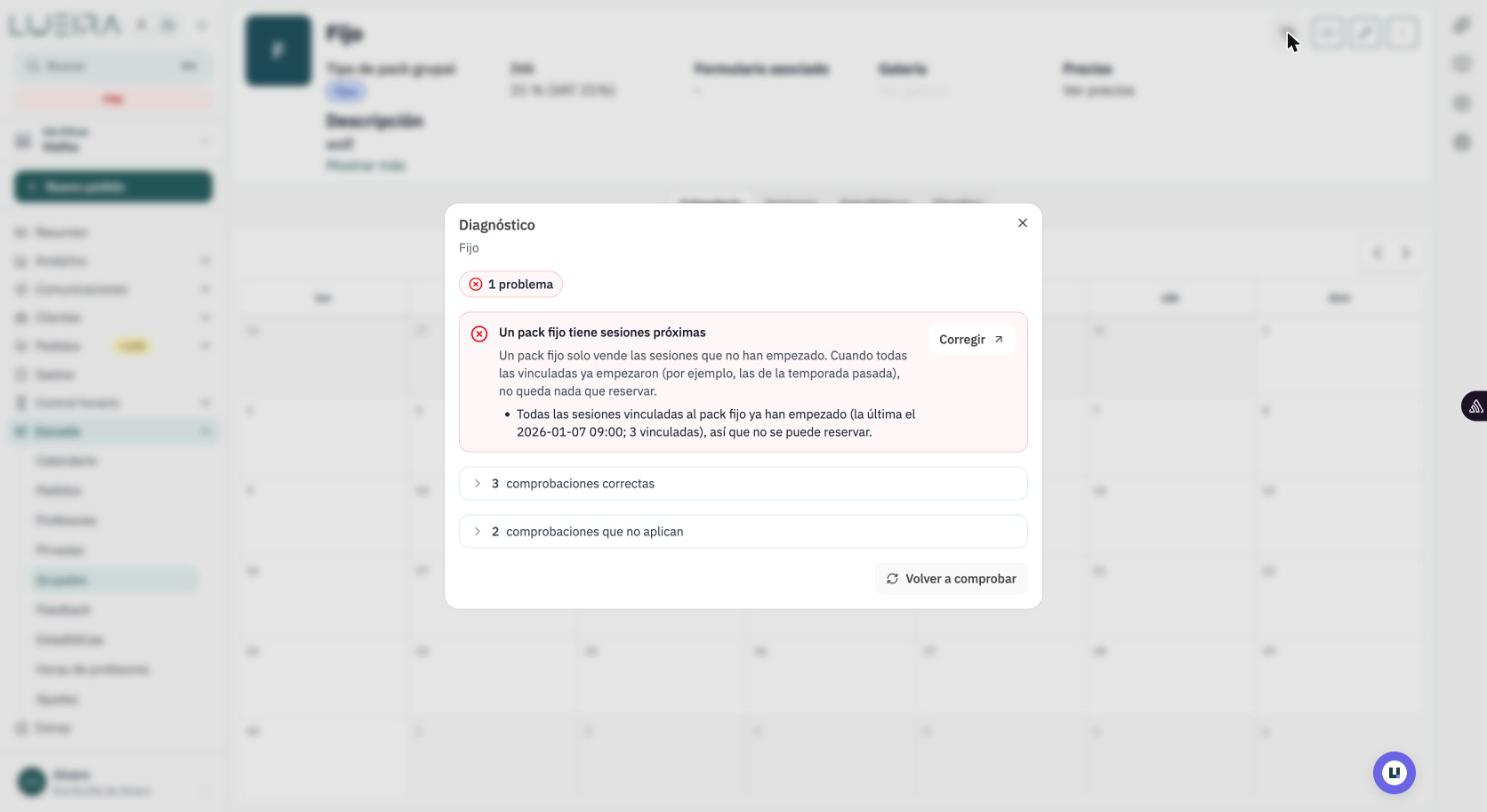
These are the findings it can show:
The pack does not appear in the online store. It is deleted, inactive, or has visibility set to Disabled (it does not appear and its page does not open) or Hidden (it does not appear in the catalogue but can be booked from its direct link).
A fixed pack has linked sessions. Without sessions there is nothing to sell: link the sessions to the pack.
A fixed pack has upcoming sessions. A fixed pack only sells sessions that have not started yet. If all the linked ones have already started (for example, those from last season), there is nothing left to book: create or link the ones for the new season. The diagnosis tells you when the last one was and how many are linked.
No linked session is blocked in the online store. A session with no available instructor, or with an online product block, makes the store treat the whole pack as not bookable.
All upcoming sessions have spots left. If just one is full, nobody can book the pack even if the others have spots.
A fixed pack does not have more upcoming sessions than its bookable limit. With a limit lower than the number of upcoming sessions, every booking is rejected for exceeding the maximum: raise the limit or unlink sessions.
When a customer tries to book such a pack, the store explains the reason (for example, that the pack has no sessions) instead of simply failing.
Click Fix to go to where it can be solved and Check again to confirm that the problem has disappeared.
📘 For the other reasons why an activity cannot be booked, see the checklist "Why can't my customers book in the online store?".
What to do if…
What to do if…
I cannot see the Diagnose icon: it is in the header of the detail page for orders, group lessons, group packs, rental products and shop products. It does not exist yet for other product types.
It says "Your role cannot view this diagnosis": your role does not have access to that area. Ask an administrator of your account to review it or to adjust your role.
It says "N checks are skipped because your role cannot view those areas": the diagnosis is partial. An administrator will see all the checks.
It says "No diagnosis is available for this item": that item has no rules yet.
It says "The diagnosis could not be completed": try again in a moment with Check again. If it keeps happening, write to support with a screenshot.
Everything is fine but the problem persists: the diagnosis only checks configuration, not one-off errors. Write to support with the order number or the product name and what you expected to happen.
Related guides
- Configuring Company Settings in LueiraIn this section you can configure all the properties of your school
- Settings (School / Center / Activities)Configure the parameters of your school, center or activities space: levels, meeting points, schedules, prices and more.
- Features: turn optional features on or off in your accountHow to turn Short courses, Private lesson vouchers, Material resources and Instructor ranking on or off from Settings > Company > Features.
- Several sites or centers in one Lueira accountHow to manage several sites (establishments) in the same account: create a site, give it its own online store link and decide whether it invoices with its own tax details.
- Create and manage locationsHow to create, edit and delete a location (a physical place where you operate) in Settings > Locations, what each field means and what to do if you cannot create one.
- Payment methods and gateways in LueiraComplete guide to all the payment methods and gateways available in Lueira: LueiraPay (Stripe), Redsys, Bizum, PayPal and manual methods (cash, card, bank transfer, remittance, other).