

Online store visibility: catalog, direct link or disabled
How to control whether a product appears in the catalog, is only accessible through a direct link, or is not sold online, and how to share its link from the product page.
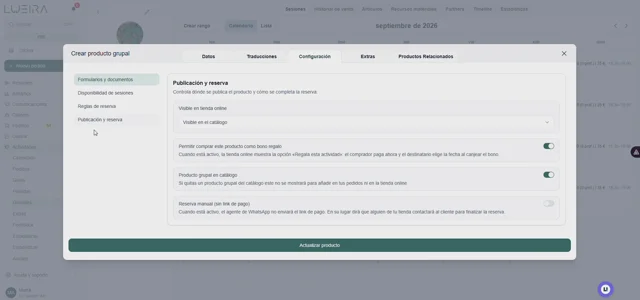
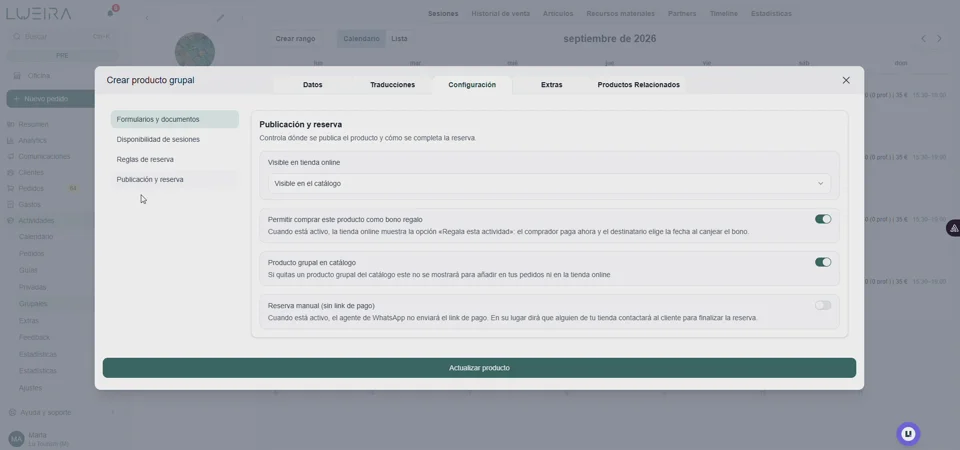 Visibilidad de un producto en la tienda online
Every product (private, group, rental or sales) has an online store visibility field on its page (inside the Publishing and booking block when editing the product, or in the actions menu (⋮) of its detail page, depending on the product type).
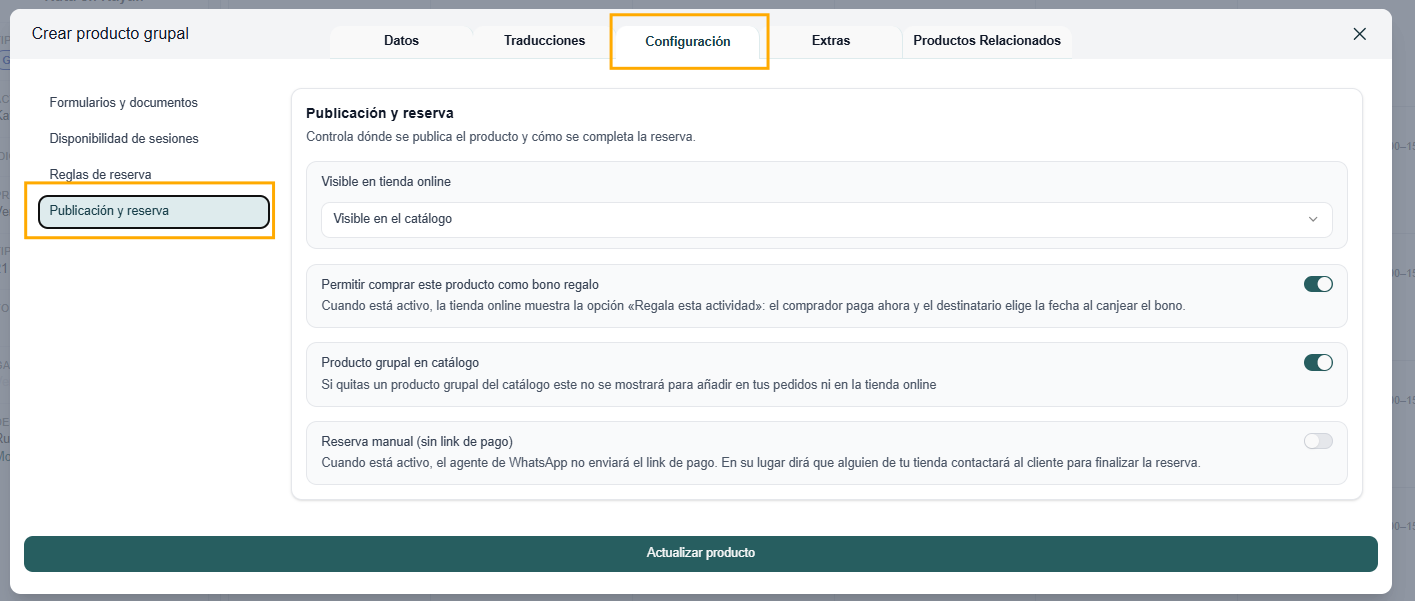
The three options
Instead of a simple on/off switch, this field has three options:
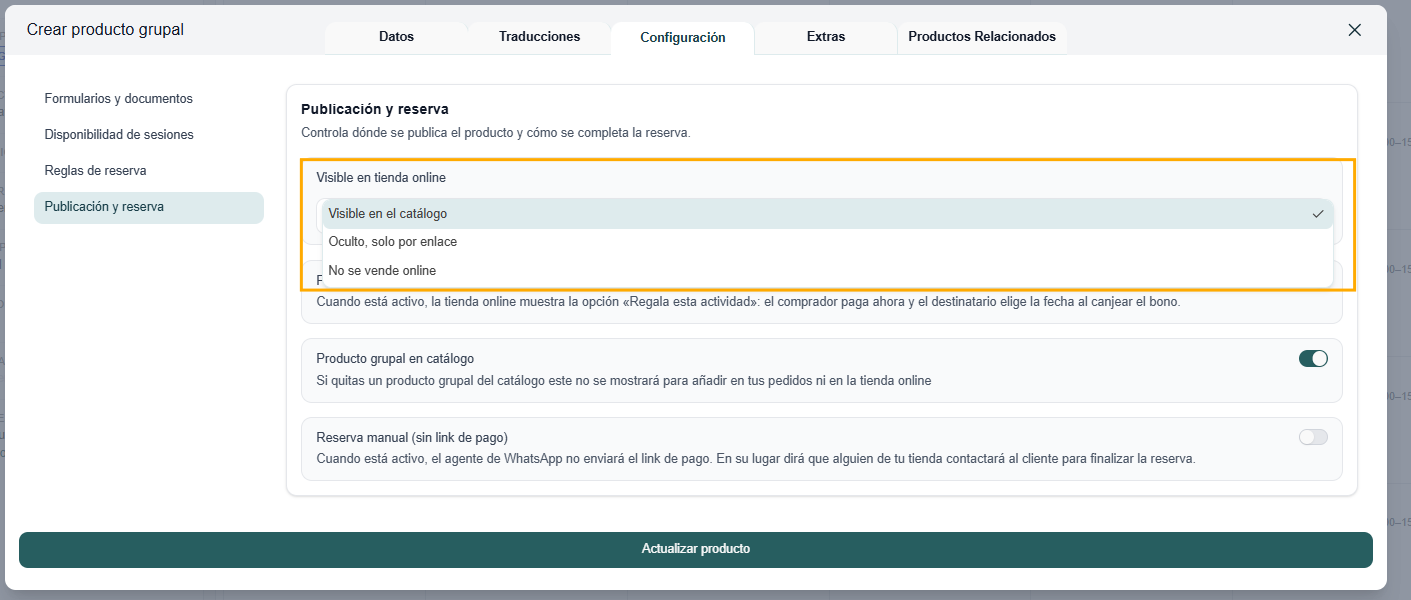
Visible in the catalog: the product appears in the catalog, in the store search and in the listings by activity or category, and it can be booked.
Hidden, link only: the product does not appear in the catalog, the search or the listings, but its page is still accessible and bookable through its direct link: you can open the page, choose a date in the calendar and complete the purchase just like any other product.
Not sold online: the product does not appear in the catalog and is not accessible through a link.
💡 For example, if you sell an activity exclusively for a school and you don't want it to appear in your public catalog, you can leave it as Hidden, link only and share the direct link only with that school.
Default value when creating a product
A new product starts as Not sold online by default. If you want it to be available in the online store, remember to change it to Visible in the catalog or Hidden, link only depending on what you need; otherwise the product will be created but not accessible to your customers.
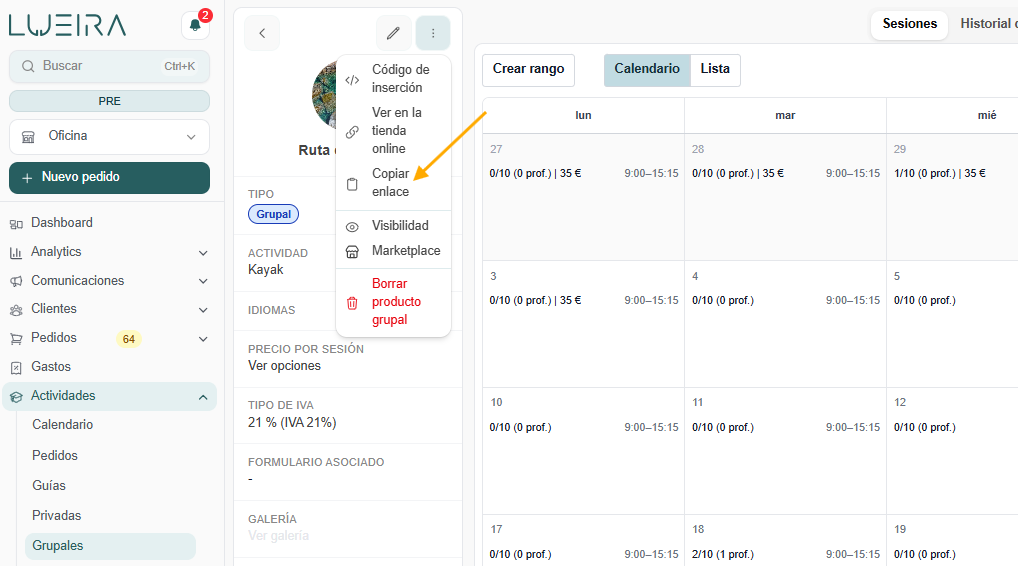
Copy link
From each product's detail page you can use the Copy link option to get the product's direct URL and share it with whoever you want (for example, by email or WhatsApp), whether or not it is visible in the catalog.
This option is always available as long as the product is not set to Not sold online.
Videos about this guide
Related guides
- Online store settingsThis guide shows you how to set up your online store in Lueira, including the purchase (checkout) form fields that can be shown as visible or required.
- Purchase form fields in the online storeHow to configure which fields appear in the online store checkout form and which ones are required for the customer.
- Automatic invoicing in the online storeHow to set up the automatic generation of invoices and receipts when a payment is completed in the online store, including numbering series and compatibility with Verifactu and TicketBAI.
- Product order in the Online StoreGuide to defining the order in which products are displayed in the Online Store
- Product page layouts in the Online StoreLearn how to choose between the 4 layouts available for your Online Store's product page and how to preview them before enabling them
- Online store screen layoutThe online store shows School/Center/Activities, Rental and Sales as separate tabs depending on which modules are enabled on your account.