

Bank transfer payment in the Online Store
How to enable bank transfer payment in your online store, what the customer sees at checkout and how to record the payment.
On this page
Bank transfer payment in the Online Store
You can now offer bank transfer payment as a payment method in your online store, in addition to card, Bizum and PayPal. When a customer pays by bank transfer, the order is confirmed automatically and stays with the payment pending until you check and record the payment.
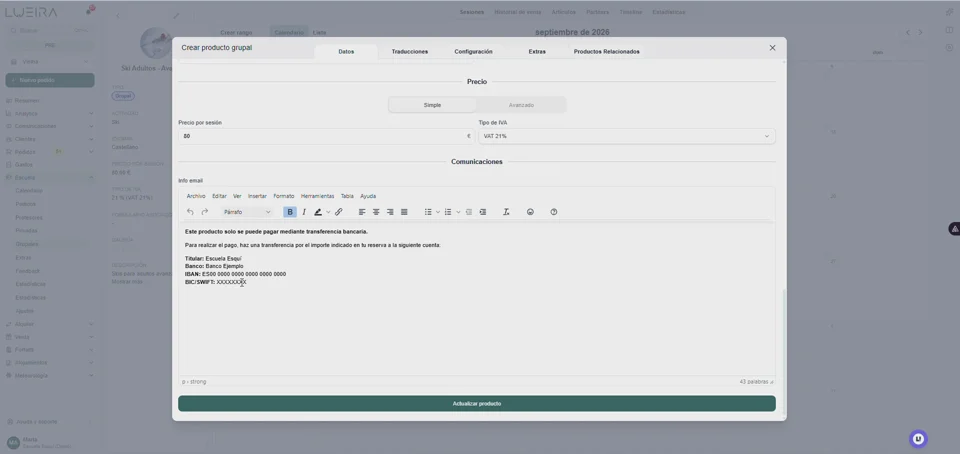 Pago por transferencia bancaria en la tienda online
1. Enable bank transfer payment
Go to Settings → Online store and find the Payment methods block (it only appears if the online store is enabled).
Turn on the Bank transfer payment switch (it is off by default). You will see a notice: we do not verify transfers, so all orders paid with this method are confirmed automatically; it is up to you to check that you have received the deposit and to record the payment manually.
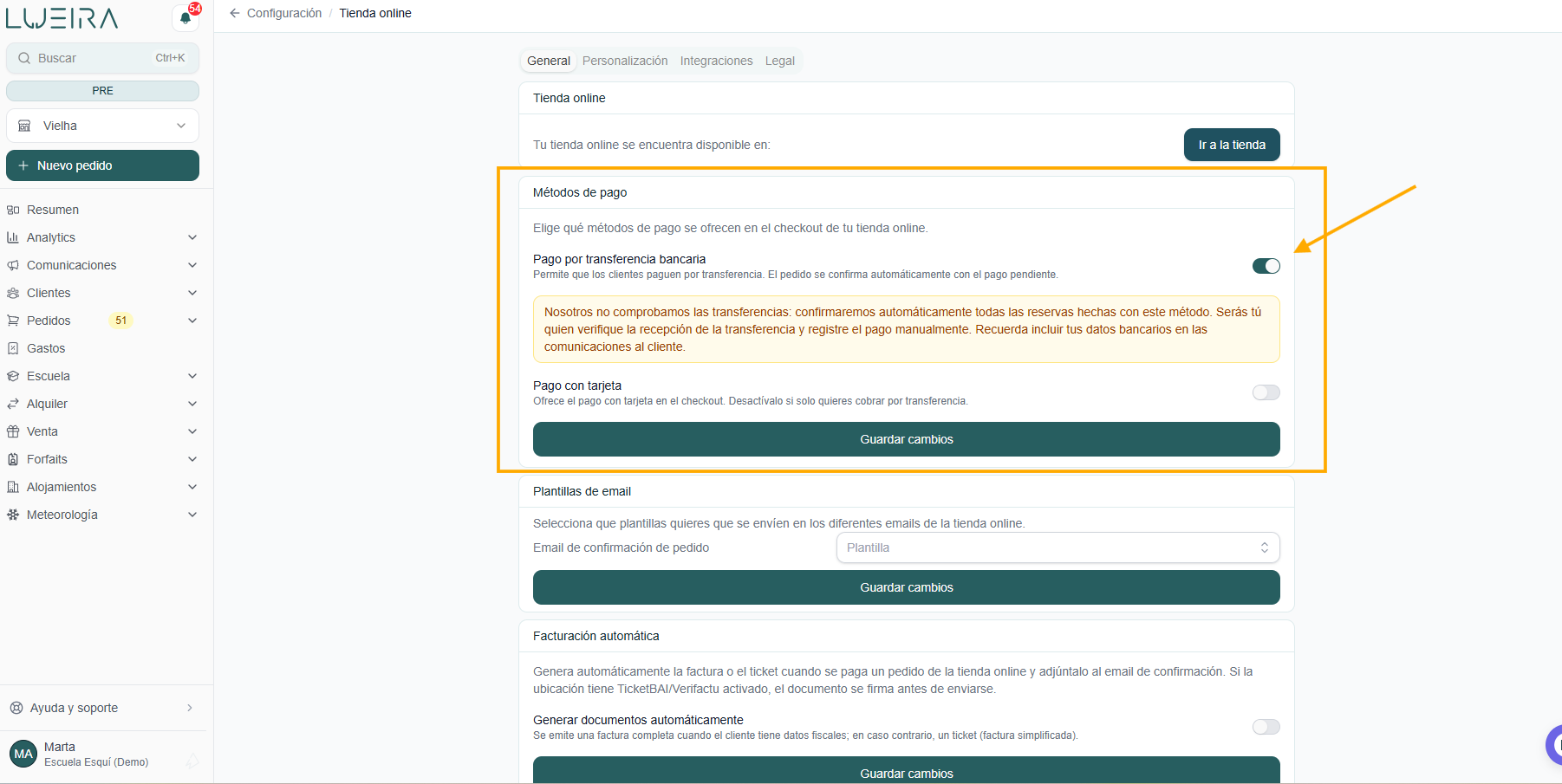
💡 This setting applies to the whole online store: it is not possible to enable bank transfer only for certain products; they all share the same payment methods.
2. Where to include your bank details
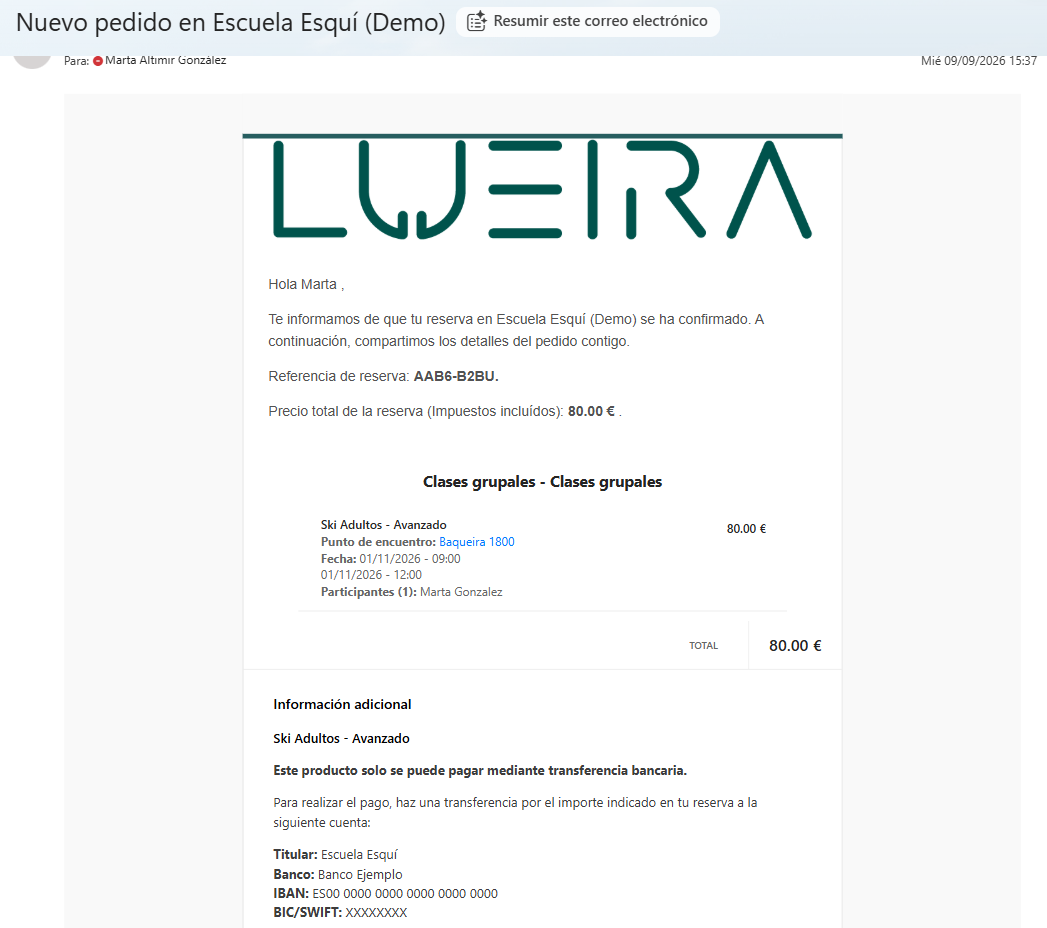
Enabling the payment method does not send any bank details to the customer on its own: you have to write them on the product page so that they reach the customer in the order confirmation email.
Open the product you want to sell by bank transfer (for example, a private lesson, a group lesson or a rental item) and go into its edit screen.
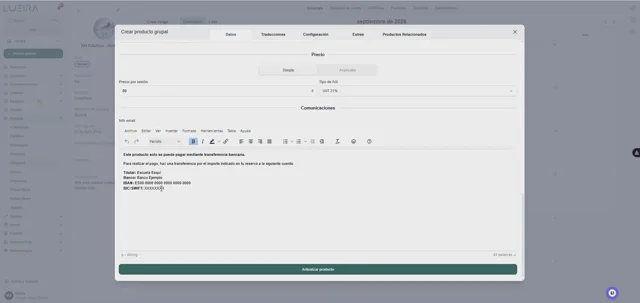
Find the Email info text field: it is a rich text editor designed precisely to add information that is included in the order confirmation email.
Write your bank details there (IBAN, account holder, bank...), the instructions the customer must follow to make the transfer (reference to use, payment deadline, etc.) and any other information you consider necessary.
Save the product. From then on, that content will be sent automatically in the confirmation email of any order for that product, whether or not it is paid by bank transfer.
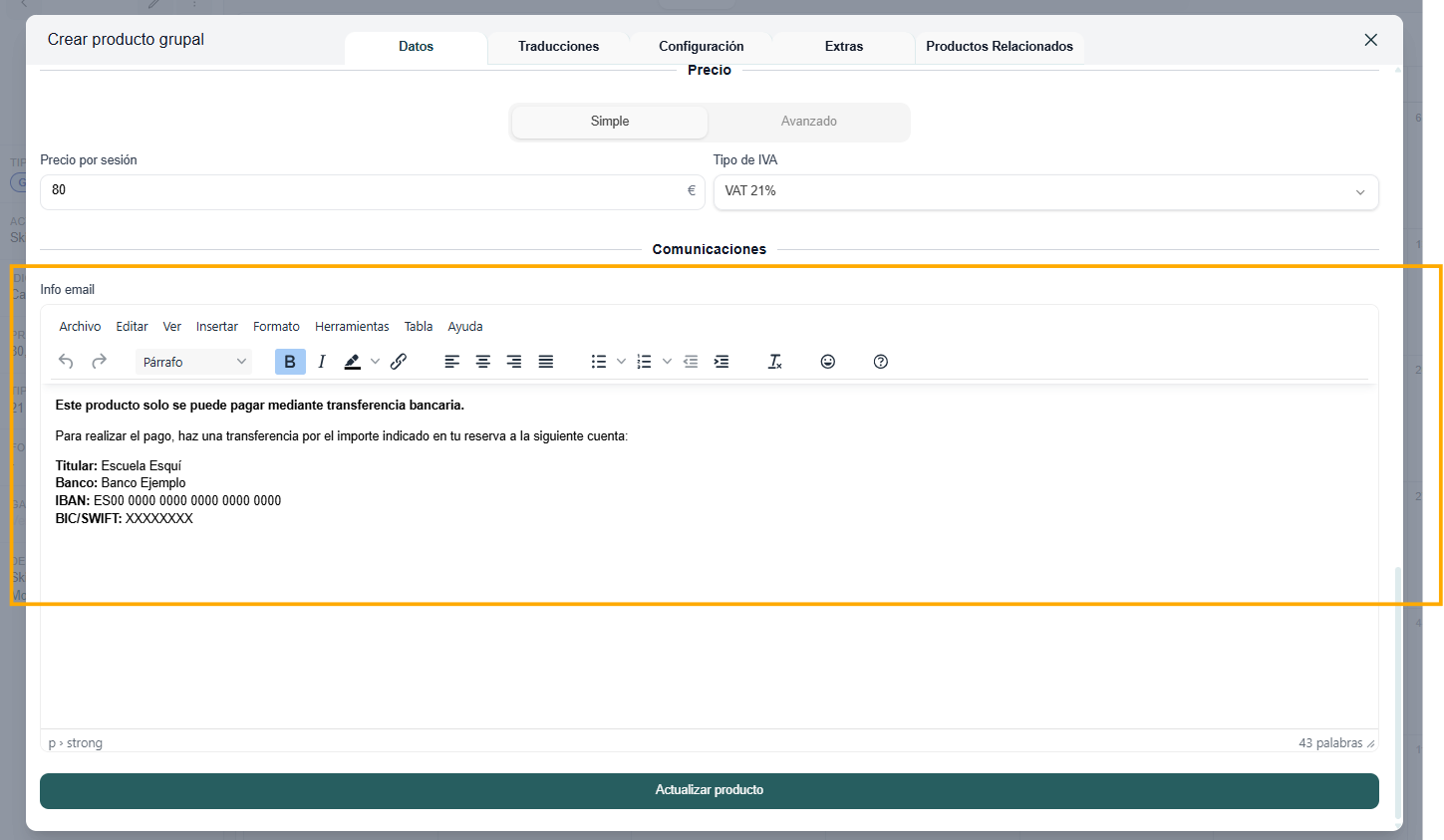
💡 The Email info field supports translations: if your store has several languages, check that the text with the bank details is also in the other language tabs.
3. What the customer sees at checkout
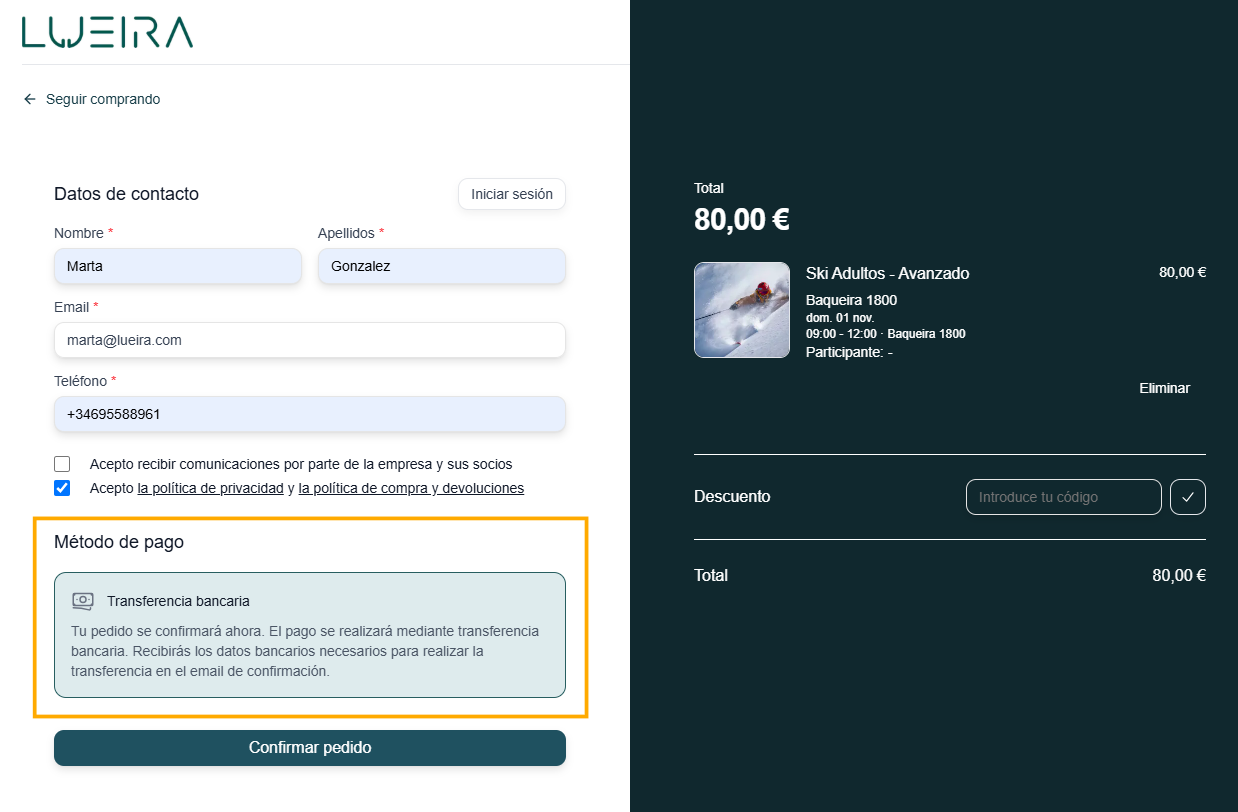
If you have bank transfer enabled, the Bank transfer option appears in the payment step of the checkout alongside the other enabled methods. When they select it:
The notice is already shown inside the option itself: "Your order will be confirmed now. Payment will be made by bank transfer. You will receive the bank details needed to make the transfer in the confirmation email."
No card is requested and no online charge is made.
The payment button changes to Confirm order, and the options to pay in installments or to pay a deposit/partial payment are not offered: with bank transfer the order is confirmed in full, with the payment pending.
4. What happens after the order is confirmed
Once confirmed, the customer lands on the success page, where they see the order total and the amount pending payment (the full total, since nothing has been charged online), along with the message: "Your order is confirmed. Payment will be made by bank transfer. You will receive the bank details needed in the confirmation email."
The order is created and confirmed automatically, just like the rest of the orders, and the usual communications are sent: confirmation email (with your Email info text included), check-in form (if the product has one) and associated documentation (if the product has any).
5. How to record the payment when the transfer arrives
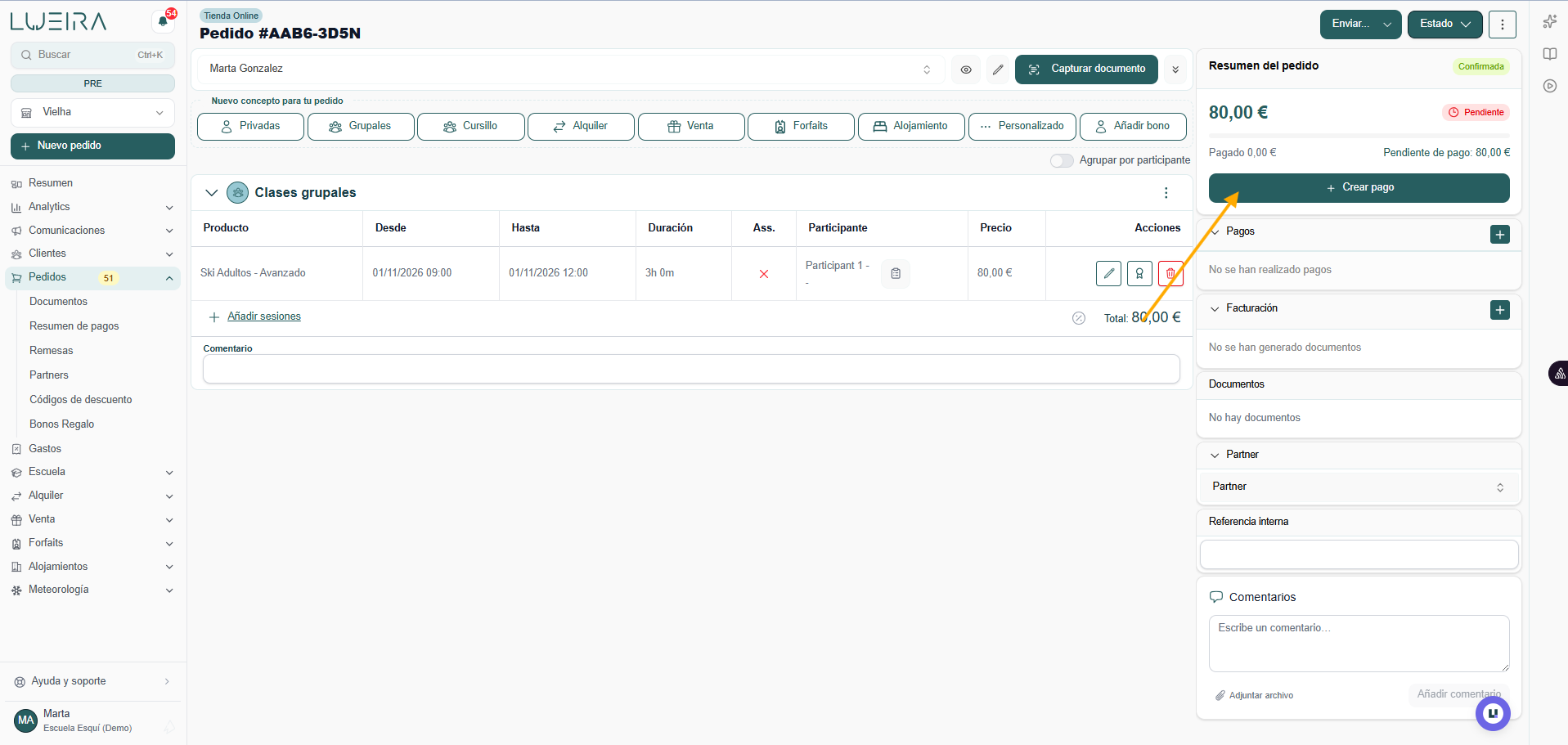
The order stays as confirmed, with payment pending. When you check that you have received the transfer:
Open the order detail and find the Payments block.
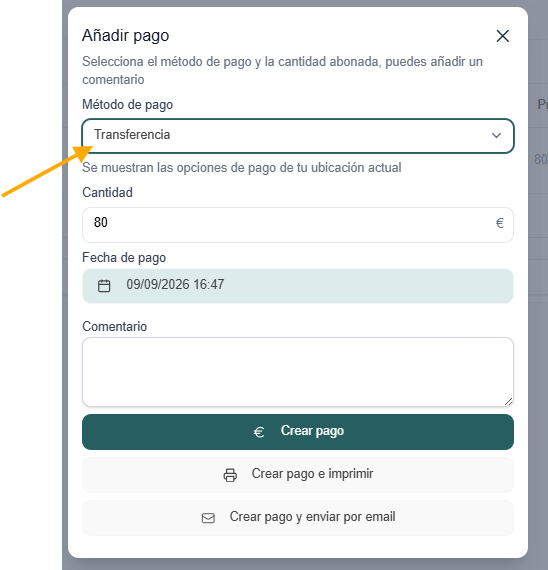
Click Record payment, enter the amount and the method, and save.
The order will change to paid, just as you do with any other payment received outside the online gateway.
If the customer does not receive the bank details
If a customer pays by bank transfer and does not see your bank details in the confirmation email, check these points:
The details are in the right field. They must go in the product's Email info field (Communications section of the edit modal). The product description or the payment email template will not work: the description is not sent in the email and the payment template is only used to send payment links.
Also in packs. If you sell packs, the Email info field is also in the pack's edit screen: fill it in there, not only in individual products.
The confirmation template includes the variable. The Email info text only appears if your Order confirmation template contains the
[products_info]variable (in the field selector, "Additional product info"). If you customized it and removed it, add it back. More detail in Email settings in Lueira.It is translated. Check that the text is in all the languages of your store.
💡 Make a test booking with your own email and check the email before announcing the method to your customers.
📍 To record the payment (step 5), in the current version of the order the button is called Create payment (or the + in the Payments block): choose your bank transfer method, check the amount and the payment date, and click Create payment.
Videos about this guide
Related guides
- Online store settingsThis guide shows you how to set up your online store in Lueira, including the purchase (checkout) form fields that can be shown as visible or required.
- Purchase form fields in the online storeHow to configure which fields appear in the online store checkout form and which ones are required for the customer.
- Automatic invoicing in the online storeHow to set up the automatic generation of invoices and receipts when a payment is completed in the online store, including numbering series and compatibility with Verifactu and TicketBAI.
- Product order in the Online StoreGuide to defining the order in which products are displayed in the Online Store
- Product page layouts in the Online StoreLearn how to choose between the 4 layouts available for your Online Store's product page and how to preview them before enabling them
- Online store screen layoutThe online store shows School/Center/Activities, Rental and Sales as separate tabs depending on which modules are enabled on your account.