

Product groups: build custom catalogs and menus for your online shop
What product groups are, which ones come ready-made, and how to use them to organise the catalog and the menu of your online shop.
What is a product group
A product group is a catalog page of your online shop with the products you choose: lessons, packs, rentals, passes, courses or retail products, mixed however you like. Every group can be added to the shop menu, so your customers land on it directly.
You manage them in Settings > Online shop > Product groups.
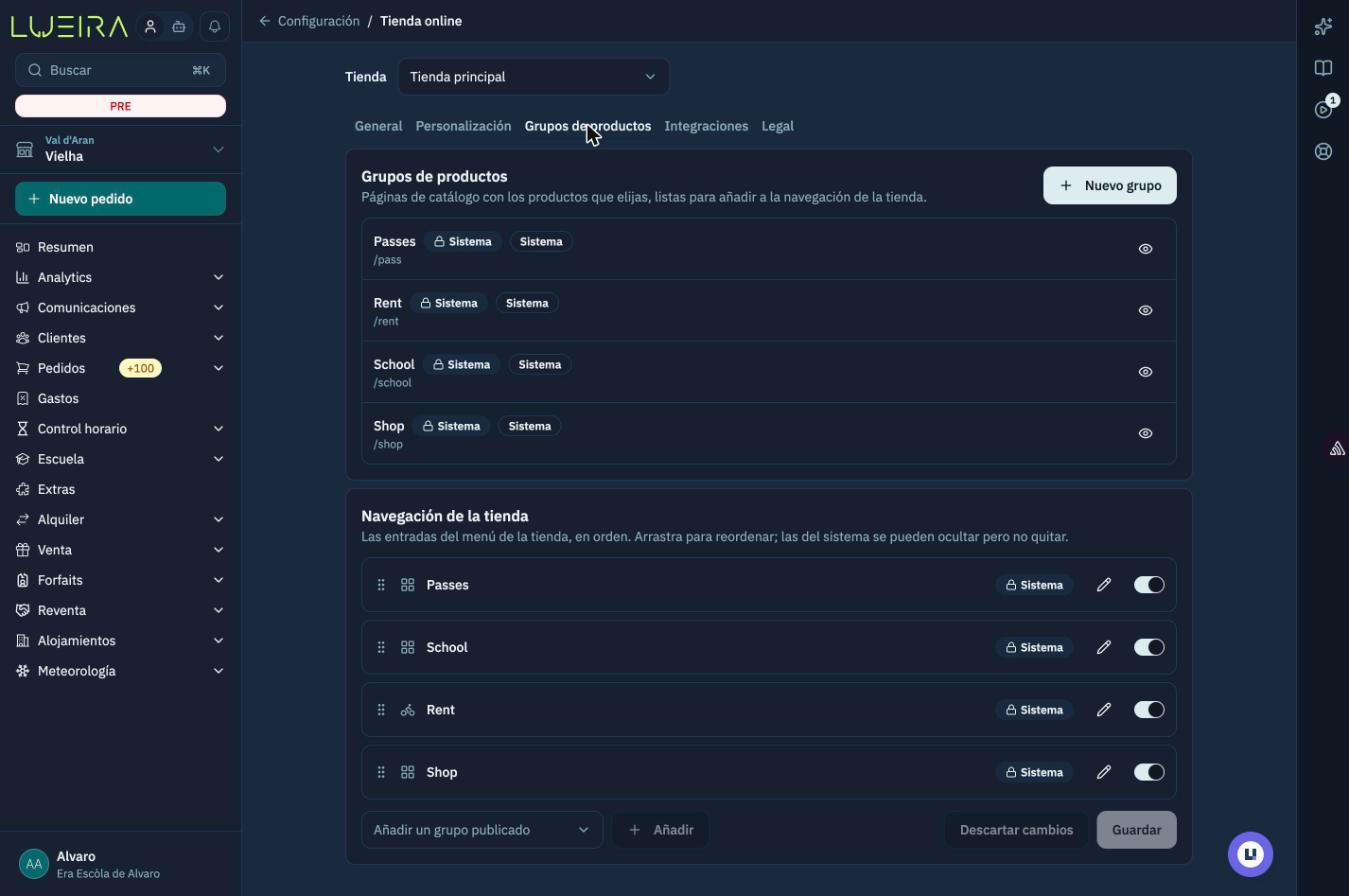
System groups
Every account has four groups created by default, marked with a padlock and the System tag. They are the catalog pages your shop has always had:
- School (
/school): school, lessons and activities. - Rent (
/rent): rentals. - Shop (
/shop): retail products. - Passes (
/pass): passes.
System groups cannot be edited or deleted, and they keep working exactly as before. What you can do is hide them, reorder them or change the name they show in the menu (see the guide about the shop menu).
What your own groups are for
Create your own groups when you want to offer a catalog different from the modules. Some examples:
- A Summer courses page with only the lessons of one activity and one level.
- A page with all the rentals of one brand, which updates itself when you add products of that brand.
- A seasonal bundle mixing a pass, a lesson and a rental.
- A catalog for a single center, filtering by center and showing it only in the menu of that center's shop.
You can fill a group by hand (you choose the products one by one) or by rules (you set product types and filters, and Lueira includes the ones that match). We go through it step by step in the guide Create a product group: manual or by rules.
What your customers see
- Only published groups are shown. An unpublished group is not reachable in the online shop.
- Inside a group, only products that are already visible in the online shop appear. If a product is deactivated or its visibility is set to "disabled", it will not be shown even if it is in the group (see the guide Online shop visibility).
- If a group ends up with no visible products, its menu entry disappears until it has some again.
- Each group of your own has its own address,
/catalog/group-name, which you can also share directly.
Related guides
- Online store settingsThis guide shows you how to set up your online store in Lueira, including the purchase (checkout) form fields that can be shown as visible or required.
- Purchase form fields in the online storeHow to configure which fields appear in the online store checkout form and which ones are required for the customer.
- Automatic invoicing in the online storeHow to set up the automatic generation of invoices and receipts when a payment is completed in the online store, including numbering series and compatibility with Verifactu and TicketBAI.
- Product order in the Online StoreGuide to defining the order in which products are displayed in the Online Store
- Product page layouts in the Online StoreLearn how to choose between the 4 layouts available for your Online Store's product page and how to preview them before enabling them
- Online store screen layoutThe online store shows School/Center/Activities, Rental and Sales as separate tabs depending on which modules are enabled on your account.