

Minimum notice and closing time for online bookings
How to set how many hours in advance online booking closes for each product (cut-off time), how to close a specific day with a block, and what to do if you want to accept last-minute bookings.
On this page
- What this guide solves
- Change the notice for a group activity
- Change the notice for a private class
- How it shows in the online store
- Close booking on a specific day or specific hours: blocks
- What to do if…
- …today it no longer lets me book for tomorrow
- …I want it to be impossible to book with less than 36 hours' notice
- …I want to change the notice only for a specific day
- …I want to accept last-minute bookings when the group is already formed
- …I also sell through partners or on marketplaces
- Related articles
What this guide solves
Each product decides how many hours in advance its booking closes in the online store. For example, if you want nobody to book with less than 36 hours' notice, or the other way around, if you want to accept bookings for tomorrow and today it doesn't let you.
This guide explains:
where to change the minimum notice (the Cut-off time) in group products and private classes;
how it shows in the store;
how to close only one day or specific hours with a block.
💡 The short answer: edit the product and go to Settings > Booking rules > Cut-off time (hours). Enter the hours you want and click Update product. It is set product by product: there is no general value in Settings > Online store.
Change the notice for a group activity
Go to Activities > Activities (or School / Center, depending on your business), Group tab, and open the product.
Click the pencil to edit it and go to the Settings tab.
In the menu on the left, choose Booking rules.
Under Minimum notice to book a session (hours), enter the hours in the Cut-off time (hours) field. For example, 36 closes online booking 36 hours before each session starts.
Click Update product.
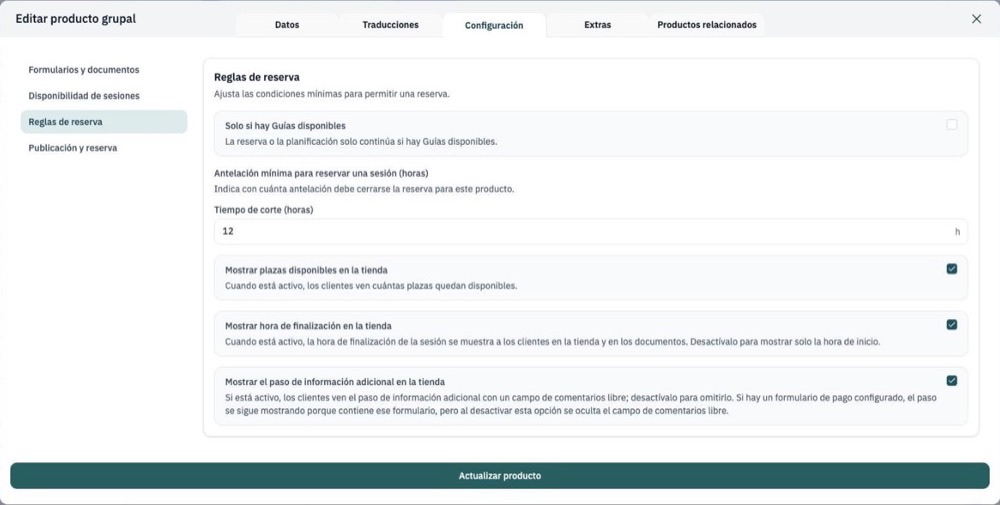
On the same screen you have other store rules: Only if Guides are available, Show available spots in the store, Show end time in the store and Show the additional information step in the store.
⚠️ Always enter a number. If you leave the field empty, you won't see on screen which notice is being applied. To know for sure when booking closes for that product, enter the value you want yourself.
Change the notice for a private class
It is the same field, in the same place:
Open the product from the Private tab and click the pencil.
Go to Settings > Booking rules.
Enter the hours in Cut-off time (hours) and click Update product.
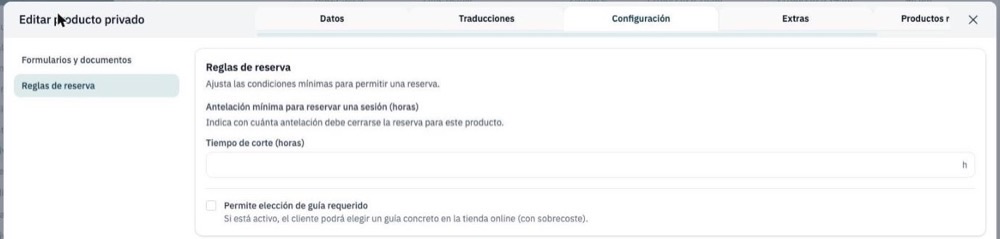
In private classes, this screen also has Allow required guide choice: if you turn it on, the customer can choose a specific guide in the store (with a surcharge).
📌 Remember that in private classes the slots also depend on the availability of your guides. If you lower the cut-off time and times still don't show up, check Why can't my customers book in the online store?
How it shows in the online store
Sessions (or private class times) that start before the cut-off time has passed can no longer be booked in the store. The customer sees the following dates, but not the closest ones.
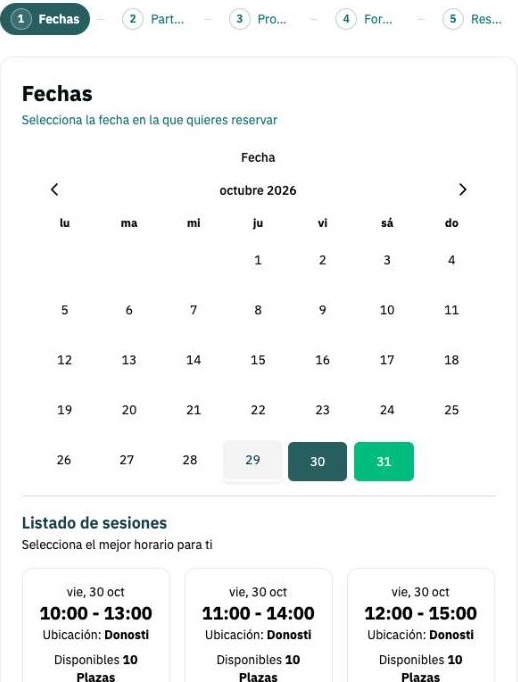
To check it yourself, open the store from Settings > Online store > Go to the store and enter the product. You don't need to buy anything.
💡 Example: with a cut-off time of 24 hours, if a customer visits today at 18:00, tomorrow's 10:00 session no longer shows as bookable, but tomorrow's 19:00 one does.
Close booking on a specific day or specific hours: blocks
The cut-off time is the same for all dates of the product. If you only want to close online sales on a specific day (a public holiday, a day without guides, an event) or a few hours of a day, don't change the cut-off time: use an online store block.
Go to Activities > Settings > Online store blocks and click Add block.
Give it a Name (for example, "August long weekend").
Choose the products (or turn on All products), the Dates to block in the calendar and, if it is not the whole day, the Range of start times to block.
Click Create block.
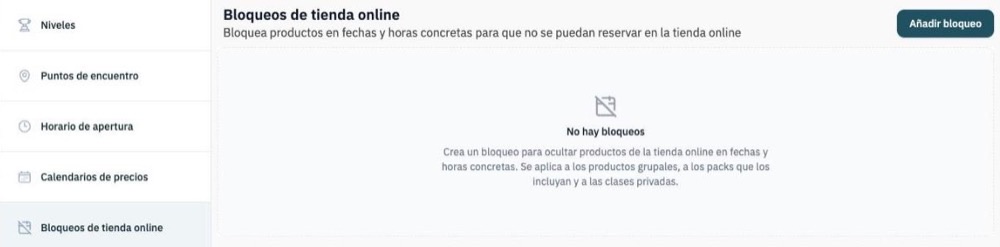
⚠️ Review your blocks from time to time: a forgotten block is one of the most common causes of "I can't see that day's session". Full details in Block products in the online store (specific dates and times).
What to do if…
…today it no longer lets me book for tomorrow
The product's cut-off time is longer than the hours left before the session. Lower it in Settings > Booking rules (for example, from 24 to 12 hours) and click Update product.
…I want it to be impossible to book with less than 36 hours' notice
Enter 36 in Cut-off time (hours) of each product you want to apply it to. Since it is a per-product setting, repeat it on each one.
…I want to change the notice only for a specific day
If what you want is to close sales that day (or a few hours), use an online store block. If what you want is to open sales with less notice only that day, there is no per-day setting for the cut-off time: lower it temporarily on the product and raise it again afterwards, or create the booking yourself from the panel.
…I want to accept last-minute bookings when the group is already formed
Right now the cut-off time applies equally to all sessions, whether or not they have bookings. If you want to accept last-minute bookings, lower the product's cut-off time.
…I also sell through partners or on marketplaces
This guide covers the online store. If you sell the same product through partners or marketplaces (GetYourGuide, Viator…) and need to know which notice applies there, contact Lueira support from the help chat.
Related articles
Related guides
- Online store settingsThis guide shows you how to set up your online store in Lueira, including the purchase (checkout) form fields that can be shown as visible or required.
- Purchase form fields in the online storeHow to configure which fields appear in the online store checkout form and which ones are required for the customer.
- Automatic invoicing in the online storeHow to set up the automatic generation of invoices and receipts when a payment is completed in the online store, including numbering series and compatibility with Verifactu and TicketBAI.
- Product order in the Online StoreGuide to defining the order in which products are displayed in the Online Store
- Product page layouts in the Online StoreLearn how to choose between the 4 layouts available for your Online Store's product page and how to preview them before enabling them
- Online store screen layoutThe online store shows School/Center/Activities, Rental and Sales as separate tabs depending on which modules are enabled on your account.