

Discounts on orders: discount codes and manual discounts
Complete guide to applying discounts on orders: how to create and configure discount codes (percentage, maximum uses, date restrictions, scope limited to partners and/or products), how to apply them in the online store or on an Admin order, and how to apply one-off manual discounts to a specific order.
On this page
With Lueira we can apply discounts to online orders in two ways:
Discount codes: reusable codes that your customers enter at the online store checkout. They let you configure a percentage (up to 100%, which leaves the order at €0), a maximum number of uses and date restrictions (validity, minimum notice and excluded days).
Manual discounts: one-off discounts that you apply directly to a specific order from the administration panel, without needing to create a code.
In this guide we explain how both options work.
Discount codes
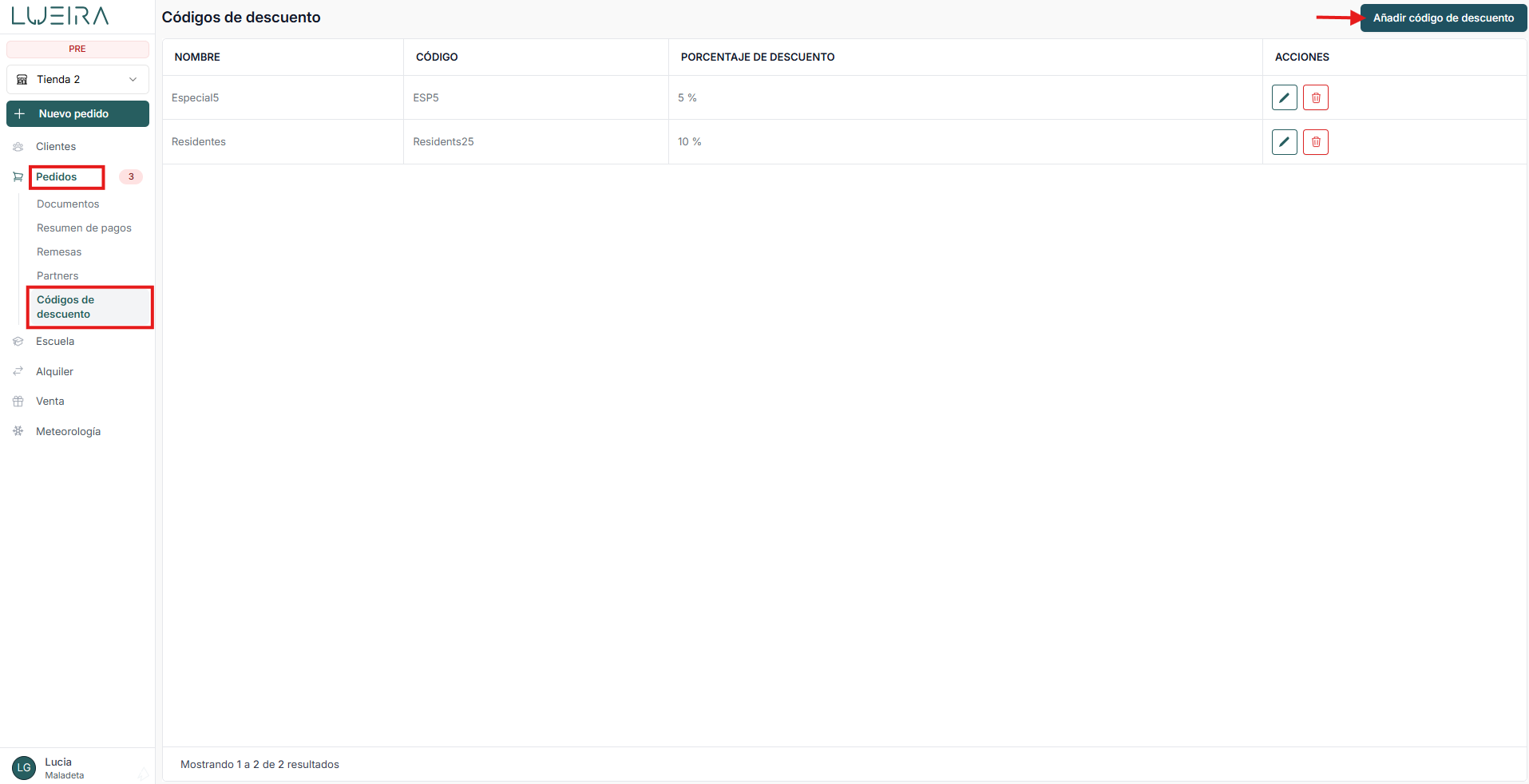
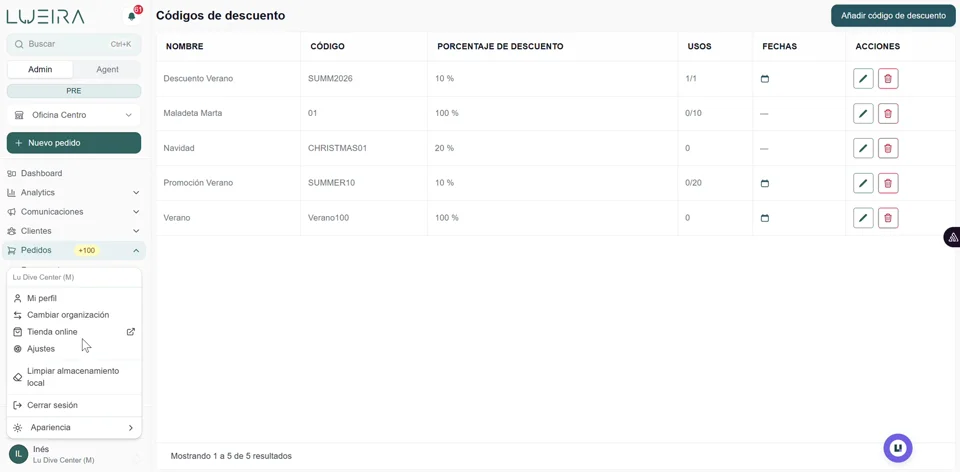
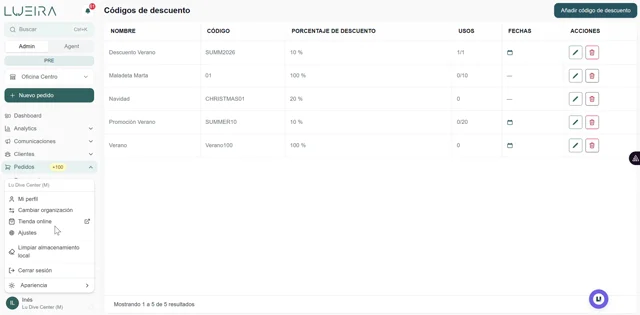
To manage discount codes, go to Orders > Discount codes from the left-hand side menu.
 Código de descuento en tienda online
In this view you will be able to see the list of codes created with the most relevant information: Name, Code, Discount percentage and Uses (how many times the code has been applied out of the configured maximum, in used/maximum format; if the code has no limit, only the number of uses is shown). If the code has its scope limited to partners and/or products (see below), you will see a funnel icon in the Scope column; if a warning also appears next to the icon, it means every partner or product it was limited to has been deleted and the code has stopped applying (it does not become global). You can also edit or delete them from the actions column.
1. Create a discount code
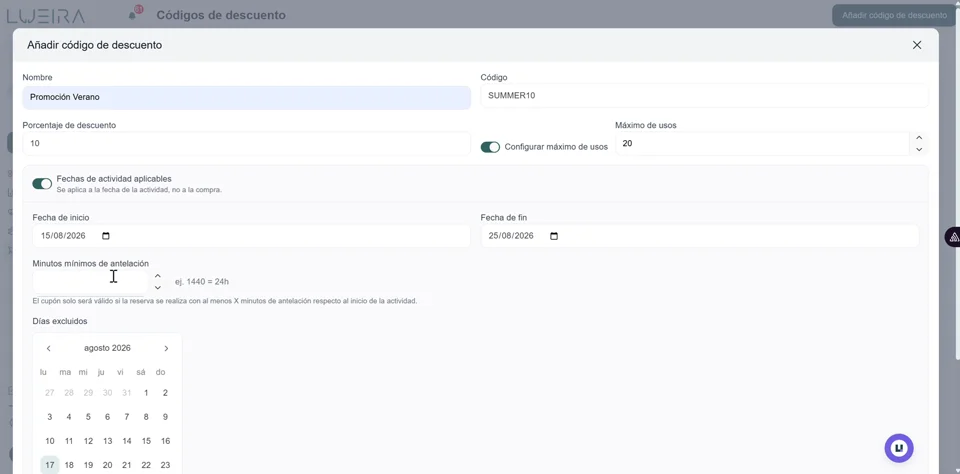
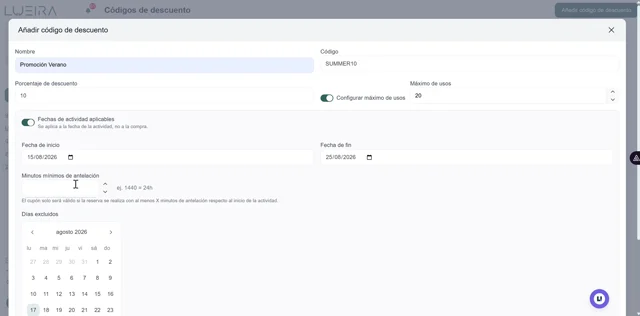
Click the "Add discount code" button in the top right corner. A window will open with the following fields:
Basic details
Name (required): internal name to identify the code in the list (for example, "Summer 2026 discount").
Code (required): the text that the customer will have to enter at checkout to apply the discount (for example, "SUMM2026").
Discount percentage: percentage that will be applied to the order total when the customer uses the code. You can set it up to 100% to offer free orders (for example, gifts, invitations or trials). When the order total ends up at €0, the customer does not go through the payment gateway: the system redirects them directly to the order confirmation screen.

Set maximum uses
Turn on the Set maximum uses switch if you want to limit the total number of times the code can be used. When you turn it on, the Maximum uses field appears: enter the maximum number of applications allowed.
Once that number is reached, the code is no longer valid and the next customers who enter it will receive a notice that it cannot be applied. In the list you will see the progress in the Uses column (for example, 8/15). If you leave the switch off, the code has no usage limit.
Set date restrictions
Turn on the Set date restrictions switch if you want to limit when the code is valid and/or require a minimum notice with respect to the day of the activity. When you turn it on, the following fields appear:
Start date: from this date the code can start being used.
End date: from this date the code is no longer valid.
Minimum notice (minutes): minimum time that must pass between the moment the customer places the order and the start of the booked activity. It is entered in minutes (for example, 1440 = 24 hours, 720 = 12 hours). If the customer tries to apply the code to a booking that starts before that margin, the code will not be applied. It is useful when you do not want to offer discounts for last-minute bookings.
Excluded days: specific calendar days on which the code cannot be applied (for example, public holidays or high-demand dates). Select in the calendar the days you want to exclude.
👉 You can combine all the restrictions you need: for example, a code valid only between 1 and 30 June, with a maximum of 100 uses, a minimum notice of 24 hours and excluding the Saturdays of that month.
Limit scope: partners and products
Turn on the Limit scope switch if you want the code to be usable only on orders from certain partners and/or for certain products. These are two independent filters that combine with each other (the order must meet the partner filter and the product filter): you can use just one of them, or both at once.
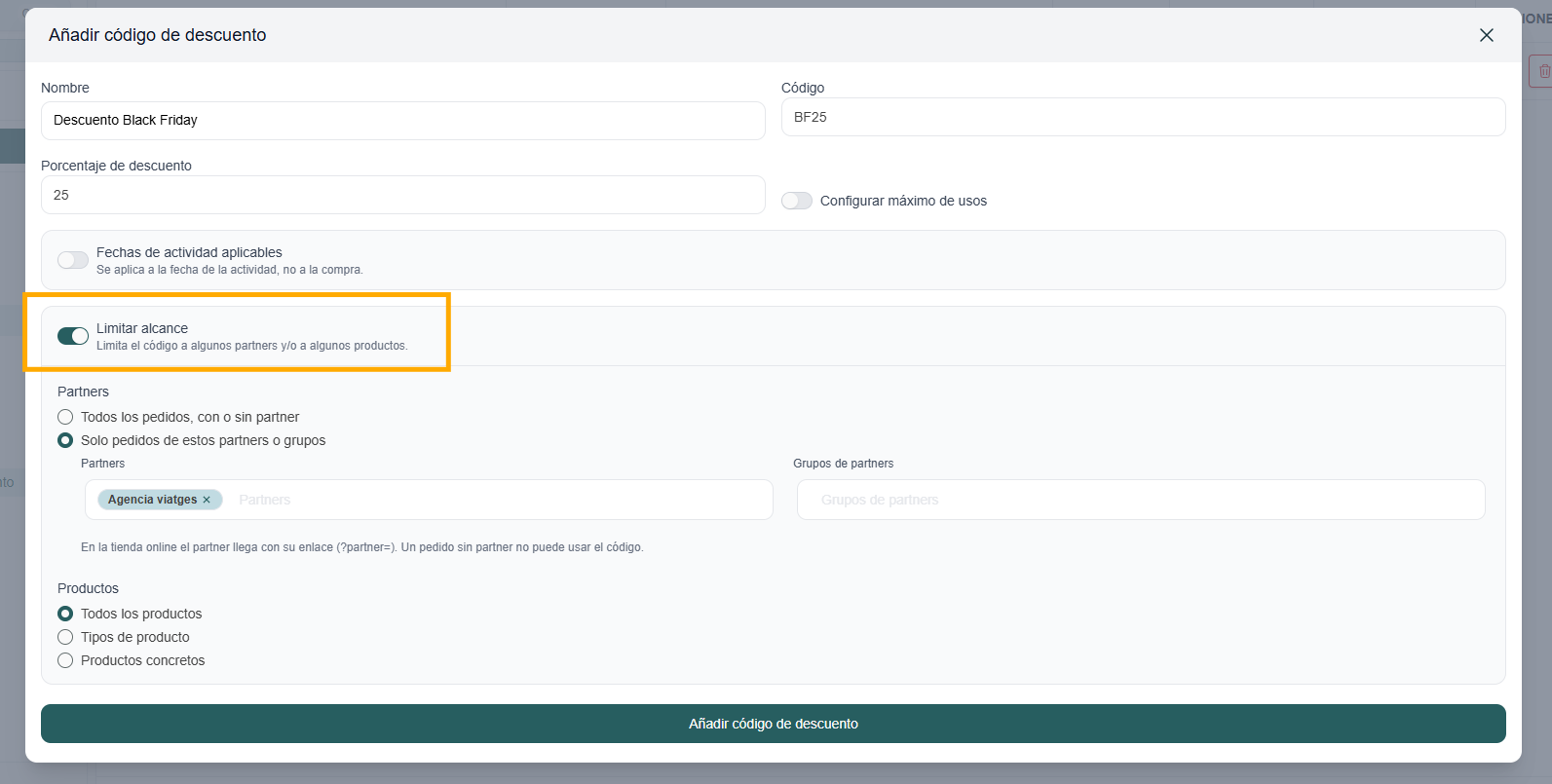
If you leave the switch off, the code works as before: no partner or product restrictions. Codes you already created before this feature don't change: they keep an unlimited scope.
Partners
All orders, with or without a partner: no filtering by partner.
Only orders from these partners or groups: choose one or more specific Partners and/or Partner groups. The order can only use the code if it is associated with one of the partners or groups you choose here.
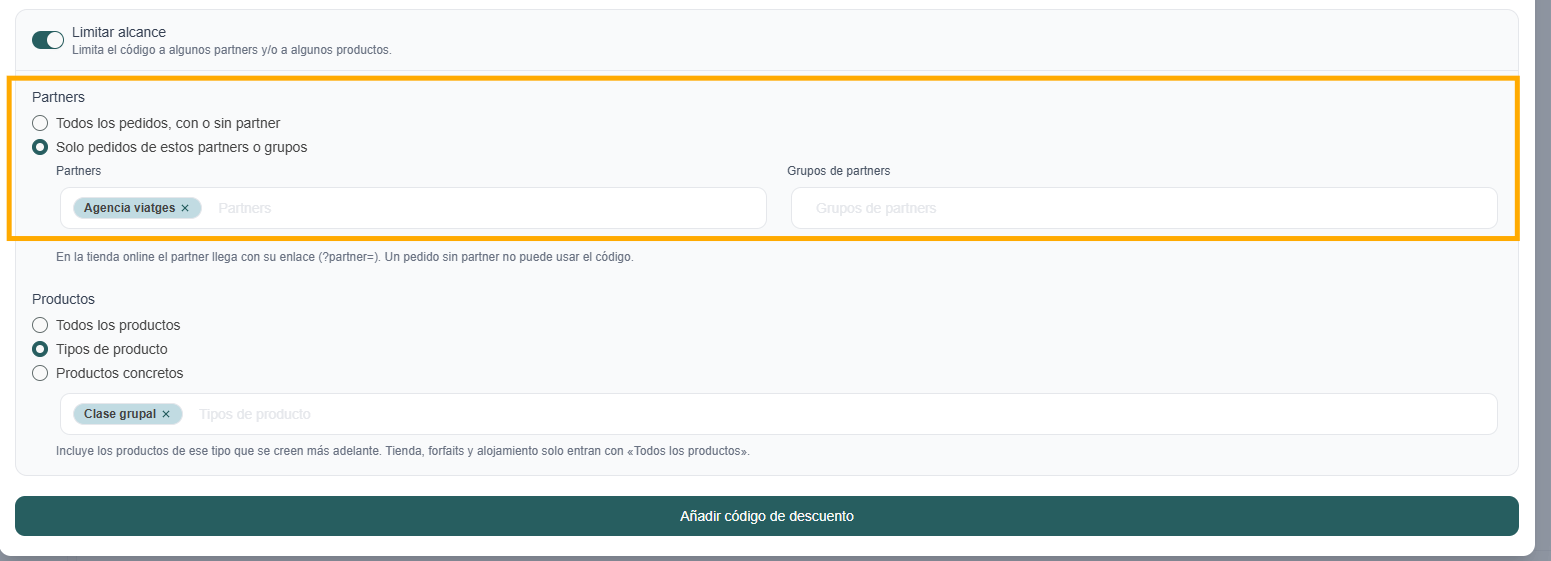
👉 In the online store, an order's partner comes from its link (?partner=). If the order has no partner attached, it won't be able to use a code limited to partners.
Products
All products: no filtering by product.
Product types: choose one or more types (for example, Rental or Group class). Products of that type that you create later are automatically included too.
Specific products: choose specific products, packs, bundles or bonos one by one. Unlike product types, ones you create afterwards are not added automatically: you will need to add them yourself.
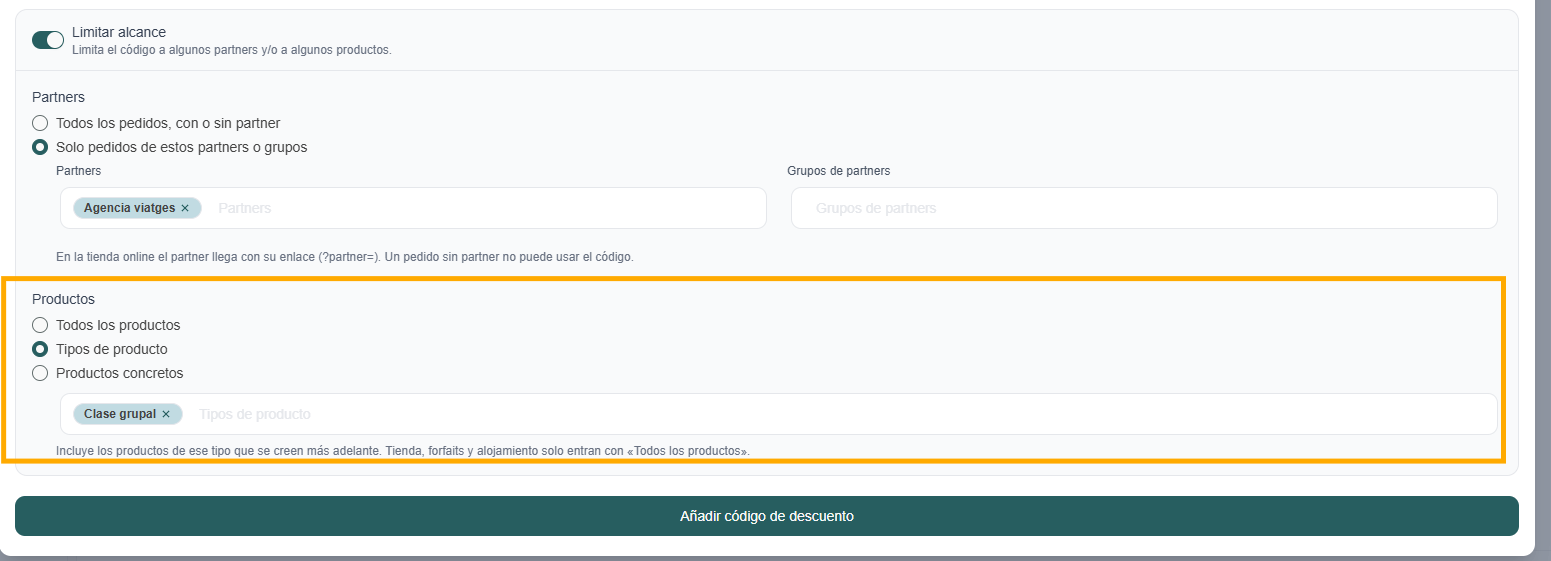
👉 The shop, passes and accommodations can only be included in the scope by choosing All products: they are not available as a product type or as a specific product.
Some rules to keep in mind when a code has a limited scope:
The discount is applied line by line: in an order with different products, only the lines that meet the scope (partner and product together) get discounted.
For packs, bundles and bonos, the discount is calculated on the full price, never on their individual components.
The code does not stack with customer discounts on the same line: if both could apply, the bigger discount is used.
If you later delete every partner or product the code was limited to, the code stops applying (it does not become global): the list will show a warning next to the scope icon so you can review it.
2. Apply the code in the online store
Once the code has been created, you can share it with whichever customers you want. When the customer makes a booking in the online store, they will be able to enter the code in the "Discount" section of the checkout to validate it:
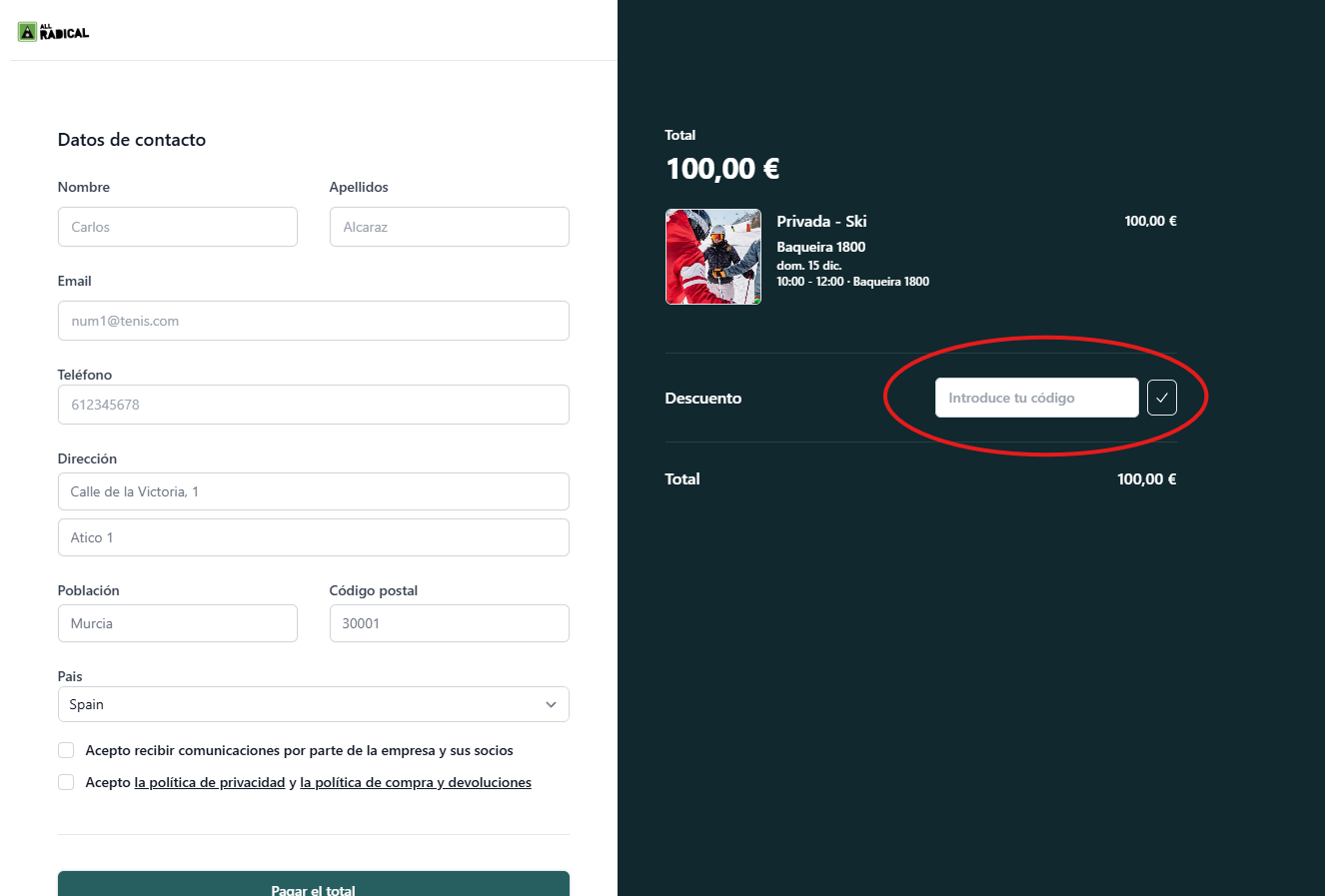
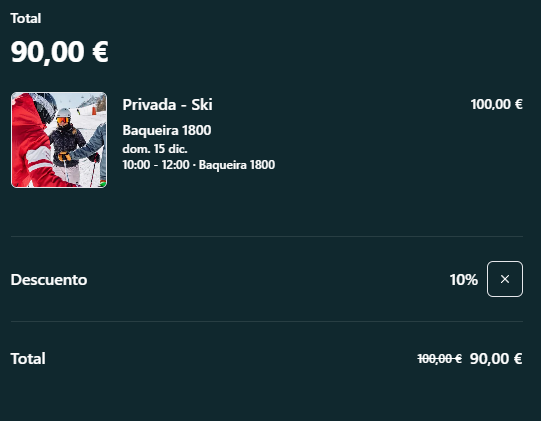
The system will validate the code taking into account all the configured restrictions (percentage, remaining uses, validity dates, minimum notice and excluded days). If the code is valid, the discount is automatically applied to the order's total price. If it does not meet any of the restrictions, the customer will see a message telling them that the code cannot be applied.
If the code has its scope limited to partners and/or products (explained in the previous section), those restrictions are also checked in the online store: the discount is only applied to the cart lines that meet the scope, and if the order has no allowed partner, the code is not applied.
Orders with a total of €0: no payment gateway
 Aplicar un 100% de descuento en un pedido online
When an order's total ends up at €0 —whether because a 100% discount code has been applied, several combined discounts, or because the session itself is configured with a price of €0— the payment flow is simplified:
The customer is not redirected to the payment gateway (Redsys, Lueira Pay, etc.).
The order is confirmed automatically and the customer goes directly to the online store's confirmation screen.
The order's payment status is set to paid, since there is no outstanding amount.
This is useful for issuing invitations, gifts, trial sessions or any free booking —whether you manage it with a discount code or by setting the session directly to €0— without forcing the customer to go through a gateway to process a €0 payment.
3. Apply or remove the code on an order created from the Admin
Discount codes can also be applied to orders you create yourself from the Admin, not only to the ones customers place in the online store. In the order's details you will see the Discount code card, where you can type the code and click Apply.
A few things to keep in mind:
You can only apply or remove the code while the order has no recorded payments and no issued invoices. On an already paid or invoiced order, applying or removing it is refused.
If the code has its scope limited to partners and the order has no partner assigned (or has one that isn't allowed), applying it will show a message explaining that the code is only valid for orders from a specific partner.
While the order has a discount code applied, you won't be able to add manual line discounts: remove the code first if you need to.
If you change the order's partner, Lueira re-checks the lines in case the code no longer applies to them.
On orders that come from the online store, this same card shows the applied code read-only: it can't be edited or removed from the Admin.
Manual discounts on an order
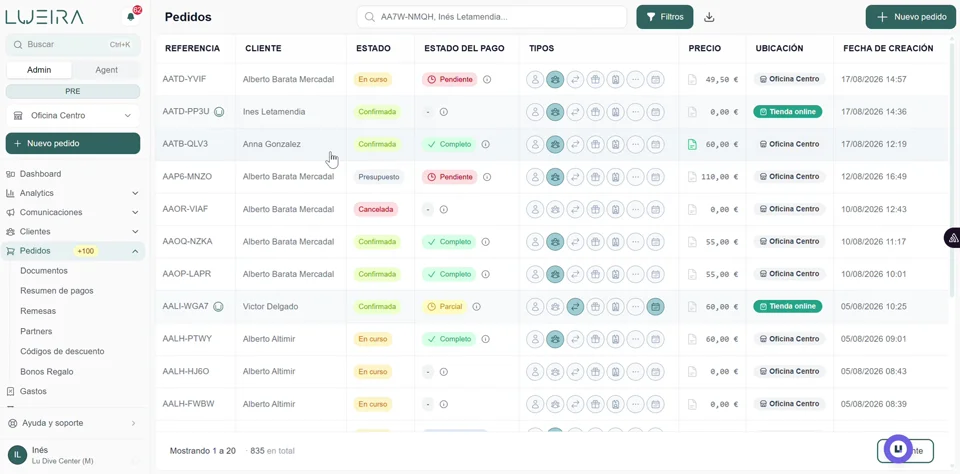 Añadir un descuento manualmente
In addition to discount codes, Lueira lets you apply a one-off discount directly to a specific order from the administration panel. It is useful when you want to offer a customized discount to a customer without needing to create a reusable code.
The discount is always applied from the orders section. Once the order has been created, in its details you will see a % icon next to the total price:
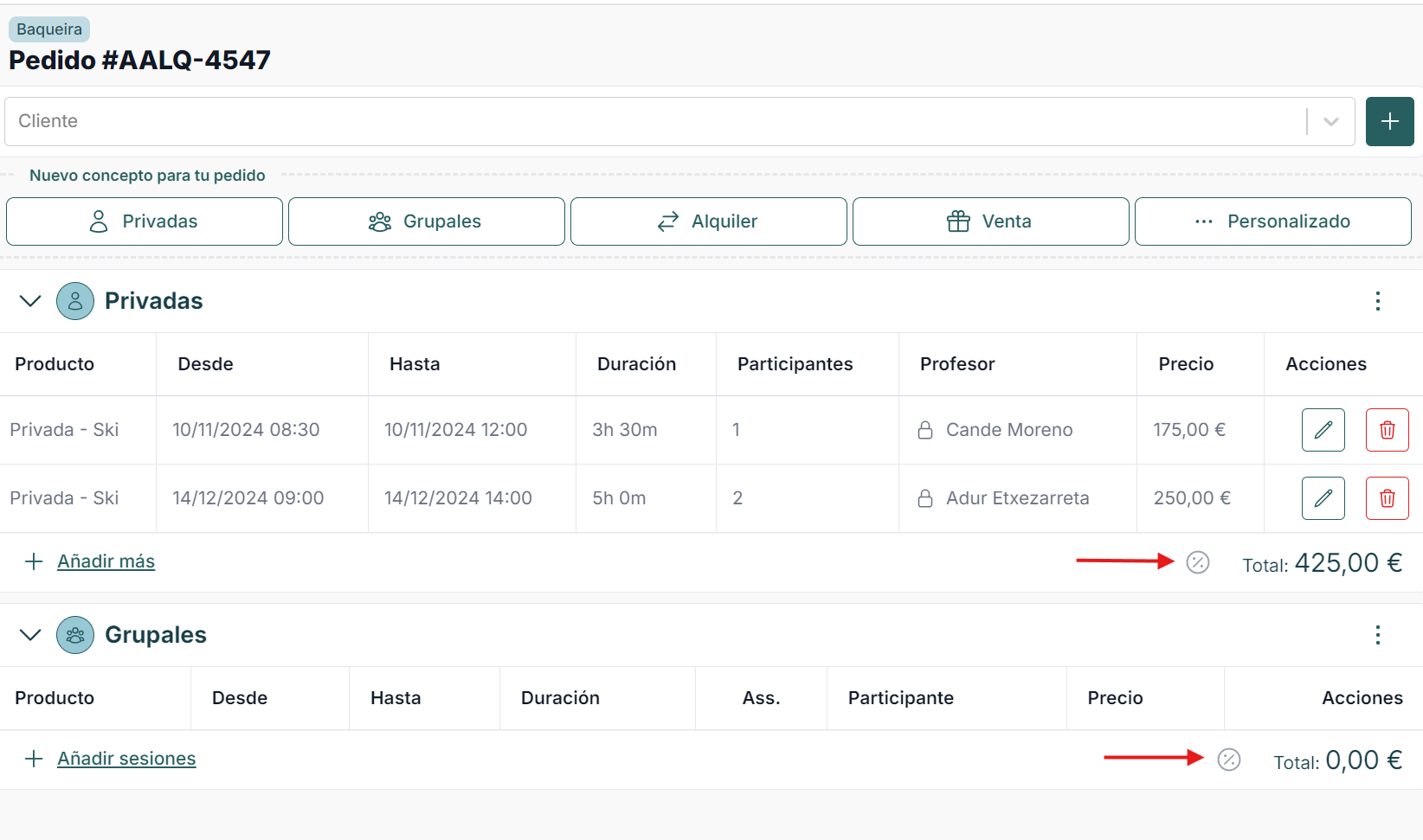
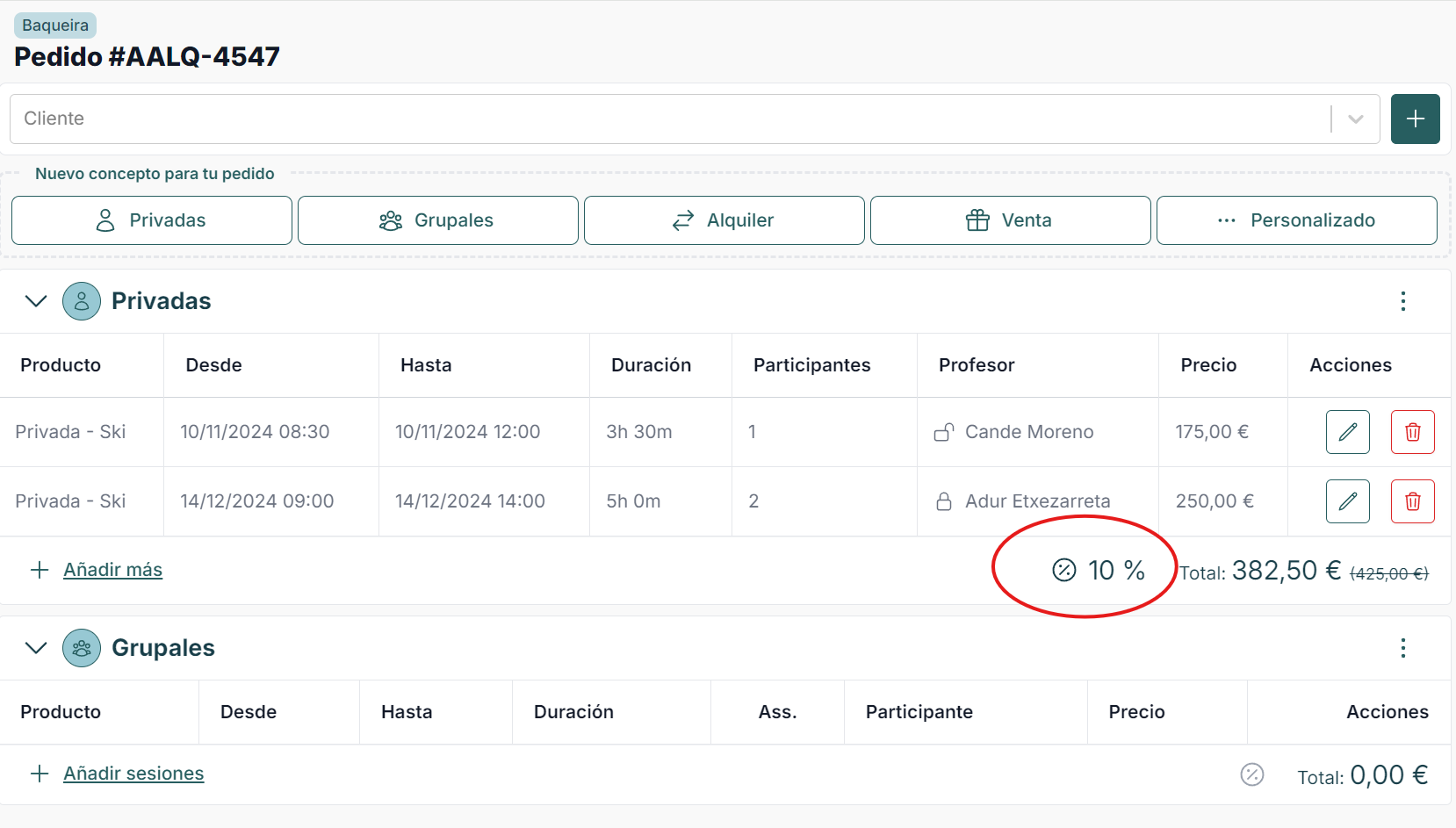
Click the icon and enter the percentage you want to apply (for example, 10%). The discount will be applied automatically to the order total.
If you have any questions, don't hesitate to get in touch with the Lueira support team!
Videos about this guide
Related guides
- Orders navigationView the status of all your orders, invoices or payments
- How to create ordersWe show you how to create orders and add every type of product to them.
- Creating a lesson booking from the admin: several days, a second teacher and line priceHow to create a lesson order from the admin: add private or group sessions, book several days in a row, add a second teacher without losing the charge for the second lesson and change the price of a line.
- Order statusesThis section gives you an overview of the status an order is in
- Order lifecycle: statuses, payment and confirmationA complete explanation of the order and payment statuses in Lueira, how they relate to each other, and when an order is confirmed automatically or manually depending on the payment method.
- Deleted and cancelled orders: the difference, how to see them and how to ask for them to be restoredThe difference between cancelling and deleting an order, where to find cancelled orders, how to find out who changed or deleted an order with Change tracking, and what to do so support can restore an order deleted by mistake.