

Frequently asked billing questions: credit notes, proformas and Verifactu/TicketBAI
Why an invoice can't be deleted, how to issue a credit note, why partial credit notes don't exist yet, what the Issue button does with Verifactu/TicketBAI, and what happens to proformas and quotes once issued.
On this page
Quick summary
Clear answers to the most common invoicing questions, checked against how Lueira actually works and against the guides already published in the help center.
Why can't I delete an invoice or reuse its number? Once issued (it has a number), the regulations require consecutive numbering with no gaps. It's corrected with a credit note, never by deleting.
How do I issue a credit note for an invoice or a ticket? Use the Correct button on the order. It creates a new document with negative amounts, linked to the original. It can't be undone.
Can I correct just part of the amount? No, not today. A credit note always cancels 100% of the original document; to charge less, you need to cancel the whole thing and issue a new one for the correct amount.
What does the Issue button do with Verifactu or TicketBAI? Issue numbers the document and automatically sends it to the tax authority in the same step. There's no separate second "Approve" click.
Can I review the invoice before it's sent to the tax authority? Yes: create the document as a draft first (next to the Issue button, dropdown "Save as draft") and review it at your own pace. It's only numbered and sent when you click Issue.
Can I delete a proforma or a quote? Only while it's a draft. Once issued, it's voided (marked "VOIDED"), but its number stays in the series just like an invoice.
1. Why an invoice can't be deleted or its number reused
This is not a bug, it's intentional, to comply with invoicing regulations:
While a document is a draft, it can be freely deleted or changed: it has no number assigned yet, so there's nothing to "free up" in the series.
Once it's issued (given a number), the document is fixed forever. If you delete the order, the document still exists with its number: that's why gaps appear in the numbering if someone deletes invoiced orders.
If the document has also been validated by Verifactu/TicketBAI (accepted by the tax authority), it can't be deleted under any circumstances, even if it hasn't been submitted yet.
The only way to correct it is with a credit note (corrective invoice or ticket).
This is already explained well in the guide I can't delete an invoice or reuse its number: what to do.
2. How to issue a credit note for an invoice or a ticket
You need a credit note numbering pattern set up (it can be created the first time you click Correct, or beforehand from Settings > Document numbering).
From the order, click Correct in the Invoicing block.
A new document is generated with the same data as the original but negative, linked to it. The original is marked "Corrected" and loses the Correct button (a document can only be corrected once).
The credit note's date can't be earlier than the original document's date or later than today: the system won't let you proceed if you try, it's not just an on-screen warning.
It can't be undone. If there's a mistake, you need to write to support.
Issuing a credit note doesn't refund money: if the customer already paid, the refund is handled separately, from Refund in the order's Payments block.
More detail in Correcting an invoice or a ticket and setting up its numbering.
3. Partial credit notes: they don't exist yet
When issuing a credit note, the system reverses the sign of every line, all the VAT and the total of the original document: there's no way to indicate that only part should be cancelled. In other words, a credit note always cancels 100% of the document.
How to handle it today, until partial credit notes exist:
Correct the whole document (cancels the full amount).
Issue a new invoice or ticket for the correct amount.
This is a known limitation, with an improvement planned for some cases (for example, some regional tax authorities do allow correcting only the difference).
4. What "Issue" actually does with Verifactu or TicketBAI
When you click Issue on a draft, the document is numbered and automatically sent to the tax agency or the relevant regional tax authority, in the same step. There's no separate second "Approve" click.
That's why we recommend creating the document as a draft first (dropdown next to the Issue button → "Save as draft") and reviewing it at your own pace before issuing it: once issued, it's numbered and sent, and it can't be undone.
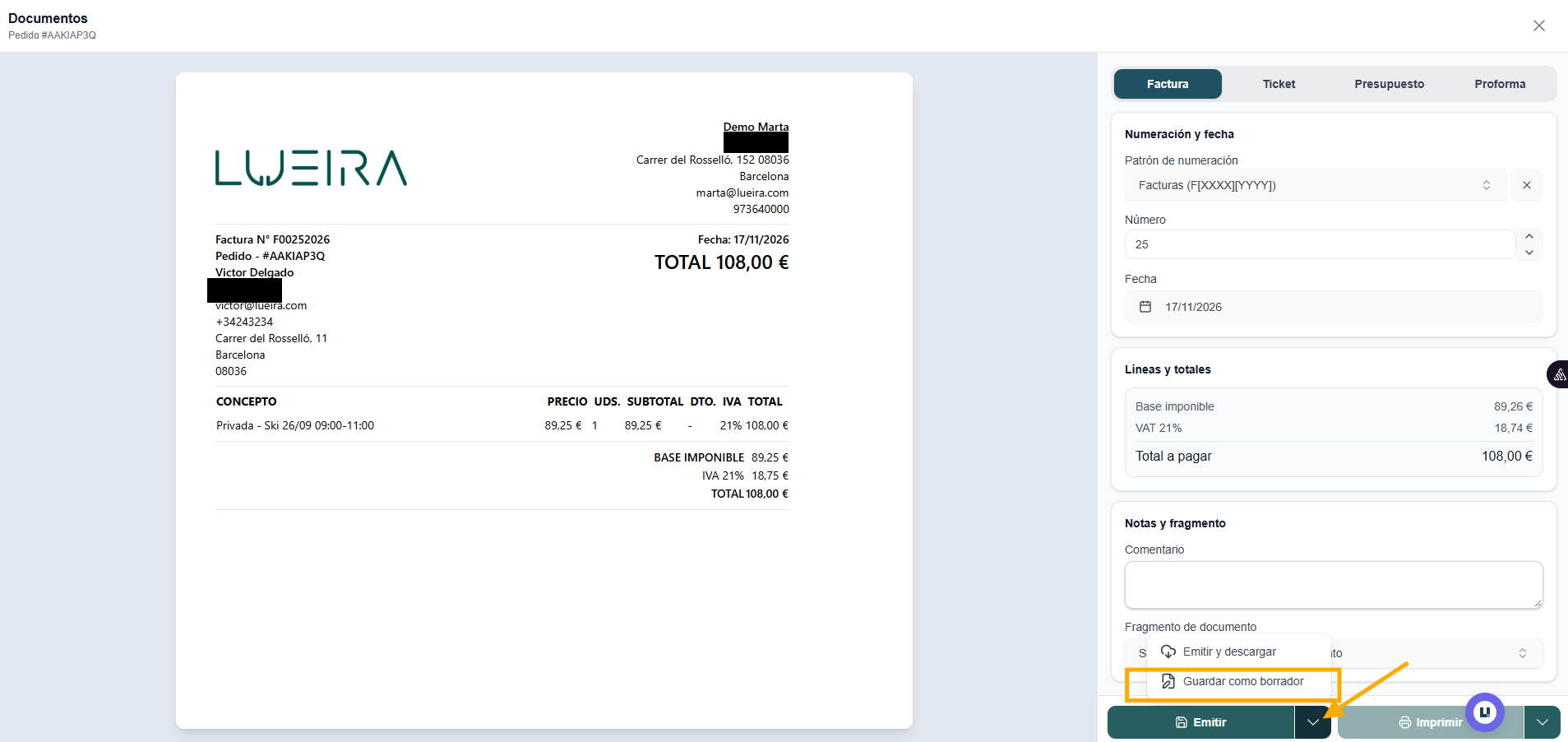
As long as the document stays a draft, nothing is sent: it can be reviewed, changed and deleted freely. The automatic submission also happens when a payment is completed in the online store with automatic invoicing turned on (the document is signed and sent before being attached to the confirmation email, with no manual step).
More detail in Verifactu and TicketBAI in Lueira.
5. Proformas and quotes: what happens once they're issued
While a proforma or a quote stays a draft, it can be created, changed or deleted as many times as needed.
Once it's issued (no longer a draft), it can no longer be deleted. It can be voided — the PDF is regenerated with a "VOIDED" notice — but its number stays fixed in the series, just like an invoice.
In other words, the same rule that "an issued number is never freed" also applies to proformas and quotes, not only to invoices and tickets.
Related guides
- Orders navigationView the status of all your orders, invoices or payments
- How to create ordersWe show you how to create orders and add every type of product to them.
- Creating a lesson booking from the admin: several days, a second teacher and line priceHow to create a lesson order from the admin: add private or group sessions, book several days in a row, add a second teacher without losing the charge for the second lesson and change the price of a line.
- Order statusesThis section gives you an overview of the status an order is in
- Order lifecycle: statuses, payment and confirmationA complete explanation of the order and payment statuses in Lueira, how they relate to each other, and when an order is confirmed automatically or manually depending on the payment method.
- Deleted and cancelled orders: the difference, how to see them and how to ask for them to be restoredThe difference between cancelling and deleting an order, where to find cancelled orders, how to find out who changed or deleted an order with Change tracking, and what to do so support can restore an order deleted by mistake.