

Rectifying an invoice or a ticket and configuring its numbering
How to rectify an invoice or ticket already issued from the order, what the rectification pattern is and what to do when Lueira asks you to create it.
On this page
- What this guide solves
- Before you start: the rectification pattern
- Option A: when you rectify (the most convenient)
- Option B: beforehand, from Settings
- How to rectify an invoice or a ticket
- What happens after rectifying
- What rectifying does NOT do
- What to do if…
- …I can't find the Rectify button
- …Lueira asks me for a rectification pattern
- …I can't choose the date I want
- …I want the numbering not to reset every year
- …I made a mistake when rectifying
- Related articles
What this guide solves
When you make a mistake on an invoice or ticket you have already issued (an amount, a customer, a line item), it is not edited or deleted: it is rectified. Lueira generates a new document, with the same data as the original but with the amounts in negative, and links it to the original so that the numbering stays sequential.
This guide explains:
how to rectify a document from the order;
what the rectification pattern is and why Lueira asks you for it the first time;
what happens to the original document, to the payments and to the numbering after rectifying.
💡 The short answer: open the order, click Rectify in the Invoicing block and, if it is the first time, create the numbering pattern for rectifying documents when Lueira asks you.
Before you start: the rectification pattern
Each document type has its own numbering, which is configured in Settings > Document numbering. Rectifying documents do not share the invoice numbering: they have their own type (Rectifying invoice and Rectifying ticket) and their own pattern.
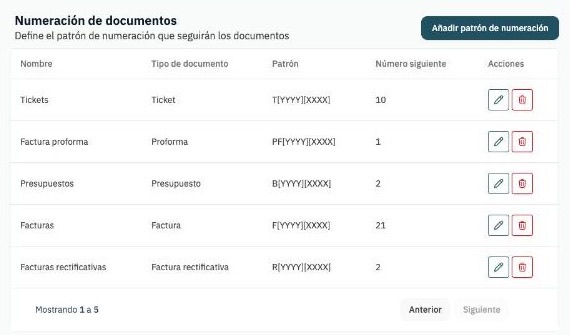
If you have never rectified before, your account has no rectification pattern. You can create it in two ways:
Option A: when you rectify (the most convenient)
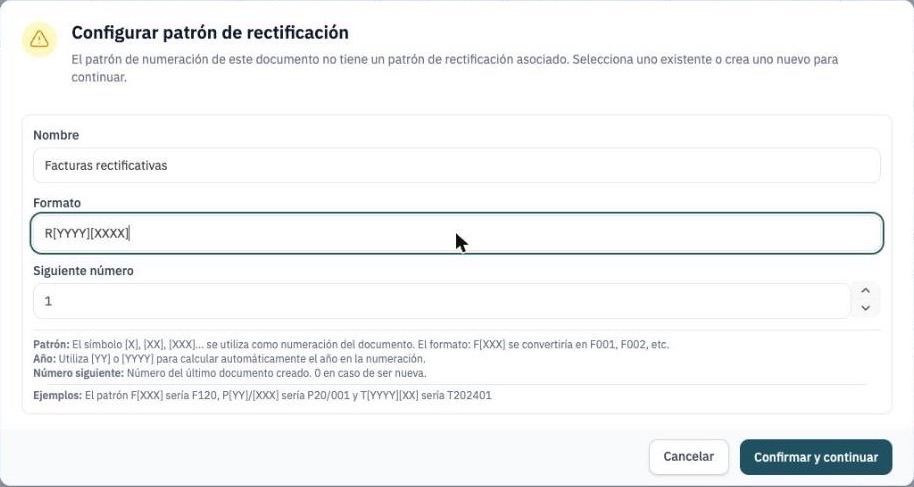
When you click Rectify for the first time, Lueira shows you the Configure rectification pattern window and lets you create the pattern right there. You will see it in the next step.
Option B: beforehand, from Settings
Go to Settings > Document numbering and click Add numbering pattern.
In Document type choose Rectifying invoice (or Rectifying ticket).
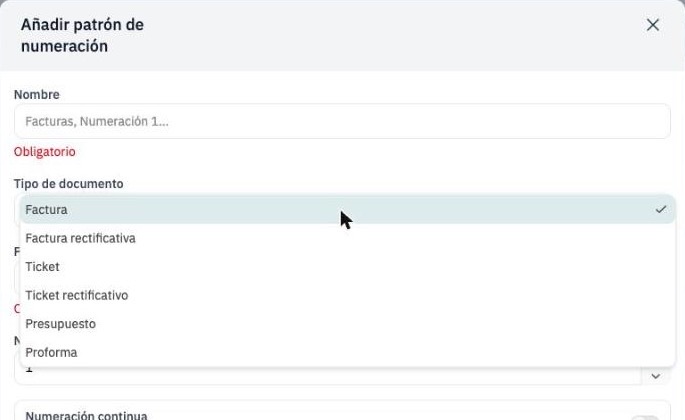
Type the Name (for example, "Rectifying invoices"), the Pattern (for example, R[YYYY][XXXX], which generates R20260001, R20260002…) and the Next number.
Save. Then, edit the Invoices pattern and choose this pattern in the Rectification pattern field.
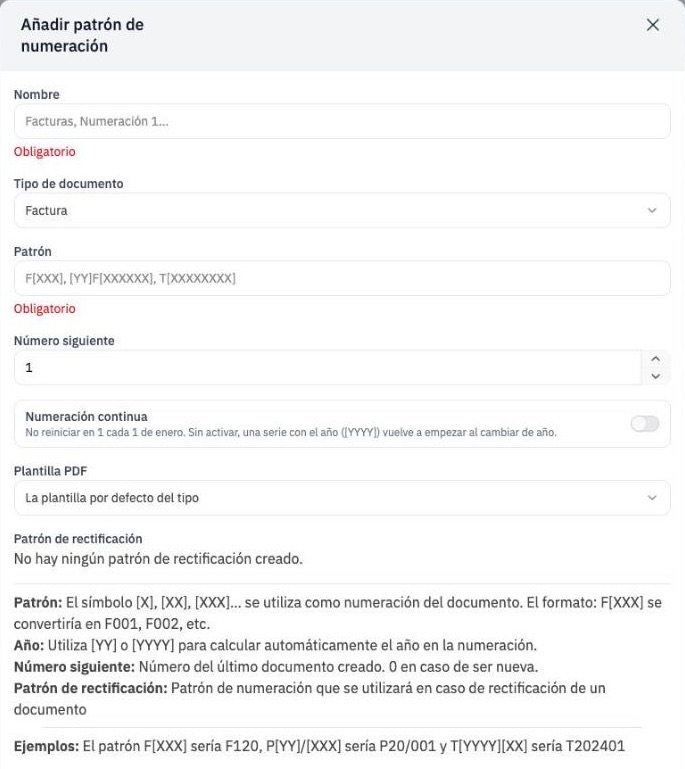
📌 How a pattern is written:
[X], [XX], [XXX]… is the sequential number: F[XXX] gives F001, F002…
[YYYY] or [YY] inserts the year automatically.
Next number is the number that will be assigned to the next document. In the list of patterns you will always see which one is next.
Continuous numbering: if you use the year in the pattern, the numbering starts again at 1 every 1 January. Turn this switch on if you do not want it to reset. More information in Managing document numbering at the turn of the year.
How to rectify an invoice or a ticket
Open the order from Orders (or from Orders > Documents, by clicking its reference).
In the right-hand column, in the Invoicing block, find the document and click Rectify.
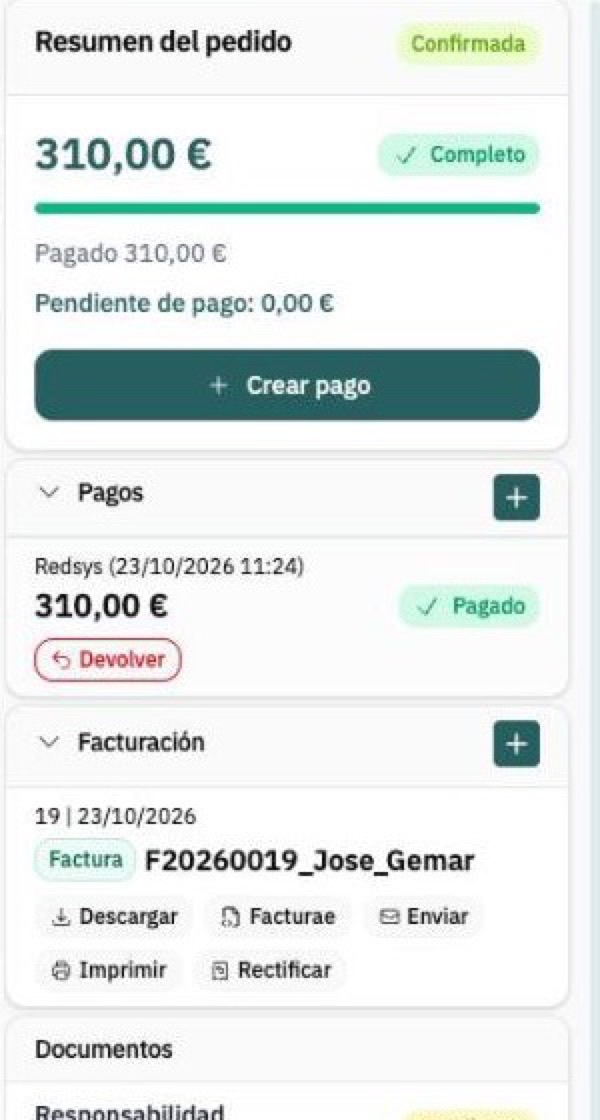
If it is the first time, Configure rectification pattern appears: "This document's numbering pattern has no associated rectification pattern. Select an existing one or create a new one to continue".

Fill in the Name, the Format (for example, R[YYYY][XXXX]) and the Next number (normally 1) and click Confirm and continue. If you already have a rectification pattern, this window does not appear and you go straight to the next step.
Lueira shows you the preview of the rectifying invoice: the new number, the number of the original invoice and the total in negative. Choose the Rectification date: it cannot be earlier than the date of the original document or later than today.
Click Rectify.
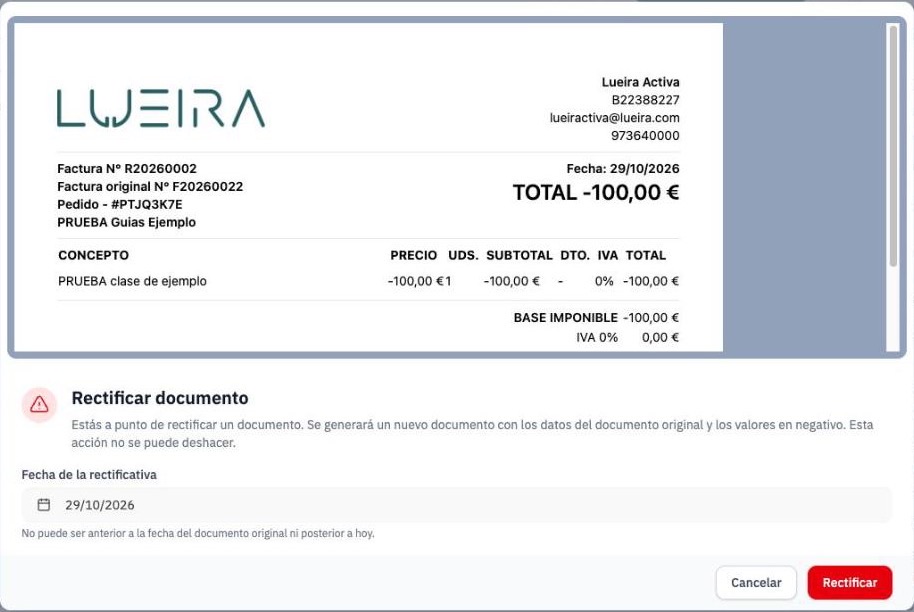
⚠️ This action cannot be undone. Lueira warns you in the window itself. Check the preview before confirming.
Tickets are rectified in the same way; their pattern is of type Rectifying ticket.
What happens after rectifying
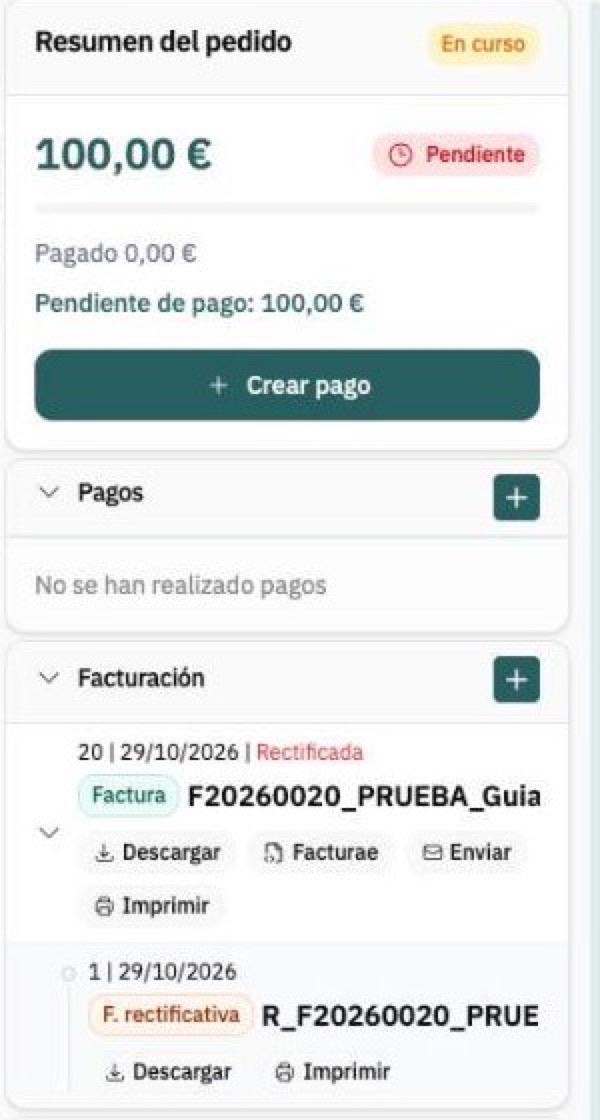
In the order's Invoicing block you now see:
the original document marked in red as Rectified, without the Rectify button (a document can only be rectified once);
below it, the rectifying invoice with its number (for example, 1 | R20260001), with the Download and Print buttons.
In Settings > Document numbering, the rectifying invoices pattern moves on to the next number.
What rectifying does NOT do
It does not refund the customer. The rectifying invoice cancels the document, but it does not touch the order's payments. If the customer has already paid and you want to refund the amount, use Refund in the order's Payments block.
It does not correct the original document: it generates a new one in negative. If what you want is to issue the correct invoice, issue a new invoice afterwards with the + button of the Invoicing block.
What to do if…
…I can't find the Rectify button
The button is in the order's Invoicing block, next to each issued invoice or ticket. It does not appear if the document has already been rectified (you will see the Rectified mark and the rectifying invoice below it). If what you are looking for is a document you have not issued yet, it must first be issued with the + button of that same block.
…Lueira asks me for a rectification pattern
This is normal the first time: your account does not yet have numbering for rectifying documents. Create the pattern in that window (name, format such as R[YYYY][XXXX] and next number 1) and continue with the process. Later documents will use that pattern automatically.
…I can't choose the date I want
The date of the rectifying invoice cannot be earlier than that of the original document or later than today.
…I want the numbering not to reset every year
Edit the pattern in Settings > Document numbering and turn on Continuous numbering. Without it, a pattern with the year ([YYYY]) starts again at 1 on 1 January.
…I made a mistake when rectifying
A rectification cannot be undone. Contact Lueira support from the help chat, giving the order reference and the number of the rectifying invoice, and we will tell you how to proceed.
🔒 Important: if you write to support, do not include passwords, signing keys or your bank details in the chat; we do not need them to help you with this topic.
Related articles
Related guides
- Orders navigationView the status of all your orders, invoices or payments
- How to create ordersWe show you how to create orders and add every type of product to them.
- Creating a lesson booking from the admin: several days, a second teacher and line priceHow to create a lesson order from the admin: add private or group sessions, book several days in a row, add a second teacher without losing the charge for the second lesson and change the price of a line.
- Order statusesThis section gives you an overview of the status an order is in
- Order lifecycle: statuses, payment and confirmationA complete explanation of the order and payment statuses in Lueira, how they relate to each other, and when an order is confirmed automatically or manually depending on the payment method.
- Deleted and cancelled orders: the difference, how to see them and how to ask for them to be restoredThe difference between cancelling and deleting an order, where to find cancelled orders, how to find out who changed or deleted an order with Change tracking, and what to do so support can restore an order deleted by mistake.