

Managing document numbering at the turn of the year in Lueira
We explain how the numbering patterns for invoices, tickets, quotes and rectifying documents will be updated in Lueira for 2026, which changes are applied automatically and how to generate 2025 documents from 1 January 2026.
On this page
In Lueira, documents such as invoices, tickets, quotes and their rectifying documents use numbering patterns to generate their numbers automatically. These patterns are configured in Settings → Document numbering and let you keep your documentation orderly and sequential.
For the change of year to 2026, it is important to know how numbering will be handled depending on the type of pattern you have configured.
🗓 What is going to change in 2026?
The Lueira technical team will automatically reset to 1 all numbering patterns that are configured using the year code in [YYYY] format.
This means that:
The change will be applied automatically when 2026 begins.
Numbering will start again from 1 for the new year.
No action is required from the customer in these cases.
📌 Example
Pattern: F[YYYY][XXXX]
Last invoice of 2025: 2025-0148
First invoice of 2026: 2026-0001
This behaviour applies to:
Invoices
Tickets
Quotes
Rectifying documents (rectifying invoices, rectifying tickets, etc.)
✅ Customers who use patterns with [YYYY]
If your numbering patterns include the year in [YYYY] format, you do not have to do anything.
✔️ The system will take care of:
Updating the year automatically
Resetting the numbering to 1
Keeping your documents consistent and in order in 2026
🔁 Customers who do not use [YYYY] in their numbering patterns
If you use custom patterns that do not include the year (for example: FAC[XXXX], TICKET[XXXX], QUOTE[XXXX], etc.), the reset will not happen automatically.
In this case, you will need to create new numbering patterns for 2026 before you start issuing documents in the new year. This will avoid duplicates and numbering problems during the new financial year.
*When creating a new numbering pattern we recommend using the format with [YYYY] so that the change happens automatically next year.
Here is how:
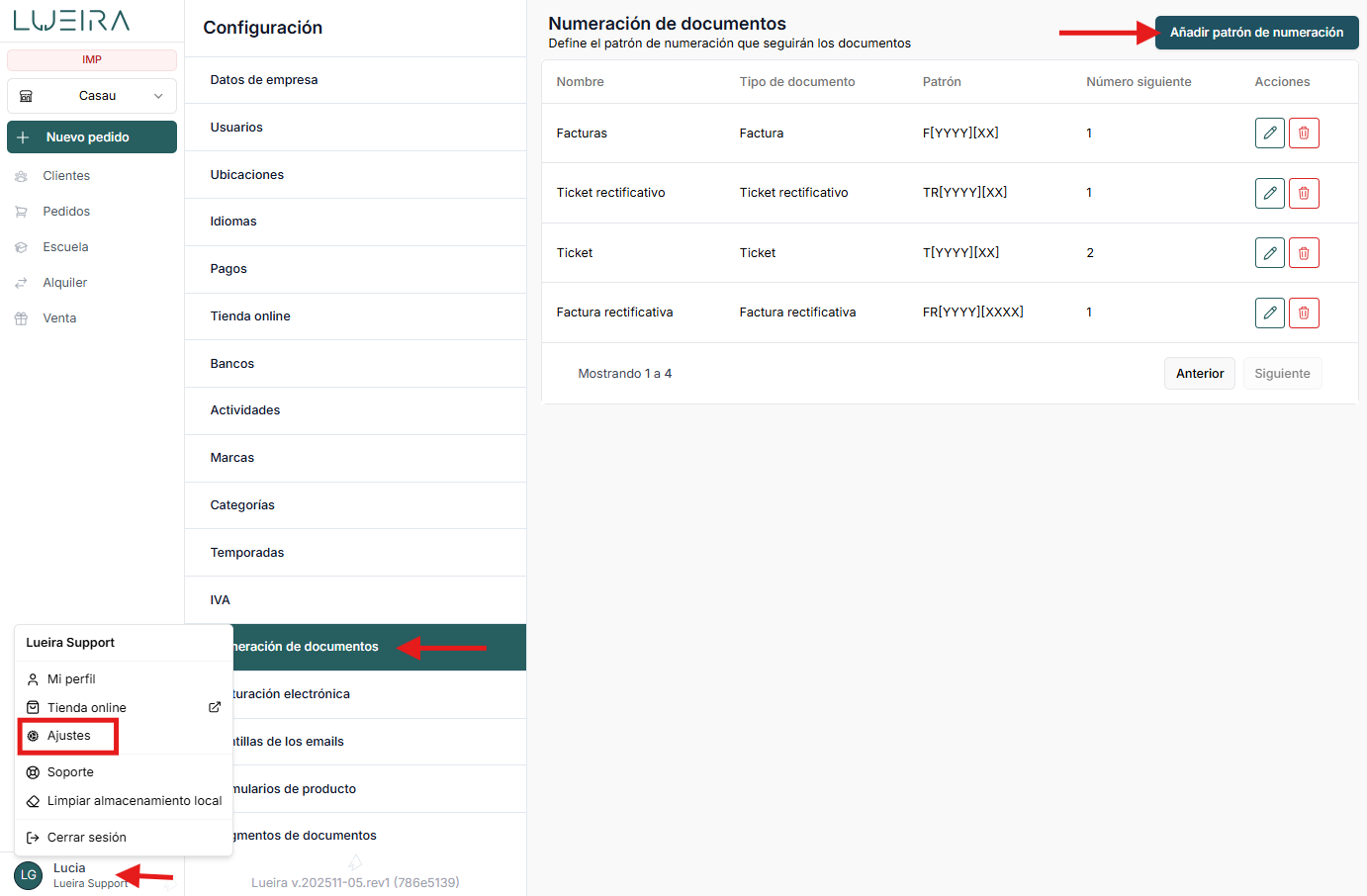
Go to Settings → Document numbering
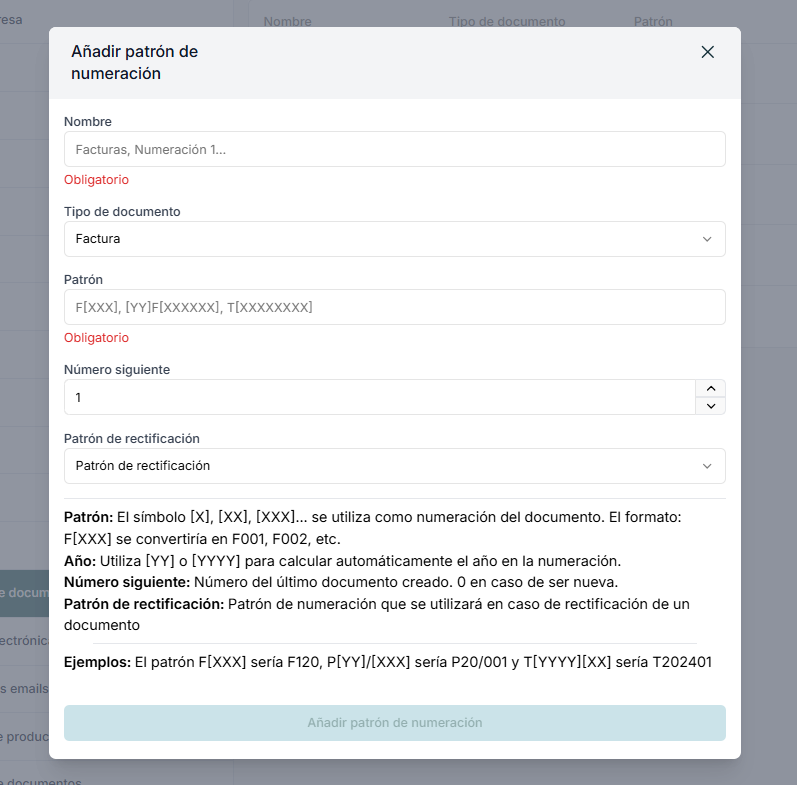
Create a new pattern for each type of document
Define the format you will use in 2026
Set the corresponding starting number
🧾 Issuing 2025 invoices from 1 January 2026
If from 1 January 2026 you need to generate invoices for the year 2025, you can do so without any problem by following this procedure:
Create the document without using an automatic numbering pattern and manually type in the Number field the series or numbering you need. This way you can keep the 2025 series, respect the numbering that corresponds, and issue documents outside their financial year without altering the active 2026 patterns.
This method is especially useful for:
Late invoices
Administrative corrections
Issuing documents pending from previous financial years
👉 How to create documents without a linked numbering pattern
Go to the document creation screen.
Deselect the numbering pattern: in the Numbering pattern field, which is activated by default, click the "X" on the right of the pattern dropdown.
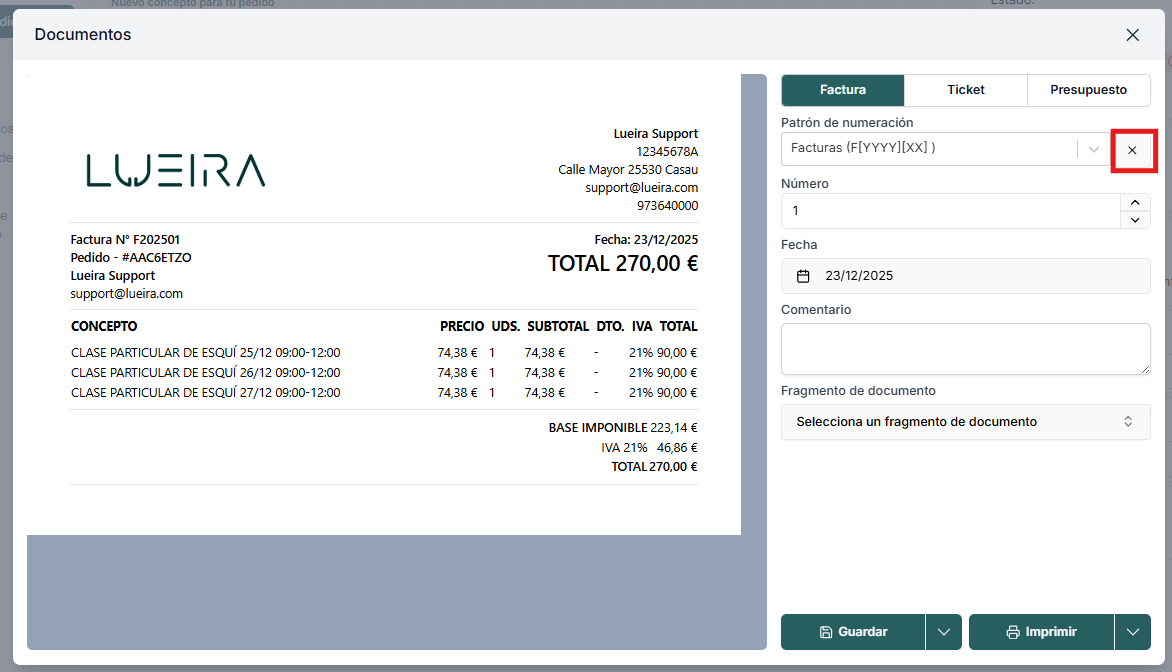
*Important: When you deselect the pattern, a warning message will appear indicating that:
It will not be possible to check whether the number is available
The document will not be auto-numbered
👉 For this reason, it is essential to make sure that the number you are going to use is correct and follows the right sequence.
Enter the number manually: Use the "Number" field to type the number or series that corresponds to 2025.
👉 Recommendation:
Clearly state the year (2025) and the document number
Use the same format as your original 2025 series
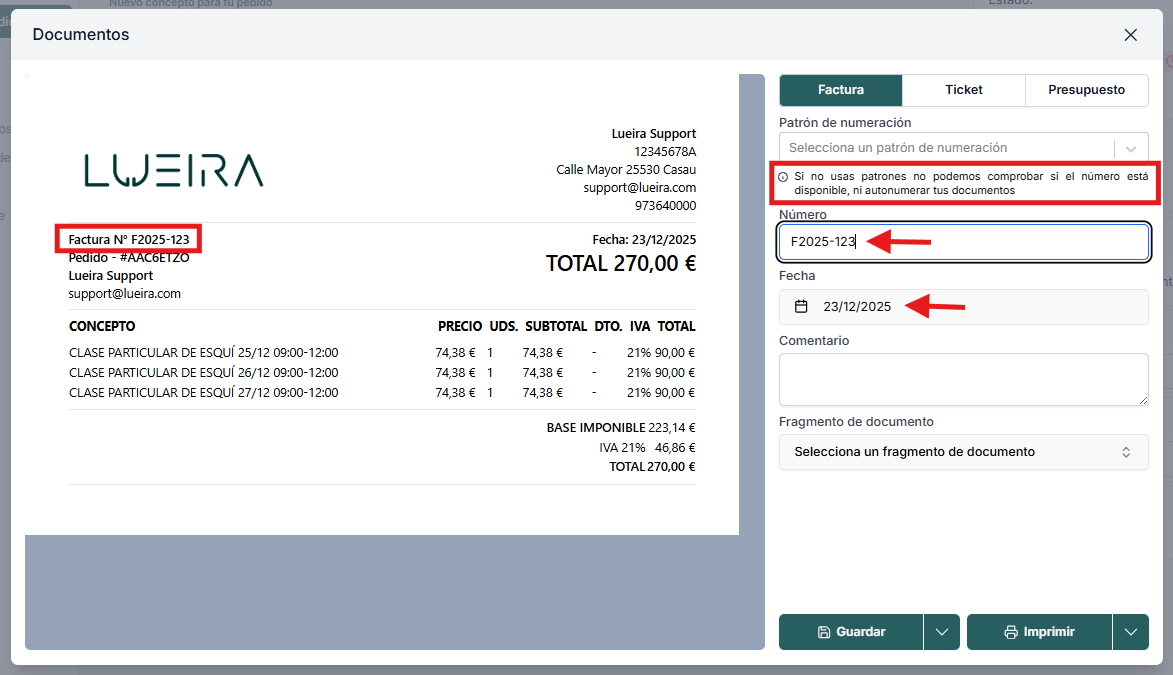
Example: F2025-123
Adjust the document date: Select as the document creation date a date within 2025, consistent with the document you are generating.
This ensures the accounting and documentary consistency of the financial year.
Save or print the document: Once you have reviewed the details, save or print the document as needed.
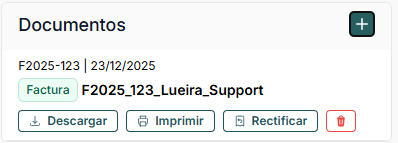
Bear in mind that when you create documents without an automatic numbering pattern:
⚠️ Lueira cannot check for duplicates
⚠️ Numbering control is entirely manual
That is why you should always make sure to:
Use the correct number
Not repeat numbers
Stay consistent with your 2025 documents
🧾 Final recommendations
✔️ Review your numbering patterns before the end of the year
✔️ Use YYYY if you want the numbering to reset automatically every year
✔️ Create new patterns if you work with series without a year
✔️ Avoid duplicates or gaps in the numbering
✔️ Use manual numbering only in specific, controlled cases (such as invoices from previous years)
If you have any questions, the Lueira support team is available to help you.
Related guides
- Orders navigationView the status of all your orders, invoices or payments
- How to create ordersWe show you how to create orders and add every type of product to them.
- Creating a lesson booking from the admin: several days, a second teacher and line priceHow to create a lesson order from the admin: add private or group sessions, book several days in a row, add a second teacher without losing the charge for the second lesson and change the price of a line.
- Order statusesThis section gives you an overview of the status an order is in
- Order lifecycle: statuses, payment and confirmationA complete explanation of the order and payment statuses in Lueira, how they relate to each other, and when an order is confirmed automatically or manually depending on the payment method.
- Deleted and cancelled orders: the difference, how to see them and how to ask for them to be restoredThe difference between cancelling and deleting an order, where to find cancelled orders, how to find out who changed or deleted an order with Change tracking, and what to do so support can restore an order deleted by mistake.