

Deleted and cancelled orders: the difference, how to see them and how to ask for them to be restored
The difference between cancelling and deleting an order, where to find cancelled orders, how to find out who changed or deleted an order with Change tracking, and what to do so support can restore an order deleted by mistake.
On this page
- What this guide covers
- Cancel or delete: the difference
- Finding cancelled orders
- Cancelling an order (and undoing the cancellation)
- Undoing a cancellation
- Deleting an order (and what happens afterwards)
- Finding out who changed or deleted an order, and when: Change tracking
- Asking for a deleted order to be restored
- What to do if…
- …a customer says they have a booking and I cannot find it
- …an order paid online appears as deleted and nobody has deleted it
- …I want to delete an order to correct an invoice or a payment
- …I only want to remove some sessions or items, not the whole order
- …I have cancelled an order and it still appears in the lists
- Related articles
What this guide covers
An order that has "disappeared" is almost always one of these two things: it is either cancelled (it is still in the list, with the red Cancelled tag) or someone has deleted it (it no longer appears in any list or in the search).
This guide explains:
the difference between cancelling and deleting an order, and when to use each;
how to find cancelled orders with the Orders filters;
how to see who changed or deleted an order, and when, with Change tracking;
what to do so that Lueira support can restore an order deleted by mistake.
💡 The short answer: if the customer does not show up or cancels, cancel the order from the Status button: it is kept and you can change its status again. Delete order (⋮ menu) removes it from your lists and you cannot undo it yourself. If you have deleted one by mistake, write to us in the chat with the order reference and we will look into it.
Cancel or delete: the difference
Cancelling is an order status. The order stays in Orders, with all its items, payments, documents and history, marked with the red Cancelled tag. You can search for it, filter it and change its status again.
Deleting removes the order from your account: it stops appearing in the list, in the search and in the filters. You cannot undo it from the panel.
✅ Use Cancel when the customer cancels, does not show up or the activity does not take place. You keep the record, and if there were payments or invoices they remain linked to the order.
⚠️ Reserve Delete for orders created by mistake that have no payments or documents (for example, a duplicate order you have just created). If the order has payments or invoices, do not delete it: cancel it and, if money has to be refunded, follow Refunding the money of an order that has already been paid.
Finding cancelled orders
Cancelled orders remain in Orders, mixed in with the rest, with the red Cancelled tag in the Status column.
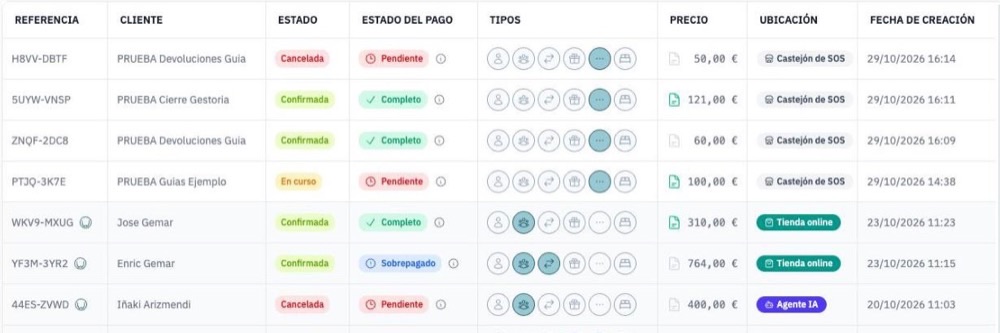
To see only the cancelled ones:
In Orders, click Filters.
In Order status, choose Cancelled.
If you want, narrow it down with Start from / Start to (activity date) or with Creation date.
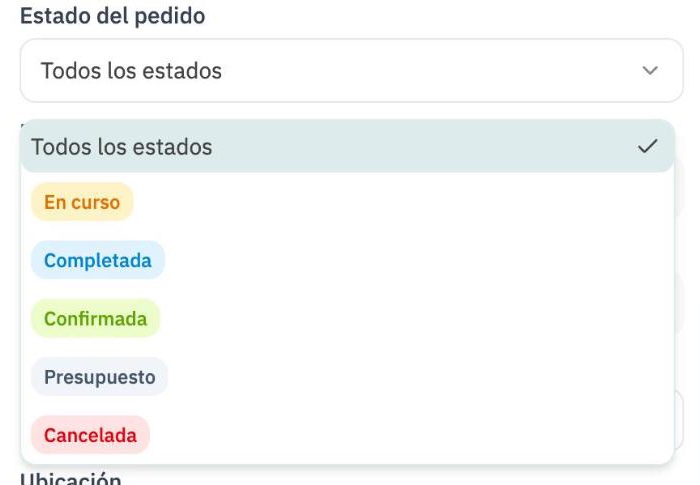
📌 In that drop-down there is no "Deleted" status: deleted orders cannot be filtered or searched from your account. If you cannot find an order with either the search or the filters, it has probably been deleted (see below).
Cancelling an order (and undoing the cancellation)
Open the order.
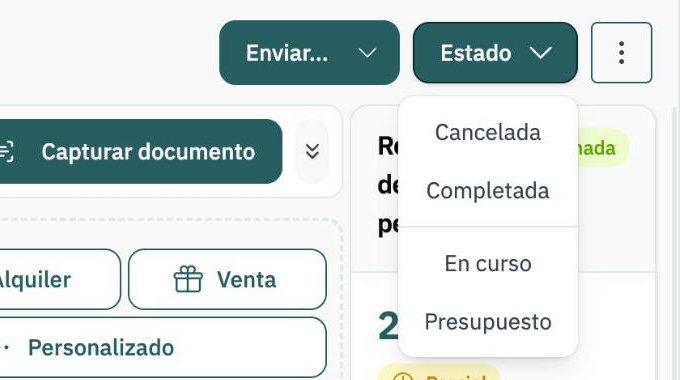
At the top right, click Status.
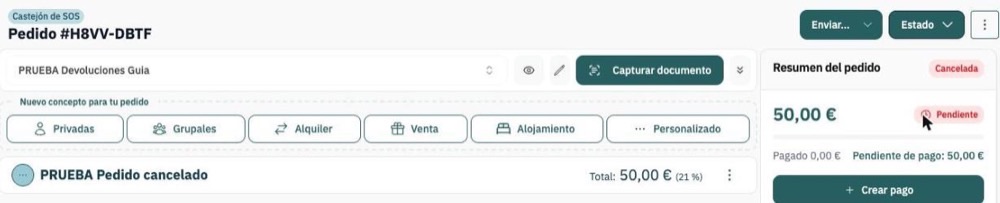
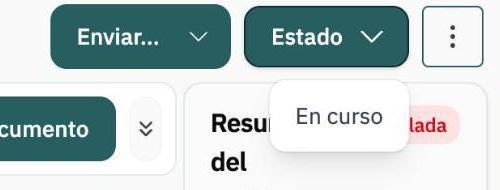
Choose Cancelled. The change is applied immediately, with no confirmation window, and the Order summary shows the Cancelled tag.
Undoing a cancellation
On a cancelled order, the Status menu only offers In progress. Choose it to reactivate the order and then click Status again to set it to Confirmed (or whichever status applies).
⚠️ Cancelling does not refund the money or void the invoice. The order status and the payment status are independent: if the customer had paid, make the refund from the Payments block, and if you had already issued an invoice or receipt, correct it. You will find this in Refunding the money of an order that has already been paid and in Correcting an invoice or a receipt.
Deleting an order (and what happens afterwards)
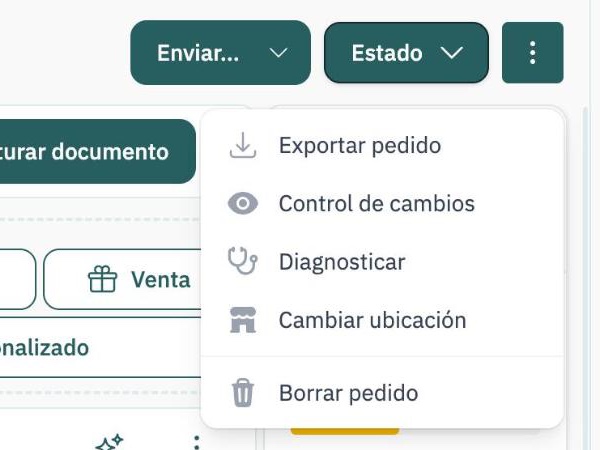
Open the order and click the ⋮ menu at the top right.
Click Delete order.
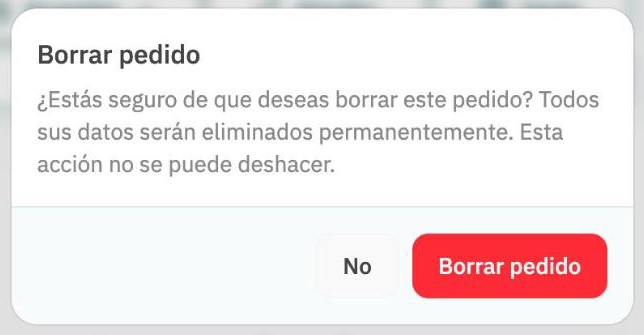
Lueira asks you to confirm: "Are you sure you want to delete this order? All its data will be permanently deleted. This action cannot be undone." Click Delete order to confirm or No to exit.
After deleting it:
the order disappears from the Orders list, from the filters and from the search (searching for its reference returns nothing);
if you open a direct link to that order (for example, from your browser history), you will see the Order deleted notice next to the reference;
there is no option to restore it from your account.

💡 If orders are being deleted by mistake in your team, agree on a simple rule: if the customer cancels, the order is cancelled; only what was created by mistake is deleted.
Finding out who changed or deleted an order, and when: Change tracking
Every order keeps a history of everything that has happened to it. To see it:
Open the order and click the ⋮ menu.
Click Change tracking.
You will see a list sorted from most recent to oldest, with the date and time, who did it (the user's email, or System if it was an automatic change) and what they did: create the order, add an item, create or update a payment, change the status… or delete the order. Click modified field(s) to see the detail of each change.
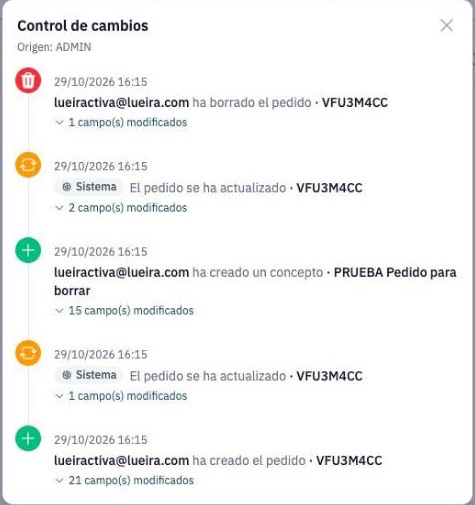
💡 Source indicates where the order was created from (for example, ADMIN if it was created from the panel).
📌 On a deleted order you can only open Change tracking if you have a direct link to the order. If you do not have it, ask support to check it for you (see the next section).
Asking for a deleted order to be restored
Although the notice says the action cannot be undone, in many cases the Lueira team can recover a deleted order. To make it quick:
Write to us in the panel's help chat as soon as possible.
Give the order reference (for example, #ABCD-1234). You will find it in the confirmation email the customer received, in the payment receipt or in your browser history.
If you do not have the reference, give us the customer's name, the booking date and, if you know it, the day it was created or paid.
When we confirm that it has been restored, it will appear again in Orders with its items and payments. Check it and, if necessary, set the correct status.
💡 We can also tell you who and when deleted it, from its Change tracking.
🔒 You do not need to send us passwords or payment details to restore an order.
What to do if…
…a customer says they have a booking and I cannot find it
Search for it by reference or customer name in the Orders search box. If it does not come up, open Filters and leave Order status on All statuses (it may be Cancelled or in Quote) and check that the Location selected at the top left is the right one. If it still does not appear, it may have been deleted: ask us to look into it with the reference the customer has.
…an order paid online appears as deleted and nobody has deleted it
Check its Change tracking if you have the link and write to us with the reference: we will restore it and review what happened. Do not create a new order for the same customer until we reply, so as not to duplicate the booking.
…I want to delete an order to correct an invoice or a payment
Do not delete it. Issued invoices are corrected with a corrective invoice and payments with a refund. See Correcting an invoice or a receipt and Refunding the money of an order that has already been paid.
…I only want to remove some sessions or items, not the whole order
Do not delete the order: remove only those items or sessions from the order itself. If a row does not let you remove it, write to us with the reference and we will look into it.
…I have cancelled an order and it still appears in the lists
That is normal: cancelled orders stay in Orders with the Cancelled tag. To see only those of a specific status, use Filters > Order status.
Related articles
Related guides
- Orders navigationView the status of all your orders, invoices or payments
- How to create ordersWe show you how to create orders and add every type of product to them.
- Creating a lesson booking from the admin: several days, a second teacher and line priceHow to create a lesson order from the admin: add private or group sessions, book several days in a row, add a second teacher without losing the charge for the second lesson and change the price of a line.
- Order statusesThis section gives you an overview of the status an order is in
- Order lifecycle: statuses, payment and confirmationA complete explanation of the order and payment statuses in Lueira, how they relate to each other, and when an order is confirmed automatically or manually depending on the payment method.
- Cart link: send an order to be paid from the online storeHow to generate and send the cart link: an alternative to the payment link, designed for quotes that can be completed in the online store.