

Refunding an order that has already been paid: via gateway, manual, partial and in cash
How to refund a full or partial payment from the order (Refund button for Redsys and gateways, negative payment for cash, POS or transfer), how to balance the order and how it relates to the corrective invoice.
On this page
- What this guide covers
- Before you start: how did the customer pay?
- Refunding an online payment (Redsys, Bizum, LueiraPay)
- Recording the refund of a manual payment (cash, card terminal or transfer)
- Balancing the order (and the corrective invoice)
- If you had already issued an invoice or a ticket
- Viewing refunds in the Payments summary
- What to do if…
- …an error appears when you click Refund, but the customer did receive the money
- …after refunding or correcting, the order shows "Pending" in red
- …I can't see the Refund button
- …I want to enter "-1 unit" or a negative price to reflect what has been returned
- …the order's ticket does not reflect what I have refunded
- …the customer exchanges one product for another
- …I have cancelled the order, is the money refunded automatically?
- Related articles
What this guide covers
A customer has already paid you and you have to give them back all or part of the money: they cancel a class, return a rental item or you charged them too much. In Lueira, a refund is always made from the order's Payments section, and how it is done depends on how the customer paid.
This guide explains:
how to refund a payment made through a gateway (Redsys, Bizum, LueiraPay) with the Refund button, in full or in part;
how to record a refund of a manual payment (cash, physical POS, transfer) with a negative payment;
how to balance the order and what the corrective invoice or ticket has to do with it;
where to see the refunds afterwards (Orders > Payments summary).
💡 The short answer: if the customer paid online, click Refund on the payment and enter the amount. If they paid in cash, with a card terminal or by transfer, give the money back outside Lueira and record it with Create payment and a negative amount. Then adjust the order items and, if you had already issued an invoice or ticket, correct it.
⚠️ Do not delete the order to "undo" a payment. If you delete it, you lose the record of the payment and the refund. Correct the order as explained here.
Before you start: how did the customer pay?
Open the order and look at the Payments section in the right-hand column. Each payment shows its method and its date. That decides the path:
Integrated gateway (Redsys, Bizum, LueiraPay): the payment has a red Refund button. Lueira requests the refund from the gateway and the money goes back to the customer's card or account.
Manual method (Cash, physical POS, Transfer, Remittance, Other): the payment only has Edit and the trash can. Lueira does not move that money: you make the refund outside Lueira (at the till, on the card terminal, with a transfer) and then record it in the order.
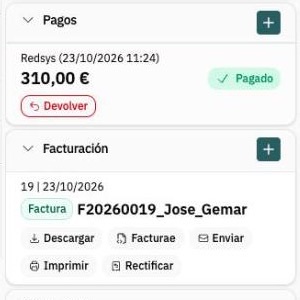
💡 The table of which methods support refunds from Lueira is in Payment methods and gateways in Lueira.
Refunding an online payment (Redsys, Bizum, LueiraPay)
Open the order from Orders.
In the Payments section, find the payment you want to refund and click Refund.
The Payment refund window opens with the full amount of the payment already filled in. Leave it as it is for a full refund or enter a smaller amount for a partial refund (for example, €50 of a €310 payment).
Click Refund payment.
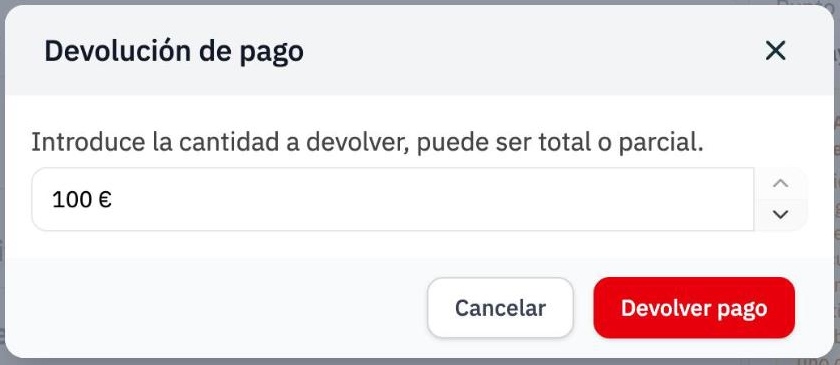
⚠️ This step moves real money. The refund is sent to the gateway and the customer receives it on their card or account. Check the amount before confirming.
After confirming, check the Payments section and Orders > Payments summary to make sure the refund has been recorded. If Lueira shows you an error, do not repeat the refund until you have checked it (we explain this in "What to do if…").
💡 Refunds are made payment by payment: if the customer paid in several instalments, click Refund on the specific payment you want to refund.
Recording the refund of a manual payment (cash, card terminal or transfer)
If the customer paid at the till, with a card terminal that is not connected to Lueira or by transfer, you first give the money back through that same channel (in cash, by cancelling the operation on the card terminal or with a transfer). Then you record it in the order so that the accounts balance:
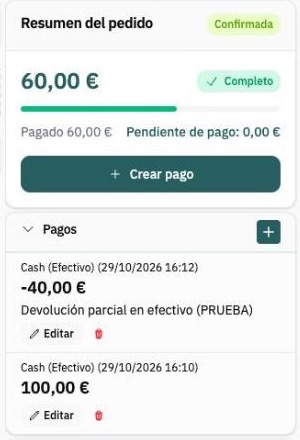
In the order, click Create payment (or the + in the Payments section).
In Payment method, choose the same method you used to return the money (for example, Cash if you returned it from the till).
In Amount, enter the refunded amount as a negative number: for example, -40.
Check the Payment date (by default, now) and add a Comment explaining the refund.
Click Create payment. Do not use Create payment and send by email if you do not want the customer to receive an email.
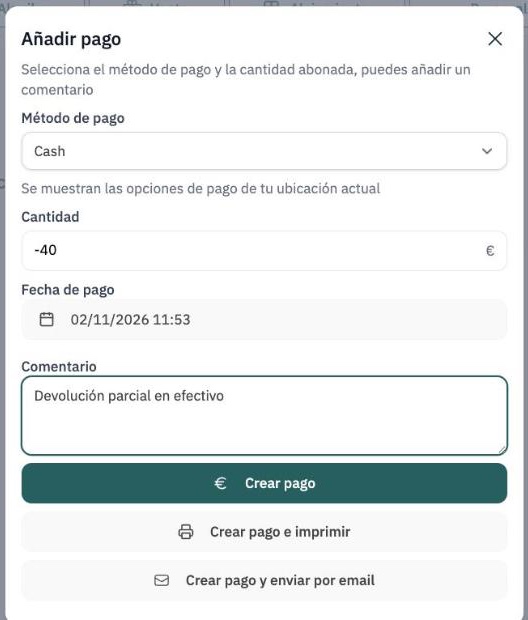
The negative payment appears in the Payments section above the original payment, and the order's Paid amount goes down by that amount.
💡 If you make a mistake in the amount of a manual refund, use Edit on that payment to correct it.
Balancing the order (and the corrective invoice)
Refunding the money does not change the order items. That is why, right after a refund, the order changes to Partial or Pending: the total is still what it was, but the paid amount has gone down.
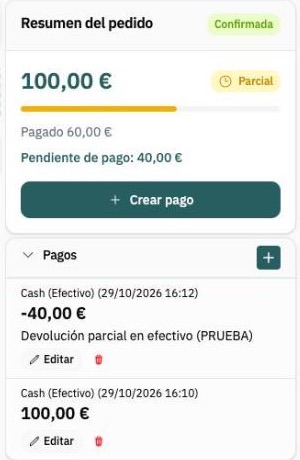
This is normal and does not mean the customer owes you money. For the order to reflect what has really been sold:
Adjust the items. In the ⋮ menu of the item, use Edit to change the price or the units, or Delete to remove what has been returned (for example, an extra or a rental item). Do not enter negative units or prices: what has been returned is removed from the order.
When the order total matches what has been paid, the order goes back to Complete.
If you had already issued an invoice or a ticket
The invoice and the ticket are generated from the order's items, not from the payments. An issued invoice cannot be edited or deleted. The recommended order is:
Refund the money (with Refund or with the negative payment).
Correct the invoice or ticket from the Invoicing section. A negative document linked to the original is generated.
Adjust the order items so that only what the customer keeps remains.
If something remains sold, issue a new invoice or ticket with the + in the Invoicing section.
⚠️ Correcting does not refund the money, and refunding the money does not correct the invoice: they are two different steps and you will usually need both. You can find the step-by-step guide to corrections in Correcting an invoice or a ticket and configuring its numbering.
Viewing refunds in the Payments summary
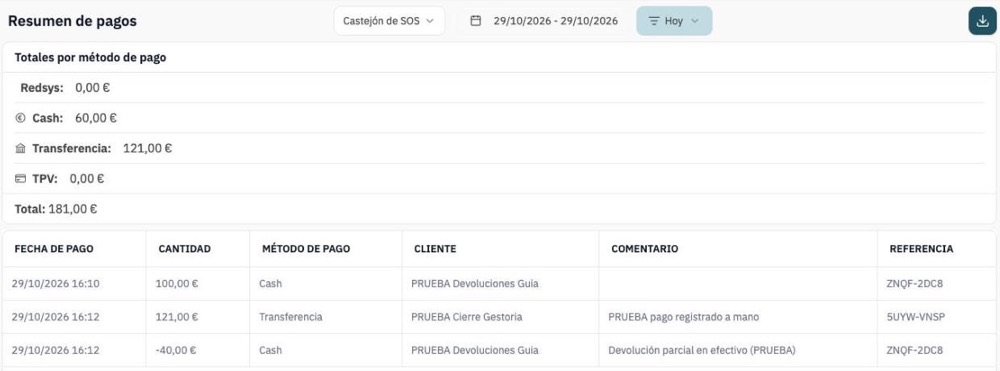
In Orders > Payments summary you see all the payments and refunds for a period:
At the top, filter by location and by dates (by default, Today).
Totals by payment method adds up each method with the refunds already subtracted: in the example, €100 collected and €40 refunded in cash give Cash: €60.00.
In the table, refunds recorded as a negative payment appear as negative, with their method, the customer, the comment and the order reference.
The download button in the top right corner is used to download the list.
💡 For the cash register closing, the day's Cash total already deducts what you have recorded as refunded in cash.
What to do if…
…an error appears when you click Refund, but the customer did receive the money
This can happen with some cards (for example, credit or foreign cards): the gateway makes the refund but Lueira does not manage to record it. Do not click Refund again, because you could refund the amount twice. Check in your bank's or Redsys's panel whether the refund has been made and write to Lueira support with the order reference so that we can look into it.
…after refunding or correcting, the order shows "Pending" in red
This is expected: the order still has the same items, but it is no longer paid. Adjust or remove the returned items (see "Balancing the order") and the payment status is recalculated.
…I can't see the Refund button
Only payments made through an integrated gateway (Redsys, Bizum, LueiraPay) have it. Payments in cash, physical POS, transfer or other manual methods are not refunded from Lueira: return the money outside Lueira and record a negative payment.
…I want to enter "-1 unit" or a negative price to reflect what has been returned
Instead, remove what has been returned from the order: set the item or the extra to 0 units or delete it. The money returned is reflected with the payment refund (Refund button or negative payment), and the tax document, with the corrective invoice.
…the order's ticket does not reflect what I have refunded
Tickets and invoices come from the order's items, not from the payments. If the ticket had already been issued, correct it, remove what was returned from the order and issue a new ticket.
…the customer exchanges one product for another
Treat it as a refund plus a payment: refund (or record as a negative payment) what they are not keeping, change the order items and collect the difference with Create payment if the new product is more expensive. If there was already an invoice or ticket, correct it and issue a new one.
…I have cancelled the order, is the money refunded automatically?
Do not count on it: changing the order status to Cancelled does not replace the refund. If there were payments, make the refund from the Payments section as explained in this guide.
🔒 Important: if you write to support, do not include card numbers, passwords or your gateway's keys in the chat; the order reference is enough for us.
Related articles
Related guides
- Orders navigationView the status of all your orders, invoices or payments
- How to create ordersWe show you how to create orders and add every type of product to them.
- Creating a lesson booking from the admin: several days, a second teacher and line priceHow to create a lesson order from the admin: add private or group sessions, book several days in a row, add a second teacher without losing the charge for the second lesson and change the price of a line.
- Order statusesThis section gives you an overview of the status an order is in
- Order lifecycle: statuses, payment and confirmationA complete explanation of the order and payment statuses in Lueira, how they relate to each other, and when an order is confirmed automatically or manually depending on the payment method.
- Deleted and cancelled orders: the difference, how to see them and how to ask for them to be restoredThe difference between cancelling and deleting an order, where to find cancelled orders, how to find out who changed or deleted an order with Change tracking, and what to do so support can restore an order deleted by mistake.