

Managing payments on orders
How to add, configure and edit the payments of an order in Lueira: payment methods, amount, payment date or link expiry date, print or email options, and how the expiry is shown in the order details.
On this page
- Managing payments on orders
- What you need to fill in
- "Expires on": expiry of payment links
- How the expiry is shown in the order details
- "Payment date": for offline methods
- Customer required for online payments
- Creating the payment
- What happens to the payment status?
- Careful: with Redsys or Lueira Pay, "Create payment" prepares a new charge
- Recording a manual payment (cash, card terminal, transfer)
- Refunding a payment
Managing payments on orders
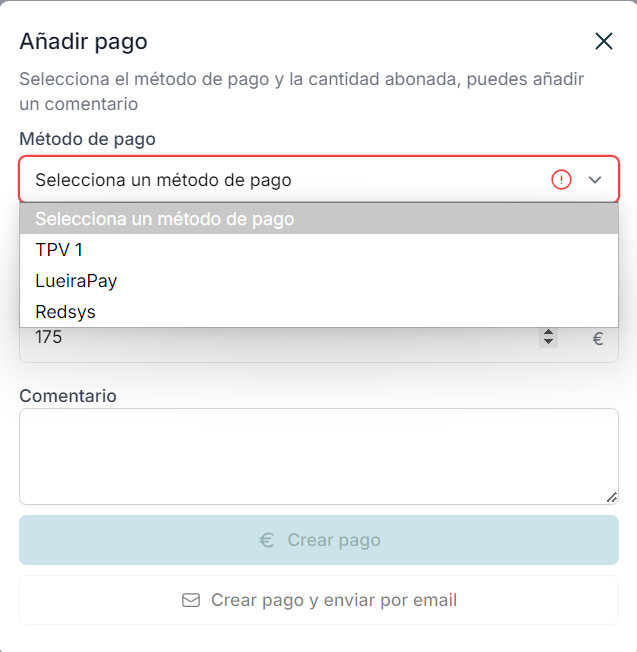
After creating an order, you will need to manage the payment with the customer. From the order details, on the right-hand side you will see the Payments section. Click the + symbol and the "Add payment" modal will open.
💡 If the order is a quote that can be sold in the online store (with no custom products and with something available), instead of the payment link you can send it as a cart link: the customer completes the purchase in your online store and availability is checked again at the time of payment.
What you need to fill in
Field | What it does |
Payment method | The methods configured for your current location are shown: Redsys, Lueira Pay, bank transfer, cash, bizum, etc. |
Amount | Payment amount in euros. By default it is filled in with the order's outstanding amount. |
Payment date (offline methods) or Expires on (online methods) | The field changes depending on the selected method. More detail below. |
Comment | Free text for your internal use (description, remark, etc.). |
"Expires on": expiry of payment links
When you select an online payment method (Lueira Pay or Redsys), the modal shows the "Expires on" field. It is used to define until when the customer can use the payment link you send them.
The field is optional: if you leave it empty, the link does not expire automatically.
You can choose a date and time (format DD/MM/YYYY HH:mm).
You can clear it with the clear button of the date picker if you make a mistake.
Edit later: you can now change the expiry of an online payment that has already been created by opening the payment from the order details. It is the only editable field of an online payment; the others (amount, method, etc.) cannot be changed once it has been created.
⚠️ Online payment methods do not allow negative or zero amounts. If you enter an amount ≤ 0 with Redsys or Lueira Pay, you will see the warning "Online payment methods (Lueira Pay, Redsys) do not allow negative amounts. Enter a positive amount." and the form cannot be submitted.
How the expiry is shown in the order details
Once a payment with an expiry has been created, in the order's payment list you will see a line with the date under each payment:
📅 Expires on: DD/MM/YYYY HH:mm in gray if the date is still in the future.
🔴 Expires on: DD/MM/YYYY HH:mm in red if the date has already passed. This visually warns you that the link is no longer valid and that you should create a new one or change the expiry.
"Payment date": for offline methods
If you choose an offline method (cash, bizum, bank transfer…), instead of the "Expires on" field you will see "Payment date". By default it is the current date and time; change it if the payment was collected at another time. When you save, the payment is marked directly as completed.
Customer required for online payments
To create a payment with Lueira Pay or Redsys, the order must have a customer assigned. If it does not, the modal will warn you with the message "You don't have a customer assigned, you won't be able to create payment links" and the create payment buttons will remain disabled until you add the customer.
Creating the payment
You have three creation buttons; all of them create the payment with the same data but change what happens afterwards:
Button | What it does |
Create payment | Creates the payment and closes the modal. |
Create payment and print | Creates the payment and opens the print dialog. |
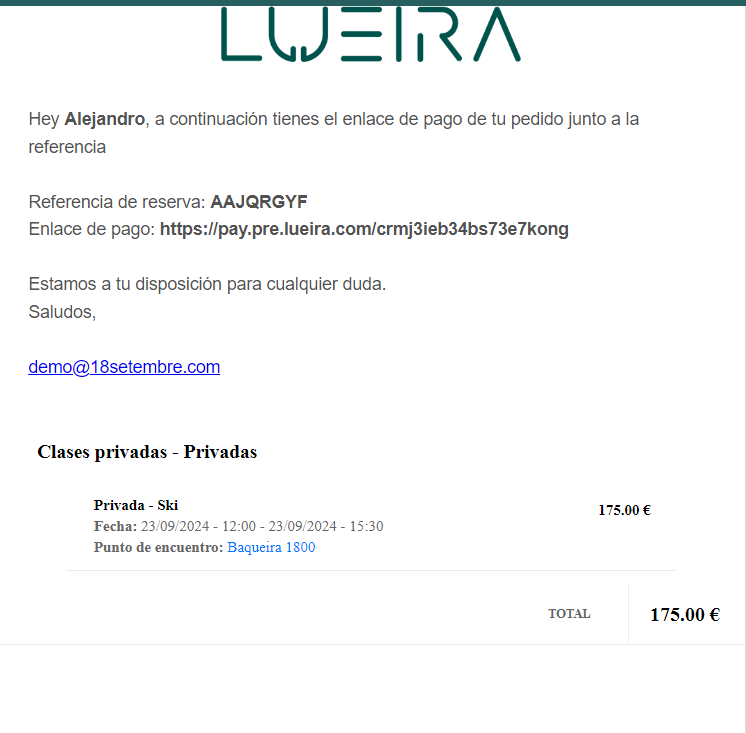
Create payment and send by email | Creates the payment and sends the customer an email with the order summary and, if it is an online payment, the payment link so they can pay from their email. |
What happens to the payment status?
With an online payment (Redsys / Lueira Pay), when the customer pays from the link, the payment status automatically changes to Completed.
With an offline payment (cash, bizum, transfer…), the payment is created already as Completed with the "Payment date" you indicated.
⚡ Important: the order status is independent of the payment status. Even if the customer pays the link in full, the order stays "In progress" or "Quote" until you confirm it manually (except for orders created by the online store, which are confirmed automatically).
👉 More detail in Order lifecycle: statuses, payment and confirmation.
If you have any questions, don't hesitate to contact the Lueira support team!
Careful: with Redsys or Lueira Pay, "Create payment" prepares a new charge
When you choose Redsys or Lueira Pay in the Add payment modal, the Create payment button does not record a payment you have already received: it creates a new payment link, in Pending status and with its Expires on field, so that the customer pays through the gateway. In the Payments section you will see it as pending, with the Copy link and Send options.
⚠️ Risk of double charging: if the customer has already paid you by another means (card terminal, transfer, cash…), do not create a payment with Redsys or Lueira Pay to "note it down". If the customer uses that link, they will pay again and the order will end up Overpaid. To record a payment that has already been made, register a manual payment as explained in the next section.
💡 A payment link that the customer does not end up paying does not add to the order's Paid amount. If you no longer want it to be usable (for example, because the customer has paid another way), open the payment and move its Expires on date earlier.
Recording a manual payment (cash, card terminal, transfer)
If the customer has paid you outside the online gateway, record the payment like this:
In the order details, click Create payment (in the Order summary) or the + in the Payments section.
In Payment method, choose the manual method they paid with (for example, cash, POS or transfer; the names are the ones you have configured in Settings > Payments for your location).
Check the Amount (by default, the outstanding amount) and the Payment date (by default, now; change it if you collected the payment on another day).
If you want, add an internal Comment.
Click Create payment. Use Create payment and send by email only if you want the customer to receive an email.
The payment is saved directly as Completed and the order's Paid amount is updated.
💡 Before recording a payment, check the Payments section: if the customer has already paid a Redsys or Lueira Pay link, that payment is already counted and you do not have to record it again (if you do, the order will show as Overpaid).
Refunding a payment
Refunds are also made from the order's Payments section, and how they are made depends on how the customer paid:
Gateway payment (Redsys, Bizum, Lueira Pay): click Refund on that payment and enter the amount (full or partial). The money goes back to the customer's card or account.
Manual payment (cash, card terminal, transfer…): return the money outside Lueira and record it with Create payment, the same method and a negative amount.
⚠️ Cancelling the order or correcting the invoice does not refund the money: they are separate steps.
👉 Full step-by-step guide in Refunding an order that has already been paid.
Related guides
- Orders navigationView the status of all your orders, invoices or payments
- How to create ordersWe show you how to create orders and add every type of product to them.
- Creating a lesson booking from the admin: several days, a second teacher and line priceHow to create a lesson order from the admin: add private or group sessions, book several days in a row, add a second teacher without losing the charge for the second lesson and change the price of a line.
- Order statusesThis section gives you an overview of the status an order is in
- Order lifecycle: statuses, payment and confirmationA complete explanation of the order and payment statuses in Lueira, how they relate to each other, and when an order is confirmed automatically or manually depending on the payment method.
- Deleted and cancelled orders: the difference, how to see them and how to ask for them to be restoredThe difference between cancelling and deleting an order, where to find cancelled orders, how to find out who changed or deleted an order with Change tracking, and what to do so support can restore an order deleted by mistake.