

Cart link: send an order to be paid from the online store
How to generate and send the cart link: an alternative to the payment link, designed for quotes that can be completed in the online store.
On this page
Cart link: send an order to be paid from the online store
In addition to the usual payment link, for some orders you can send the customer a cart link: a link that opens the online store with their purchase already prepared, so they can finish it there.
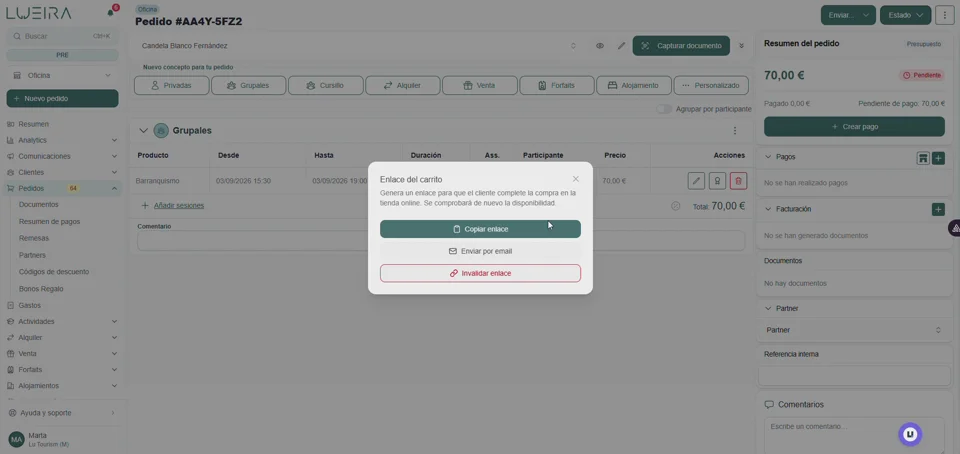 Enlace del carrito: enviar un pedido a pagar desde la tienda online
When is it available?
The button to generate the cart link only appears if the order meets all of the following:
The order is in Quote status. If it is "In progress" or already confirmed, you will not see it.
It does not include accommodation or lines with a manual price of other types: the online store cannot sell them. Custom lines (for example, ski pass handling fees) are supported and the customer will see them in their cart without being able to edit them.
It has at least one product that is still available for sale.
If the order does not meet any of these points, keep using the regular payment link from Payments → Add payment.
How to generate and send it
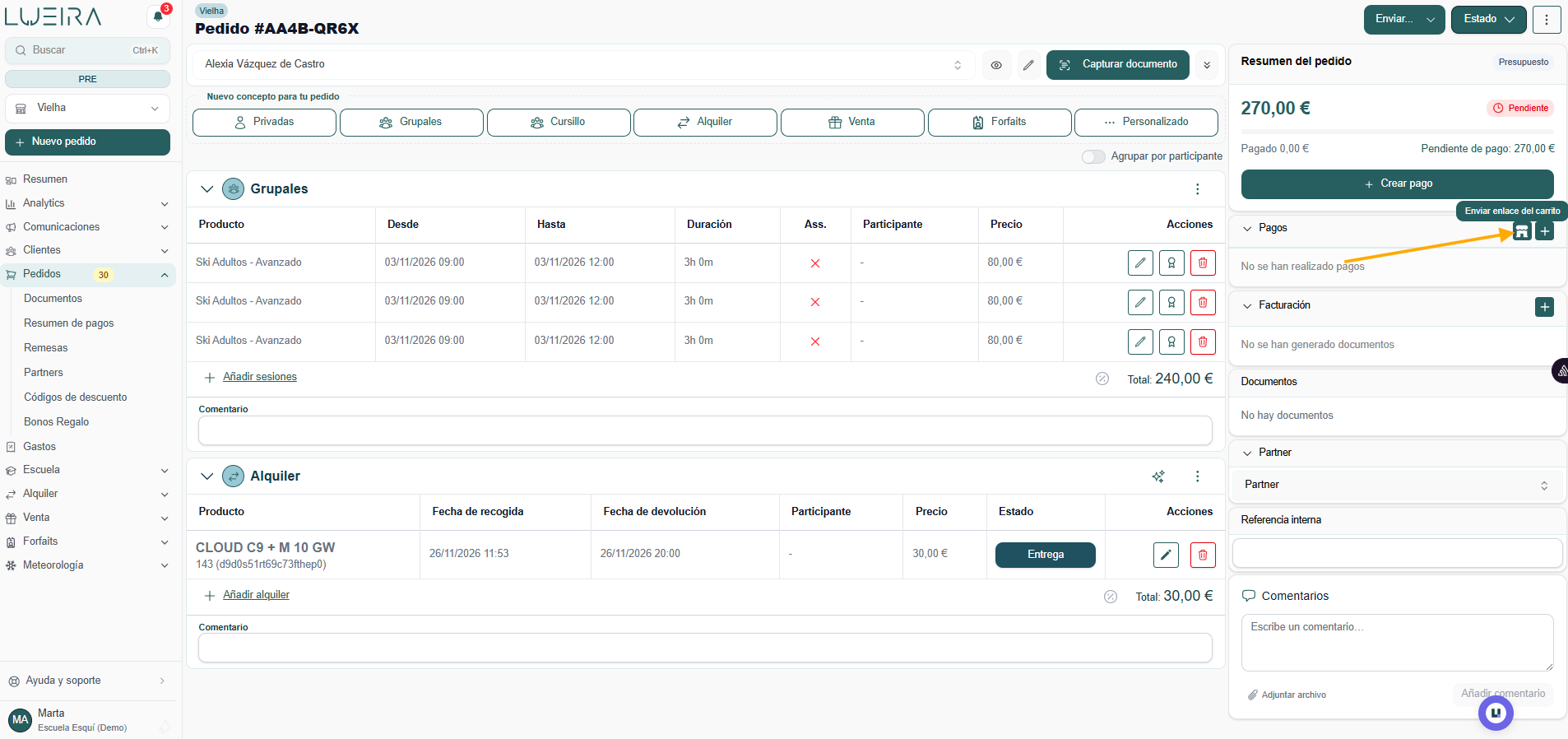
Step 1. Open the order details. In the Payments section, if the order meets the requirements above you will see a store-shaped icon next to the payment buttons, with the text "Send cart link" when you hover over it. Click it.
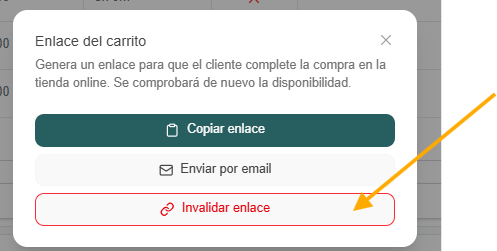
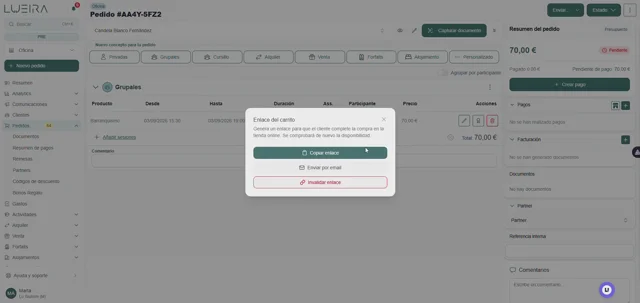
Step 2. The Cart link modal opens, warning you that a link will be generated so the customer can complete the purchase in the online store and that availability will be checked again. Choose what to do with the link:
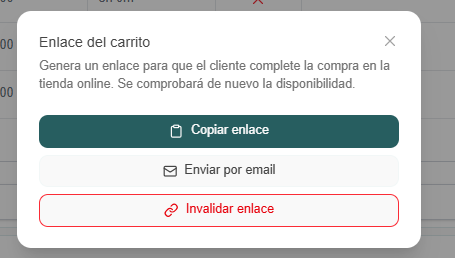
Copy link: copies it to the clipboard so you can paste it wherever you like (WhatsApp, your own email, etc.).
Send by email: opens the order's email sending modal with the link already included, just like with the payment link.
What happens when the customer opens the link
The order automatically changes from Quote to In progress, and its availability (places, stock) is reserved for 20 minutes so the customer can pay without rushing.
If the customer opens the link again within those 20 minutes, the timer restarts.
If the 20 minutes pass without the customer completing the payment, the order automatically goes back to Quote and the availability reservation is released. The link does not stop working: the customer can open it again later and the same process is repeated.
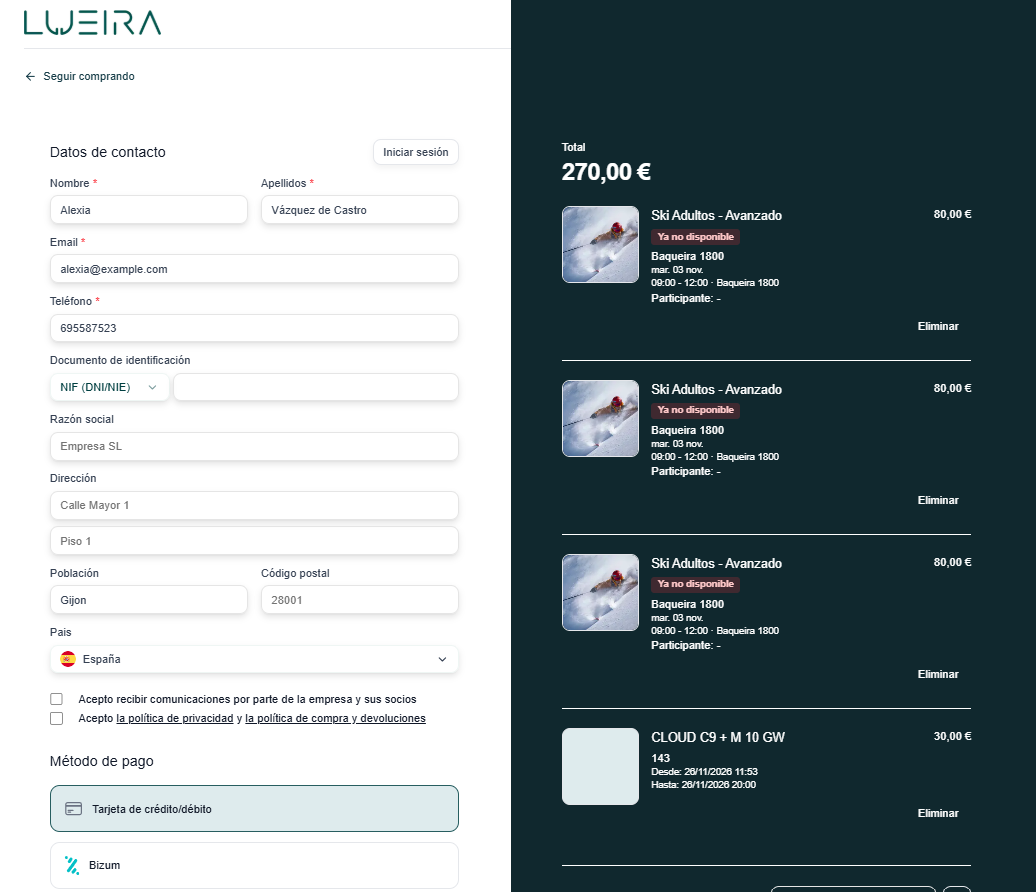
Every time the customer enters their cart, the store checks the real availability again (for example, the free places in a group lesson) and warns them if any product is no longer available, so they can modify their purchase instead of paying for an order that can no longer be fulfilled.
Does the link expire?
No. Unlike the payment link (which you can set to expire on a specific date), the cart link has no expiry date: it remains valid until the order is paid or you invalidate it manually.
Invalidate a link
If you no longer want that link to work (for example, you have changed the order with the customer through another channel), open the Cart link modal again from the order details and click Invalidate link. From that moment on, if the customer opens it they will no longer be able to complete the purchase with it.
👉 More about order statuses in Order lifecycle: statuses, payment and confirmation, and about the traditional payment link in Managing payments on orders.
If you have any questions, don't hesitate to contact the Lueira support team!
I can't see the icon to send the cart link
If you open an order and the store icon does not appear next to the payment buttons, check in this order:
Order status. It must be in Quote status. If it is In progress (for example, because the customer has already opened a link and has not paid yet), it will not appear until it goes back to Quote.
Type of lines. There cannot be accommodation or lines with a manual price of other types. Custom lines (such as ski pass handling fees) are supported.
Available products. At least one product in the order must still be on sale and available.
Reload the page. If you have changed the order lines, reload the details before checking again.
If everything is met and it still does not appear, write to us with the order number and a screenshot of the Payments section. In the meantime, you can send the payment request with the usual payment link from Payments → Add payment.
Videos about this guide
Related guides
- Orders navigationView the status of all your orders, invoices or payments
- How to create ordersWe show you how to create orders and add every type of product to them.
- Creating a lesson booking from the admin: several days, a second teacher and line priceHow to create a lesson order from the admin: add private or group sessions, book several days in a row, add a second teacher without losing the charge for the second lesson and change the price of a line.
- Order statusesThis section gives you an overview of the status an order is in
- Order lifecycle: statuses, payment and confirmationA complete explanation of the order and payment statuses in Lueira, how they relate to each other, and when an order is confirmed automatically or manually depending on the payment method.
- Deleted and cancelled orders: the difference, how to see them and how to ask for them to be restoredThe difference between cancelling and deleting an order, where to find cancelled orders, how to find out who changed or deleted an order with Change tracking, and what to do so support can restore an order deleted by mistake.