

How to create orders
We show you how to create orders and add every type of product to them.
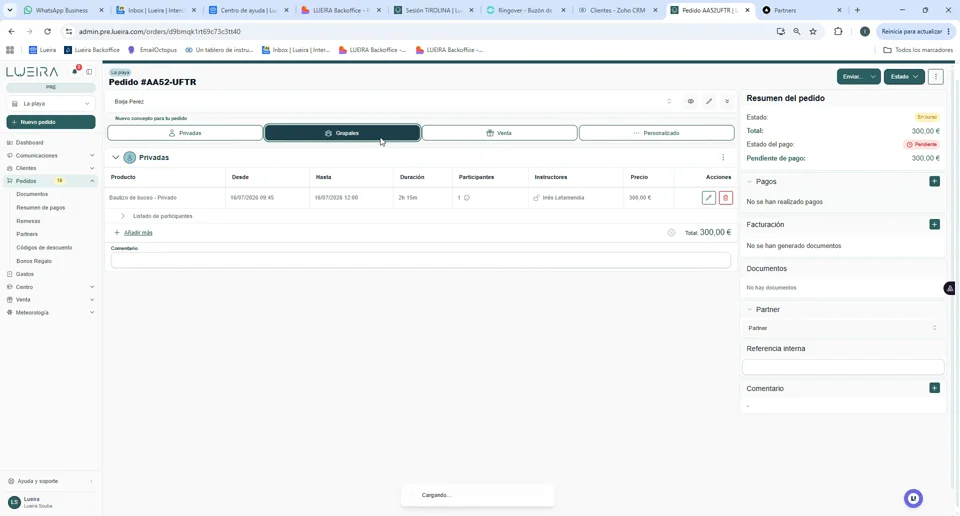 Cómo crear pedidos
In this manual we will show you how to add the different types of products to an order.
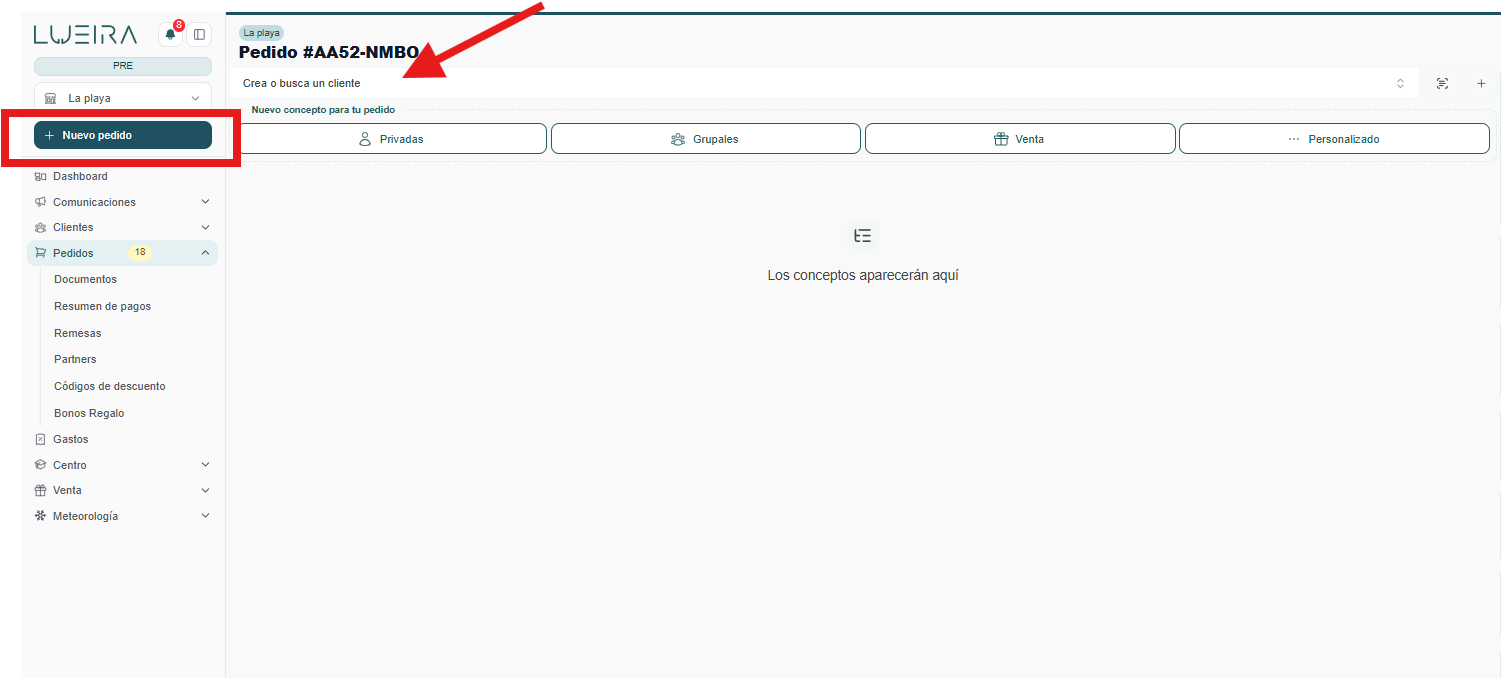
To create a new order, click the button on the left-hand side labelled NEW ORDER. Once there, it is essential to assign the customer to the order:
In Lueira you can manage and add different types of products in the same booking, and you can see visually which types of products a customer has purchased in an order thanks to the icons in the "Types" column:
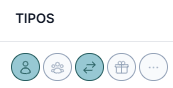
 Private product
 Group product
 Rental
 Sale
 Custom
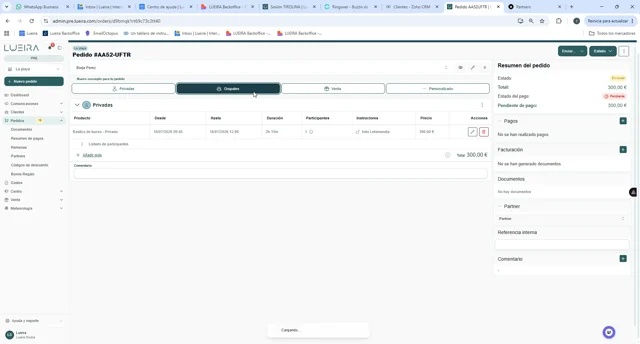
When adding a product to an order, the icons and buttons look like this:

1. Add a private product to an order:
 Creación de un pedido privado
To add a private product to an order, click the "Private" button and you will be asked to select a product. You must have previously configured the private products available at your school or business. (If you have not created any product yet, go to the section School > Products > Private > New private product and create the product you want).

You also need to select the meeting point, the level, the language and the number of participants.

Once you have filled in the fields shown in the image, click "Select dates" and you will be able to select the time range with the duration you want in the calendar of the teacher you want, by selecting and dragging the mouse cursor over the hours of the calendar that interest you.
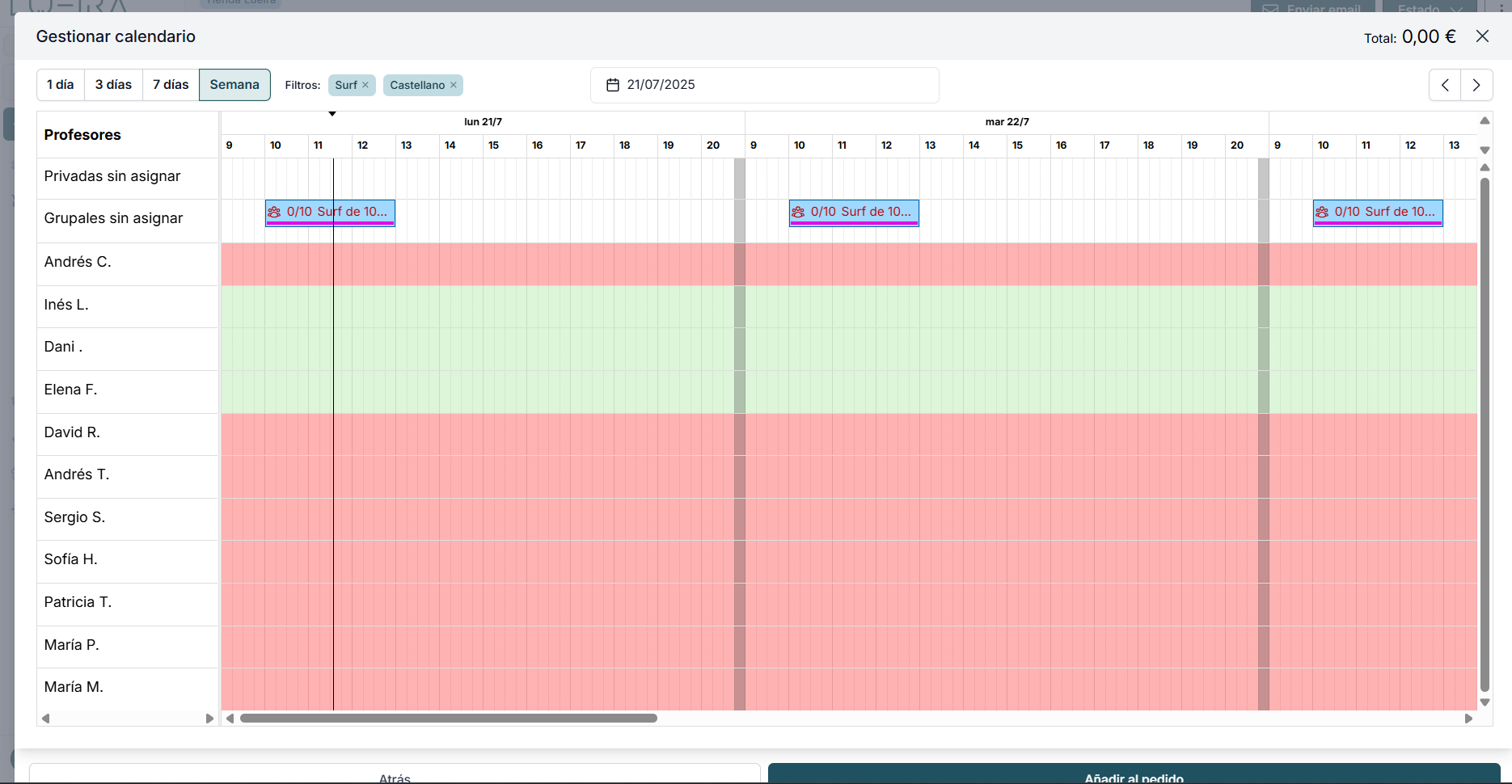
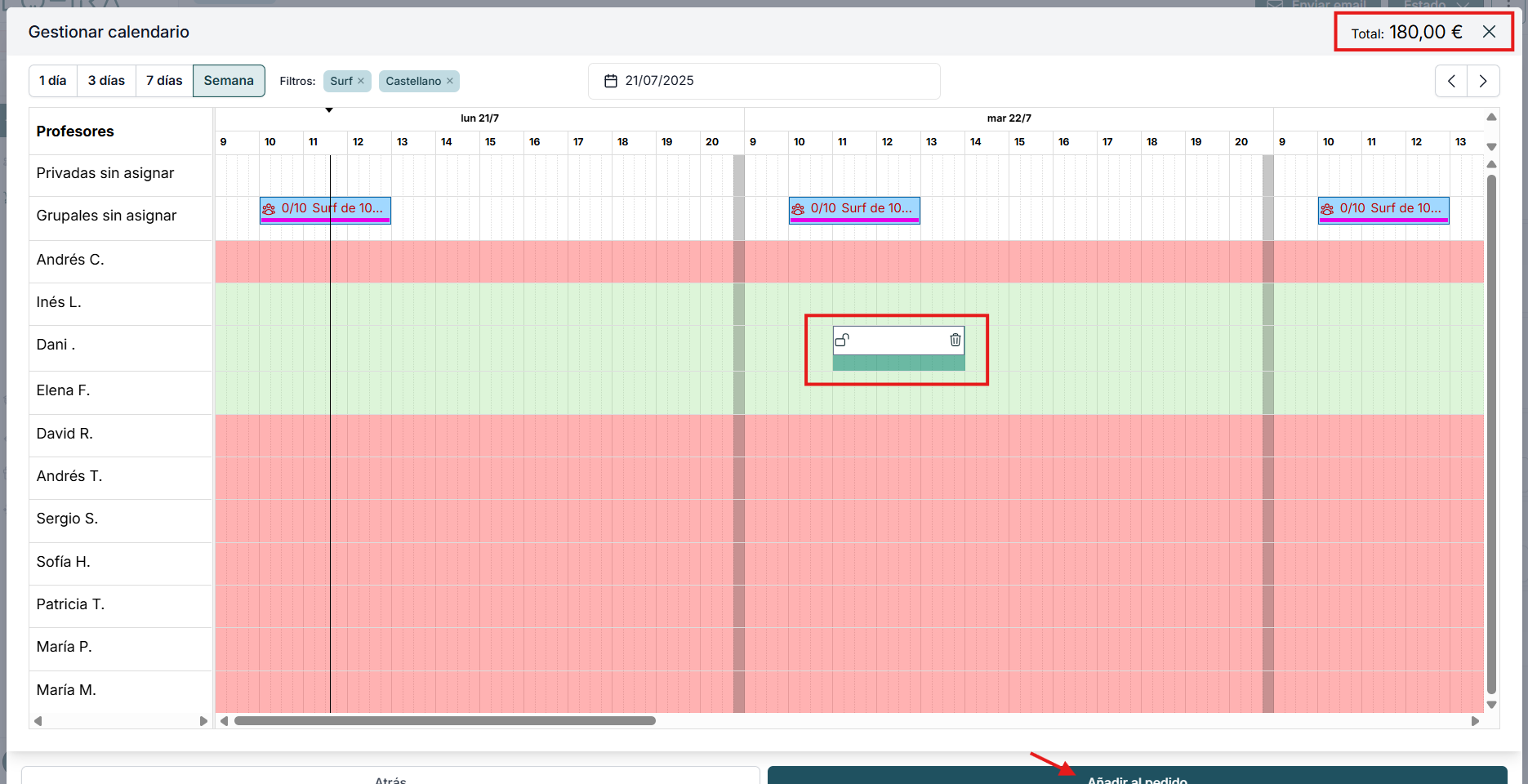
The program shows you the availability of teachers who can carry out the activity, and the price is calculated automatically based on the duration of the lesson you choose, according to the configuration of the private product you have. To finish, click the "Add to order" button to save the changes.
2. Add a group product to an order:
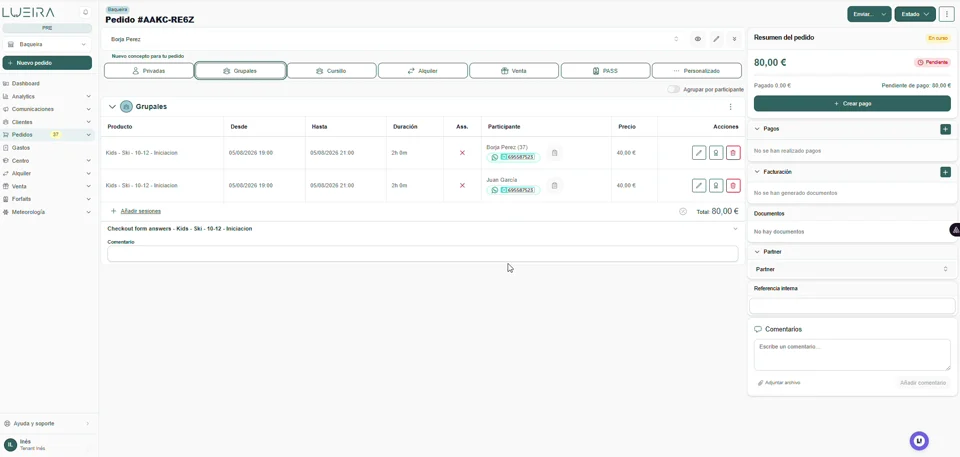 Cómo crear un producto grupal
To add a group product, click the "Group" button

When you click, a window opens where you must select the group product or pack that the customer wants to purchase. In the central part of the window you can choose between "Products" and "Packs". Use the drop-down bar on the left to search for and select the product from the list of group products you have configured, and the date box to filter the dates for which you want to see session availability.
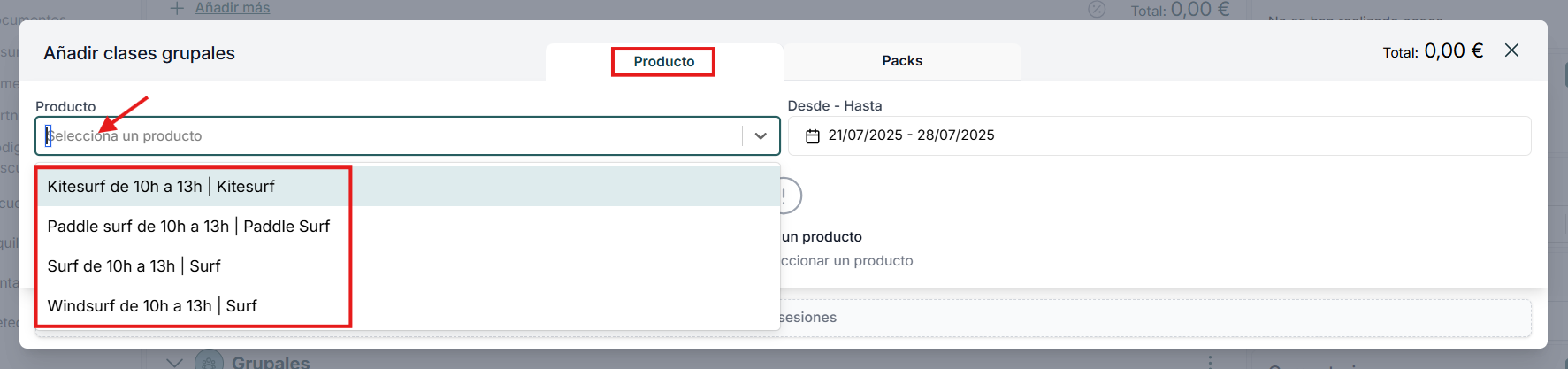
When you select a product, the sessions available on the chosen dates are loaded automatically. To add sessions to the order, use the "+" button to add participants to the session on the date and time your customer wants. You can also use the "Participants" bar to add the names of the people taking part in the session.
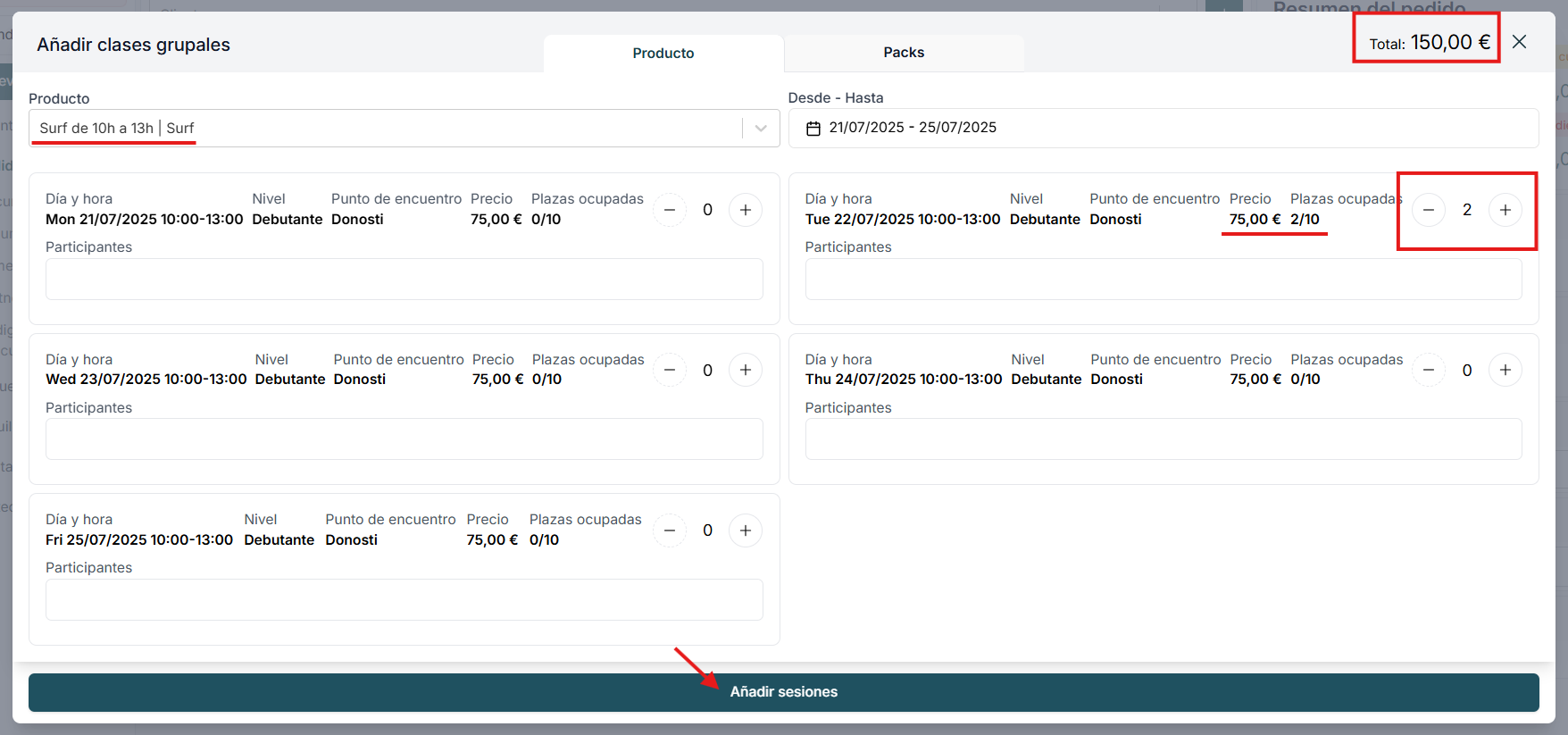
The program shows you how many places are available in each session, and the price is calculated automatically based on the participants you add to the order.
To save the changes, click "Add sessions"
3. Add a pack and a Rental product to an order:
To add a rental product or pack to an order, click the "Rental" button

When you click, a window opens where you can choose between "Pack" or "Product".
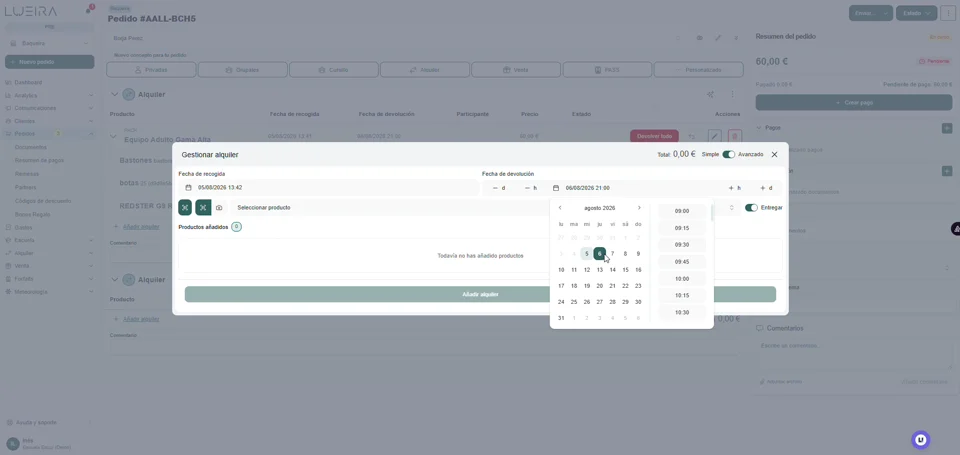 Crear un pedido de un pack de alquiler
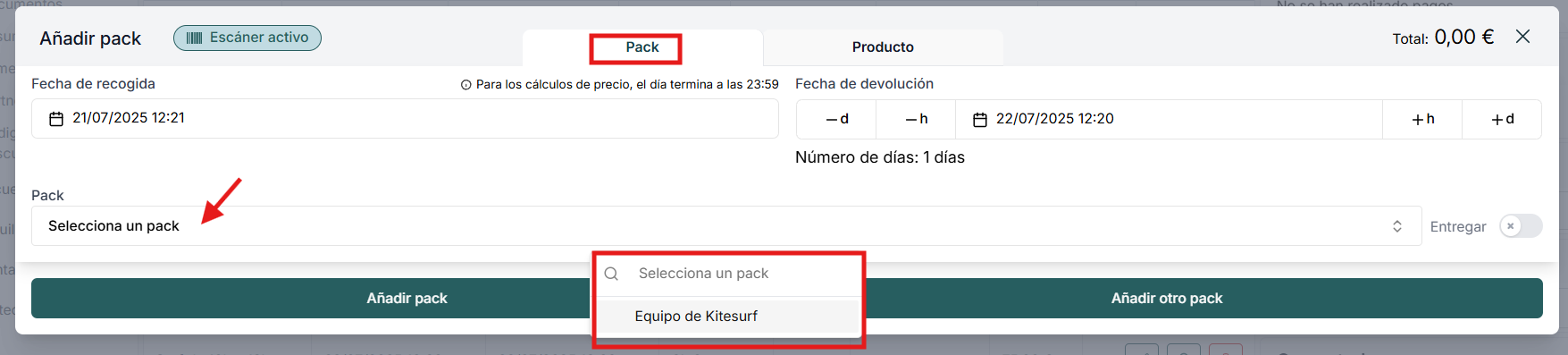
For a pack rental, select the dates of the rental and use the "Select a pack" drop-down bar to choose the pack from the list of rental packs you have configured.
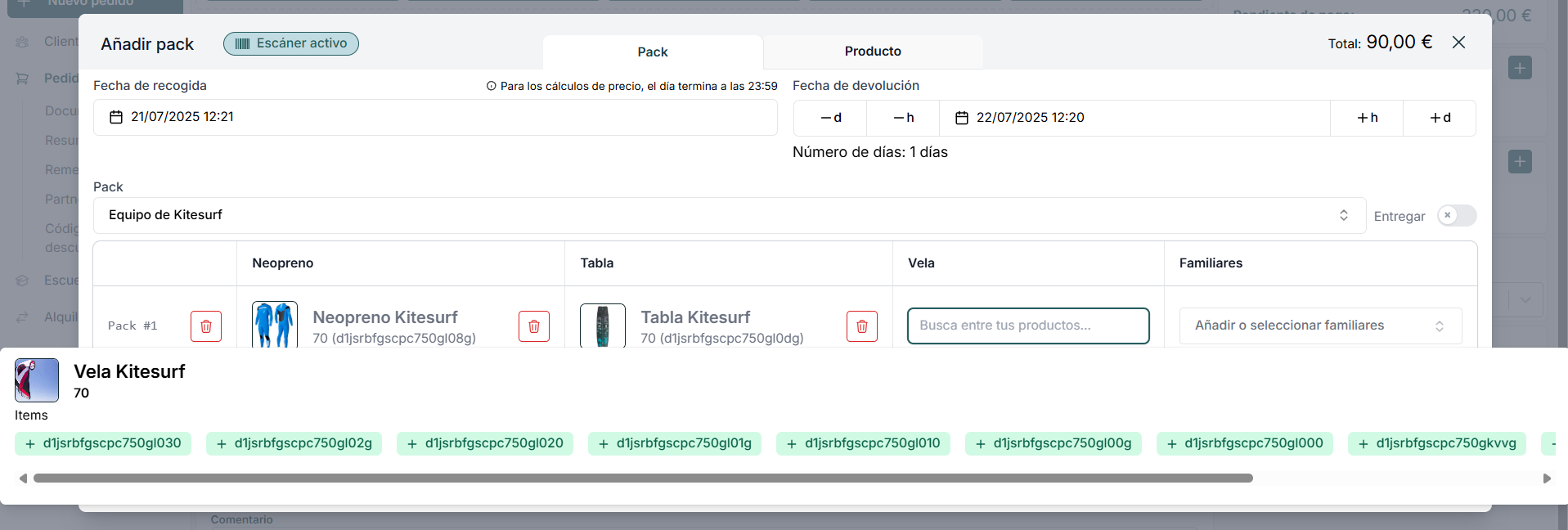
When you select the pack you must select the items to be rented for the products that make up the pack, so you can choose the sizes or product variations your customer needs.
If the customer wants to rent an individual product, select the "Product" tab at the top and select the dates and/or hours of the rental.
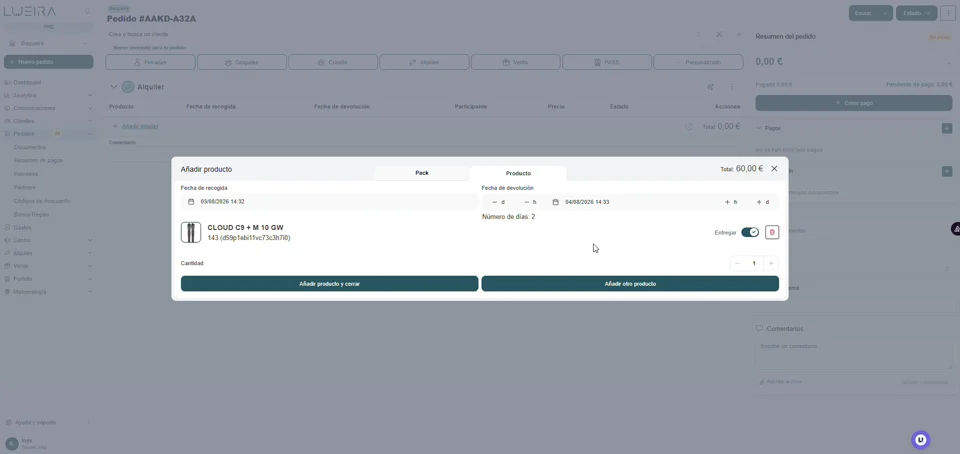 Crear un pedido de alquiler
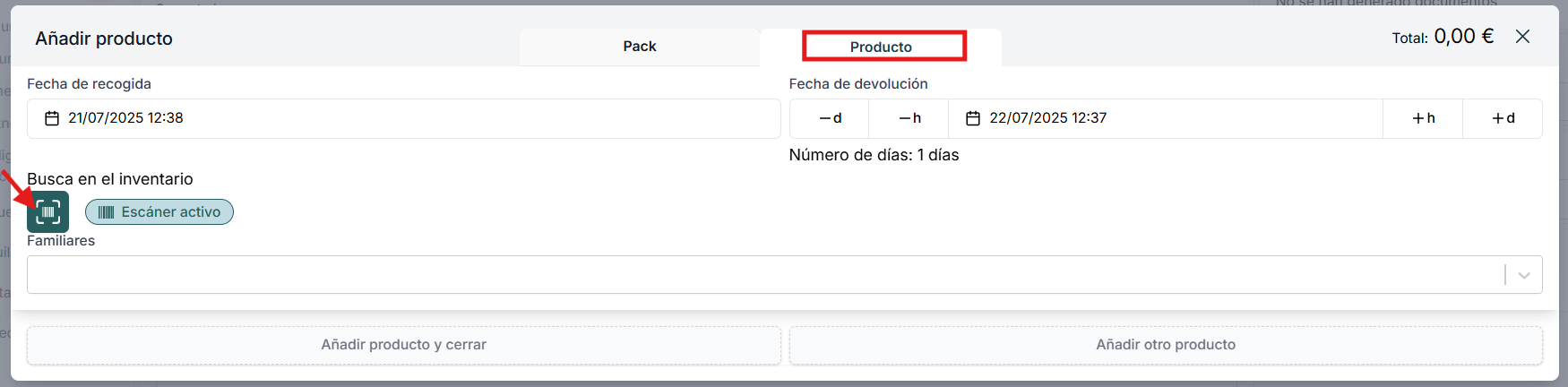
To search for and add the product you want to rent, you can use a barcode scanner or, if you click the inventory search box [ ], you can use the search bar that appears to type the product name and the products matching the search will be shown. From the list you can add the item you want to rent to the customer.
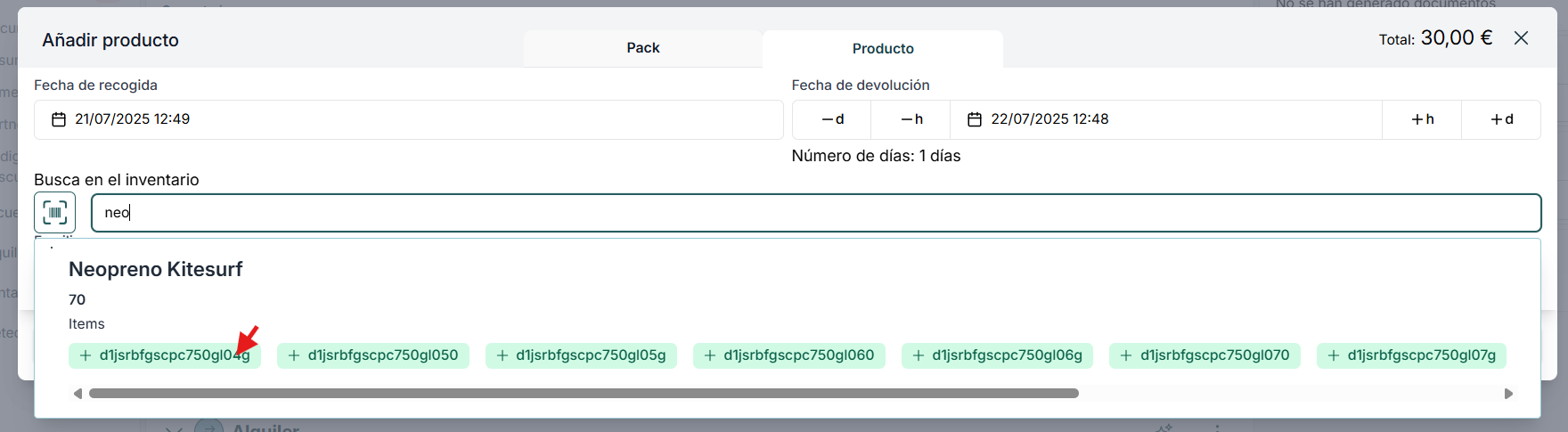
The price will be updated automatically based on the dates and hours selected and the configuration of the product you have.
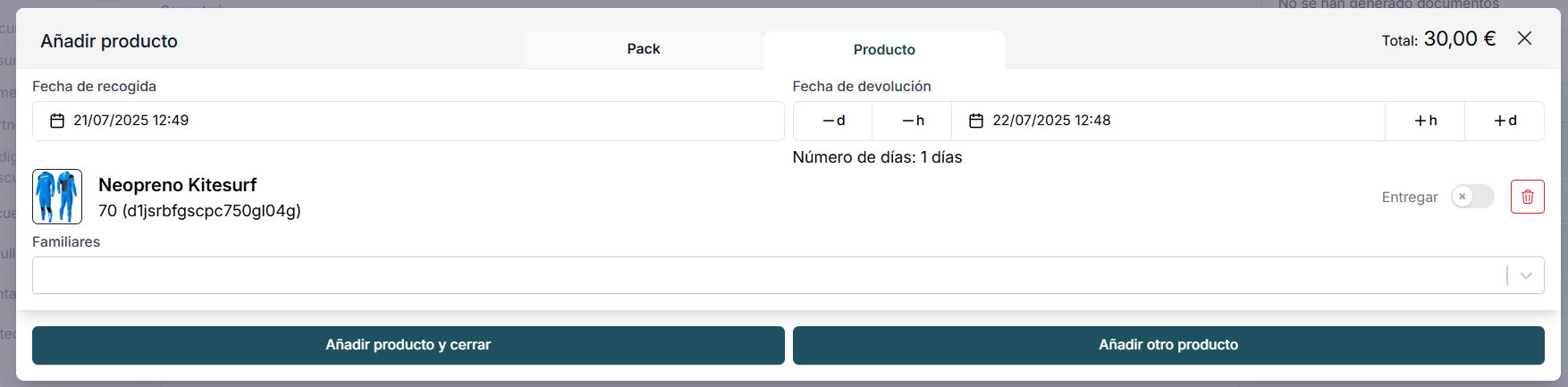
To save the changes, click "Add product and close", or if you want to add more rental products to this order, you can use the "Add another product" option.
4. Add a sale product to an order:
 Cómo crear un pedido de venta
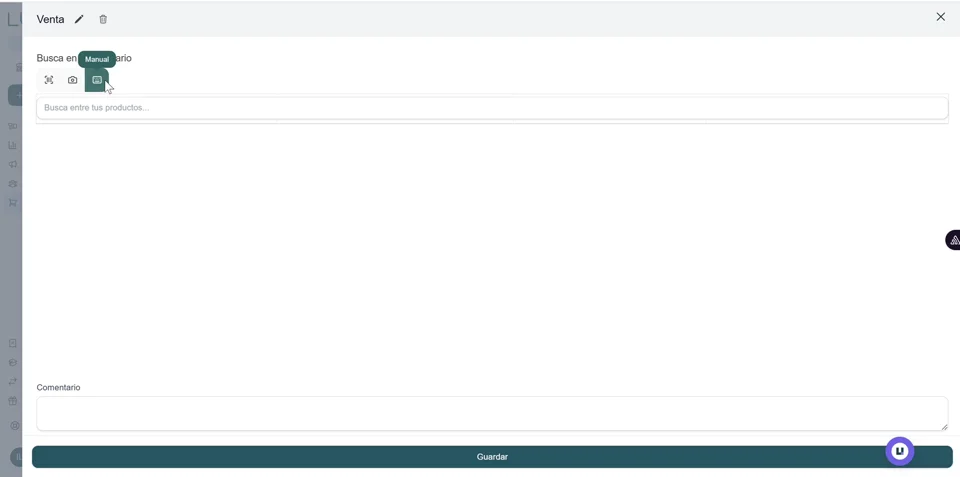
To add a sale product to an order, click the "Sale" button in the order.

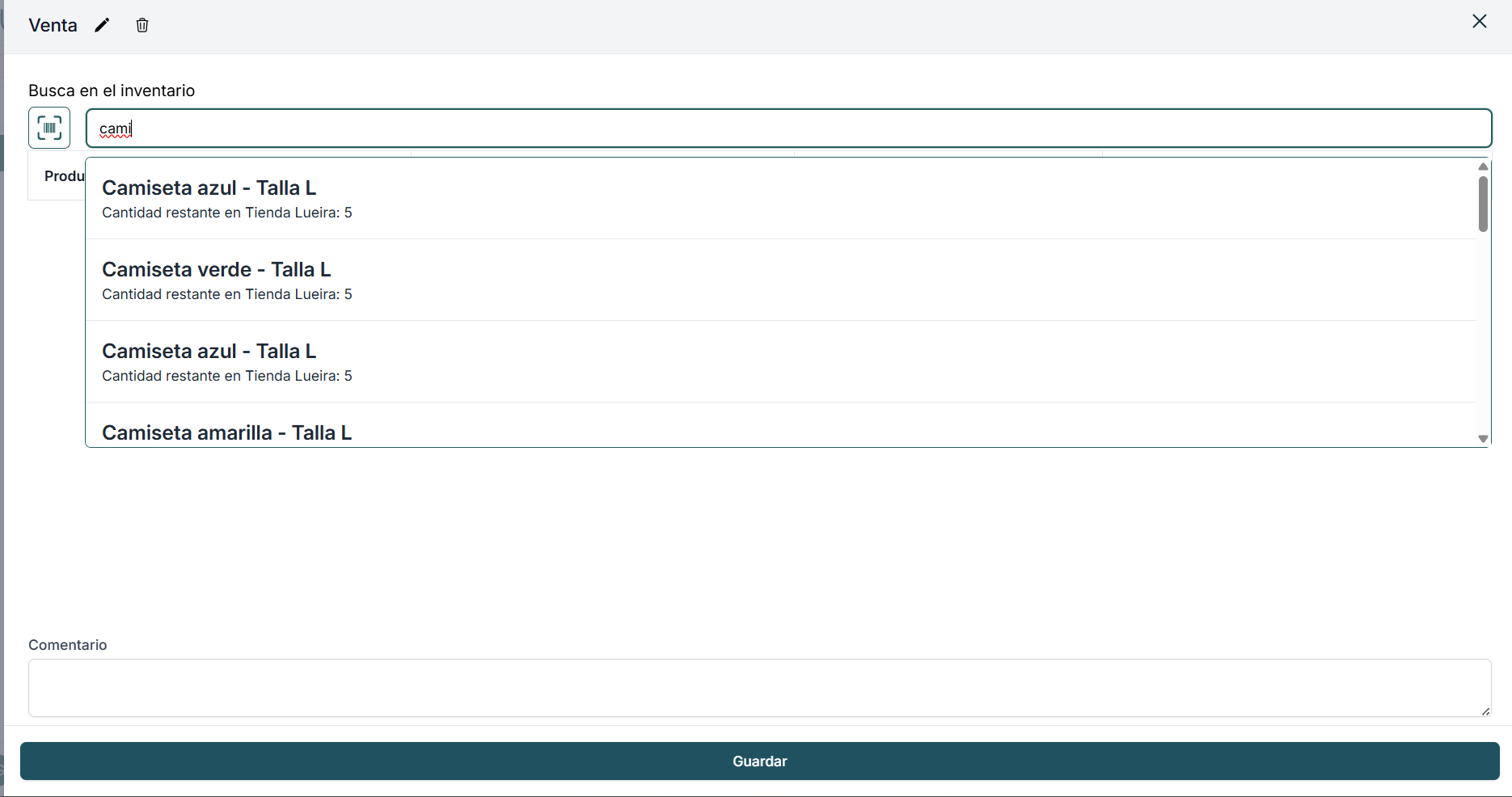
When you click, a window opens where you can search for the product you need to sell in your inventory of sale products. To search for the product you can use a barcode reader or the text search []. When you type the product name, the available variations and the stock of each product are shown, and you can choose the product your customer is interested in.
From here you can edit the number of items the customer wants to buy, and the price will be calculated automatically based on the number of products you indicate.
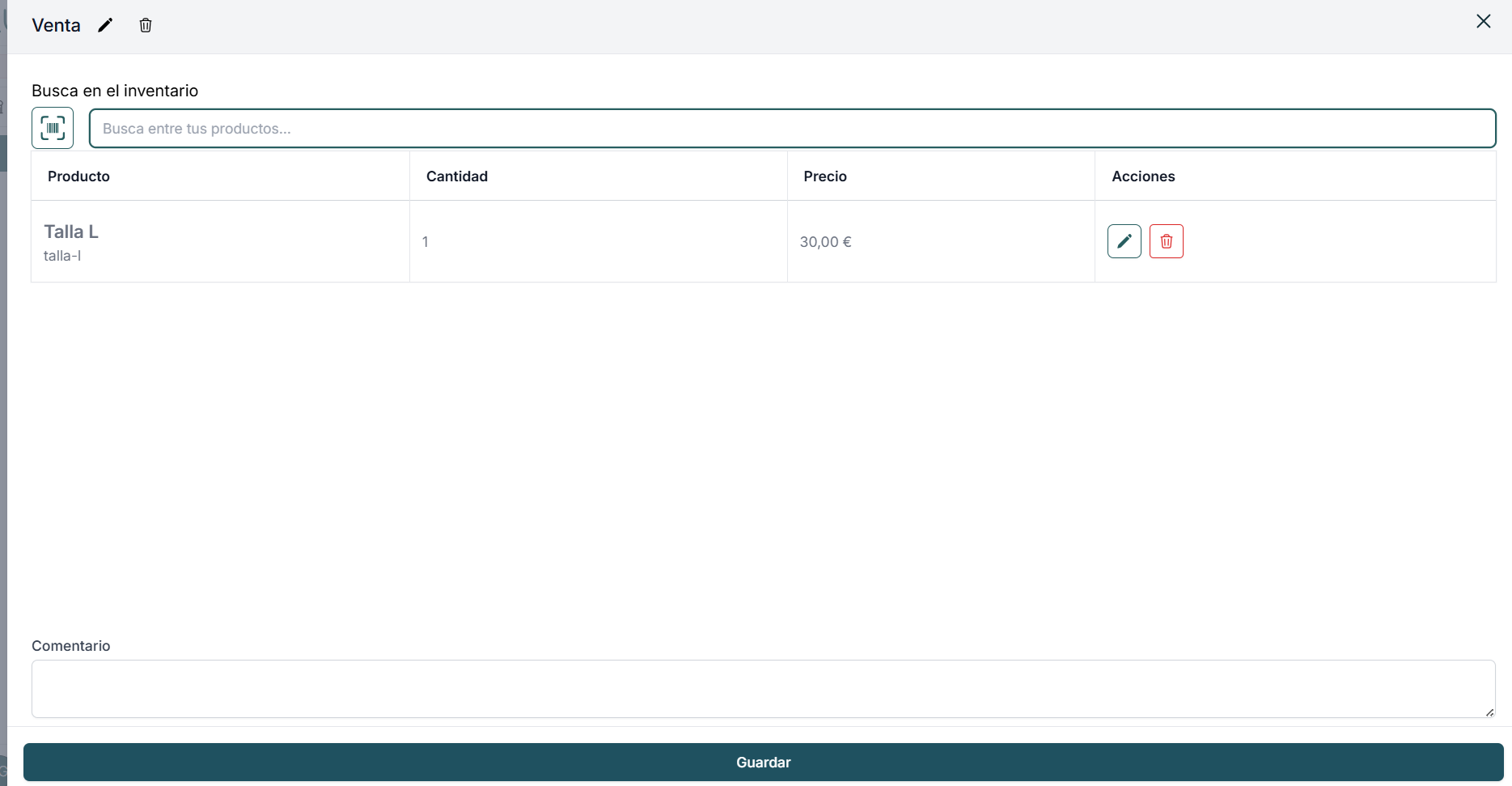
To save the changes, click the "Save" option.
5. Add a custom product.
In Lueira you have the option of adding a custom product to an order, in case the customer wants to purchase a product that you have not configured or for which they have to pay a special price.
To add a custom product to an order, use the "Custom" button.

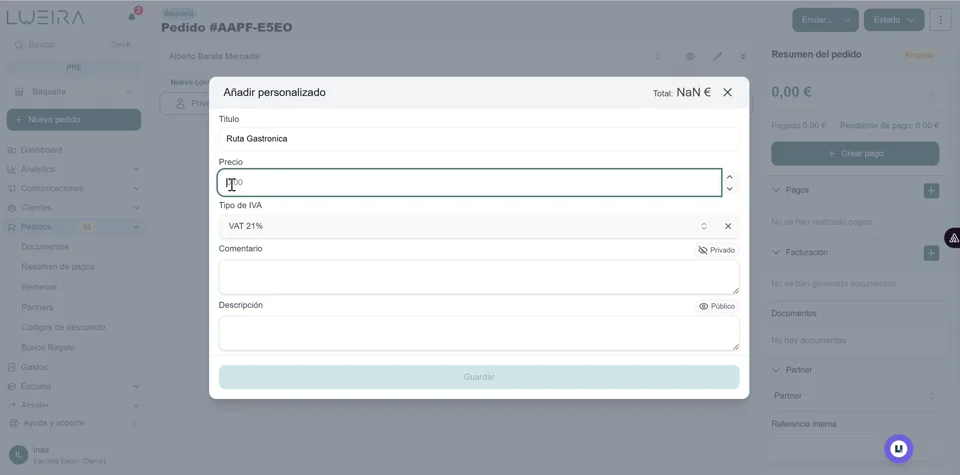
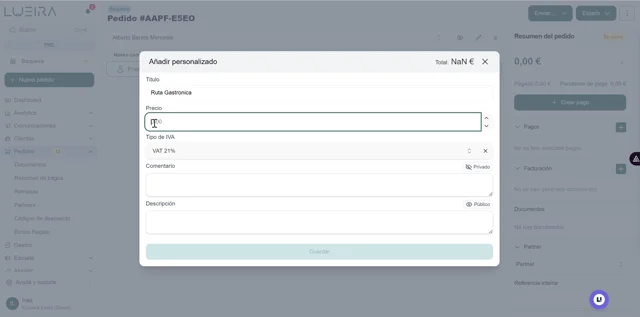
Use the window that opens to configure the custom product you want to add:
 Crear un pedido personalizado
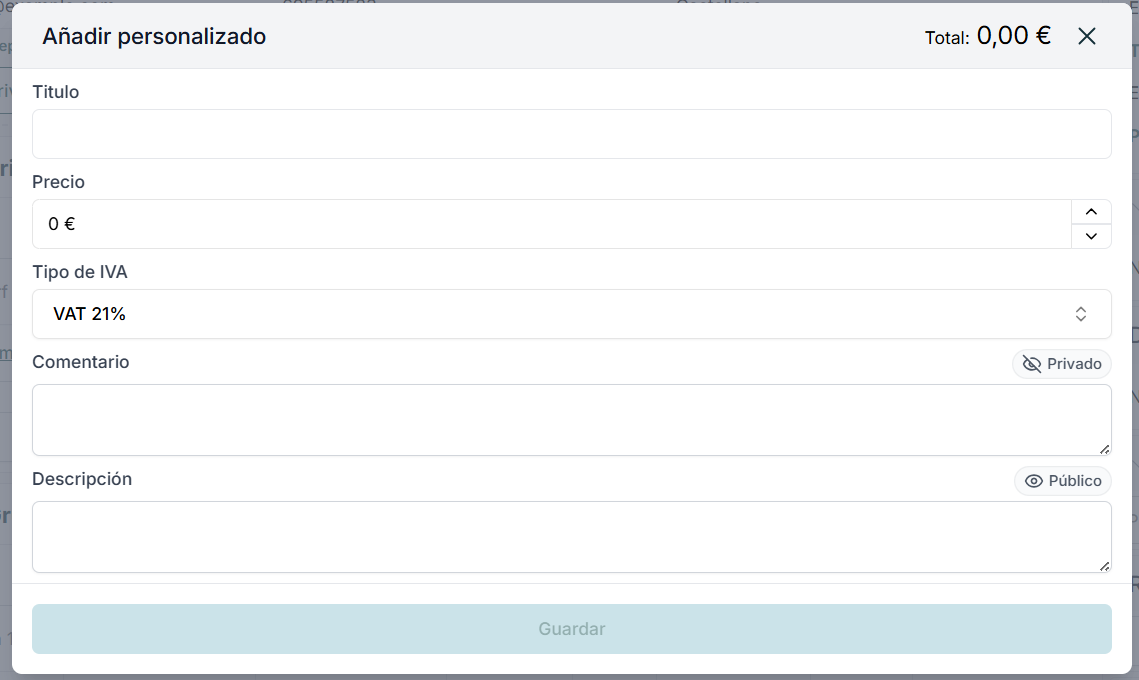
Enter the product title, the price and the VAT type, and if you wish you can add a comment that will not be visible to the customer, and/or a description of the custom product, which will appear in the documents you generate, such as receipts and invoices.
6. Add a resold activity (Resale).
If your tenant resells products from another tenant, you will also see the "Resale" button in the order. When you select it, you choose the product you are reselling (the owner and the type are shown: rental, rental pack, group lesson pack, course or hour voucher) and enter the data that this type of product requires. The booking is made directly with the owner, at the price and under the conditions they have configured.
If you have any questions, don't hesitate to contact the Lueira support team!
Videos about this guide
 6:14Creación de un pedido privadoCómo crear un pedido de clase privada paso a paso.
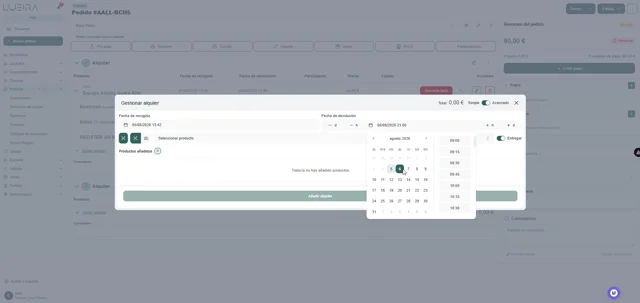 4:46Crear un pedido de un pack de alquilerCómo crear un pedido de un pack de alquiler.
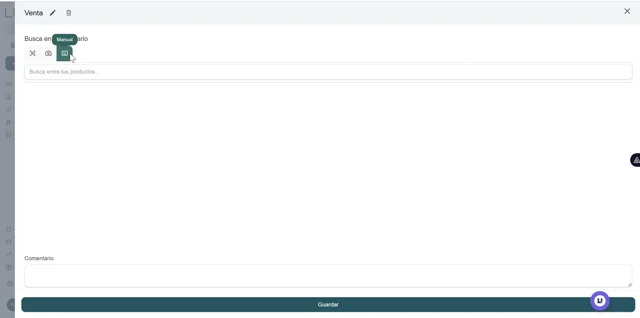 1:32Cómo crear un pedido de ventaCómo crear un pedido de venta en Lueira.
 1:24Crear un pedido personalizadoCómo crear un pedido personalizado.
 1:34Cómo crear pedidos
Related guides
- Orders navigationView the status of all your orders, invoices or payments
- Creating a lesson booking from the admin: several days, a second teacher and line priceHow to create a lesson order from the admin: add private or group sessions, book several days in a row, add a second teacher without losing the charge for the second lesson and change the price of a line.
- Order statusesThis section gives you an overview of the status an order is in
- Order lifecycle: statuses, payment and confirmationA complete explanation of the order and payment statuses in Lueira, how they relate to each other, and when an order is confirmed automatically or manually depending on the payment method.
- Deleted and cancelled orders: the difference, how to see them and how to ask for them to be restoredThe difference between cancelling and deleting an order, where to find cancelled orders, how to find out who changed or deleted an order with Change tracking, and what to do so support can restore an order deleted by mistake.
- Cart link: send an order to be paid from the online storeHow to generate and send the cart link: an alternative to the payment link, designed for quotes that can be completed in the online store.