

Product resale between tenants
How a tenant (owner) shares its products so another (reseller) can sell them in its own admin and online store by invitation, with commission and settlement between the two.
On this page
- How it works
- Step 1: Share your products (owner)
- Step 2: Accept the invitation and agree the commission (reseller)
- How the reseller sells
- What you see in the order
- Sales and commissions (settlement)
- Resale partners: invoicing the reseller
- Where it is
- Fill in its fiscal data
- The reseller's orders and invoices
- Issue the invoice from the order
- Related guides
- Cancellations and end of the relationship
With Resale, a tenant (the owner) can share some of its products so that another tenant (the reseller) sells them as if they were part of its own catalog: in its admin and in its online store. The owner keeps providing the activity and managing its availability; the reseller collects payment from the end customer and keeps a commission agreed between the two.
How it works
You can share group classes, private classes, lift passes, rental products and packs, group class packs (session vouchers), short courses and private class hour vouchers.
The reseller always sells at the owner's price, which updates automatically if the owner changes it. The reseller can't edit anything about the product (name, photos, price, settings).
The reseller is the one who always collects payment from the end customer. The two tenants settle the commission between themselves, outside Lueira; the platform only reflects it in the sales report.
Any change to the relationship (for example, the commission) is a proposal that the other party has to explicitly accept.
Either party can end the relationship whenever they want. The owner can't delete a product while it has active resale relationships: they must be ended first.
Step 1: Share your products (owner)
Go to Resale → My shared products and click Share products.
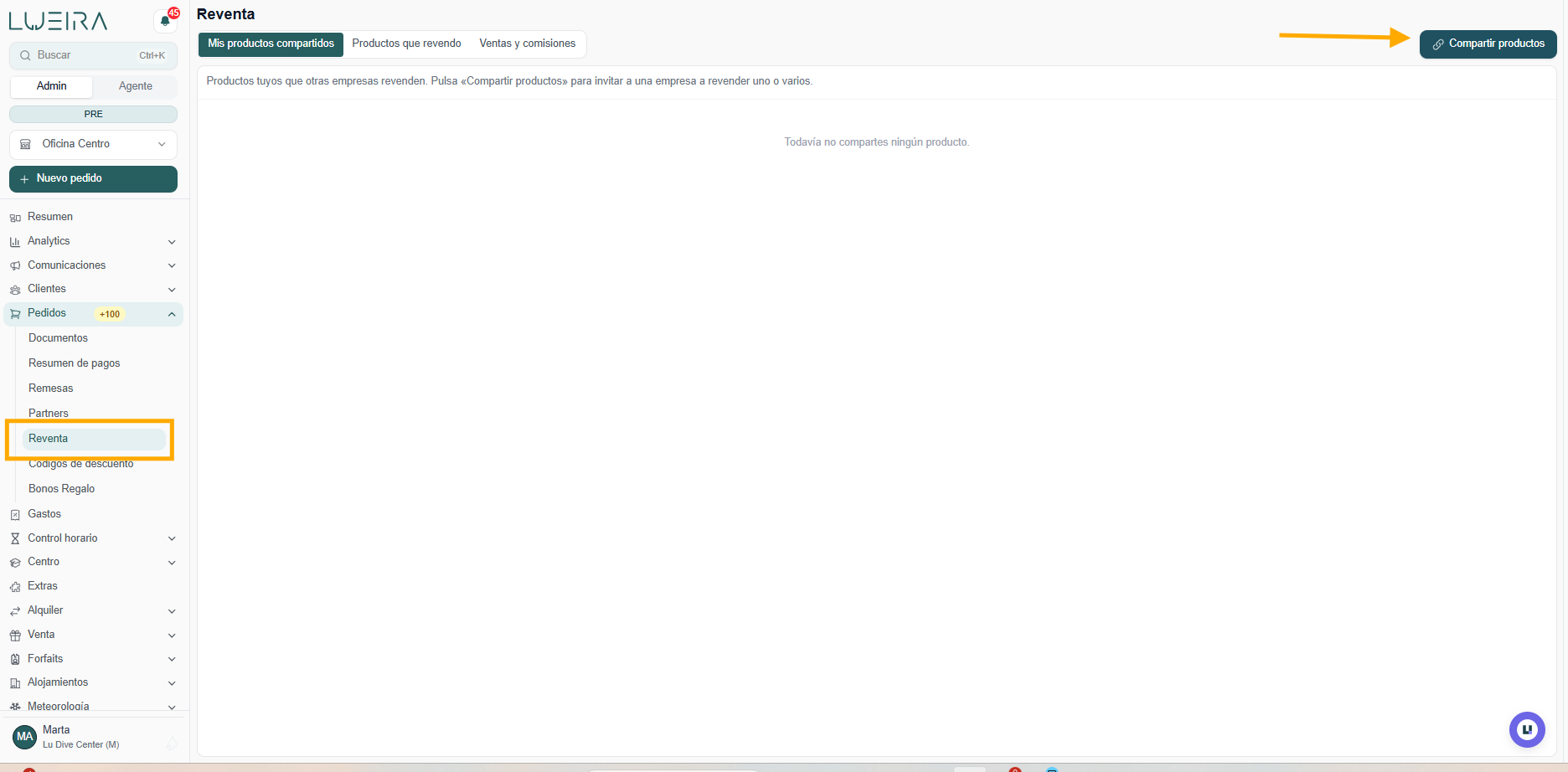
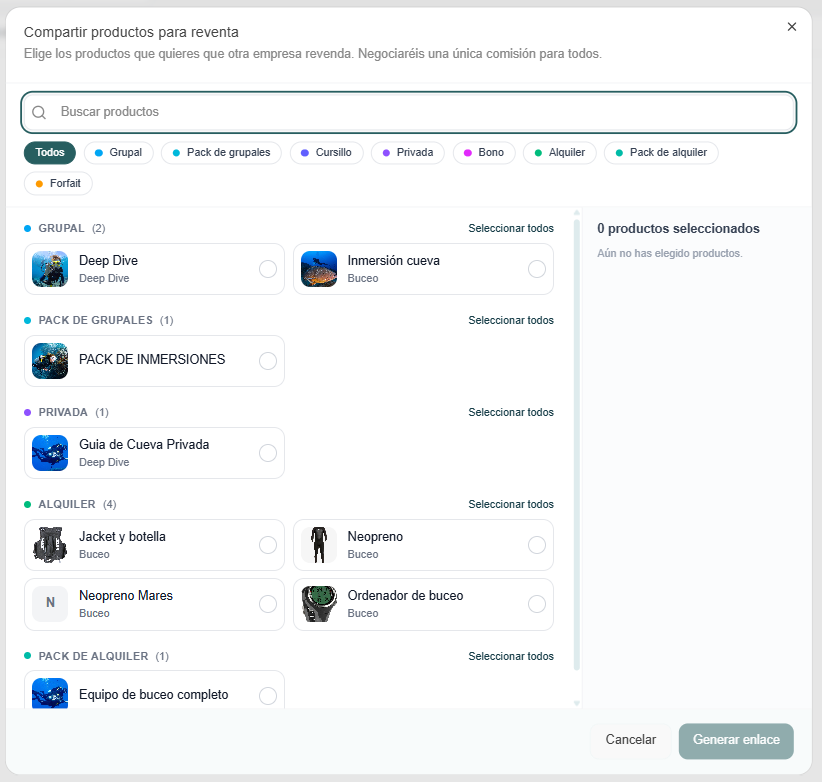
In the search box you can filter by type (Group, Private, Lift pass, Rental, Rental pack, Group pack, Short course, Voucher) and tick all the products you want to include in the invitation; they will all share the same commission.
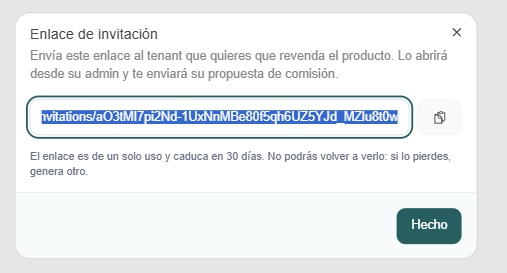
When the link is generated, Lueira shows you the text that you have to send yourself (WhatsApp, email…) to the tenant you want to resell. The link is single-use and expires after 30 days; you won't be able to see it again, so if you lose it you'll have to generate another one.
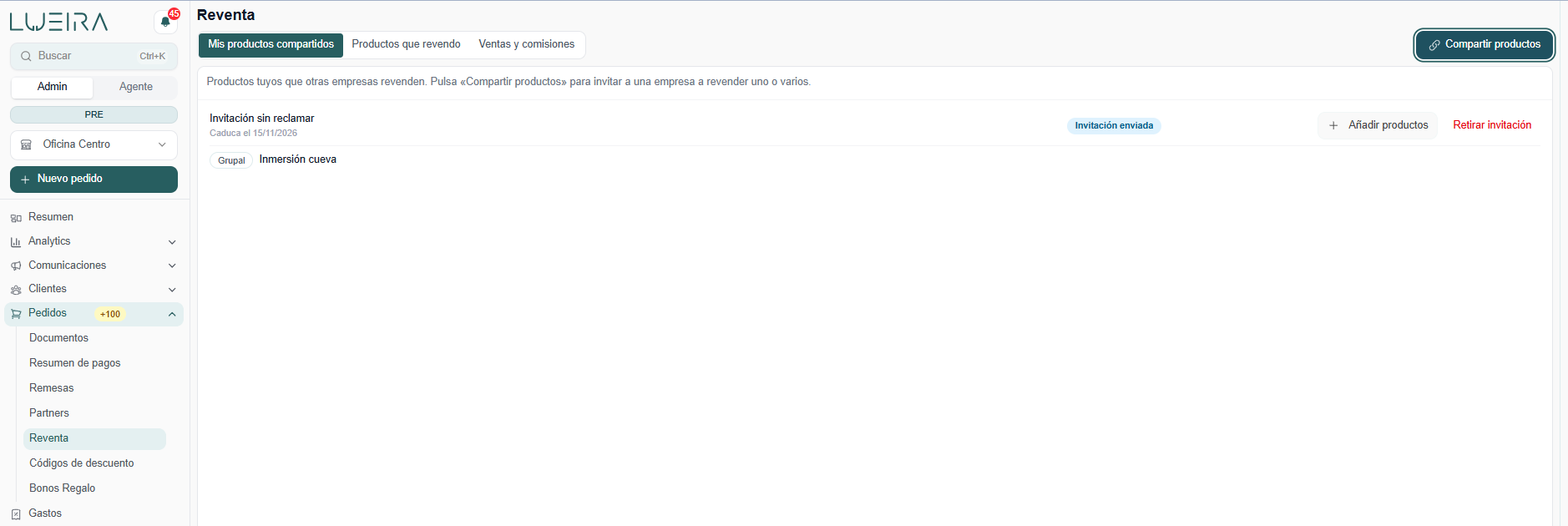
From the same screen you can see the status of each relationship (invitation sent, pending acceptance, active, rejected, expired or ended) and, if needed, propose a commission change or end the relationship.
Step 2: Accept the invitation and agree the commission (reseller)
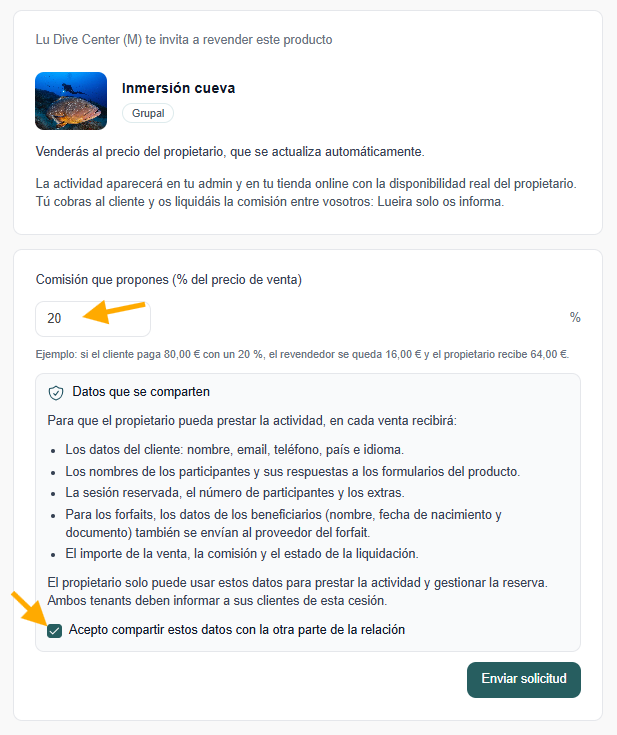
The invited tenant opens the link from its own admin. It will see the product, who the owner is and a notice that it will sell at the owner's price.
It proposes its commission (% of the sale price) and sends the request.
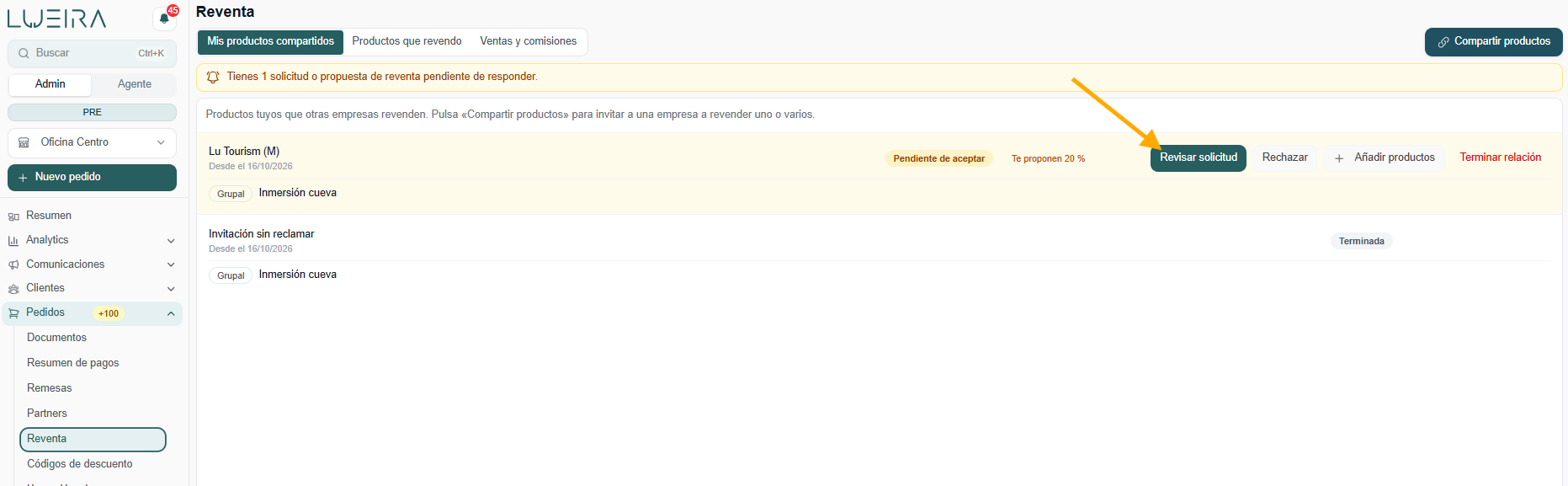
The owner reviews it from the pending requests notice in Resale and accepts or rejects it. Nothing can be sold until it is accepted.
How the reseller sells
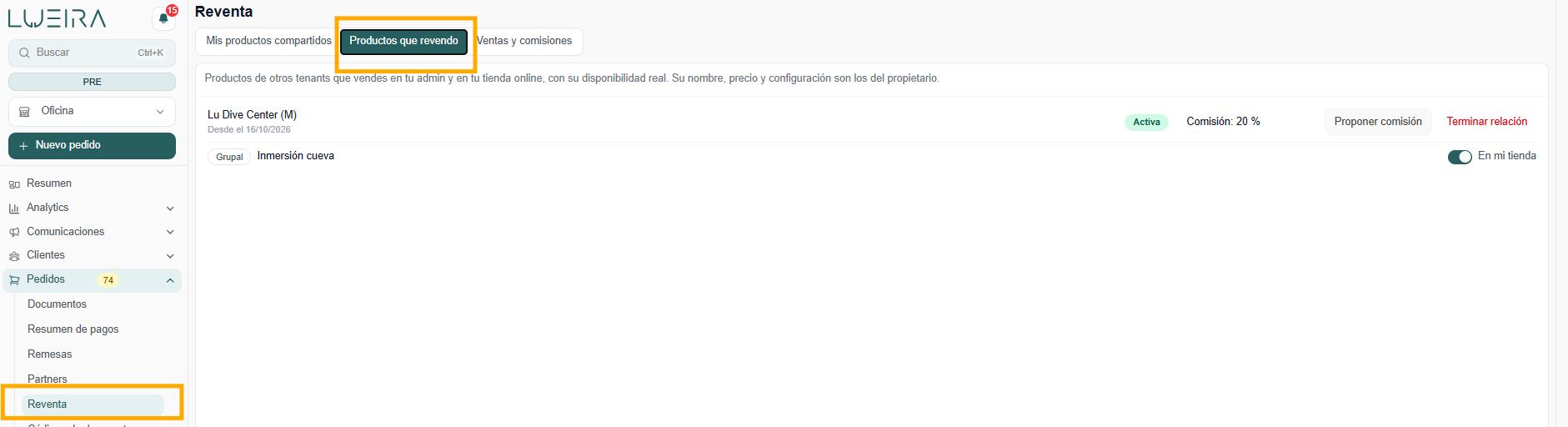
Once the relationship is active, the product appears in Resale → Products I resell and in the reseller's online store with the owner's real availability, just like any other product of theirs.
The customer only deals with the reseller.
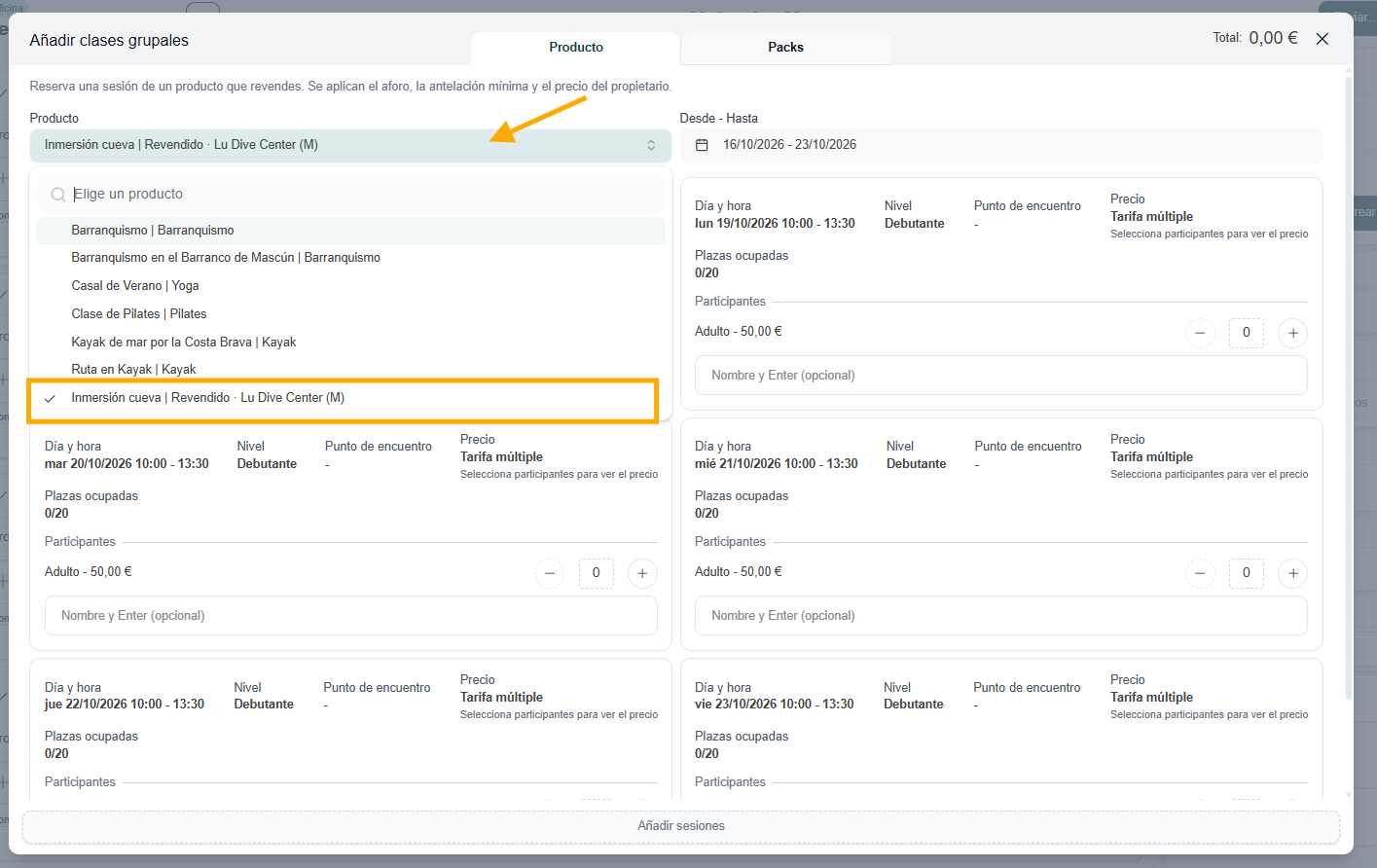
To add it manually to an order from Admin, the reseller uses the Resale button in the order's "New item" bar and chooses the product from the dropdown (the owner and the type are shown). Depending on the product type, it asks for the data needed to book it with the owner:
Rental: pickup and return date and time, variation (size, color…) if applicable, and how many units (each one is added as its own line).
Rental pack: the same, plus choosing the product (and its variation) for each item in the pack.
Group class pack: the pack size (sessions and participants) and, if the pack has no fixed sessions, the group and the specific sessions of the owner within the date range you choose.
Short course: the group, the first day and the number of days.
Private class hour voucher: no further detail is needed; the voucher's classes are booked directly with the owner, and the customer is kept in their customer record.
In all cases, Lueira asks the owner for the price before confirming the line.
What you see in the order
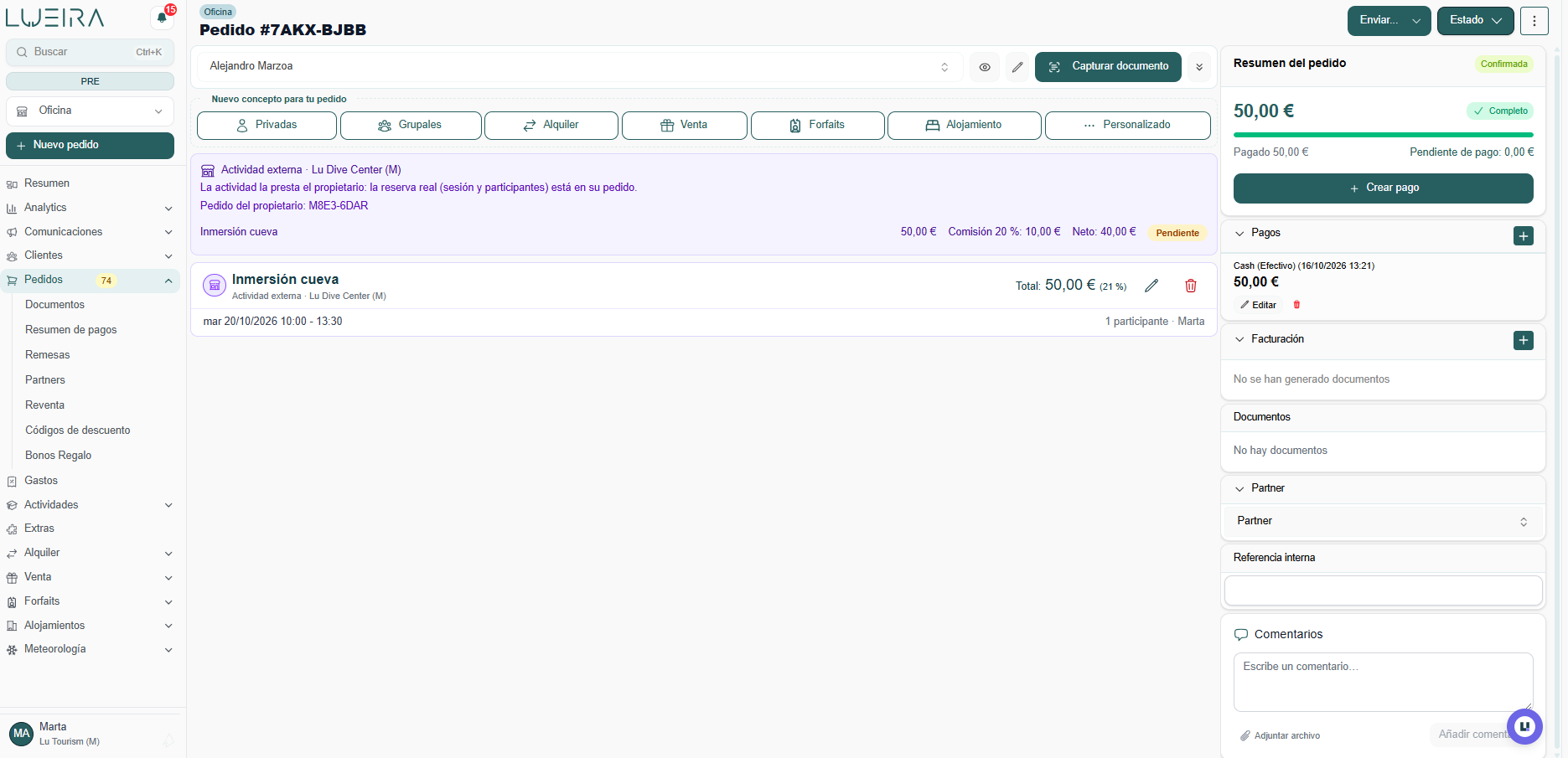
Each resale sale generates two linked orders, one in each tenant:
In the reseller's order, the line appears as "External activity · [owner]", with the owner's order reference.
In the owner's order, it appears as "Reseller sale · [reseller]", with the commission and the net amount due to them, and the reseller's order reference.
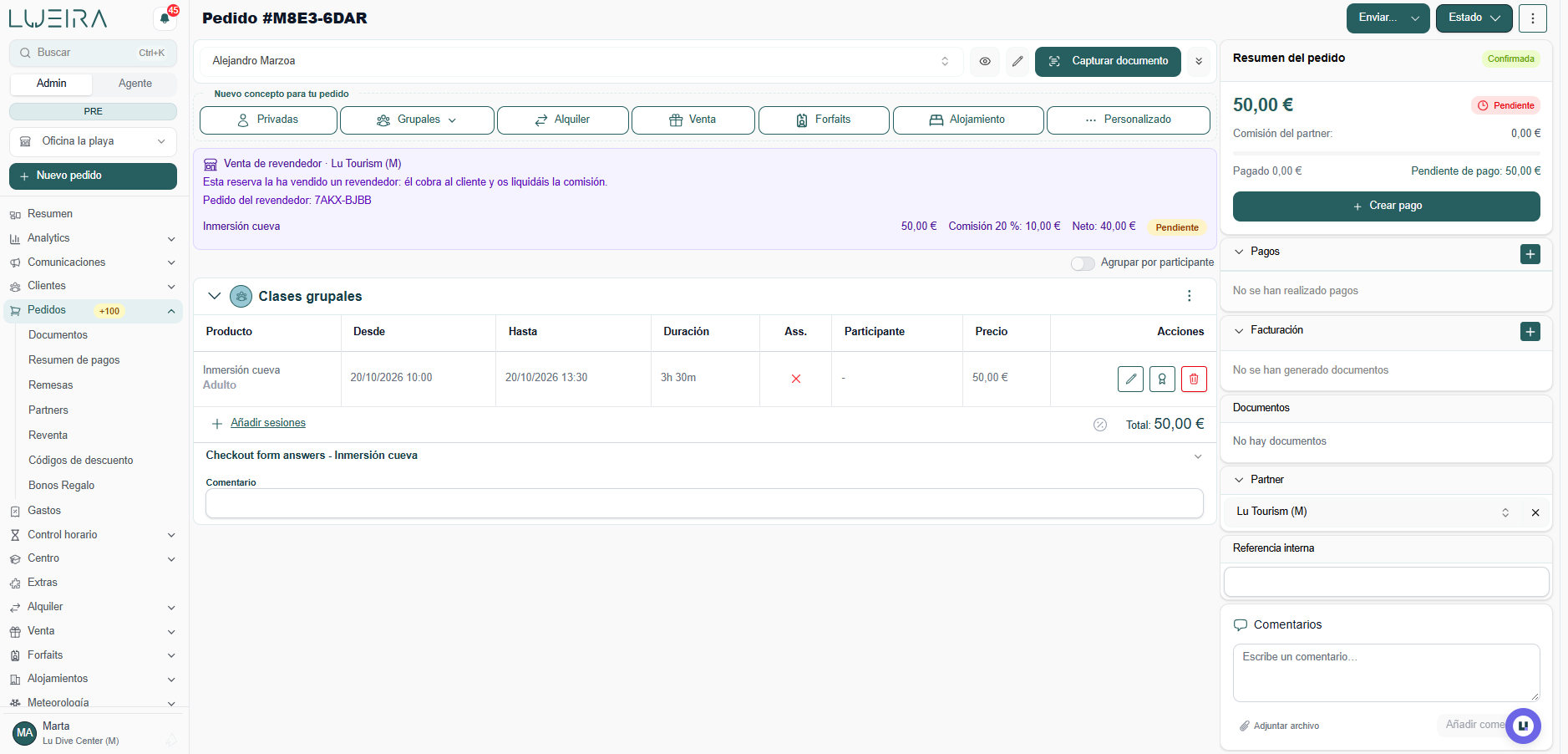
The actual booking (session, participants, check-in, forms…) always lives in the owner's order, since the owner is the one providing the activity.
Sales and commissions (settlement)
In Resale → Sales and commissions, each tenant sees its sales as owner or as reseller, with the amount, the commission, the net amount and a settlement status:
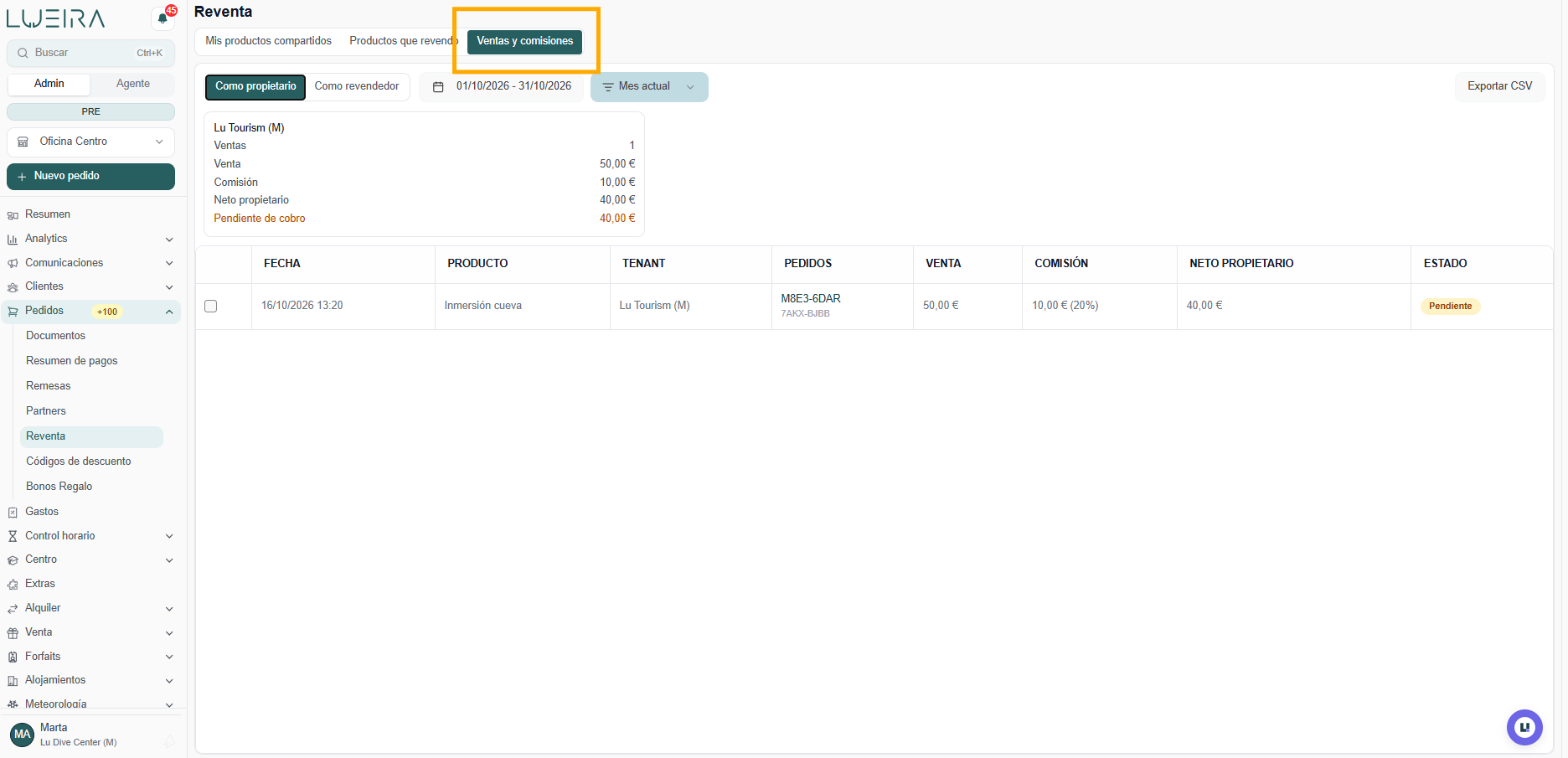
Pending: not settled yet.
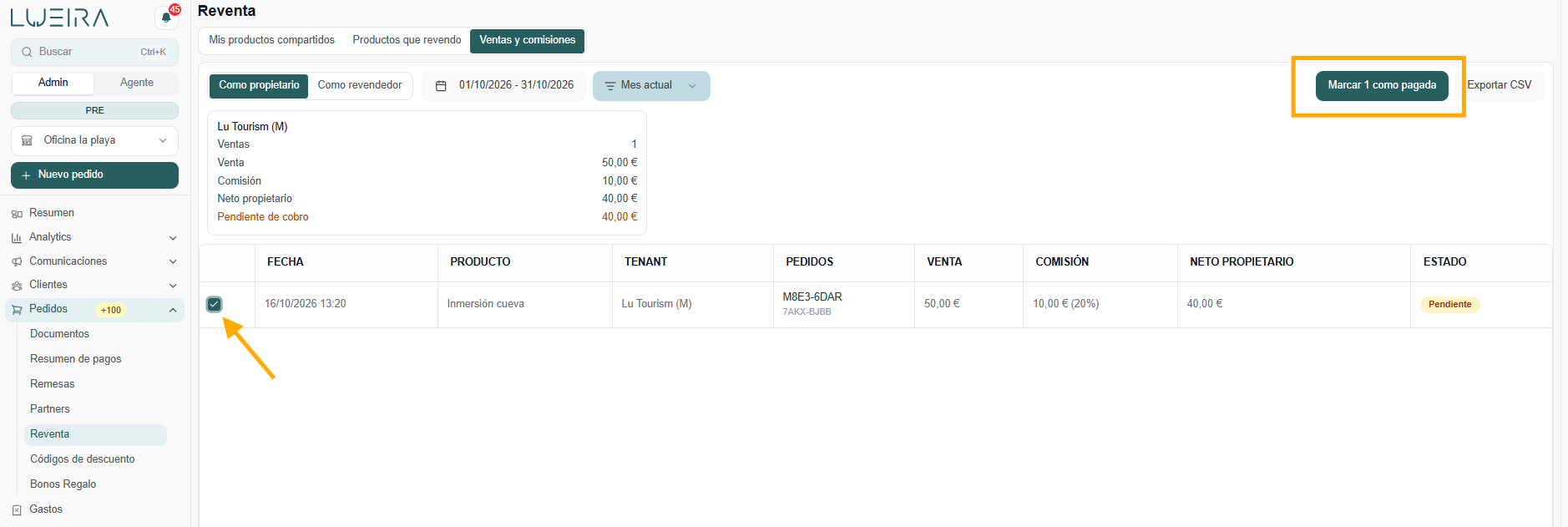
Sent: the reseller marks the sale this way when they transfer the commission money to the owner.
Paid: the owner marks the sale this way when they confirm they have received it (they can also mark it directly if they get paid without the reseller notifying them, or set it back to pending if there is a mistake).
Payment between tenants is always handled outside Lueira; the platform only reports it.
The report can be exported to CSV, and statuses can be changed in bulk on several sales at once.
Resale partners: invoicing the reseller
Besides settling the commission outside Lueira (see the section above), you can formally invoice the reseller from the platform itself. Each tenant reselling your products has an associated Resale-type partner, which you use to issue those invoices.
Where it is
Go to Resale → Resale partners. The list shows, one row per tenant, every tenant reselling your products: its name, its email, how many of your products it currently resells, and whether it already has fiscal data on file.
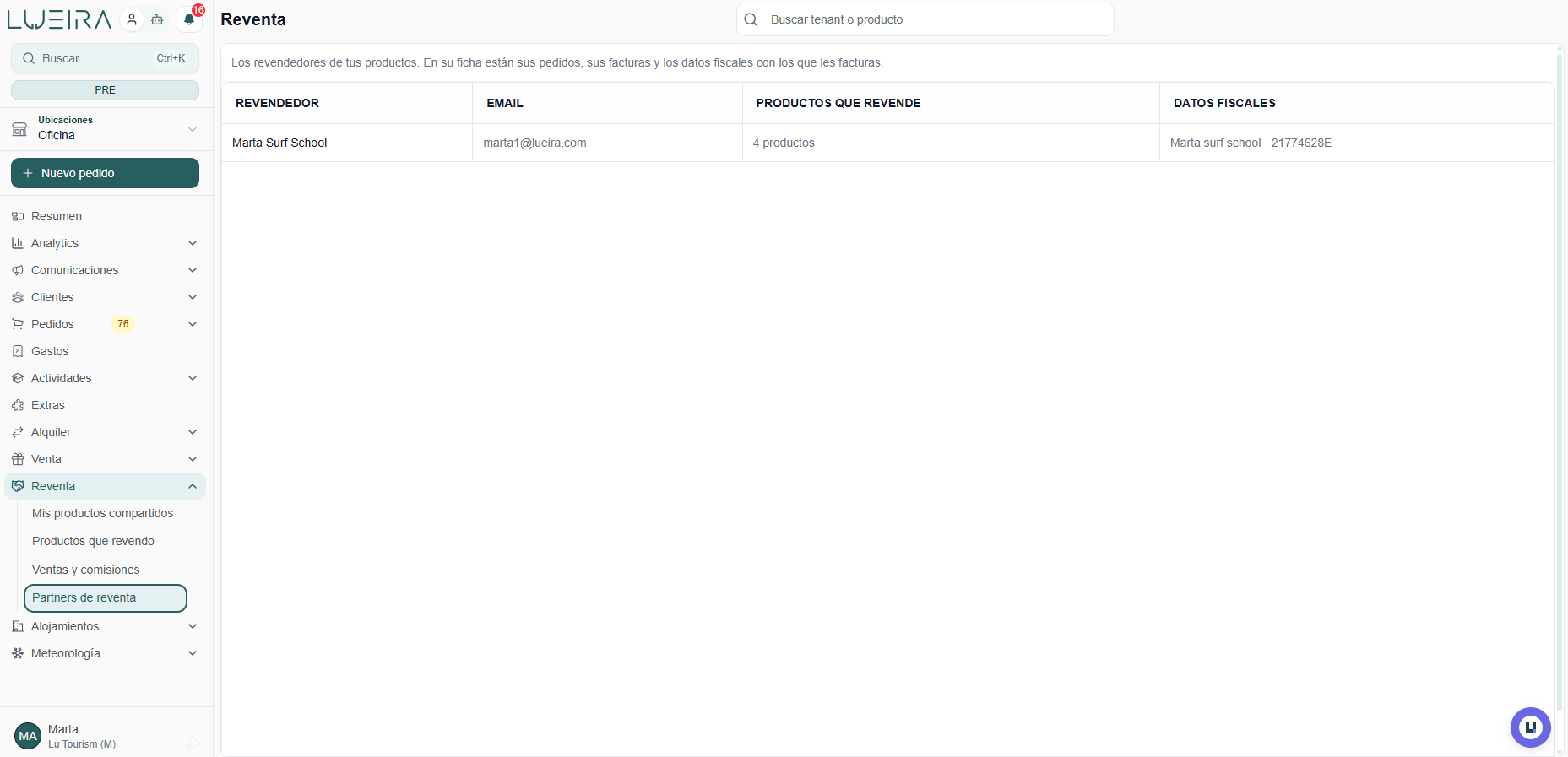
Note: if you end the resale relationship with a tenant, it still shows up in this list (with its past orders and invoices), but its product count drops to 0.
Fill in its fiscal data
Click the reseller to open its sheet, or the pencil icon on the Fiscal data column directly if it still says "No fiscal data".
Fill in the Legal name, the Tax ID, the tax address and, if the invoice should reach another department, the Send the invoice to block. These are the same fields as any partner's fiscal sheet.
Save the changes.
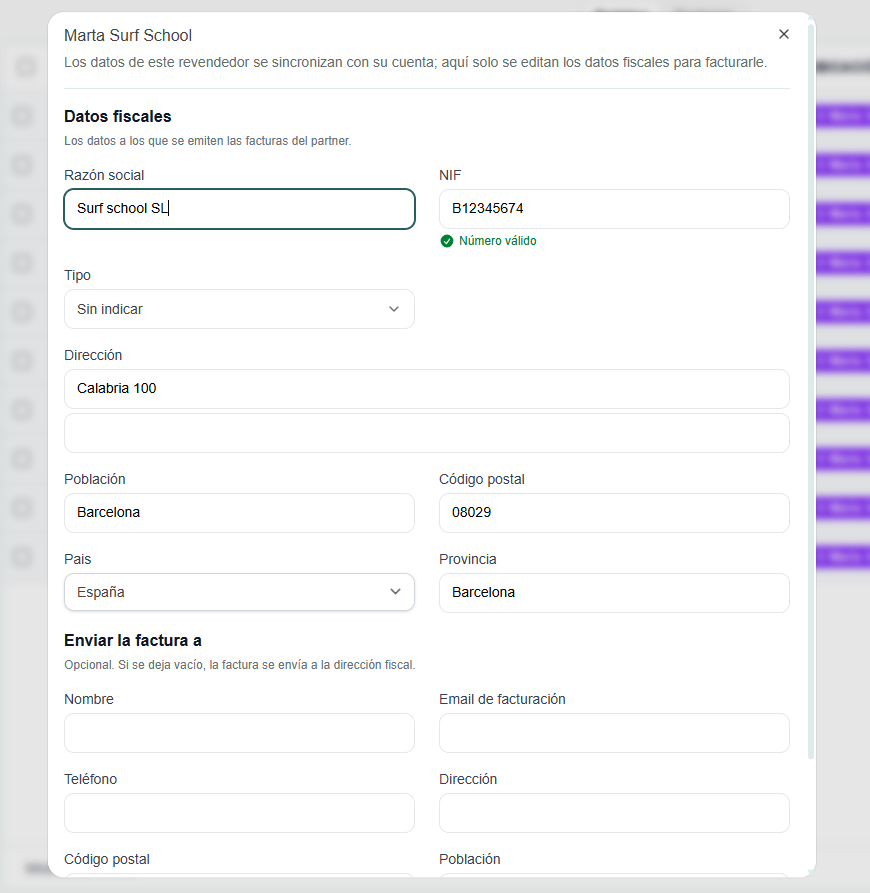
Everything else on the sheet can't be edited by hand: the reseller's name, email and other details stay in sync with its own Lueira account automatically. Fiscal data is the only thing that depends on you, because it's what you invoice it with.
The reseller's orders and invoices
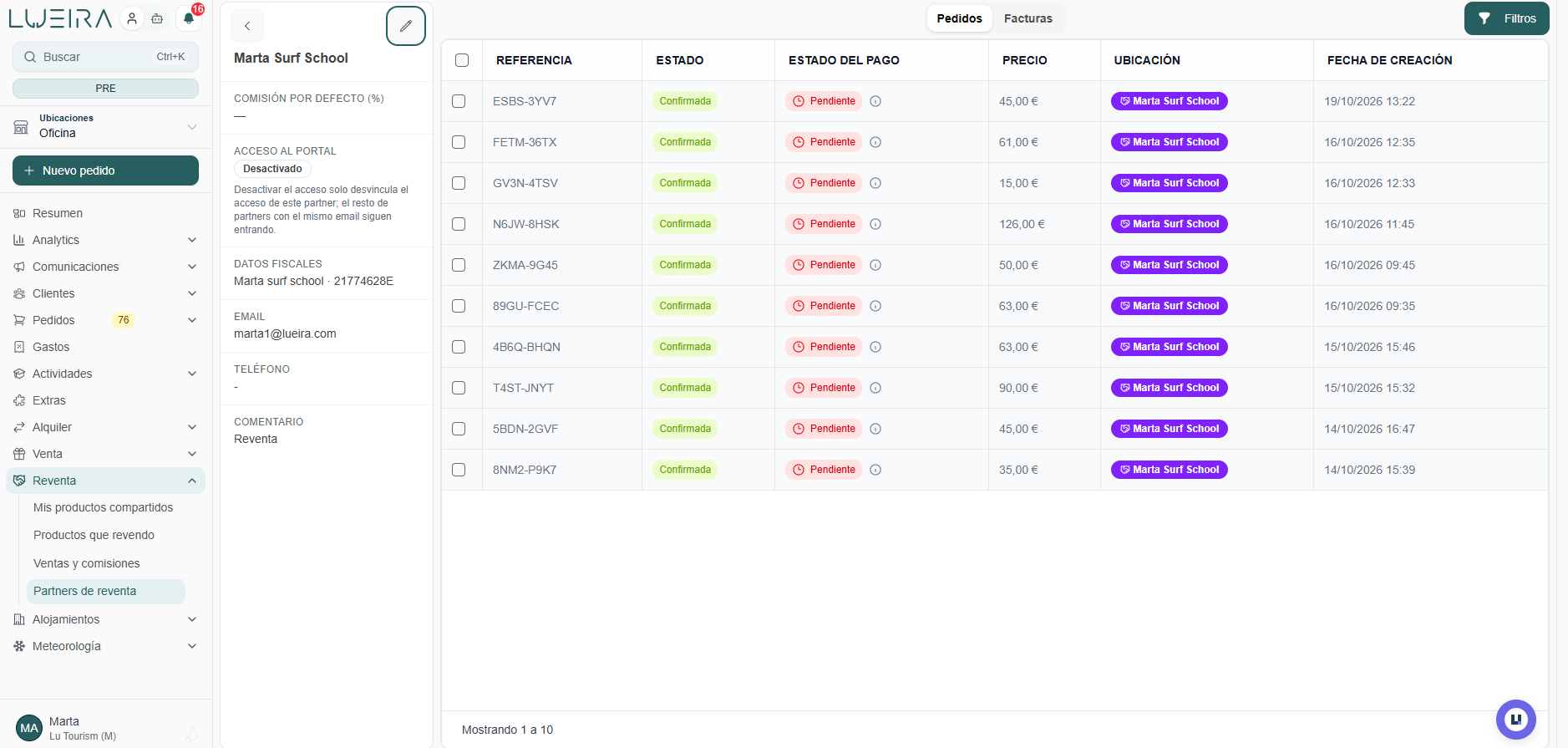
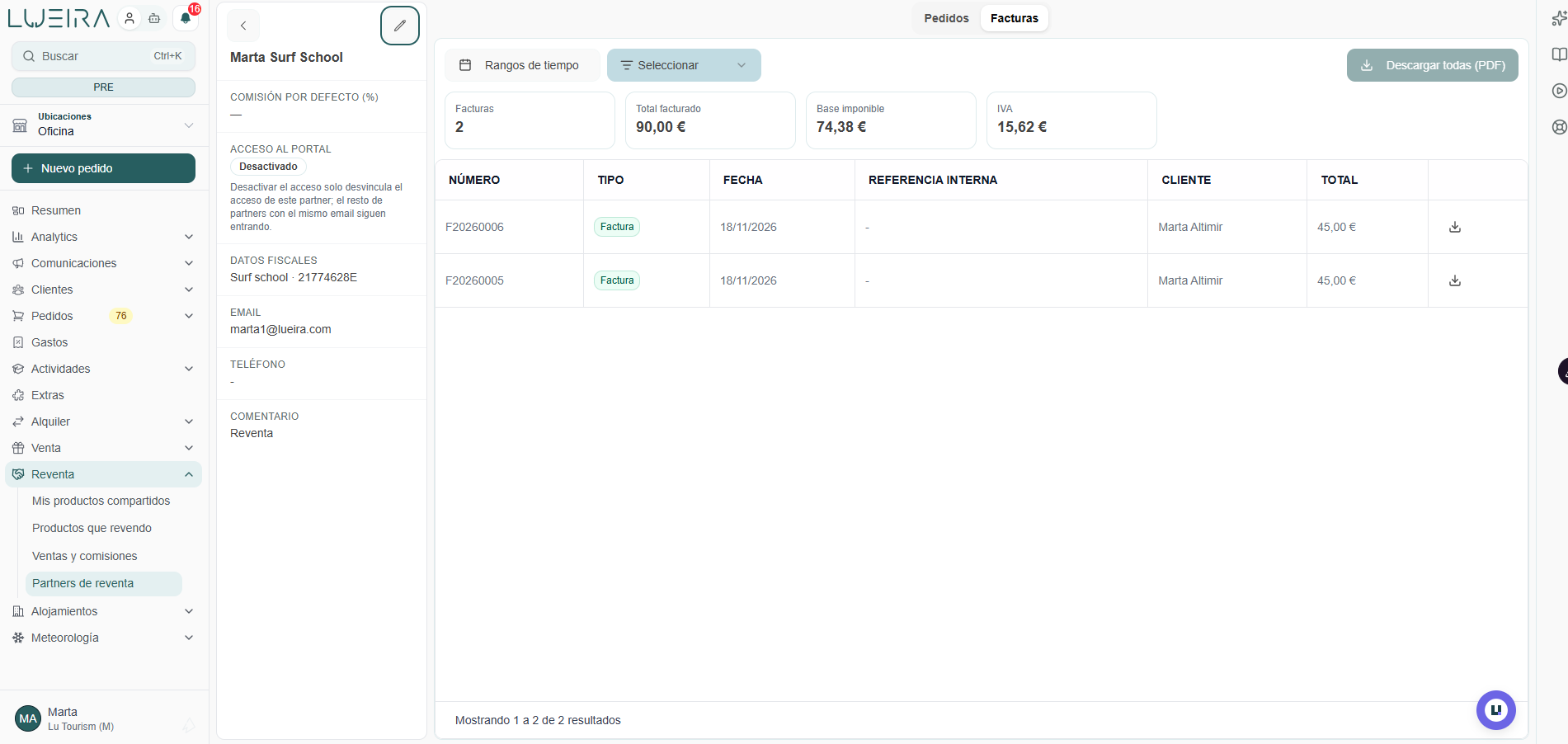
Opening a reseller's sheet only shows two tabs (unlike a regular partner, which also has a Catalog tab):
Orders: every order you have generated as owner from its sales (the same order described in What you see in the order, above).
Invoices: the invoices you've already issued to it, with their totals by period and the PDF download — just like any partner's sheet.
Issue the invoice from the order
Open the owner's order showing the "Reseller sale · [reseller]" line and expand Billing.
Click the + button to create a document. Unlike an ordinary order, here you can only issue a full invoice (no simplified ticket), and the recipient is fixed to the reseller: you can't invoice the end customer, because the reseller is the one who invoices them.
Check the preview and click Issue.
If the reseller has an agreed commission, the invoice deducts it the same way as any partner's: the price minus the commission is invoiced, with the breakdown in a box at the bottom. And if you need to correct it, you can rectify it like any other invoice.
Important: without the reseller's complete fiscal data you won't be able to issue this invoice — which is why filling it in on its sheet is the first step.
Related guides
Cancellations and end of the relationship
If a sale is cancelled, the owner's spot or booking is released and the commission no longer counts.
If the owner cancels a session, the reseller sees it in their order and is the one who handles the refund to the customer, because they are the one who collected the payment.
Ending the relationship doesn't affect already confirmed bookings or their commissions pending settlement, but it prevents new sales of that product.
Related guides
- Marketplaces in Lueira: what they are and how to connectWhat a marketplace is in Lueira, which ones you can connect, how to sign up, connect products, adjust their price and receive orders.
- Connect and manage GetYourGuide in LueiraThis guide explains how to request the connection with GetYourGuide and how to manage and connect products from Lueira
- Connect and manage RocRoi in LueiraThis guide explains how to activate the connection with RocRoi and how to connect and manage products from Lueira
- Connect and manage NaturAdvenTour in LueiraHow to activate the connection with NaturAdvenTour and how to connect and manage your products from Lueira.
- SnowTeach: how it works and how to connect your productsWhat SnowTeach is, how it works for your school or rental shop (the customer discovers your offer and books in your online store), what you need, the accession agreement and how to connect and manage your products.
- How to connect Viator in LueiraGuide to register your Viator account in Lueira, connect products and what needs to be set up beforehand in the Viator portal.