

Connect and manage RocRoi in Lueira
This guide explains how to activate the connection with RocRoi and how to connect and manage products from Lueira
On this page
- 1. Activate RocRoi in your Lueira
- Step 1. Go to Marketplace
- Step 2. Activate the connection
- 2. Access RocRoi from Marketplace
- Step 1. Open Enabled marketplaces
- Step 2. Manage the marketplace
- 3. Connect a new product to RocRoi
- Step 1. Start the connection
- Step 2. Select the Lueira product
- Step 3. Map the main fields
- Step 4. Complete the additional information
- Step 5. Review and finish the connection
- What is sent to RocRoi
- 4. Connect a product to RocRoi from the product itself
- Step 1. Go to the product
- Step 2. Open the Marketplace option
- Step 3. Complete the connection wizard
- 5. RocRoi orders
1. Activate RocRoi in your Lueira
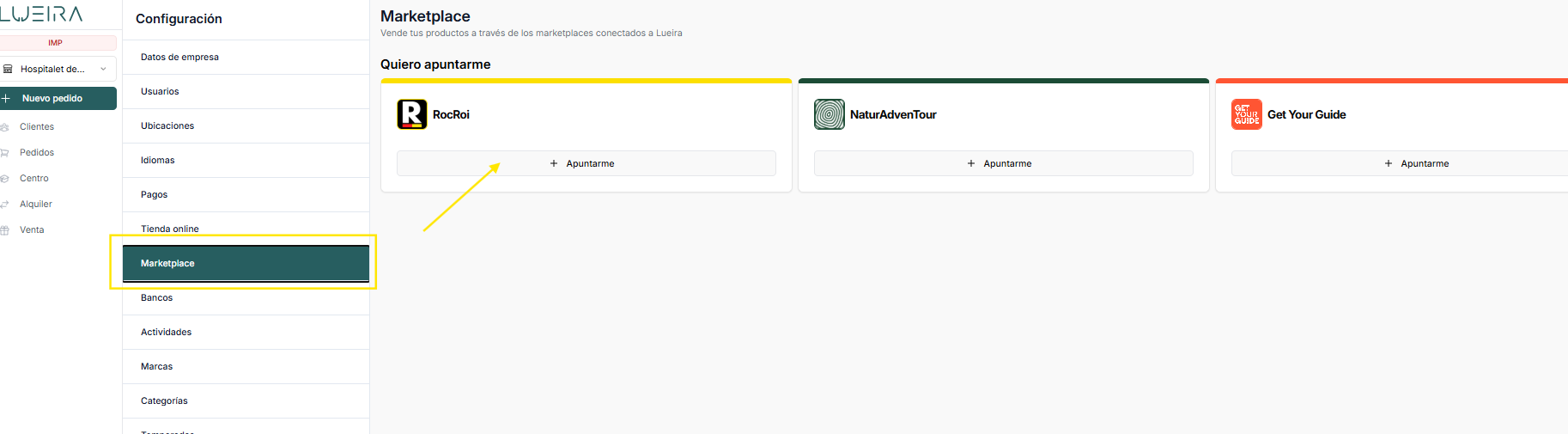
Step 1. Go to Marketplace
Go to Settings → Marketplace.
Step 2. Activate the connection
In the I want to sign up section, find RocRoi and click + Sign me up.
The connection is activated instantly, with no forms: you'll see "Marketplace successfully activated". If "The marketplace could not be activated" appears, try again and, if it happens again, contact support.
2. Access RocRoi from Marketplace
Step 1. Open Enabled marketplaces
Go to Settings → Marketplace.
In the Enabled marketplaces section, find RocRoi.
Step 2. Manage the marketplace
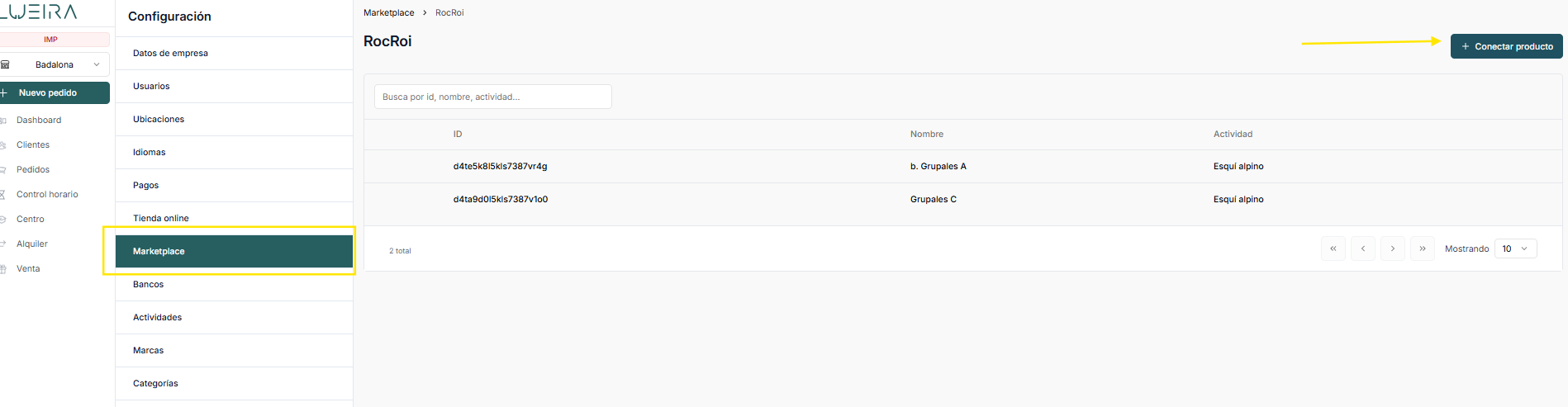
Click Manage.
From this view you can:
See the products already connected (ID, Name, Activity and Price).
Connect new products to RocRoi.
Change a product's price with Edit price, or remove it from RocRoi with Delete, from the three-dot menu.
3. Connect a new product to RocRoi
Step 1. Start the connection
Inside RocRoi, click + Connect product.
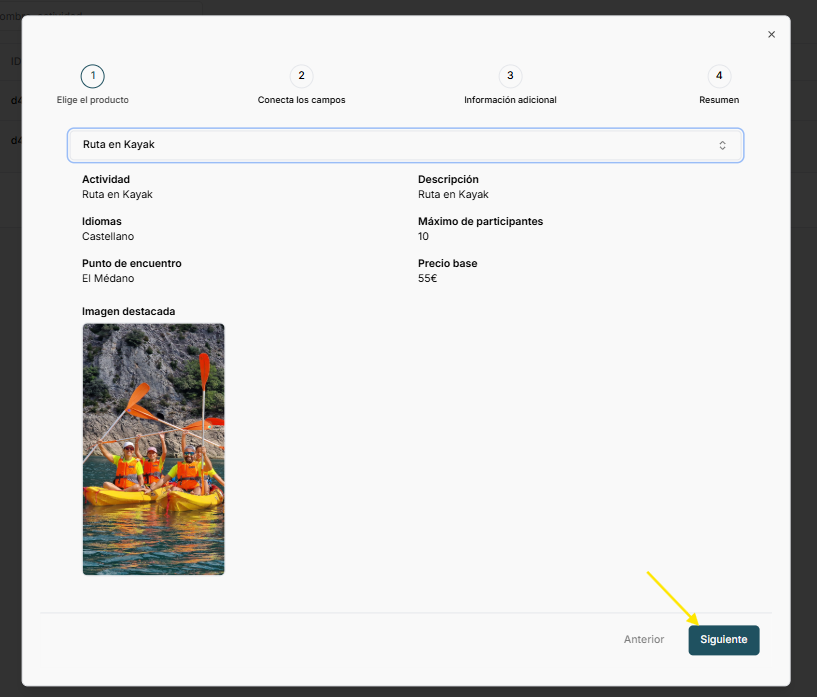
Step 2. Select the Lueira product
Select the Lueira product you want to connect and click Next.
Only group classes can be connected, and only those that are not yet connected to RocRoi will be shown.
Step 3. Map the main fields
Fill in the following fields to adapt your product to the RocRoi catalog. Activity and Level are required: without them you can't go to the next step.
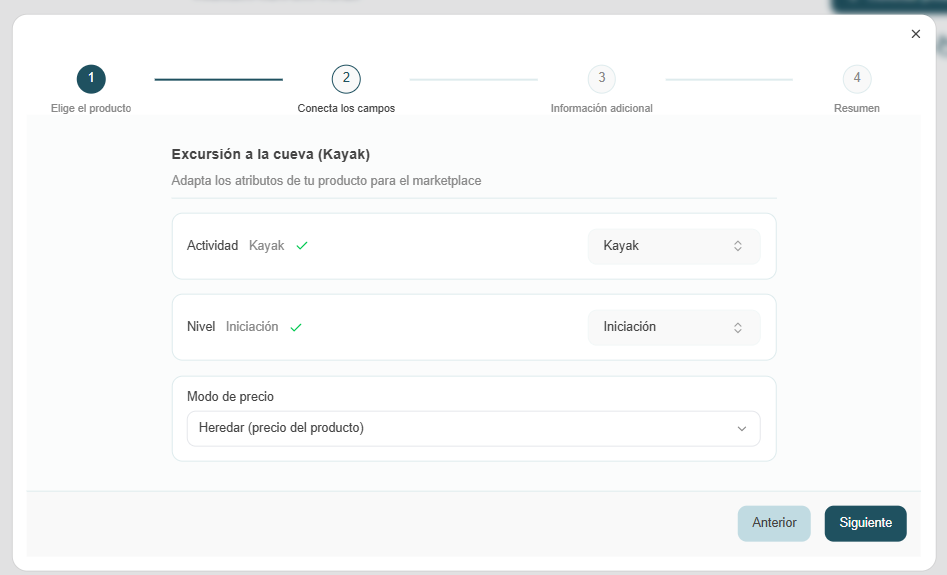
Activity: select the equivalent activity in the RocRoi catalog. This lets your product be classified correctly within the marketplace and makes it easier for users to find.
Level: select the difficulty or experience level. This information helps users find activities suited to their profile and improves conversion.
Pricing mode: choose how the price RocRoi will see is calculated:
Inherit (product price) — automatically uses the price the product already has in Lueira, without you having to enter anything.
No price — no price is sent to RocRoi.
Fixed price — you manually enter a single base price (€), greater than 0. It is used as a reference in the marketplace (for example, "from €X").
Pricing schema — you link a pricing scheme with categories (for example Adult/Child), just like in a regular group product. It must have at least one line. Useful if RocRoi should reflect your different prices per category instead of a single amount.
Step 4. Complete the additional information
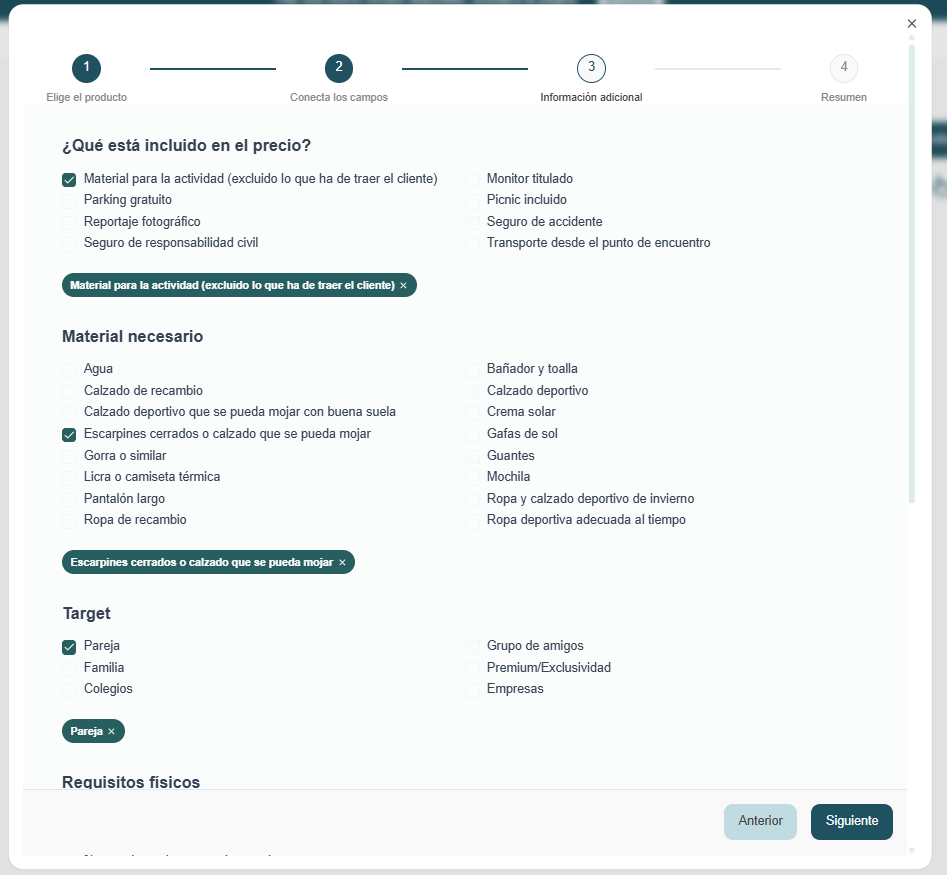
Fill in the following sections:
What's included? — tick the options included in the price.
Required equipment — tick the equipment the customer must bring.
Target / Audience — tick the types of audience the activity is aimed at.
Physical requirements — tick the physical requirements needed for the activity.
Activity environment — select the environment (land, water, air, etc.).
Age range — enter the minimum and maximum ages allowed.
Duration (maximum 12 hours, in 30-minute steps):
Total duration of the activity (hours and minutes).
Effective duration of the activity (hours and minutes).
Step 5. Review and finish the connection
Review the summary of the product and the configured fields.
Click Send to finish the connection.
What is sent to RocRoi
Besides what you fill in in the wizard, Lueira sends the product's name, description, featured image (not the whole gallery), meeting point, price and maximum number of participants.
4. Connect a product to RocRoi from the product itself
Besides doing it from Settings → Marketplace, you can also connect a product directly from its page.
Step 1. Go to the product
Go to the product you want to connect in Lueira.

Step 2. Open the Marketplace option
In the top right menu, click Marketplace and select RocRoi.
Step 3. Complete the connection wizard
The connection modal will open with the product already preselected. You'll need to:
Map the main fields (Activity, Level and Pricing mode).
Complete the additional information.
Review the summary and click Send.
ℹ️Notice
This option is useful if you're already working inside a product and want to connect it to the marketplace without leaving its page.
5. RocRoi orders
RocRoi bookings arrive in Lueira as orders, with a Marketplace block and the booking's Locator. If you want to receive an email for each one, turn on Settings → Email → Email settings → Notify of new marketplace orders.
Related guides
- Marketplaces in Lueira: what they are and how to connectWhat a marketplace is in Lueira, which ones you can connect, how to sign up, connect products, adjust their price and receive orders.
- Product resale between tenantsHow a tenant (owner) shares its products so another (reseller) can sell them in its own admin and online store by invitation, with commission and settlement between the two.
- Connect and manage GetYourGuide in LueiraThis guide explains how to request the connection with GetYourGuide and how to manage and connect products from Lueira
- Connect and manage NaturAdvenTour in LueiraHow to activate the connection with NaturAdvenTour and how to connect and manage your products from Lueira.
- SnowTeach: how it works and how to connect your productsWhat SnowTeach is, how it works for your school or rental shop (the customer discovers your offer and books in your online store), what you need, the accession agreement and how to connect and manage your products.
- How to connect Viator in LueiraGuide to register your Viator account in Lueira, connect products and what needs to be set up beforehand in the Viator portal.