

How to connect Viator in Lueira
Guide to register your Viator account in Lueira, connect products and what needs to be set up beforehand in the Viator portal.
On this page
- How to connect Viator in Lueira
- 1. Before you start: do it in the Viator portal
- 2. Connect your Viator account in Lueira
- 3. Connect your products
- 4. What happens next
- FAQ: prices, notices and bookings that don't arrive
- 5. Frequently asked questions
- Does "Inherit price" use the price I have on Viator?
- Do I get an email when a Viator booking comes in?
- A booking came in on Viator and doesn't appear in Lueira
How to connect Viator in Lueira
Viator is a marketplace for activities and excursions. When you connect it, your products (classes, activities, etc.) are published on Viator and the bookings that come in from there enter Lueira automatically, with availability and prices synchronized.
1. Before you start: do it in the Viator portal
Before connecting anything in Lueira, your business needs to be registered as a supplier on Viator:
Request registration as a supplier in the Viator Supplier Portal, providing the business's legal details, licenses/permits and bank details for payments. Viator validates the request manually (it can take several days).
Once approved, Viator assigns you a numeric Supplier ID. You'll find it in the Supplier/Experiences Management Center, next to your name.
Important: inside the Viator Experiences Management Center, go to the Connectivity section and use "Connect Now" to authorize Lueira as your booking software (connectivity partner). Without this step, Viator doesn't route availability/booking requests to Lueira even if you have entered the Supplier ID in the admin.
Keep that Supplier ID: you'll need it in the next step.
2. Connect your Viator account in Lueira
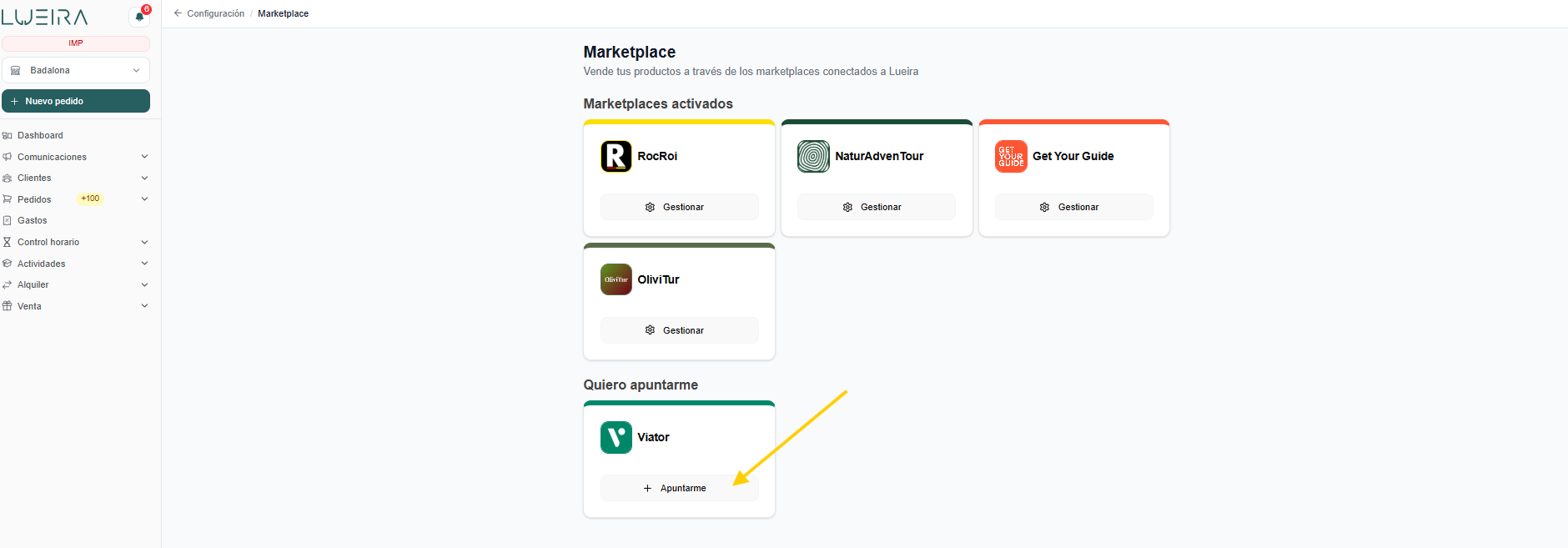
In the Lueira admin, go to Settings > Marketplace.
On the Viator card, click Sign me up.
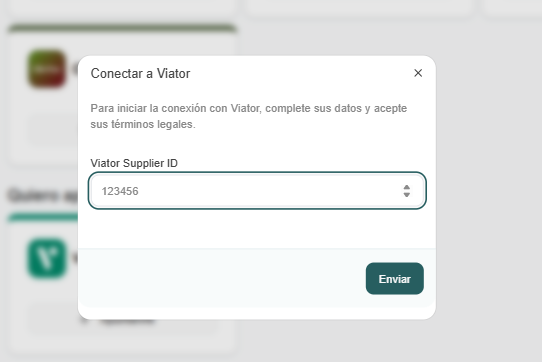
Enter your Viator Supplier ID and click Send.
3. Connect your products
Once the account is connected:
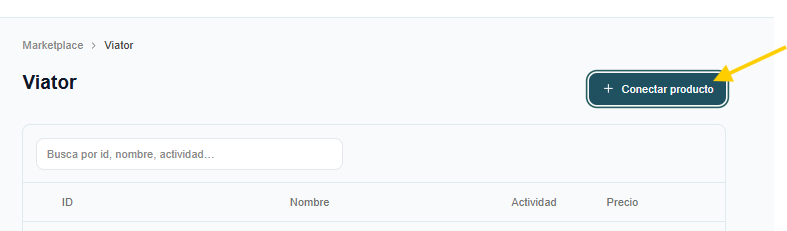
Go to Marketplace > Viator.
Click Connect product.
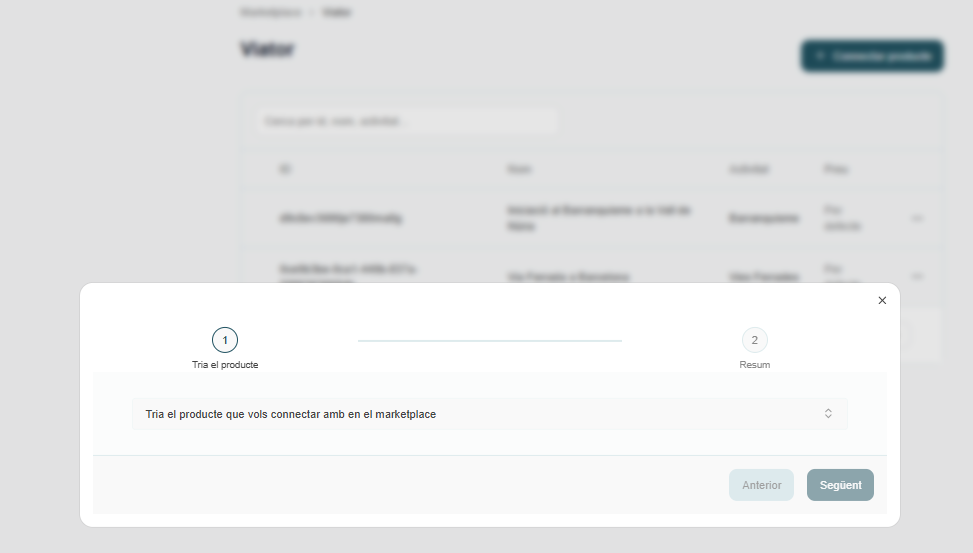
Choose the Lueira product/activity you want to publish on Viator.
If the product has price categories (Adult, Child, Infant, Senior…) you'll have to map each category to the Viator ticket type (
ADULT,CHILD,YOUTH,INFANT,SENIOR,UNIT).
Save to finish connecting the product.
4. What happens next
New sessions, deletions and changes to availability, price and capacity of your sessions are automatically notified to Viator.
Viator checks availability and prices in real time against Lueira before each booking.
Bookings confirmed on Viator come directly into Lueira as orders.
FAQ: prices, notices and bookings that don't arrive
5. Frequently asked questions
Does "Inherit price" use the price I have on Viator?
No. Inherit price sends Viator the same price you have in Lueira. If you want to sell on Viator at a different price than in your online store, choose Pricing schema and define the prices for Viator there.
Do I get an email when a Viator booking comes in?
Yes, if you turn it on. Go to Settings → Email → Email settings and turn on Notify of new marketplace orders: Lueira will send an email to your business every time a marketplace order is confirmed.
A booking came in on Viator and doesn't appear in Lueira
Check in the Viator Experiences Management Center, Connectivity section, that Lueira is authorized as your booking software (step 3 of section 1). Without that step, Viator doesn't send bookings to Lueira.
Check your email: if there is a problem with a connected product, Viator usually emails you about the error.
If everything is fine and the booking still doesn't arrive, write to us with the product name and the booking date.
💡 Only group products can be connected to Viator.
Related guides
- Marketplaces in Lueira: what they are and how to connectWhat a marketplace is in Lueira, which ones you can connect, how to sign up, connect products, adjust their price and receive orders.
- Product resale between tenantsHow a tenant (owner) shares its products so another (reseller) can sell them in its own admin and online store by invitation, with commission and settlement between the two.
- Connect and manage GetYourGuide in LueiraThis guide explains how to request the connection with GetYourGuide and how to manage and connect products from Lueira
- Connect and manage RocRoi in LueiraThis guide explains how to activate the connection with RocRoi and how to connect and manage products from Lueira
- Connect and manage NaturAdvenTour in LueiraHow to activate the connection with NaturAdvenTour and how to connect and manage your products from Lueira.
- SnowTeach: how it works and how to connect your productsWhat SnowTeach is, how it works for your school or rental shop (the customer discovers your offer and books in your online store), what you need, the accession agreement and how to connect and manage your products.