

Connect and manage GetYourGuide in Lueira
This guide explains how to request the connection with GetYourGuide and how to manage and connect products from Lueira
On this page
- Connect and manage GetYourGuide in Lueira
- 1. Request and complete the connection with GetYourGuide
- Step 1. Go to Marketplace
- Step 2. Request the connection
- Step 3. Complete the request
- 2. Access GetYourGuide from Marketplace
- Step 1. Open Enabled marketplaces
- Step 2. Manage the marketplace
- 3. Connect a new product to GetYourGuide
- Step 1. Start the connection
- Step 2. Select the Lueira product
- Step 3. Connect the price categories
- Step 4. Complete the additional information
- Step 5. Review and finish the connection
- 4. Setup in the GetYourGuide Supplier Portal
- Step 1. Create or set up the product on GetYourGuide
- 5. Connect a product to GetYourGuide from the product itself
- Step 1. Go to the product
- Step 2. Open the Marketplace option
- Step 3. Complete the connection wizard
- 6. Frequently asked questions
- Add new price categories to an already connected product
- What exactly happens?
- Can I sell at a different price on GetYourGuide than in Lueira?
- GetYourGuide orders: payments, cancellations, notices and synchronization
- 7. GetYourGuide orders: what you need to know
- Why does a GetYourGuide order show as "payment pending"?
- Are GetYourGuide cancellations reflected in Lueira?
- Do I get an email when a GetYourGuide booking comes in?
- I changed sessions or availability and GetYourGuide still shows the old data
- The connection wizard gives an error or the product doesn't appear in the list
Connect and manage GetYourGuide in Lueira
1. Request and complete the connection with GetYourGuide
Step 1. Go to Marketplace
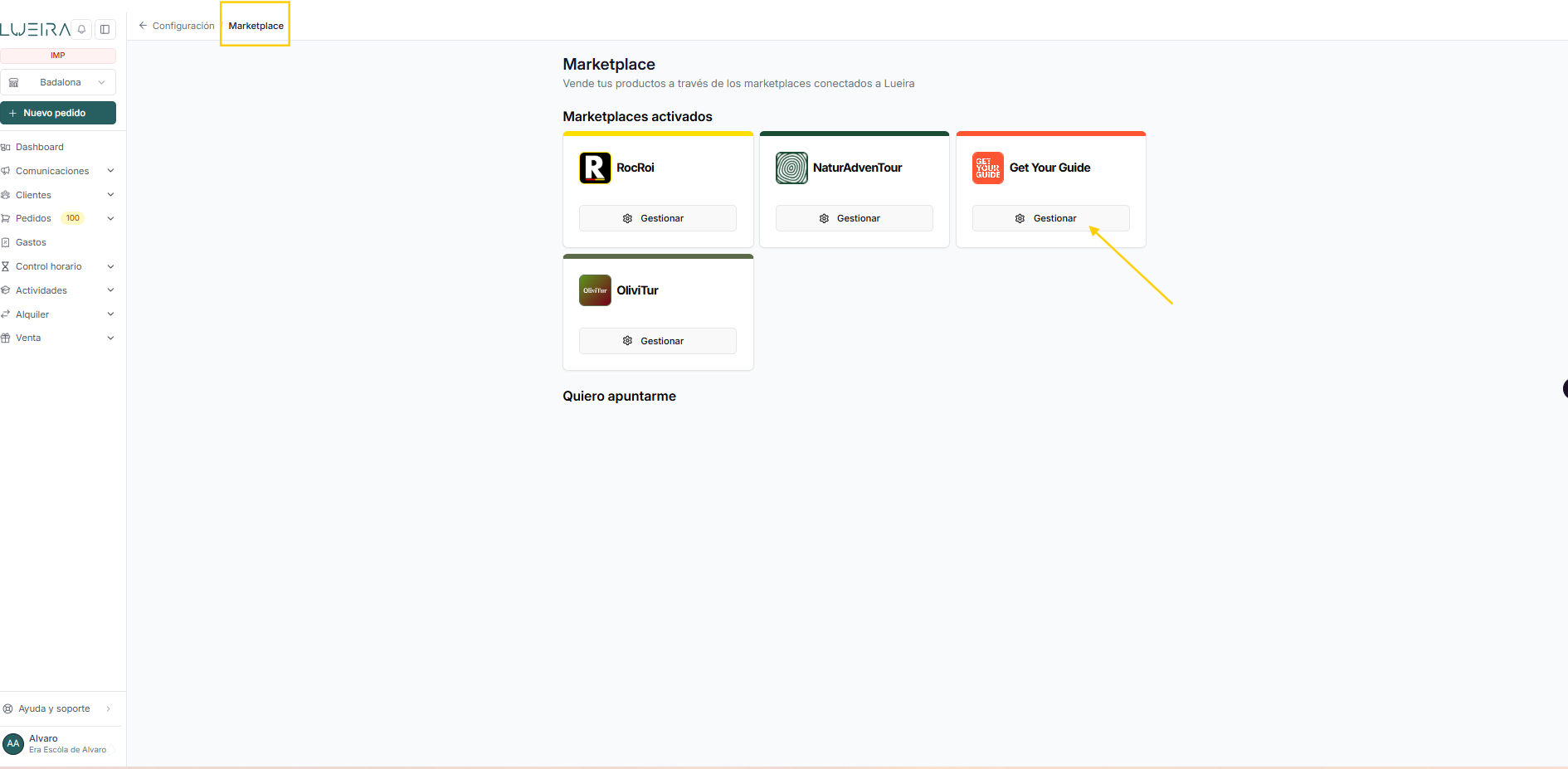
Go to Settings → Marketplace.
Step 2. Request the connection
Find GetYourGuide and click + Sign me up.
The "Connect to GetYourGuide" window will open.
Step 3. Complete the request
If you already have a supplier account on GetYourGuide, tick the "I already have a supplier account on GetYourGuide" checkbox and click Send: you won't need to fill in anything else.
If you don't have one yet, Lueira creates it for you. In the form:
Enter your First name and your Last name.
Tick the checkbox to accept GetYourGuide's Terms of Service and Privacy Policy.
Click Send to finish the request.
2. Access GetYourGuide from Marketplace
Step 1. Open Enabled marketplaces
Go to Settings → Marketplace.
In the Enabled marketplaces section, find GetYourGuide.
Step 2. Manage the marketplace
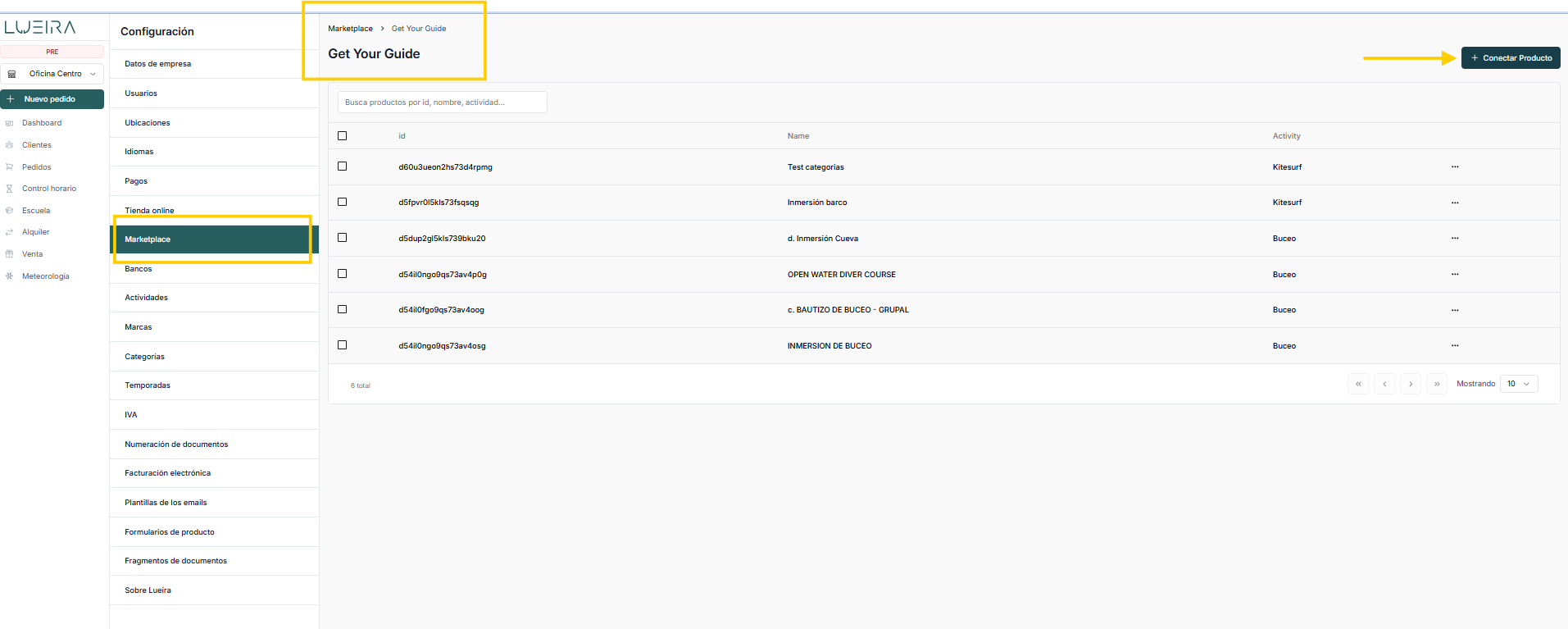
Click Manage.
From this view you can:
See the products already connected (ID, Name, Activity and Price).
Edit the information sent to GetYourGuide for a connected product, with Edit GYG settings in the three-dot menu.
Change its price with Edit price.
Connect new products to GetYourGuide.
3. Connect a new product to GetYourGuide
Step 1. Start the connection
Inside GetYourGuide, click + Connect product.
Step 2. Select the Lueira product
Select the Lueira product you want to connect and click Next.
Step 3. Connect the price categories
Match your internal categories (Adult, Child, Student, etc.) with the standard GetYourGuide categories (Adult, Child, Youth, Infant, Senior, Student, EU citizen, EU citizen (student), Military, Group member and Group).
ℹ️Notice
If a product doesn't have advanced pricing (it has a simple price), no matching is needed.
In this case, GetYourGuide interprets it as the "Adult" category and the amount applies to the whole group, not per person.
Step 4. Complete the additional information
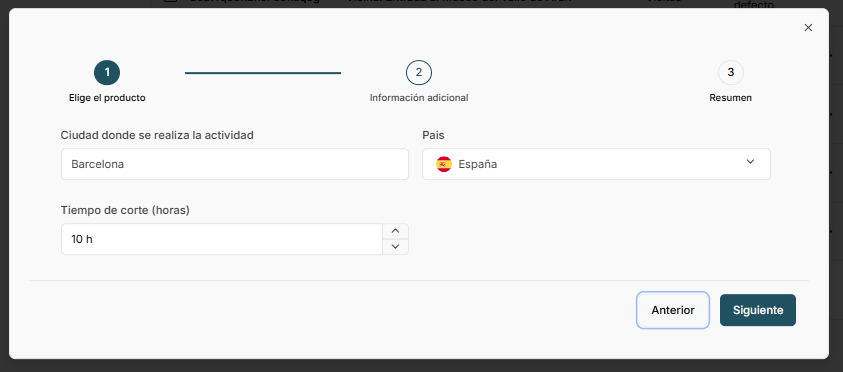
Fill in the following fields:
City: city where the activity takes place (required).
Country: country where the activity takes place (required).
Cut-off time (hours)
Minimum notice required to book this product on GetYourGuide.
ℹ️Notice
The cut-off time set for GetYourGuide is independent of the cut-off time set in Lueira.
Step 5. Review and finish the connection
Review the summary of the configured information and click Send to finish the connection.
4. Setup in the GetYourGuide Supplier Portal
Once the product is connected in Lueira, it must also be created and correctly set up in the GetYourGuide Supplier Portal.
Step 1. Create or set up the product on GetYourGuide
Go to the GetYourGuide Supplier Portal and make sure the product you want to connect has already been created.
During setup, in the "Connectivity settings" section
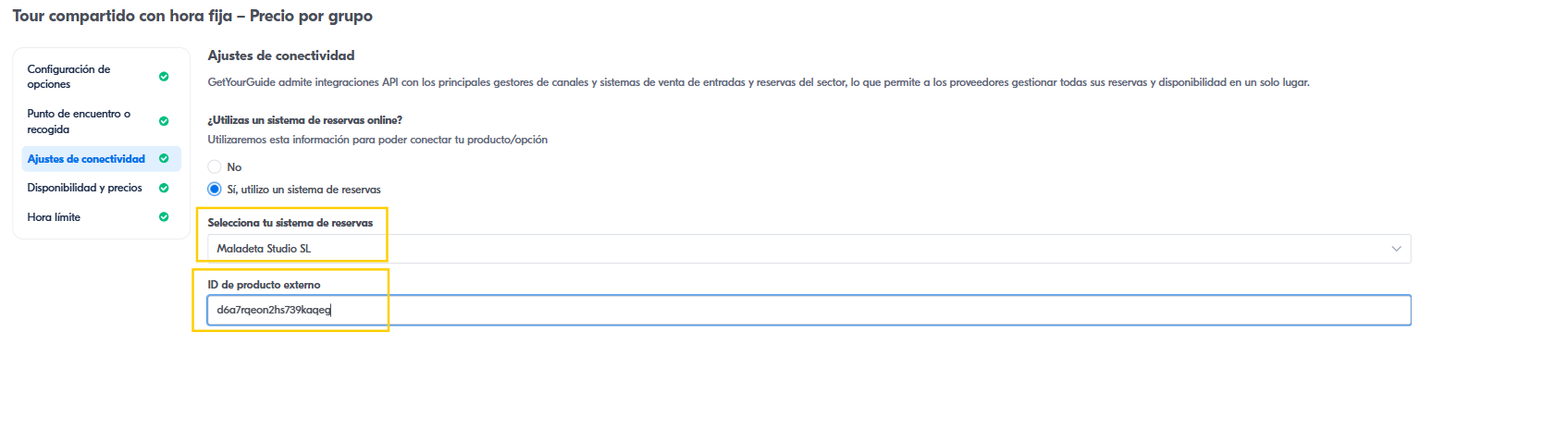
Indicate that you use an online booking system. Select Lueira as the booking system.
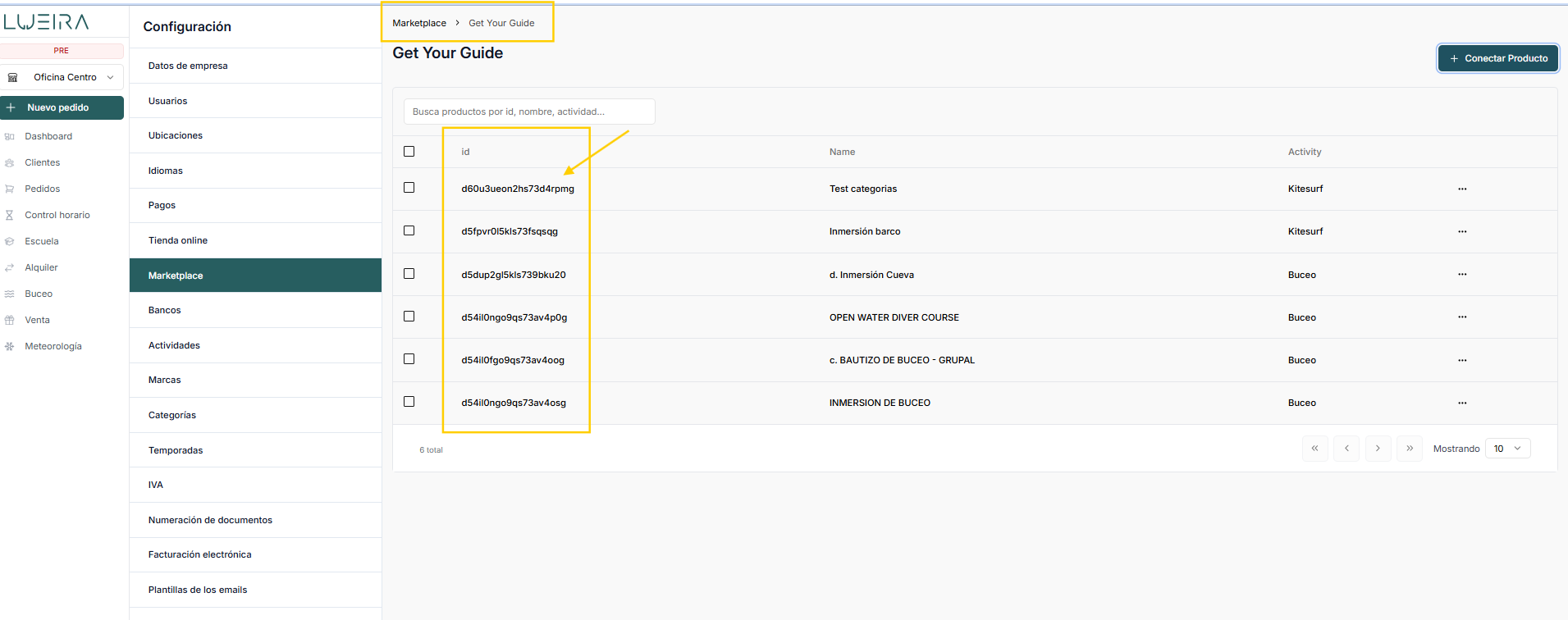
Enter the External ID: in the External product ID (External ID) field you must enter the product's identifier in Lueira.
You can find this ID in:
Settings → Marketplace → GetYourGuide
In the ID column, which shows the product's internal identifier in Lueira.
Copy that value and paste it into the External ID field in the GetYourGuide Supplier Portal.
ℹ️Note on prices
If you change the product's pricing mode to No price (with Edit price), Lueira doesn't send prices to GetYourGuide: the booking price is the one the product has on GetYourGuide. In that case, you'll need to set up and manage prices directly in the GetYourGuide Supplier Portal.
5. Connect a product to GetYourGuide from the product itself
Besides doing it from Settings → Marketplace, you can also connect a product directly from its page.
Step 1. Go to the product
Go to the product you want to connect in Lueira.
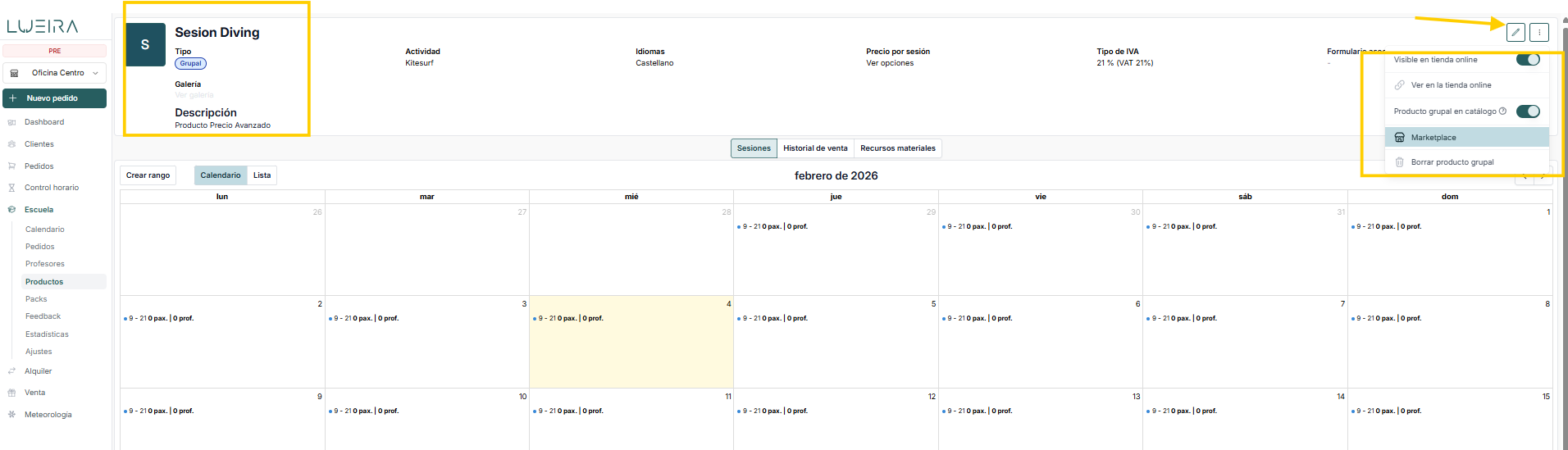
Step 2. Open the Marketplace option
In the top right menu, click Marketplace and select GetYourGuide.
Step 3. Complete the connection wizard
The connection modal will open. You'll need to:
Match the price categories with the standard GetYourGuide categories.
Complete the additional information (city, country and cut-off time).
Review the summary and click Send.
ℹ️Notice
This option is useful if you're already working inside a product and want to connect it to the marketplace without leaving its page.
6. Frequently asked questions
Add new price categories to an already connected product
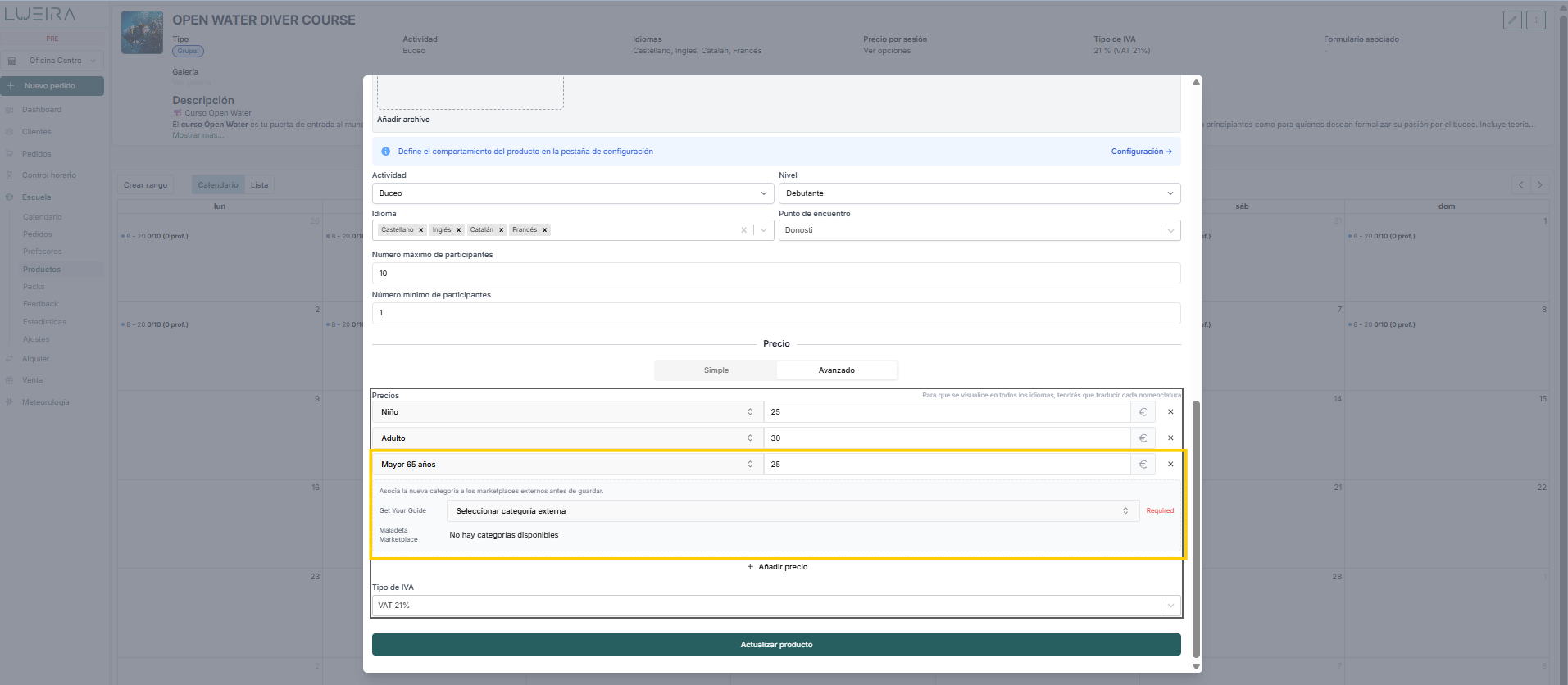
If you edit a product that is already connected to GetYourGuide and add a new advanced price category, Lueira will ask you to do the matching with GetYourGuide.
What exactly happens?
Go to the product already connected to the marketplace.
Add a new advanced price category.
A required field will appear to match that new category with a standard GetYourGuide category (Adult, Child, Student, Group, etc.).
Select the matching category and save the changes.
ℹ️Notice
This step is only requested for products that are already connected to the marketplace.
Can I sell at a different price on GetYourGuide than in Lueira?
Yes. In Settings → Marketplace → Manage (GetYourGuide), open the product's three-dot menu and choose Edit price. The Pricing mode can be:
Inherit (product price): the product's price in Lueira is used.
Fixed price: a specific price for GetYourGuide.
Pricing schema: a pricing scheme with categories, different from the one in Lueira.
No price: Lueira doesn't send prices and you manage them in the GetYourGuide Supplier Portal.
GetYourGuide orders: payments, cancellations, notices and synchronization
7. GetYourGuide orders: what you need to know
Why does a GetYourGuide order show as "payment pending"?
Because GetYourGuide collects the payment from the customer, not Lueira. Lueira doesn't receive the payment information, so the order comes in confirmed but with the payment pending until you record it.
You can record the payment on the order when GetYourGuide pays you out (that way you also see what GYG still owes you) or as soon as the booking comes in, whichever you prefer.
Are GetYourGuide cancellations reflected in Lueira?
Bookings that came into Lueira through the integration: if the customer cancels on GetYourGuide, the order is automatically cancelled in Lueira.
Bookings from before the connection (the ones you created manually in Lueira before connecting GYG): they aren't linked to GetYourGuide, so if they are cancelled you'll have to cancel them yourself in Lueira.
⚠️ If a booking that did come in through the integration isn't cancelled, write to us with the GetYourGuide reference and we'll look into it.
Do I get an email when a GetYourGuide booking comes in?
Yes, if you turn it on. Go to Settings → Email → Email settings and turn on Notify of new marketplace orders: Lueira will send an email to your business every time a marketplace order is confirmed.
I changed sessions or availability and GetYourGuide still shows the old data
Availability changes (new or deleted sessions, or sessions with modified spots) take a while to show up on GetYourGuide: synchronization isn't instant. Before reconnecting or deleting the product, wait a while and check again.
💡 If you delete a product's connection and connect it again, check that the ID shown in Settings → Marketplace → GetYourGuide is the same one you have as External ID in the GetYourGuide Supplier Portal.
The connection wizard gives an error or the product doesn't appear in the list
Only group products can be connected to GetYourGuide.
Check that all of the product's price categories are matched to a standard GetYourGuide category (step 3 of section 3).
If the error continues, or bookings keep coming in with a price you have already changed, contact support with the product name and a screenshot of the error.
Related guides
- Marketplaces in Lueira: what they are and how to connectWhat a marketplace is in Lueira, which ones you can connect, how to sign up, connect products, adjust their price and receive orders.
- Product resale between tenantsHow a tenant (owner) shares its products so another (reseller) can sell them in its own admin and online store by invitation, with commission and settlement between the two.
- Connect and manage RocRoi in LueiraThis guide explains how to activate the connection with RocRoi and how to connect and manage products from Lueira
- Connect and manage NaturAdvenTour in LueiraHow to activate the connection with NaturAdvenTour and how to connect and manage your products from Lueira.
- SnowTeach: how it works and how to connect your productsWhat SnowTeach is, how it works for your school or rental shop (the customer discovers your offer and books in your online store), what you need, the accession agreement and how to connect and manage your products.
- How to connect Viator in LueiraGuide to register your Viator account in Lueira, connect products and what needs to be set up beforehand in the Viator portal.