

SnowTeach: how it works and how to connect your products
What SnowTeach is, how it works for your school or rental shop (the customer discovers your offer and books in your online store), what you need, the accession agreement and how to connect and manage your products.
On this page
SnowTeach is an aggregator of snow classes and activities (snowteach.com). It brings together in one place the offer of ski and snowboard schools and equipment rental shops from several resorts.
SnowTeach doesn't sell or collect payments for you: when the customer chooses one of your products, they go to your Lueira online store, where they choose a date, pay and receive their confirmation. You keep managing your products, your prices, your availability and your bookings from Lueira, as always. This guide explains how it works and how to connect, step by step.
How it works at a glance
You sign up for SnowTeach from Lueira and sign the aggregator accession agreement.
You choose which products to publish: group classes, private classes, rentals and rental packs.
The customer finds your products on snowteach.com (by destination, activity or rental) and compares them with other options.
The customer clicks to book and goes to your online store, straight to that product's page.
The booking and payment are made in your online store, with your prices, your availability and your payment methods.
Every month, SnowTeach issues you an invoice for the commissions.
Before you start you need
Your online store active and accessible. SnowTeach sends customers to your online store to book, so you can't connect without it. If you haven't set it up yet, see 👉 Online store setup.
Products on sale in your online store. You can only connect products that a customer could buy in your store: with visibility "Visible in the catalog" or "Hidden, link only" and active. Products that are disabled in the online store, inactive or deleted can't be connected.
Your business email up to date. The accession agreement is sent to that email and, once signed, you'll receive a copy there.
The terms of the agreement
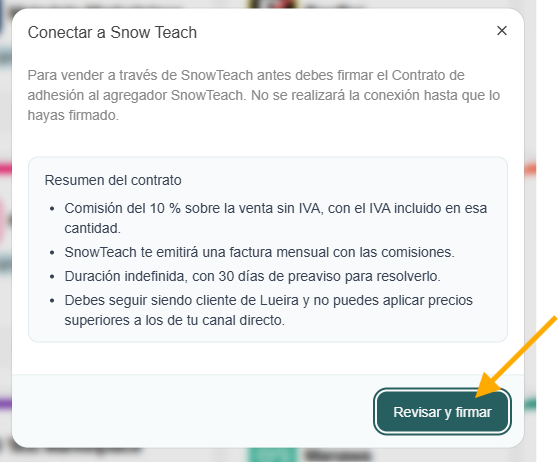
Before you connect, Lueira shows you a summary of the agreement. The main terms are:
Commission: 10% on the sale excluding VAT, with the VAT included in that amount.
Invoicing: SnowTeach issues you a monthly invoice for the commissions.
Duration: indefinite, with 30 days' notice to terminate it.
Conditions: you must remain a Lueira customer and you can't apply prices higher than those of your direct channel.
You review and sign the full document in the next step. The connection isn't made until you have signed it.
1. Sign up for SnowTeach
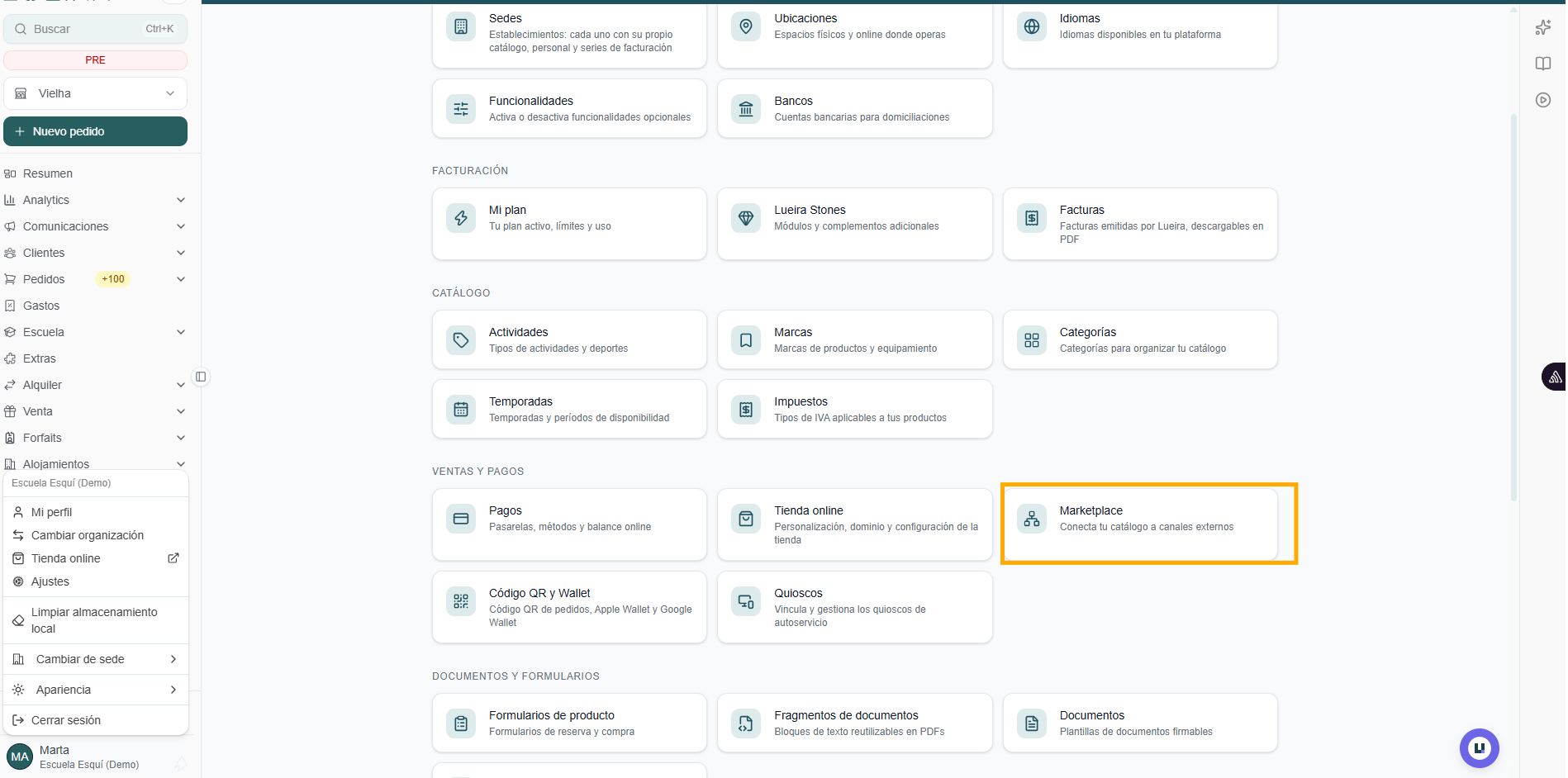
Go to Settings > Marketplace.
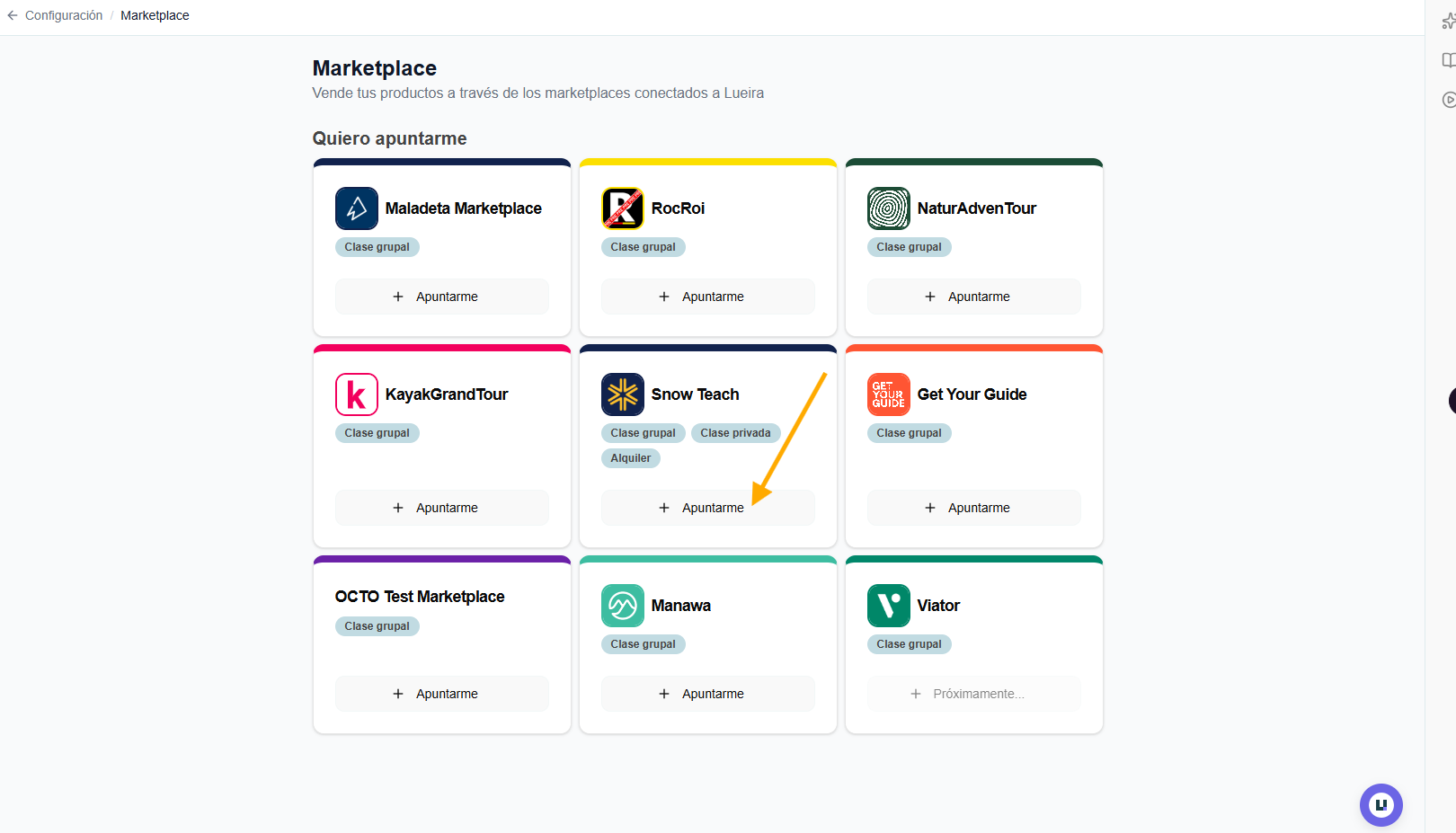
In the I want to sign up section, find Snow Teach and click Sign me up.
A window opens with the summary of the agreement. Click Review and sign.
Read the SnowTeach Aggregator Accession Agreement and sign it on the screen itself.
For a few seconds you'll see the message Processing the signature… and then Agreement signed. You can now connect to SnowTeach.
Click Send to complete the connection. We also email you a copy of the signed agreement.
If the signature isn't completed on the screen, you'll see "The agreement has been sent to your email for signing. Once signed, you'll be able to connect to SnowTeach." Sign it from the email and go back to Settings > Marketplace to finish.
When you're done, Snow Teach will appear in the Enabled marketplaces section, with the labels of the product types it supports: Group class, Private class, Rental and Rental pack. Nothing is published yet: the next step is to choose which products you want to show.
If you see "This marketplace sends customers to your online store to book. Activate the online store first.", you still need to activate the online store (see "Before you start").
2. Connect your products
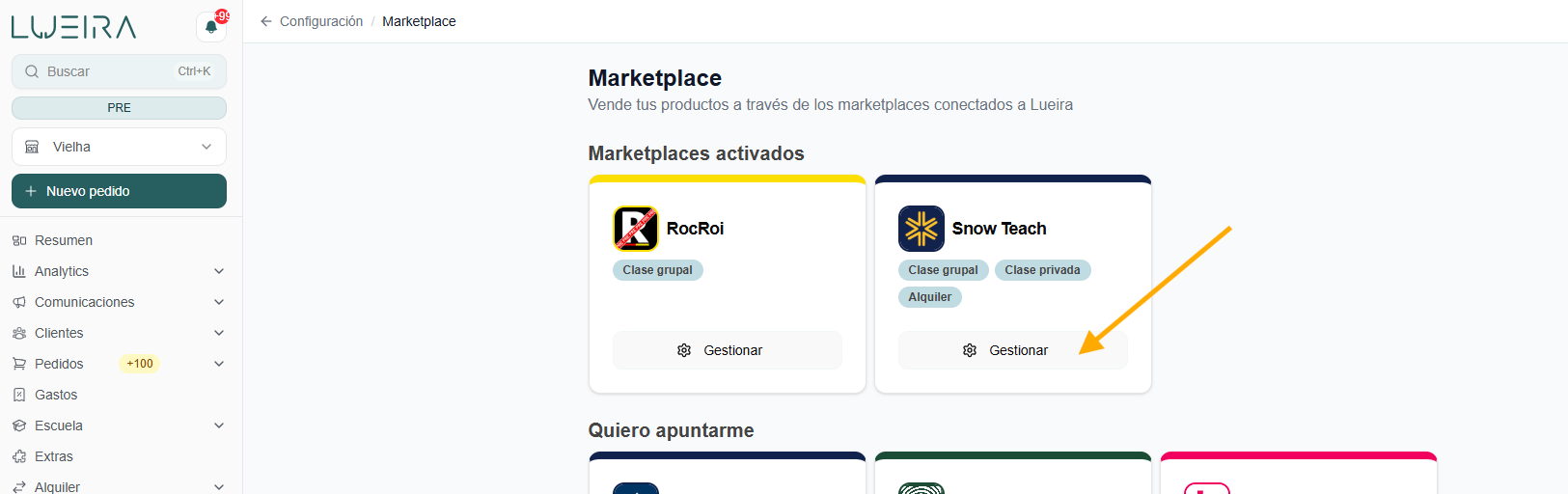
In Settings > Marketplace, within Enabled marketplaces, click Manage on the Snow Teach card.
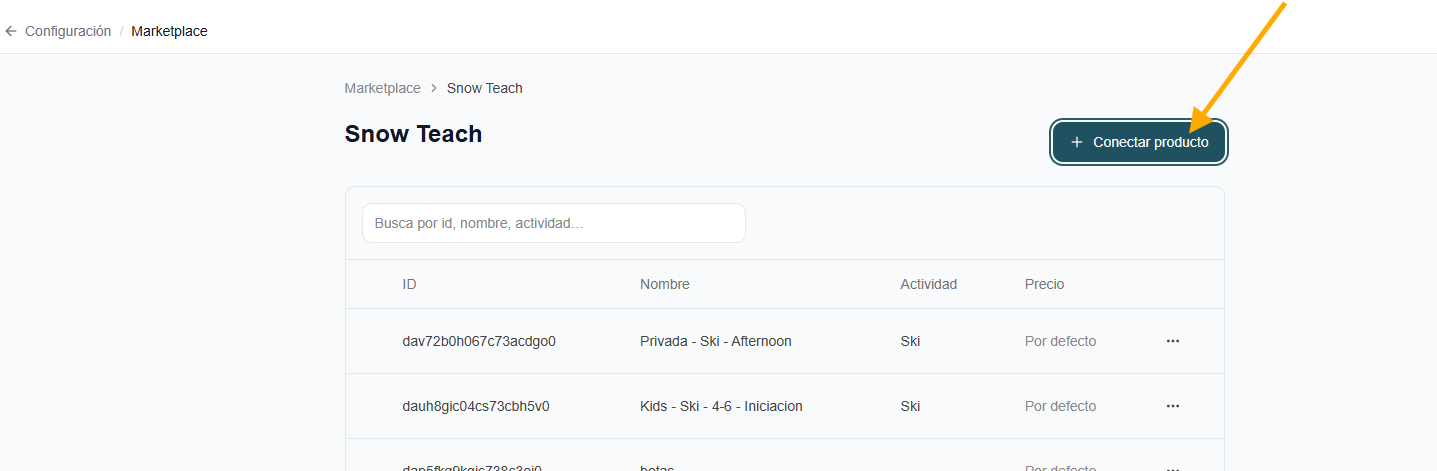
Click Connect product. A multi-step wizard opens.
Step 1. Choose the product
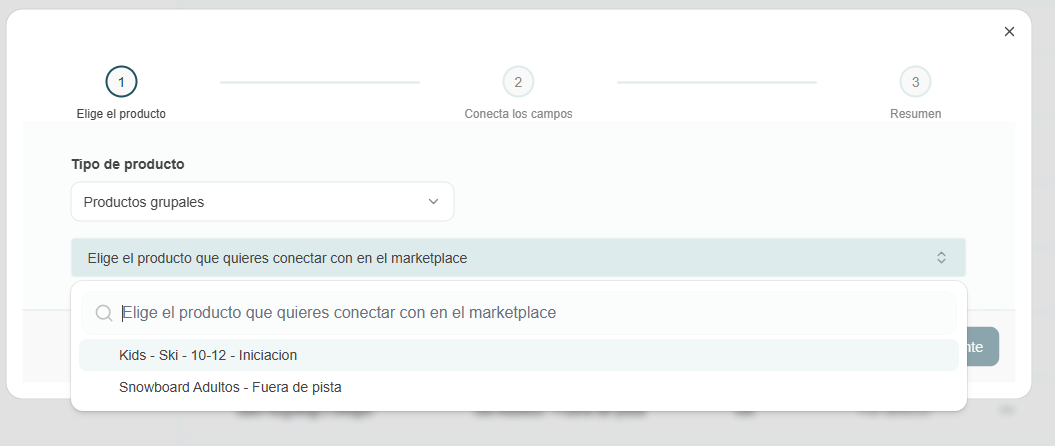
In Product type, choose between Group products, Private classes, Rental and Rental pack.
Select the Lueira product you want to publish. Only products that are not yet connected to SnowTeach appear.
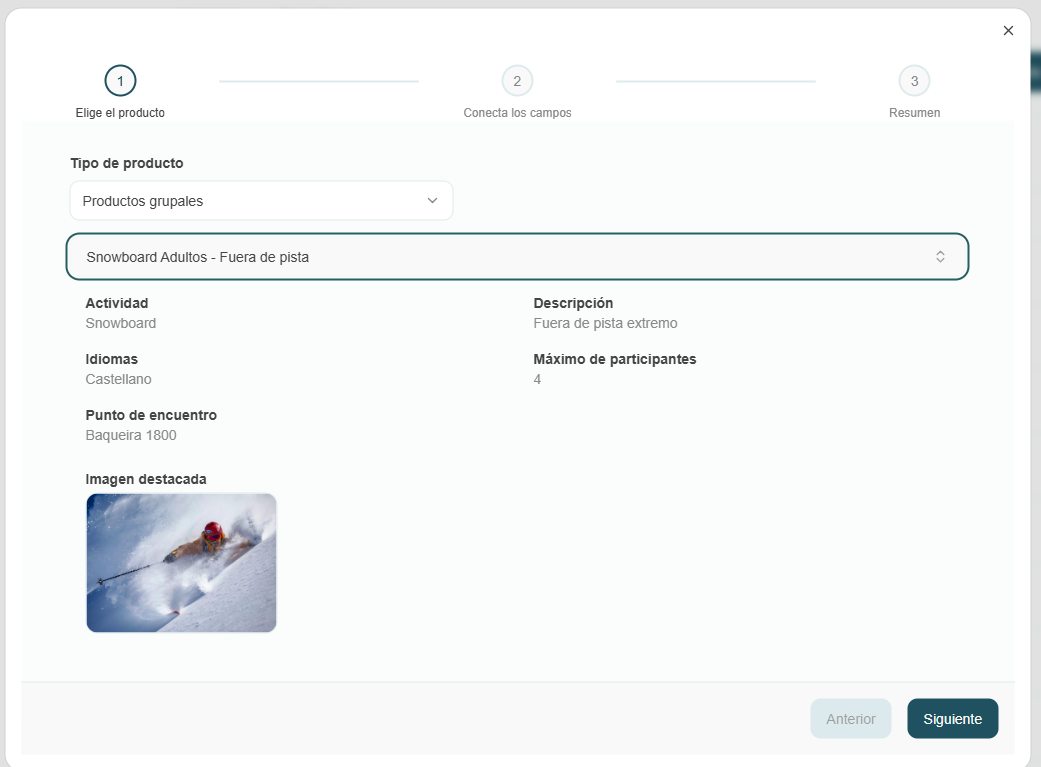
You'll see a summary of the product (activity, description, languages, maximum participants, meeting point and featured image). This information is taken from your product in Lueira.
Step 2. Map the fields
Here you adapt your product to the SnowTeach catalog. What it asks for depends on the product type:
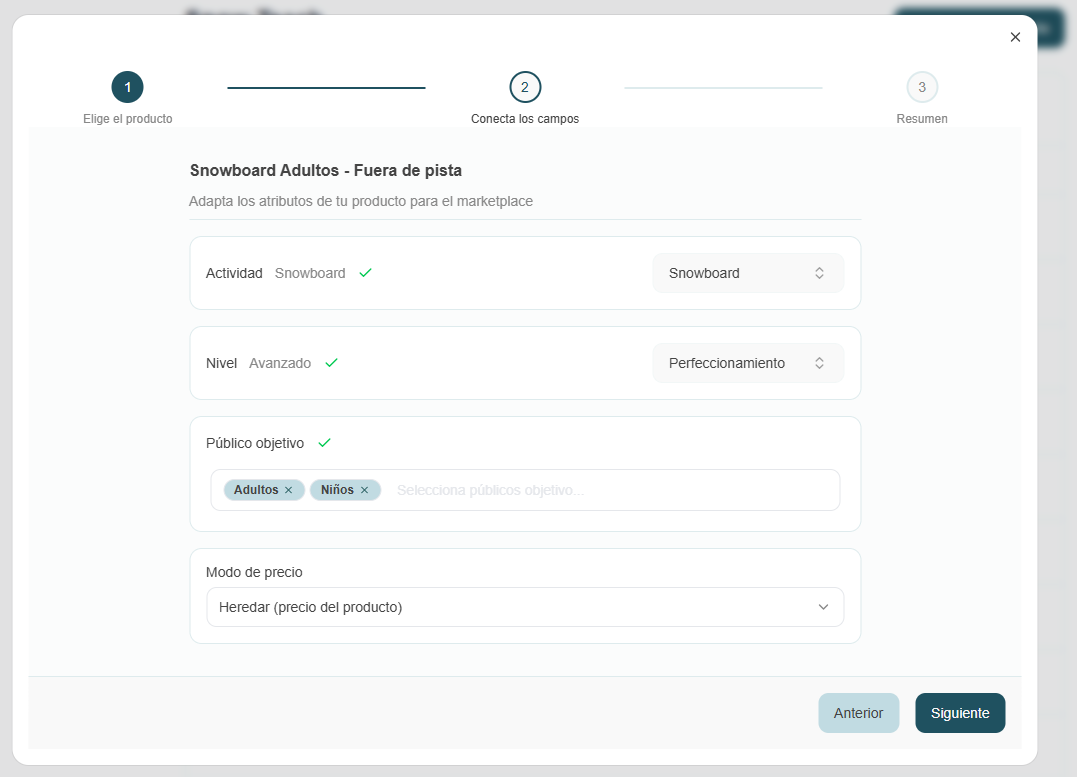
What each field means:
Activity: choose the equivalent activity from the SnowTeach catalog (for example, Ski). It is used to classify your product so the customer finds it when filtering. For rentals you can choose one or several.
Level: choose the equivalent SnowTeach level. For private classes you have to indicate which SnowTeach level each of your school's levels corresponds to; you can't continue until all of them are matched.
Target audience: tick who the product is aimed at. You must choose at least one when SnowTeach offers options (and it is required for rentals).
Step 3. Review and send
Review the summary of what you have configured.
Click Send to connect the product.
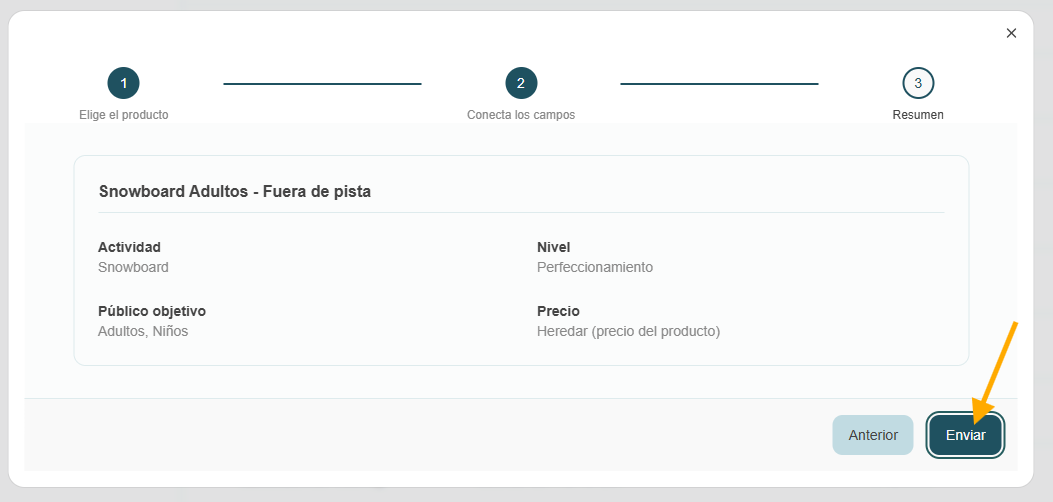
Repeat the process with each product you want to publish.
If you see "This marketplace sends customers to your online store to book, so the product has to be on sale there. Change its visibility in the online store to "Visible in the catalog" or "Hidden, link only" and check that it is active.", change the product's visibility in the online store and connect it again.
3. Manage connected products
In Settings > Marketplace > Manage (Snow Teach) you see the list of connected products, with their ID, Name, Activity and Price.
With each product's menu (the three dots) you can:
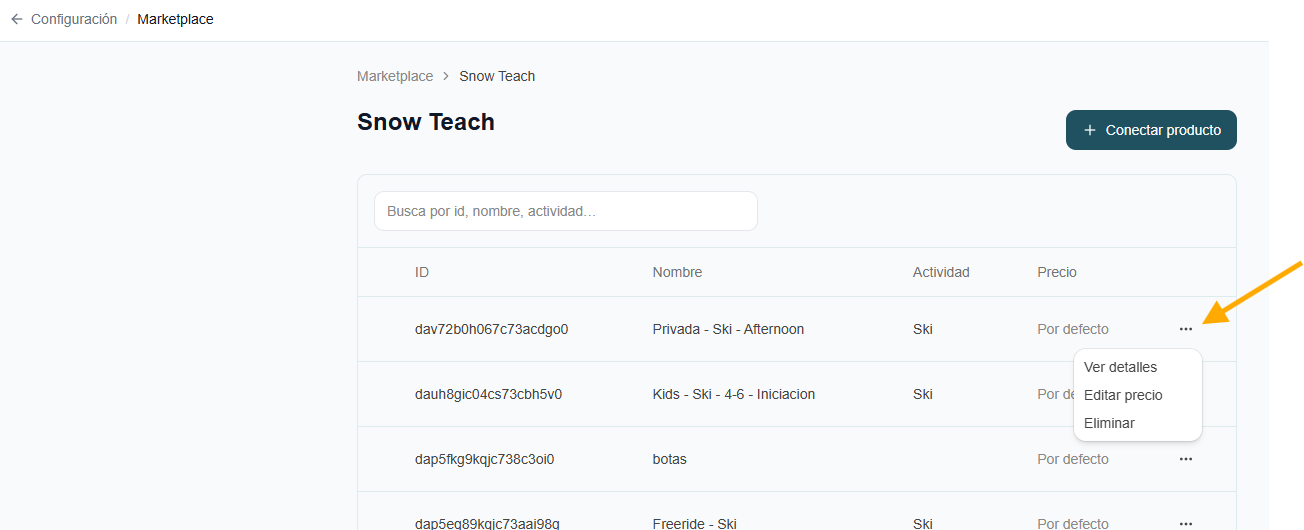
View details: see the details of the connected product.
Delete: remove the product from SnowTeach. The product still exists in Lueira; it just stops being published on the aggregator.
SnowTeach has no Edit price: the price the customer sees is the one in your online store, because the booking and payment are made there. To change it, edit the product in Lueira.
What the customer sees
On snowteach.com the customer browses destinations, experiences and rentals, and compares the offers of different schools and shops.
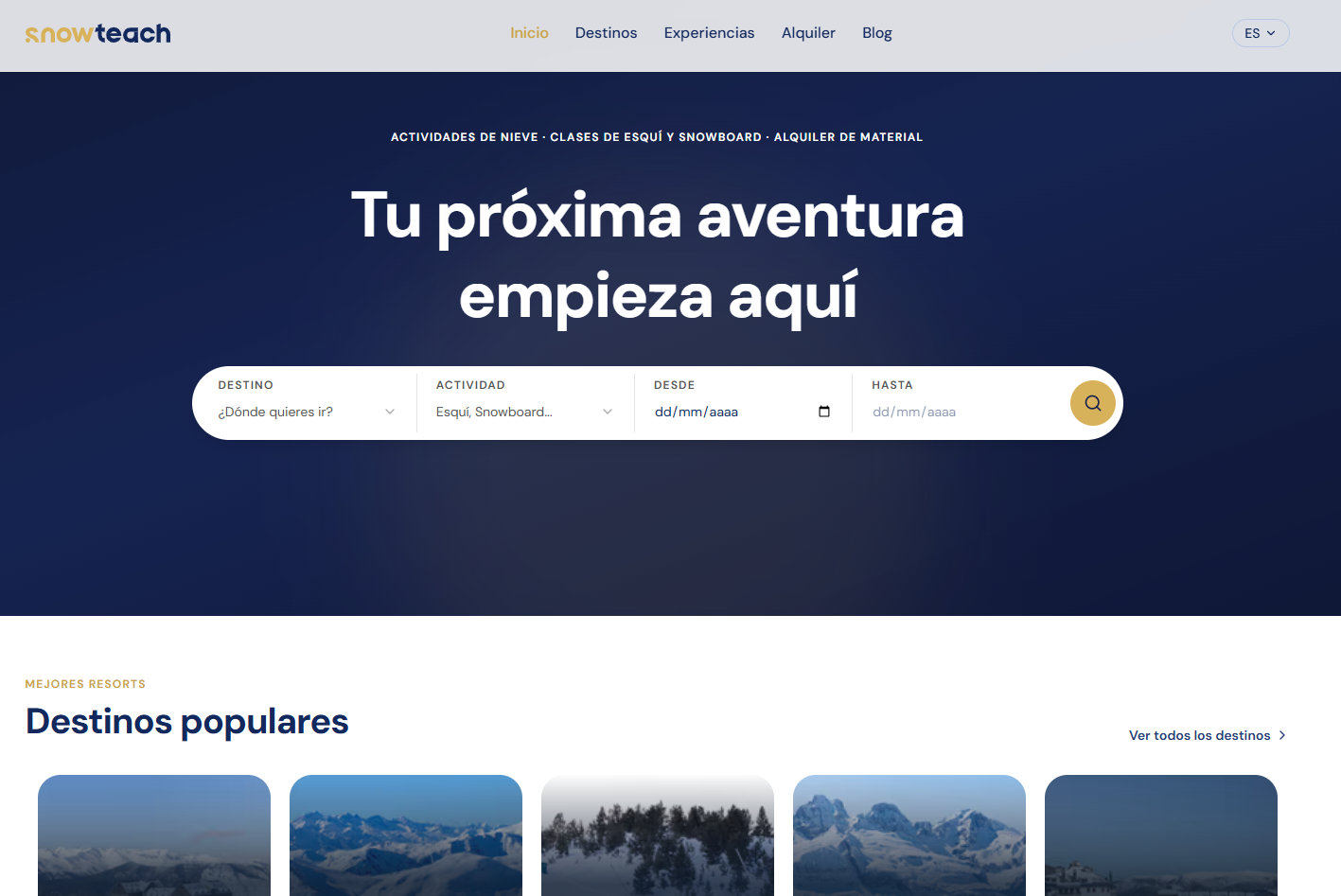
When they choose your product and click to book, they go to your online store, to that product's page. There they choose dates, see the price, pay and receive the confirmation, just like in any direct booking in your store.
Payment is not made on SnowTeach: it is made in your online store with your payment methods.
If a product stops being on sale in your online store, it appears as unavailable on SnowTeach.
Related articles
Online store setup — how to activate and set up your store.
Related guides
- Marketplaces in Lueira: what they are and how to connectWhat a marketplace is in Lueira, which ones you can connect, how to sign up, connect products, adjust their price and receive orders.
- Product resale between tenantsHow a tenant (owner) shares its products so another (reseller) can sell them in its own admin and online store by invitation, with commission and settlement between the two.
- Connect and manage GetYourGuide in LueiraThis guide explains how to request the connection with GetYourGuide and how to manage and connect products from Lueira
- Connect and manage RocRoi in LueiraThis guide explains how to activate the connection with RocRoi and how to connect and manage products from Lueira
- Connect and manage NaturAdvenTour in LueiraHow to activate the connection with NaturAdvenTour and how to connect and manage your products from Lueira.
- How to connect Viator in LueiraGuide to register your Viator account in Lueira, connect products and what needs to be set up beforehand in the Viator portal.