

Quarterly close: exporting invoices, VAT breakdown and documents for your accountant
The complete flow for closing a quarter: what to take from Orders > Documents and from Orders > Payment summary, how to filter the period, what the CSV includes, how rectifying invoices appear and why there may be gaps in the numbering.
On this page
- What this guide solves
- Before you start: bring the quarter up to date
- Step 1: filter the quarter in Orders > Documents
- Step 2: download the PDFs and the CSV summary
- What the CSV contains
- Step 3: get the period's payments in Orders > Payment summary
- Rectifying invoices and gaps in the numbering
- Where the rectifying invoices are
- Document number and invoice number
- Why a number may seem to be missing
- What to do if…
- …not all the payments appear in the Payment summary
- …I have confirmed orders pending payment that were paid by Bizum or in cash
- …I need invoicing by the date the classes were delivered
- …the total VAT does not match my accounts
- …I want to delete a badly made invoice
- …my accountant asks me for the daily cash register Z report or another specific report
- Related articles
- The Payment summary does not split payments by item type
- How to get the breakdown by item type
What this guide solves
At the end of each quarter your accountant will ask you for the invoices issued, the VAT broken down by rate and, often, a list of payments received. In Lueira that information comes from two different screens, and it is important not to confuse them:
Orders > Documents: the invoices, tickets and rectifying invoices issued, with their VAT. This is what the accountant needs to file VAT.
Orders > Payment summary: the money collected (and refunded), by payment method. It is used to balance cash and bank, and it does not replace the invoices.
This guide explains the complete closing flow: checking that everything is recorded, filtering the quarter, downloading the PDFs and the CSV summary, getting the payments, and understanding rectifying invoices and gaps in the numbering. If you only want to know how to issue or download a specific document, see Invoicing: Tickets, invoices and quotes in orders.
💡 The short answer: in Orders > Documents choose the document type and, in Select, the quarter; click Download documents and download the PDFs and the summary (CSV). Repeat for each type (invoices, rectifying invoices, tickets…) and, if your accountant asks for it, add the download from Orders > Payment summary for the same period.
Before you start: bring the quarter up to date
Anything that is not recorded in Lueira will not appear in any list. Before downloading anything, check:
Payments made outside Lueira. If a customer paid you by Bizum to your phone, in cash or by bank transfer and the order is still Pending, open the order, click Create payment, choose the actual method and set the actual Payment date. Only then will it appear in the Payment summary.
Documents not yet issued. If an order needs an invoice or ticket and does not have one yet, issue it with the + button in the order's Invoicing block. The date you choose is the one that will count for the quarter.
Errors in invoices already issued. They are not deleted: they are rectified. Do it before closing (see Rectifying an invoice or a ticket and configuring its numbering).
The customer's tax details (NIF, legal name, address) on invoices to companies.
Step 1: filter the quarter in Orders > Documents
Go to Orders > Documents. By default you will see the invoices of the current month.
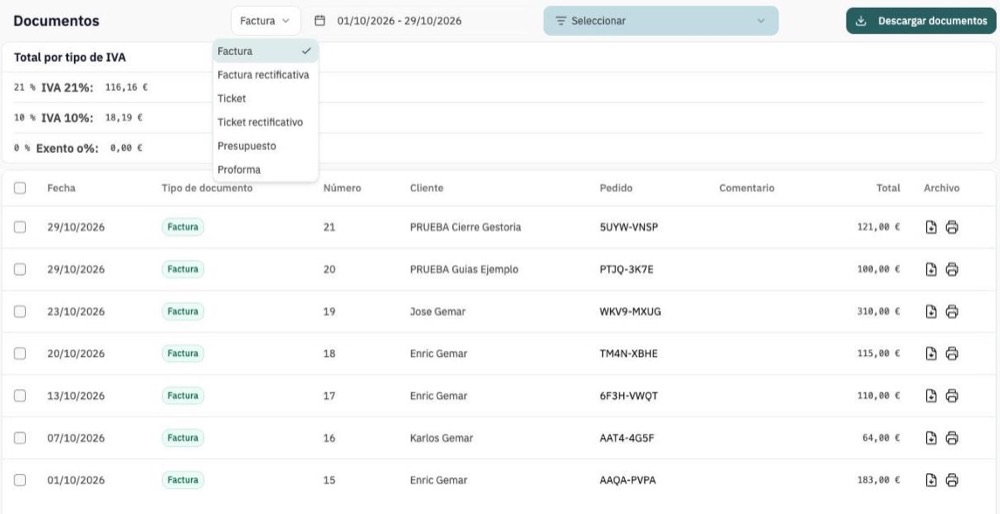
In the first dropdown choose the document type: Invoice, Rectifying invoice, Ticket, Rectifying ticket, Quote or Proforma. One type is shown at a time.
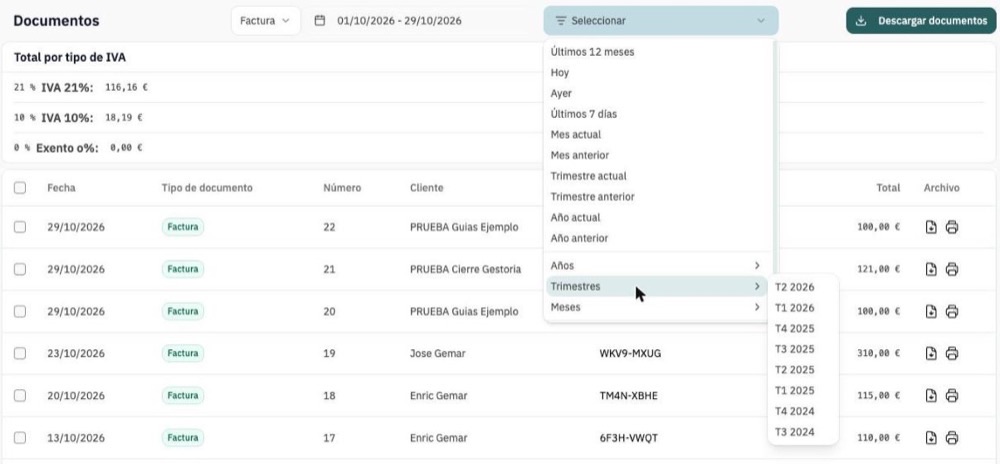
In Select choose the period. You have quick shortcuts (Current quarter, Previous quarter, Previous month, Previous year…) and, under Quarters, Months and Years, specific periods (for example, Q1 2026). You can also select a date range by hand on the calendar.
Review the Total by VAT rate block, which summarises the selected period and document type for each VAT rate (21%, 10%, exempt…), and the list: date, type, number, customer, order, comment and total of each document.
💡 The list filters by the document date (the Date column), not by the activity date or the payment date. A January class invoiced in December counts in the December quarter.
Step 2: download the PDFs and the CSV summary
Click Download documents (top right).
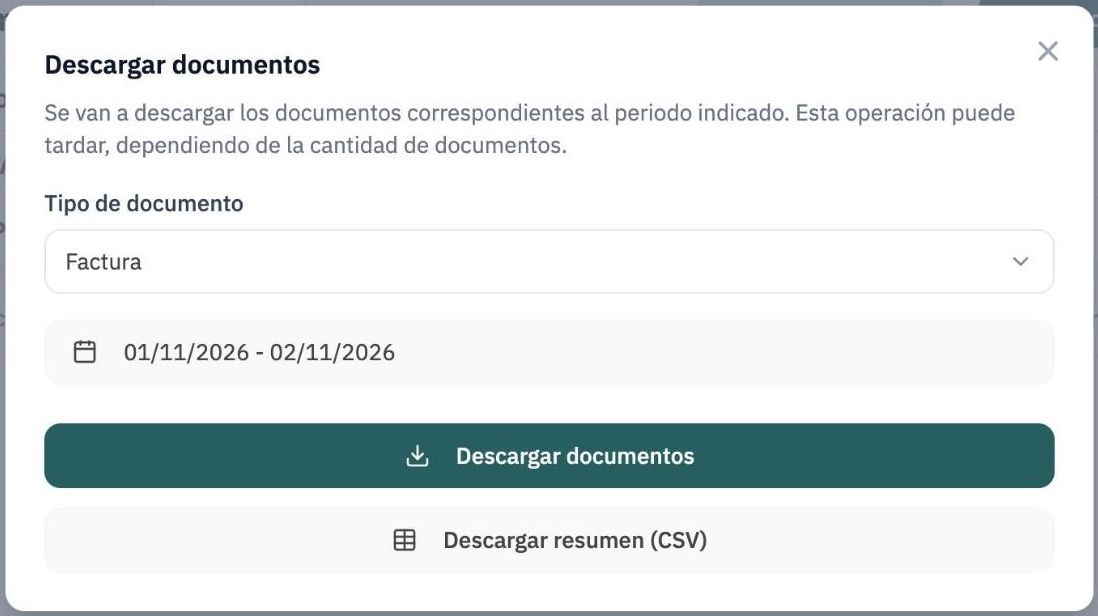
In the window, check the Document type and the date range.
Click Download documents to get the PDFs for the period, or Download summary (CSV) for the list in a spreadsheet. The PDF download may take a while if there are many documents.
Repeat the download for each type you have issued in the quarter: at a minimum Invoice and Rectifying invoice, and also Ticket and Rectifying ticket if you issue tickets (simplified invoices).
What the CSV contains
One row per document with the customer's details, the taxable base, the total VAT, the total amount, one column for each VAT rate applied, the document date (the one that counts for tax purposes) and the creation date, the invoice number as it appears on the PDF, the internal document number, the order reference and the order and payment statuses. The detail of each column is in Invoicing: Tickets, invoices and quotes in orders.
📌 If, when you open the CSV in Excel, a column (for example, the dates one) shows "#####", it is not a Lueira error: the column is too narrow. Widen it by double-clicking the edge of the header.
Step 3: get the period's payments in Orders > Payment summary
If your accountant also wants to match payments with the bank or the cash register:
Go to Orders > Payment summary.
Choose the location: your centre, Online Store or All locations. Online store payments (for example, Redsys) are in Online Store.
Choose the period with the calendar or with the quick filter (by default it shows Today).
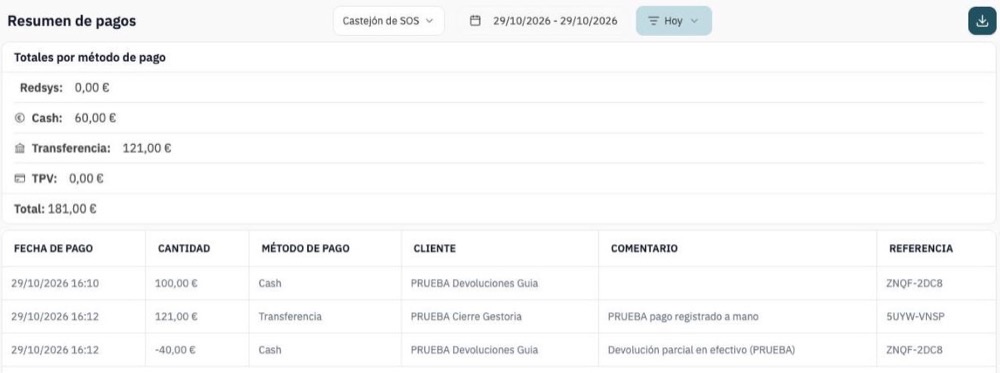
At the top you will see the Totals by payment method and the total; below, each payment with its date, amount, method, customer, comment and order reference. Refunds appear as negative amounts.
Click the download button (top right) to download the list.
⚠️ Payments and invoices do not have to match. An order can be paid in one quarter and invoiced in another, or paid in several instalments. Give your accountant both lists and let them decide which one to work with for each tax return.
Rectifying invoices and gaps in the numbering
Where the rectifying invoices are
Rectifying invoices do not appear mixed in with invoices: in Orders > Documents they have their own type (Rectifying invoice and Rectifying ticket), with their own numbering. The original invoice does not disappear from the invoice list; the rectifying invoice appears in the rectifying invoices list, with its own date. That is why you have to download both types for the close. How to rectify: Rectifying an invoice or a ticket and configuring its numbering.
Document number and invoice number
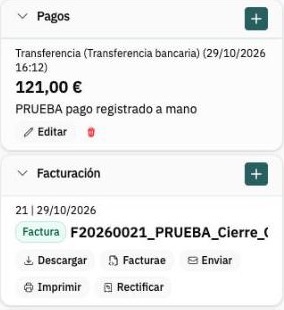
In the order's Invoicing block and in the CSV you will see two different numbers:
the invoice number, the one that appears on the PDF and follows your pattern (in the example, F20260021);
the document number, the internal sequential number (in the example, 21), which is the one that appears in the Number column of Orders > Documents.
Why a number may seem to be missing
If your accountant sees that a number is "missing", first check these common causes:
You are looking at a single type. Invoices, tickets and rectifying invoices have separate numberings, so always compare numbers of the same type and the same pattern.
You use several numbering patterns. Each pattern has its own counter; check them in Settings > Document numbering.
Change of year. If the pattern uses the year ([YYYY]) and does not have Continuous numbering, the counter goes back to 1 on 1 January. More information in Managing document numbering at the turn of the year in Lueira.
The date or type filter leaves the document out. Widen the range or change the type and search again.
If after checking, a number is still missing within the same pattern, write to support with the pattern, the missing number and the period. Do not try to "fill" the gap by issuing documents with another date.
What to do if…
…not all the payments appear in the Payment summary
Check the location: payments are separated by centre and online store payments are in Online Store. Choose All locations and check the date range.
…I have confirmed orders pending payment that were paid by Bizum or in cash
They will not appear in the Payment summary until you record the payment in each order with Create payment, the actual method and the actual collection date.
…I need invoicing by the date the classes were delivered
Orders > Documents filters by the document date, not by the class date. If you are asked for what was delivered between certain dates (for example, for a ski resort or a town council), ask support which list suits you best depending on how your bookings are set up.
…the total VAT does not match my accounts
Check that you have also added up the rectifying invoices (they subtract) and that the type and the period are the same on screen and in the CSV. If it still does not match, write to support with the period, the document type and an example of a document that does not fit.
…I want to delete a badly made invoice
Issued invoices are not deleted: they are rectified, and then you issue the correct one. This way the numbering stays sequential.
…my accountant asks me for the daily cash register Z report or another specific report
This guide does not cover daily cash-up reports. Ask support which Lueira report fits what you are being asked for.
🔒 Important: if you write to support, do not include passwords, signing keys or your bank details in the chat; we do not need them to help you with this topic.
Related articles
The Payment summary does not split payments by item type
If you download the Payment summary for a range of dates, the CSV has one row per payment with: the order's internal reference, the amount of that payment, creation and payment dates, payment method, document type, number and date, the order's total amount, the customer's first and last name and the names of the products in the order.
It does not include the amount broken down by item type (private lessons, group lessons, rental, shop…) or by VAT rate: a payment belongs to a whole order and the amount shown is that of the payment or the order total, not that of each product.
How to get the breakdown by item type
Go to Orders, click Filters and choose the dates with Creation date from and to (optionally, a specific Type).
Click the download icon next to Filters.
In the CSV you will find an amount column for each item type: Private lessons school, Group lessons school, Rental, Shop and Custom, plus the paid and pending amount of each order.
⚠️ This download is per order and is filtered by the order's creation date (or by the start date, with the Start from and to filters), not by the payment date. It does not match the Payment summary for the same dates if there are orders paid in a different period from the one in which they were created.
For the VAT breakdown use the CSV from Orders > Documents (step 2 of this guide).
Related guides
- Orders navigationView the status of all your orders, invoices or payments
- How to create ordersWe show you how to create orders and add every type of product to them.
- Creating a lesson booking from the admin: several days, a second teacher and line priceHow to create a lesson order from the admin: add private or group sessions, book several days in a row, add a second teacher without losing the charge for the second lesson and change the price of a line.
- Order statusesThis section gives you an overview of the status an order is in
- Order lifecycle: statuses, payment and confirmationA complete explanation of the order and payment statuses in Lueira, how they relate to each other, and when an order is confirmed automatically or manually depending on the payment method.
- Deleted and cancelled orders: the difference, how to see them and how to ask for them to be restoredThe difference between cancelling and deleting an order, where to find cancelled orders, how to find out who changed or deleted an order with Change tracking, and what to do so support can restore an order deleted by mistake.