

Exporting Lueira data: what can be downloaded on each screen and why I can't see the button
Which downloads exist in Lueira (payment summary, documents, lists), the role permission "Export lists (CSV and PDF)" that makes the button appear, and how to download long periods.
On this page
- Exporting Lueira data
- 1. I can't see the download button: the role permission
- 2. Payment summary
- 3. Invoices and other documents
- 4. Other lists
- What to do if…
- Related guides
- Getting the sales of physical products (Sales) for a period
- Option 1: Sales > Statistics (figures by product)
- Option 2: Orders download (one row per order)
- What does not exist today
Exporting Lueira data
Can't see the button to download a list, the payment summary or the invoices? This guide explains what can be downloaded on each screen and why sometimes the button does not appear or the report does not load.
1. I can't see the download button: the role permission
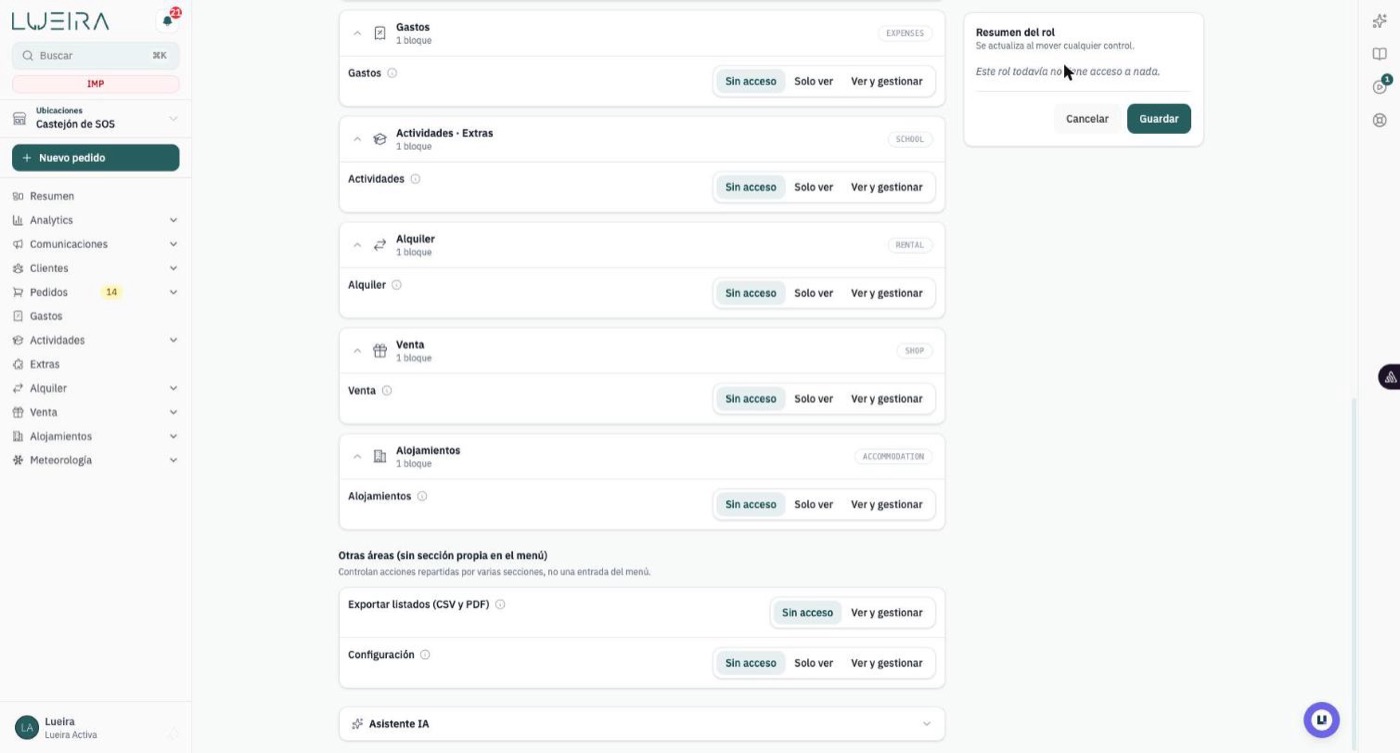
CSV and PDF downloads of lists depend on a permission of the user's role: Export lists (CSV and PDF). If you do not have it, the download button does not appear.
An administrator goes to Settings > Users and clicks Configure roles.
The ADMIN and POS roles are system roles and cannot be modified; to give access only to what is needed, click Add role (or edit one of your own).
In the Other areas (no menu section of their own) section, set Export lists (CSV and PDF) to View and manage.
Save and assign that role to the user in Settings > Users.
2. Payment summary
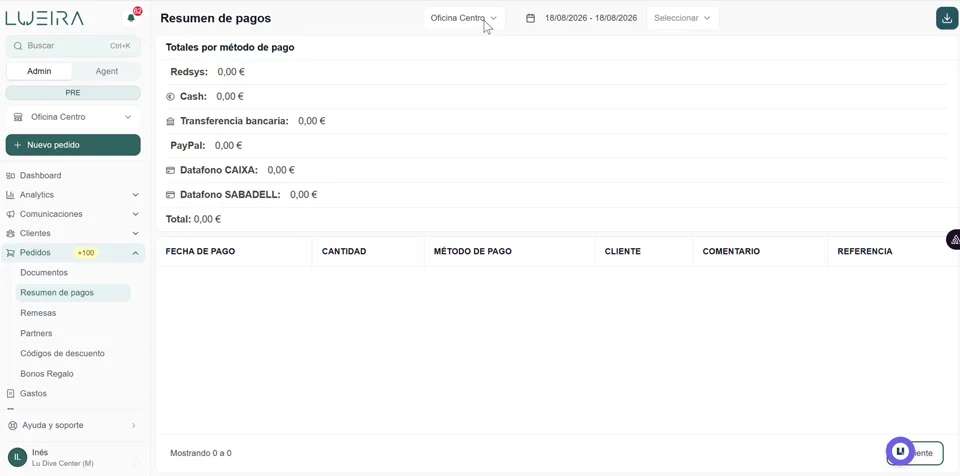
In Orders > Payment summary you choose the location and the period (for example Today or a date range). At the top you see the total by payment method (for example Redsys, Cash, Transfer and POS terminal) and below it each payment with date, amount, method, customer, comment and reference. The download icon is at the top right.
⚠️ With very long periods (several months) the summary may be slow or keep loading. Download by month or by fortnight. Check with support if it keeps failing: we have not been able to reproduce it with test data.
 Resumen de pagos
3. Invoices and other documents
In Orders > Documents you have the list of invoices, tickets, quotes and proformas. To download all the invoices for a period as PDFs, follow Quarterly close for your accountant. From a specific order, in the Documents window, you can use Issue and download or Print.
4. Other lists
Lists such as Orders show a download icon next to the Filters button. For the customers CSV, check with support for the exact screen: we have not verified it.
📍 Do not confuse Orders (the booking) with Documents (the invoices and tickets issued): each has its own download. Ski passes do not yet appear in the orders download, and the payment summary does not break down by item type or by VAT (known issue).
What to do if…
The download button does not appear: ask an administrator for the permission in section 1.
The payment summary keeps loading: shorten the period (by month or by fortnight).
I can't find the invoices: they are in Orders > Documents, not in Orders.
Related guides
Getting the sales of physical products (Sales) for a period
If you sell physical products (the Sales module) and want to know what has been sold in a period, there are two ways. Neither lets you filter by a specific product or category, so the usual approach is to combine them with a filter in your spreadsheet.
Option 1: Sales > Statistics (figures by product)
Go to Sales > Statistics and choose the period (for example, the current year).
If you need to, filter by location and by sales channel (Admin, Online store, Marketplace).
In the Best-selling products table you will see the amount and the units of each product. With the table's download button you can get it as CSV or Markdown.
For the detail of one product, open its page in Sales > Products and click View statistics: you will see its units, its revenue and the sales by variation.
Option 2: Orders download (one row per order)
Go to Orders, click Filters and, under Types, choose Sales. Set Creation date from and to to the period you want.
Click the download icon next to Filters. The CSV respects the filters you have set.
In the CSV, the Shop column is the order's Sales amount and the Products column lists the names of what was sold. To keep only one product (for example, a brand or a line), filter that column in Excel.
⚠️ The Orders download is per order, not per line: if an order mixes Sales products with other things (classes, rental), the Shop column adds up only the Sales part but does not split it among the products in the order. For figures by product use Option 1.
What does not exist today
There is no filter by Sales product or category in Orders or in Sales > Statistics.
There is no "sold lines" download for Sales with one row per product sold and date.
If you need that list often, tell support: we log it as a request.
Related guides
- Orders navigationView the status of all your orders, invoices or payments
- How to create ordersWe show you how to create orders and add every type of product to them.
- Creating a lesson booking from the admin: several days, a second teacher and line priceHow to create a lesson order from the admin: add private or group sessions, book several days in a row, add a second teacher without losing the charge for the second lesson and change the price of a line.
- Order statusesThis section gives you an overview of the status an order is in
- Order lifecycle: statuses, payment and confirmationA complete explanation of the order and payment statuses in Lueira, how they relate to each other, and when an order is confirmed automatically or manually depending on the payment method.
- Deleted and cancelled orders: the difference, how to see them and how to ask for them to be restoredThe difference between cancelling and deleting an order, where to find cancelled orders, how to find out who changed or deleted an order with Change tracking, and what to do so support can restore an order deleted by mistake.