

Generate documents for several orders at once
Create invoices or other documents for several orders in one go, as drafts or issued, and issue several drafts at once.
On this page
From any order list you can create the invoice (or another document) of many orders in one go, and from the documents list you can issue several drafts at once. It works in Orders, on the orders tab of a partner and on the orders of a customer.
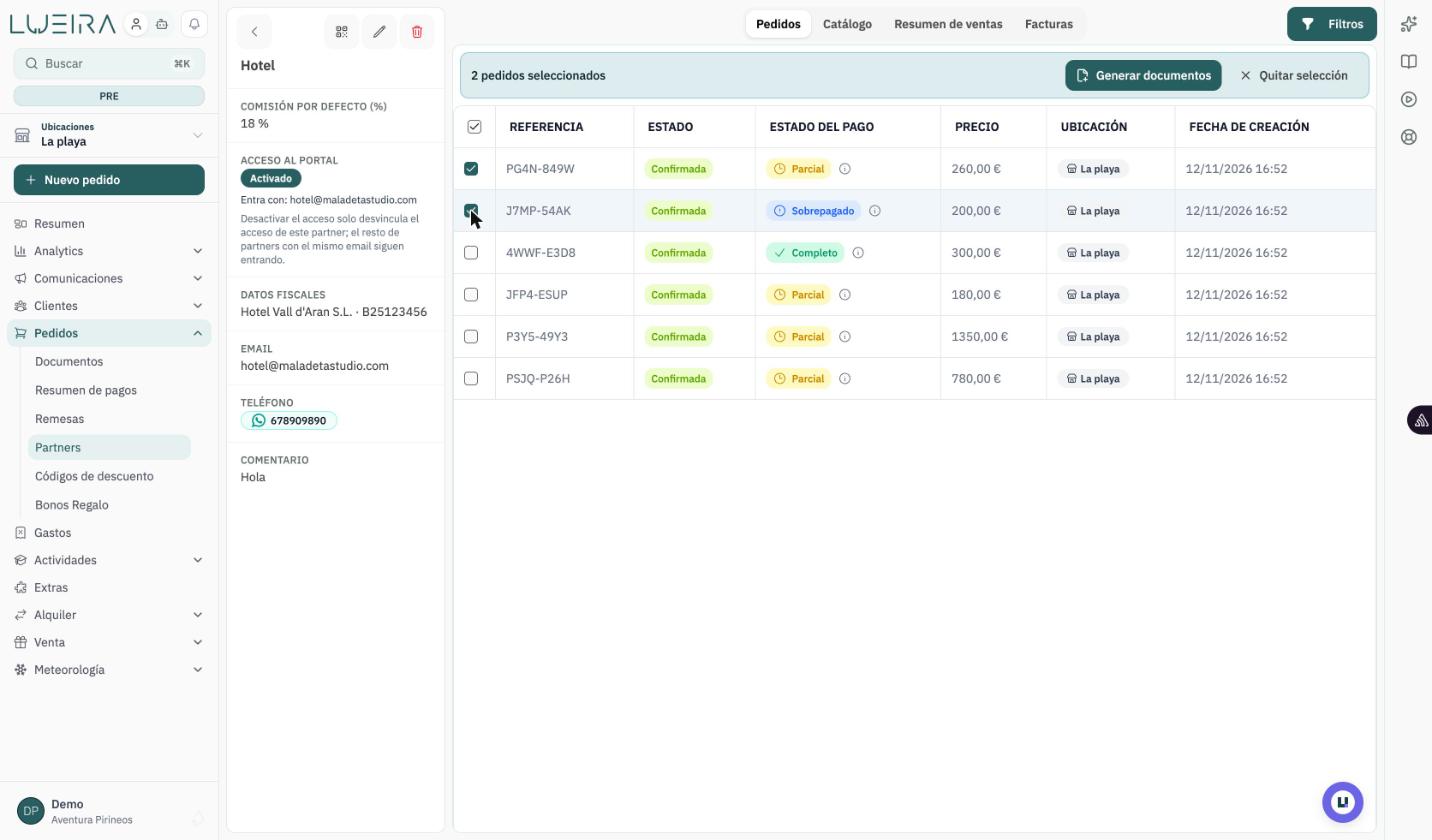
Select the orders
- Tick each order, or the header checkbox to select the ones on the page.
- If you applied filters, click Select all N orders of the filter to include every match.
- Click Generate documents in the bar that appears. Clear selection starts over.
Set up the generation
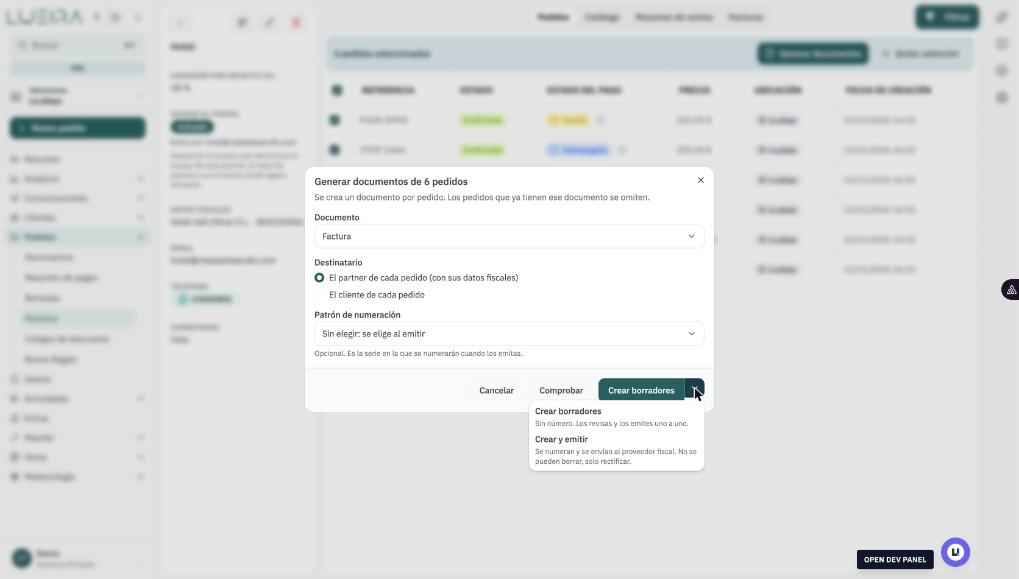
- Document: invoice, proforma or budget.
- Recipient: Each order's partner (with its tax details) or Each order's customer.
- Numbering series: the series the documents are numbered in. It is required when issuing. For drafts it is optional: it is the series they will be numbered in when you issue them.
Drafts or issued: the dropdown button
The button at the bottom right is a split button. By default it creates drafts (no number, you review and issue them one by one). Click the arrow to choose Create and issue: the documents are numbered and sent to the fiscal provider, and they cannot be deleted afterwards, only rectified. When you choose it, the dialog asks for the series and shows the warning below.
Check before creating
Click Check: Lueira tells you how many orders are ready, how many are skipped (because they already have that document) and which have problems, for instance incomplete tax details. Nothing has been created yet.
Create the documents
Click Create drafts or Issue documents. You see the progress and a summary at the end. Download PDFs gives you all the PDFs in a zip.
Important: if an order had extras charged later in the shop, they will appear on its invoice too. That is why we recommend starting with drafts and checking the selection before issuing.
Issue several drafts at once
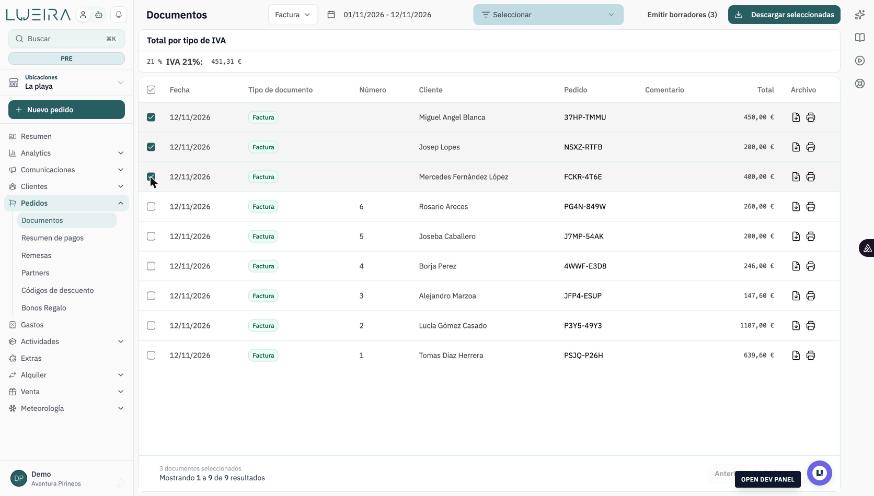
Once you have drafts, you can issue them all together from Orders → Documents.
- Tick the drafts in the list (drafts are the ones that have no number yet).
- Click Issue drafts (N) at the top right.
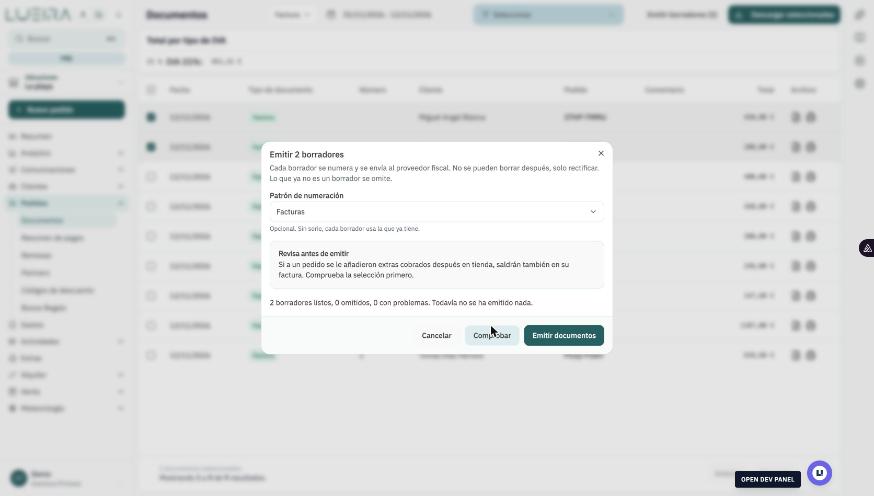
- Choose the series. It is optional: with none, each draft uses the series it already has. If a draft has no series and you pick none, Lueira tells you when you check.
- Click Check to see how many are ready and which have problems. Nothing has been issued yet.
- Click Issue documents. Each draft is numbered and sent to the fiscal provider.
Anything that is no longer a draft (because it was issued or voided) is skipped, so you can repeat the operation without risk of issuing twice. They are issued 25 at a time and you see the result of each document; if one fails, the others carry on.
Limits
Up to 25 documents are processed per batch; if you select more, Lueira works through them in blocks.
Related guides
- Orders navigationView the status of all your orders, invoices or payments
- How to create ordersWe show you how to create orders and add every type of product to them.
- Creating a lesson booking from the admin: several days, a second teacher and line priceHow to create a lesson order from the admin: add private or group sessions, book several days in a row, add a second teacher without losing the charge for the second lesson and change the price of a line.
- Order statusesThis section gives you an overview of the status an order is in
- Order lifecycle: statuses, payment and confirmationA complete explanation of the order and payment statuses in Lueira, how they relate to each other, and when an order is confirmed automatically or manually depending on the payment method.
- Deleted and cancelled orders: the difference, how to see them and how to ask for them to be restoredThe difference between cancelling and deleting an order, where to find cancelled orders, how to find out who changed or deleted an order with Change tracking, and what to do so support can restore an order deleted by mistake.