

App settings, notifications and account: the Me tab
What is in the Me tab of the app: your profile, notifications, calendar settings, changing school and logging out.
On this page
The Me tab
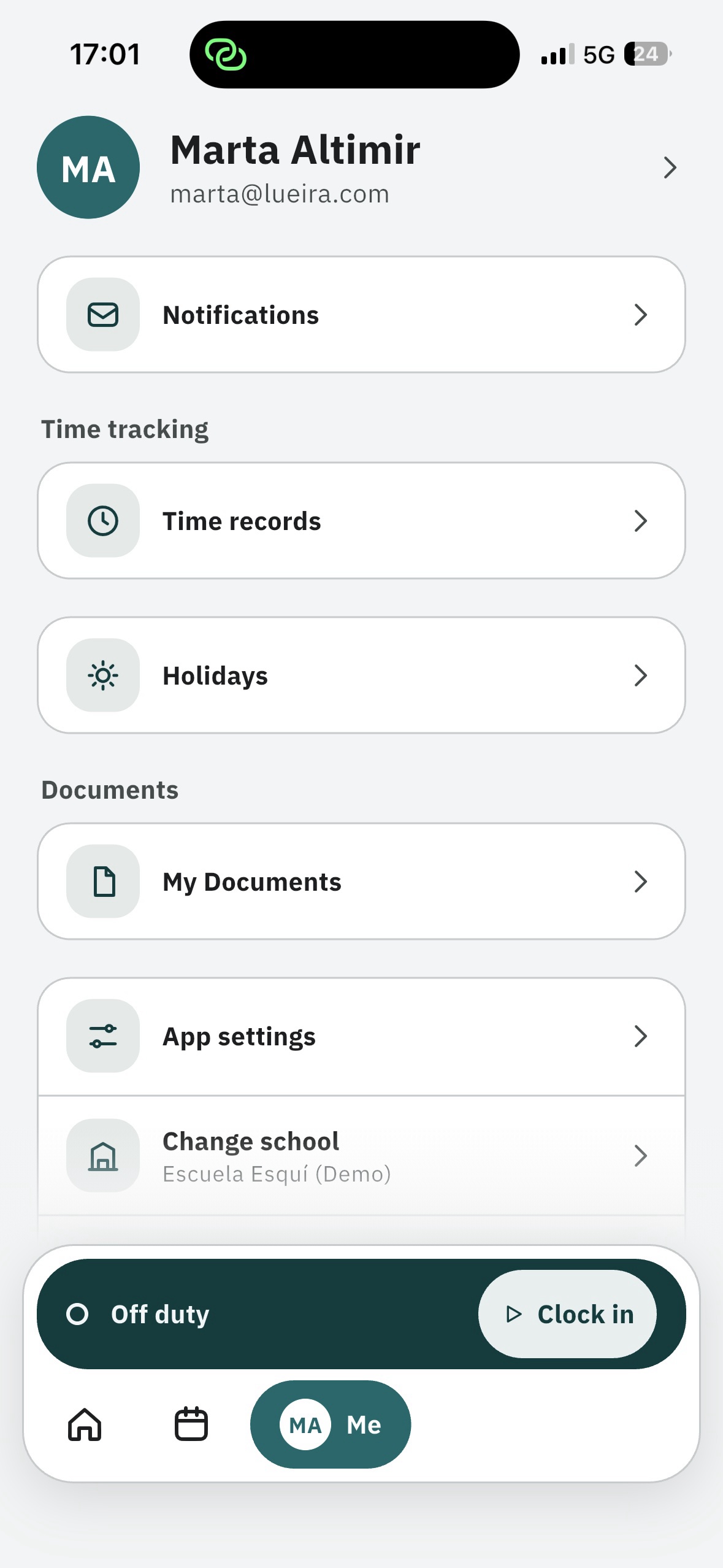
The Me tab brings together your account and everything that is not part of your day-to-day work. Some rows only appear if your school uses that feature.
What you will find
- Your name and email (at the top): tap it to open your Profile with email, phone number and school, and the Log out button.
- Notifications, with a counter of the ones you have not read.
- Time tracking: Time records, Time log privacy, Monthly summary, Change requests and Holidays.
- Documents: My Documents and My contract.
- Assistant settings (if your school has it), App settings, Change school (if you have more than one) and Log out.
Notifications
Inside the app, Me → Notifications keeps your alerts (for example, that your holiday request has been approved or denied).
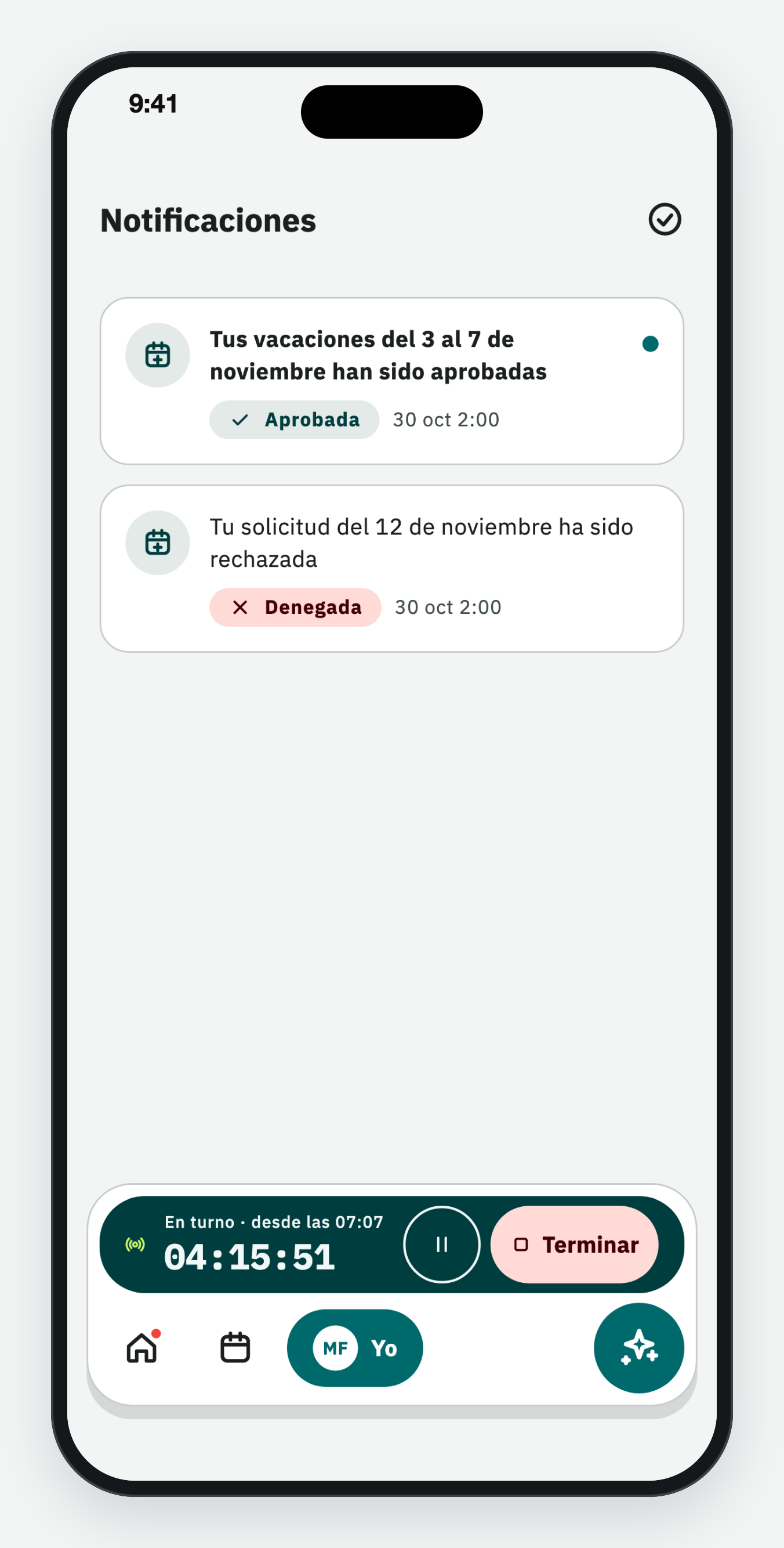
- Unread alerts are in bold and have a dot.
- Tapping one marks it as read; if it is about holidays, it opens your requests.
- Mark all as read (top right) marks them all. Pull down to refresh.
The app also sends alerts to your phone when a new lesson is assigned to you and when one is about to start; tapping them opens that lesson. If they don't reach you, check that Lueira notifications are turned on in your phone's settings.
App settings
In Me → App settings → Calendar:
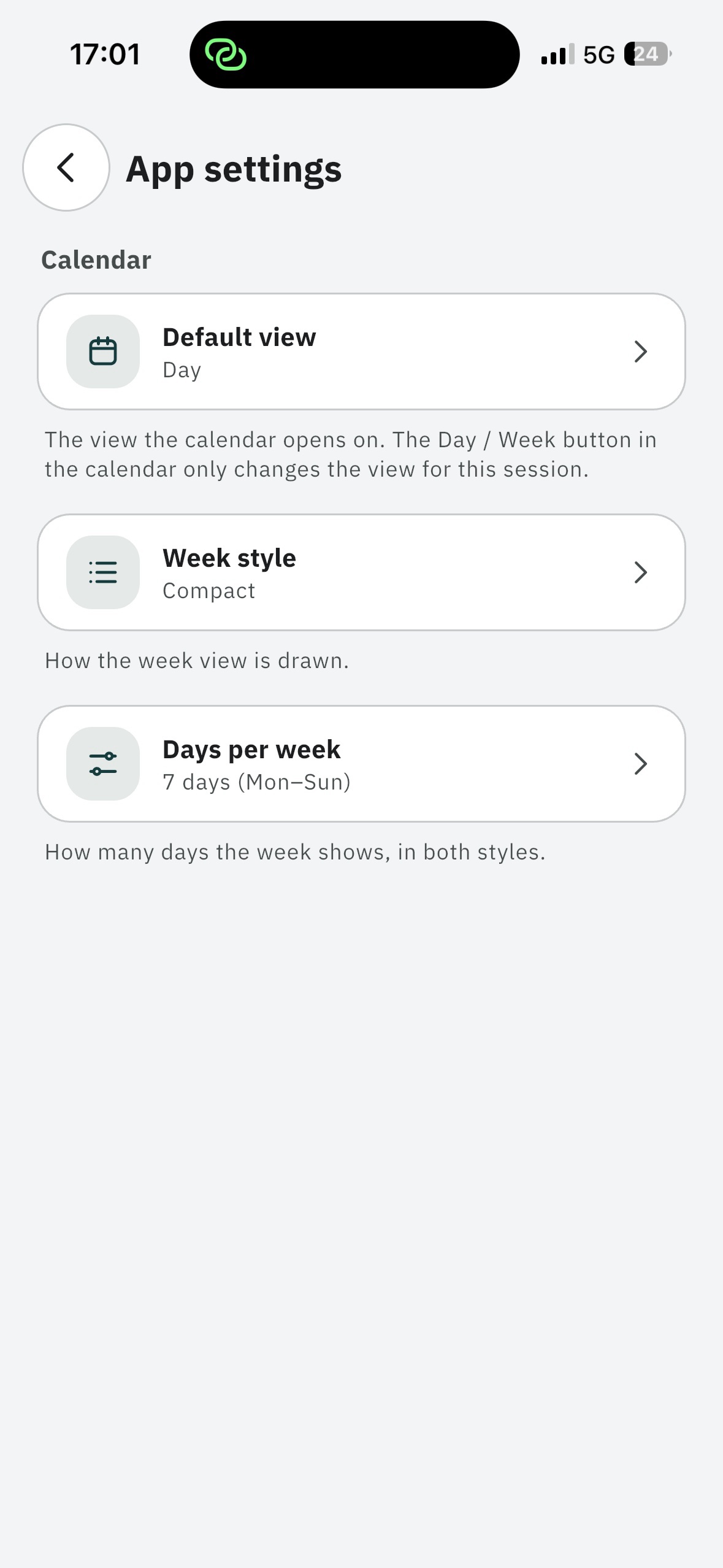
- Default view: Day or Week.
- Week style: Compact (narrow columns with coloured blocks) or Slideable (wide columns with all the details).
- Days per week: 5 (Mon–Fri), 6 (Mon–Sat) or 7 (Mon–Sun).
These settings are only saved on your phone. The language and light or dark mode follow those of your phone: the app is available in Spanish, Catalan, English, French, German, Basque, Italian and Portuguese.
Change school
If you work for more than one school, Me → Change school lets you choose another one. You cannot switch while a workday is in progress: end it first ("You cannot change schools with an active time log. Please close it first.").
Log out
- Tap Log out in Me or in your Profile.
- It won't let you while a workday is in progress: close it first.
- The app tries to send whatever is pending. If something is left unsent, it warns you ("You have … record that is not synced. If you log out now it will be lost") and you can Cancel or choose Log out anyway.
When you log back in you will need a new code sent to your email: the app has no password.
If the app asks you to update
"Update required": there is a new version and the one you have can no longer be used. Tap Update now to go to the store.
Related guides
Related guides
- App assistant: what it can do and how to confirm its proposalsWhat the Lueira app assistant can look up and prepare, how to ask it questions, how to confirm or cancel what it proposes and how to adjust its style.
- App for instructors or guidesComplete guide to the Lueira Team app for instructors and guides: classes, attendance, feedback, clocking in, holidays, documents and contract.
- App Home: your day at a glanceWhat the Lueira app home screen shows: your current lesson, the next ones, the ones you have already done, the day off and the bottom bar with clock-in.
- Calendar in the app: day and week viewHow to check your lessons by day or by week in the app, what the colors mean and how to change the default view.
- Create feedback from the app: comment, awards, photos and assistant draftHow to leave feedback for a participant or for the whole session from the app, give awards, add photos, use the assistant draft and share it.
- Crew member appHow to use the Lueira app as a crew member: check your boat departures, manage participants and forms, and manage your documents.