

Create feedback from the app: comment, awards, photos and assistant draft
How to leave feedback for a participant or for the whole session from the app, give awards, add photos, use the assistant draft and share it.
On this page
Create feedback from the app
After the lesson you can leave feedback for one participant, or for everyone at once, with a comment, awards (medals) and photos or video. Afterwards it can be shared with the customer.
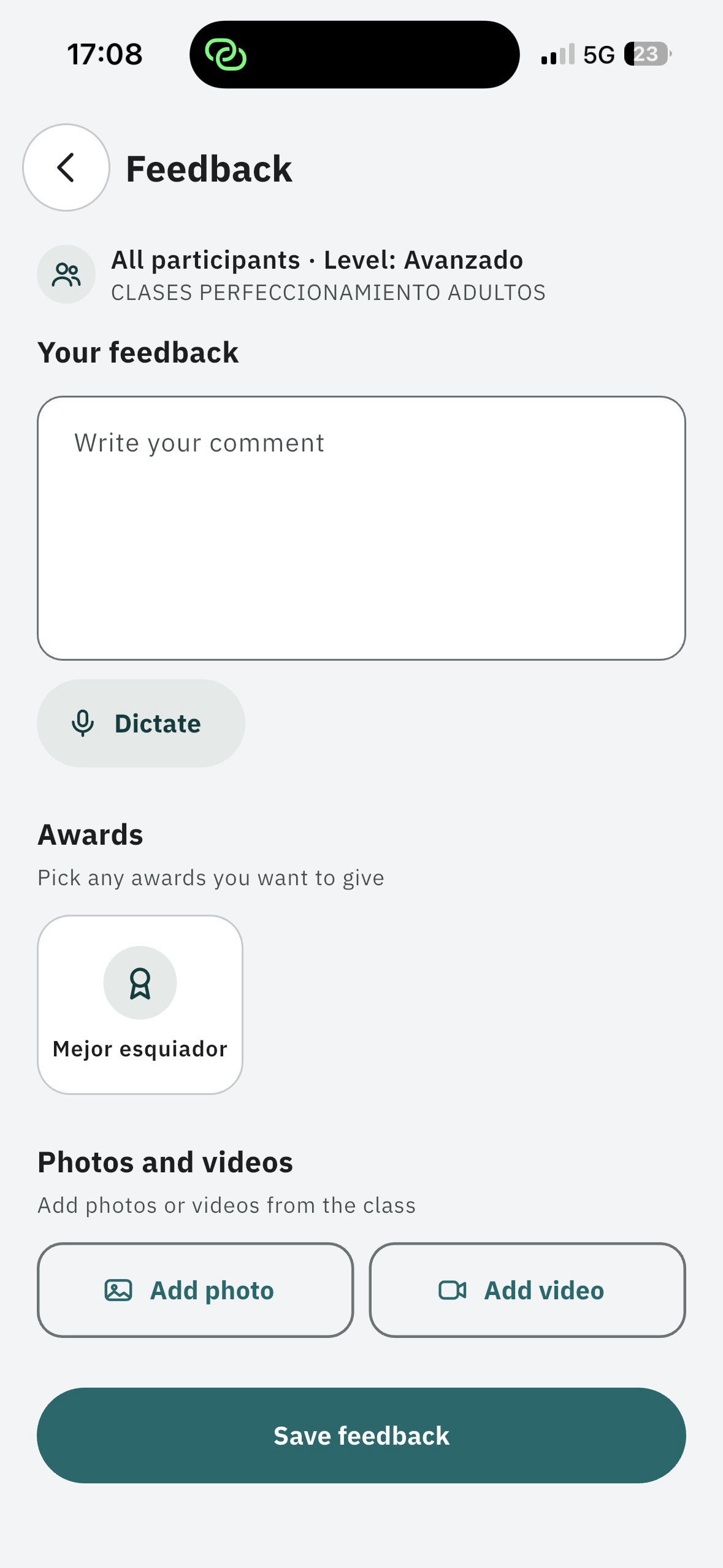
Creating the feedback
- Open the lesson (Lesson details).
- Tap the medal button on the participant's row. If the feedback is for the whole session, tap Create feedback below the list.
- If the participant has no feedback yet, choose: Create feedback for this participant or Create feedback for all session participants.
- Write your comment in Your feedback. You can also tap Dictate and speak.
- In Awards, choose a medal if you want to give one (it only appears if your school has awards created).
- In Photos and videos, add images or videos from the lesson.
- Tap Save feedback.
While the photos or video are uploading, the button shows the percentage. If you leave without saving, the app asks "Discard changes?".
Writing it with the assistant (draft)
If your school has the assistant enabled, above the comment you will see Write it with the assistant:
- Jot down (or dictate) what happened in class with that student.
- Tap Generate draft.
- Review the Feedback draft: you can switch between the Main text and other tones (Warm, Professional, Playful, Concise), edit it and see the suggested awards.
- Tap Use this text. The form is filled in; the draft is not sent to anyone until you save the feedback yourself.
If the comment already has text, the button becomes Rewrite with the assistant. Feedback written this way is saved marked as written with AI. The draft is only available for one participant, not for the whole session. The tone, length and sign-off are adjusted in Assistant settings.
Sharing the feedback
If your school allows sharing it, when you save a new feedback Share feedback opens (also with the share icon when editing an existing one):
- QR code of the link.
- Copy link.
- Email: only if the participant has an email.
- WhatsApp: only if the participant has a phone number.
Editing or deleting
Tap the participant's medal again: the feedback opens in Editing mode. From the menu you can Delete feedback (with confirmation).
If you cannot create the feedback
- "You can't give feedback to this participant": the booking has no associated relative. Ask your school to turn the participant into a relative.
- You need a connection when saving: the feedback is not saved without internet.
Related guides
- Medals + Feedback (for administrators: create awards and see the feedback in Admin)
- App assistant
Related guides
- App assistant: what it can do and how to confirm its proposalsWhat the Lueira app assistant can look up and prepare, how to ask it questions, how to confirm or cancel what it proposes and how to adjust its style.
- App for instructors or guidesComplete guide to the Lueira Team app for instructors and guides: classes, attendance, feedback, clocking in, holidays, documents and contract.
- App Home: your day at a glanceWhat the Lueira app home screen shows: your current lesson, the next ones, the ones you have already done, the day off and the bottom bar with clock-in.
- App settings, notifications and account: the Me tabWhat is in the Me tab of the app: your profile, notifications, calendar settings, changing school and logging out.
- Calendar in the app: day and week viewHow to check your lessons by day or by week in the app, what the colors mean and how to change the default view.
- Crew member appHow to use the Lueira app as a crew member: check your boat departures, manage participants and forms, and manage your documents.