

App Home: your day at a glance
What the Lueira app home screen shows: your current lesson, the next ones, the ones you have already done, the day off and the bottom bar with clock-in.
On this page
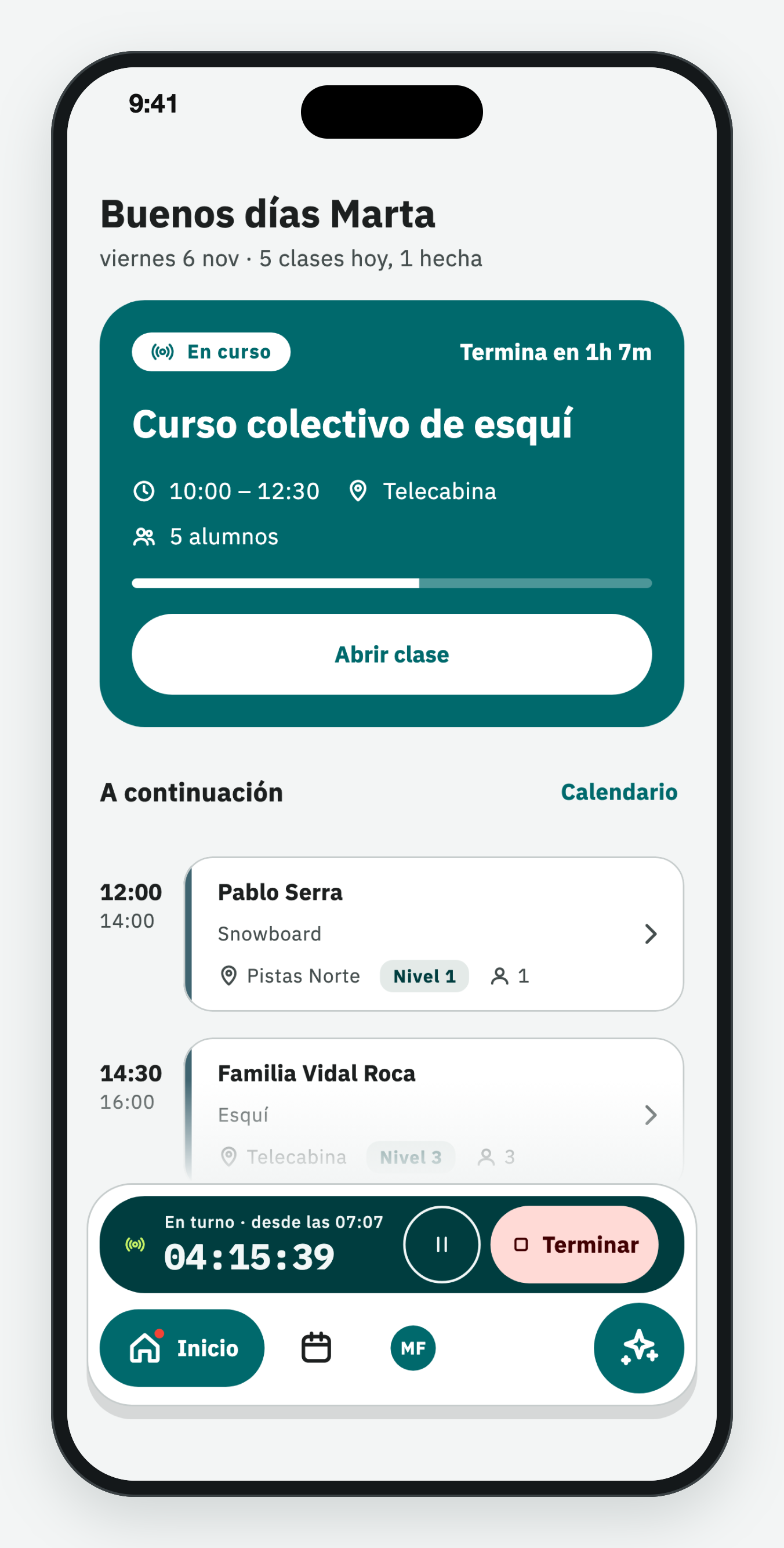
When you open the app you land on Home. It is your day at a glance: the lesson happening now, the ones coming up and the ones you have already done.
What you see, from top to bottom
- Greeting and day summary: “Good morning, …” and, below it, the date with the number of lessons today and how many you have done (for example “5 lessons today, 1 done”). If the assistant is enabled at your school, you will see the Ask Lueira button on the right.
- Main card: if you have a lesson in progress it says In progress, how long is left until it ends (“Ends in 1h 16m”) and a progress bar; the Open lesson button opens its details. If none is in progress, it shows the next one with Next, “Starts in …” and the View participants button. It also shows the time, the place and the number of students.
- Up next (or Later, if nothing is in progress now): the lessons left today, with time, activity, place, level and number of people. Tap one to open it. The Calendar link takes you to the calendar tab.
- Done today: the lessons that have already finished, folded into a list you can open.
To refresh the screen, pull it down.
If you have no lessons today
You will see a Day off card with “No classes today”. If you have lessons tomorrow, they appear right below under Tomorrow; if not, the card adds “No classes tomorrow”.
The bottom bar
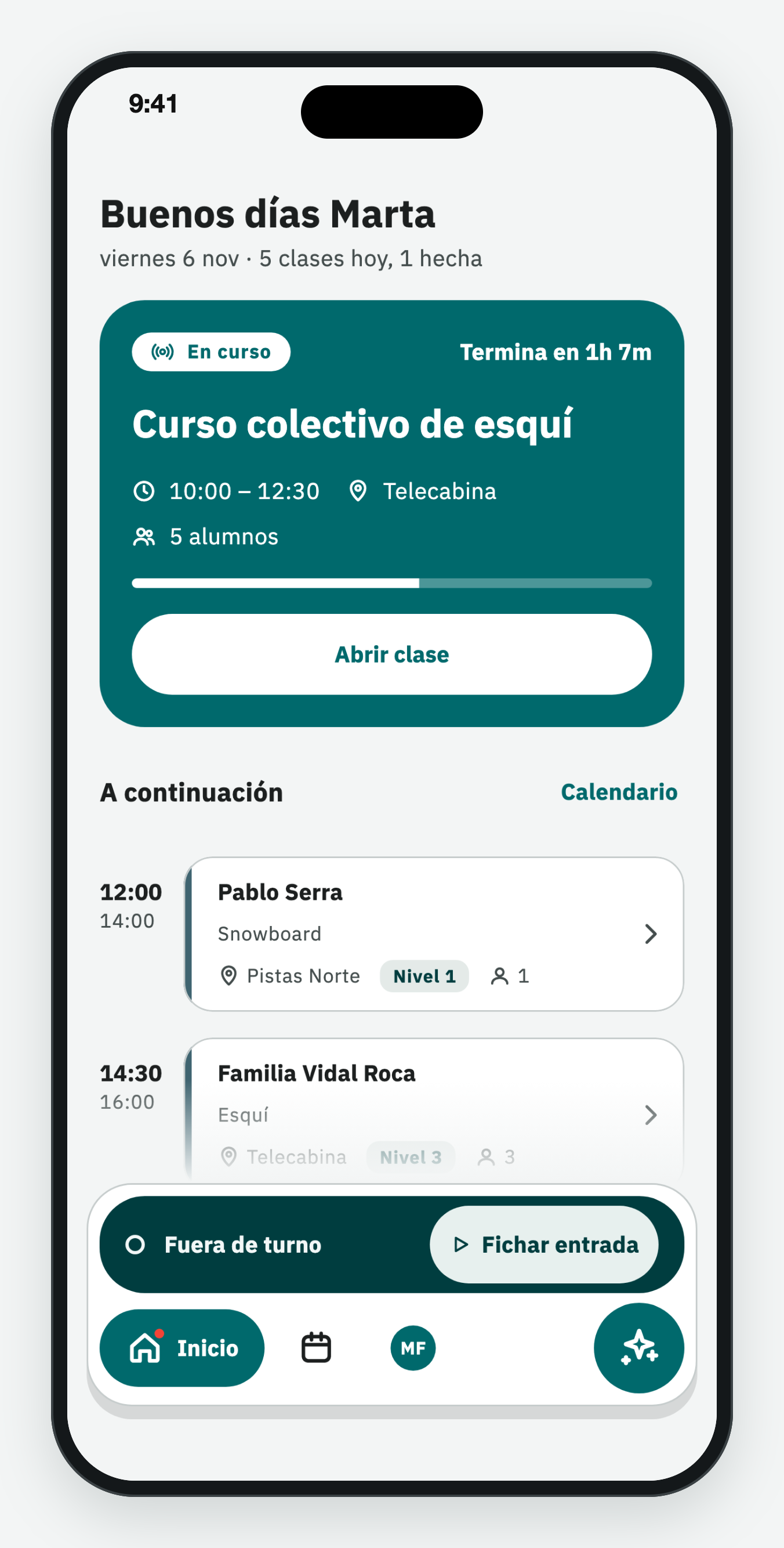
The bottom bar is always at hand and has two parts:
- Clock-in (top): shows “Off duty” with the Clock in button, or your current shift with a timer. How to use it is explained in Clocking in and out in the app. If your school does not use time tracking, it does not appear.
- Tabs (bottom): Home, Calendar and Me. Only the tab you are on shows its name. On the right, the assistant button (if your school has it enabled).
If you work as a time-tracking employee (you do not teach lessons), you have no Calendar tab and your Home is different: see below.
Home for an employee (no lessons)
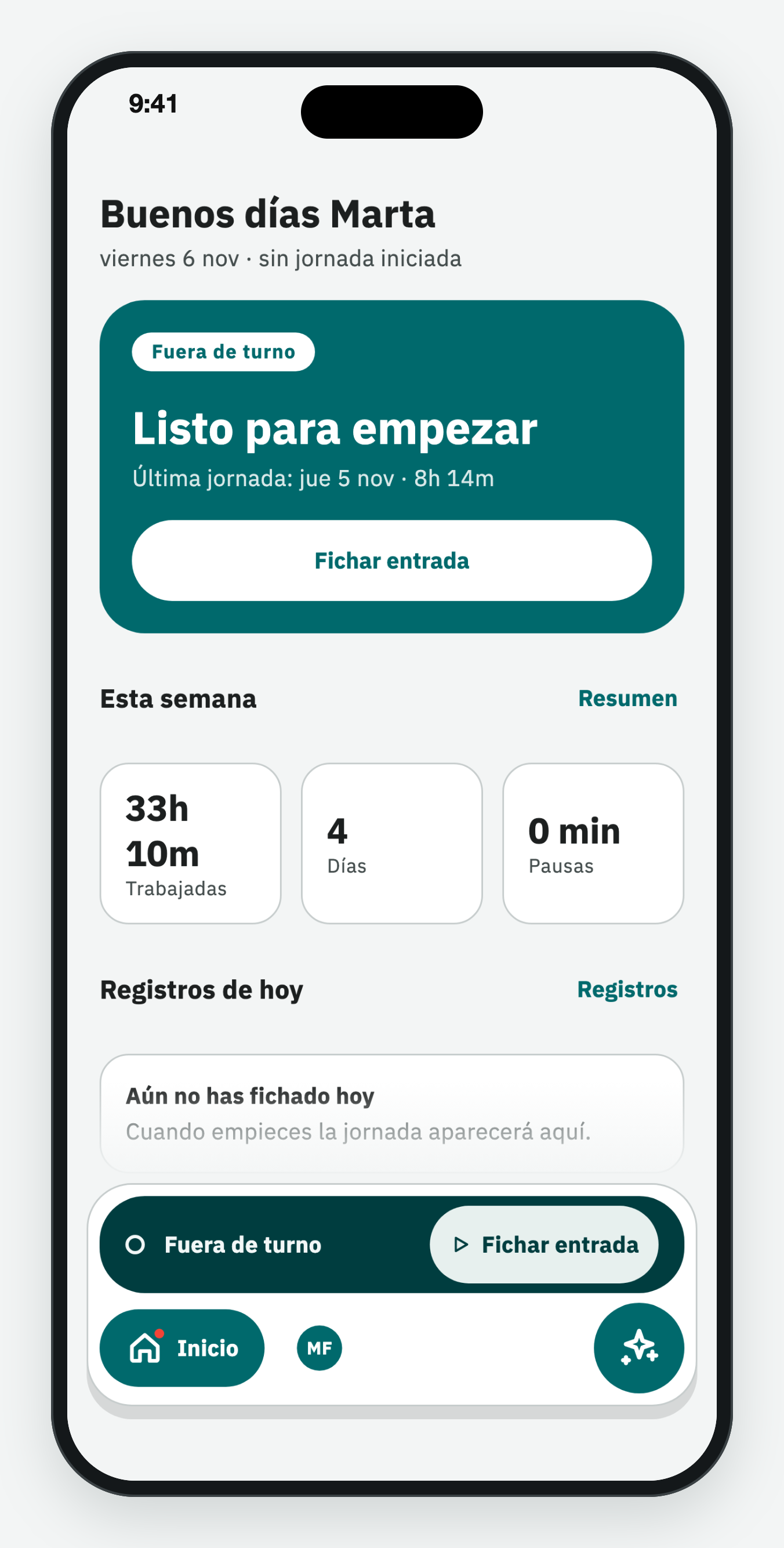
- A card with your shift: “Ready to start” and your last shift, or the time worked today if you have already clocked in.
- This week: hours worked, days and breaks. The Summary link opens the monthly summary.
- Today's records: your shift and your breaks today. The Records link opens the list of time records.
- If your school does not have time tracking enabled, you will see “Time tracking isn't available”.
On a tablet or an iPhone Duo
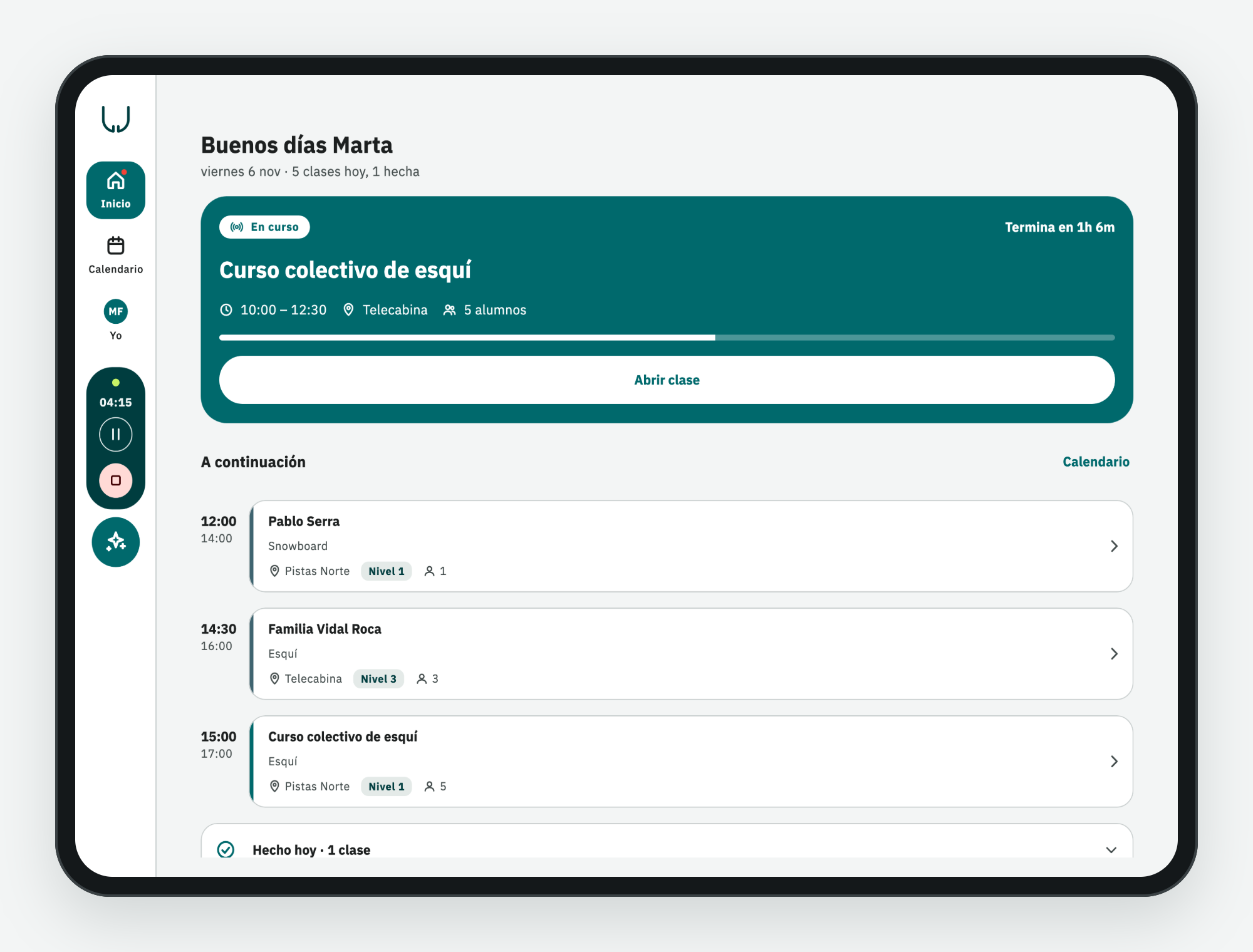
On large screens the bottom bar moves to a left side panel with the tabs, the clock-in and the assistant button, and lessons open in a panel next to the list. On the iPhone Duo, the side panel is a narrow strip with icons only.
Related guides
Related guides
- App assistant: what it can do and how to confirm its proposalsWhat the Lueira app assistant can look up and prepare, how to ask it questions, how to confirm or cancel what it proposes and how to adjust its style.
- App for instructors or guidesComplete guide to the Lueira Team app for instructors and guides: classes, attendance, feedback, clocking in, holidays, documents and contract.
- App settings, notifications and account: the Me tabWhat is in the Me tab of the app: your profile, notifications, calendar settings, changing school and logging out.
- Calendar in the app: day and week viewHow to check your lessons by day or by week in the app, what the colors mean and how to change the default view.
- Create feedback from the app: comment, awards, photos and assistant draftHow to leave feedback for a participant or for the whole session from the app, give awards, add photos, use the assistant draft and share it.
- Crew member appHow to use the Lueira app as a crew member: check your boat departures, manage participants and forms, and manage your documents.