

Monthly hours summary in the app
What the ordinary, extraordinary and complementary hours and the counted breaks in each month's summary mean.
The Monthly summary shows you how many hours you have worked in the month and how they are split.
How to get there
Go to Me → Time tracking → Monthly summary. If you are an employee (no lessons), there is also a Summary link on your Home screen. If you can't see it, update the app to the latest version.
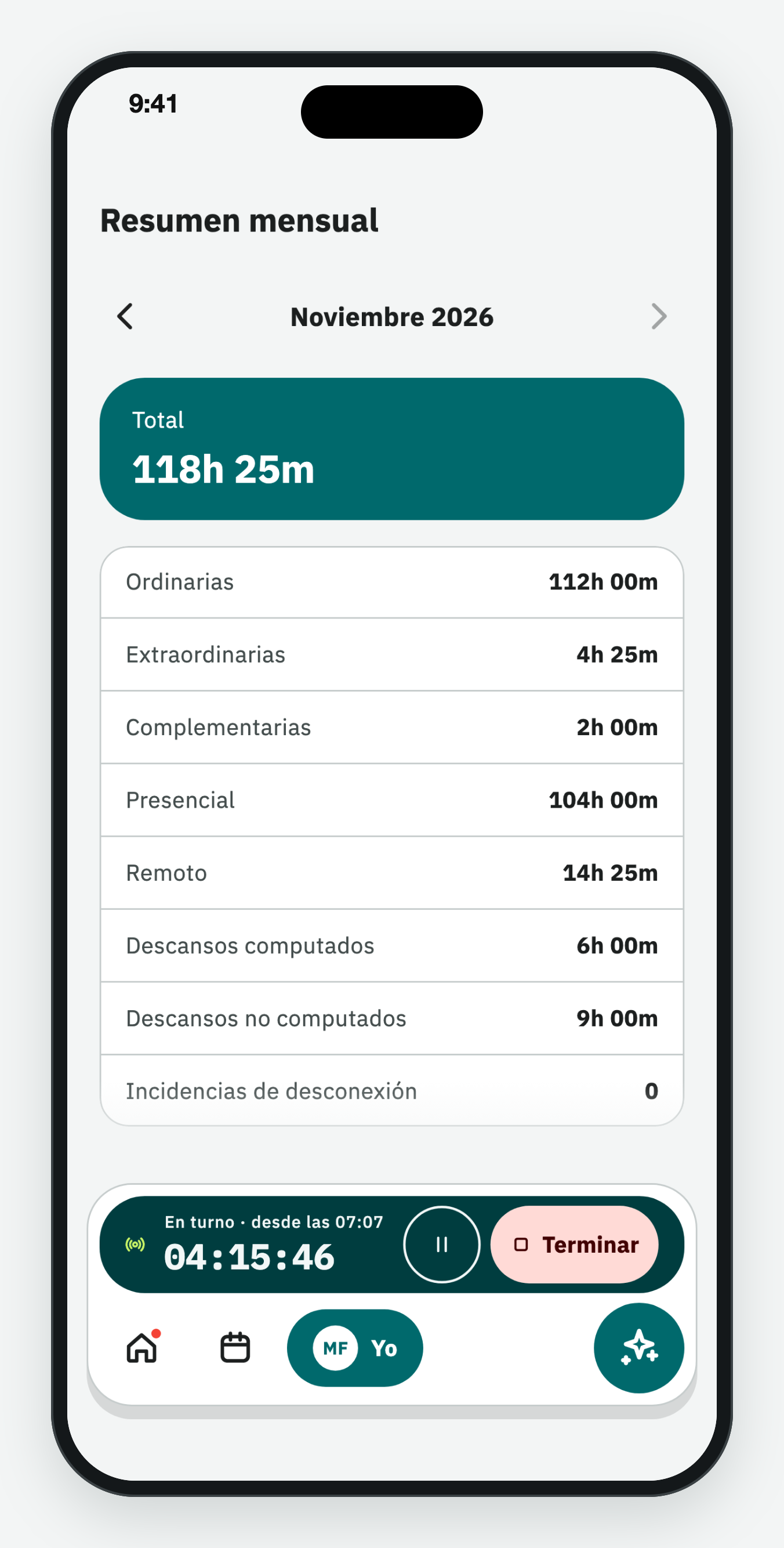
Use the arrows to change month. You can't go beyond the current month. If there is no data, you will see “No data for this month”.
What each figure means
- Total: the hours worked in the month, after subtracting the breaks that don't count as work.
- Ordinary: the hours that fall within the weekly schedule of your contract.
- Extraordinary: the hours outside that schedule, if you work full time.
- Complementary: the hours outside that schedule, if you work part time.
- On-site and Remote: the hours according to the work mode you clocked in with.
- Breaks counted and Breaks not counted: the breaks that count and those that don't count as working time.
- Disconnect breaches: the number of days on which you worked outside your schedule.
Good to know
- If you have no contract on record, all hours count as ordinary. Check your contract in Check your contract in the app.
- A shift that hasn't been closed is not included in the summary until you clock out.
- Minutes are counted in full; seconds are not added.
- Each shift is assigned to the day it started.
- If an administrator or you modify a record, the summary is recalculated.
Related guides
Related guides
- Time Tracking in LueiraIndex of the Time Tracking guides: how to clock in from the app or the shared station and how to manage records, requests, contracts and reports from Admin.
- Activating Time Tracking and who can use itWhat your account needs to have Time Tracking, who can enter the module and why you may not see some sections.
- Time Tracking dashboard in AdminWhich sections the Admin Time Tracking module has and what the summary cards show.
- Worker contracts and schedulesHow to create and edit a worker's contract with their working hours and weekly schedule, and how Lueira uses it to classify hours.
- View all Time Tracking recordsThe centralized view of the whole team's clock-ins: filters by worker and dates, and what each column shows.
- A worker's records: shifts, editing and historyHow to view a worker's shifts, edit a record with its reason and check the change history.