

View your time records in the app
How to check your clock-in history by day, what each shift shows, how to see previous months and how to correct a record.
On this page
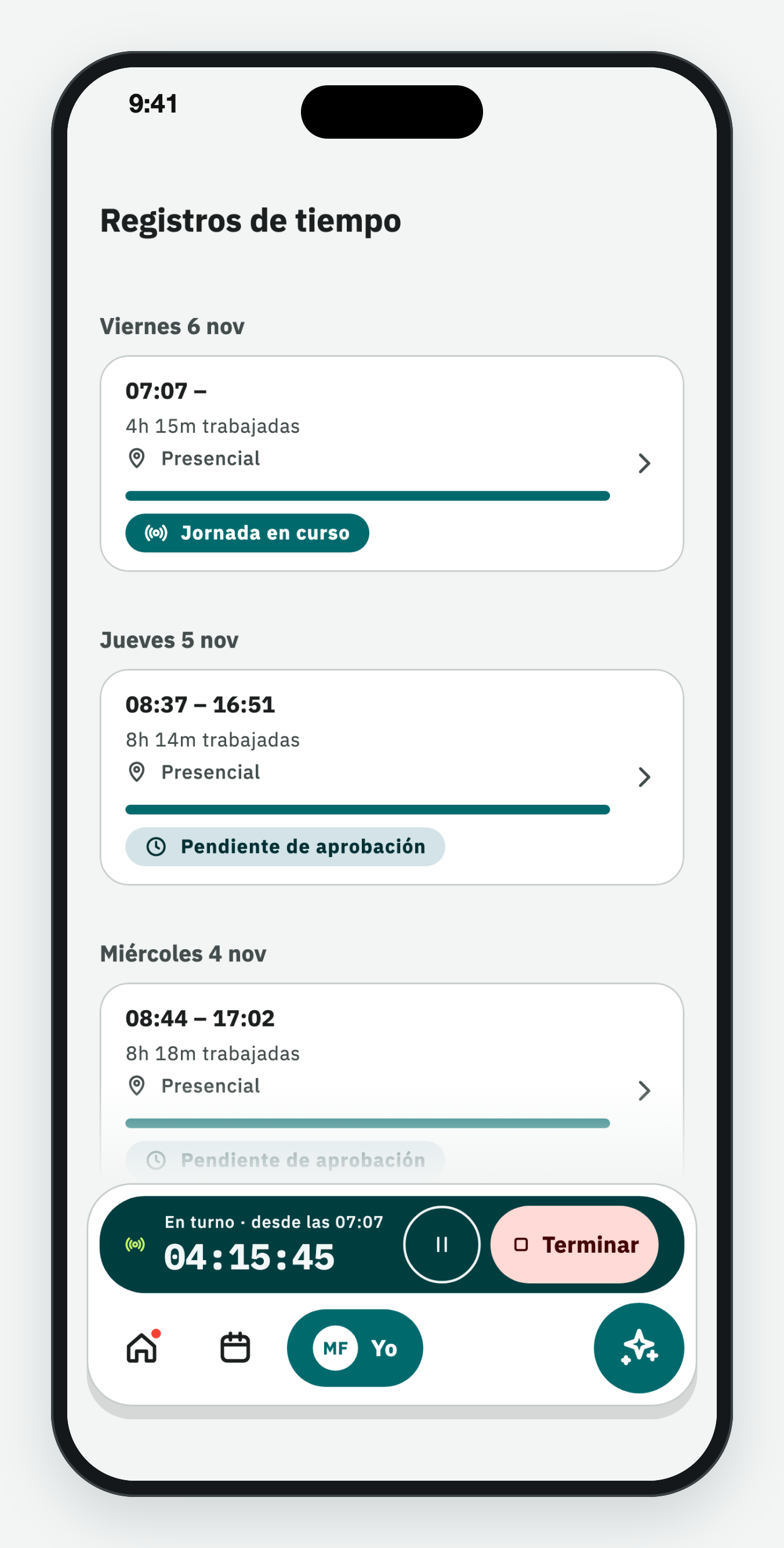
In Time records you see all your clock-ins grouped by day, from the most recent to the oldest.
How to get there
Go to Me → Time tracking → Time records. If you are an employee (no lessons), you can also get in from the Records link on your Home screen.
What you see for each day
Each day has a title (“Thursday Nov 5”) and, below it, its shifts. Each shift shows:
- The start and end time (for example “08:37 – 16:51”).
- The time worked and, if there were breaks, the break time (“8h 14m worked · 40m break”).
- The work mode: On-site or Remote, and a colored bar showing how the time is split.
- A shift that hasn't been closed appears as “Shift in progress”.
- If you have requested a change and it hasn't been resolved yet, “Awaiting approval”.
See the detail of a shift
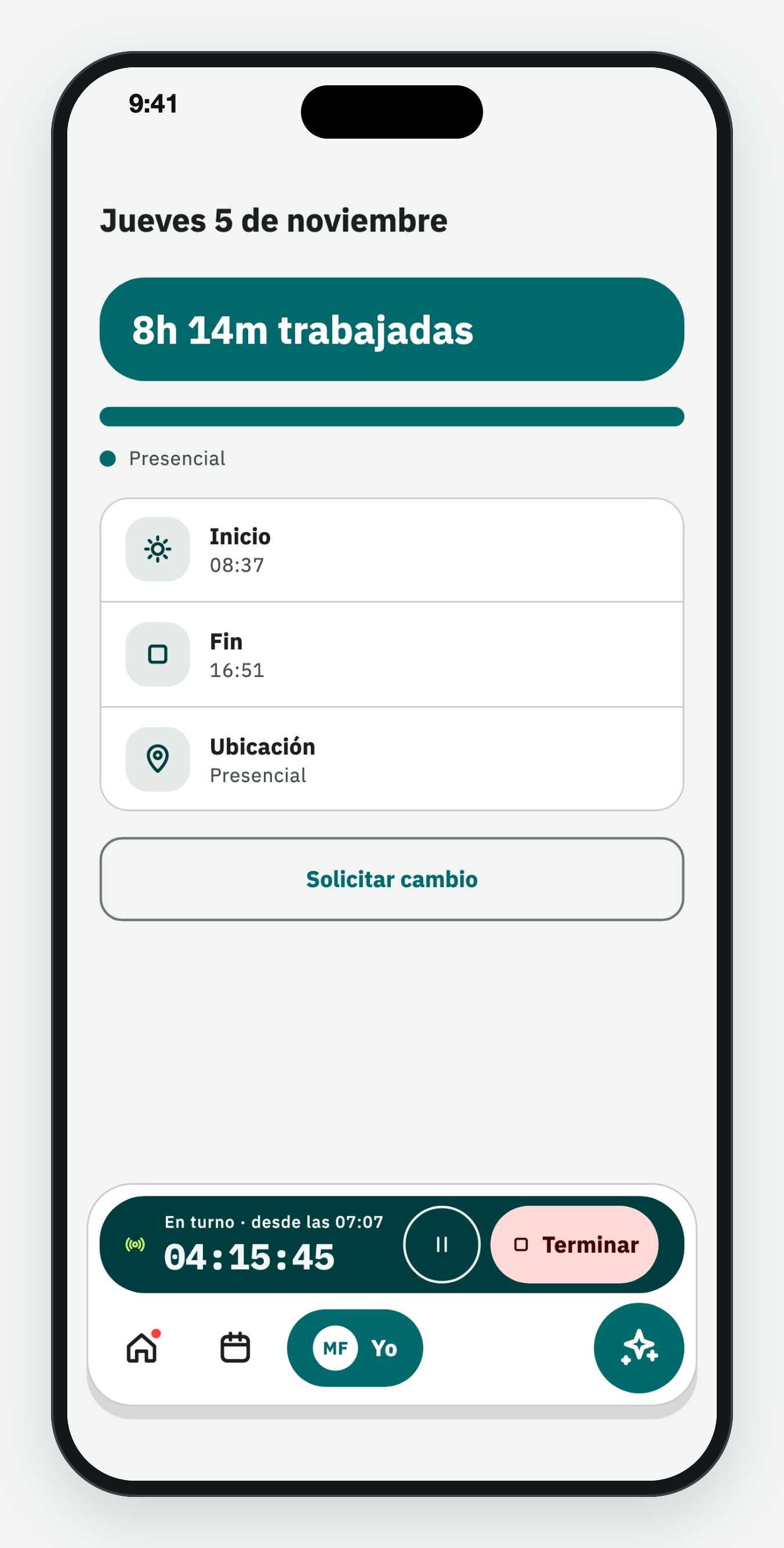
Tap a shift. The detail shows the time worked and break time, Start (with “before …” if it was modified), End, Location and the list of Breaks with their type and duration.
Correct a record
At the bottom of the detail is the Request change button. Each break also has a pencil icon to correct it. The steps are in Request a change to a time record.
See previous months
The list has no filters or date picker, and the app doesn't limit how far back you can go. Scroll down: when you reach the end, more records are loaded (15 at a time). Pull down from the top to refresh.
To see the totals for a specific month use the Monthly summary, where you change month with the arrows: Monthly hours summary in the app. If you need the detail of a period or want to download the record, your company's administration can do it from the dashboard.
If you don't see “Time records”
The row only appears if your company has Time Tracking turned on. See I can't clock in: fixes for common problems.
Related guides
Related guides
- Time Tracking in LueiraIndex of the Time Tracking guides: how to clock in from the app or the shared station and how to manage records, requests, contracts and reports from Admin.
- Activating Time Tracking and who can use itWhat your account needs to have Time Tracking, who can enter the module and why you may not see some sections.
- Time Tracking dashboard in AdminWhich sections the Admin Time Tracking module has and what the summary cards show.
- Worker contracts and schedulesHow to create and edit a worker's contract with their working hours and weekly schedule, and how Lueira uses it to classify hours.
- View all Time Tracking recordsThe centralized view of the whole team's clock-ins: filters by worker and dates, and what each column shows.
- A worker's records: shifts, editing and historyHow to view a worker's shifts, edit a record with its reason and check the change history.