

Clock in and out in the app
How to start and end your shift from the bar at the bottom of the app: work mode, timer, lock screen and what happens offline.
On this page
Clocking in is always at hand, in the bar at the bottom of the app. If you can't see it, check I can't clock in: fixes for common problems.
Start your shift
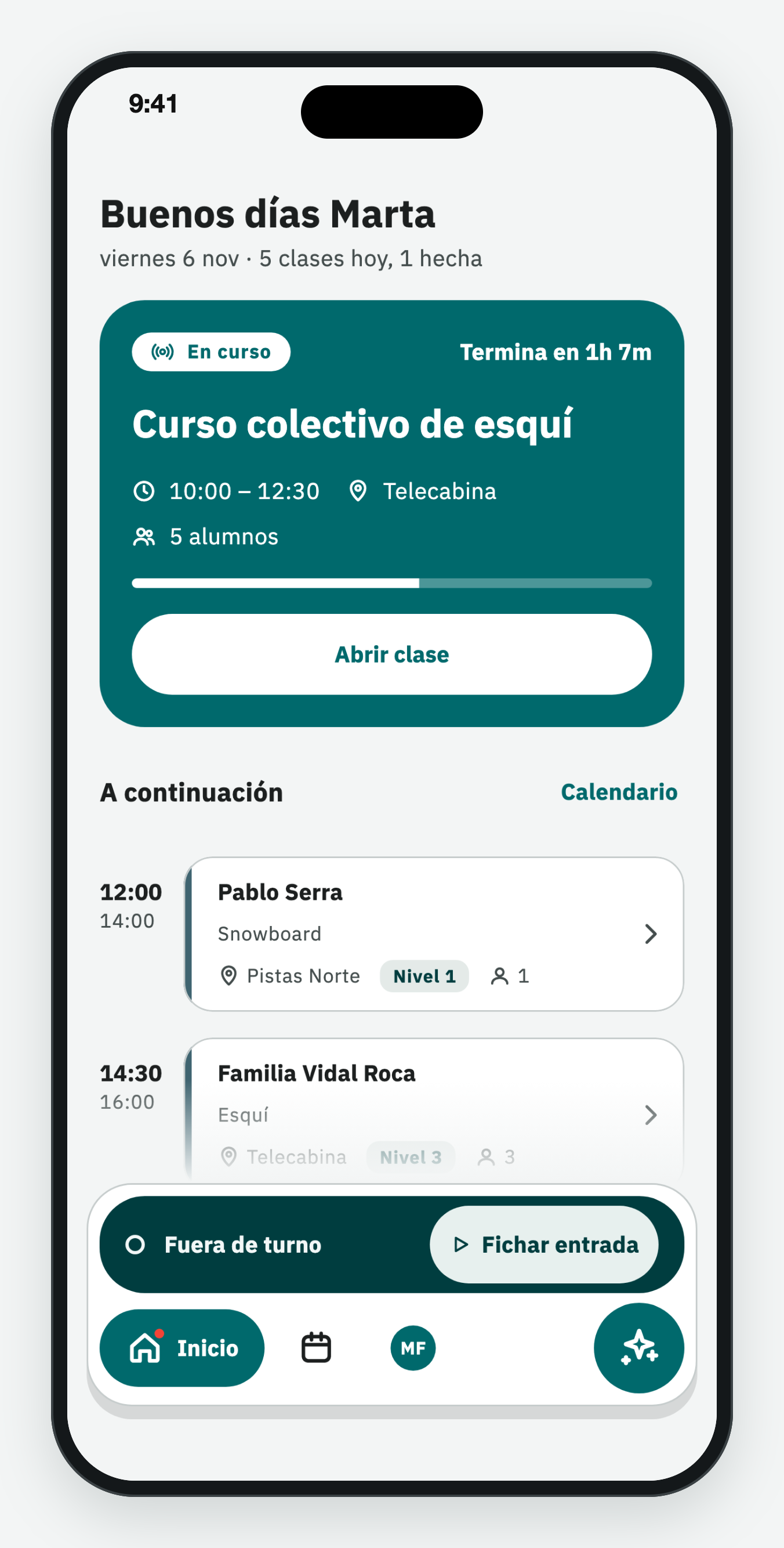
- In the bottom bar, with “Off duty”, tap Clock in.
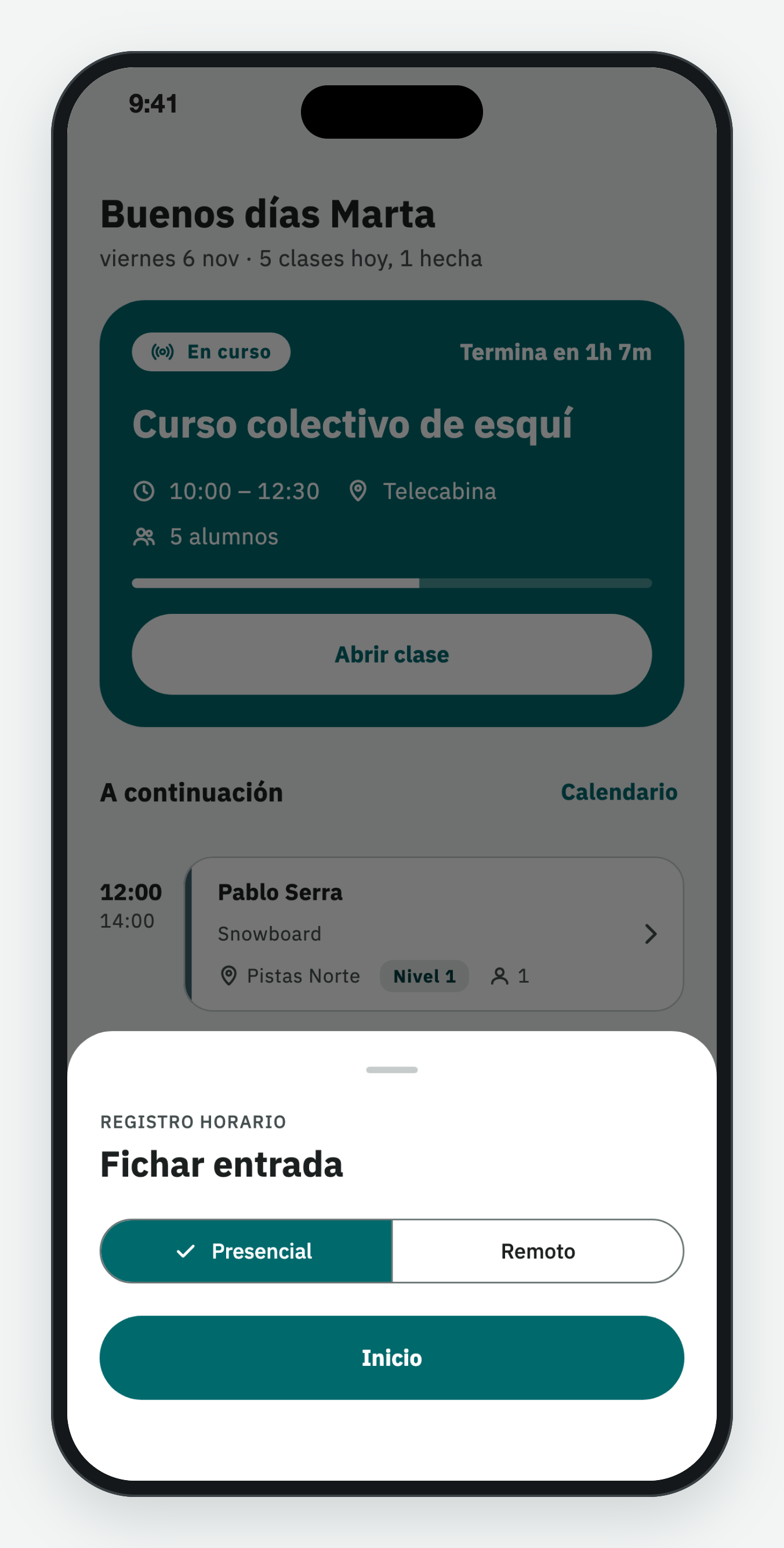
- If your company uses work mode, the Clock in window opens: choose On-site (you work at the center) or Remote (you work from somewhere else) and tap Start.
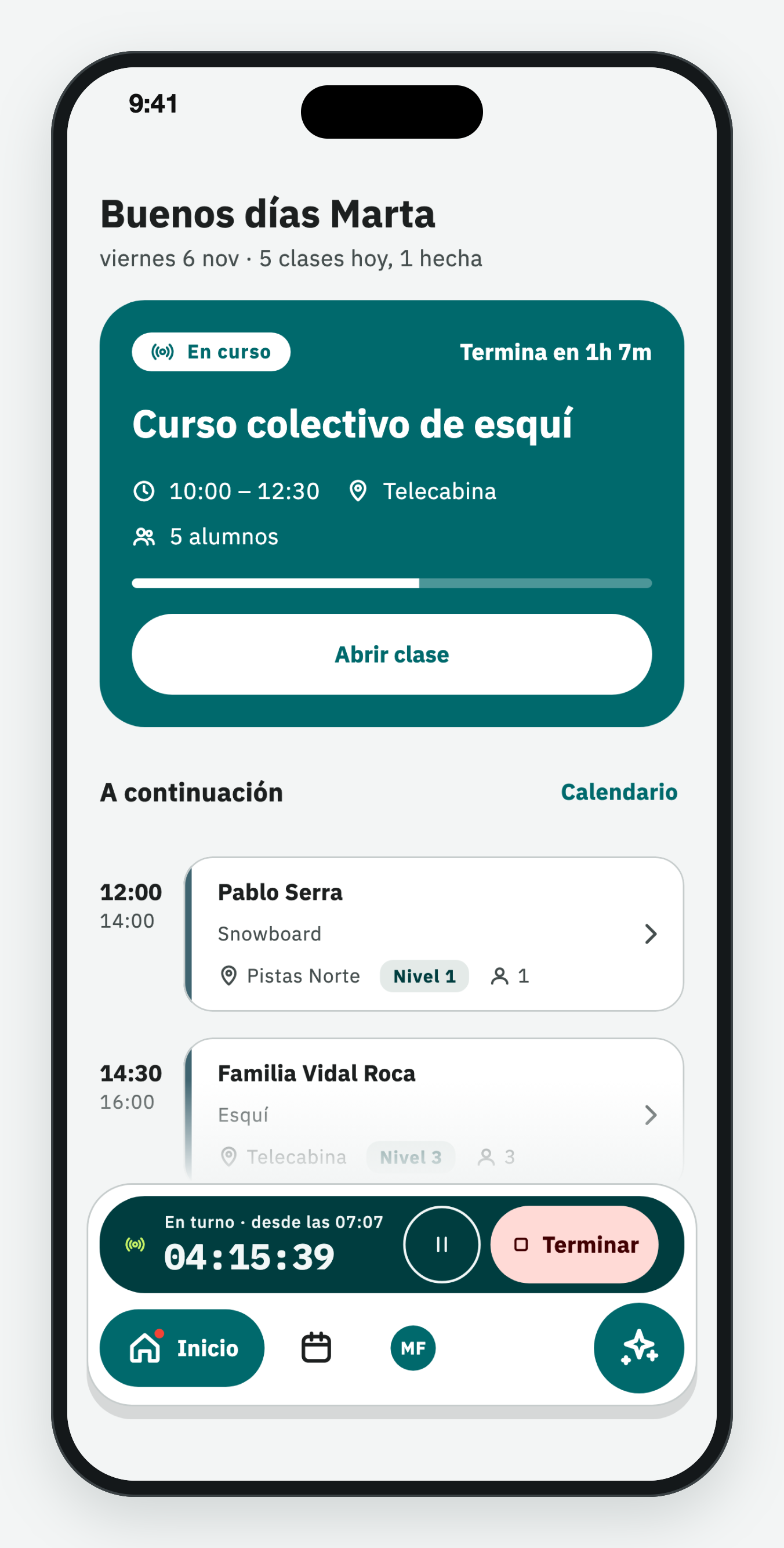
You will see “Clocked in”. The bar changes to “On shift · since …” with a timer. The start time is the one your phone shows at that moment. If your company doesn't use work mode, your shift starts as soon as you tap the button.
If your company uses your phone's location, the window may suggest On-site or Remote (“It looks like you are at …”): it is only a suggestion, you decide. More information in Privacy of time tracking. The first time, a notice about which data is stored also opens: tap Understood (clocking in is not blocked if you close it).
End your shift
Tap Finish in the bar. You will see “Clocked out”. It doesn't ask for confirmation, so make sure before you tap it. If you have an open break, it is closed when you end your shift.
See the timer on the lock screen
While your shift is running, the timer appears on the iPhone lock screen (with the text “TIME LOG” and the “Start” time) or in the Android notification bar. From there you can end your shift with Finish, without opening the app and without confirmation.
If you have it turned off, the app lets you know (“Live Activities Disabled”) and offers Open Settings.
While a shift is running you cannot…
- Log out: “You can't log out while a time log is running. Close it first.”
- Change schools: “You cannot change schools with an active time log. Please close it first.”
If you have no connection
The app saves your clock-in on your phone and sends it when the connection is back. Once it has been sent, check in Time records that the start and end times are correct. If they are not, request a change.
If clocking fails, the app tells you (“Could not clock in” / “Could not clock out”): try again.
If you are an employee (no lessons)
Your Home screen also has the Clock in button on your shift card. See App home screen.
If you make a mistake or forget
If you clock in late or forget to clock out, don't worry: request a change explaining the reason and an administrator will review it.
Related guides
Related guides
- Time Tracking in LueiraIndex of the Time Tracking guides: how to clock in from the app or the shared station and how to manage records, requests, contracts and reports from Admin.
- Activating Time Tracking and who can use itWhat your account needs to have Time Tracking, who can enter the module and why you may not see some sections.
- Time Tracking dashboard in AdminWhich sections the Admin Time Tracking module has and what the summary cards show.
- Worker contracts and schedulesHow to create and edit a worker's contract with their working hours and weekly schedule, and how Lueira uses it to classify hours.
- View all Time Tracking recordsThe centralized view of the whole team's clock-ins: filters by worker and dates, and what each column shows.
- A worker's records: shifts, editing and historyHow to view a worker's shifts, edit a record with its reason and check the change history.