

Worker contracts and schedules
How to create and edit a worker's contract with their working hours and weekly schedule, and how Lueira uses it to classify hours.
A worker's contract defines their working hours and weekly schedule. Lueira uses it to split hours into regular, overtime and complementary hours in the monthly summary.
How to get there
In the Time tracking module, open Workers, go to the worker's profile and open the Contracts tab ("Employment contracts").
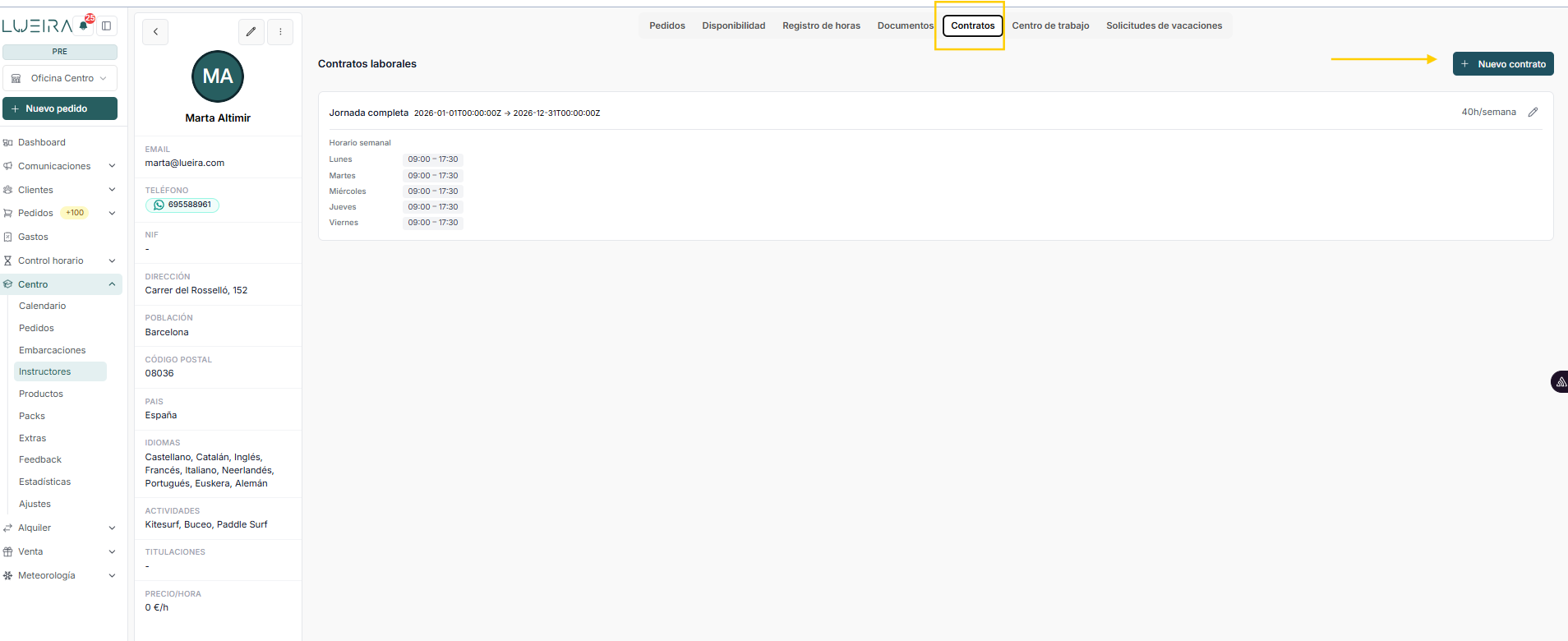
Create a contract
- Click New contract.
- Fill in the details:
- Start date (required) and End date (optional, for temporary contracts; it must be after the start date).
- Working time type: Full-time or Part-time.
- Weekly hours: from 1 to 60 (40 by default).
- Part-time %: from 1 to 99, only if the working time is part-time.
- Breaks count as working time: turn it on if all of the worker's breaks should be added to their hours.
- Set up the weekly schedule (optional): for each day from Monday to Sunday, add one or more time slots with Add time slot. With Copy to other days you repeat a schedule on other days.
- Save the contract.
Each time slot must end after it starts, and the time slots of the same day cannot overlap.
Edit a contract
Click the edit icon next to the contract. There can only be one active contract at a time.
How the contract is used
- Hours worked within the day's time slots are regular. Hours that fall outside them are overtime (full-time) or complementary (part-time). Each day with hours outside the schedule adds one "disconnection incident".
- If the worker has no contract or no schedule, all hours count as regular.
- Breaks are subtracted, except Waiting time, which counts as work. If you turn on "Breaks count as working time", all of them count.
- The worker can see their contract in the app (View your contract in the app).
For now, the contract is the only working-time setting: there are no tolerance settings, overtime limits or alerts for expected hours.
Related guides
Related guides
- Time Tracking in LueiraIndex of the Time Tracking guides: how to clock in from the app or the shared station and how to manage records, requests, contracts and reports from Admin.
- Activating Time Tracking and who can use itWhat your account needs to have Time Tracking, who can enter the module and why you may not see some sections.
- Time Tracking dashboard in AdminWhich sections the Admin Time Tracking module has and what the summary cards show.
- View all Time Tracking recordsThe centralized view of the whole team's clock-ins: filters by worker and dates, and what each column shows.
- A worker's records: shifts, editing and historyHow to view a worker's shifts, edit a record with its reason and check the change history.
- Review time entry change requestsHow to approve or reject the change requests that workers send from the app.