

Review time entry change requests
How to approve or reject the change requests that workers send from the app.
When a worker asks to correct a clock-in from the app, the request arrives in the Change requests section of the Time Tracking module. Here you decide whether to approve or reject it.
You also get a notification in your inbox: "New time entry change request from …".
What each request shows
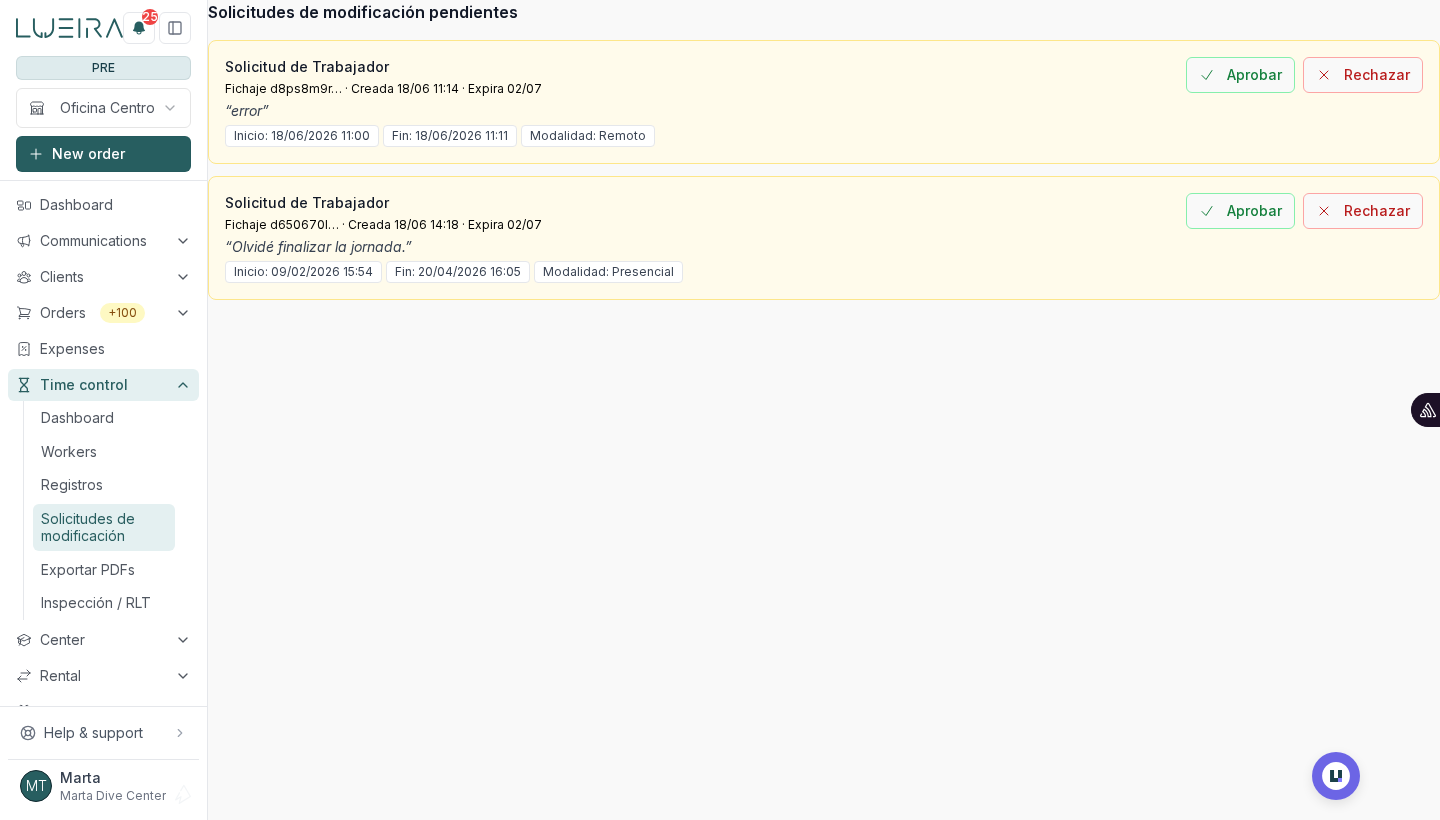
- Who sends it and when ("Created …") and until when it is valid ("Expires …").
- The affected clock-in.
- The reason the worker wrote.
- The proposal: the new Start and End, and the Mode (On-site or Remote) if it changes it.
The card does not show the worker's name or the original times. To check the record, look it up in Records or in the worker's profile (A worker's records).
Approve
Click Approve. You will see "Request approved". The changes are applied to the record, which is marked as modified, with the previous value saved in the history.
Reject
Click Reject and write the reason for the rejection ("Reason for rejection:"). It is required. You will see "Request rejected" and the record stays as it was.
Good to know
- This section only shows pending requests. Once you resolve one, it disappears from the list.
- The worker's request only needs your approval.
- You can't approve a request that you created yourself.
- The worker does not receive a notification when you resolve their request; they will see the change in their record.
- If you prefer to correct the record yourself, you can edit it directly (A worker's records).
Related guides
- Request a change to a time record (what the worker does)
- Correcting a clock-in: forgotten and mistaken entries
Related guides
- Time Tracking in LueiraIndex of the Time Tracking guides: how to clock in from the app or the shared station and how to manage records, requests, contracts and reports from Admin.
- Activating Time Tracking and who can use itWhat your account needs to have Time Tracking, who can enter the module and why you may not see some sections.
- Time Tracking dashboard in AdminWhich sections the Admin Time Tracking module has and what the summary cards show.
- Worker contracts and schedulesHow to create and edit a worker's contract with their working hours and weekly schedule, and how Lueira uses it to classify hours.
- View all Time Tracking recordsThe centralized view of the whole team's clock-ins: filters by worker and dates, and what each column shows.
- A worker's records: shifts, editing and historyHow to view a worker's shifts, edit a record with its reason and check the change history.