

Calendar in the app: day and week view
How to check your lessons by day or by week in the app, what the colors mean and how to change the default view.
On this page
In the Calendar tab you see all your sessions. What appears depends on how your school has configured the app (Teacher / instructor / guide app settings).
Day view
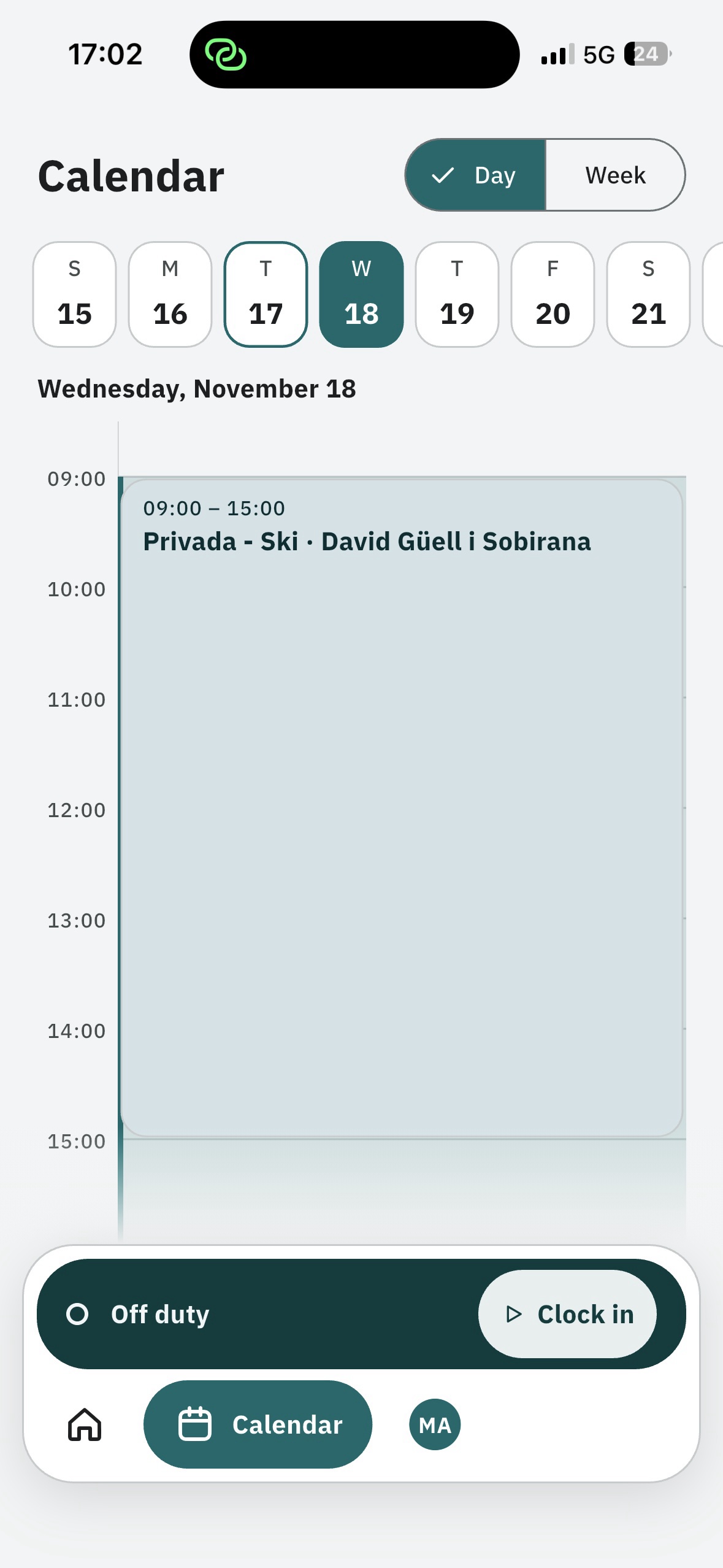
- Open the Calendar tab. At the top, the Day | Week selector shows the current view.
- Choose a day in the date strip or swipe the screen sideways.
- Tap a lesson to open its details.
Lessons appear on an hourly timeline. If you have none that day, you will see “No lessons this day”.
Week view
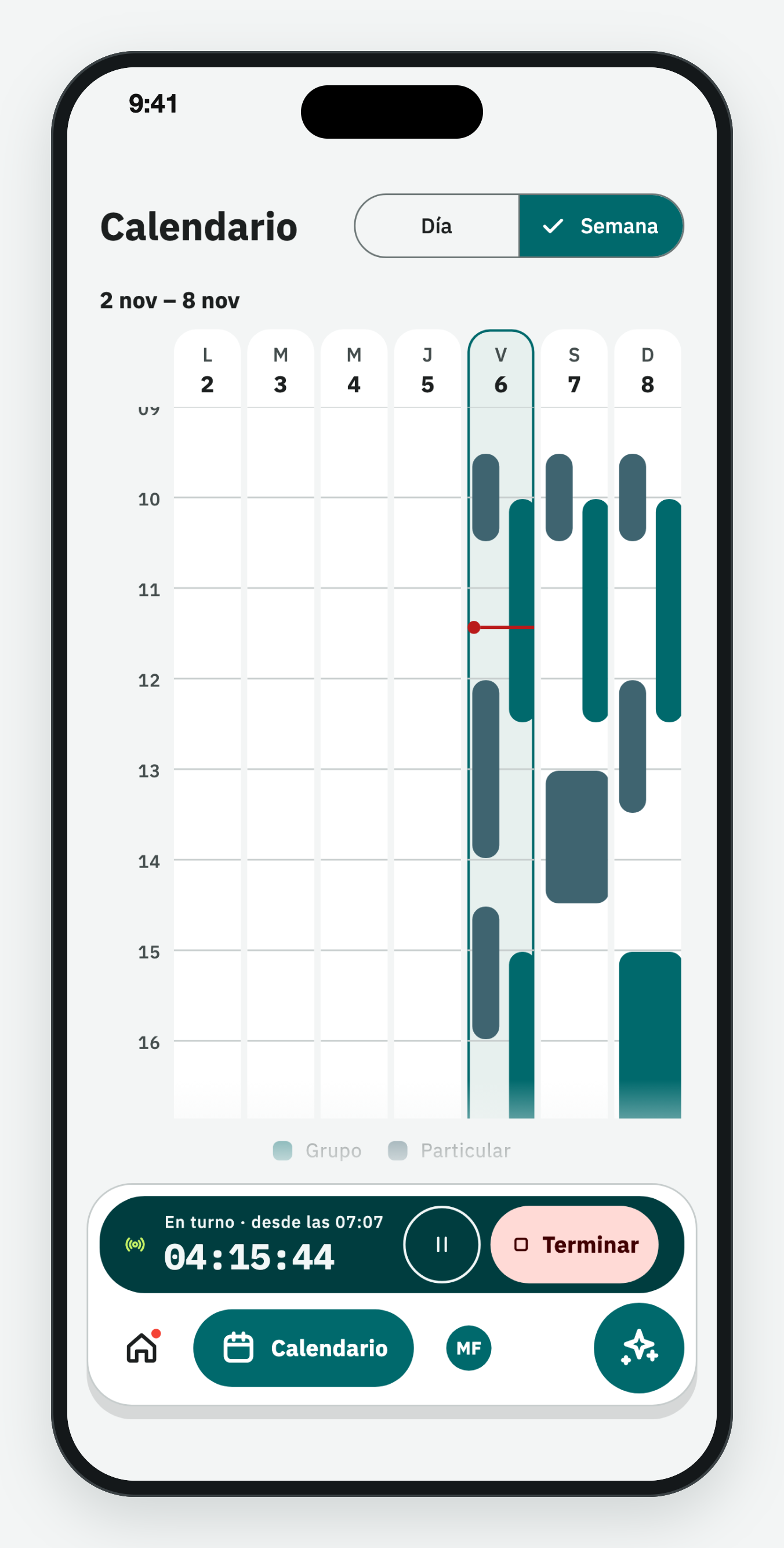
- Tap Week in the selector at the top.
- Tap a lesson to open it.
The week has two styles (you choose them in the app settings):
- Compact: all days in narrow columns, with colored blocks without text. Below there is a legend: Group and Private.
- Slideable: wide columns with the details of each lesson; swipe to see the other days. Arrows to go to the previous or next week.
What opens when you tap
- Private lesson, group session, course session and, at diving centers, boat departure: each one opens its own details.
- On a tablet or iPhone Duo, the details open in a panel next to the calendar.
Holidays and unavailable hours
The days and hours you requested off and that have been approved appear shaded in the calendar (with the text “Unavailable” if they are 3 hours or more). How to request them: Request holidays from the app.
Change the default view
The Day | Week selector only changes the view while you are on the screen. To set which one the calendar always opens with, go to Me → App settings → Calendar → Default view.
I can't see a schedule change or a new lesson
Pull down to refresh the screen or switch to another day and come back. If the lesson is far ahead in time, your school may limit how far ahead you can see the schedule.
Related guides
Related guides
- App assistant: what it can do and how to confirm its proposalsWhat the Lueira app assistant can look up and prepare, how to ask it questions, how to confirm or cancel what it proposes and how to adjust its style.
- App for instructors or guidesComplete guide to the Lueira Team app for instructors and guides: classes, attendance, feedback, clocking in, holidays, documents and contract.
- App Home: your day at a glanceWhat the Lueira app home screen shows: your current lesson, the next ones, the ones you have already done, the day off and the bottom bar with clock-in.
- App settings, notifications and account: the Me tabWhat is in the Me tab of the app: your profile, notifications, calendar settings, changing school and logging out.
- Create feedback from the app: comment, awards, photos and assistant draftHow to leave feedback for a participant or for the whole session from the app, give awards, add photos, use the assistant draft and share it.
- Crew member appHow to use the Lueira app as a crew member: check your boat departures, manage participants and forms, and manage your documents.