

Configuring the Teachers / Instructors / Guides App
Set the planning viewing hours, what customer and order data your teachers, instructors or guides see in the mobile app, and whether they can share feedback directly from the app.
On this page
- Configuring the Teachers / Instructors / Guides App
- Viewing hours
- Data visibility
- Comments
- Feedback
- Other screen options, frequently asked questions and related guides
- Other options on this screen
- Frequently asked questions
- Does the team see the comments I write on the order?
- I have turned on "Show customer phone number" and they do not see the phone number
- I changed a class and the team still sees the old information
- They cannot log into the app or the code gives an error
- Related guides
Configuring the Teachers / Instructors / Guides App
To access this setting go to School / Centre / Activities > Settings > Teachers / instructors / guides App.
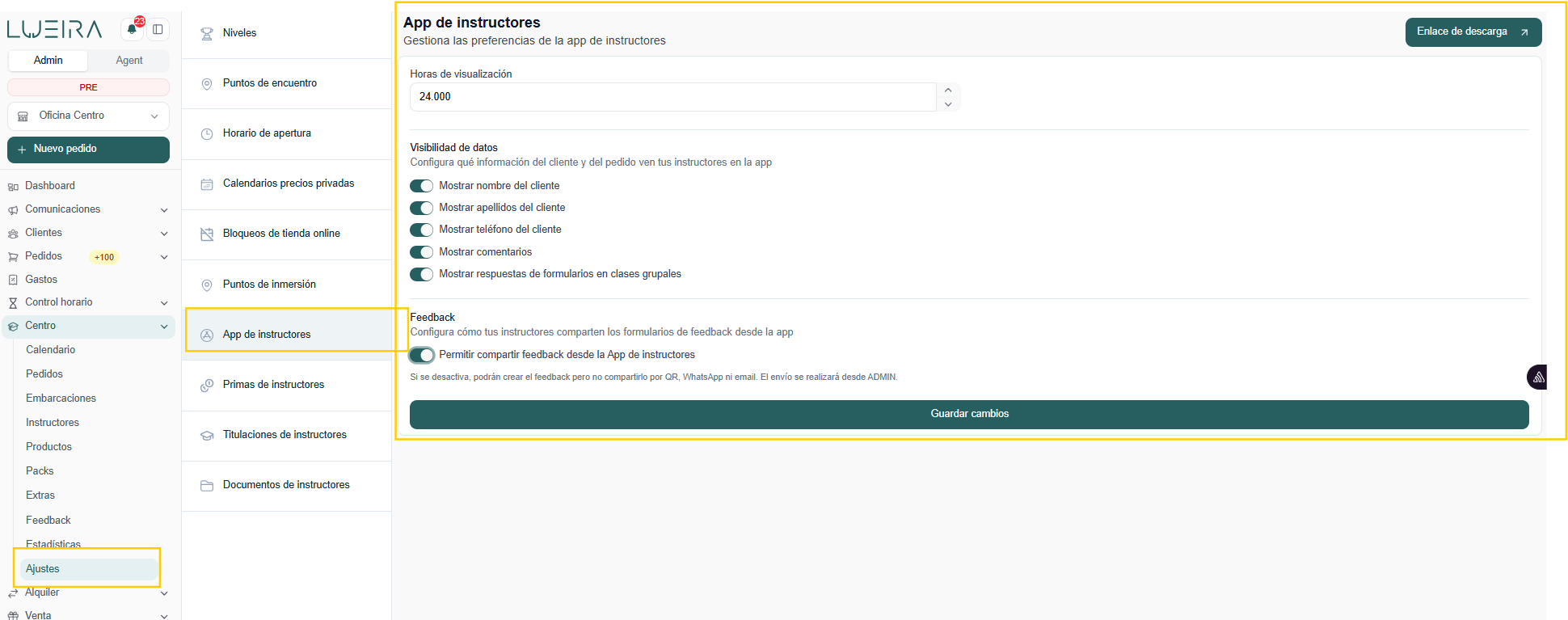
From here you control how far ahead your team can see the planning in the Lueira Instructors mobile app, what customer and order information is shown to them, and how they can share the feedback they collect.
Viewing hours
This field defines how many hours ahead each team member can see their planning of assigned classes or activities in the app.
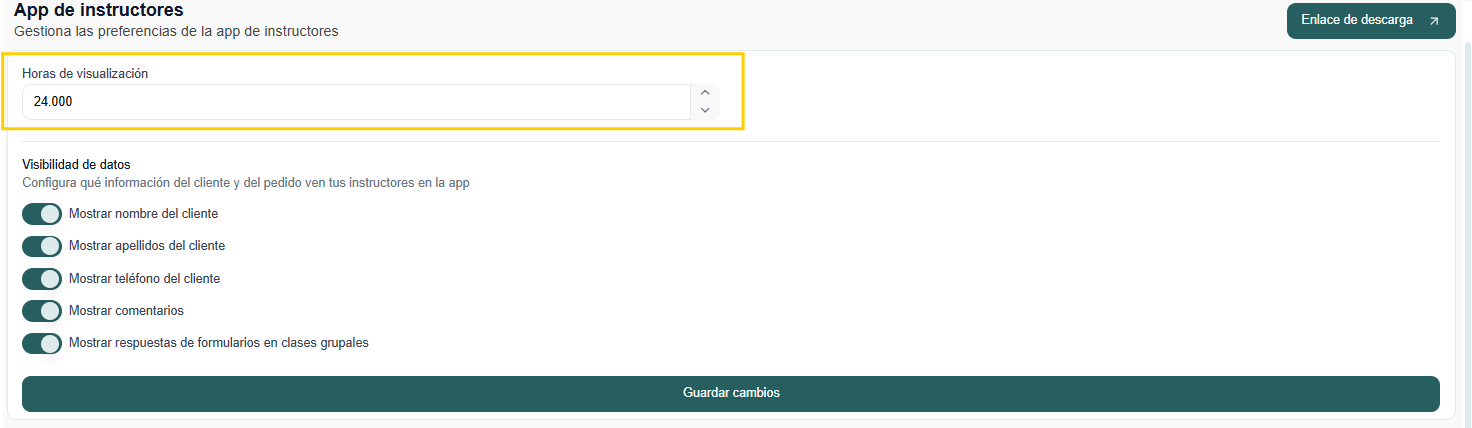
For example, if you set 24, an teacher will only see in their calendar the sessions of the next 24 hours; those further away in time will not appear yet.
If you want them to see their whole planning without restriction, enter a very high number of hours (for example, 24,000 hours, equivalent to several years).
This option is useful if you prefer the team to organise themselves with a limited margin, or if, on the contrary, you want them to be able to plan with the whole season visible from day one.
Data visibility
These switches configure what customer and order information your teachers, instructors or guides see when they open the details of a session or class in the app:
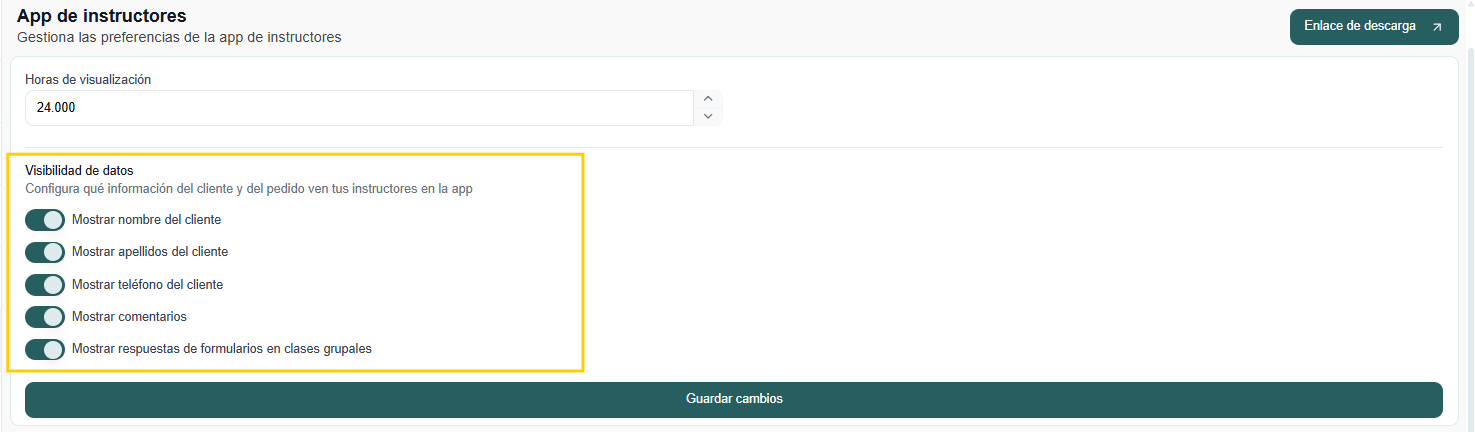
Show customer first name and Show customer last name: if you turn them off, the customer's first name and/or last name do not reach the app; instead, the participant appears identified as "Participant". You can turn off just one of the two or both, depending on how much information you want to share with the team.
Show customer phone number: if you turn it off, the phone number does not appear in the app and the quick call button on the participant's profile also disappears.
Show comments: shows or hides the comments tab in the details of a group session, where the team can see the comments associated with that session.
Show form answers in group classes: shows or hides the forms tab and the form status label (Completed, Pending or Review) on each participant of a group session, where you can view the answers the customer filled in when booking (for example, health or level forms). This option is turned off by default.
By default, first name, last name, phone number and comments are turned on; form answers in group classes are turned off.
Comments
This section controls whether your team can write comments on a session from the app, in addition to reading them.
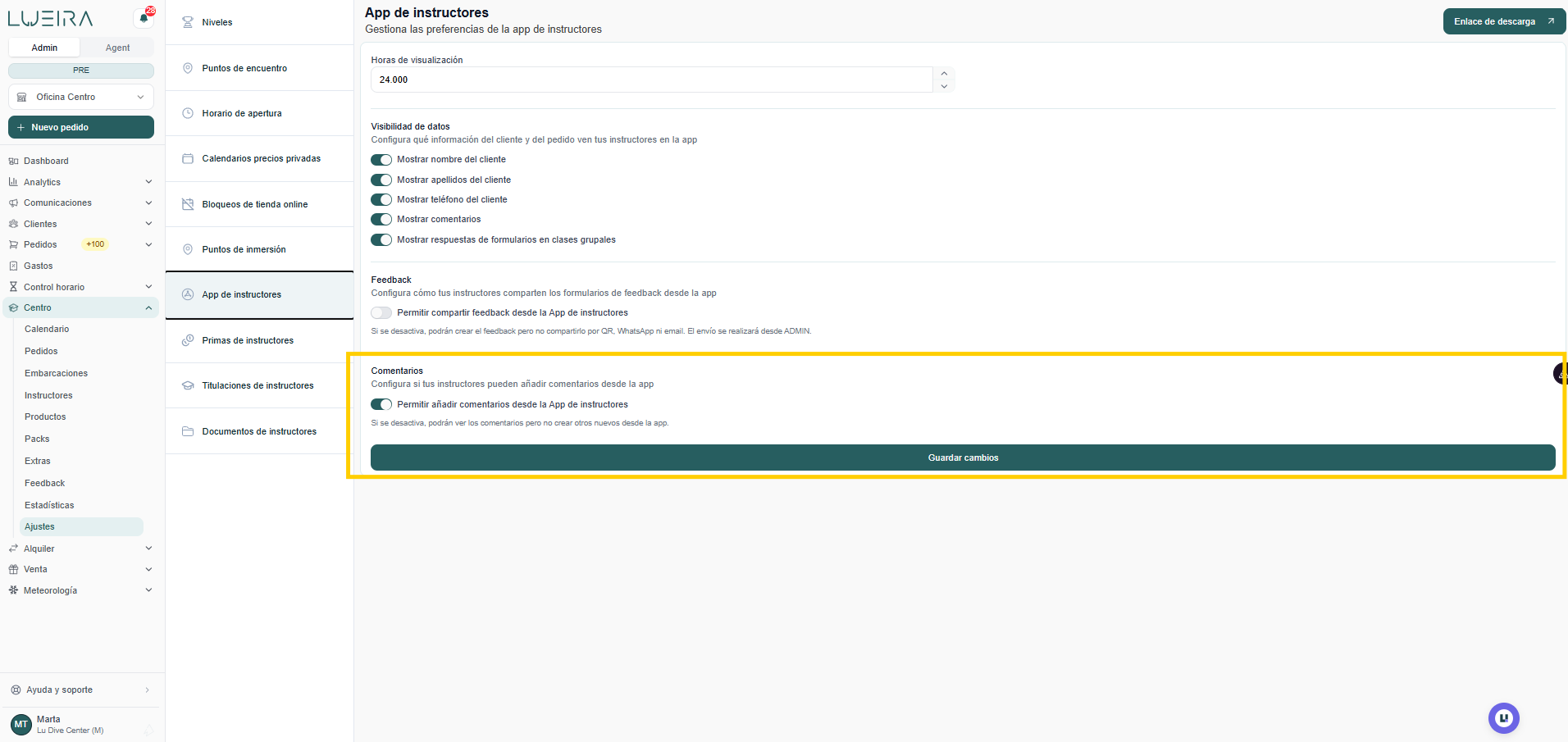
Allow teachers / instructors / guides to add comments (turned off by default):
On: the team can add their own comments to a session from the Comments tab in the app, in addition to reading the existing ones.
Off: the team can only read the existing comments on the session (if Show comments is turned on); they cannot add any new ones from the app.
This switch depends on Show comments: if that tab is hidden for your team, they will not be able to add comments either, even if this permission is turned on. Unlike Allow sharing feedback (turned on by default), this permission is turned off by default: until you turn it on, the team only has read access to comments.
Feedback
This section controls whether your team can share directly from the app the feedback forms that they generate themselves, or whether sending them to the customer must always be done from ADMIN.

Allow sharing feedback from the Teachers / instructors / guides App (turned on by default):
On: the team can create the feedback and also share the form by QR, WhatsApp or email directly from the app.
Off: the team can still create the feedback from the app, but cannot share it by QR, WhatsApp or email. Sending it to the customer can then only be done later from ADMIN.
Use this option if you prefer the administration staff to be the ones who review and send the feedback, instead of letting each team member share it directly from the App.
To see how the team interacts with these screens from their own app, see App for instructors or guides.
If you have any questions, do not hesitate to contact the Lueira support team!
Other screen options, frequently asked questions and related guides
Other options on this screen
Download link (top right): opens a window with access to the app in the app stores, so you can pass it on to your team.
Past viewing hours: next to Viewing hours, indicates how many hours back the team can still see past sessions.
Push notifications: turn on or off the alerts for a new private class assigned and a new group class session assigned, and the reminders before each class starts (for example, 20 min before). As the screen itself indicates, these settings apply to all the school's guides, and changes to the notice time only affect future classes.
Remember to click Save changes after changing any option.
💡 If a team member does not receive notifications, first check that they are turned on here and that the app's notification permissions are turned on on their phone.
Frequently asked questions
Does the team see the comments I write on the order?
No. Show comments refers to the comments on the session (group of classes). The general order comments are not shown in the app. If you want the teacher, instructor or guide to see a note, write it on the session.
I have turned on "Show customer phone number" and they do not see the phone number
In addition to the switch, the booking must have the class participant assigned. If the booking only has the customer with several places, without participants, the team will not see the phone number.
I changed a class and the team still sees the old information
If they have the planning open, the app does not reload by itself: ask them to pull down on the screen to refresh it or to switch to another day and come back.
They cannot log into the app or the code gives an error
Ask them to update the app to the latest version. While this is being resolved, there is a Time Tracking website at trackr.lueira.com, with access for administrators only; if you need to use it, contact support. If the problem is with registration (the guide's email or phone number), see Team users and access problems.
Related guides
Lueira Instructors, the APP for your instructors: quick tour of the app.
App for instructors or guides: detailed use of the app by the team.
Time Tracking in Lueira: Complete guide for workers and administrators: clock-ins and working-day records.
Related guides
- School navigationHere you will find everything the School section offers
- Which product type do I need? Group, private, pack, voucher or multi-day courseGuide to choosing the right product for what you sell: private lessons (price per hour or rates), several sessions priced by number of sessions, fixed dates, hour voucher, multi-day course or a single student with a group schedule.
- Add School productsComplete guide to creating and configuring private and group products in the School section: form fields, session availability and creating sessions in the calendar.
- Product sheet: Data, Translations, Settings, Extras and Related ProductsReference guide to the tabs of the product creation/editing form (private, group, rental or sale): what each one contains and links to the specific guides.
- How do I set up a new season?We show you how to set up a new ski season in Lueira
- How can I set up the new season of my ski school in LueiraWe show you how to set up a new ski season in Lueira