

How can I set up the new season of my ski school in Lueira
We show you how to set up a new ski season in Lueira
On this page
A more complete version of this guide
💡 There is a more complete version of this guide, which also includes rental and the most common mistakes when preparing the season (for example, assigning the price calendar to each private product): How do I set up a new season?
How can I set up the new season of my ski school in Lueira
SCHOOL
To set up the new season, the most important thing to review is the prices, for both private lessons and group lessons.
Private lesson prices
 Cómo crear precios en productos privados
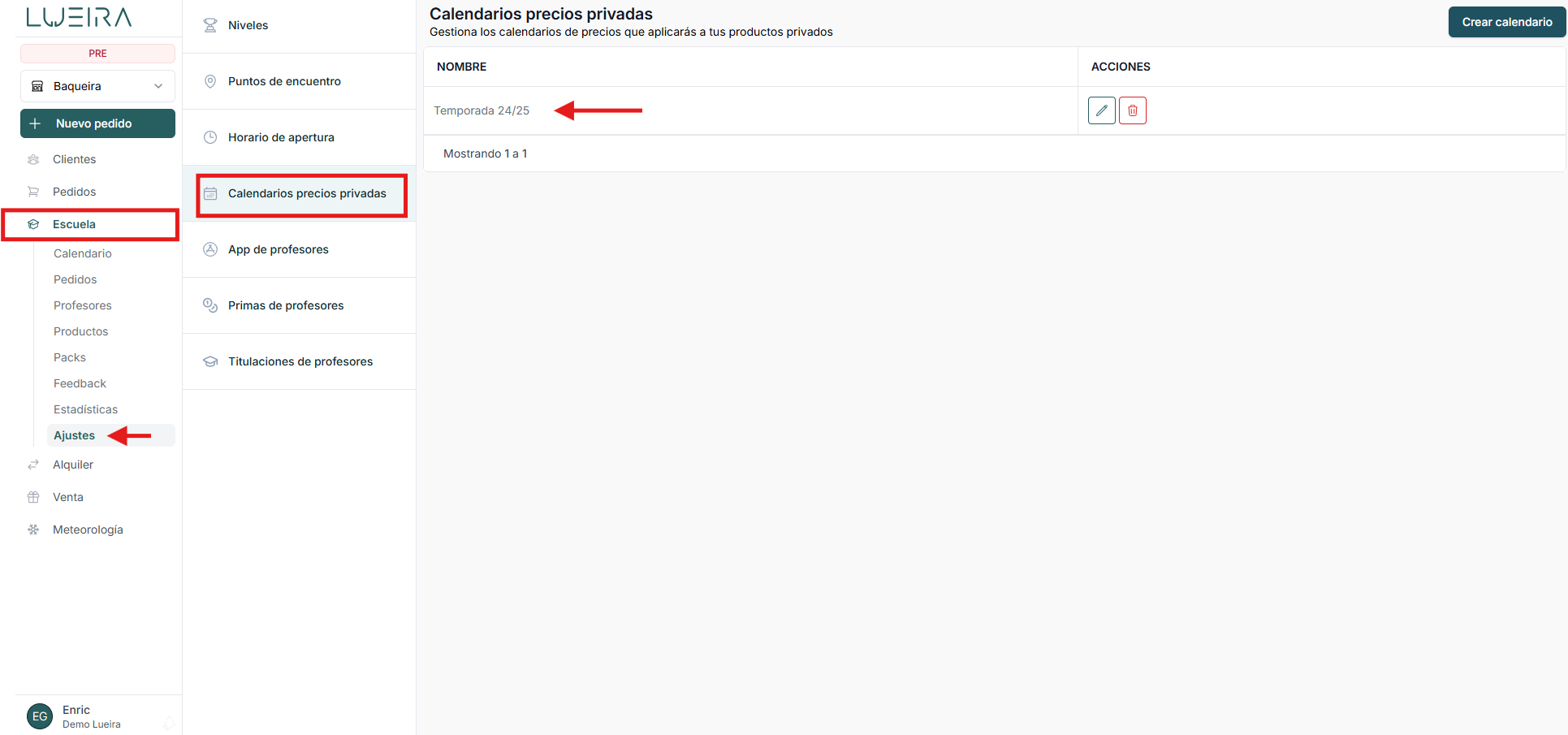
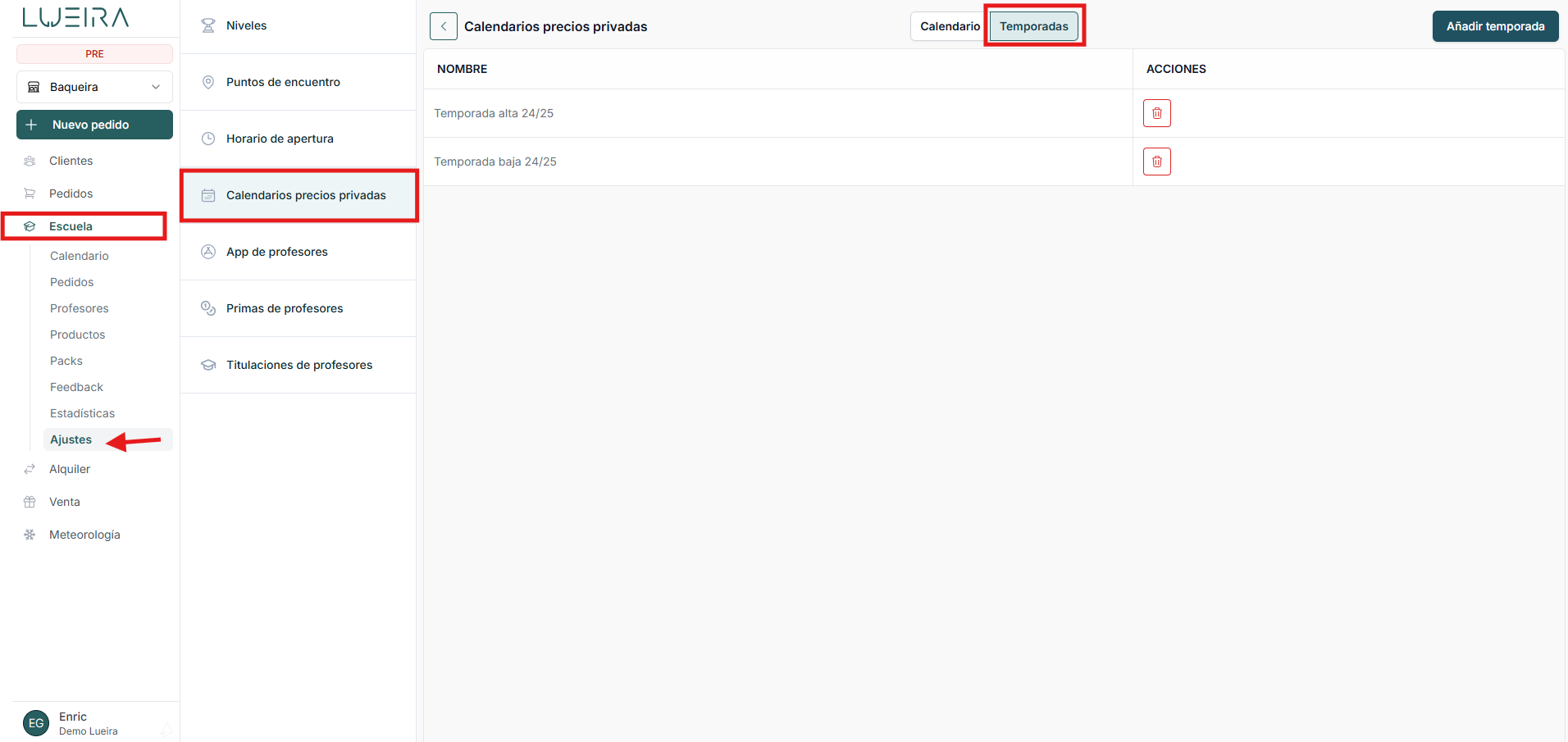
If the rates for your private lessons have changed, you will need to update them or create new ones from Settings → Private lesson price calendar. First you must select the calendar, then click on the season and review the price matrix. Once reviewed, you must assign that season to the dates you want in the calendar. It is important that you take this season's calendar into account.
If you are going to use the same rates, first select the calendar and assign the calendar to the dates of this season (which you already have set up):
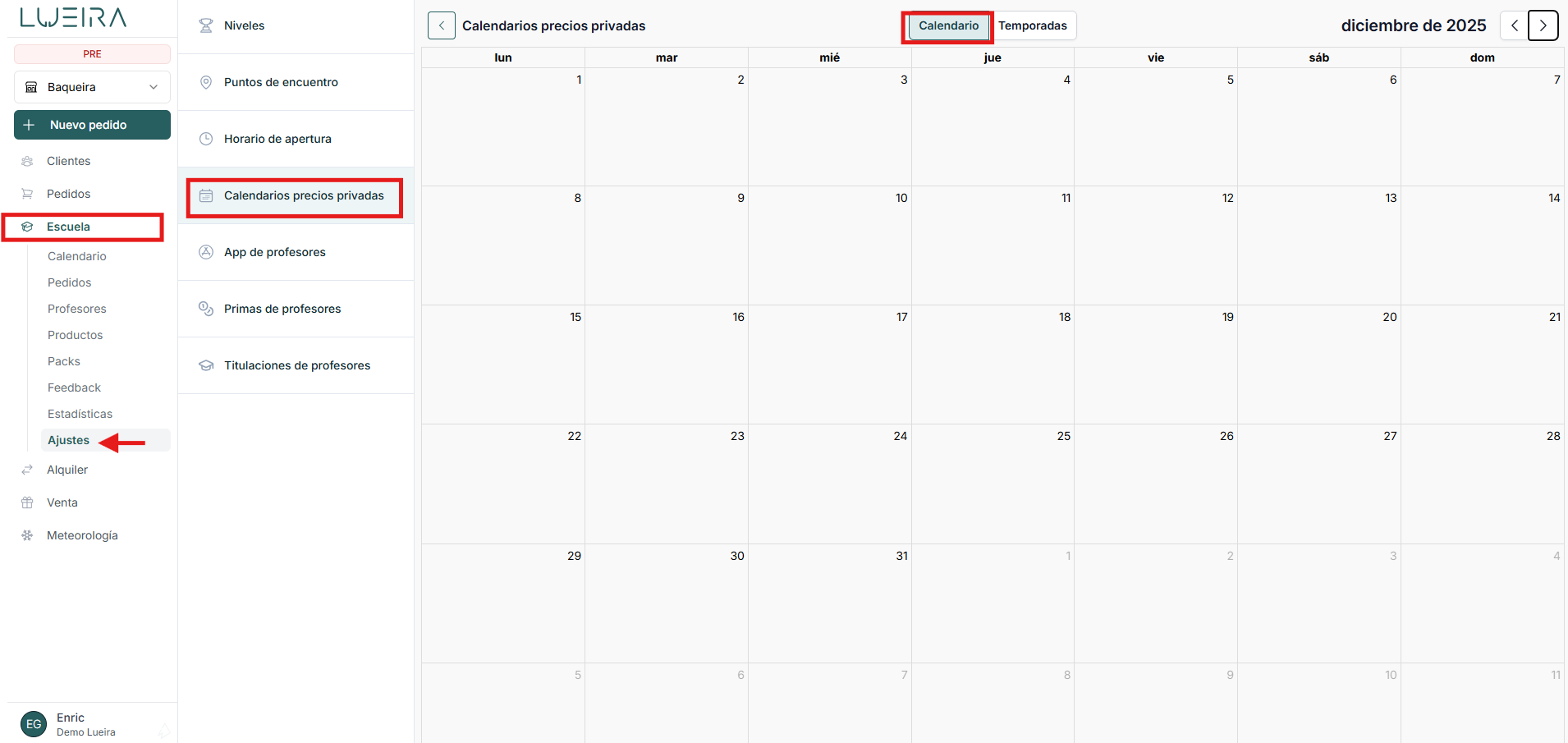
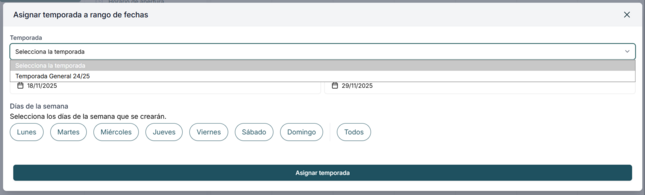
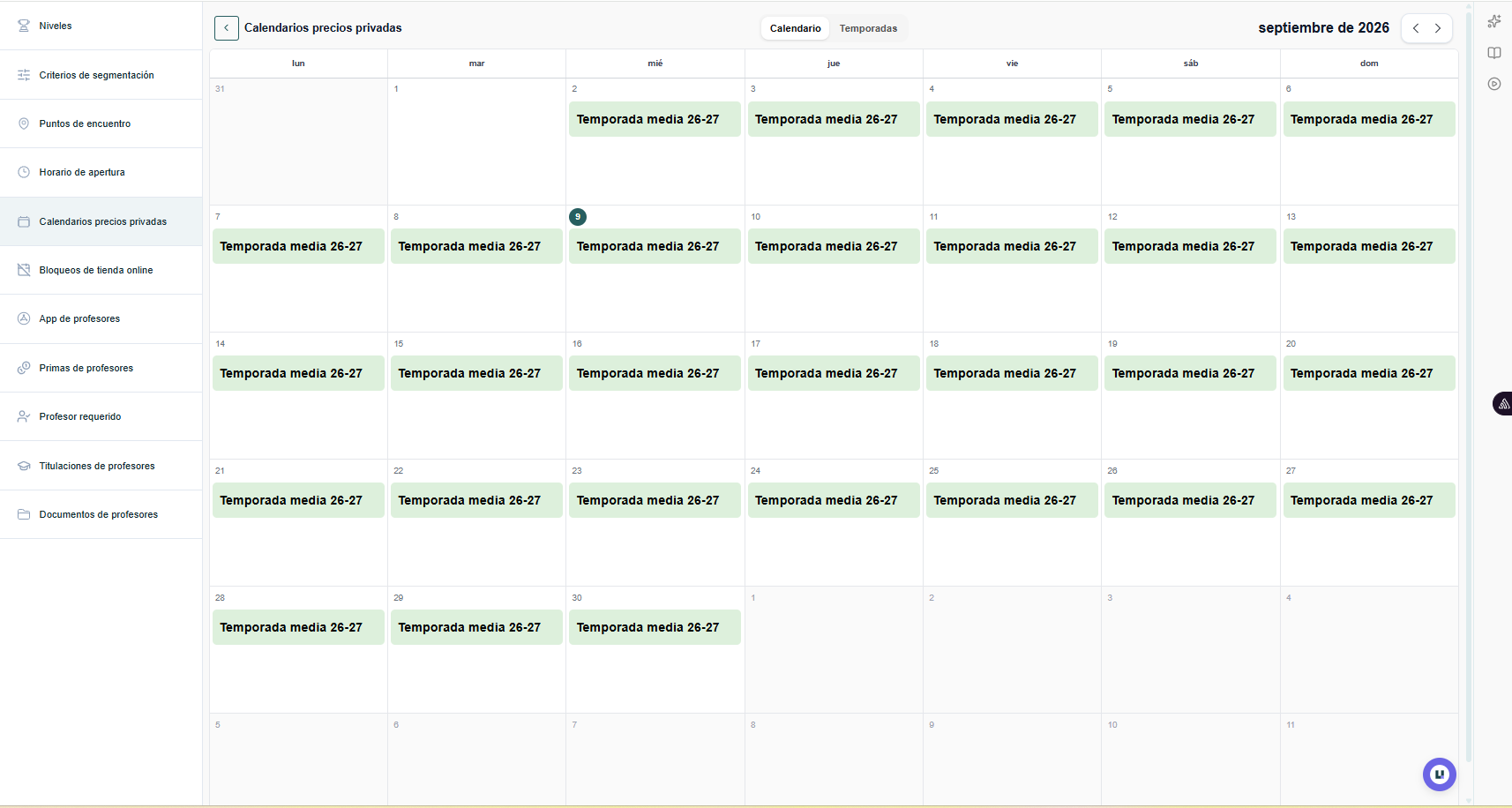
Select a date range so that the window for assigning the season to the calendar opens, then indicate the season, the start date and the end date, select the days of the week on which you want the season's price to apply, and save the configuration.
If you want to update or modify the rates for the new season you can do it as follows:
First select the current calendar, then click on the season and review the price matrix. You can edit the existing matrix by updating the prices, or you can add a new season so as not to lose the price information of the previous season. If you create a new season, apply the same relationship of participants and duration, and add the prices.
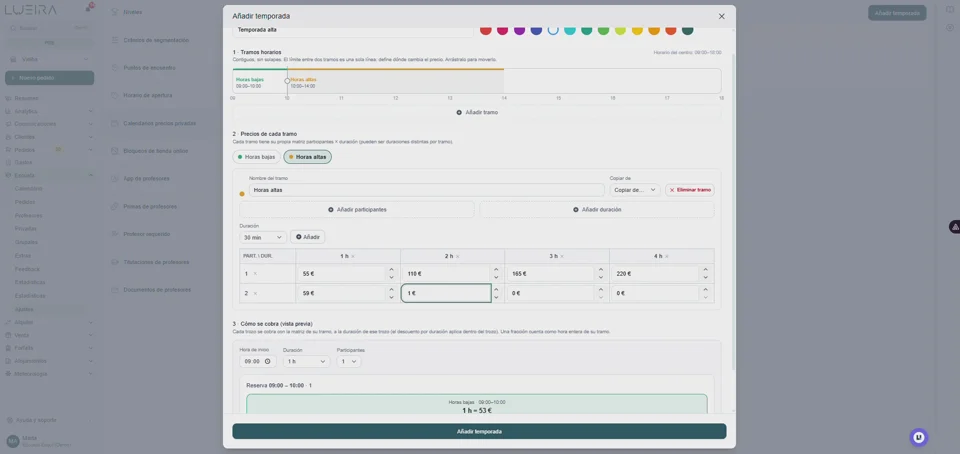
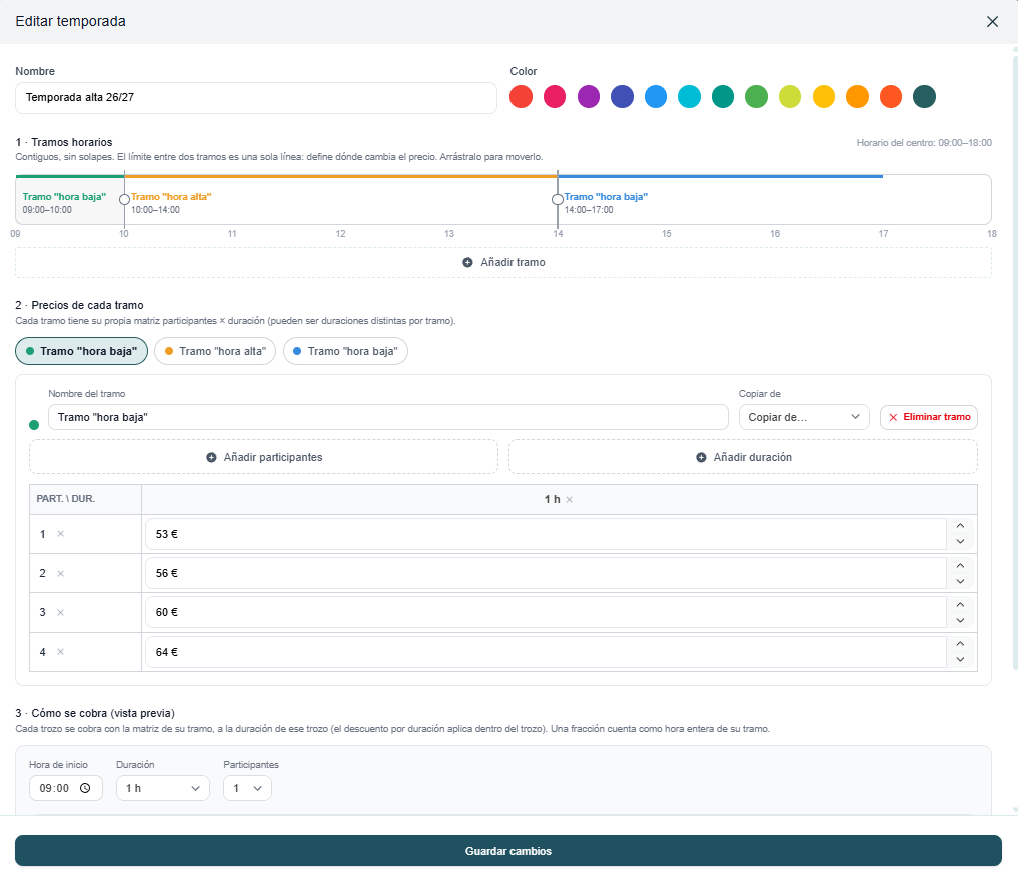
Create a season with a new matrix by time slots. You can create a price matrix with a single time slot or you can create different time slots that apply to the same calendar. Example: low hours, medium hours and high hours.
Add Slot: You choose the time slot you want to configure. Example: Low hour (9 - 10 h)
Create the price matrix for that specific time slot: You add participants and duration for that time slot.
Low hours: 9-10h
High hours: 10.00 - 14.00h
Low hours: 14.00 - 17.00h (If the low-hours price matrix is the same as the morning one, we can click the "Copy from" button
Once you have reviewed or created another price matrix, you must assign that season to the dates you want in the calendar. It is important that you take this season's calendar into account.
Group lesson prices
 Cómo gestionar actividades grupales
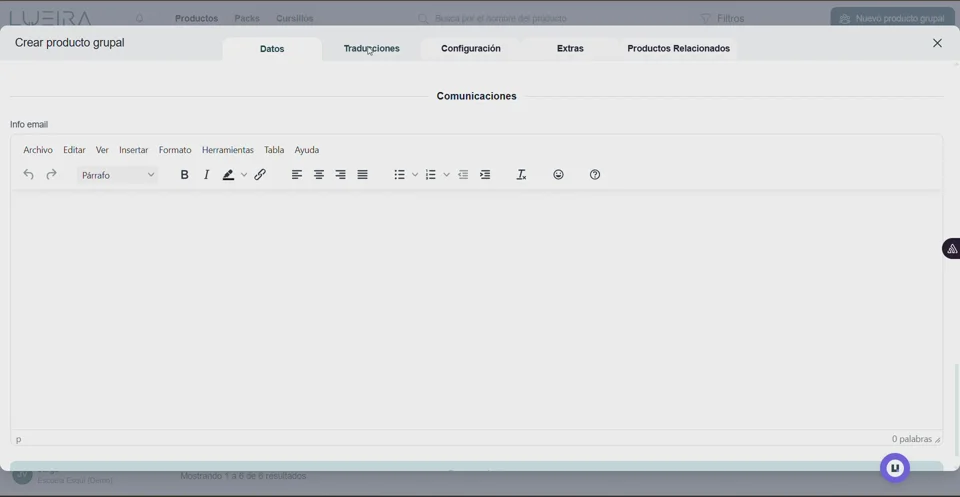
To review the rates for your group lessons go to Products → Group. Once there, edit the product and change the price. The Advanced price for group products is also available, where you can differentiate between a fixed price and a tiered price. Go to this GUIDE to configure advanced prices for your group products.
IMPORTANT: First change the price on the product and then add the session availability in the calendar. If you already have sessions created, you will have to update the price of all those sessions.
Packs
If you have session packs configured, you will also need to review the prices and the session calendar. To do so, go to Packs. To update the prices, edit the Pack and then go to the sessions section to assign the sessions you want in the calendar.
*You can read this guide to learn how to apply the prices to your business.
Teachers
 Cómo gestionar profesores
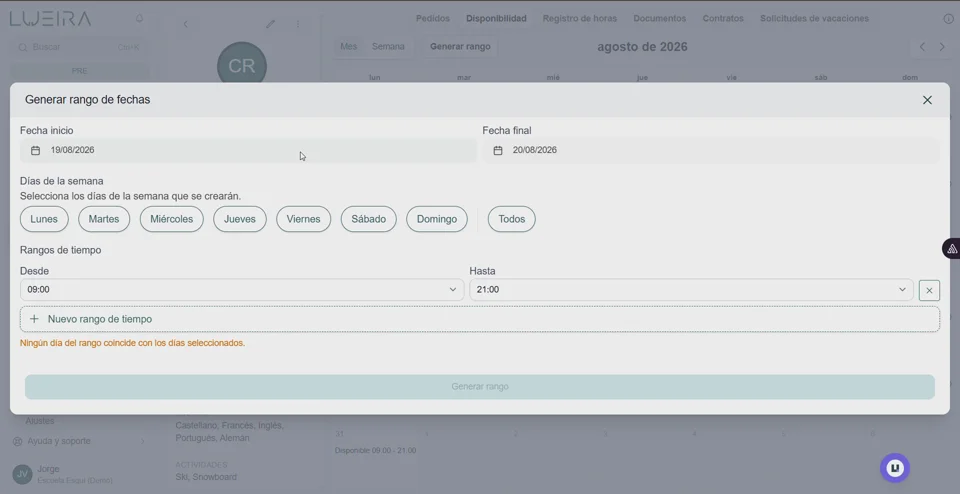
Another section to review is Teachers. If your list of teachers includes teachers from last season who will not be there this year, you can archive them instead of deleting them. Select the teacher and, at the top right, click the remove-from-catalogue button. You will be able to unarchive them and put them back in the teachers catalogue whenever you want.
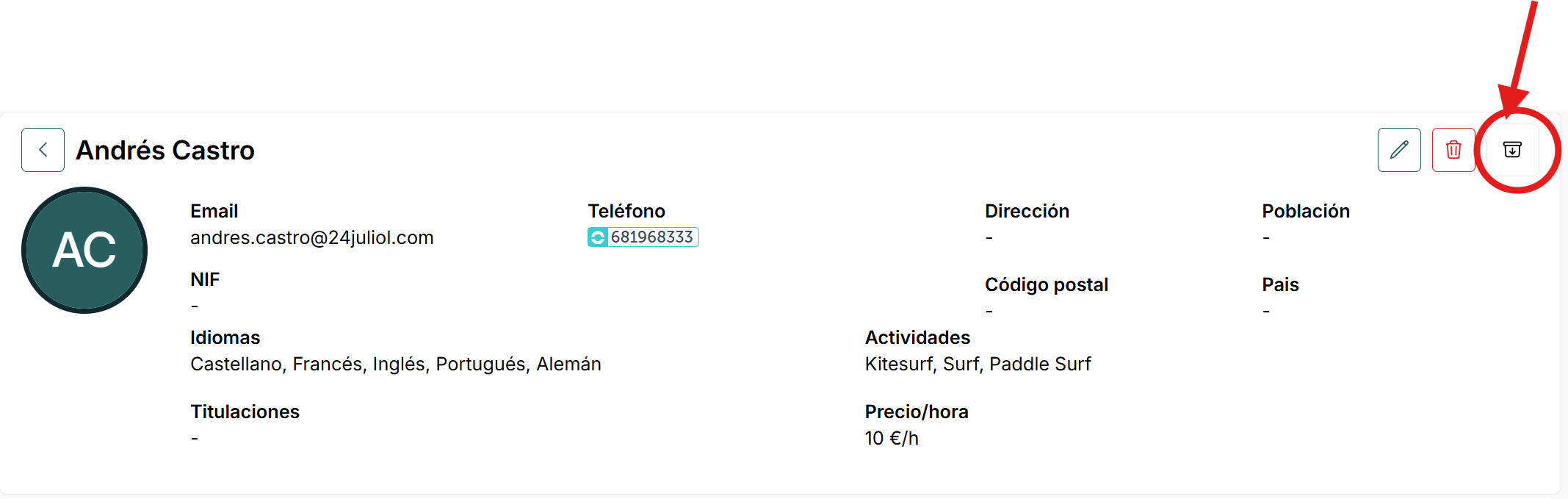
Within the teachers section it is also very important to update each teacher's availability. To do so, go into each teacher's profile, go to the availability tab and add their availability during the season.
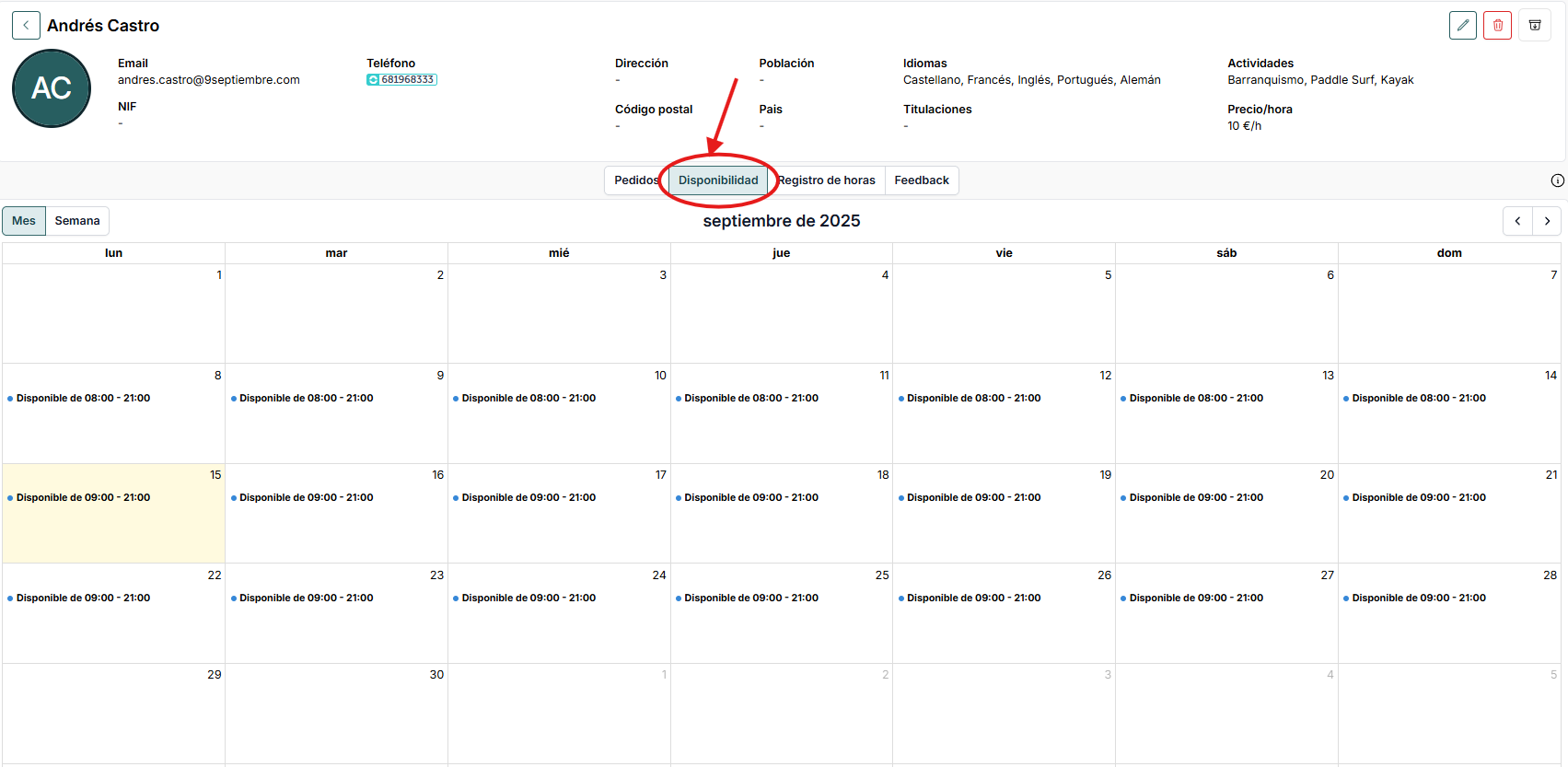
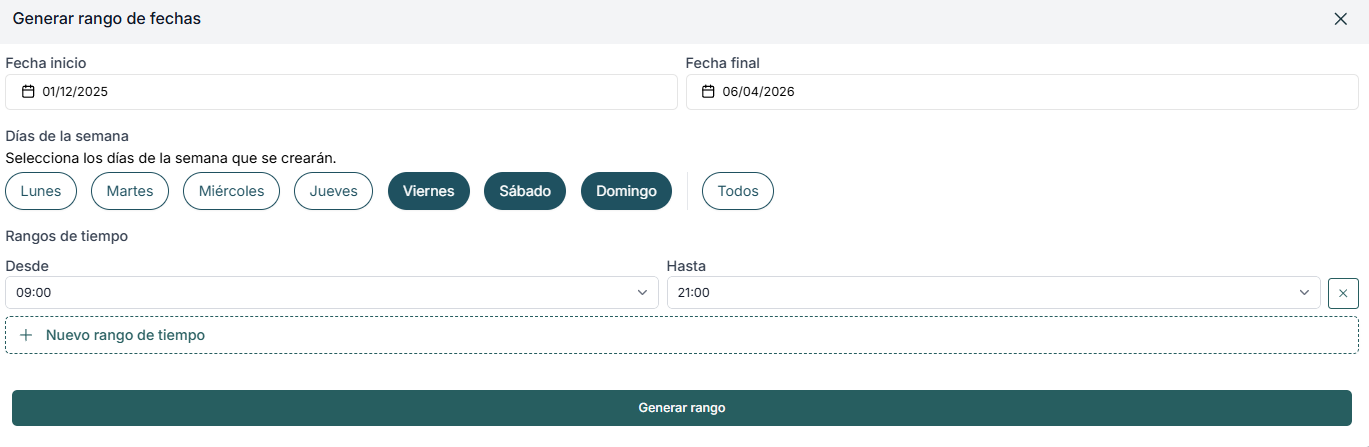
To configure availability, simply select 2 days on the calendar with the mouse and a window will open where you can configure the availability for the whole season at once. If, for example, a teacher only works from Friday to Sunday during the season, first select the dates of the season and then the
days they work and the schedule.
LUEIRA TEAM APP
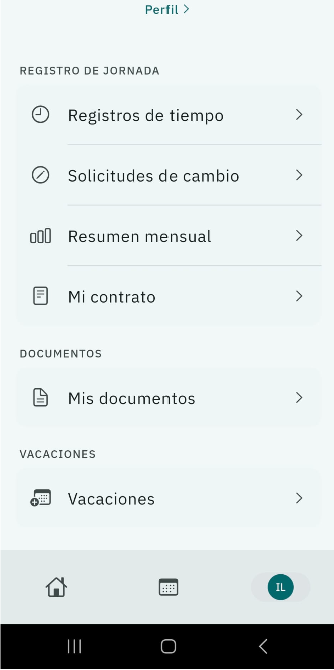
You will now find the teachers' app on the PLAY STORE and APP STORE as LUEIRA TEAM. It is very important that all teachers update the APP to the latest version. Now, in addition to viewing lessons and recording their time, the app also lets them view their employment contract, payslips and documents, request schedule changes, request vacation days...
If you have any questions, don't hesitate to contact us through the chat or by writing to support@lueira.com
Related guides
- School navigationHere you will find everything the School section offers
- Which product type do I need? Group, private, pack, voucher or multi-day courseGuide to choosing the right product for what you sell: private lessons (price per hour or rates), several sessions priced by number of sessions, fixed dates, hour voucher, multi-day course or a single student with a group schedule.
- Add School productsComplete guide to creating and configuring private and group products in the School section: form fields, session availability and creating sessions in the calendar.
- Product sheet: Data, Translations, Settings, Extras and Related ProductsReference guide to the tabs of the product creation/editing form (private, group, rental or sale): what each one contains and links to the specific guides.
- How do I set up a new season?We show you how to set up a new ski season in Lueira
- Lesson calendarHow to use the Lesson calendar: modes (Teachers/Instructors/Guides and Boat departures), the 3 available views (Calendar, Grid, List), filters, lesson reassignment and printable summaries.