

Lesson calendar
How to use the Lesson calendar: modes (Teachers/Instructors/Guides and Boat departures), the 3 available views (Calendar, Grid, List), filters, lesson reassignment and printable summaries.
On this page
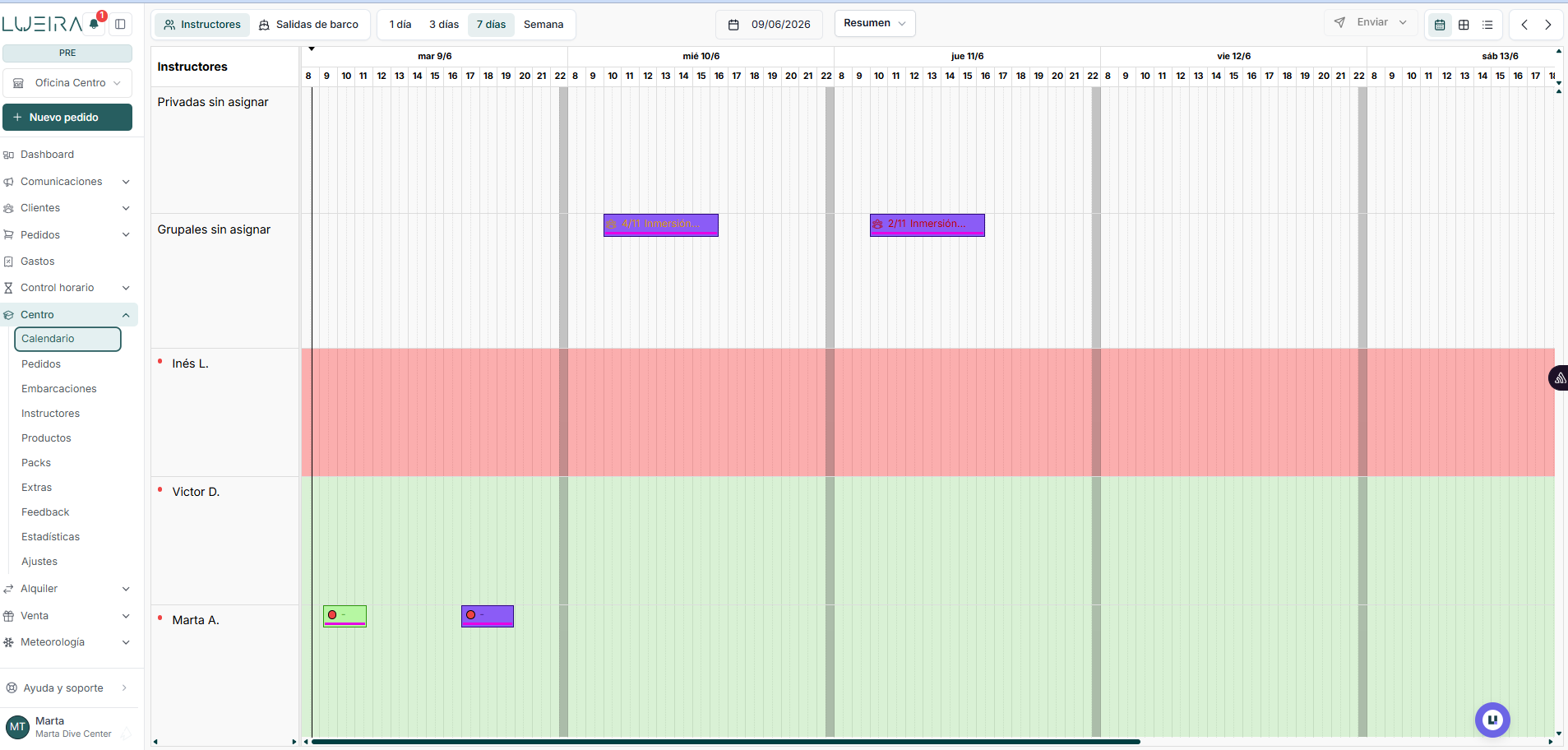
The Lesson calendar is the central view for managing daily planning: it shows in real time which lessons each teacher has, which participants are assigned and how the workload is distributed. From here you can reassign lessons, contact customers and generate daily summaries.
How to access it
Go to Center / Activities / School → Calendar.
Modes
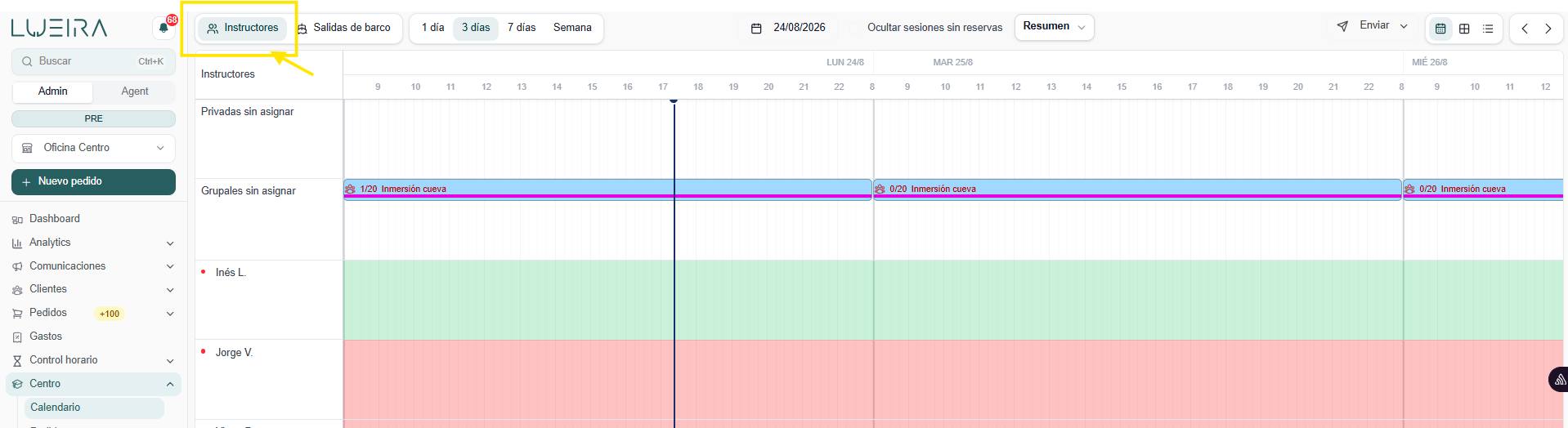
If your business has the diving integration enabled, in the top bar you can switch between two modes:
Teachers / Instructors / Guides → shows group and private lessons organised by teacher column. This is the usual mode for managing lesson assignment.
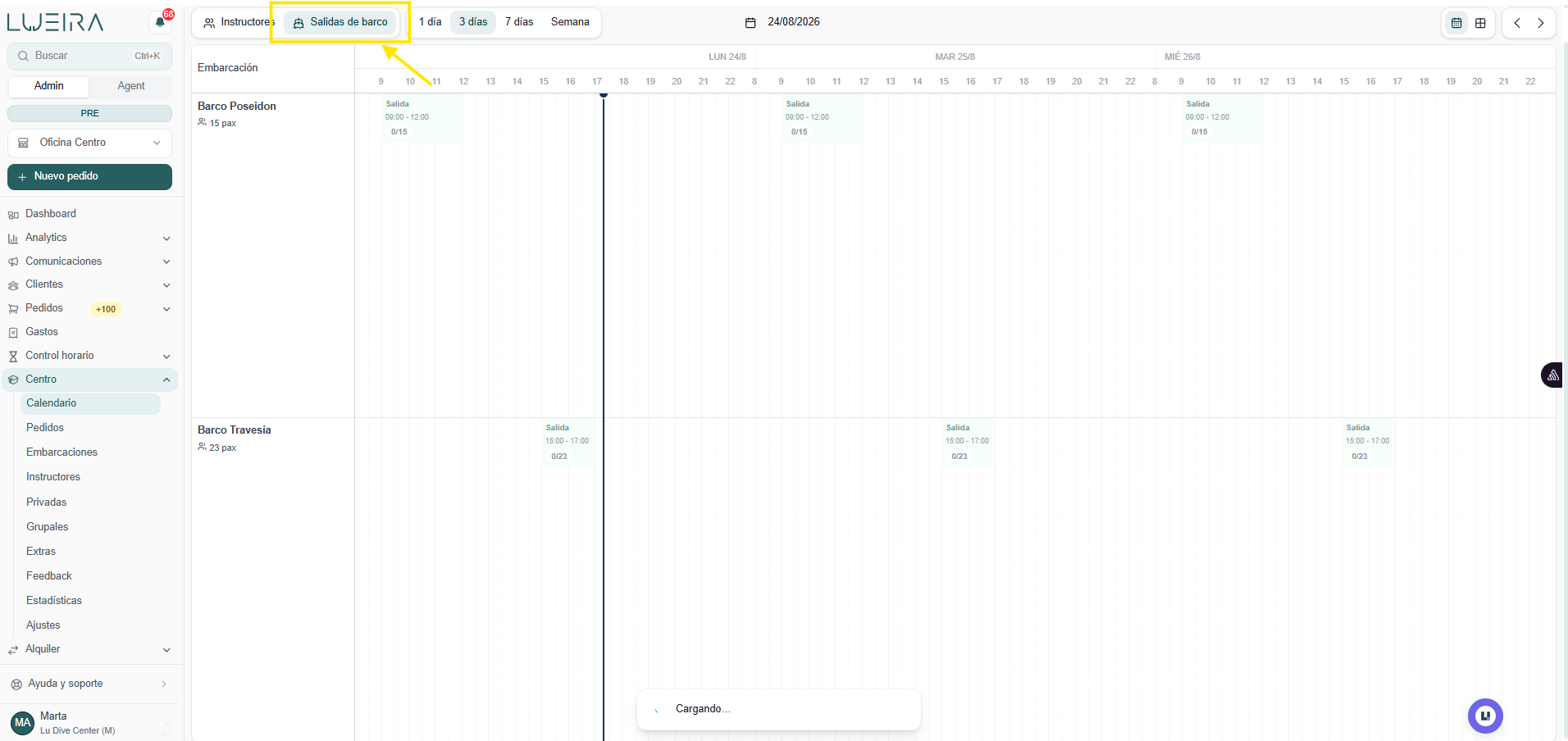
Boat departures → shows departures organised by boat, with the capacity and passengers of each one. Only visible if your center has the diving integration enabled.
View types
In the top right corner you can change how the information is displayed. In Teachers/Instructors/Guides mode there are 3 views available; in Boat departures, only the first 2.
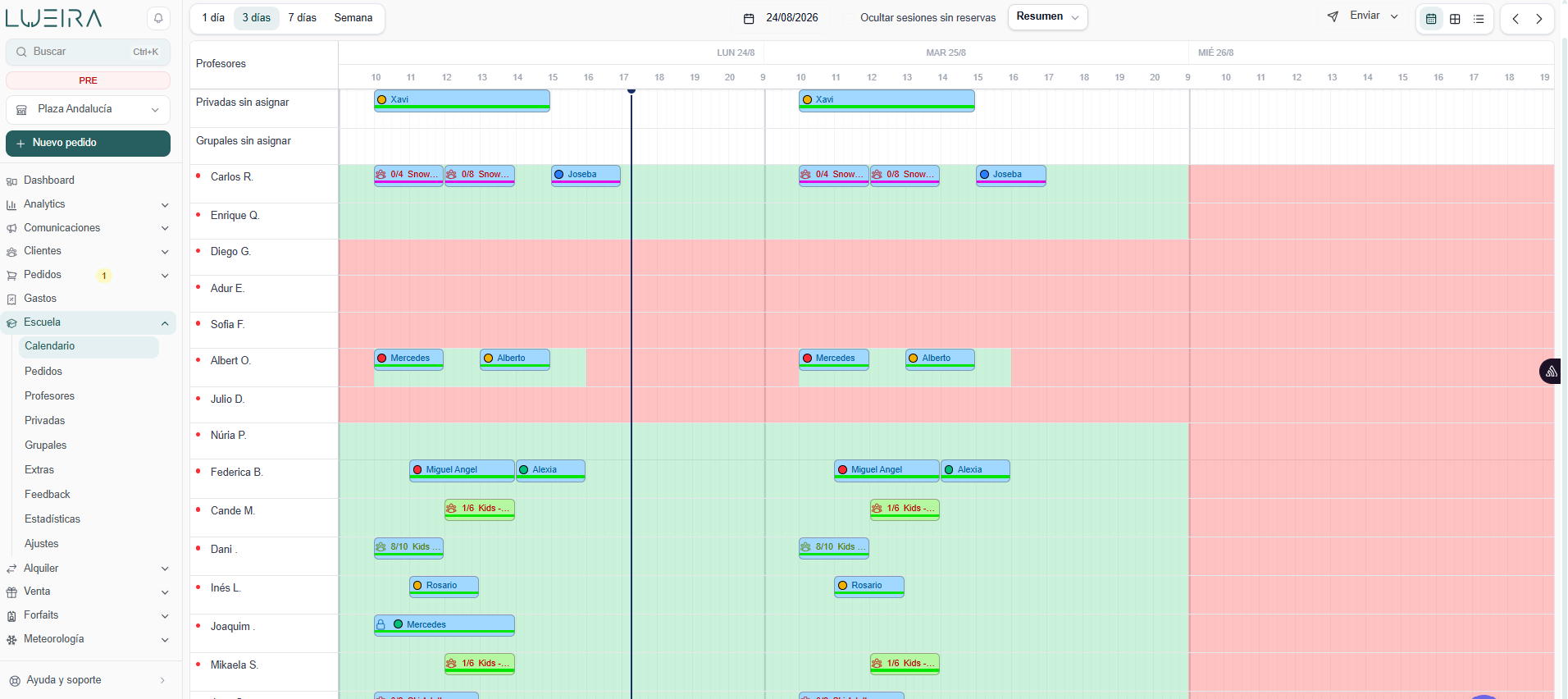
Calendar → timeline view, with the time blocks of each lesson or departure in columns by teacher (or by boat, in Boat departures). Here you can choose the day range: 1 day, 3 days, 7 days or Week.
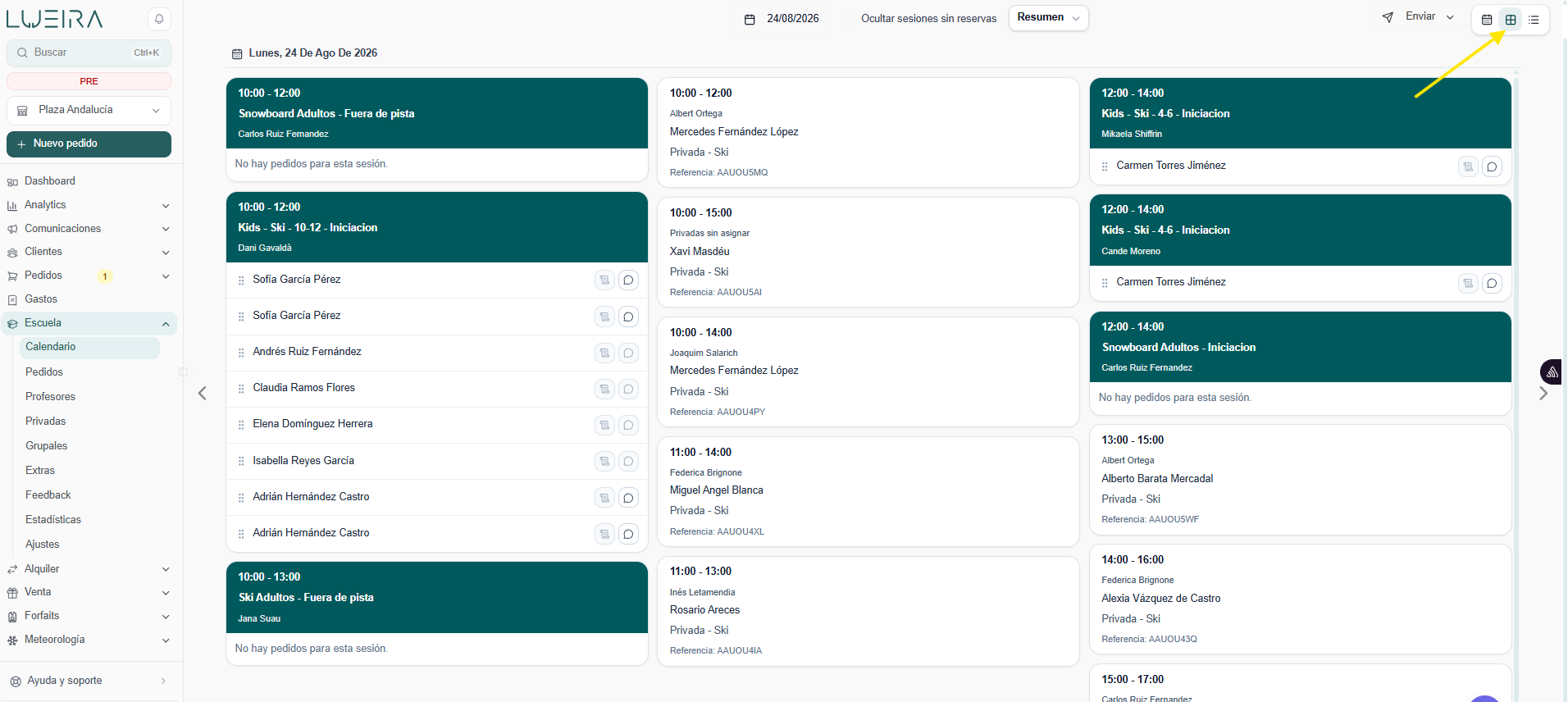
Grid → groups the day's sessions into cards, each with its schedule, activity and the list of participants or passengers inside. A good view for a quick look session by session without the timeline detail.
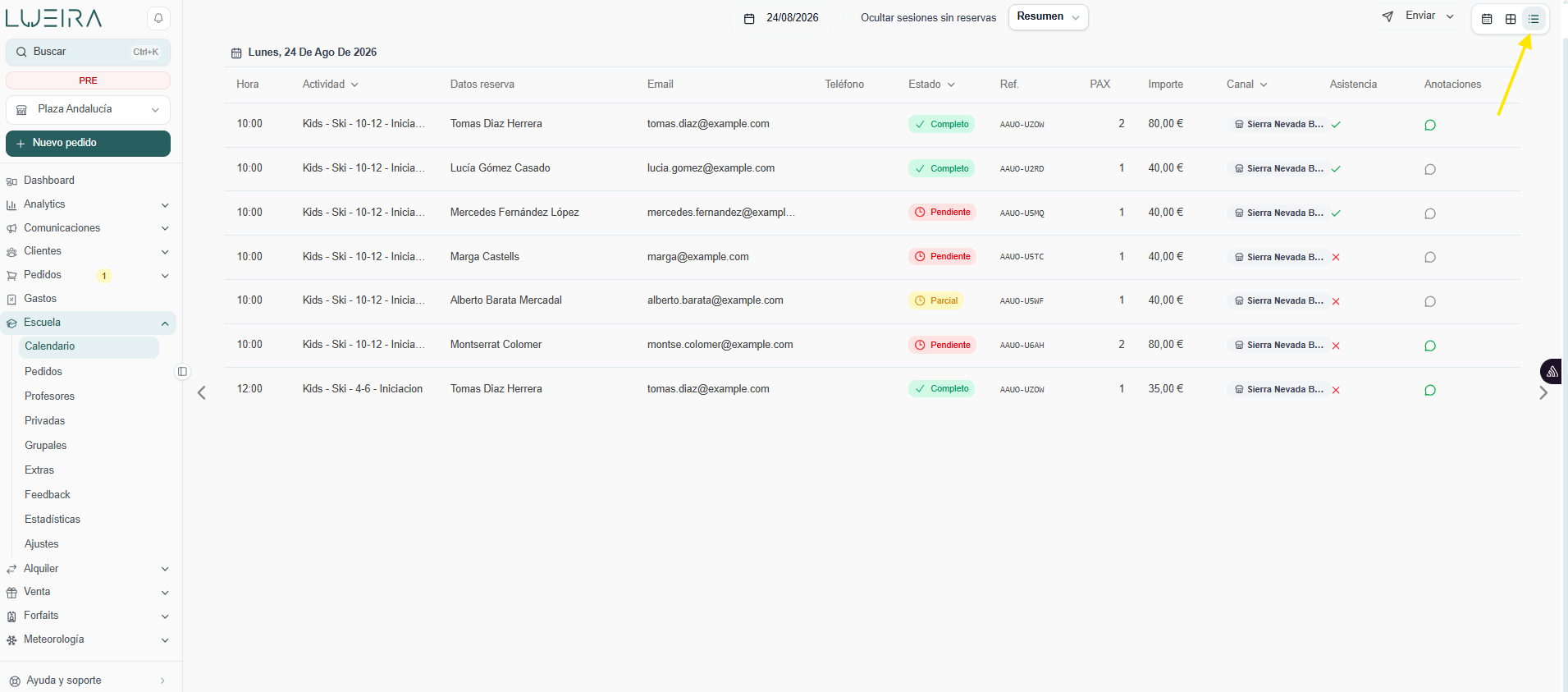
List → flat table with one row per individual booking (time, activity, customer, email, phone, status, reference, PAX, amount, channel, attendance and notes). Only available in Teachers/Instructors/Guides mode.
Filters
Hide sessions without bookings → switch in the top bar to remove from the view the sessions that do not yet have any participant signed up.
Type → group or private.
Teacher → shows only the lessons of a specific teacher.
Date → navigate backwards or forwards with the arrows in the bar.
What the Calendar view shows
Each block represents a lesson or session. When you hover over it you will see a tooltip with the amount paid and the amount pending for the order.
Each column corresponds to an teacher. The colour indicators show their availability (Available / Not available) for the day.
At the bottom of the calendar two special sections appear:
Unassigned group → group sessions that do not yet have an teacher.
Unassigned private → private lessons pending assignment.
Reassign lessons (drag and drop)
In the Calendar view, to move a lesson from one teacher to another, drag it to the destination teacher. If the assignment does not meet some criterion of the booking (language, activity, availability), an alert will appear explaining the reason before you confirm.
Open a session's detail
Click any session to open its detail screen, where you can see the participants, manage payments, assign teachers and more.
📘 More detail: Group product session detail.
Send an email or WhatsApp to a session's customers
From the calendar you can send a bulk email or WhatsApp to all the customers with participants in a group session without having to open the session detail.
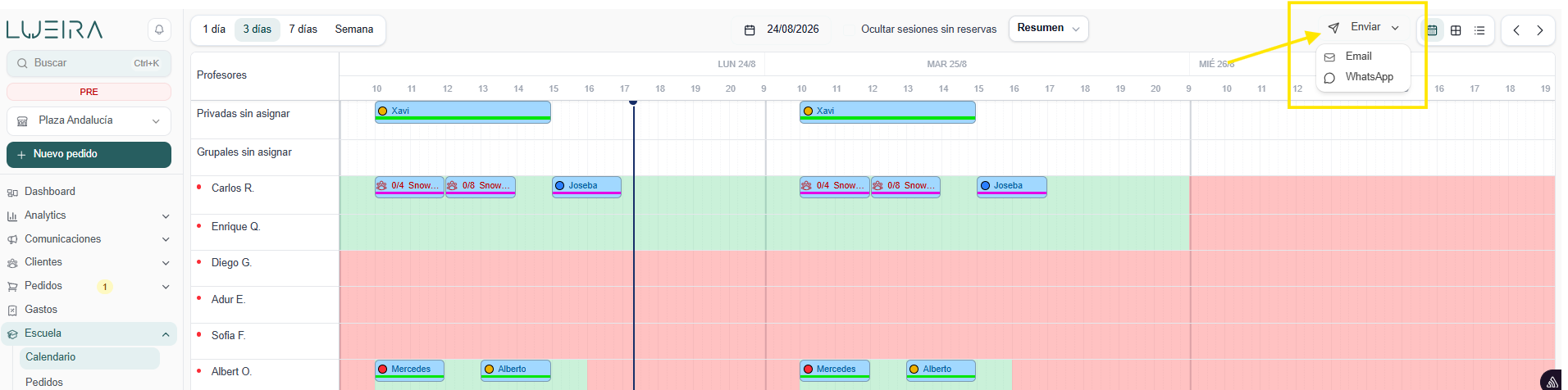
Click on the session and press the Send button. Two options unfold:
Email → opens a modal where you can adjust the recipients, write the subject, choose a template (or free message) and preview the email before sending it.
WhatsApp → opens a modal with the phone numbers of the customers who have an international prefix. Select a template approved by Meta and send.
It works identically to the Send button on the Participants tab in the session detail. See the guide Group product session detail for all the details of each option.
Daily summary
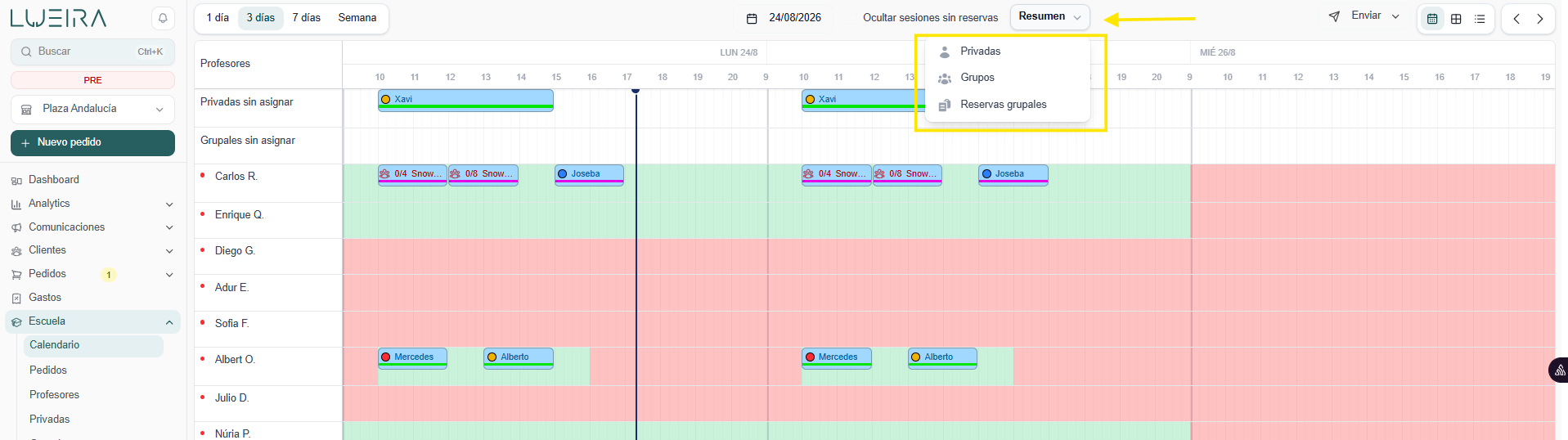
From the Summary menu in the top bar you can generate printable documents for the day, for example the list of group sessions with their participants or the list of private lessons — useful for handing to the teachers at the start of the day or having a quick paper reference. The available options depend on the type of business.
For any question, don't hesitate to contact Lueira's support team!
Related guides
- School navigationHere you will find everything the School section offers
- Which product type do I need? Group, private, pack, voucher or multi-day courseGuide to choosing the right product for what you sell: private lessons (price per hour or rates), several sessions priced by number of sessions, fixed dates, hour voucher, multi-day course or a single student with a group schedule.
- Add School productsComplete guide to creating and configuring private and group products in the School section: form fields, session availability and creating sessions in the calendar.
- Product sheet: Data, Translations, Settings, Extras and Related ProductsReference guide to the tabs of the product creation/editing form (private, group, rental or sale): what each one contains and links to the specific guides.
- How do I set up a new season?We show you how to set up a new ski season in Lueira
- How can I set up the new season of my ski school in LueiraWe show you how to set up a new ski season in Lueira