

Required classes and salary bonuses for instructors
We show you how to make the most of the salary bonuses feature in Lueira
On this page
Required classes and salary bonuses for instructors
With Lueira we can create and manage the salary bonuses we need for our company.
By salary bonuses we mean the additional financial remuneration on top of the base salary of teachers or instructors, granted according to certain specific criteria of performance, productivity or knowledge, or special conditions set by the company.
We can access the bonus configuration in the school Settings, in the settings section of the “School” area of the left-hand side menu, and going into the “Teachers bonuses” option of the menu that appears to the right of it.
On the main “teachers bonuses” page we can see the bonuses we have configured, and the hourly amount of each one can be seen at a glance.
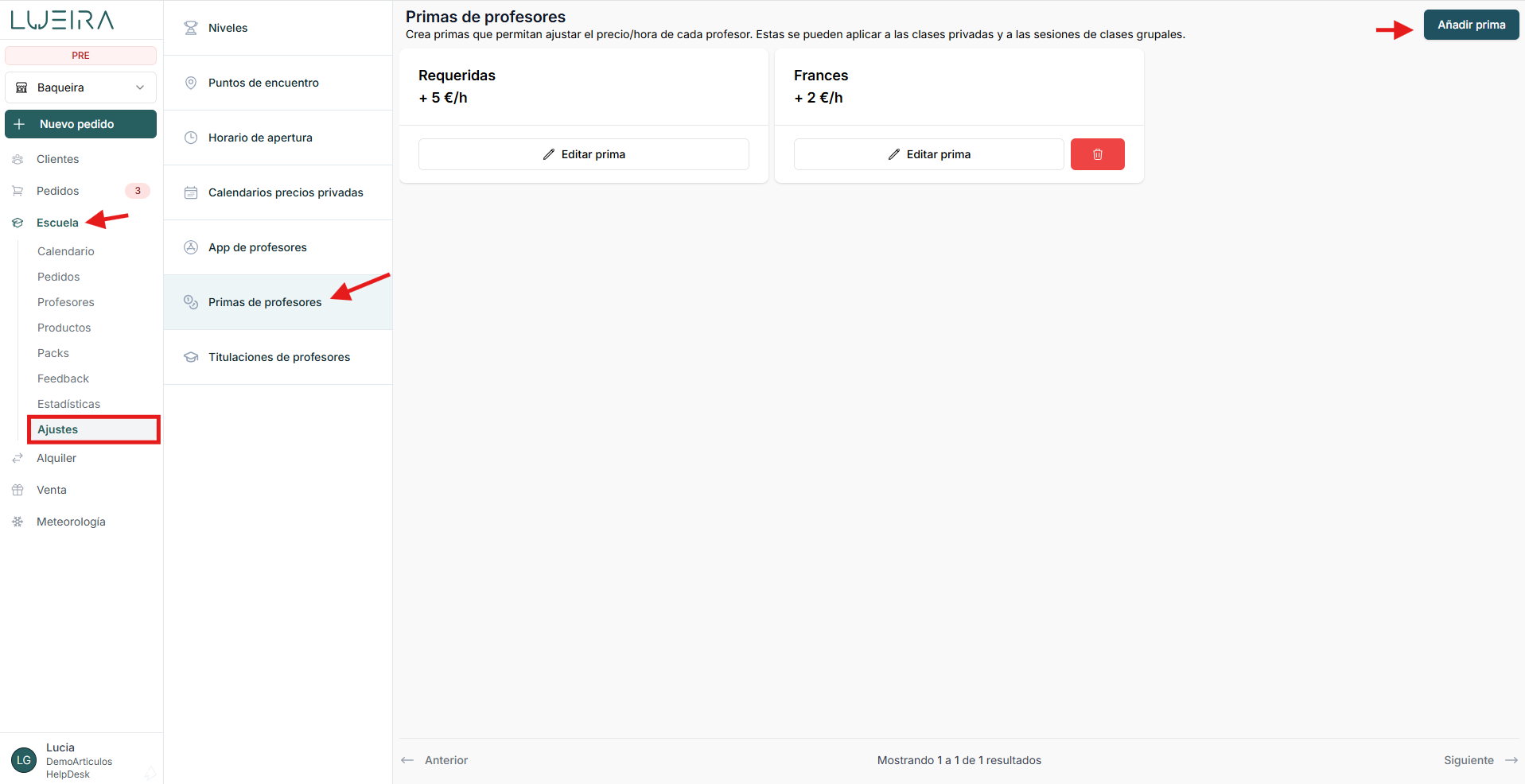
Required hours bonus
The “Required” bonus that appears on the main page of this settings section is a preconfiguration built into the program that we use to assign private classes that are required for a specific instructor.
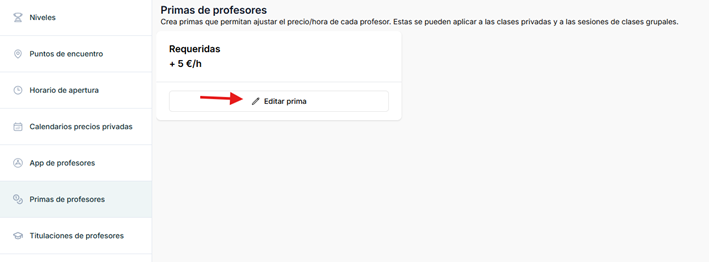
We cannot delete this bonus, but we can edit the hourly amount that our teachers would earn for teaching a required class. To edit this amount we click the “Edit bonus” button found in the same box.
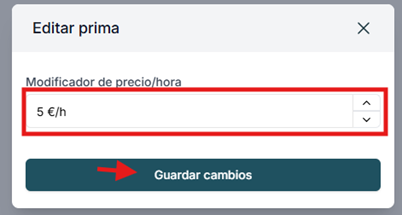
When we click, a configuration window opens where we can enter the hourly amount. We change the amount and use the “Save changes” button to save the configuration.
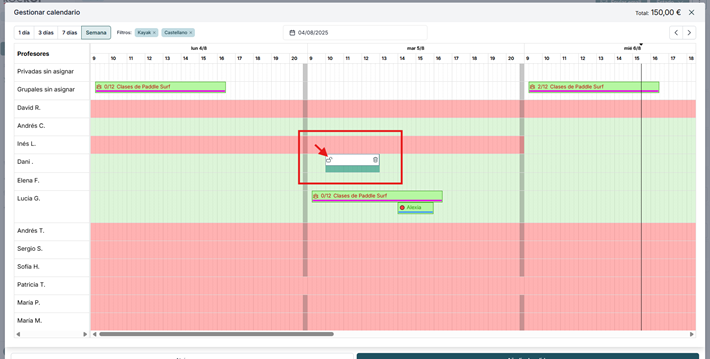
To use this bonus and assign a required class to an teacher, we do it when adding a private class to an teacher, and we can do it in two ways:
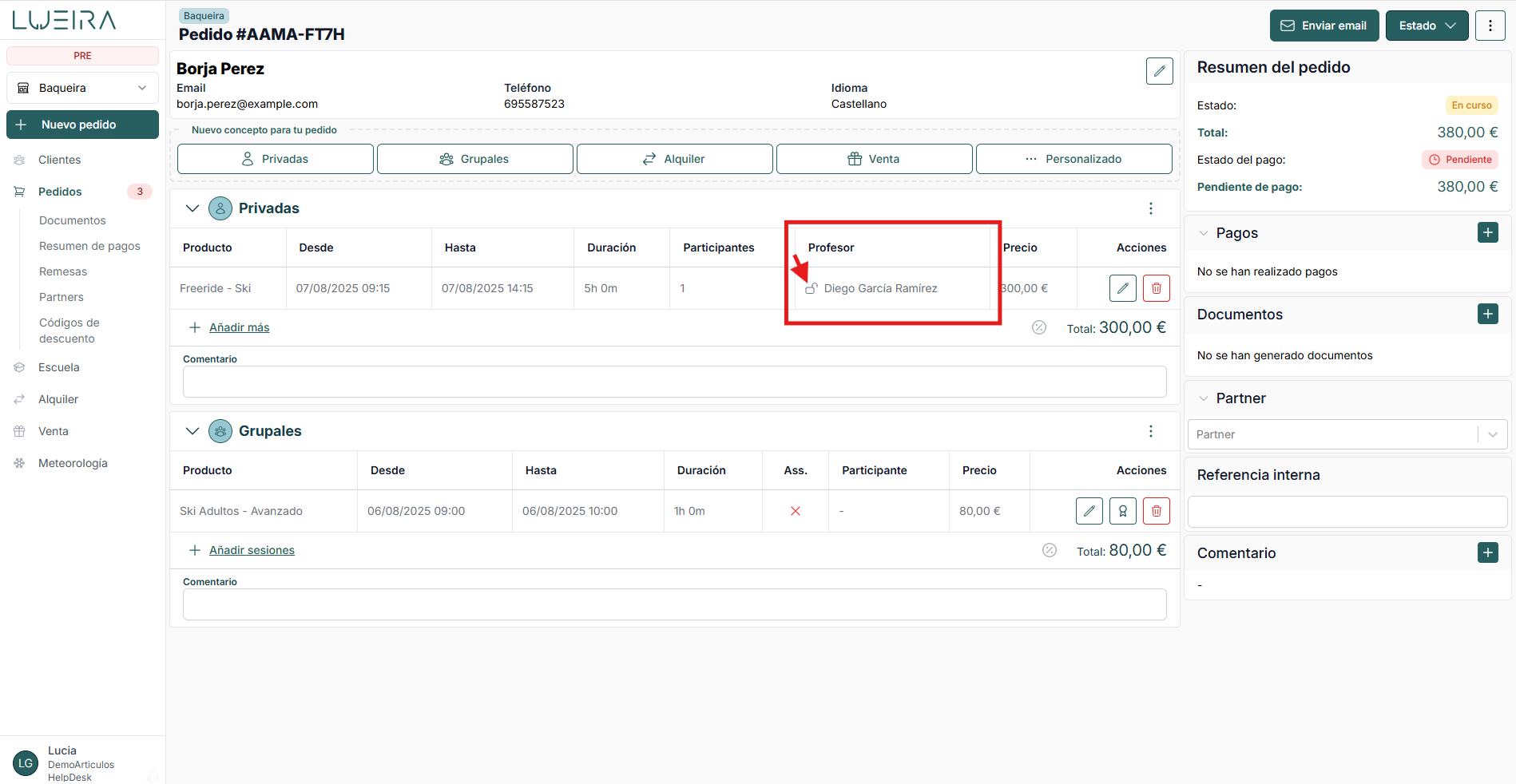
When selecting the time range in which we want to assign the class, using the padlock symbol to lock that class to the teacher we want. By locking the padlock we prevent this booking from being moved in the school planning, avoiding possible errors of assigning a required class to other teachers.
In an order's details, in the breakdown of the hours booked on a private product, in the teacher section we can see the padlock symbol next to the name of the instructor to whom the classes have been assigned. With this padlock we can lock the classes to the instructor and in this way assign the required classes. This way the program lets us lock the number of hours that we consider required for each booking, in case it is an extension of the booking, for example.
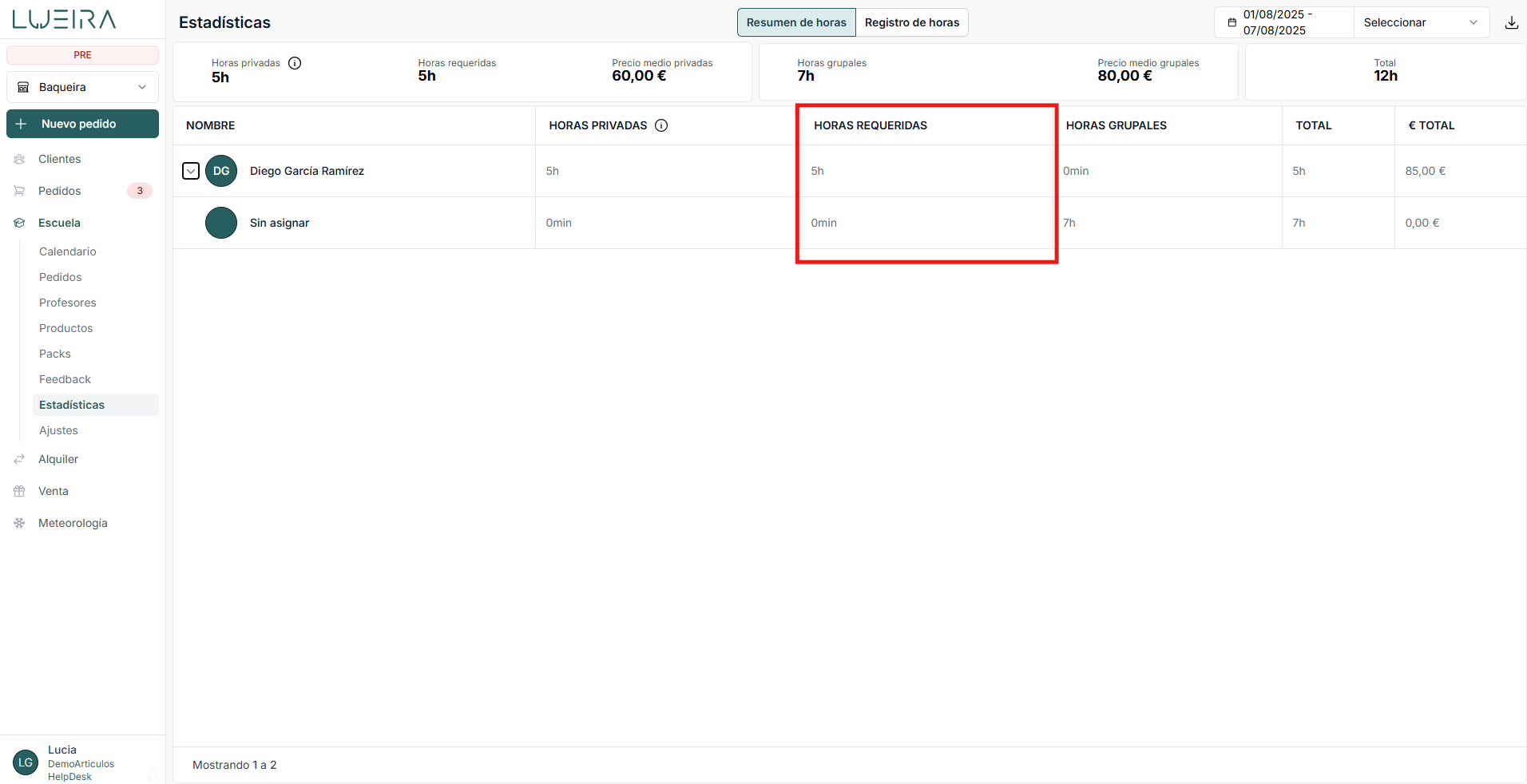
To see the number of required hours each teacher has, we can look in the “Statistics” section of the School area.
Customisable bonuses
To add a new bonus we use the “Add bonus” button found in the top corner of the screen. When we select this button a configuration window opens, where we can enter a name for the salary bonus we are creating and set the price/hour change amount that will be applied when this bonus is assigned.
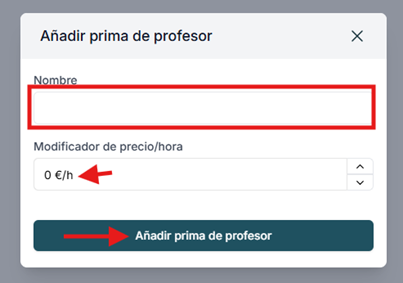
To finish we use the “Add teacher bonus” button to save the configuration we have created, and we will be able to see the information of this bonus on the main page.
We can add as many bonuses as we want to use later when assigning a private class to an teacher whenever we need it.
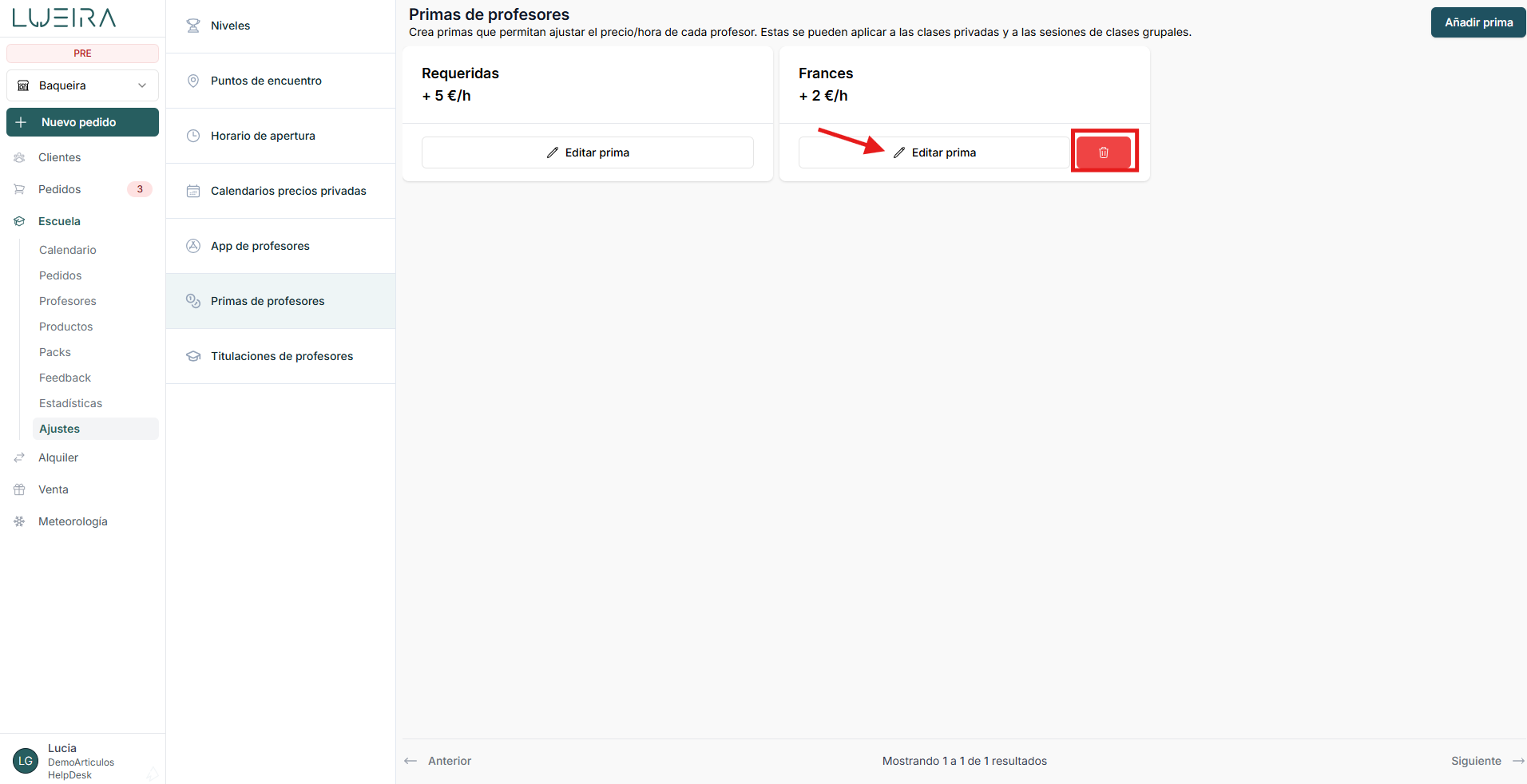
We can also edit the hourly price amount or delete the bonus we have created using the “Edit bonus” button or the button with the red bin icon.
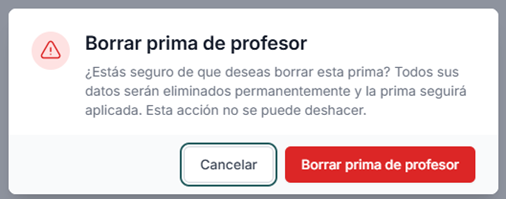
If we click the delete button, a confirmation message for this action will appear and we can cancel or confirm that we want to “Delete teacher bonus”.
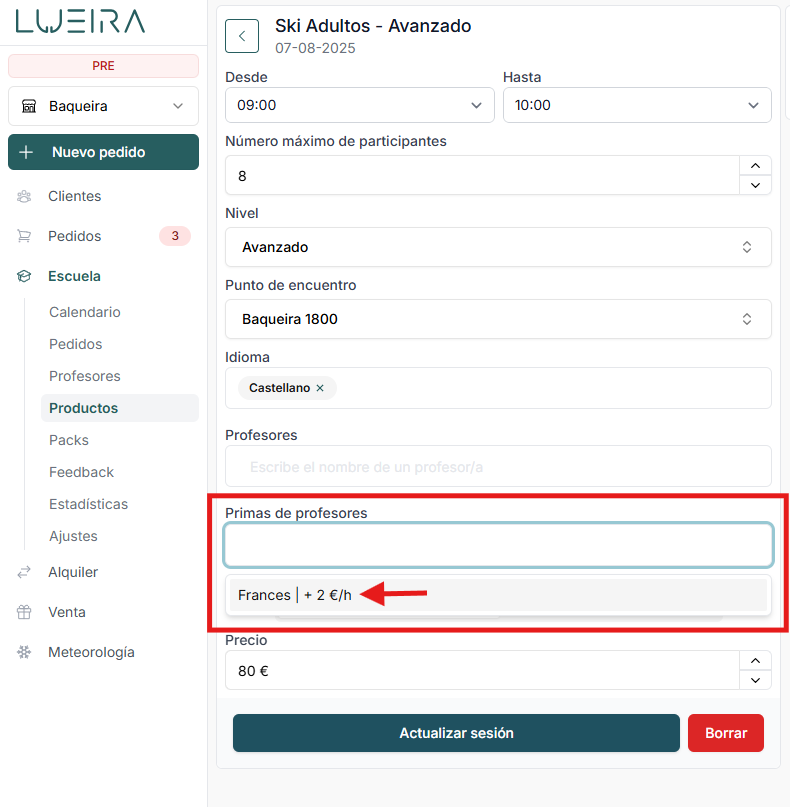
To use salary bonuses for teachers, we do it when adding a product private to an order or in a group session, and by using the “Teachers bonus” search box we will be able to see the bonus we have configured.

When using teachers bonuses in orders and sessions, we can check the hours and the total amount that each teacher has worked for each bonus in the “Statistics” section of the “School” area of the left-hand side menu. The instructors who have taught any class or session with an assigned bonus will appear in the list with an arrow next to their name; if we click this arrow, a drop-down opens where we can see the detail of the hours worked by this instructor and the total amount calculated.

If you have any questions, do not hesitate to contact the Lueira support team!
Instructor bonus and customer surcharge
💡 The teacher bonus and the customer surcharge are two different settings.
The "Required" bonus in this guide is what the instructor earns per hour of required class. It is configured in Settings → Teachers bonuses.
The extra charge the customer pays when they choose a specific teacher is configured in Settings → Required teacher. In orders created from Admin it is not applied automatically: it has to be ticked on each class.
📘 You can find the details in Required instructor in private lessons.
Related guides
- School navigationHere you will find everything the School section offers
- Which product type do I need? Group, private, pack, voucher or multi-day courseGuide to choosing the right product for what you sell: private lessons (price per hour or rates), several sessions priced by number of sessions, fixed dates, hour voucher, multi-day course or a single student with a group schedule.
- Add School productsComplete guide to creating and configuring private and group products in the School section: form fields, session availability and creating sessions in the calendar.
- Product sheet: Data, Translations, Settings, Extras and Related ProductsReference guide to the tabs of the product creation/editing form (private, group, rental or sale): what each one contains and links to the specific guides.
- How do I set up a new season?We show you how to set up a new ski season in Lueira
- How can I set up the new season of my ski school in LueiraWe show you how to set up a new ski season in Lueira