

Lueira Instructors, the app for your teachers
A tour of the Lueira Team app (Lueira Instructors): signing in, Home, Calendar, classes, clocking in and the Me tab.
On this page
- Lueira Instructors, the app for your teachers
- 1. Signing in
- 2. How to get around the app
- 3. Home
- 4. Calendar
- 5. Class details
- 6. Clocking in and hours
- 7. Me
- Common problems and other app guides
- Common problems
- The verification code doesn't work or I can't sign in
- I changed the time of a class and the teacher still sees the old one
- Which comments and which phone number does the teacher see?
- Other app guides
- The app has no password
Lueira Instructors, the app for your teachers
This is a quick tour of the app. Each part has a guide with more detail, linked at the end of each section.
1. Signing in
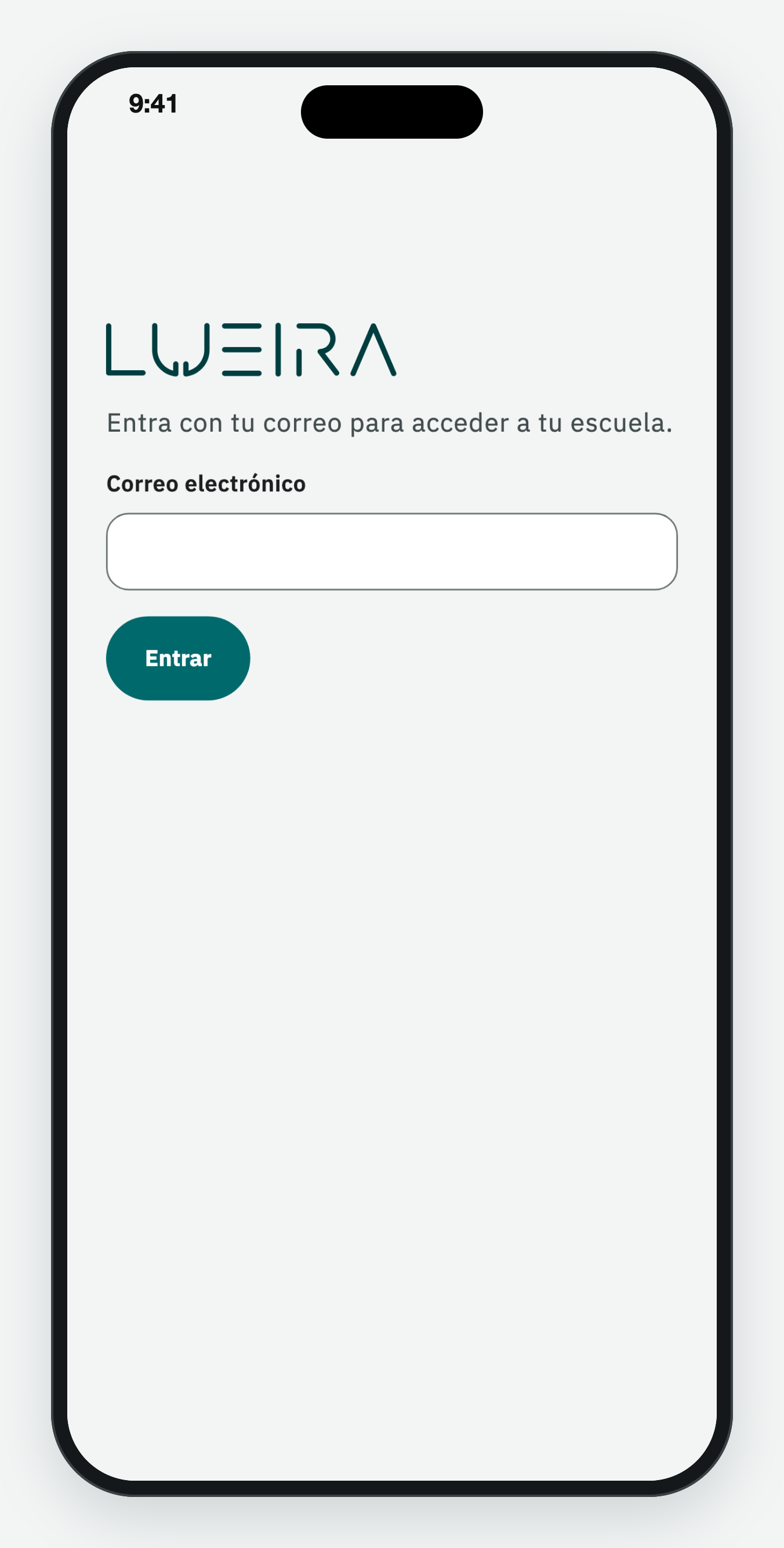
- Enter your email address (the same one the school used to register you as a teacher) and tap Login.
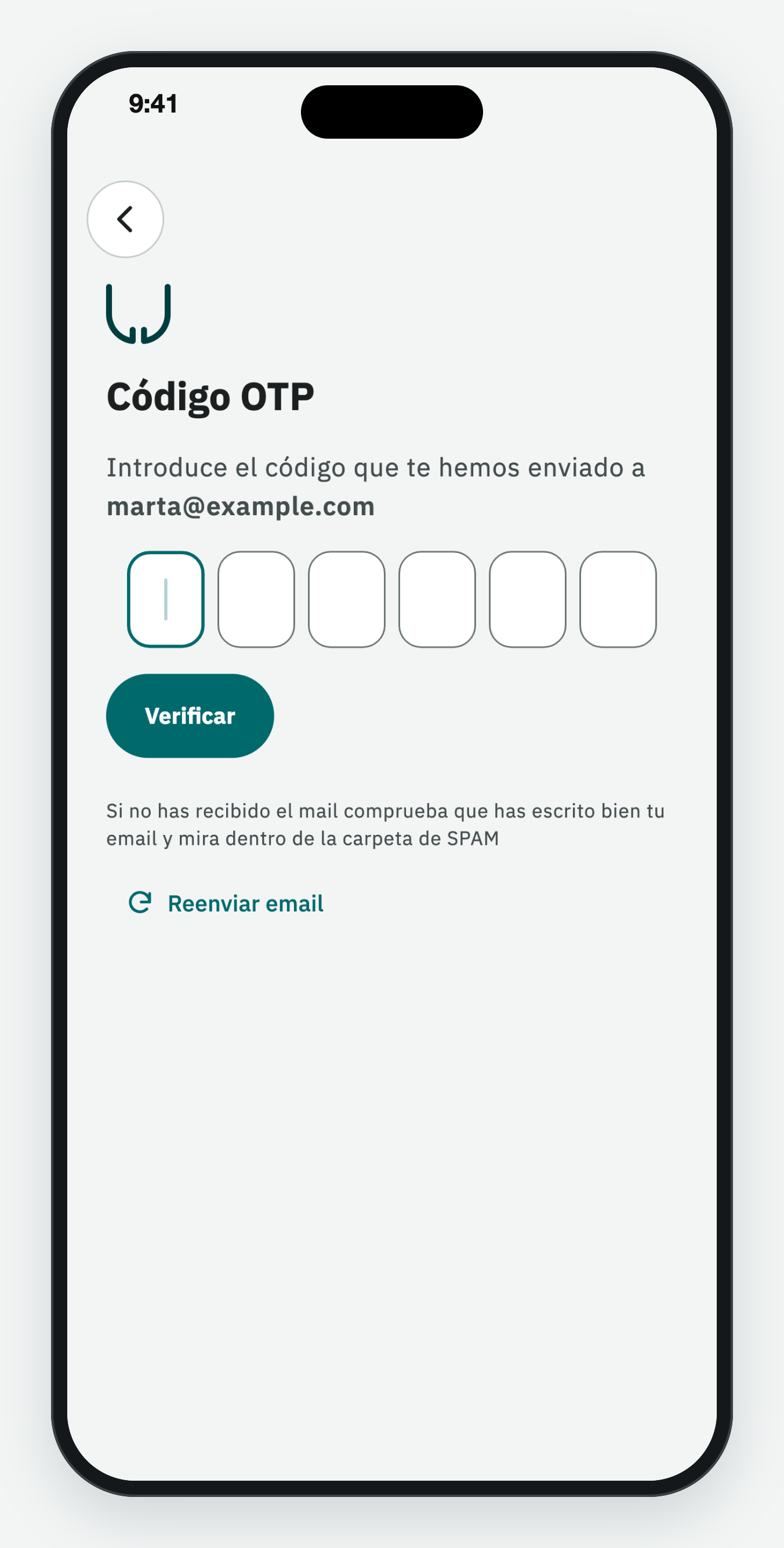
- You will receive an email with a 6-digit code. Enter it on the validation screen: it is verified automatically when you complete the sixth digit. If it doesn't arrive, check your SPAM folder or tap Resend email.
- If you have access to more than one school, choose which one you want to see. With just one, you go straight in.
2. How to get around the app
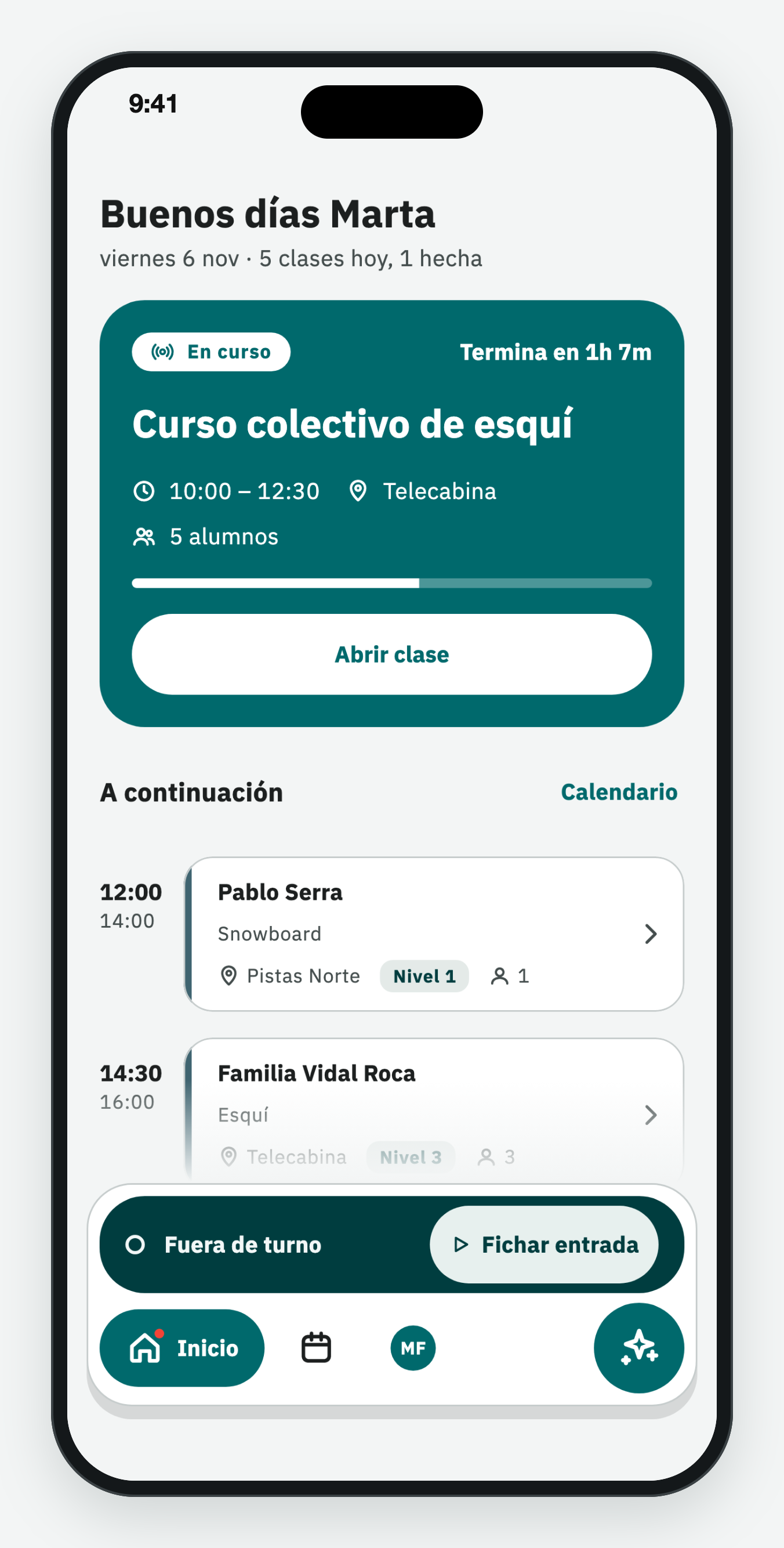
At the bottom you always have the same bar:
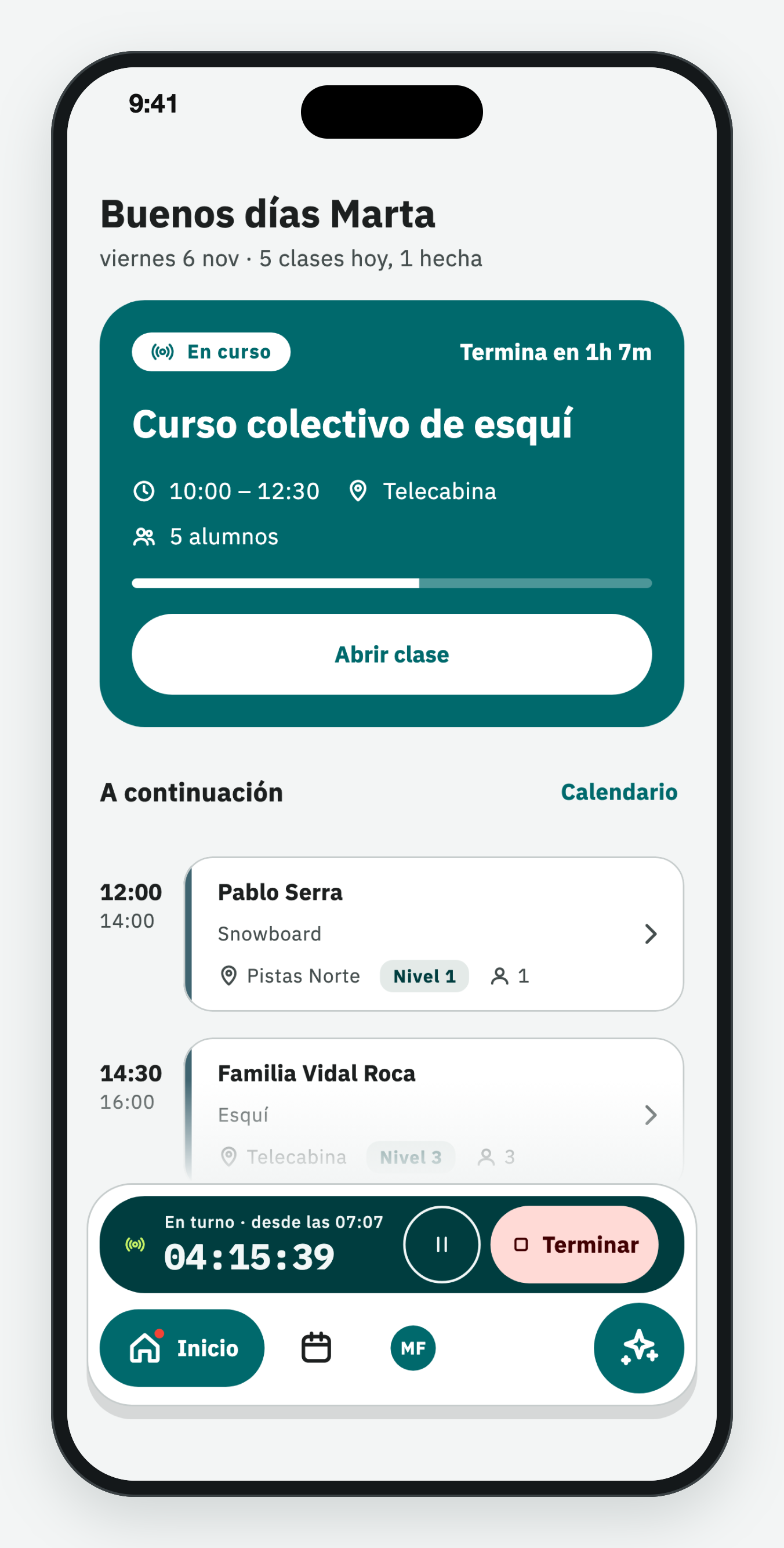
- Clocking in (above the bar): "Off duty" with Clock in, or your workday in progress with the timer.
- Tabs: Home, Calendar and Me (workers without classes don't have Calendar).
- Sparkles button: the assistant, if your school has it turned on.
3. Home
Your day at a glance: the class in progress, the next ones and those already done. See App Home: your day at a glance.
4. Calendar
All your sessions by day or by week. See Calendar in the app: day and week view.
5. Class details
When you tap a class you see the participants, mark attendance, call or message the customers, read the notes, add comments with photos and review the forms. Afterwards you can leave feedback and awards. See Class details and Create feedback from the app.
6. Clocking in and hours
Clock in from the bottom bar, log your breaks, check your records and your monthly summary, and request corrections. See Time Tracking in Lueira.
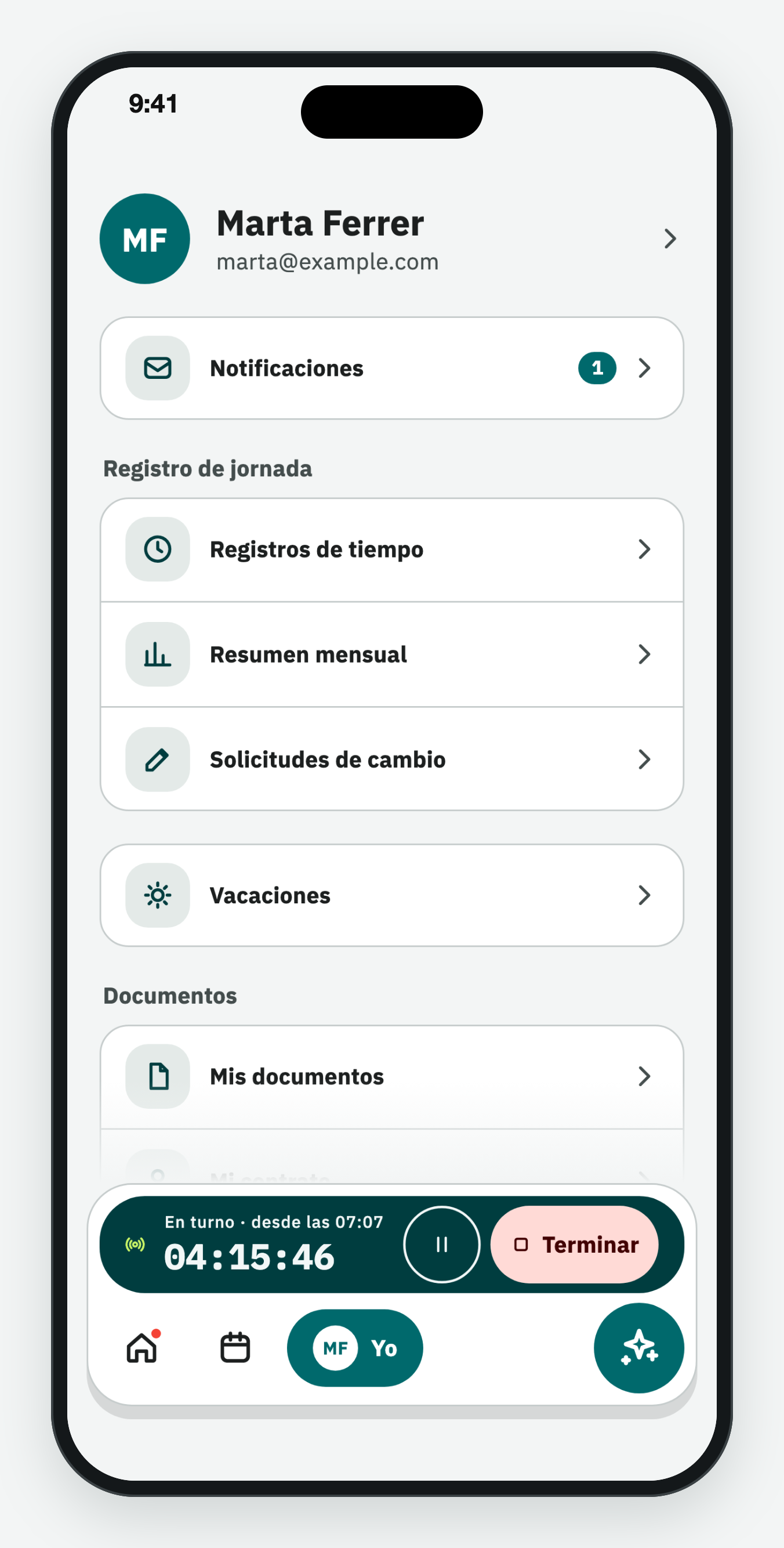
7. Me
Your account: notifications, time tracking records, holidays, documents, contract and settings. See App settings, notifications and account.
Common problems and other app guides
Common problems
The verification code doesn't work or I can't sign in
- Check that you have the latest version of the app installed from Google Play or the App Store and update it if there is a new version. After some updates, older versions may give an error when signing in.
- Use the code from the most recent email you received.
- Check that you are signing in with the same email the school used to register you as a teacher. If the app says "Email not found", ask the school to check your profile.
If after updating you still can't sign in, let your school know so they can contact Lueira support.
💡 To clock in in the meantime: there is a web version of Time Tracking at trackr.lueira.com. Its login screen says «Acceso exclusivo para administradores del sistema» (access exclusive to system administrators), so an administrator of your school has to open it.
I changed the time of a class and the teacher still sees the old one
If they have the screen open, the app does not reload by itself. They should pull down on the screen to refresh it, or switch day and come back.
Which comments and which phone number does the teacher see?
- Comments: they see the comments of the session or group of classes (if the school has Show comments enabled). The general order comments are not shown in the app.
- Phone number: for them to see the student's phone number and be able to call from the app, the booking must have the class participant assigned.
Other app guides
- App for instructors or guides: complete guide to the app for the teacher.
- Teacher / instructor / guide app settings: for administrators.
- Time Tracking in Lueira: clocking in and out, breaks and change requests.
- Team users and access problems: difference between panel users and app teachers.
The app has no password
If when you open the app it asks for a "username and password" or you don't know which password to enter: Lueira Instructors has no password. Just enter your email address (the same one the school used to register you as a teacher), tap Login and enter the verification code you receive by email. Every time you log out you will have to request a new code.
Related guides
- App assistant: what it can do and how to confirm its proposalsWhat the Lueira app assistant can look up and prepare, how to ask it questions, how to confirm or cancel what it proposes and how to adjust its style.
- App for instructors or guidesComplete guide to the Lueira Team app for instructors and guides: classes, attendance, feedback, clocking in, holidays, documents and contract.
- App Home: your day at a glanceWhat the Lueira app home screen shows: your current lesson, the next ones, the ones you have already done, the day off and the bottom bar with clock-in.
- App settings, notifications and account: the Me tabWhat is in the Me tab of the app: your profile, notifications, calendar settings, changing school and logging out.
- Calendar in the app: day and week viewHow to check your lessons by day or by week in the app, what the colors mean and how to change the default view.
- Create feedback from the app: comment, awards, photos and assistant draftHow to leave feedback for a participant or for the whole session from the app, give awards, add photos, use the assistant draft and share it.