

App assistant: what it can do and how to confirm its proposals
What the Lueira app assistant can look up and prepare, how to ask it questions, how to confirm or cancel what it proposes and how to adjust its style.
On this page
App assistant
The assistant is an artificial intelligence inside the app. It helps you check your agenda and your time logs and prepare actions that you confirm. It is only available if your school has turned it on: if you don't see the sparkles button, your school doesn't have it yet.
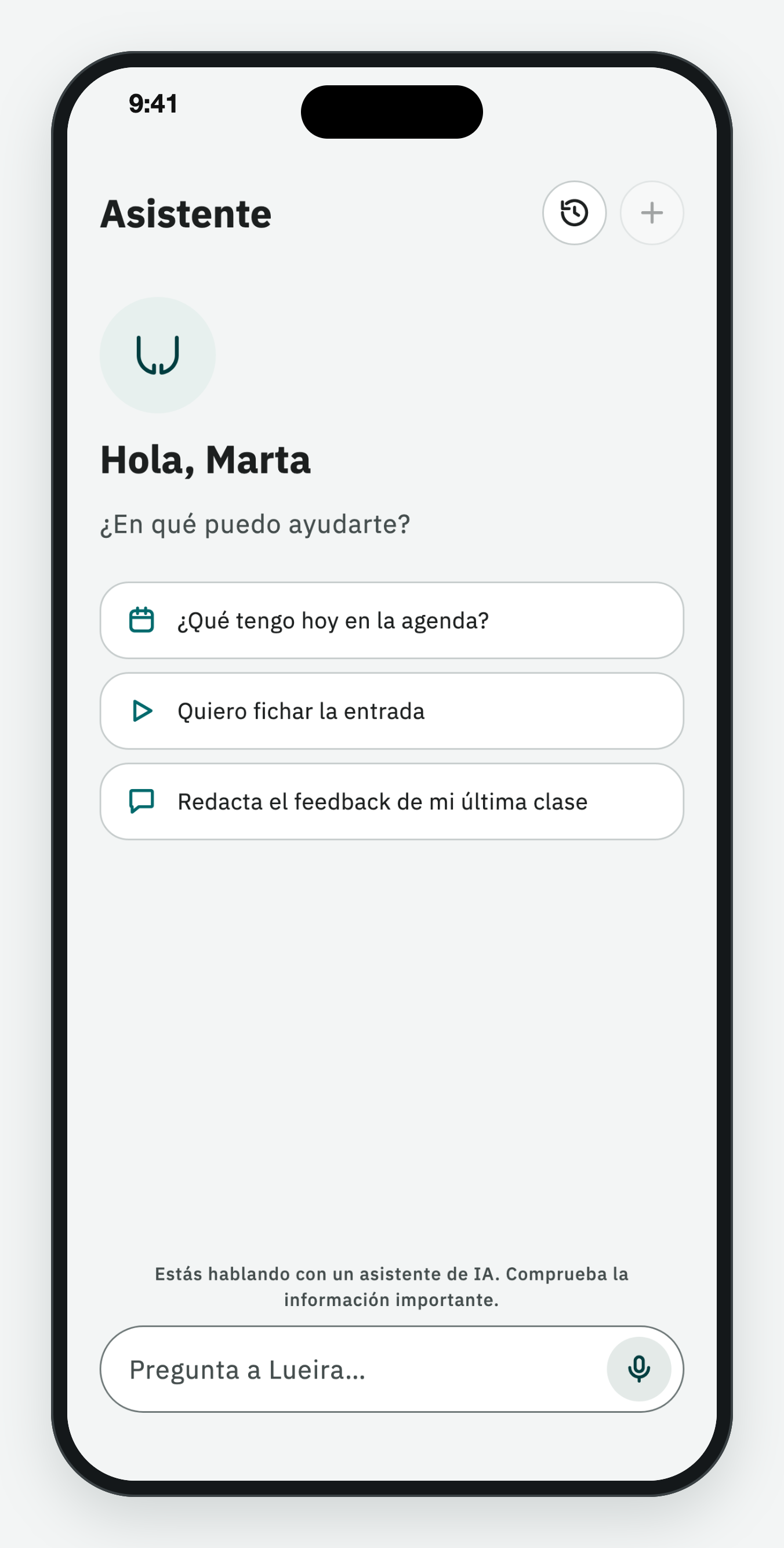
You are talking to an AI: the app reminds you and asks you to double-check important information.
How to open it
- With the round sparkles button in the bottom bar (or the side bar on a tablet).
- With Ask Lueira in the Home greeting.
- With the sparkles button on a lesson ("Ask Lueira about this lesson"), on time records ("Ask Lueira about my time logs") or on holidays ("Request time off with Lueira"). This way the conversation already comes with that context and a written question, which is only sent when you decide to.
When you start you will see "How can I help?" with three suggestions: "What is on my agenda today?", "I want to clock in" and "Draft feedback for my last lesson".
What it can do
Look things up: your agenda, a specific lesson, the status of your time record and your monthly summary. When it does, the conversation shows what it has looked up.
Prepare (you always confirm): starting or ending your shift, starting or ending a break, an availability request (holidays) and a feedback.
Draft: a feedback draft (see Create feedback from the app).
Confirm or cancel a proposal
When the assistant prepares an action, it does not carry it out: it shows you a card with what it is going to do (time, break type, dates, text…), warnings if there are any and the time until which it is valid.
- Check the details.
- Tap Confirm to do it, or Cancel.
- The card changes to Done or Cancelled.
- If the proposal has expired: "Expired. Ask the assistant again."
- If the data has changed in the meantime: "No longer possible: the data has changed."
- Offline: shift and break starts and ends are saved and sent when the connection is back ("Saved offline"). Everything else fails with "No connection"; try again with Retry.
Conversations
The history button opens Conversations: you can open a previous one, rename it, delete it or start a new one. They are kept for 30 days on the server. Offline you will see the ones saved on your phone.
Dictate with your voice
In the message box and when writing a feedback you can dictate with the microphone. Your phone will ask for permission to use the microphone and speech recognition the first time. A recording can last up to 3 minutes.
Adjust the style
In Assistant settings (from Me, or with the settings icon in the history) you choose:
- Tone: Warm, Professional, Playful or Concise. Length: Short, Medium or Long. Sign-off: for example "Best wishes, Ana".
- Feedback history: where it learns your style from (none, your feedbacks or those of all instructors), how many feedbacks and from what period. Your school sets the limit.
- Suggest badges.
- Voice: Automatic, On device or On server (if your school allows it).
Tap Save ("Preferences saved").
If it does not respond
- "You’ve reached today’s limit. Try again later.": there is a daily usage limit.
- "The assistant is not available at your school."
- "Your session has expired. Please sign in again."
- "No connection. Please try again."
Related guides
Related guides
- App for instructors or guidesComplete guide to the Lueira Team app for instructors and guides: classes, attendance, feedback, clocking in, holidays, documents and contract.
- App Home: your day at a glanceWhat the Lueira app home screen shows: your current lesson, the next ones, the ones you have already done, the day off and the bottom bar with clock-in.
- App settings, notifications and account: the Me tabWhat is in the Me tab of the app: your profile, notifications, calendar settings, changing school and logging out.
- Calendar in the app: day and week viewHow to check your lessons by day or by week in the app, what the colors mean and how to change the default view.
- Create feedback from the app: comment, awards, photos and assistant draftHow to leave feedback for a participant or for the whole session from the app, give awards, add photos, use the assistant draft and share it.
- Crew member appHow to use the Lueira app as a crew member: check your boat departures, manage participants and forms, and manage your documents.