

App for instructors or guides
Complete guide to the Lueira Team app for instructors and guides: classes, attendance, feedback, clocking in, holidays, documents and contract.
On this page
- App for instructors or guides
- Home and navigation
- Your class calendar
- Group and private sessions
- Feedback
- Clocking in and time tracking
- Your profile (Me tab)
- Holidays
- Documents
- My contract
- Notifications, settings and account
- Assistant
- Common problems and other app guides
- Common problems
- I can't sign in or the code doesn't work
- I don't see a schedule change or a new class
- I don't see the comments or phone number of a customer
- Other app guides
App for instructors or guides
What you can see and do in this app depends on how your centre has configured data visibility and planning hours. If you are an administrator, see Teacher / instructor / guide app settings to adjust these options.
Home and navigation
When you open the app you will see Home, with your class in progress or the next one, those coming after and those you have already done. In the bottom bar are the Home, Calendar and Me tabs, clocking in and, if your school has it, the assistant button.
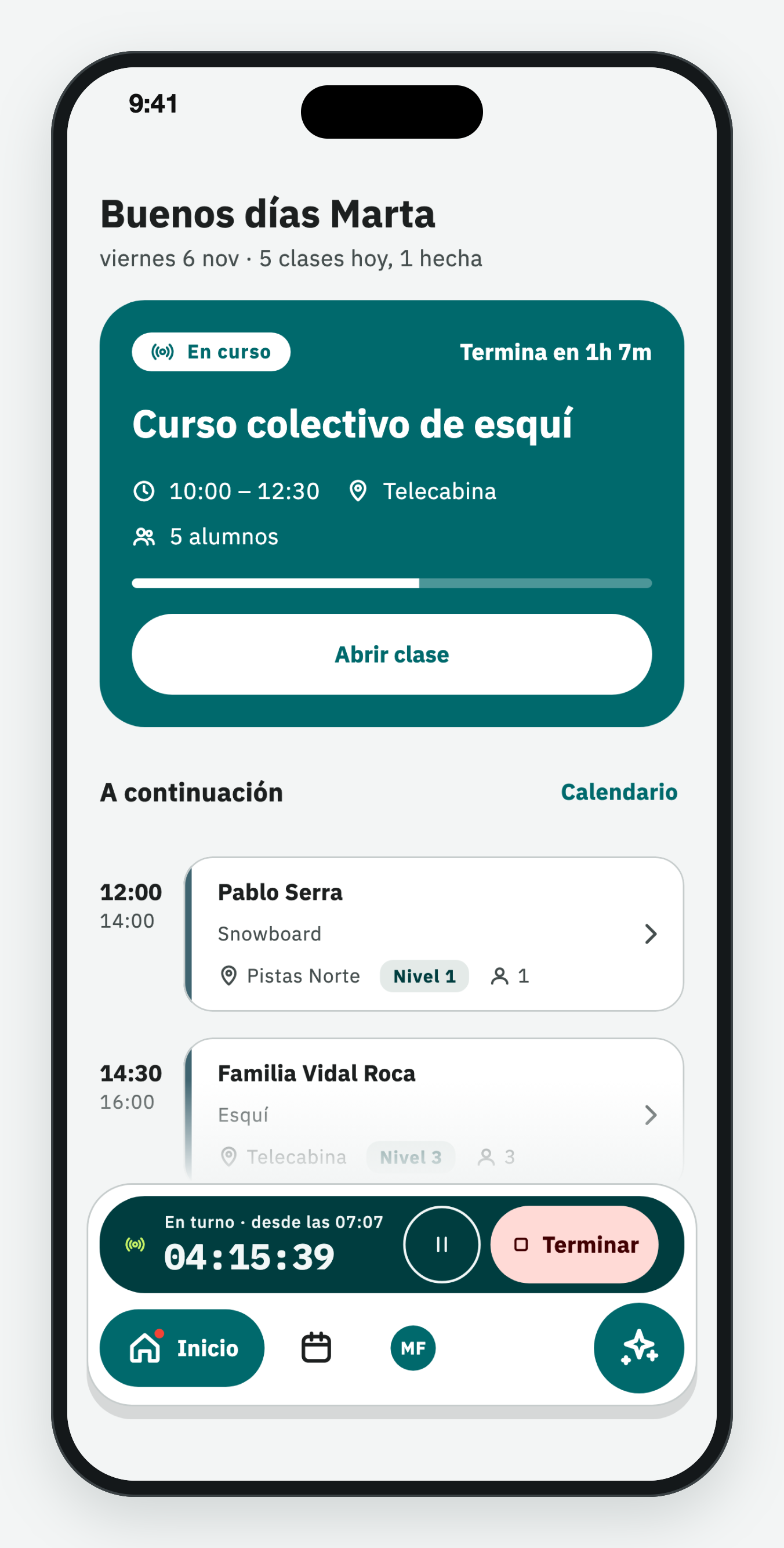
More detail: App Home: your day at a glance.
Your class calendar
The Calendar tab shows your sessions by Day or by Week. Tap a session to open its details.
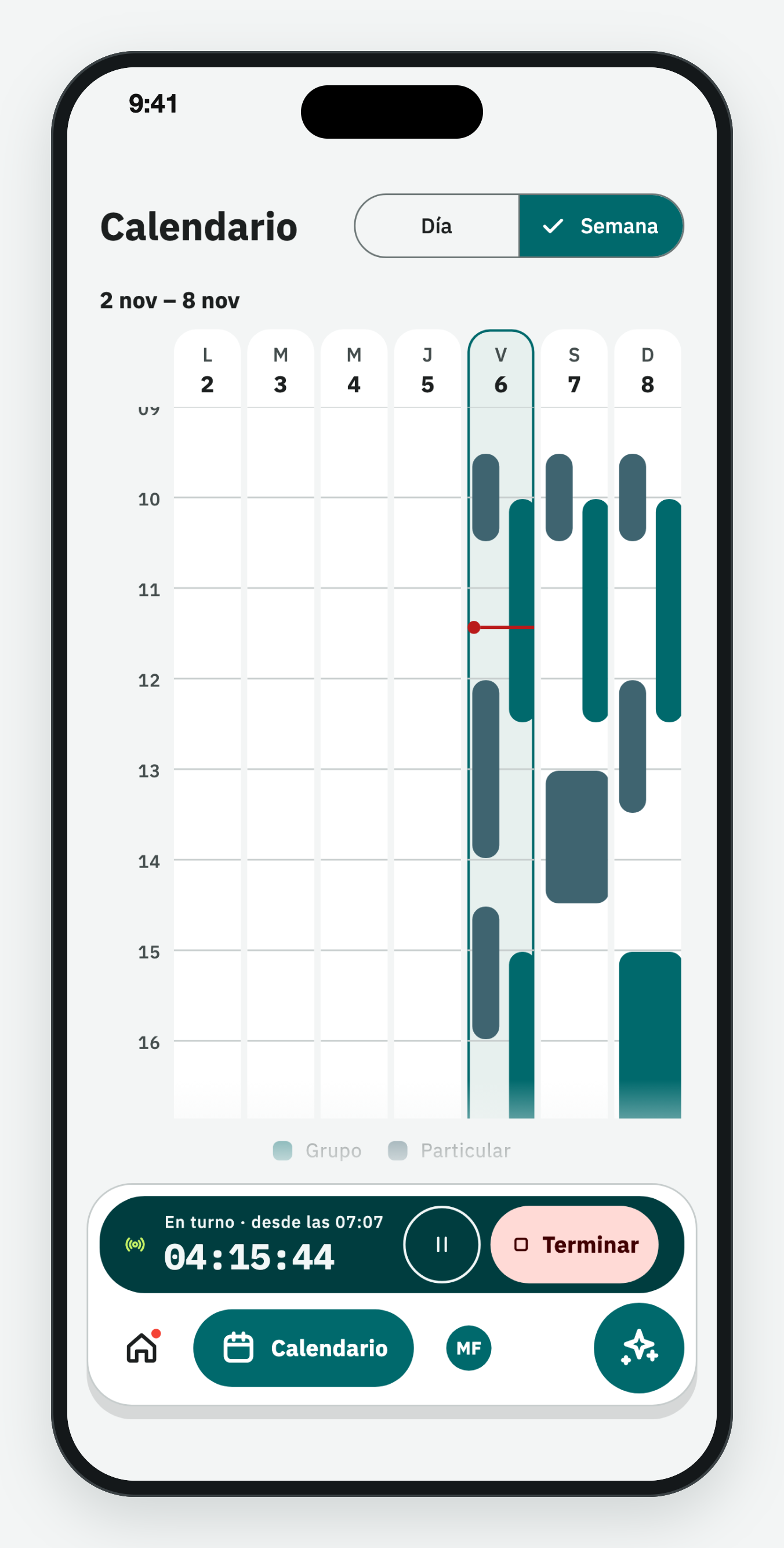
More detail: Calendar in the app.
Group and private sessions
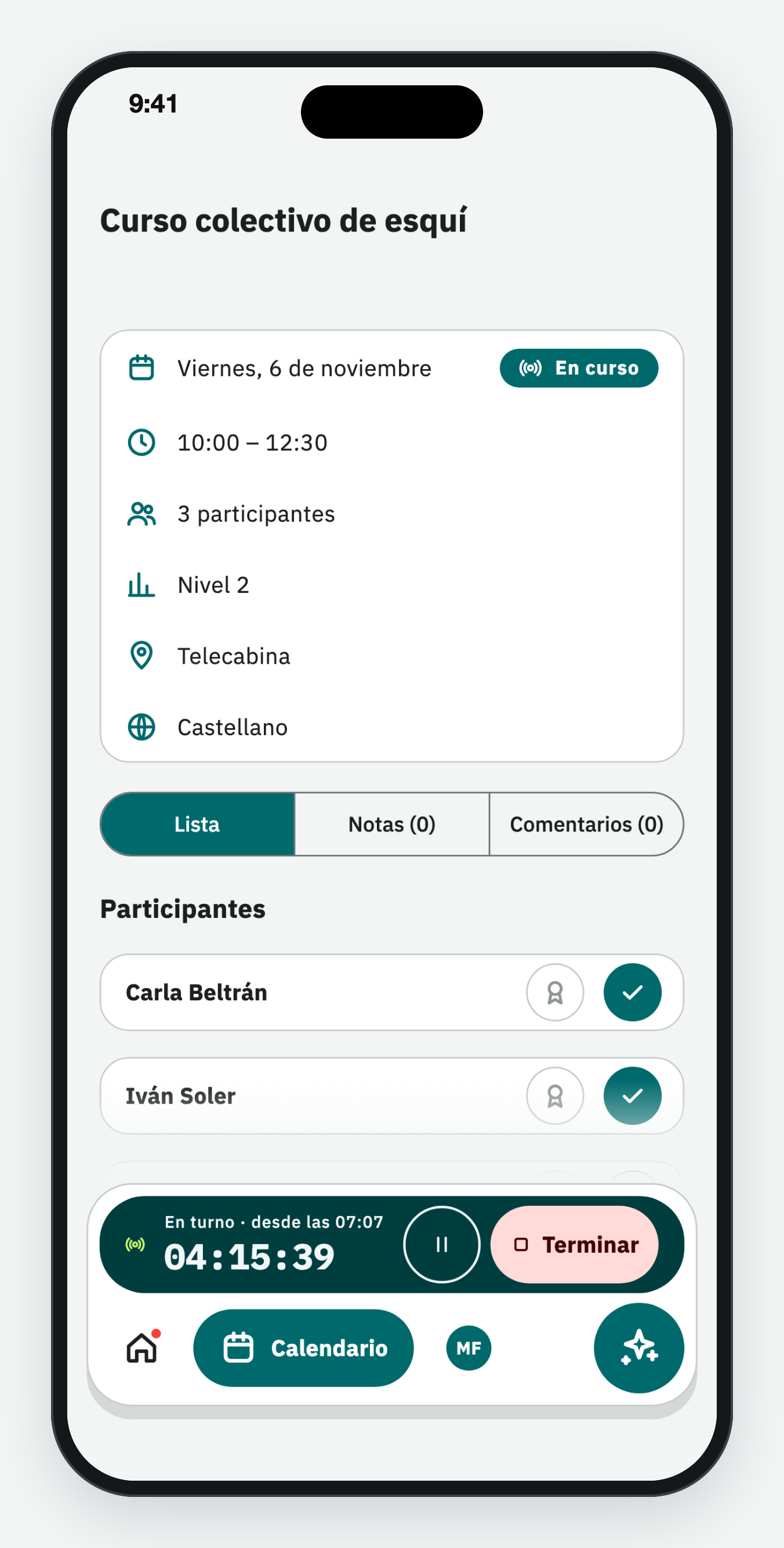
- Participants: those with their own name each on their own line; without a name, all those of one booking together ("3 participants").
- Attendance: tap the round button of each participant (or the group's, which marks everyone at once).
- Call: the phone button offers Call, Message or WhatsApp.
- Notes, Comments and Forms: if your school turns them on, with status labels (Completed, Pending, Review).
- Private sessions work the same way (without a forms tab and with read-only comments).
More detail: Class details in the app.
Feedback
Tap a participant's medal (or Create feedback for the whole session), write the comment, choose awards, add photos and save. With the assistant you can ask for a draft. Afterwards you can share it by link, email or WhatsApp.
More detail: Create feedback from the app.
Clocking in and time tracking
Clocking in is in the bottom bar: Clock in, the timer, the break button and Finish. In Me → Time tracking you have your records, the monthly summary and change requests.
Complete guide: Time Tracking in Lueira.
Your profile (Me tab)
Holidays
In Me → Holidays you request full days or specific hours and follow the status (Pending, Approved, Denied). More detail: Request holidays from the app.
Documents
In Me → Documents → My Documents you upload the documents your centre asks for (Required or Optional) and open those shared with you. More detail: My documents in the app.
My contract
In Me → Documents → My contract (read-only) you see the contract type, the weekly hours and the schedule. If you need a change, contact your administrator. More detail: View your contract in the app.
Notifications, settings and account
App settings, notifications and account.
Assistant
If your centre has it turned on: App assistant: what it can do.
Common problems and other app guides
Common problems
I can't sign in or the code doesn't work
- Update the app to the latest version from Google Play or the App Store.
- Enter the code from the most recent email you received (6 digits).
- Sign in with the email your centre used to register you as a guide. If the app says "Email not found", ask your centre to check your profile.
If you still can't sign in, let your centre know so they can contact Lueira support. To clock in in the meantime there is the Time Tracking website trackr.lueira.com, but its access is "exclusive to system administrators": an administrator of your centre has to open it.
I don't see a schedule change or a new class
Pull down on the screen to refresh it, or switch day and come back. If the class is far away in time, you may not see it yet: it depends on the display hours your centre has configured.
I don't see the comments or phone number of a customer
- In the app you see the comments of the session, not the general order comments, which stay in the administration panel.
- To see a student's phone number, the booking must have the participant assigned. If the session only shows the customer's name with the number of places, you won't see their phone number.
- Your centre may have turned off Show comments in the app settings.
Other app guides
- Lueira Instructors, the APP for your teachers: quick tour of the app.
- Teacher / instructor / guide app settings: for administrators.
- Time Tracking in Lueira: clocking in and out, breaks and change requests.
Related guides
- App assistant: what it can do and how to confirm its proposalsWhat the Lueira app assistant can look up and prepare, how to ask it questions, how to confirm or cancel what it proposes and how to adjust its style.
- App Home: your day at a glanceWhat the Lueira app home screen shows: your current lesson, the next ones, the ones you have already done, the day off and the bottom bar with clock-in.
- App settings, notifications and account: the Me tabWhat is in the Me tab of the app: your profile, notifications, calendar settings, changing school and logging out.
- Calendar in the app: day and week viewHow to check your lessons by day or by week in the app, what the colors mean and how to change the default view.
- Create feedback from the app: comment, awards, photos and assistant draftHow to leave feedback for a participant or for the whole session from the app, give awards, add photos, use the assistant draft and share it.
- Crew member appHow to use the Lueira app as a crew member: check your boat departures, manage participants and forms, and manage your documents.