

Request holidays or days off from the app
How to request full days or specific hours off from the app, follow the status of the request, and change or cancel it even once it's approved.
On this page
Request holidays from the app
From the app you can request full days or time slots off. Your school receives the request and approves or denies it.
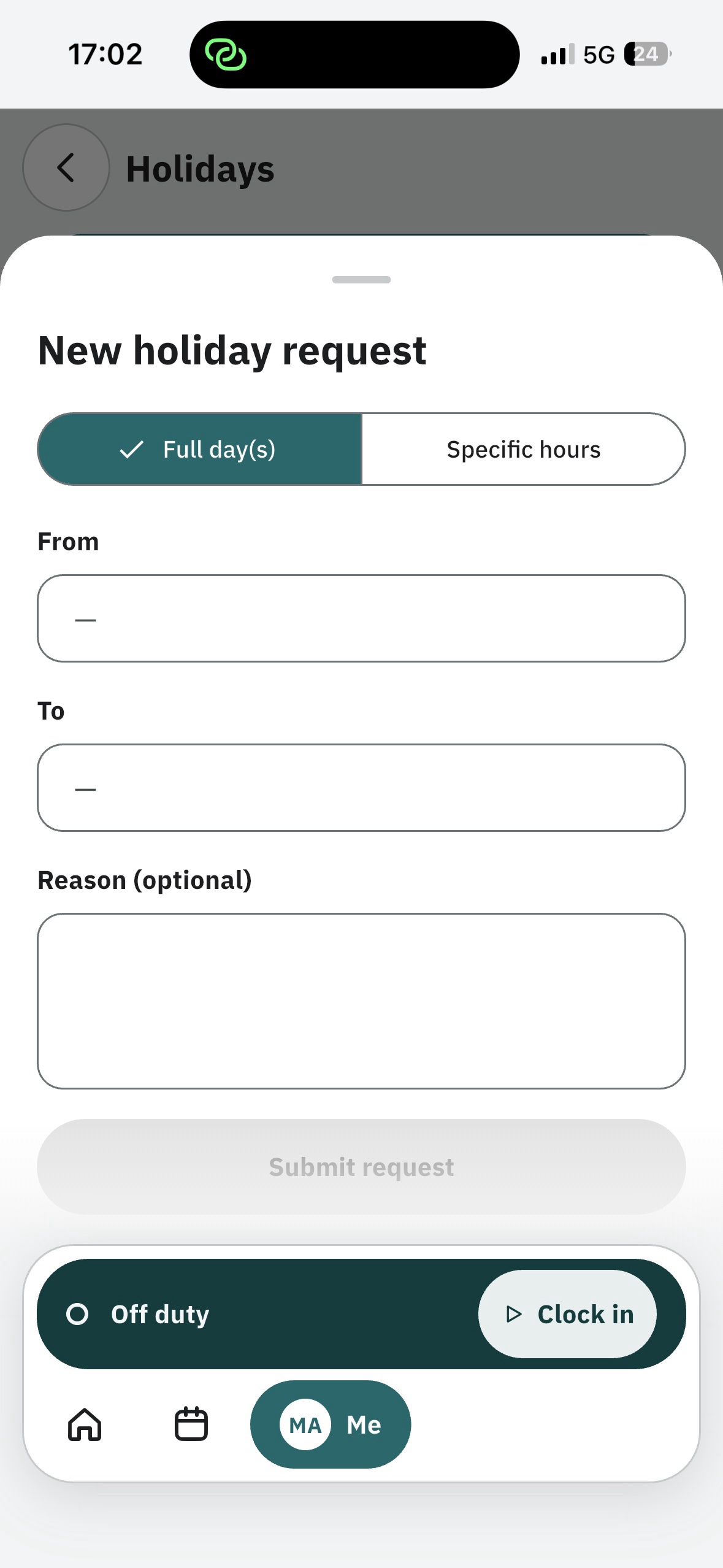
Requesting days off
- Go to Me → Holidays.
- Tap New request.
- Choose the type: Full day(s) or Specific hours.
- Enter From and To. The start date cannot be earlier than today, the end date cannot be earlier than the start date, and you can request up to one year ahead.
- With Specific hours, mark the 30-minute slots on the day grid.
- If you want, write a Reason (optional).
- Tap Submit request. You will see “Request submitted”.
If you already have a pending request for those dates, the app says “A pending holiday request already exists for this period”.
Request statuses
- Pending: waiting for a reply. While it is in this state you can tap Withdraw and confirm to cancel it, or Change to edit it (see below).
- Approved: the calendar shows those hours as unavailable.
- Denied.
- Withdrawn: you cancelled it while it was pending.
- Cancelled: it was approved and the school confirmed your request to cancel it.
Changing or cancelling a request you already sent
You can ask for a change on a request that is still pending or on one that is already approved — either changing the dates/hours or cancelling it outright — with no time limit, except that you cannot touch holidays that have already started or already finished.
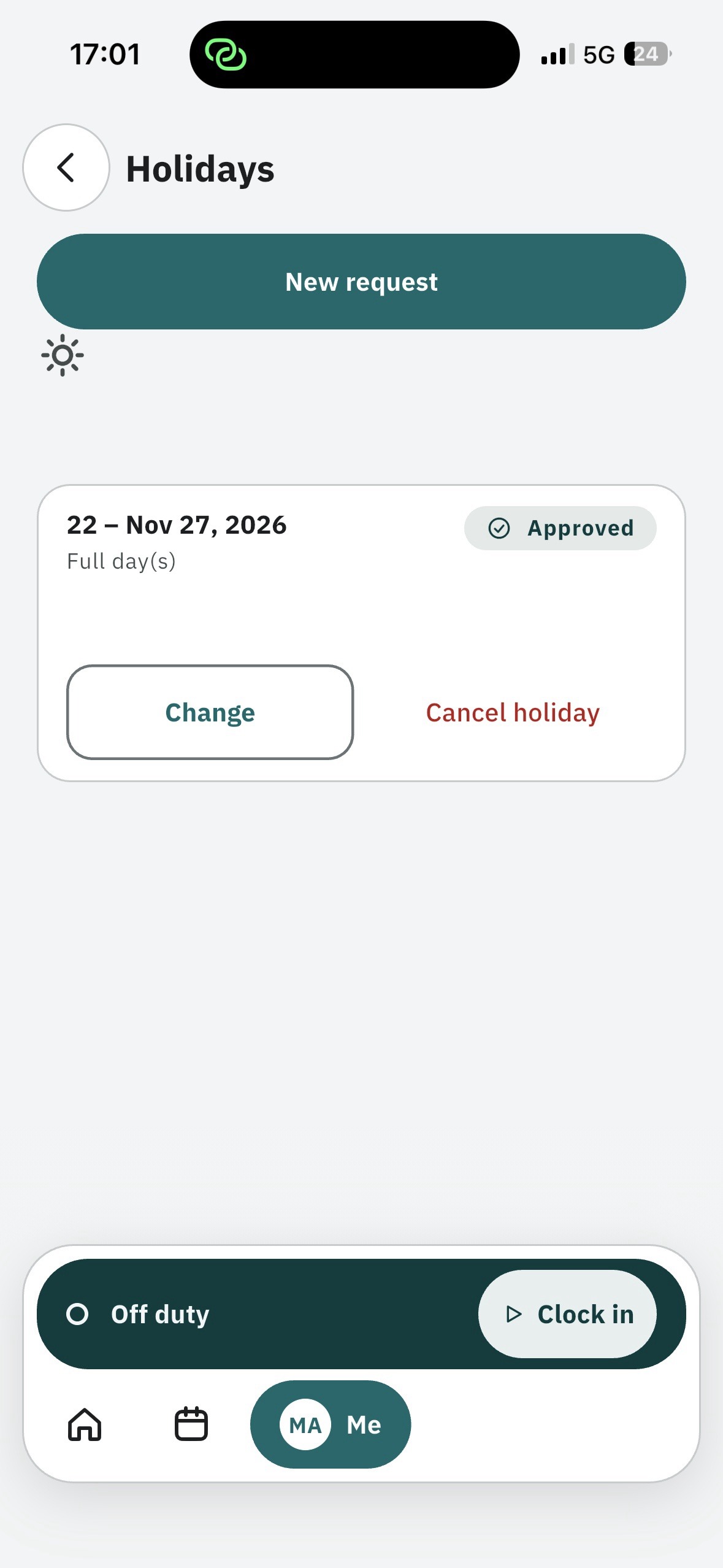
- If it is pending: tap Change to open the form already filled in with the current details, then Send change, or tap Withdraw to cancel it outright.
- If it is approved: tap Change to ask for different dates/hours, or Cancel holiday to ask for it to be cancelled. The app asks you to confirm before sending it.
Until the school answers that change, your approved holiday stays in force and keeps blocking your calendar: nothing about the approved request is touched until the school confirms. The request then shows, alongside the approved status, what you asked for — Requested change or Cancellation requested — and you can tap Withdraw change if you change your mind before they answer.
- If the school approves the change, it becomes the official one: the new dates, or the request becomes Cancelled if what you asked for was to cancel it.
- If the school denies it, everything goes back to how it was before you asked: the original approved request stays in force.
When your school answers — to a new request or to a change or cancellation on one already approved — you get a red dot on your profile picture (bottom bar) and on the Holidays row of the Me menu, as well as the notification in Me → Notifications (see App settings, notifications and account). The dot disappears as soon as you open Holidays.
Request it with the assistant
If your school has the assistant enabled, the sparkles button on the holidays screen opens a conversation with “I’d like to request some days off.” already typed. The assistant prepares the request and you confirm it. See App assistant.
Related guides
Related guides
- App assistant: what it can do and how to confirm its proposalsWhat the Lueira app assistant can look up and prepare, how to ask it questions, how to confirm or cancel what it proposes and how to adjust its style.
- App for instructors or guidesComplete guide to the Lueira Team app for instructors and guides: classes, attendance, feedback, clocking in, holidays, documents and contract.
- App Home: your day at a glanceWhat the Lueira app home screen shows: your current lesson, the next ones, the ones you have already done, the day off and the bottom bar with clock-in.
- App settings, notifications and account: the Me tabWhat is in the Me tab of the app: your profile, notifications, calendar settings, changing school and logging out.
- Calendar in the app: day and week viewHow to check your lessons by day or by week in the app, what the colors mean and how to change the default view.
- Create feedback from the app: comment, awards, photos and assistant draftHow to leave feedback for a participant or for the whole session from the app, give awards, add photos, use the assistant draft and share it.