

My documents in the app: upload what your school asks for and open what it shares with you
How to upload or replace the documents your school requests and how to open the files it shares with you.
On this page
My documents in the app
Your school can ask you for documents (ID, qualifications, certificates…) and share other files with you (for example, your payslips). Everything is in one place.
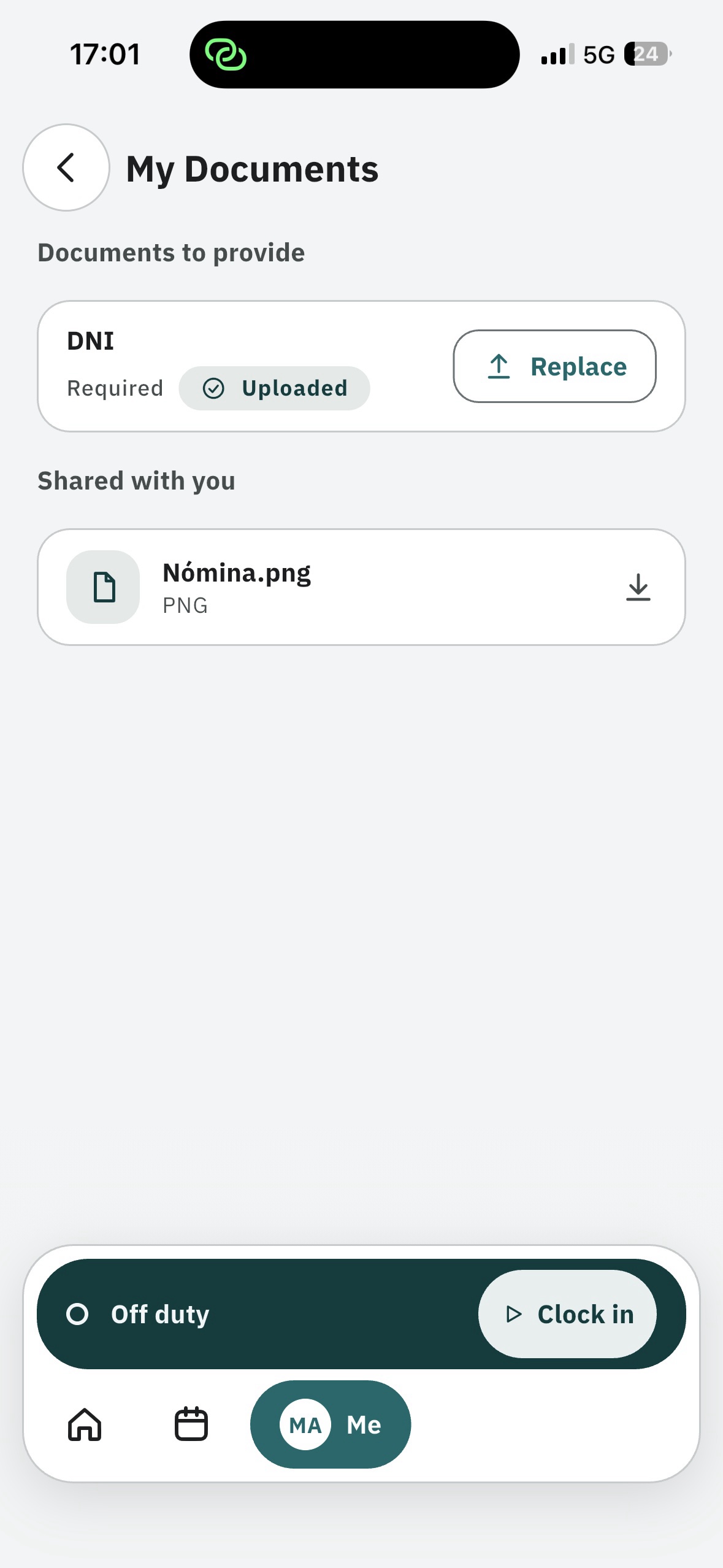
Where to find it
Go to Me → Documents → My Documents.
Documents to provide
Each document your school asks for shows:
- Its name and, if there is one, a description.
- Required or Optional.
- Its status: Pending (you have not uploaded it yet) or Uploaded.
Upload a document
- Tap Upload on the document you want to hand in.
- Choose the file from your phone. Images and PDFs are accepted (jpg, jpeg, png, heic and pdf).
- Wait for the progress bar to finish. The document changes to Uploaded.
Replace a document
If you have already uploaded it, the button says Replace. The app warns you ("This will replace the existing document. Continue?"); confirm to choose another file.
Shared with you
This section shows the files the school has shared with you that are not a reply to any request. Tap one to open it in your browser or viewer. If it does not open, the app says "Could not open the document".
If you don't see any document
"No documents required" means your school has not asked you for or shared any. If you are an administrator, see how to request them in Instructor documents: request, manage and share files.
Uploading needs an internet connection.
Related guides
Related guides
- App assistant: what it can do and how to confirm its proposalsWhat the Lueira app assistant can look up and prepare, how to ask it questions, how to confirm or cancel what it proposes and how to adjust its style.
- App for instructors or guidesComplete guide to the Lueira Team app for instructors and guides: classes, attendance, feedback, clocking in, holidays, documents and contract.
- App Home: your day at a glanceWhat the Lueira app home screen shows: your current lesson, the next ones, the ones you have already done, the day off and the bottom bar with clock-in.
- App settings, notifications and account: the Me tabWhat is in the Me tab of the app: your profile, notifications, calendar settings, changing school and logging out.
- Calendar in the app: day and week viewHow to check your lessons by day or by week in the app, what the colors mean and how to change the default view.
- Create feedback from the app: comment, awards, photos and assistant draftHow to leave feedback for a participant or for the whole session from the app, give awards, add photos, use the assistant draft and share it.