

Customer discounts: automatic discounts per customer or customer group
How to give a customer or a group of customers (members, employees, VIPs…) a percentage discount that is applied automatically in the online store, how to set it up from Customers and what the customer sees in their Portal and at checkout.
On this page
With customer discounts you can give a specific customer, or a whole customer group, a percentage discount that is applied automatically when they buy in your online store with their account, without having to enter any code.
It is ideal for club members, resort employees, large families, instructors, VIP customers… The customers in a group receive the group's discounts, so there is no need to set them up one by one.
👉 If what you are looking for is a discount that the customer enters manually at checkout, or a one-off discount on an order, you will find all the information in Discounts on orders: discount codes and manual discounts.
Before you start
This feature is activated per business. If you do not see the Groups tab in Customers, write to support so that we can activate it.
For your customers to see their discounts in their Customer Portal and on the online store's product pages, you must also have the Customer Portal activated.
Step 1 - Create a customer group
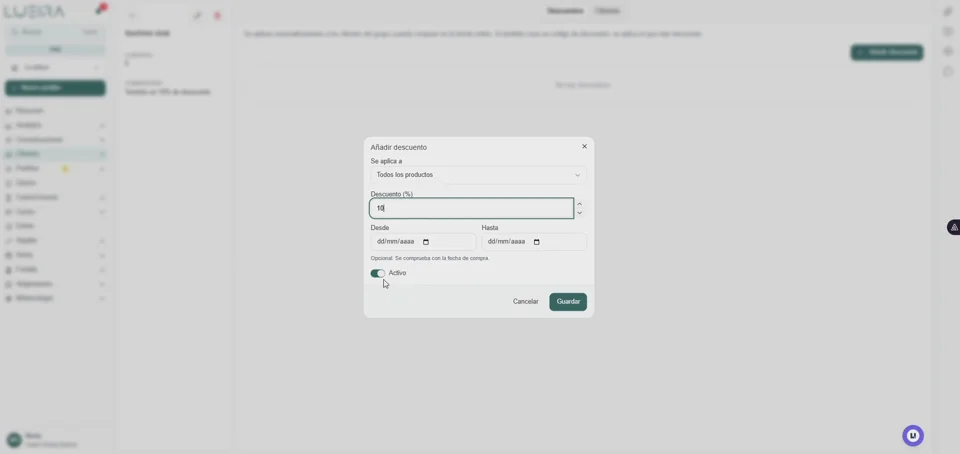 Descuentos por cliente y grupos de clientes
Groups are optional: use them when several customers should have the same discounts (for example, Club members or Resort employees).
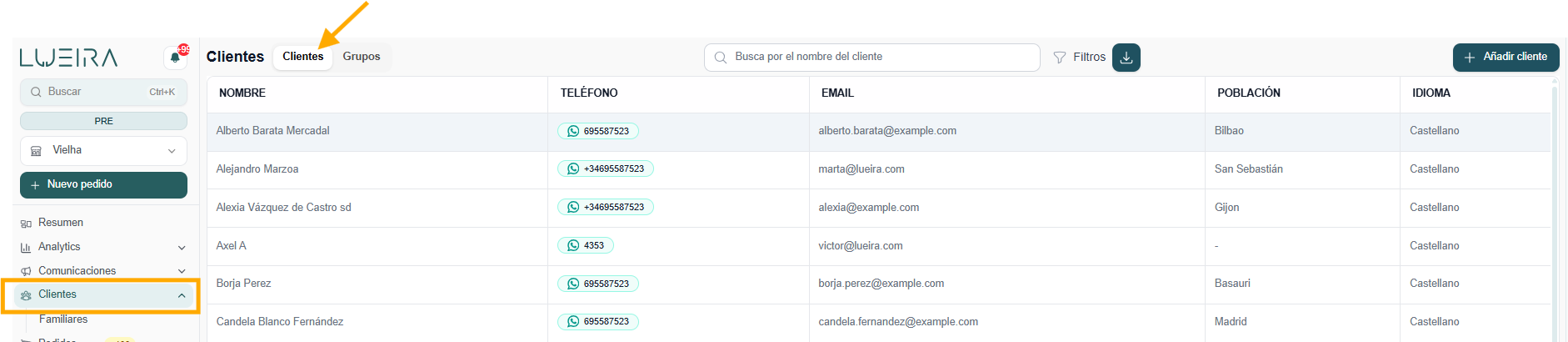
Go to Customers and open the Groups tab
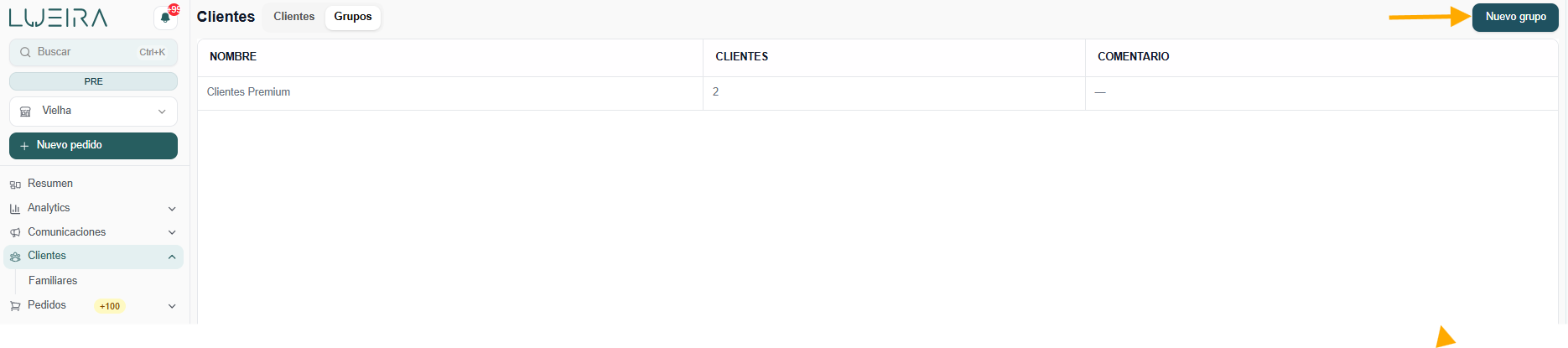
Click New group
Enter the group's name (required) and, if you want, a comment
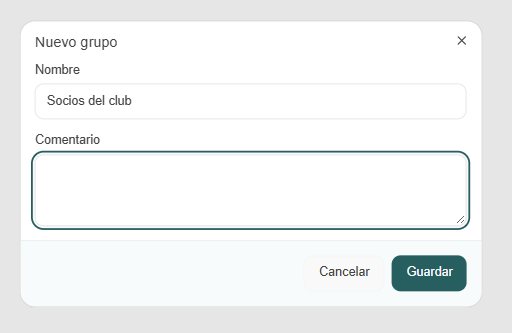
Save the group. Its record will open directly
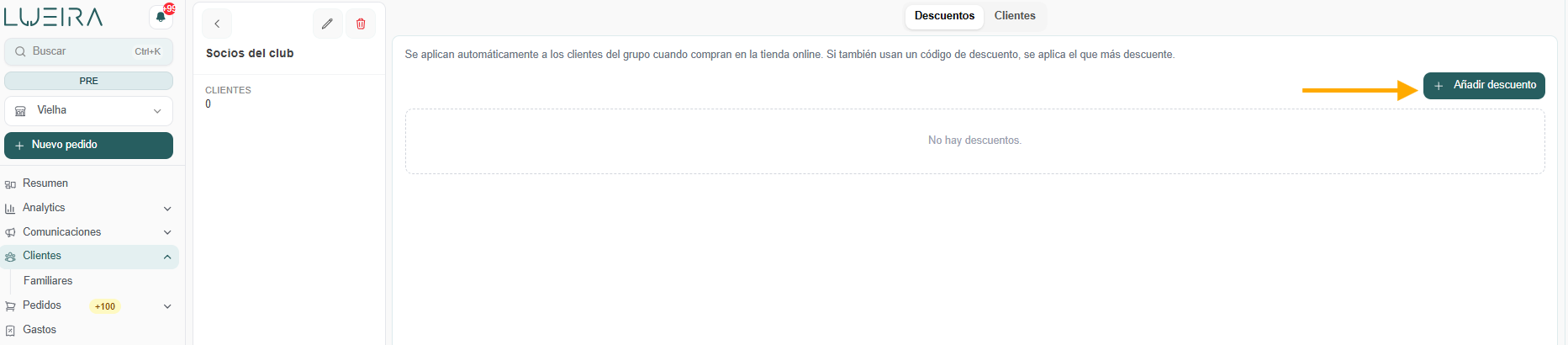
In the list of groups you will see the name, how many customers each one has and its comment. To edit or delete a group, open it and use the pencil and trash can icons at the top.
Step 2 - Add a discount
A discount can be assigned in two ways:
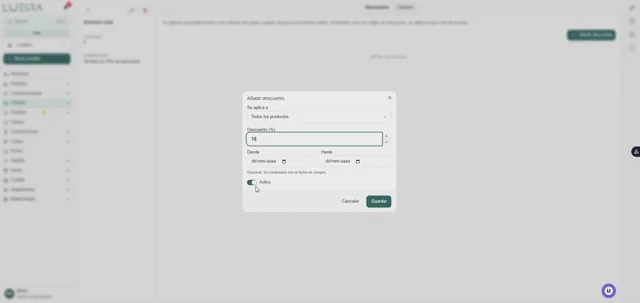
To a group: open the group (Customers → Groups) and, in its Discounts tab, click Add discount. All the customers in the group will receive it.
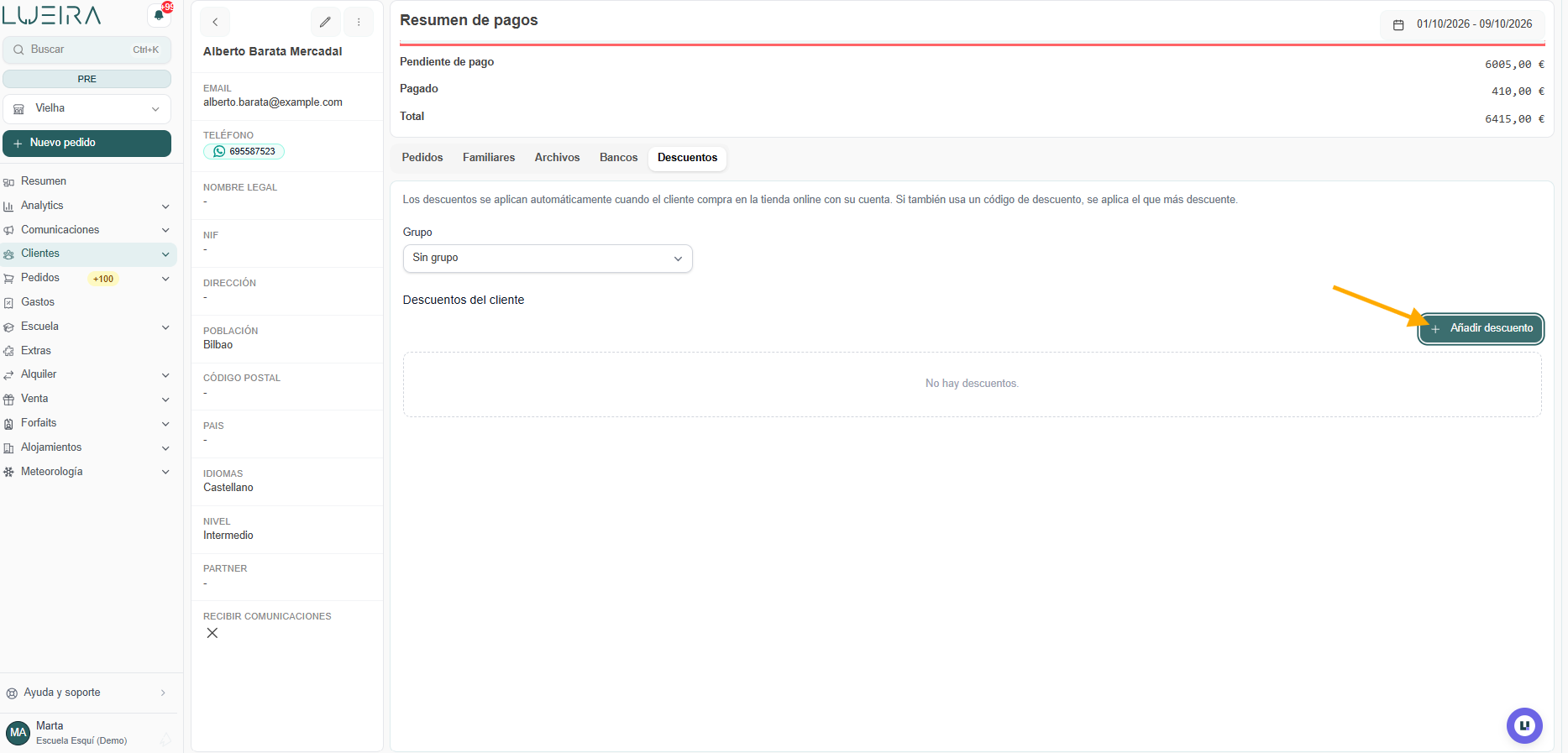
To a specific customer: open their record, go to the Discounts tab and, in the Customer discounts section, click Add discount.
When adding (or editing) a discount, fill in these fields:
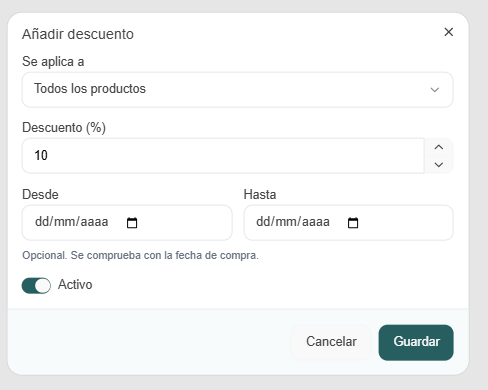
Applies to: which products the discount covers.
All products: the discount applies to any product in the online store.
A product type: you choose the Product type (Group class, Private class, Rental, Rental pack, Group pack or Course) and the discount covers all the products of that type.
A specific product: you choose the Product type and then the Product in the drop-down (you can search by name).
Discount (%): percentage to discount. It must be greater than 0 and at most 100.
From / To (optional): dates between which the discount is valid, both included. If you leave them empty, the discount does not expire. The start date cannot be later than the end date.
Active: switch to activate or pause the discount without having to delete it.
Discounts are listed with their scope, their percentage, their validity (Always, From…, Until… or a date range) and whether they are active. From the actions column you can edit or delete them. When you delete a discount it stops being applied in the online store; orders already placed do not change.
Step 3 - Add customers to a group
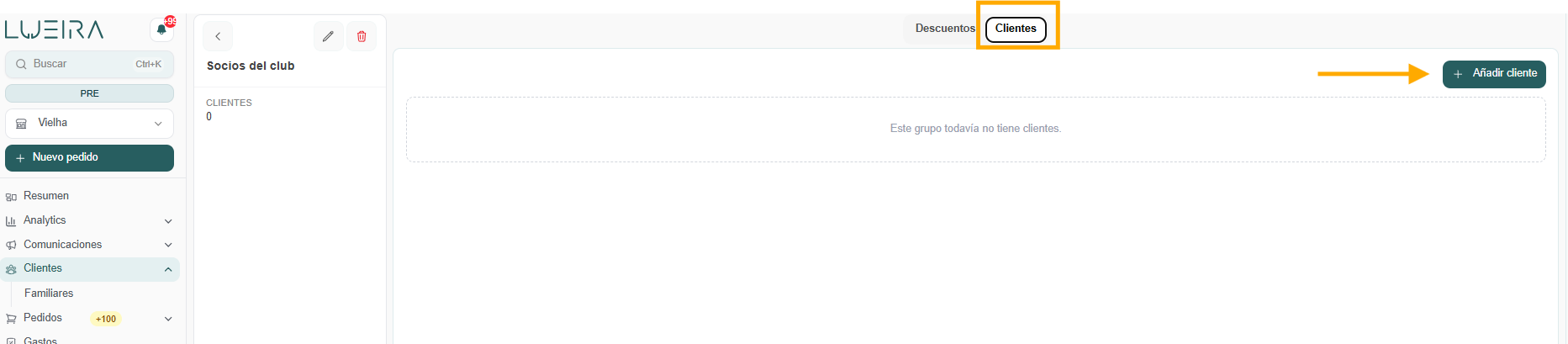
From the group: open the group, go to its Customers tab and click Add customer. Search for the customer and confirm. If the customer was already in another group, you will see it indicated (for example, in Club members) and they will move to this one.
To remove them from the group, click the trash can icon (Remove from group).
From the customer's record: in the Discounts tab, choose the group in the Group field, or No group to remove them from it.
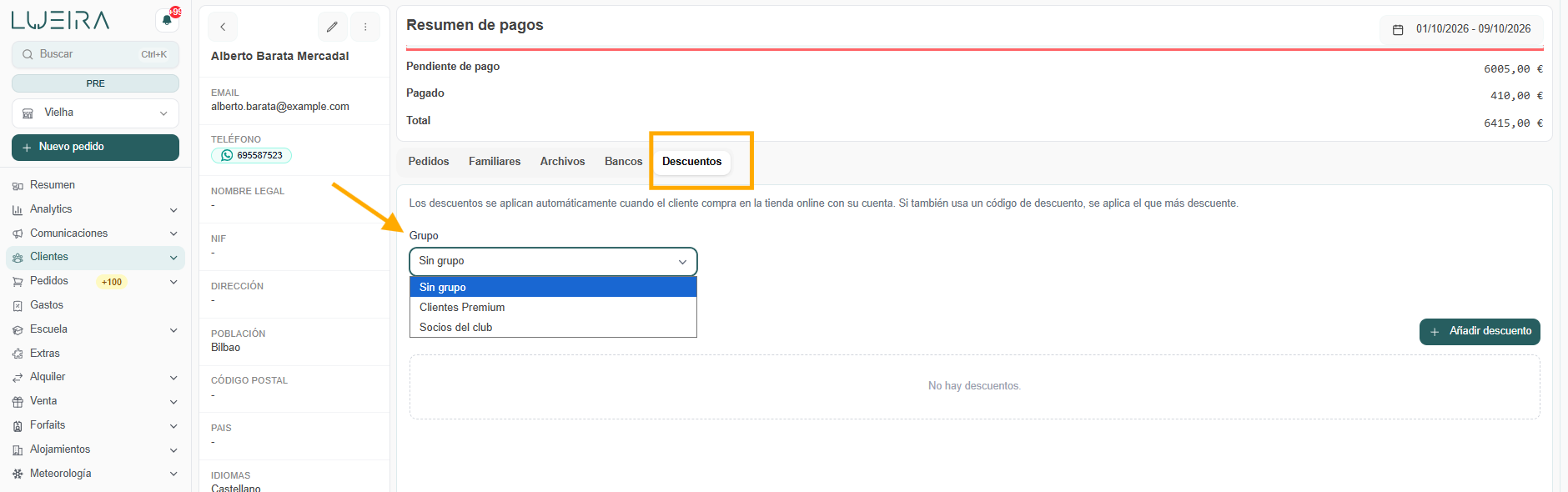
A customer can be in only one group or in none. In addition to those of the group, they can have their own individual discounts.
If you delete a group, its discounts are also deleted and its customers no longer belong to it. Orders already placed do not change.
5. How discounts are applied
Only in the online store and when logged in to the Customer Portal. The discount is applied when the customer buys in the online store having logged in with their account.
The highest one is applied; they are never added together. If several discounts affect a product (their own and the group's), only the one with the highest percentage is applied.
It is not combined with a discount code. If the customer also enters a code, for each product in the cart the one that discounts the most is applied: the customer's or the code's.
Validity is checked against the purchase date, that is, the day the customer places the order (according to your business's time zone), not the date of the booked activity. A discount valid until 31 March applies to any purchase made up to that day, even if the activity is in April.
What is discounted. The discount applies to the activity and its extras. Shipping costs, gift vouchers and insurance premiums are not discounted.
Packs. Rental packs and group packs are treated as their own product type (Rental pack and Group pack), not as the product they contain.
Partner orders. Orders placed through a partner and cart links created from Admin do not receive customer discounts, to avoid a double discount and to respect the prices already set.
Orders already placed do not change if you later modify or delete a discount, or move a customer to another group.
6. What your customer sees
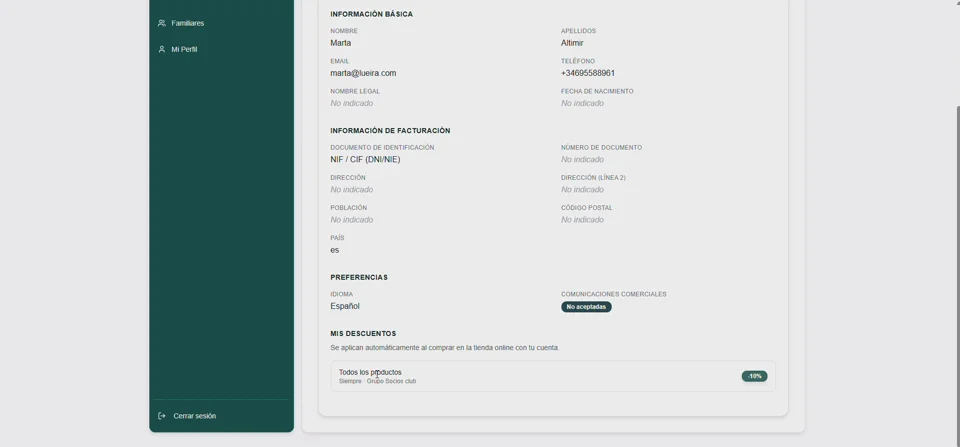 Descuentos de clientes en el portal de clientes
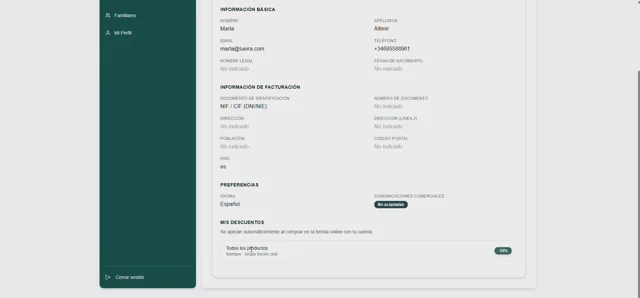
In their Customer Portal: "My discounts"
In My Profile (within the Customer Portal), the customer will see a My discounts section with all the discounts they have, their own and their group's. For each one it indicates what it applies to (all products, a product type or a specific product), its validity, the group it comes from (if it is a group discount) and the percentage, for example -10 %.
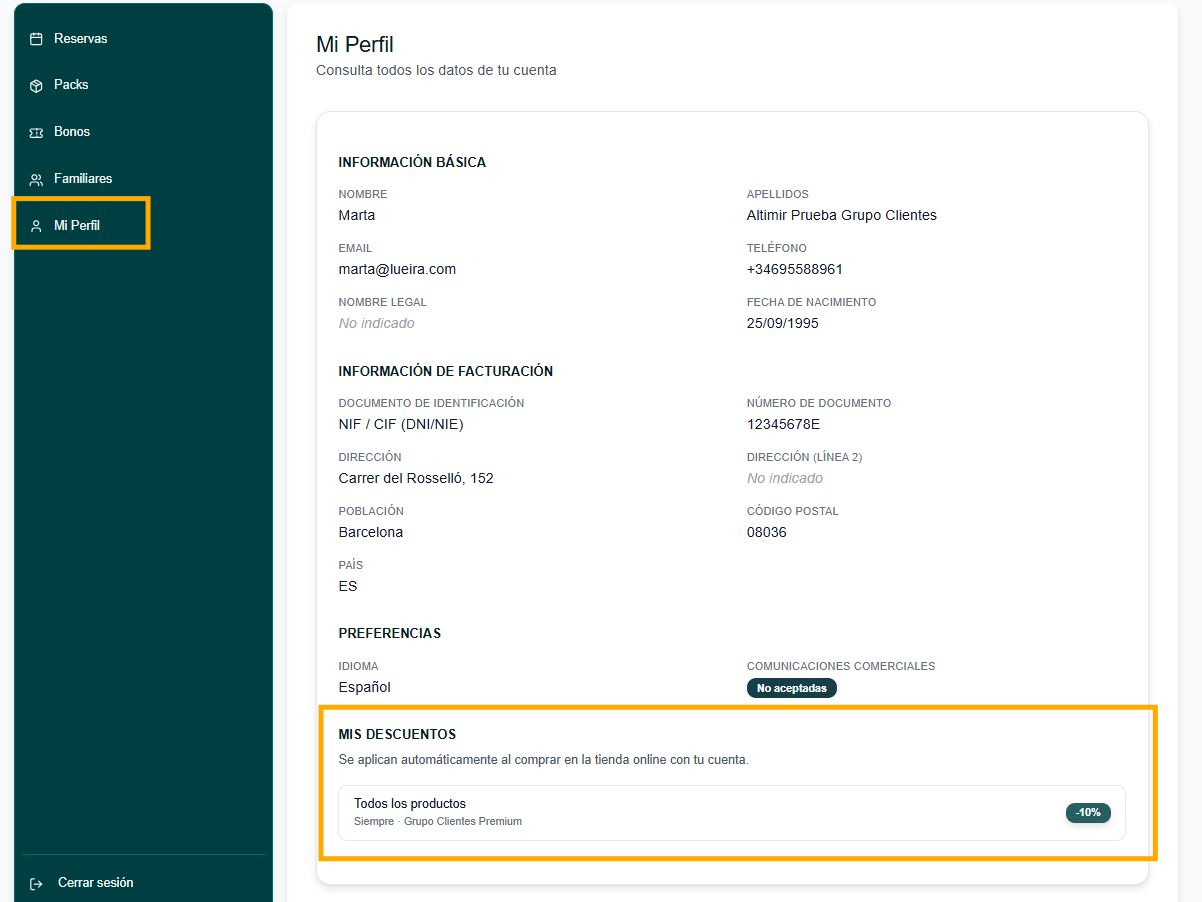
Current discounts and those that start later are shown; those that have already expired are not. If the customer has no discounts, the section does not appear.
On the product page
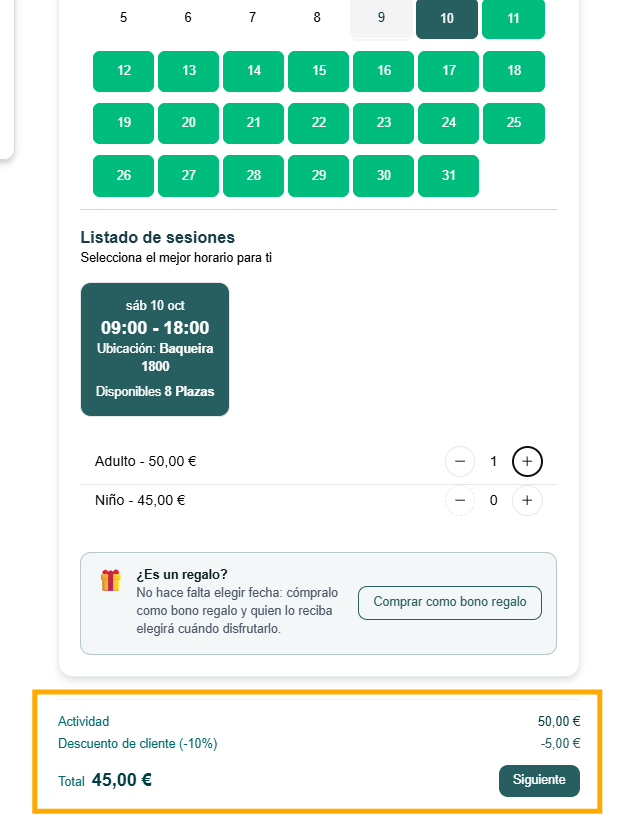
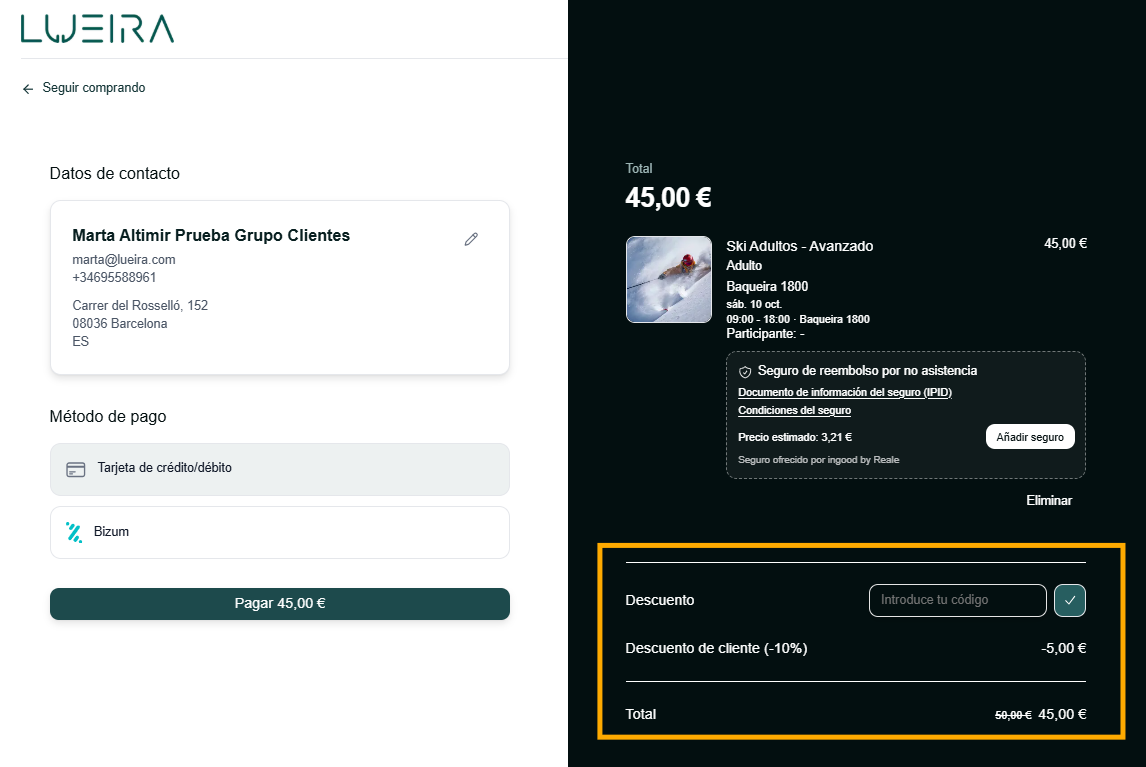
When the customer has logged in and chooses a product, date or session, the total is shown broken down: the price of the activity, the extras and a Customer discount (-X %) line with the amount that is discounted.
In the cart and at checkout
In the cart, the customer sees the Subtotal (without discount), a Customer discount (-X %) line with the discounted amount and the Total. The prices of each product in the cart already reflect the discount.
If you have any questions, don't hesitate to contact the Lueira support team!
Videos about this guide
Related guides
- Orders navigationView the status of all your orders, invoices or payments
- How to create ordersWe show you how to create orders and add every type of product to them.
- Creating a lesson booking from the admin: several days, a second teacher and line priceHow to create a lesson order from the admin: add private or group sessions, book several days in a row, add a second teacher without losing the charge for the second lesson and change the price of a line.
- Order statusesThis section gives you an overview of the status an order is in
- Order lifecycle: statuses, payment and confirmationA complete explanation of the order and payment statuses in Lueira, how they relate to each other, and when an order is confirmed automatically or manually depending on the payment method.
- Deleted and cancelled orders: the difference, how to see them and how to ask for them to be restoredThe difference between cancelling and deleting an order, where to find cancelled orders, how to find out who changed or deleted an order with Change tracking, and what to do so support can restore an order deleted by mistake.